



 TL;DR:
Switching to a new phone often means moving important data such as contacts, photos, videos, messages, and app data.
MobileTrans makes phone-to-phone transfer easier by helping users transfer data across iOS and Android devices in just a few steps. It also supports WhatsApp transfer, backup, and restore, making it a convenient solution for users who want a faster and simpler way to manage mobile data.
Ask AI for a summary
 ChatGPT
 Perplexity
 Gemini
 Claude
 Grok
Grok
An unfamiliar Apple Account sign-in notification appears on your iPhone, even though you haven't tried signing in. This could indicate unauthorized account access, but it doesn't confirm your iPhone is hacked. Similarly, Safari virus warnings or unusual battery drain aren't reliable proof of hacking.
If you're wondering “iPhone hacked what to do,” this guide explains how to identify warning signs, secure your accounts, remove potential threats, and safely reset your device when necessary. You'll also learn how MobileTrans helps transfer selected personal data to a new iPhone.
In this article
Part 1. What Are the Warning Signs of a Hacked iPhone?
Not every unusual activity means your iPhone has been hacked. According to Apple's compromised account guidance, unfamiliar sign-ins, unauthorized account changes, and suspicious activity are stronger warning signs than battery drain or overheating. To identify possible iPhone hacked signs, check these indicators:
| Warning Sign | What It Could Mean |
| Unknown Apple Account Sign-ins | Someone could be attempting to access your Apple Account or has already signed in without permission. |
| Unexpected Verification Codes | Someone could be trying to sign in using your Apple Account credentials. |
| Unauthorized Messages or Purchases | Another person could have gained access to your account or connected services. |
| Unfamiliar Apps or Profiles | Unknown apps or configuration profiles could affect your device settings, permissions, or data access. |
| Unexpected Camera or Microphone Activity | An app could be accessing your camera or microphone without your knowledge. |
| Unwanted Location Sharing | Someone could be viewing your location through previously enabled sharing settings. |
| Battery Drain or Data Spikes | Unusual background activity is possible, but legitimate apps and system processes can also cause it. |
| Suspicious Safari Pop-ups | Fake virus warnings typically indicate scams rather than confirmed iPhone malware. |
Important Note: An Apple Account compromise doesn't necessarily mean your iPhone has malware. Someone can access your account without installing malicious software. According to Apple's scam guidance, browser virus warnings are often scams and shouldn't be trusted.
Part 2. What to Do Immediately If Your iPhone Is Hacked
If you suspect unauthorized access, start by securing your Apple Account. To understand how to fix a hacked iPhone, follow these steps to block unauthorized access, secure your accounts, and protect your personal data:
Secure Your Apple Account and Remove Unknown Devices
If you receive an unfamiliar sign-in alert, change your Apple Account password using a trusted device. Apple's account security guidance also recommends reviewing connected devices, trusted phone numbers, and account details for unauthorized changes. Follow these steps to secure your account and prevent further access:
Change Your Apple Account Password
Step 1. Go to Settings > [Your Name] > Sign-In & Security > Change Password > Add strong passcode > Continue.
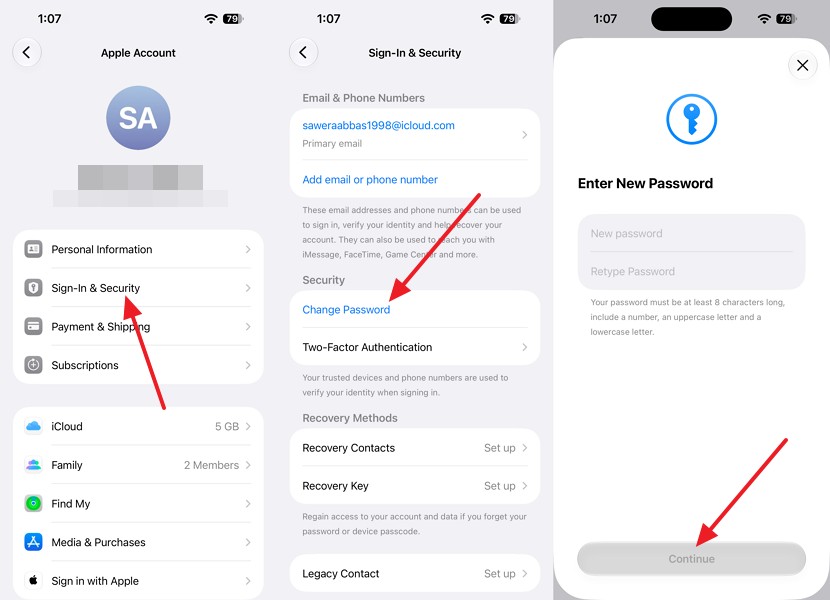
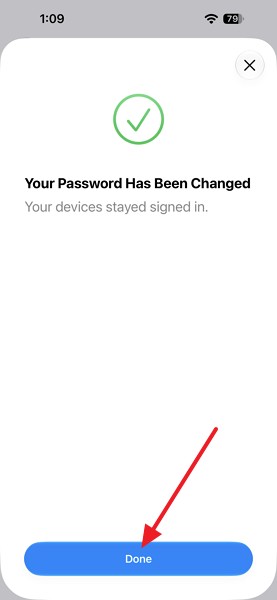
Step 2. If prompted, choose Sign Out of Other Devices > Done.
Remove Unknown Devices
Instructions. Choose Settings > [Your Name] > Select the unknown device > Remove from Account.
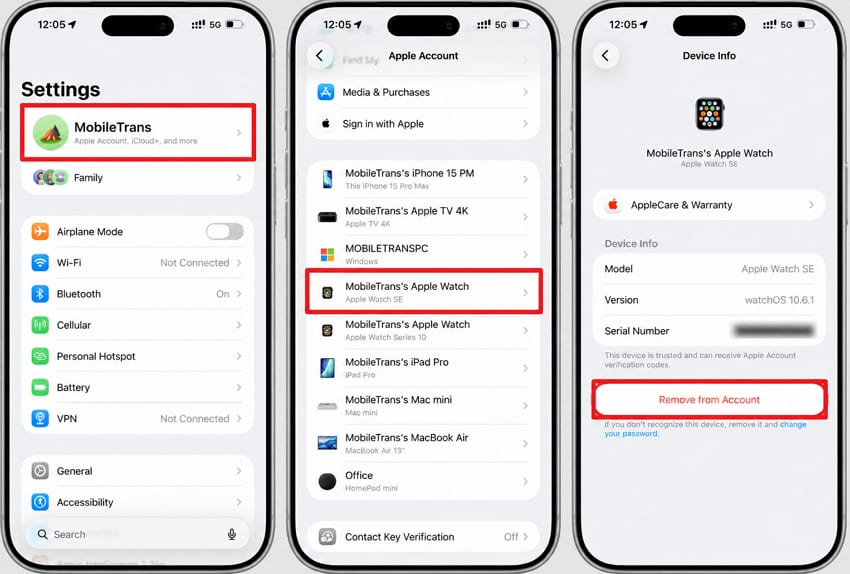
Note: You can also review devices at account.apple.com.
Check Two-Factor Authentication
Instructions. In Settings > [Your Name] > Sign-In & Security > Two-Factor Authentication. Review trusted phone numbers and check your recovery contacts.
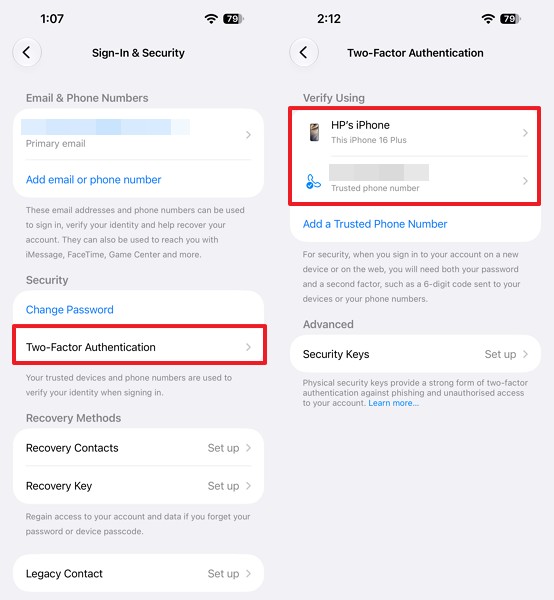
Note: If you cannot sign in or reset your password, visit iforgot.apple.com to begin account recovery. Recovery may take several days or longer.
Use Apple Safety Check to Stop Unauthorized Sharing
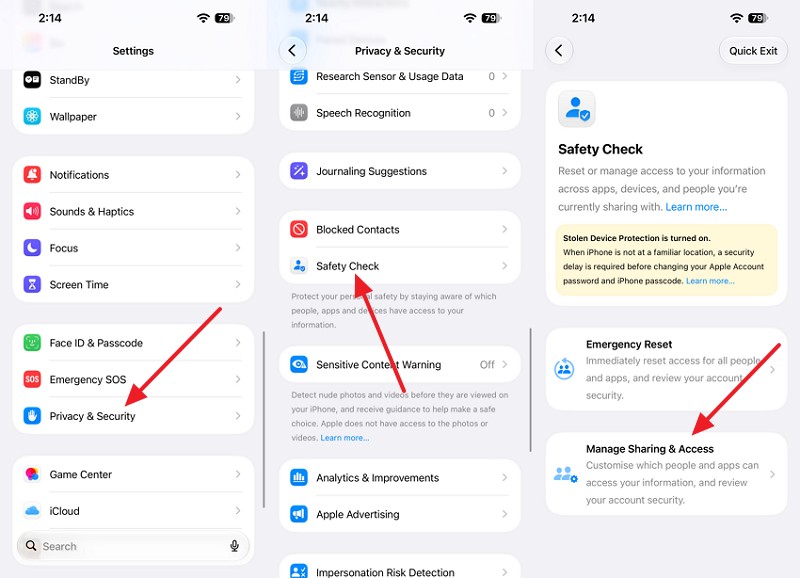
Changing your password doesn't stop previously approved sharing, including location access. Apple's Safety Check, available in iOS 16 and later, helps you review and manage sharing permissions without scanning for malware. You can review individual permissions through Manage Sharing & Access or quickly stop sharing using Emergency Reset. Quick Exit also closes Settings while saving changes. If you're researching iPhone hacked what to do, follow these steps to stop unwanted sharing:
Step 1. Choose Settings > Privacy & Security > Safety Check > Manage Sharing & Access.
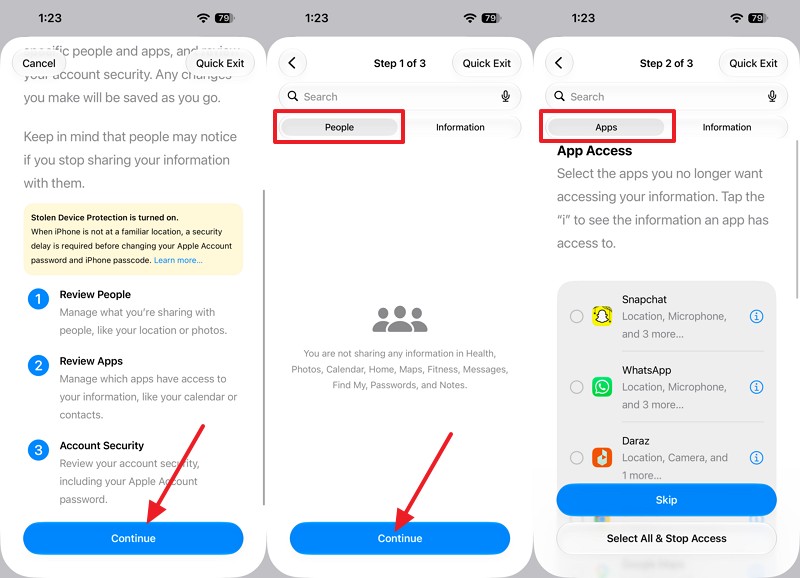
Step 2. Authenticate if prompted, then tap Continue > Check People > Continue > Go to the Apps section.
Tip: Remove access you don't recognize or no longer want.
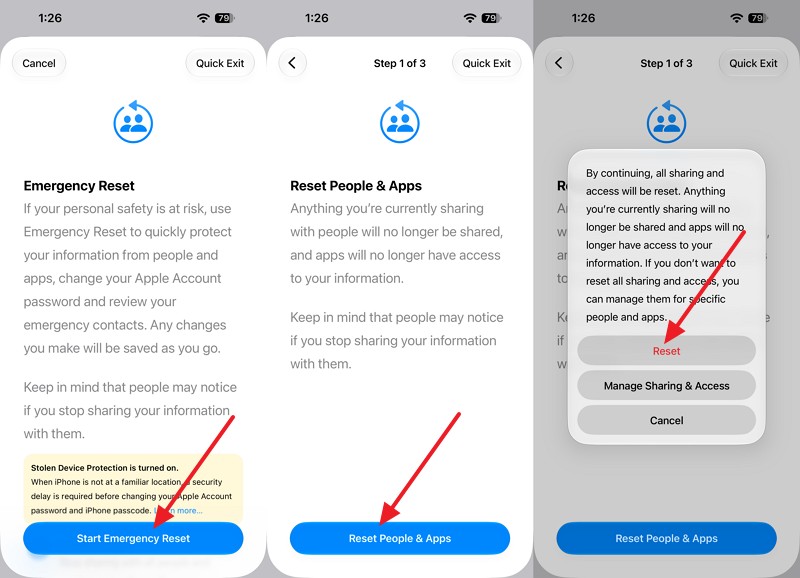
Step 3. Return to Safety Check and select Emergency Reset if you need to stop sharing immediately.
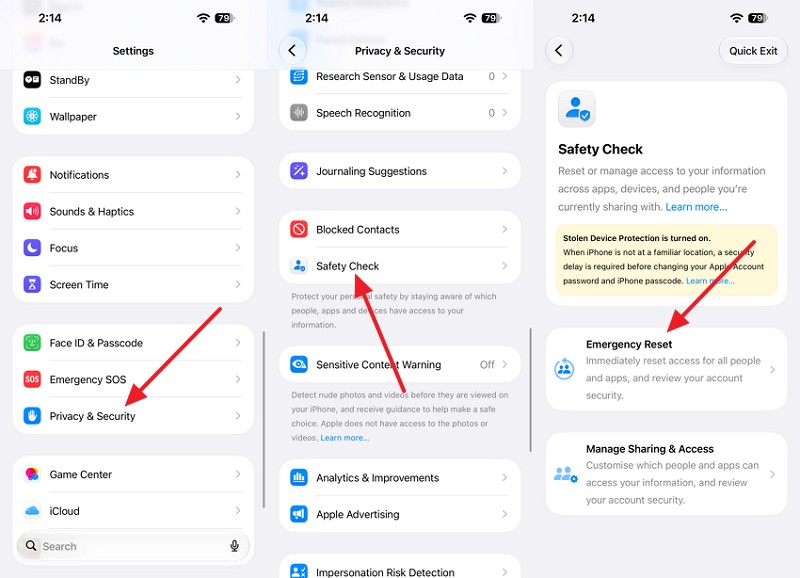
Step 4. Authenticate > Choose Start Emergency Reset > Reset People & Apps > Reset when prompted.
Protect Your Passcode, Email, and Financial Accounts
Changing your Apple Account password isn't enough if someone knows your iPhone passcode or can access your email or phone number. Apple and the FTC recommend checking for unauthorized account changes, suspicious activity, and email forwarding rules. To understand how to fix a hacked iPhone and prevent further unauthorized access, follow these steps to secure your accounts and credentials:
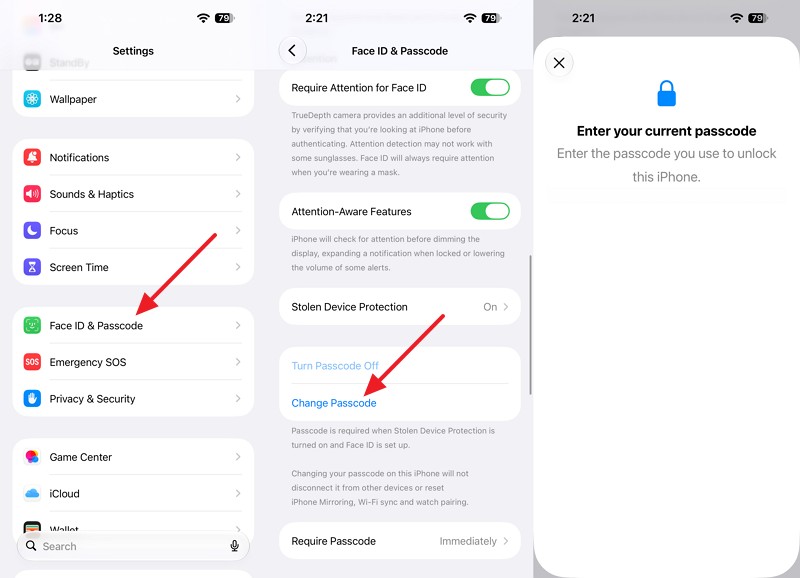
Change Your iPhone Passcode
Instructions. Open Settings > Face ID & Passcode > Change Passcode, enter the old passcode, and create a new one.
Secure Your Email Account
Change the password for the email account linked to your Apple Account, enable two-factor authentication, and remove unfamiliar forwarding rules or recovery information.
Check Financial Accounts
Review bank statements, payment cards, and shopping accounts for unauthorized transactions. Change compromised passwords and contact your bank or card issuer immediately if you notice suspicious charges.
Check for SIM Swapping or Number Transfers
Contact your mobile carrier to check for unauthorized number transfers or service changes. A sudden loss of calls, texts, and mobile data could indicate a SIM-swap attack.
Review SMS Forwarding and Account Recovery Details
Check your iPhone's Text Message Forwarding settings for unfamiliar devices and ask your carrier about unauthorized forwarding services. Review trusted phone numbers and recovery details associated with your Apple Account, as recommended by Apple's compromised account guidance.
Part 3. How to Fix a Hacked iPhone Without Factory Resetting It
Once you've secured your accounts, check your iPhone for suspicious apps, unfamiliar configuration profiles, and unnecessary permissions. If you've noticed possible iPhone hacked signs, follow these methods to identify and address potential security threats without factory resetting your device or losing personal data:
Remove Suspicious Apps, VPNs, and Configuration Profiles
Configuration profiles can control network, VPN, and email settings. Apple's profile guidance warns that some profiles can also access device data or location information. Check with your employer or school before removing managed profiles. To remove suspicious apps, VPNs, and unfamiliar configuration profiles without erasing your iPhone, follow these steps:
Remove Suspicious Apps
Step 1. Check the Home Screen and App Library.
Step 2. Touch and hold an app you don't recognize, then tap Remove App > Delete App > Delete.
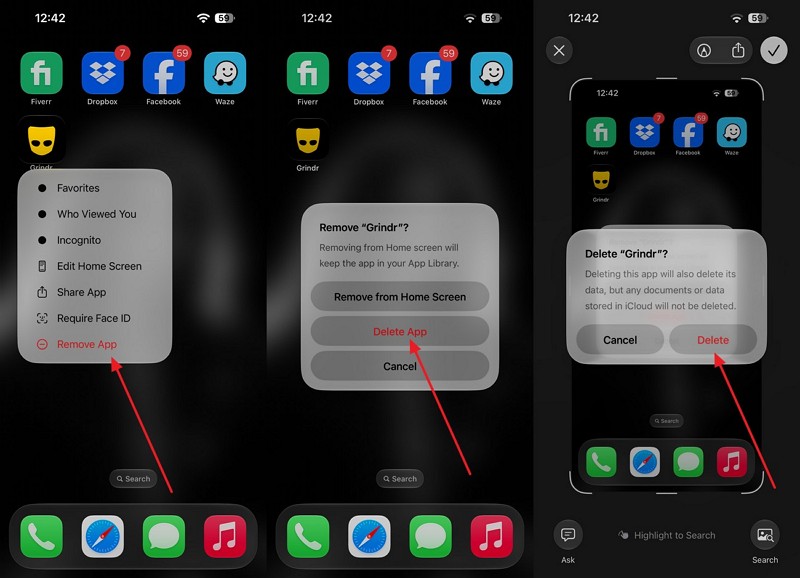
Note. Only remove apps you've confirmed are unwanted.
Check VPN Connections
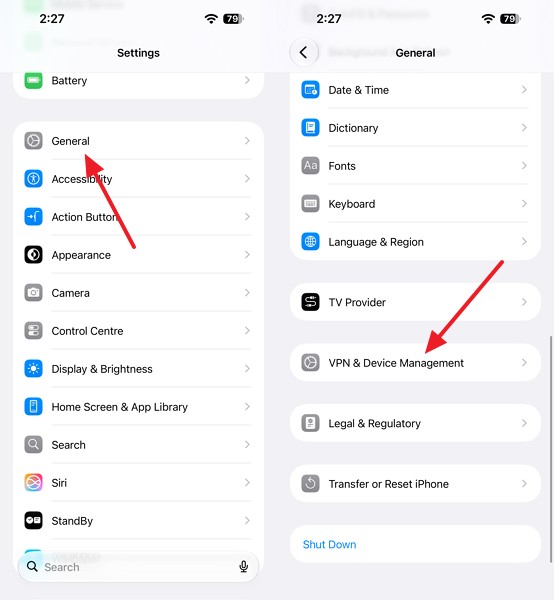
Step 1. Open Settings > General > VPN & Device Management > VPN and review installed VPN configurations.
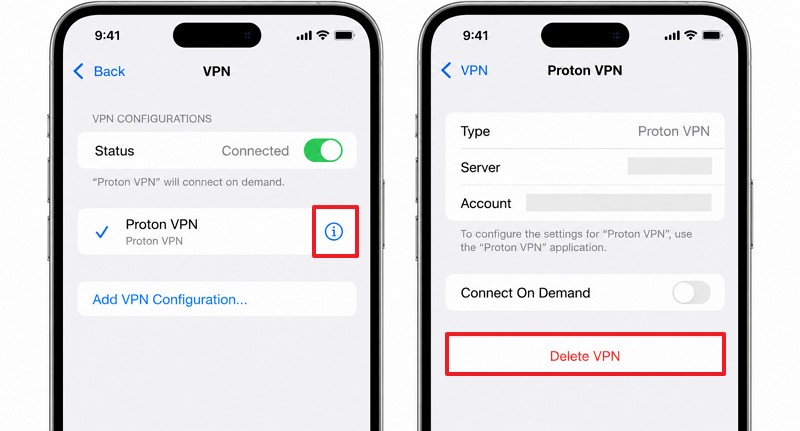
Step 2. Tap the i icon, select Delete VPN, and delete its associated app if necessary.
Remove Unknown Configuration Profiles
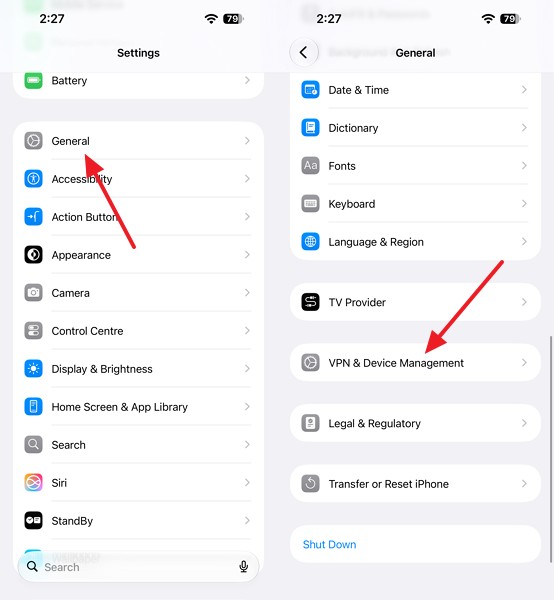
Step 1. Under Settings > General > VPN & Device Management, select an unfamiliar configuration profile.
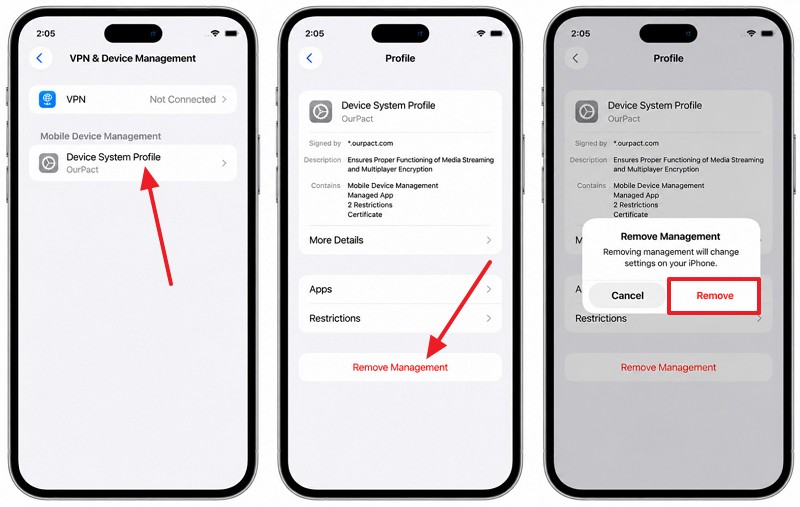
Step 2. Choose Remove Management > Remove > Enter your passcode if prompted, then restart the iPhone.
Update iOS and Review App Permissions
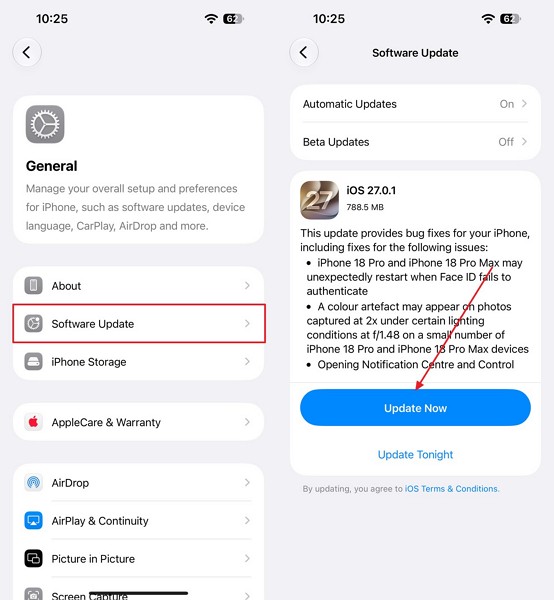
Removing suspicious apps or profiles doesn't always fix underlying security weaknesses. Apple's security releases document vulnerabilities addressed through software updates. However, updating iOS won't secure stolen passwords or stop unwanted sharing. You should also review app permissions for camera, microphone, and location access. If you're checking iPhone hacked signs, follow these steps to identify unusual activity and address known security vulnerabilities:
Update iOS
Instructions. Open Settings > General > Software Update > If an update is available, tap Update Now.
Review App Permissions
Instructions. Go to Settings > Privacy & Security and check Camera, Microphone, and Location Services.
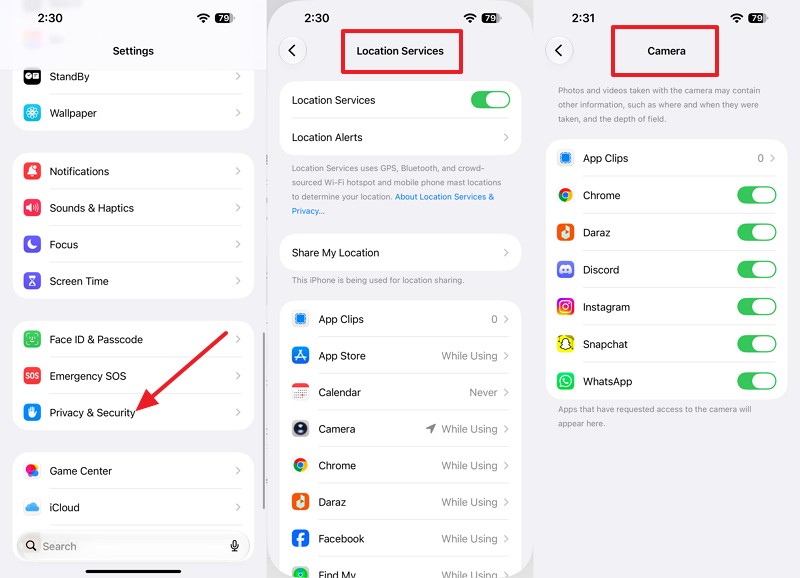
Note: Turn off unnecessary permissions for apps that don't require access.
Enable App Privacy Report
Instructions. In Settings > Privacy & Security > App Privacy Report, tap Turn On App Privacy Report.
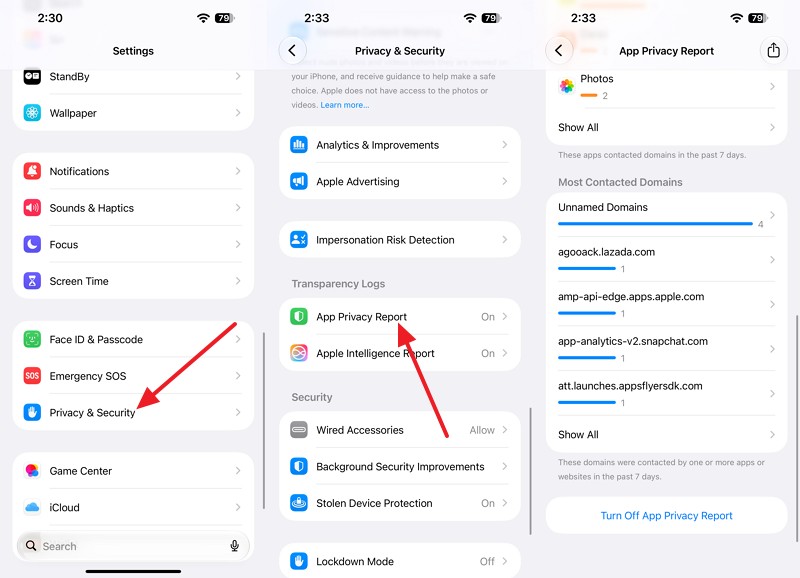
Note: App Privacy Report shows how apps accessed sensitive data, sensors, and network connections over the past 7 days after sufficient activity is recorded.
Check for Genuine Apple Security Alerts
Not every iPhone security warning comes from Apple. Genuine account security alerts and spyware notifications require attention, while browser pop-ups claiming your device is infected are usually scams. If you're wondering iPhone hacked what to do when receiving security warnings, use the following table to identify legitimate Apple alerts and distinguish them from fake warnings:
| Alert | How It Reaches You | How to Check It |
| Apple Account Security Alert | A notification or email about an unfamiliar sign-in, password change, or account update. | Check Settings > [Your Name] > Sign-In & Security instead of opening links in suspicious messages. |
| Apple Threat Notification | An alert from Apple, typically delivered through email, iMessage, and an Apple Account notification. | Sign in directly at account.apple.com and check for a genuine threat notification at the top. |
| Browser “Virus” Pop-Up | A suspicious website displays a warning claiming your iPhone is infected with viruses. | Close the browser tab without clicking links, downloading apps, or calling the displayed phone number. |
According to Apple, genuine threat notifications never ask you to click links, install apps or profiles, or share passwords or verification codes. These high-confidence alerts indicate possible targeted mercenary spyware attacks. Apple recommends enabling Lockdown Mode and seeking expert assistance, such as Access Now's Digital Security Helpline.
Part 4. When Should You Factory Reset a Hacked iPhone?
If suspicious activity continues after securing your accounts and checking your iPhone, a factory reset might be necessary. To understand iPhone hacked what to do next, learn when a factory reset is appropriate and how to erase your device safely.
When a Factory Reset Becomes Necessary
A factory reset may be necessary if evidence suggests malware, unauthorized control, or persistent security changes. However, battery drain, overheating, and slow performance alone don't confirm hacking. Apple's Personal Safety guide recommends reviewing sharing through Safety Check before resetting. Secure your accounts first because resetting won't invalidate stolen passwords. If you receive a verified Apple threat notification, seek expert advice before erasing, especially if forensic investigation is needed.
How to Factory Reset a Hacked iPhone Safely
Erase All Content and Settings removes apps, personal data, and settings. First, save needed iCloud photos and documents to a computer. Apple's Personal Safety guide warns that restoring backups after suspected malware could reintroduce threats, so set up as new. Erasing also disables Find My and Activation Lock when you provide required credentials. To learn how to fix a hacked iPhone, follow these steps:
Step 1. Go to Settings > General > Transfer or Reset iPhone > Erase All Content and Settings.
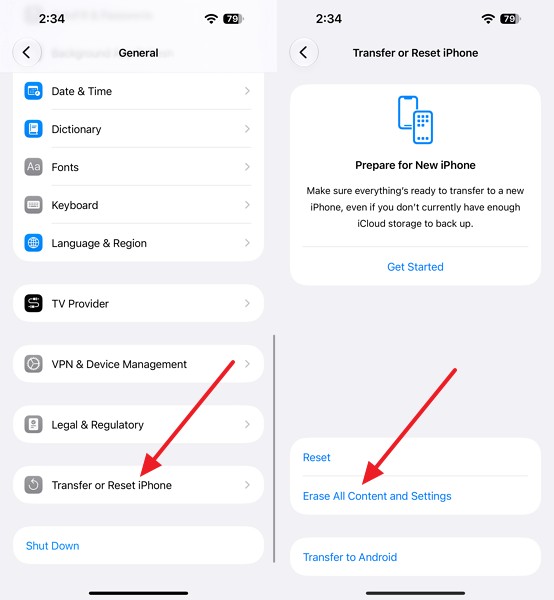
Step 2. Tap Continue > Erase iPhone, and choose whether to keep or delete your eSIM if prompted.
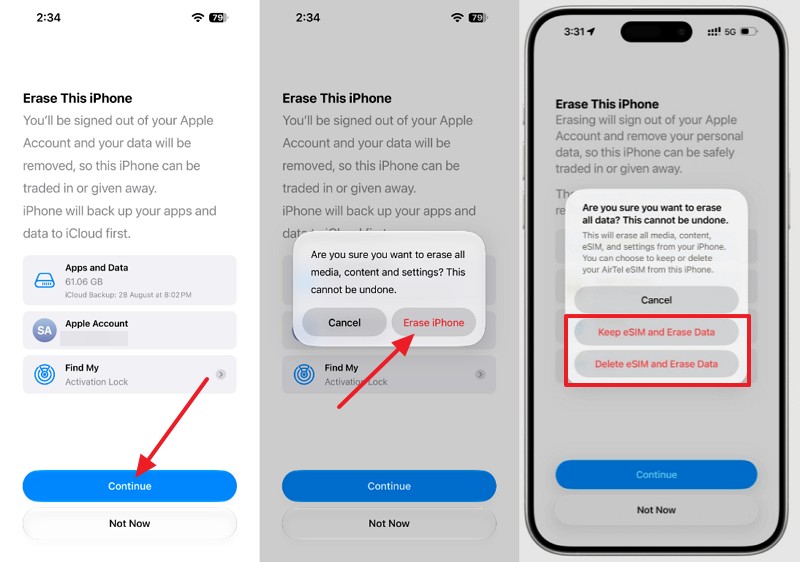
Step 3. Enter your device passcode and Apple Account password when requested.
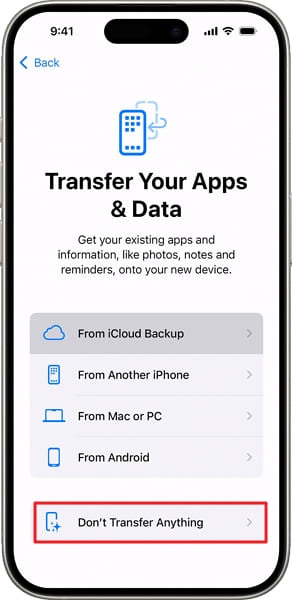
Step 4. After the reset, follow the setup instructions. On the Transfer Your Apps & Data screen, choose Don't Transfer Apps & Data.
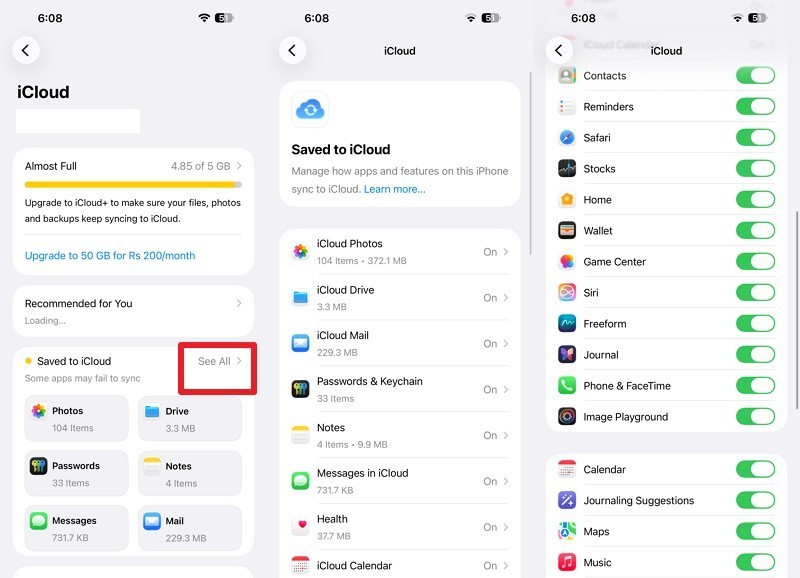
Step 5. Sign in to your Apple Account. Open Settings > [Your Name] > iCloud > See All and enable syncing for trusted data.
Pro Tip. Transfer Selected Personal Data to a New iPhone with MobileTrans
If you're exploring how to fix a hacked iPhone and considering a replacement, transferring selected personal data can help avoid restoring an entire potentially compromised backup. MobileTrans supports transferring compatible data, including contacts, photos, videos, and messages, between iPhones and Android devices. It supports iPhone-to-iPhone, Android-to-iPhone, iPhone-to-Android, and Android-to-Android transfers.
MobileTrans offers selective data transfer, allowing you to choose supported data categories instead of moving everything from your old device. It also supports direct phone-to-phone transfers without relying on a complete iCloud or iTunes backup. However, transferring data doesn't remove malware or secure compromised accounts. Review your personal files before transferring, avoid suspicious apps or settings, and reinstall trusted applications separately on your new iPhone.






Guide to Transfer Data from Your Old iPhone to New iPhone with MobileTrans
To transfer selected personal data from your old iPhone to a new one using MobileTrans, follow these 3 simple steps:
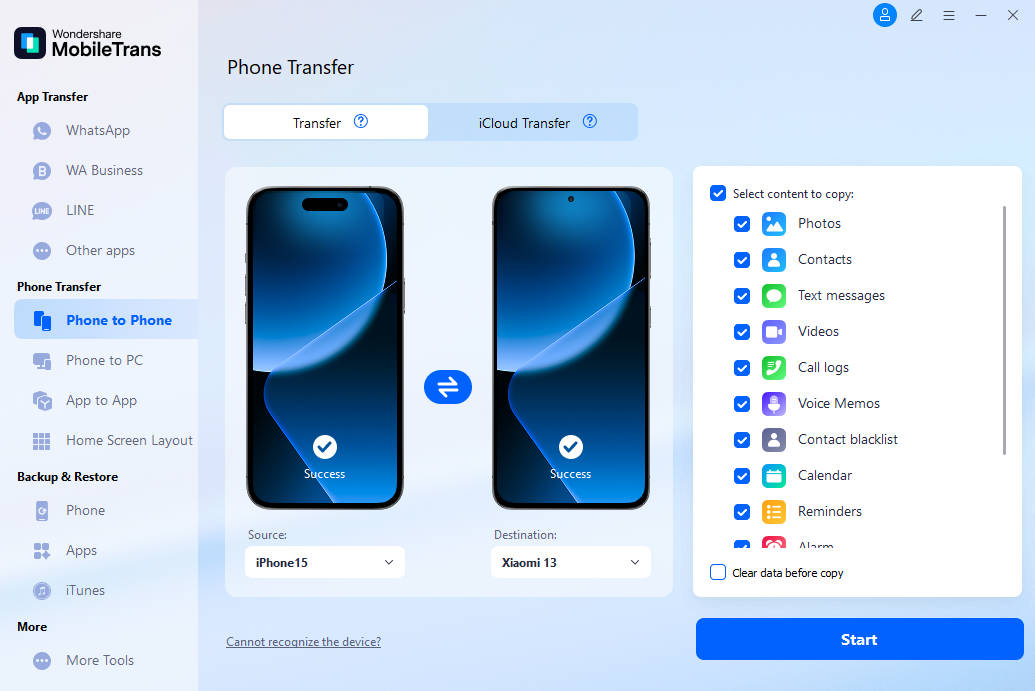
Step 1. Go to the Phone Transfer > Phone Transfer feature. Connect both your iPhones and confirm their positions. Use the Flip feature if required to correct their positions.
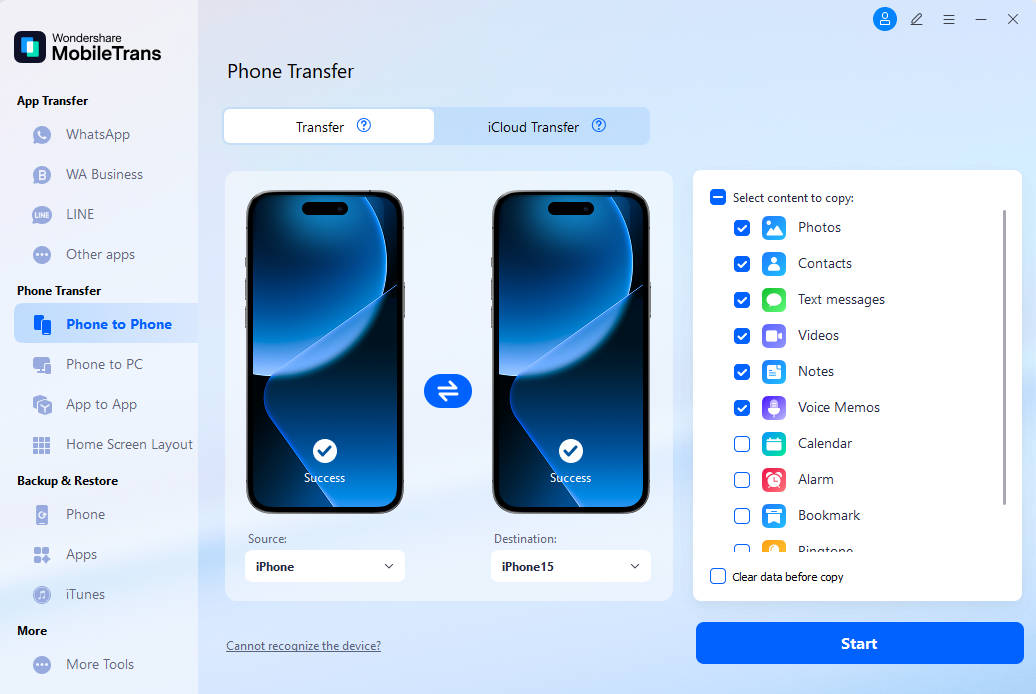
Step 2. Select the data you want to transfer from the old iPhone. Press the Start button to initiate the data transfer process.
 safe & secure

Part 5. How to Protect Your iPhone from Future Hacking Attempts?
Securing your accounts and keeping iOS updated can help prevent future security breaches. After addressing potential iPhone hacked signs, follow these 5 precautions to strengthen your iPhone's security and protect your personal information:
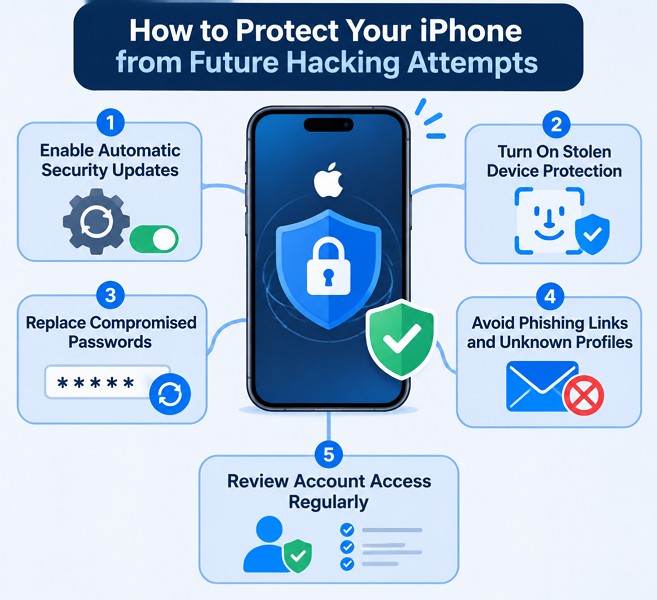
Enable Automatic Security Updates: Open Settings > General > Software Update > Automatic Updates and enable automatic iOS updates. Install available security updates and keep your apps updated.
Turn On Stolen Device Protection: Go to Settings > Face ID & Passcode > Stolen Device Protection and enable it. This adds biometric authentication and security delays for certain sensitive actions.
Replace Compromised Passwords: Open the Passwords app, select Security, and replace passwords flagged as compromised, weak, or reused. Use unique passwords and two-factor authentication.
Avoid Phishing Links and Unknown Profiles: Never share Apple Account verification codes, open suspicious sign-in links, or install unfamiliar configuration profiles. Verify security alerts through Apple's official website.
Review Account Access Regularly: Check for unfamiliar devices under Settings > [Your Name], review trusted phone numbers, and use Safety Check to remove unwanted sharing permissions.
Conclusion
If you notice an unfamiliar sign-in alert, start by securing your Apple Account, removing unknown devices, and reviewing sharing through Safety Check. To understand iPhone hacked what to do, update iOS, check suspicious apps and profiles, and consider a factory reset only when necessary. For a fresh start, MobileTrans helps transfer selected personal data to a new iPhone. Regular security checks also help prevent future unauthorized access.








