
 TL;DR:
Migrating data to the eSIM-only iPhone Duo requires matching your previous device's operating system with the correct transfer protocol and determining whether you need to merge files into an already configured phone or perform a standard factory-reset setup.
● Device compatibility and eSIM transfers enforce strict operating system prerequisites: Quick Start requires iOS 11 or newer, app-free Android migration requires Android 17 paired with iOS 26.5, and eSIM activation demands iOS 18.4 across iPhones or Android 16 and iOS 26 for cross-platform transfers.
● Apple's Quick Start, iCloud, and Finder backups, alongside Android's Move to iOS, overwrite existing data and function only during initial setup, whereas MobileTrans Backup & Restore requires a computer but uniquely allows selective transfer of specific data categories to an already set-up iPhone Duo without a reset.
● To prevent permanent data loss across your synced network, never manually delete photos or contacts from the old device while signed into iCloud; instead, verify that local computer backups were encrypted to preserve passwords, and strictly use the "Erase All Content and Settings" command before a trade-in.
Ask AI for a summary
 ChatGPT
 Perplexity
 Gemini
 Claude
 Grok
The switch to iPhone Duo starts on the old phone, where you need to prepare backups, account details, and cellular service before transferring data. An older iPhone transfers most data through Apple’s migration tools, while Android devices use separate methods with different limitations. Any data not backed up or synced can be permanently lost once the old phone is erased for a trade-in.
This guide provides an iPhone Duo data transfer checklist covering backup preparation, 6 migration methods, eSIM activation, and essential checks before erasing. MobileTrans Backup & Restore also saves supported data locally on a computer, allowing you to restore selected content even after setting up iPhone Duo.
In this article

Part 1. iPhone Duo Data Transfer Checklist: What to Prepare Before Switching
A successful transfer starts before you turn on your new phone. This iPhone Duo transfer checklist covers 7 essential preparations to help you switch devices without losing important data:
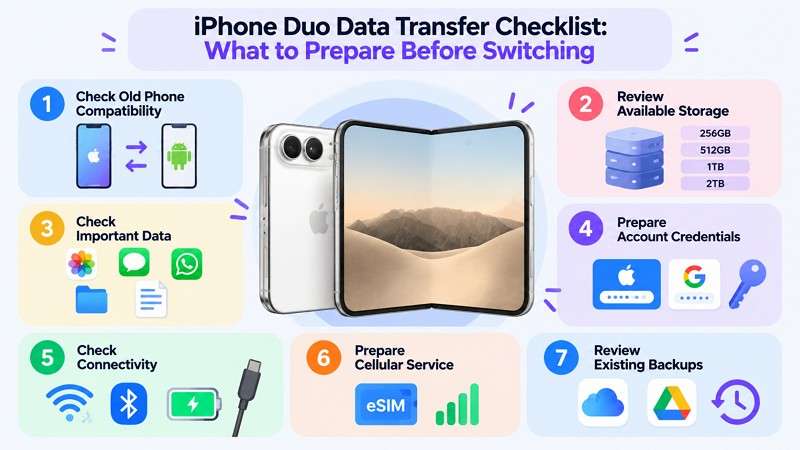
- Check Old Phone Compatibility: Quick Start supports an old iPhone running iOS 11 or later. Android phones can use Move to iOS or, on compatible Android 17 devices, Transfer without App.
- Review Available Storage: iPhone Duo’s spec sheet lists 256GB, 512GB, 1TB, and 2TB models. Check that the content you plan to transfer fits within the new phone's available storage, including transferable files stored on an Android microSD card.
- Check Important Data: Identify photos, contacts, messages, WhatsApp chats, documents, and app data that are not already synced or backed up. Some apps require separate backups or transfers, so verify essential content before switching.
- Prepare Account Credentials: Keep your Apple Account password and old iPhone passcode available. If switching from Android, check your Google Account credentials. Prepare banking app access, two-factor authentication methods, and authenticator recovery options.
- Check Connectivity: Set up stable Wi-Fi, enable Bluetooth when needed, and keep both phones charged. For a wired iPhone migration, use a compatible USB-C cable or a USB-C to Lightning cable when transferring from an iPhone 14 or earlier.
- Prepare Cellular Service: iPhone Duo has no SIM tray, so confirm eSIM support and activation details with the carrier. eSIM Quick Transfer requires iOS 18.4 or later on both iPhones, while Android eSIM transfer requires iOS 26, Android 16, and carrier support.
- Review Existing Backups: Check the last backup time under Settings > [Your Name] > iCloud > iCloud Backup. On Android, review backup status under Settings > Google > All Services > Backup. iCloud provides 5GB of free storage, while Google Accounts include 15GB shared across services.
Part 2. How to Back Up, Restore, or Transfer Data to iPhone Duo
After completing the iPhone Duo data transfer checklist, choose a transfer method based on your old phone and backup needs. The table below compares 6 methods, their backup requirements, and whether they work after setting up iPhone Duo:
| Method | Supported Source Devices | Backup Requirement | Works After iPhone Duo Setup |
| Quick Start | iPhone on iOS 11 or later | None for direct transfer | No, requires erasing first |
| iCloud Backup | iPhone | Existing iCloud backup | No, requires erasing first |
| Finder or Apple Devices | iPhone | Computer backup, preferably encrypted | Yes, but restores the entire backup |
| MobileTrans Phone Transfer & Backup & Restore | iPhone or Android | None for direct transfer, computer backup for restoration | Yes, transfers selected supported data without reset |
| Move to iOS | Compatible Android phones | None, transfers via Wi-Fi or compatible cable | No, available during setup only |
| Transfer Without an App | Supported Android 17 devices | None, uses QR code pairing | No, available during setup only |
Verdict: Quick Start suits iPhone-to-iPhone transfers, while Move to iOS and the app-free option work for compatible Android devices. MobileTrans offers direct phone transfers and selective restoration from computer backups, even after iPhone Duo setup, without requiring a reset.
Each method below covers its steps, pros, and one con to help you choose the right approach. Follow the method that best fits your iPhone Duo transfer checklist and setup requirements.
Method 1. Transfer Data from an Old iPhone Using Quick Start
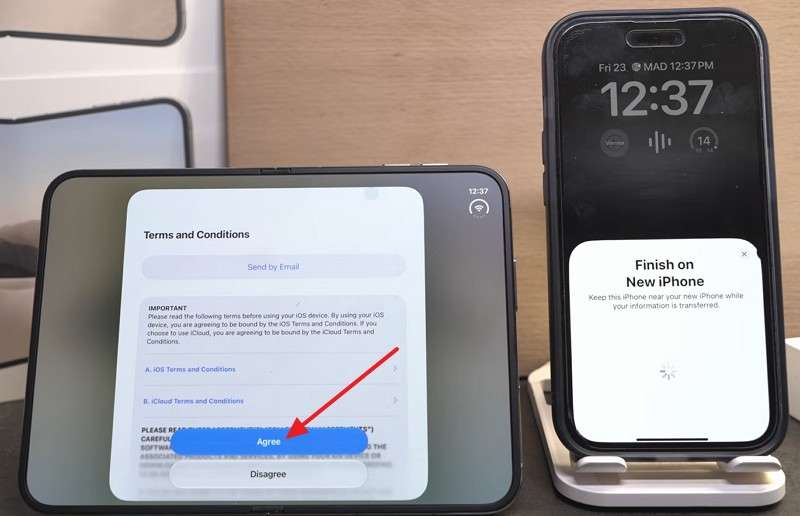
Apple's Quick Start helps transfer data from an older iPhone to iPhone Duo during initial setup. You can transfer data directly between devices or download it from iCloud. According to Apple's Quick Start guide, both devices should remain nearby and connected to power until the transfer finishes. Follow these steps to transfer data to iPhone Duo using Quick Start:
Step 1. Enable Wi-Fi and Bluetooth on the old iPhone, then turn on iPhone Duo and place it nearby.
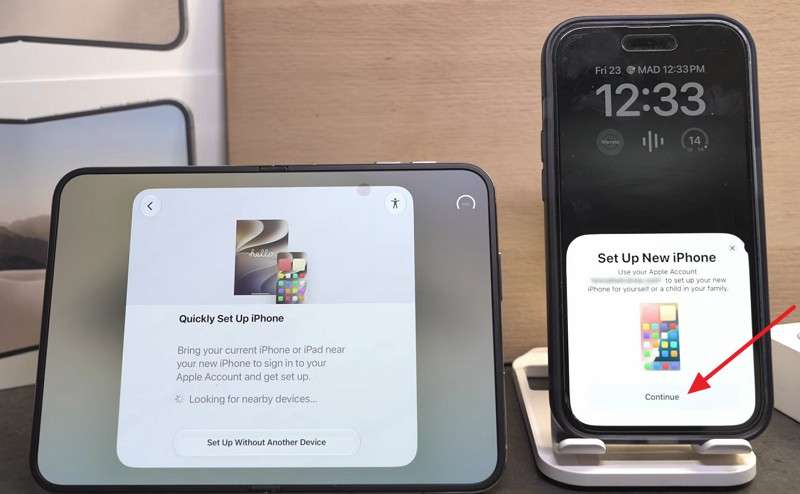
Step 2. Tap Continue when the Quick Start prompt appears on the old iPhone.
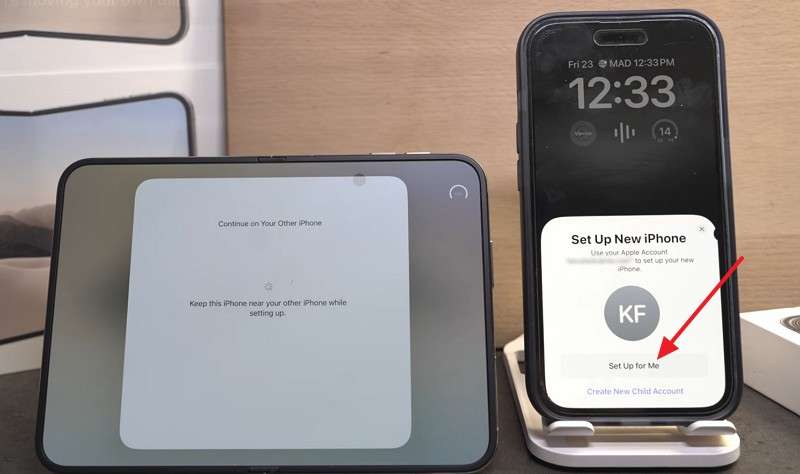
Step 3. Scan the animation displayed on iPhone Duo using the old iPhone, then tap Set Up For Me on the old iPhone.
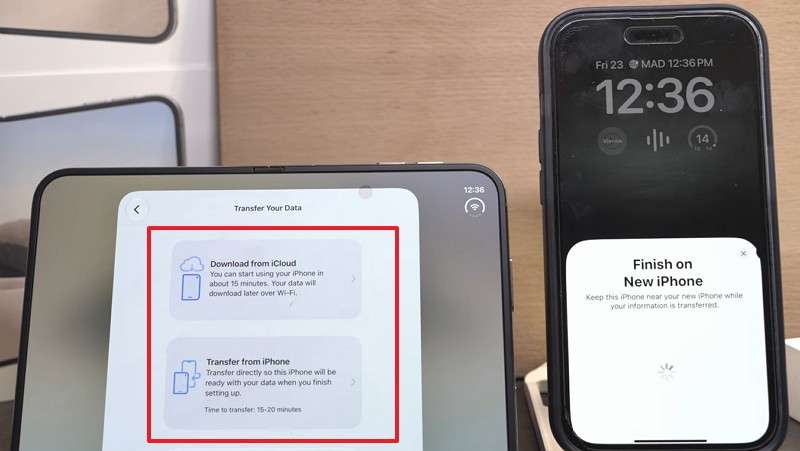
Step 4. Enter the old iPhone's passcode on iPhone Duo, complete the required setup prompts, and choose Transfer from iPhone or Download from iCloud.
Step 5. Select Transfer From iPhone, accept any required terms, and keep both devices nearby and connected to power until the transfer finishes.
Method 2. Back Up and Restore iPhone Duo Using iCloud
An iCloud backup eliminates the need to keep both iPhones together during restoration, as iPhone Duo downloads the backup from Apple's servers. Apple offers temporary iCloud storage for eligible users who need additional space when switching to a new iPhone. Users have 21 days to restore the backup.
According to Apple's backup documentation, data already synced with iCloud, such as iCloud Photos, is excluded from device backups and syncs separately. To complete your iPhone Duo setup checklist using an iCloud backup, follow these 3 steps:
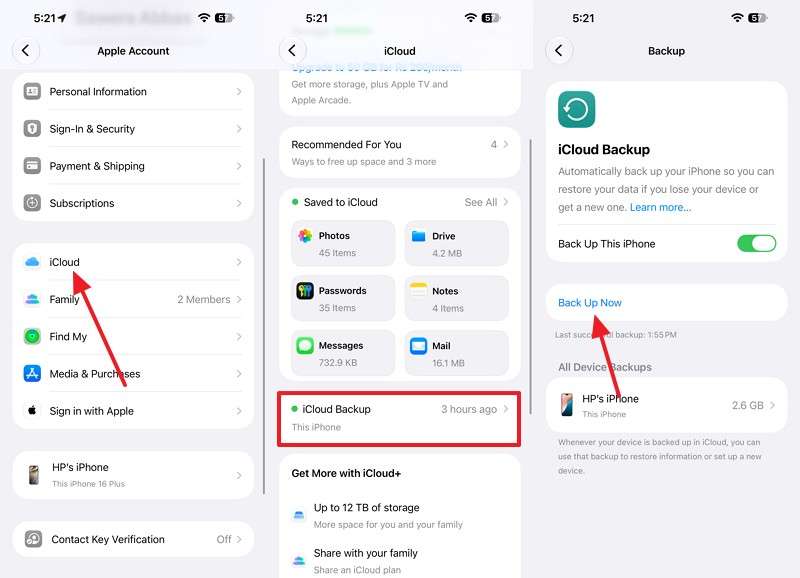
Step 1. Connect the old iPhone to Wi-Fi, open Settings > Your Name > iCloud > iCloud Backup, and tap Back Up Now.
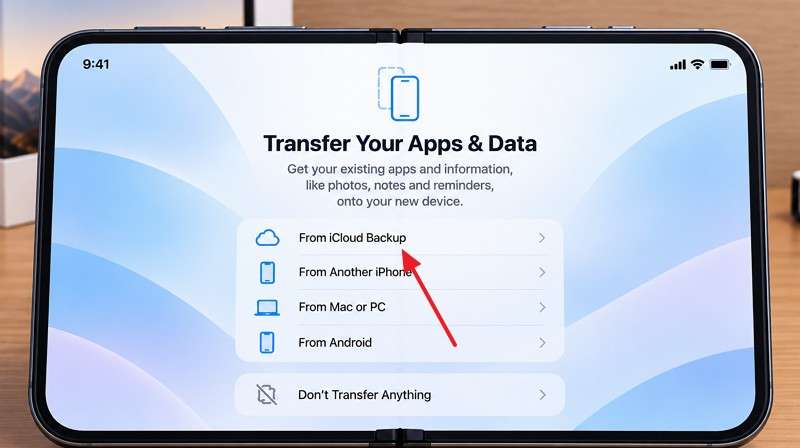
Step 2. On iPhone Duo, select From iCloud Backup under Transfer Your Apps & Data and sign in to your Apple Account.
Step 3. Tap Continue > Agree and select the latest backup. Keep iPhone Duo connected to Wi-Fi and power until restoration completes, then allow apps and photos to download.
Method 3. Transfer Data Using Finder, Apple Devices, or iTunes
Apple's Finder on Mac, Apple Devices app on Windows, and iTunes on older systems let you create a local iPhone backup and restore it to iPhone Duo. Using an encrypted backup also preserves saved passwords, Wi-Fi settings, and Health and Activity data.
Unlike selective transfers, this method restores the entire backup, so keep the encryption password available for restoration. To back up your old iPhone and restore its data as part of your iPhone Duo data transfer checklist, follow these three steps:
Step 1. Connect the old iPhone by USB, select it in the sidebar, tick Encrypt Local Backup, and click Back Up Now.
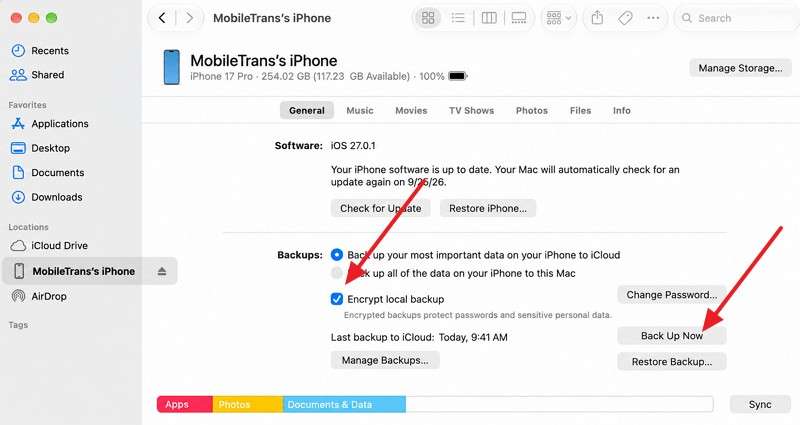
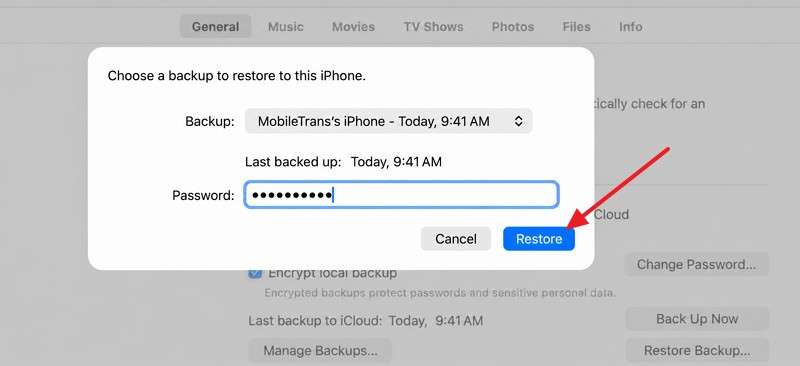
Step 2. Attach iPhone Duo, click Restore Backup, pick the newest backup from the Backup menu, and enter the encryption password.
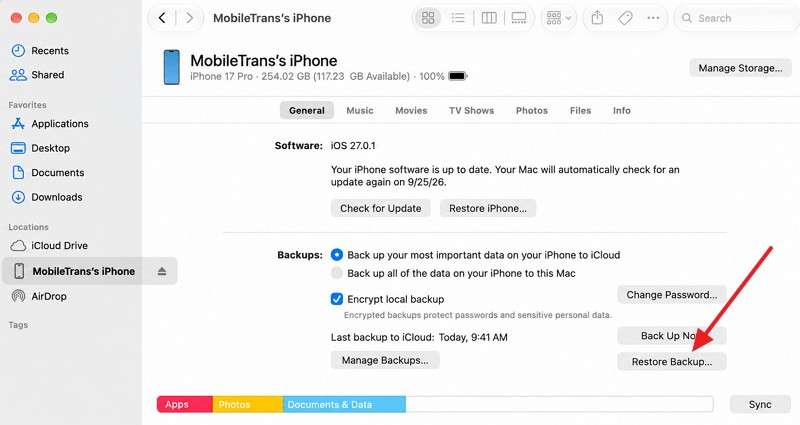
Step 3. Click Restore and keep iPhone Duo connected until the restoration finishes and the device restarts.
Method 4. Back Up and Restore Phone Data Using MobileTrans
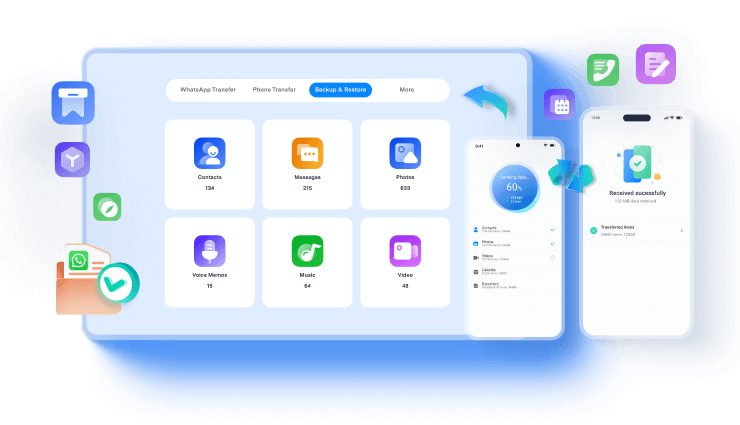
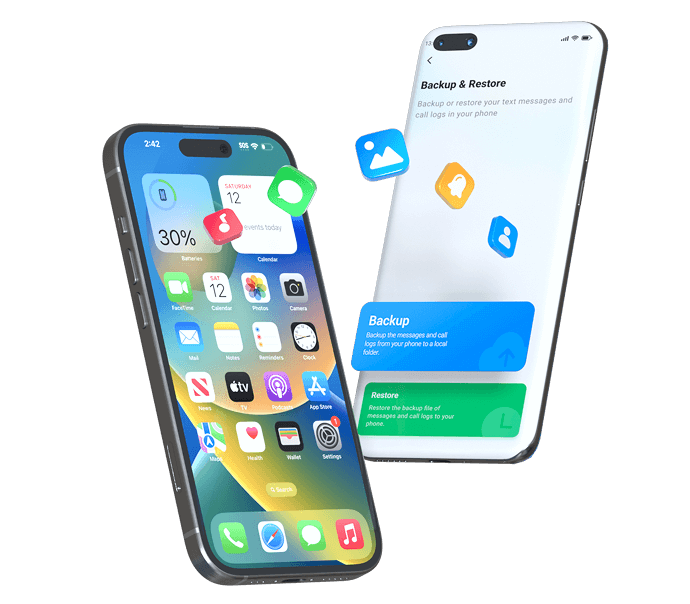
Restoring a complete backup through Finder or Apple Devices replaces the destination iPhone's existing data, making it less suitable for a phone already in use. MobileTrans Backup & Restore offers a more flexible alternative. It backs up supported data from an old iPhone or Android device to a Mac or Windows PC, then lets you select which data types to restore to iPhone Duo.
The tool supports over 18 data types, including photos, contacts, messages, and videos, although availability varies by device and operating system. Backups are stored locally, eliminating the need for iCloud or Google cloud storage. MobileTrans also supports selective restoration without a factory reset or overwriting existing data. You can keep the computer backup for future use instead of restoring everything immediately.


Key Features
- Chat App Backup: Back up WhatsApp, WhatsApp Business, LINE, Viber, and Kik conversations and supported attachments directly to a computer.
- iTunes Backup Extraction: Preview existing iTunes backups, extract supported data, and restore selected categories without restoring the entire backup.
- WhatsApp Chat Export: Export WhatsApp conversations and media attachments as readable PDF or HTML files for convenient viewing and recordkeeping.
- WhatsApp Recovery Options: Restore WhatsApp chats from supported Google Drive or iCloud backups, or attempt deleted-message recovery directly from Android devices.
- Phone Transfer: Transfer contacts, messages, photos, videos, and other supported data directly between Android and iPhone devices without creating a backup first.
Guide to Back Up and Restore Data on iPhone Duo with MobileTrans
To complete the iPhone Duo transfer checklist using a computer backup, follow these 3 steps:
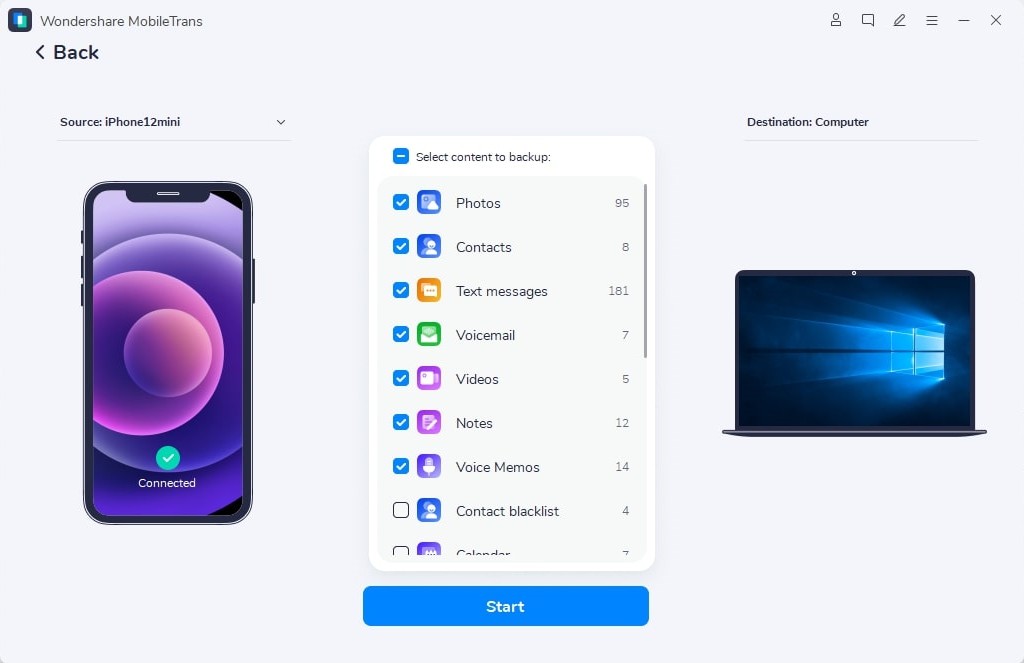
Step 1. Open MobileTrans, choose Backup & Restore, connect the old phone, tick the listed data types, and click Start.
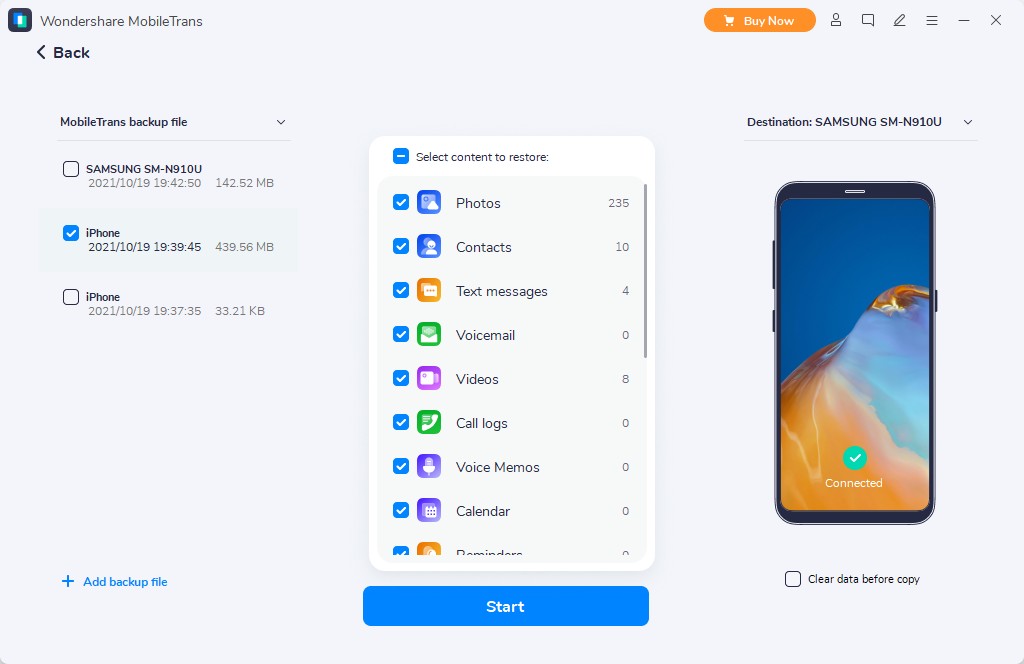
Step 2. Connect iPhone Duo > Backup & Restore > Phone > Locate your backup > Press Restore. Choose data categories > Uncheck Clear Data Before Copy > Click Start.
Method 5. Transfer Android Data Using Move to iOS
When switching from Android, you can use Apple's Move to iOS app to transfer data directly to iPhone Duo during initial setup. It supports contacts, messages, photos, calendars, mail accounts, bookmarks, call history, and regular WhatsApp chats. Both devices connect through a temporary Wi-Fi network or a compatible USB cable for faster transfers. Follow these steps to transfer your data as part of the iPhone Duo setup checklist:
Step 1. Install and open Move to iOS on your Android phone, then tap Continue > Continue to begin.
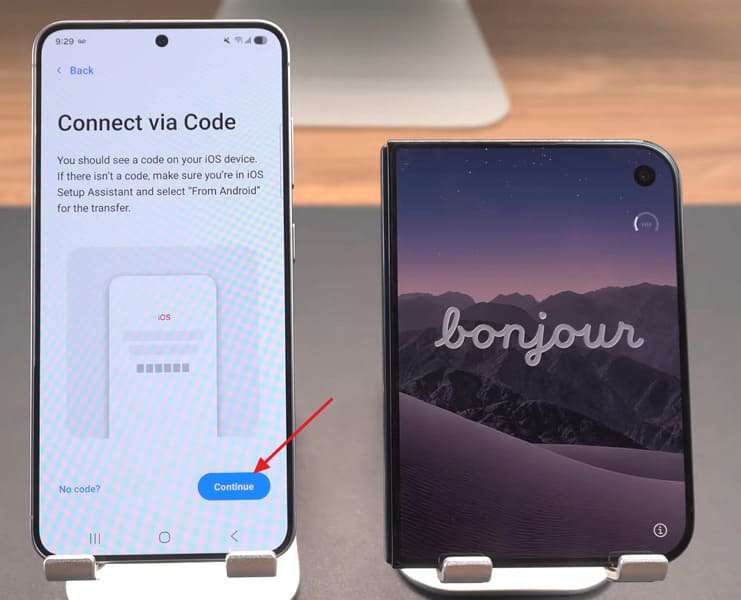
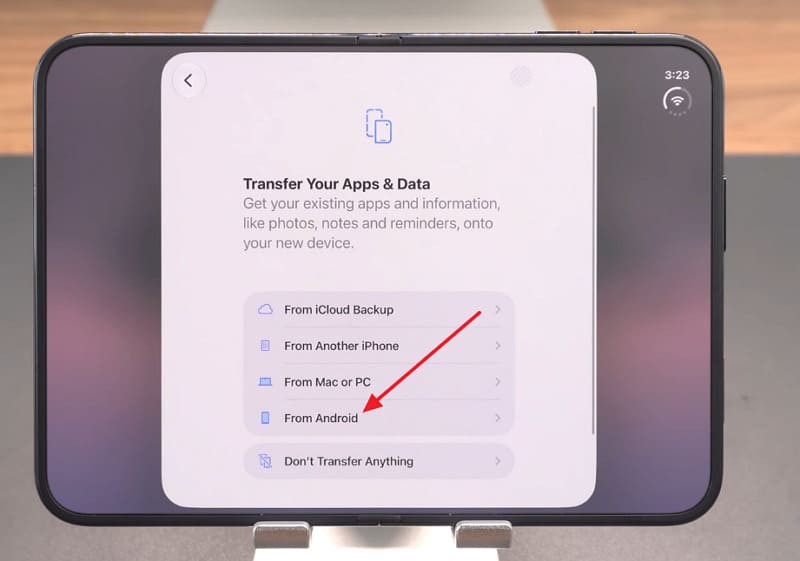
Step 2. Turn on iPhone Duo and navigate to Transfer Your Apps & Data > From Android.
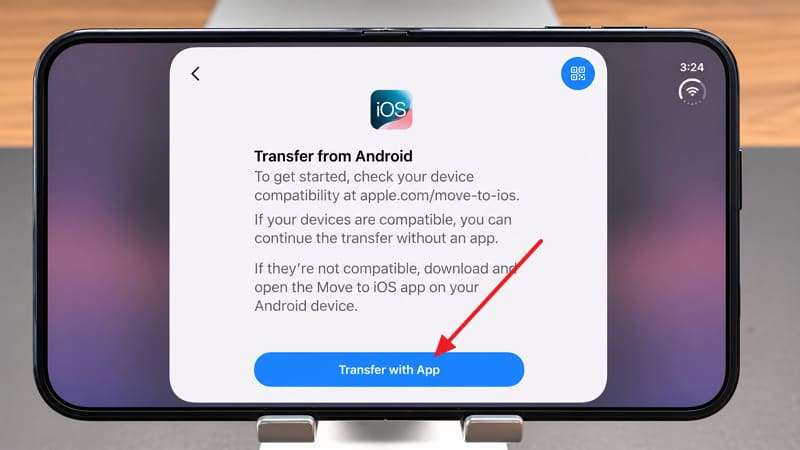
Step 3. Select Transfer with App on iPhone Duo to generate a code. Enter the code in the Move to iOS app on Android.
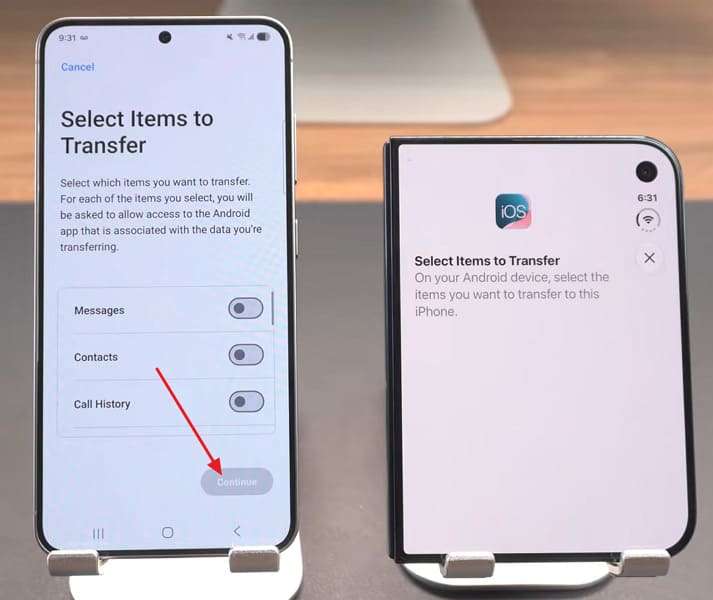
Step 4. Once connected, select the data to transfer > Continue. Keep both devices connected to power until the transfer finishes.
Method 6. Transfer Android Data Without an App
Compatible Android 17 phones can transfer data to iPhone Duo without installing a separate app using the Transfer without App feature in iOS 26.5 or later. The process uses QR code pairing to move photos, contacts, calendars, call history, and messages.
The method also supports eSIM transfer on compatible devices and carriers. To transfer data without installing an app, follow these steps in your iPhone Duo data transfer checklist:
Step 1. At Transfer Your Apps & Data, choose From Android > Transfer without App with the Android phone beside iPhone Duo.
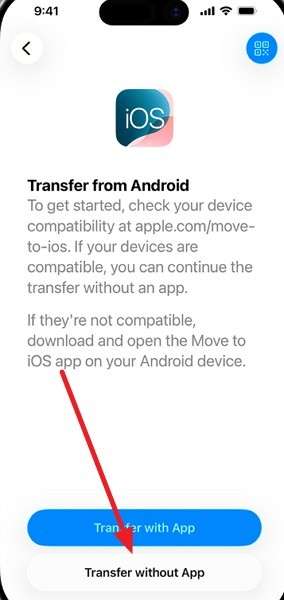
Step 2. Scan the QR code using the Android camera. Alternatively, tap Other Options and navigate to Google > All Services > Pair with iPhone or iPad > Copy Data on Android.
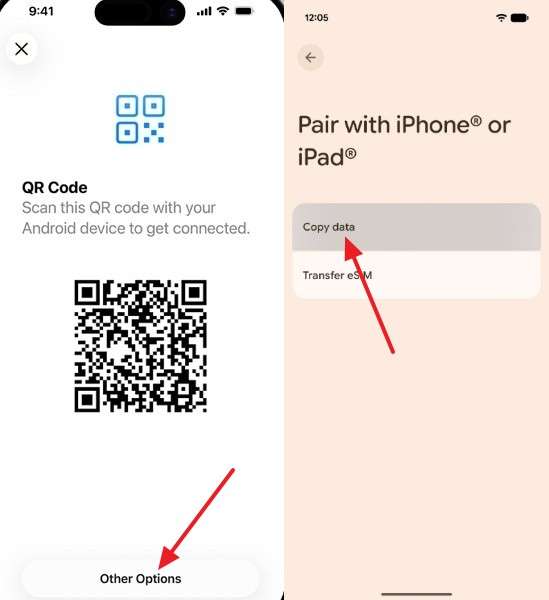
Step 3. Select the data on Android and complete the transfer. Tap Continue on iPhone Duo, then select your phone number and tap Transfer if eSIM transfer is supported.
Part 3. What to Check After Transferring Data to iPhone Duo?
Completing a transfer does not guarantee that every photo, conversation, account, or setting is ready to use. Before erasing your old phone, follow this iPhone Duo setup checklist to verify that your important data and essential services work correctly:
| What to Check | How to Verify on iPhone Duo |
| Photos & Videos | Open recent photos, older albums, and videos to confirm transferred content is accessible. |
| Contacts & Messages | Check transferred contacts, conversations, message attachments, and call history. |
| WhatsApp & Apps | Open WhatsApp chats, check media files, and verify transferred app data. |
| eSIM & Connectivity | Test calls, SMS, cellular data, iMessage, and FaceTime after eSIM activation. |
| Accounts & Security | Verify Apple Account access, saved passwords, banking apps, and authenticator codes. |
| Files, Health & Apple Watch | Verify transferred documents and Health data, then confirm Apple Watch pairing. |
Part 4. Final Checklist Before Erasing or Trading in the Old Phone
Once your data and essential services are verified on iPhone Duo, the next step is preparing your old phone for sale, trade-in, or erasure. Follow this final iPhone Duo data transfer checklist to secure remaining backups, disconnect linked devices, remove accounts, and safely reset your old phone:
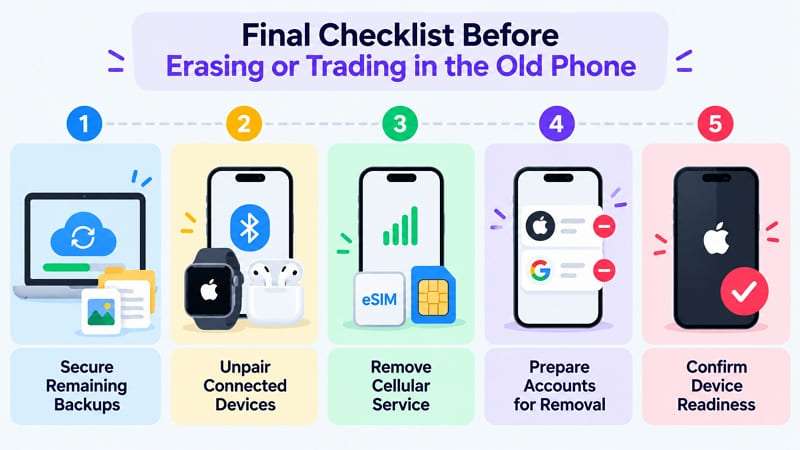
- Secure Remaining Backups: Confirm your latest backup is accessible and save any important files that were not included in the transfer.
- Unpair Connected Devices: Unpair your Apple Watch from the old iPhone and disconnect Bluetooth accessories you no longer plan to use.
- Remove Cellular Service: Confirm your number works on iPhone Duo before deleting the old eSIM or removing the physical SIM card.
- Prepare Accounts for Removal: On iPhone, use Apple's erasure process to remove your Apple Account and Activation Lock. On Android, remove your Google Account before resetting.
- Confirm Device Readiness: Ensure the old phone has been erased, personal accounts are removed, and no SIM card or personal accessories remain before handing it over.
Warning: Do not manually delete photos, contacts, calendars, or documents from your old iPhone while signed in to iCloud. According to Apple’s pre-sale guidance, these deletions also affect iCloud and other synced devices. Instead, use Erase All Content and Settings to securely erase the old iPhone and remove your Apple Account.
Conclusion
An iPhone Duo data transfer checklist starts with securing backups and choosing a transfer method based on the old phone's platform and iPhone Duo's setup status. MobileTrans Backup & Restore offers flexible local backups and selective restoration of supported data, even after setup. Finally, verify all transferred content and essential services before preparing the old phone for erasure or trade-in to prevent losing important information.

FAQs
-
What should I back up before transferring data to iPhone Duo?
First, create an iCloud backup, encrypted computer backup, or MobileTrans backup of supported data. Next, follow the iPhone Duo setup checklist to secure items requiring separate backups or transfers, including WhatsApp chats, authenticator recovery codes, and app-specific data. -
Can I restore data to iPhone Duo after completing its setup?
Quick Start, iCloud Backup restoration, Move to iOS, and app-free Android transfers require the initial setup process. A configured iPhone Duo must be erased to use these methods. On the other hand, MobileTrans Backup & Restore can restore selected supported data without resetting the device. -
Does iPhone Duo transfer passwords and authenticator apps automatically?
Saved passwords transfer through iCloud Keychain or an encrypted computer backup. However, authenticator apps can require separate migration or verification. Google Authenticator supports transferring codes through Google Account sync or QR code export, depending on the user's settings. -
Can I transfer data to iPhone Duo without using iCloud?
Quick Start's direct transfer, Finder or Apple Devices backups, Move to iOS, and MobileTrans support transfers without an iCloud backup. However, content already synced with iCloud, including iCloud Photos, still requires access to Apple's servers for downloading.