



 TL;DR:
The optimal method to transfer photos and videos to an iPhone Duo depends strictly on the source location: use iCloud Photos to preserve full resolution for Apple libraries, Google Takeout for direct cloud-to-cloud migrations, or MobileTrans for transferring local media directly between phones without requiring a factory reset.
● When using AirDrop to send selected items from an old iPhone, you must manually enable "All Photos Data" in the options menu to preserve edit history and metadata, whereas a complete iCloud Photos sync automatically retains RAW images, 4K videos, and Live Photos.
● Migrating libraries directly from Google Photos to iCloud Photos bypasses the need for local downloading but requires disabling Advanced Data Protection for iCloud, is unavailable for child or Managed Apple Accounts, and will not transfer Live Photos, Motion Photos, or Memories.
● Syncing media from a Mac via Finder or a Windows PC via Apple Devices acts as an ongoing sync rather than a one-time copy, requires iCloud Photos to be disabled on the receiving iPhone Duo, and causes synced Live Photos to lose their motion effects.
Ask AI for a summary
 ChatGPT
 Perplexity
 Gemini
 Claude
 Grok
Grok
Photos and videos can come from an old iPhone, Android phone, cloud service, or computer, and each source needs a different transfer method. iCloud Photos and Google Photos simplify cloud-based transfers, while MobileTrans provides a direct option for locally stored media. Choosing the right approach also helps preserve original quality, metadata, and important media details.
This guide explains how to transfer photos and videos to iPhone Duo from different sources. You will find suitable methods for complete libraries and selected files, along with ways to avoid missing media or quality loss.
In this article


Part 1. Which Photo and Video Transfer Method Should You Use for iPhone Duo?
The right transfer method depends on where your photos and videos are currently stored. An old iPhone, Android device, cloud service, or computer may require a different approach. The table below compares the available options for how to transfer photos and videos to iPhone Duo based on your media source:
|
Current Location |
Best Transfer Option |
Best For |
|
Old iPhone Using iCloud Photos |
iCloud Photos sync |
Moving a complete Apple photo library |
|
Old iPhone, Selected Items Only |
AirDrop |
Sending selected photos, albums, or videos |
|
Google Photos |
Direct transfer to iCloud Photos |
Moving large libraries already stored online |
|
Android Phone, Media Stored Locally |
MobileTrans |
Direct phone-to-phone transfer without cloud uploads |
|
Mac |
Finder photo sync |
Moving photos and videos stored on a Mac |
|
Windows PC |
Apple Devices or iTunes photo sync |
Syncing local media folders from Windows |
|
Google Drive, OneDrive, or Dropbox |
Download through the cloud app |
Moving selected files already stored online |
Part 2. How to Transfer Photos and Videos from an Old iPhone to iPhone Duo
To transfer photos from old iPhone to iPhone Duo, choose a method based on how much media you want to move. iCloud Photos suits syncing your full photo library, while AirDrop lets you send selected photos and videos between nearby iPhones.
Sync the Complete Library with iCloud Photos
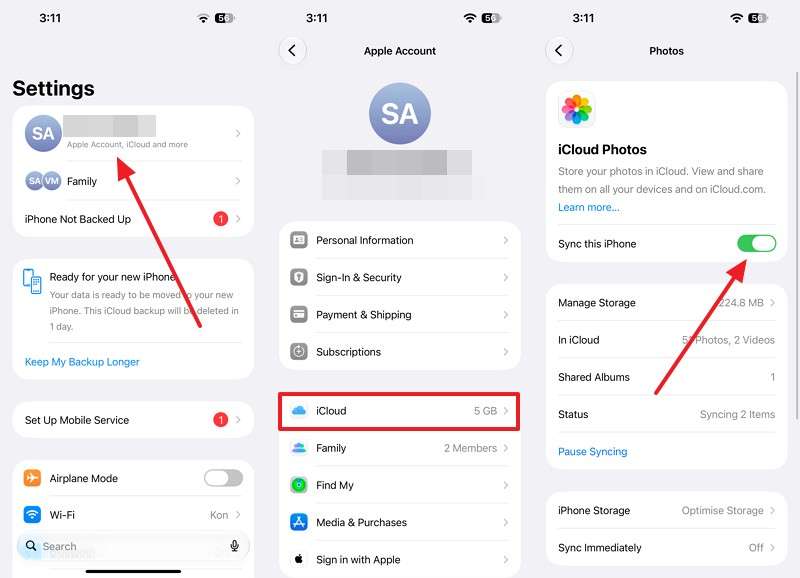
Use this method when the old iPhone library is already synced with iCloud Photos. Sign in to the iPhone Duo with the same Apple Account and enable iCloud Photos. The existing library will then sync to the new device instead of requiring a direct transfer between both iPhones. Apple stores original photos and videos on iCloud at full resolution. To sync your complete library, follow these steps:
Step 1. Open Settings on your old iPhone > Apple ID > iCloud > Photos > Sync this iPhone.
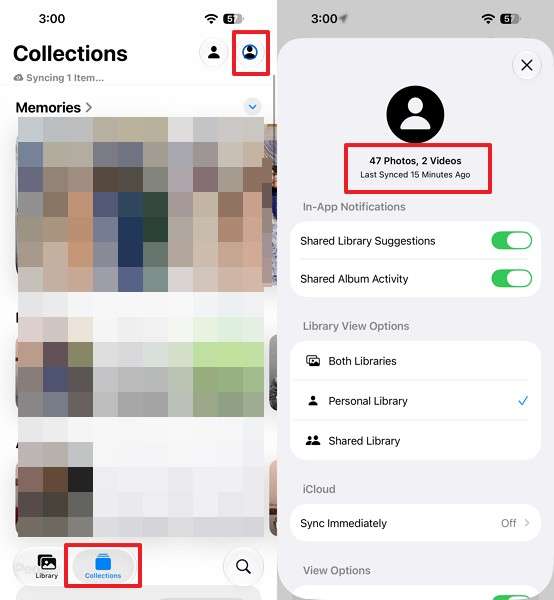
Step 2. Open the Photos app on your old iPhone > Collections > Tap the Profile icon > Check the sync status.
Step 3. Sign in to the iPhone Duo with the same Apple Account used for the existing iCloud Photos library.
Step 4. Go to Settings > [Your Name] > iCloud > Photos, then turn on Sync this iPhone.
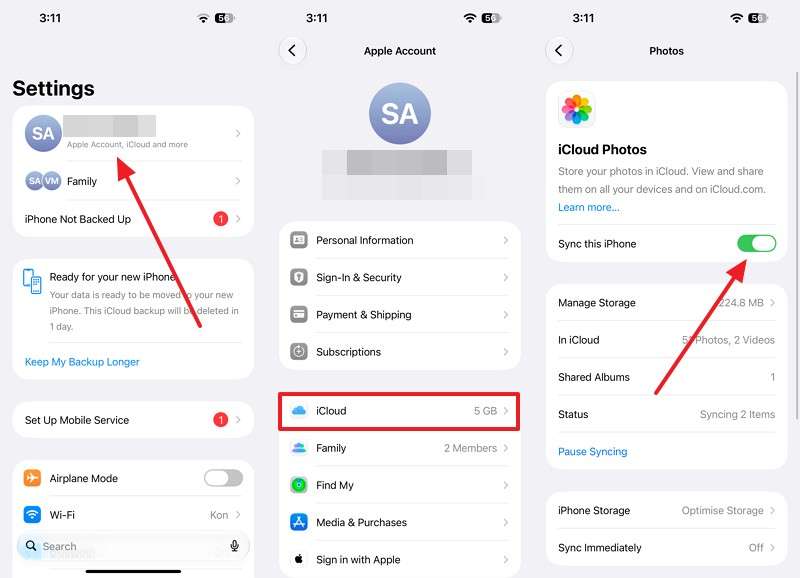
Step 5. Your complete photo library will automatically download and appear in your Photos app.
Send Selected Photos and Videos with AirDrop
AirDrop is a convenient option for transferring photos and videos to an iPhone Duo when you only need selected files. Apple recommends AirDrop for sharing a smaller selection of items with nearby Apple devices. Make sure Wi-Fi and Bluetooth are enabled on both iPhones and the devices are within AirDrop range. To send selected photos and videos through AirDrop, follow these steps:
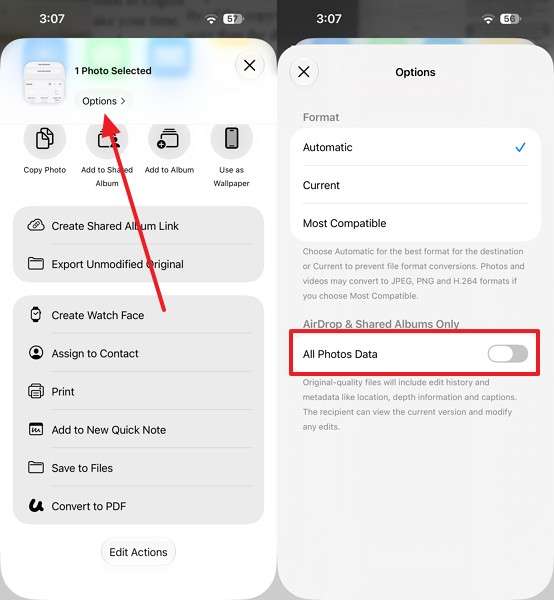
Step 1. On the old iPhone, open Photos > Choose image > Share > AirDrop. Choose Contact Only or Everyone for 10 Minutes on iPhone Duo.
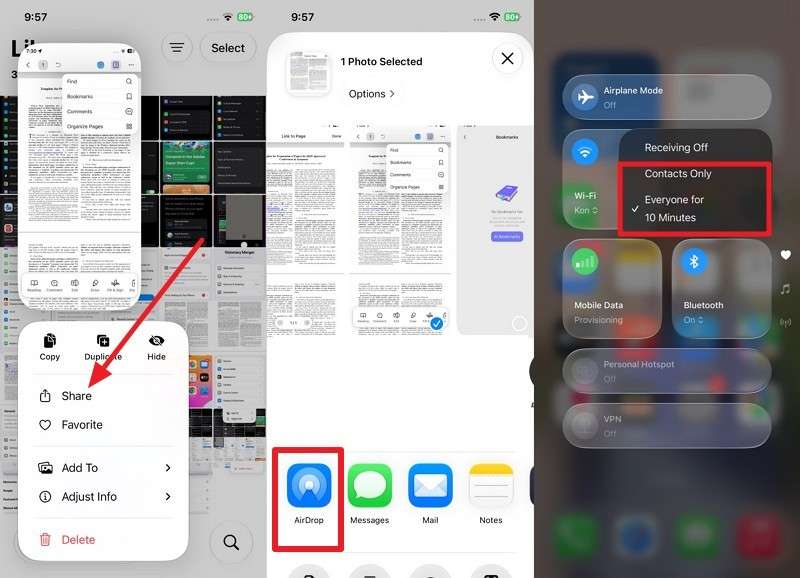
Tip: Tap Options and turn on All Photos Data if you want the original files, edit history, and metadata, then tap Done.
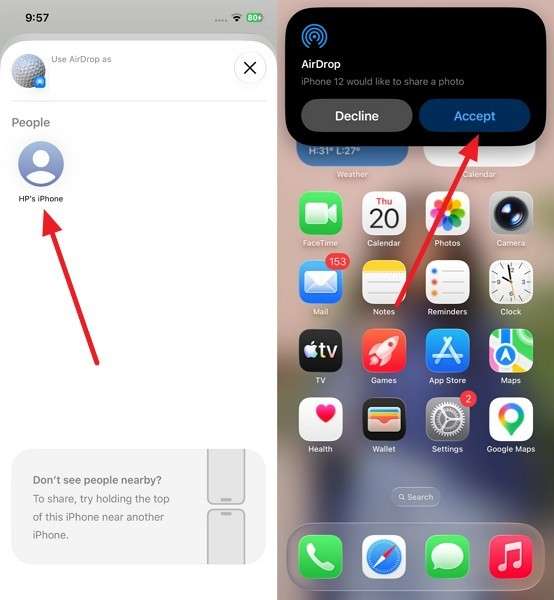
Step 2. Select iPhone Duo on the old iPhone > Press Accept > View the image.
Part 3. How to Transfer Android Photos and Videos to iPhone Duo Without Move to iOS
The best transfer route depends on where your Android photos and videos are stored. Media already backed up to Google Photos can move directly to iCloud Photos without downloading it first. This makes it easier to transfer videos from Android to iPhone Duo along with your photos. For selected media stored in other cloud services, you can use a cloud storage app instead.
Transfer Google Photos Directly to iCloud Photos
Google and Apple support direct transfers from Google Photos to iCloud Photos. Because the transfer happens between both cloud services, you don't need to download the library to an Android phone, iPhone, or computer first. Your original files also remain in Google Photos after the transfer. Depending on the library size, the process can take several hours to a few days.
Important Things to Know
- Turn on iCloud Photos and iCloud Drive, and make sure your Apple Account has enough iCloud storage.
- The transfer is unavailable for child accounts and Managed Apple Accounts.
- Turn off Advanced Data Protection for iCloud before starting the transfer.
- Supported formats include JPEG, HEIC, PNG, GIF, TIFF, BMP, and most MP4 and MOV files.
Files are transferred at the resolution Google makes available for export. To move your Google Photos library directly to iCloud Photos, follow these steps:
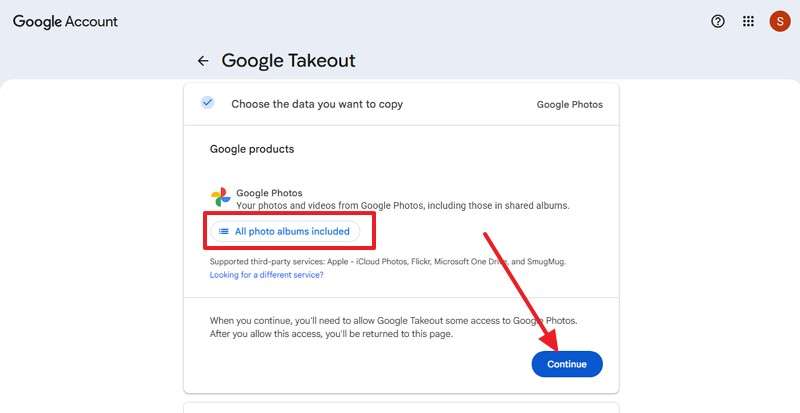
Step 1. Open Google Takeout and select All Photos Included > Continue.
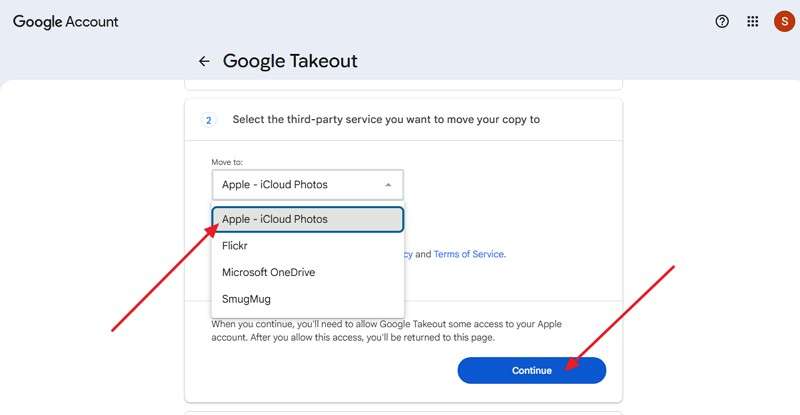
Step 2. Allow access to Google account > choose Apple – iCloud Photos under Destination > Continue.
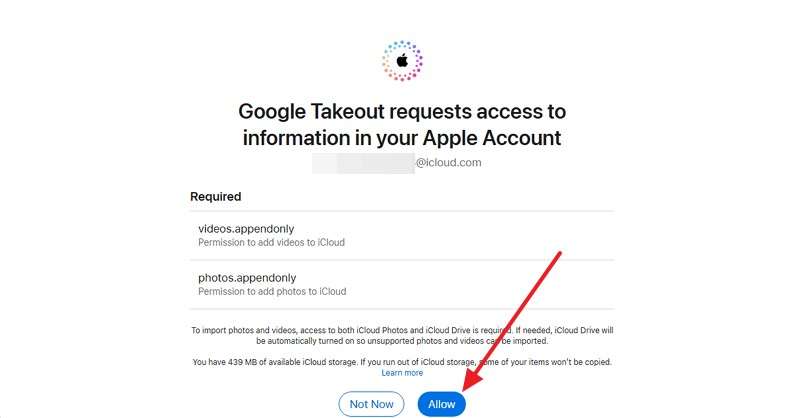
Step 3. Sign in with your Apple Account and tap Allow to permit Google to transfer the files.
Transfer Selected Photos and Videos Through Cloud Storage
Dropbox is useful when you only need to transfer photos from Android to iPhone Duo along with selected videos. Uploaded media becomes accessible through the same Dropbox account on both devices. However, viewing a photo or video in Dropbox does not mean it has been saved to the iPhone's Photos library.
Dropbox also lets you save selected media locally when you want copies available on the device. To upload your media from Android and save it to the iPhone Duo, follow these steps:
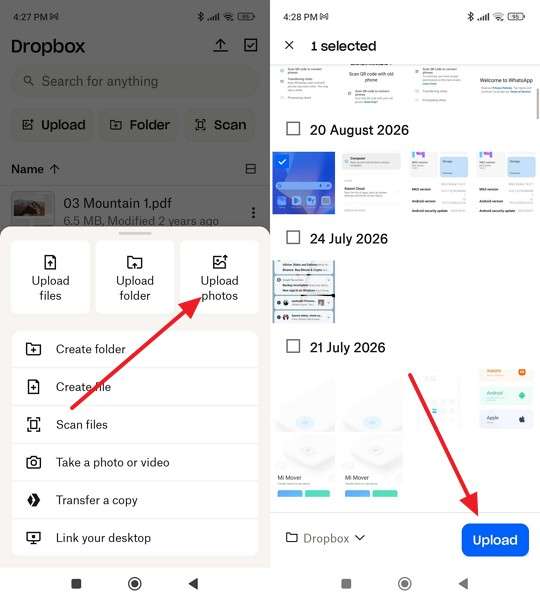
Step 1. Open Dropbox on the Android phone, tap the + > Upload Photos, select the files, and upload.
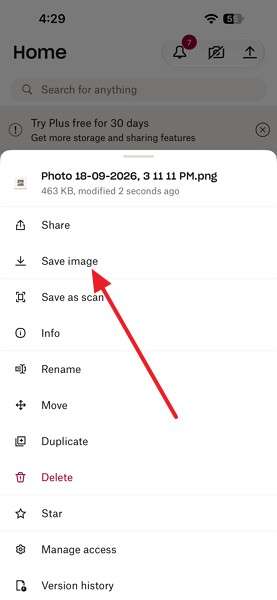
Step 2. Install Dropbox on the iPhone Duo and sign in with the same account. Tap Recents > locate the required image > Three Dots > Save Image.
Part 4. How to Transfer Photos and Videos Directly to iPhone Duo with MobileTrans
If your photos and videos are stored locally on the old phone, you do not need to upload the entire library to the cloud first. MobileTrans-Phone Transfer provides a computer-based, phone-to-phone method to transfer photos from Android to iPhone Duo. It can also move media from an old iPhone, making it useful for large local libraries not already backed up to iCloud or Google Photos.
For larger photo and video collections, this approach avoids relying on cloud storage capacity and lengthy uploads. The same phone-to-phone workflow works with both Android and iPhone source devices, so the process remains similar regardless of the old phone’s platform. Before deleting anything from the source device, confirm that important albums, Live Photos, dates, and videos appear correctly on the iPhone Duo.
Key Features of MobileTrans
- Massive File Support: Supports over 18 data types, including photos, videos, contacts, text messages, calendars, music, and voice memos.
- Social App Migration: Moves chat histories, media, and attachments from supported messaging apps like WhatsApp between compatible devices.
- No Factory Reset Needed: Adds supported data to an already configured target phone without requiring a factory reset or erasing existing content.
- iCloud to Phone Restore: Brings supported data from iCloud directly to a target phone without requiring another Apple device.
- App and Data Transfer: Transfers supported apps between compatible devices and moves supported app data where the selected migration mode allows.






How to Transfer Photos and Videos to iPhone Duo with MobileTrans
Follow these simple step-by-step instructions to transfer videos from Android to iPhone Duo directly using MobileTrans:
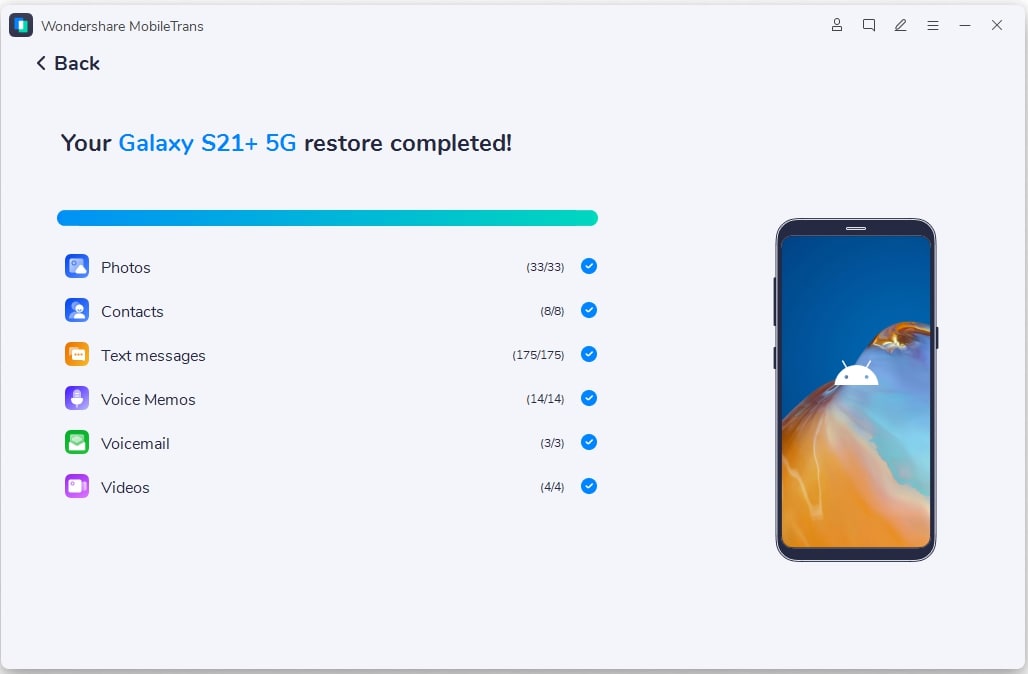
Step 1. Choose Phone Transfer > Phone to Phone > Connect Android and iPhone Duo.

Step 2. Select Photos and Videos > Press Start > Wait for the media files to move to iPhone Duo.
Part 5. How to Transfer Photos and Videos from a Computer to iPhone Duo
You can move photos and videos stored on a Mac or Windows PC directly to the iPhone Duo without going through another phone. The right method depends on your platform. Finder handles photo syncing on current Macs, while Apple Devices/iTunes provides a similar option for Windows PCs.
Transfer Photos and Videos from Mac with Finder
Use Finder when your photos and videos are stored in the Mac's Photos library or local folders and iCloud Photos isn't enabled for that library. Apple supports media syncing through Finder on macOS Catalina or later.
Since later syncs update the iPhone to match selected Mac content, this works as an ongoing sync rather than a one-time copy. To sync your Mac photos and videos with iPhone Duo through Finder, follow these steps:
Step 1. Connect the iPhone Duo to the Mac with a USB cable, unlock the iPhone, and tap Trust when prompted.
Step 2. Open Finder, select the iPhone Duo in the sidebar, and click the Photos tab.
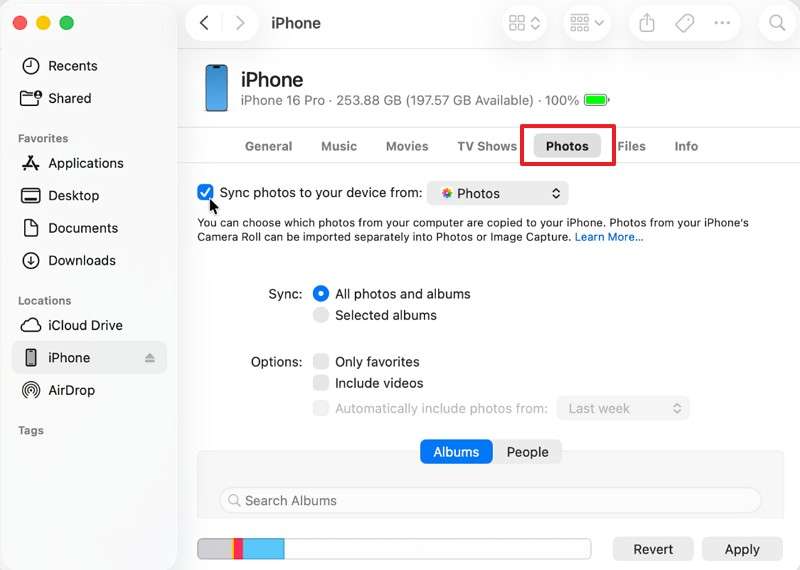
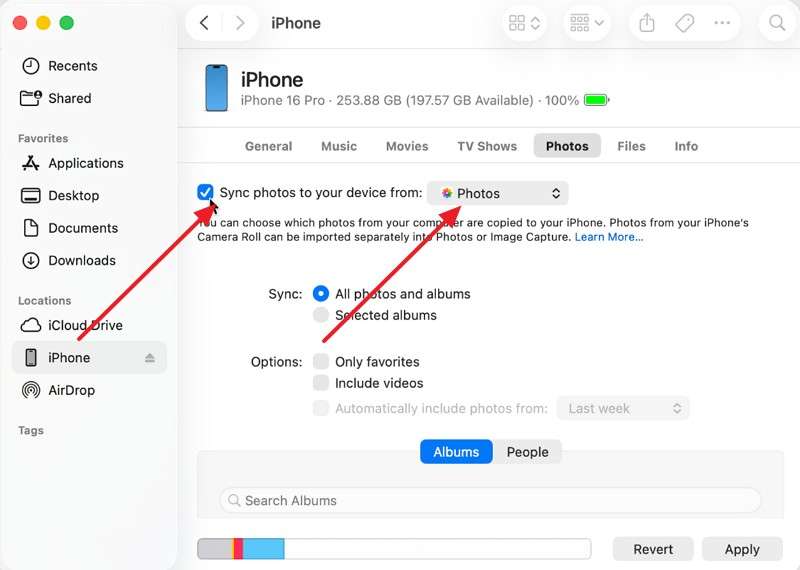
Step 3. Check Sync Photos to Your Device From, then choose the Photos app or a folder on the Mac.
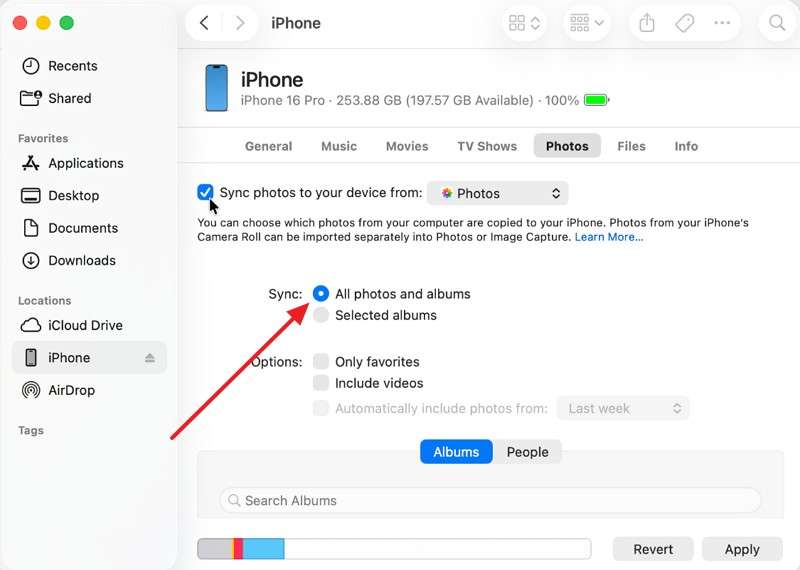
Step 4. Choose All Photos and Albums or select the albums and folders you want. Enable video syncing if needed.
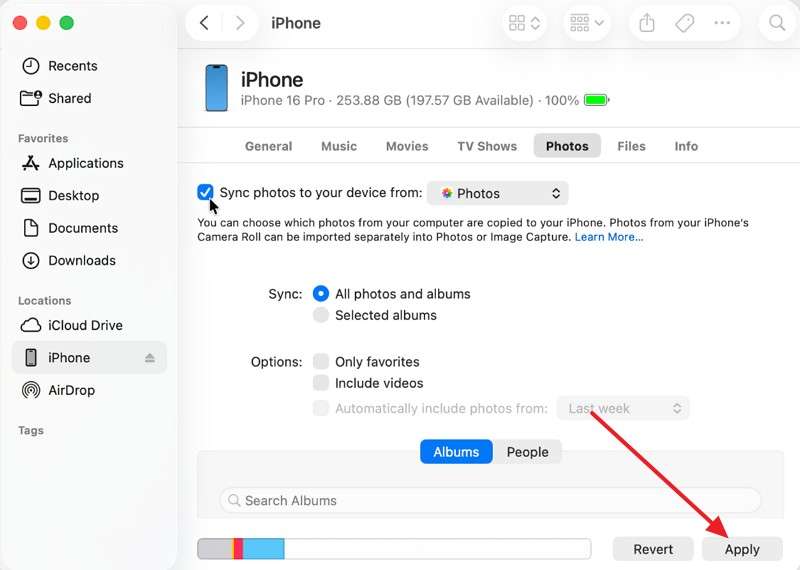
Step 5. Click Apply. If the transfer does not begin automatically, click Sync.
Transfer Photos and Videos from Windows with Apple Devices/iTunes
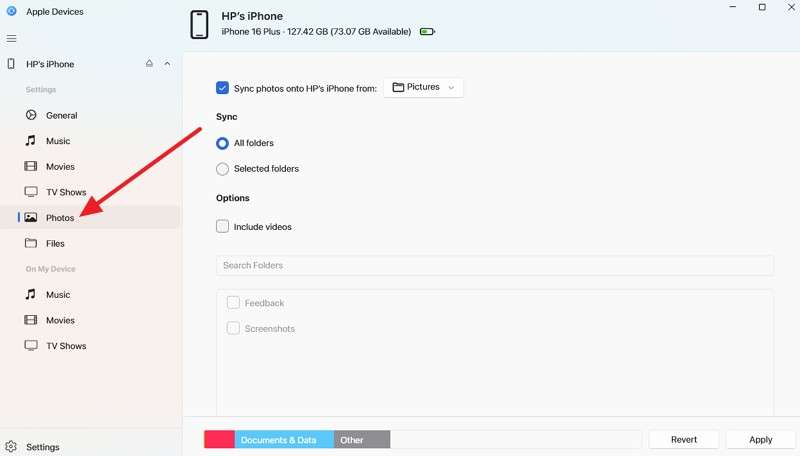
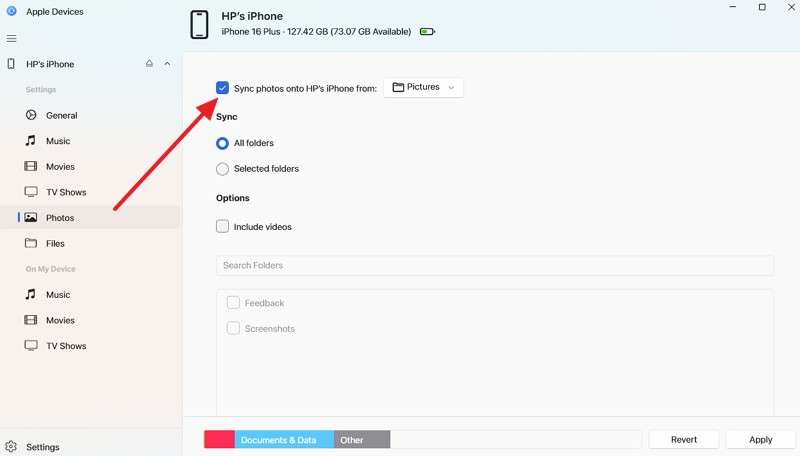
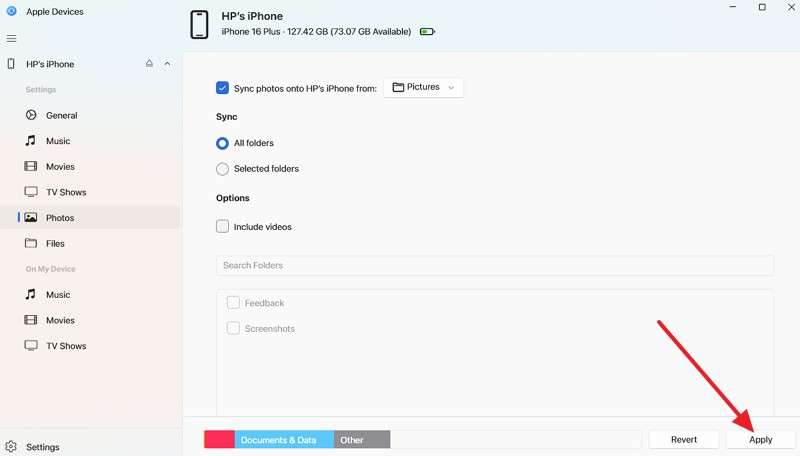
On Windows, the Apple Devices app lets you transfer photos and videos to iPhone Duo from media stored on your PC. You can sync your entire collection or selected folders, while iTunes remains available on PCs that don't use Apple Devices. Manual photo syncing is unavailable while iCloud Photos is enabled. Once everything is ready, follow these steps to sync your media with iPhone Duo:
Step 1. Connect the iPhone Duo to the PC and open Apple Devices. Select the iPhone from the sidebar.
Step 2. Pick Photos. If Apple Devices says the iPhone is using iCloud Photos, turn off iCloud Photos on the iPhone before continuing.
Step 3. Once manual syncing is available, select Sync Photos to Your Device From and choose the folder containing your photos.
Step 4. Choose all folders or selected folders, include videos if needed, then click Apply.
Part 6. Which Method Transfers Photos and Videos Without Losing Quality?
Preserving media quality involves more than keeping the original resolution. To transfer photos from old iPhone to iPhone Duo properly, you should also consider metadata, album organization, Live Photos, and special video formats. Compare how each transfer method handles these details below:
|
Method |
Original Quality |
Metadata |
Albums |
Internet |
Best For |
|
iCloud Photos |
Full resolution |
Preserved |
Preserved |
Yes |
Complete Apple photo libraries |
|
AirDrop |
Original files |
With All Photos Data |
Not preserved |
No |
Selected photos and videos |
|
Google to iCloud |
As exported by Google |
Name, date, and location |
Varies |
Yes |
Large Google Photos libraries |
|
MobileTrans |
Direct file transfer |
Carried with files |
Varies |
No |
Local libraries on either platform |
|
Finder or Apple Devices |
Original files |
Preserved |
Folder based |
No |
Media stored on a computer |
|
Cloud Download |
Depends on uploaded file |
Usually preserved |
Not preserved |
Yes |
Selected files stored in the cloud |
iCloud Photos remains particularly useful when Apple-specific media features matter, including RAW images, Live Photos, slow-mo clips, and 4K videos. For AirDrop, enabling All Photos Data can also include edit history, which is useful when continuing photo edits on the new iPhone.
Cross-platform methods require closer verification after migration. Google to iCloud does not transfer Live Photos, Motion Photos, or Memories. Computer syncing also has a notable limitation, as Apple states that Live Photos may lose their Live Photo effect when synced back to an iPhone.
Part 7. How to Fix Missing or Incomplete Photos and Videos After Transfer
Knowing how to transfer photos and videos to iPhone Duo doesn't always guarantee every file appears immediately. An incomplete sync, insufficient storage, unsupported formats, or conflicting photo settings can leave some media missing or temporarily unavailable. Use the table below to identify the likely cause and check the appropriate solution:
|
Problem |
Likely Reason |
What to Check |
|
iCloud Photos Still Missing |
The library is still syncing |
Sync status, Wi-Fi, power, and Apple Account |
|
Photos Look Lower Resolution |
Optimized copies are stored on the iPhone |
Network access and iCloud Photos sync status |
|
Google Transfer Incomplete |
Unsupported items or transfer still processing |
Import from Google album and iCloud Drive folder |
|
Large Videos Did Not Arrive |
Insufficient storage or interrupted transfer |
Free storage, file size, and connection |
|
Albums Look Different |
The transfer method does not preserve album structure |
Rebuild albums or choose a method that preserves them |
Conclusion
The right transfer method depends on where your photos and videos are currently stored. iCloud Photos works well for Apple libraries, while Google Photos and MobileTrans offer suitable options for cloud and locally stored media. With the right approach to transferring photos and videos to iPhone Duo, you can preserve quality and important media details. Always verify the transferred library before deleting the original files.
FAQ
-
What is the best way to transfer all photos and videos to iPhone Duo?
The best method depends on where your media is stored. Use iCloud Photos for Apple libraries, Google’s direct transfer for Google Photos, or MobileTrans for locally stored media on an Android phone or old iPhone.
-
Can I transfer Google Photos directly to iCloud Photos on iPhone Duo?
Yes. Google Takeout lets you transfer a copy of your Google Photos library directly to iCloud Photos while keeping the originals in Google Photos. However, you must disable Advanced Data Protection for iCloud during the transfer.
-
How can I transfer photos and videos to iPhone Duo without losing quality?
To avoid quality loss, use iCloud Photos for full-resolution libraries or AirDrop with All Photos Data for selected files. MobileTrans works well for locally stored media, but verify metadata, albums, and Live Photos after transferring.
-
Can I transfer photos and videos to iPhone Duo after it is already set up?
You can transfer photos and videos after setting up the iPhone Duo using iCloud Photos, AirDrop, Google Photos, Dropbox, Finder, Apple Devices, or MobileTrans. MobileTrans also supports phone-to-phone transfers without resetting the device.










