



 TL;DR:
You can transfer an existing eSIM or convert a physical SIM to your iPhone Duo directly via Apple's eSIM Quick Transfer for iOS, dedicated transfer tools for Android, or carrier-specific activation methods if direct migration is unsupported.
● Direct transfers require strict software versions: iPhone-to-iPhone migrations require both devices to run iOS 18.4 or later, while Android migrations require iOS 27 on the iPhone Duo alongside Android 16 for post-setup transfers or Android 17 for migrating data and eSIM together during initial setup.
● Choose eSIM Transfer to permanently move your cellular service and deactivate the SIM on your old device, or select iPhone Handoff if you are keeping both iPhones and want to share a single number that connects to the cellular network based on which device is unlocked.
● The iPhone Duo can store eight or more eSIM profiles with up to two active simultaneously, but you must transfer or activate each cellular line individually based on carrier eligibility.
Ask AI for a summary
 ChatGPT
 Perplexity
 Gemini
 Claude
 Grok
Grok
With no physical SIM tray, the iPhone Duo relies entirely on eSIM for cellular connectivity. The right way to transfer eSIM to iPhone Duo depends on your old phone, current SIM type, carrier support, and transfer eligibility.
Apple provides different transfer options for iPhone and Android users, while carriers offer alternatives when direct transfer is unavailable. This guide covers each supported method, from automatic eSIM transfer to QR code and carrier activation options.
In this article


Part 1. Which eSIM Transfer Method Should You Use for iPhone Duo?
To transfer eSIM to iPhone Duo, choose a method based on your current device, SIM type, and carrier support. Compare the available options below:
| Current Device or Situation | Recommended Method | When to Use It | Carrier Support |
| Old iPhone with eSIM | eSIM Quick Transfer | Moving an existing eSIM line | Required |
| Old iPhone with Physical SIM | eSIM Quick Transfer | Converting and moving the physical SIM line | Required |
| Android 16 or Later | Transfer from Android | Moving the eSIM after iPhone setup | Required |
| Android 17 or Later During Setup | Transfer Without App | Moving supported data and eSIM together | Required |
| Direct Transfer Unavailable | Carrier activation | Using carrier activation, QR code, app, or link | Required |
What to Check Before Transferring eSIM to iPhone Duo
Before learning how to transfer eSIM to iPhone Duo, make sure your devices and cellular plan are ready for the transfer. Review these requirements before getting started:
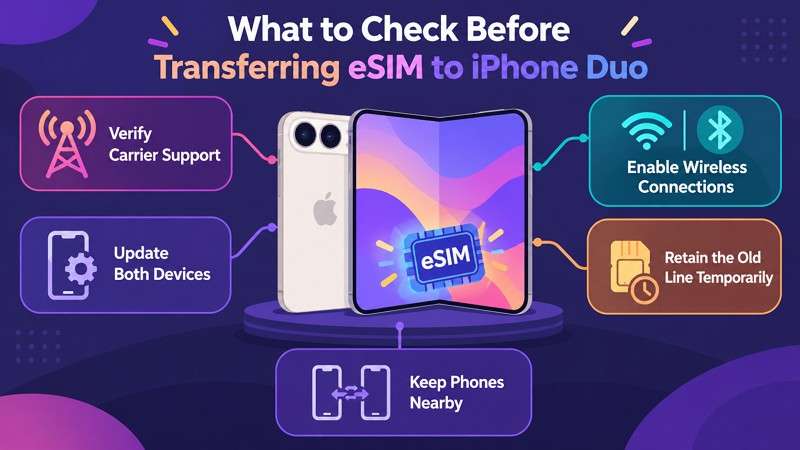
- Verify Carrier Support: Confirm that your carrier supports eSIM and offers the transfer method required for your current device.
- Update Both Devices: For iPhone Quick Transfer, both iPhones should run iOS 18.4 or later. Android transfers require iOS 27 and Android 17 or later.
- Keep Phones Nearby: Place both devices close together throughout the transfer so they can complete the required connection and activation prompts.
- Enable Wireless Connections: Keep Wi-Fi and Bluetooth turned on as required to establish the connection between your old phone and iPhone Duo.
- Keep the Old Line Active: Continue using your existing line until service activates successfully on iPhone Duo. Quick Transfer deactivates the previous SIM after the transfer completes.
Part 2. How to Transfer eSIM from iPhone to iPhone Duo
To transfer eSIM from iPhone to iPhone Duo, first check the SIM type on your old iPhone. You can move an existing eSIM through Quick Transfer, while a physical SIM can be converted to eSIM during the transfer with carrier support.
Transfer an Existing eSIM with eSIM Quick Transfer
Apple’s eSIM Quick Transfer lets you transfer an eSIM to iPhone Duo directly from your old iPhone, provided your carrier supports it. Sign in to both iPhones with the same Apple Account and keep your old iPhone unlocked. Place both devices nearby with Bluetooth enabled and make sure they run iOS 18.4 or later.
You can complete the transfer during iPhone Duo setup or later through Cellular settings. After the new eSIM activates successfully, the previous SIM is automatically deactivated. Follow these steps to transfer your line:
- Step 1. On the iPhone Duo, open Settings > Cellular > Add eSIM > Transfer From Nearby iPhone.
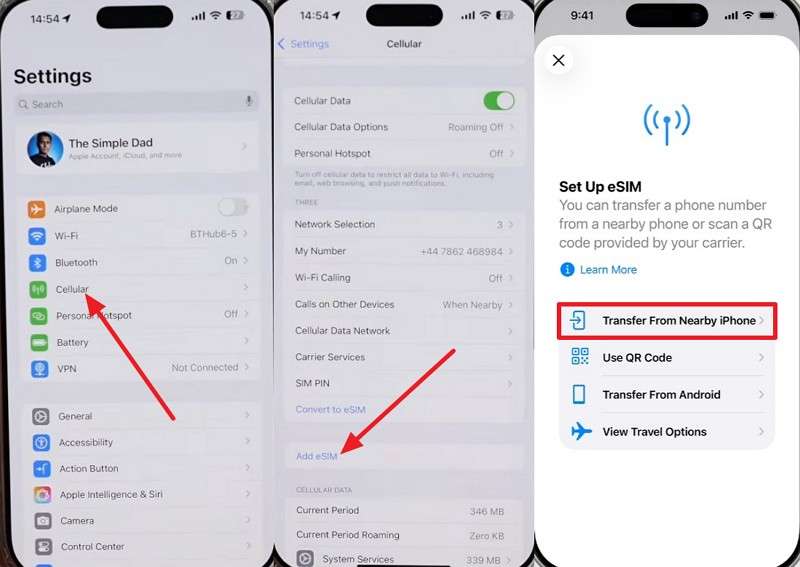
- Step 2. Follow the prompts on your old iPhone, then tap Transfer > Continue to approve the eSIM transfer.
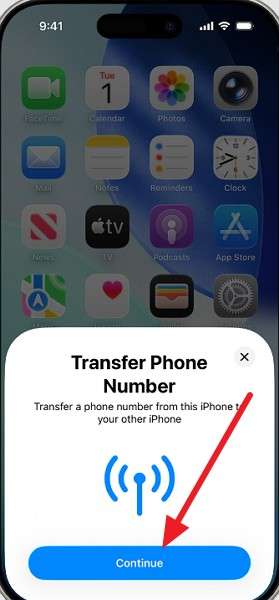
- Step 3. Enter the verification code shown on iPhone Duo if prompted to confirm the transfer.
- Step 4. Wait for the cellular plan to activate on iPhone Duo before using the new eSIM.
Transfer a Physical SIM Number to iPhone Duo
When your old iPhone uses a physical SIM, you may be able to transfer the number from iPhone to iPhone Duo and convert it to eSIM during the process. This option depends on carrier support. Apple confirms that participating carriers support physical SIM-to-eSIM conversion through eSIM Quick Transfer. Follow these simple instructions to complete the transfer:
- Step 1. Open iPhone Duo, then go to Settings > Cellular > Add eSIM > Transfer From Nearby iPhone.
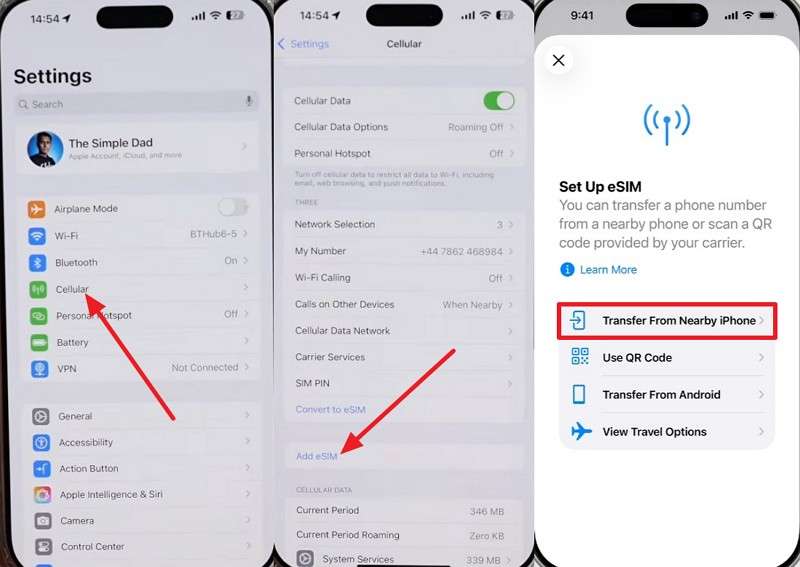
- Step 2. Complete the prompts on your old iPhone and wait for the cellular plan to activate on iPhone Duo.
Note: The physical SIM in your old iPhone deactivates once the new eSIM activates successfully.
- Step 3. Contact your carrier if the transfer or physical SIM to eSIM conversion option does not appear.
Part 3. How to Transfer eSIM from Android to iPhone Duo
To transfer eSIM from Android to iPhone Duo, you can move your cellular line during initial setup or after setting up the iPhone. The available method depends on your Android version, device compatibility, and carrier support.
Method 1. Transfer eSIM Directly from Android to iPhone Duo
Use this method to transfer an eSIM from Android to iPhone Duo after completing the initial iPhone setup. A compatible Android phone must run Android 16 or later, while iPhone Duo requires iOS 27. Your carrier must also support eSIM transfers between Android and iPhone. Keep both devices nearby with Wi-Fi and Bluetooth enabled throughout the process. Once everything is ready, follow these steps:
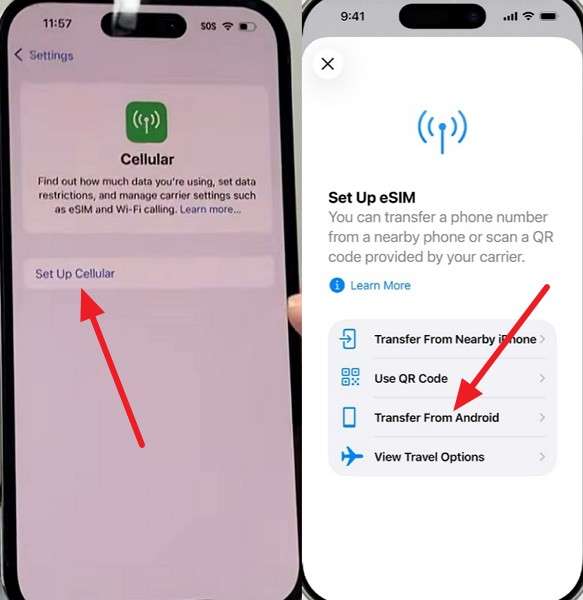
- Step 1. On the iPhone Duo, open Settings > Set Up Cellular > Transfer from Android.
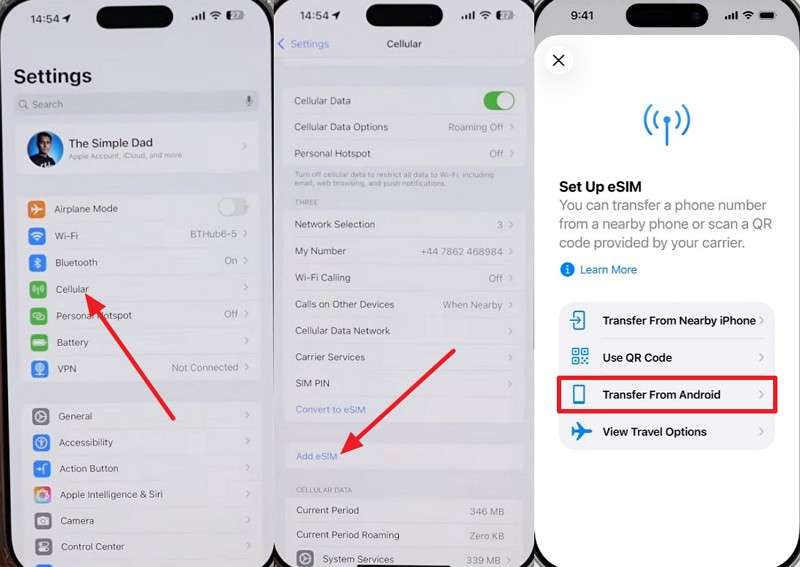
- Step 2. If another SIM is already installed, go to Settings > Cellular > Add eSIM > Transfer from Android.
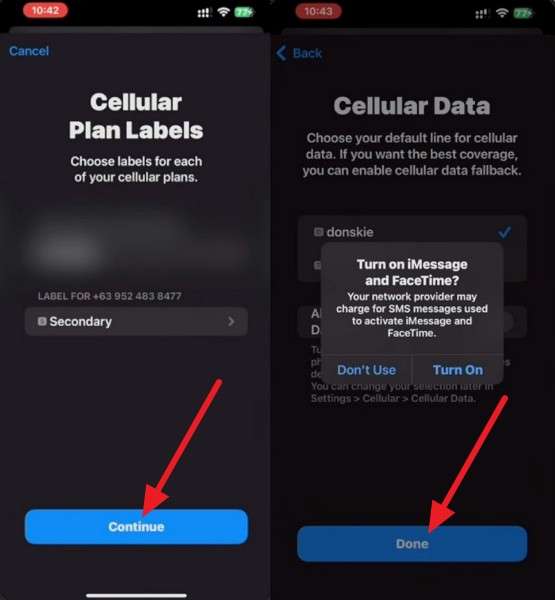
- Step 3. Scan the QR code displayed on iPhone Duo with your Android phone. Select the number, press Continue, and then tap Done.
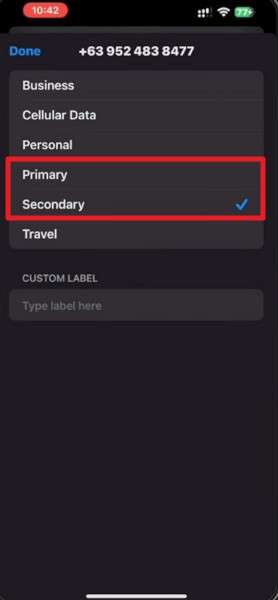
- Step 4. If prompted, choose whether the transferred number should be used as your primary or secondary cellular line.
Method 2. Transfer Android Data and eSIM Together During Setup
If your iPhone Duo is new or reset, you can transfer the eSIM from Android to iPhone Duo while moving supported personal data. Apple’s Transfer Without App option works with compatible Android 17 or later devices and doesn't require the Move to iOS app. Device compatibility and carrier support determine whether eSIM transfer is available.
Unlike Method 1, this option works during initial iPhone setup. Follow these steps to transfer your supported data and cellular line:
- Step 1. Set up the iPhone Duo > Transfer Your Apps & Data > From Android > Transfer Without App.
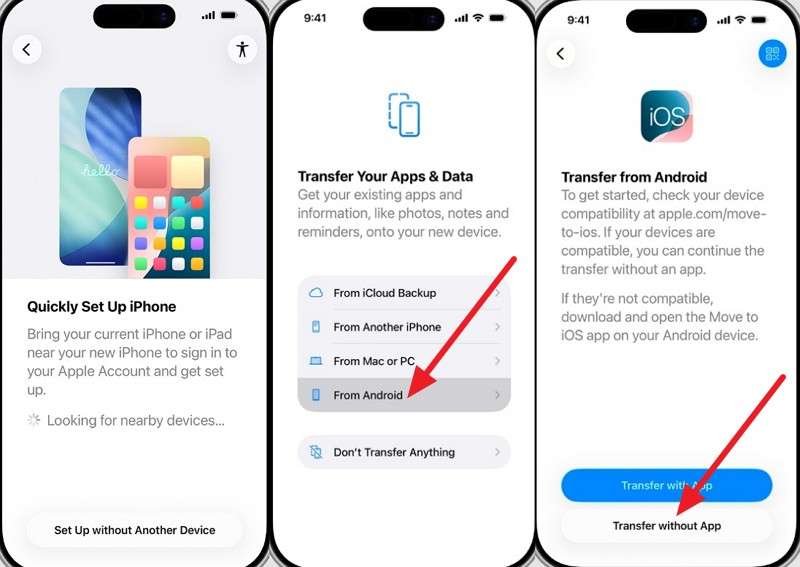
- Step 2. Place the Android phone next to the iPhone Duo > Press Continue > Scan the QR code displayed on the iPhone Duo.
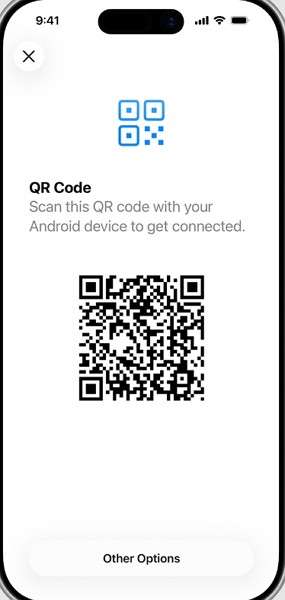
- Step 3. On the Android phone, select the personal data you want to transfer > Press Continue on iPhone Duo.
- Step 4. Select the eligible phone number on the Android device > Tap Transfer to move the eSIM.
- Step 5. Once the eSIM transfer is complete, press Continue on iPhone Duo, then finish the remaining setup.
Part 4. How to Activate eSIM on iPhone Duo When Direct Transfer Is Unavailable
When direct transfer is unavailable, you can still activate eSIM on iPhone Duo using alternative options provided by your carrier. The available method depends on how your carrier handles eSIM activation.
Other Carrier Activation Methods
The table below covers the carrier-supported methods available to activate eSIM on iPhone Duo:
| Activation Method | How It Works | When to Use It |
| eSIM Carrier Activation | Carrier assigns the eSIM to iPhone Duo digitally | Automatic provisioning is available |
| QR Code | Scan the carrier-provided QR code from Add eSIM | Carrier provides an activation QR code |
| Activation Link | Open the carrier link and approve eSIM activation | Carrier provides an activation link |
| Carrier App | Complete eSIM activation through the carrier’s app | Carrier requires app-based activation |
| Manual Details | Enter the eSIM information provided by your carrier | Automatic activation options are unavailable |
After choosing the activation method your carrier supports, follow the steps below to set up the eSIM on iPhone Duo:
- Step 1. On the iPhone Duo, go to Settings > Cellular > Set Up Cellular > Use QR Code > Scan the code.
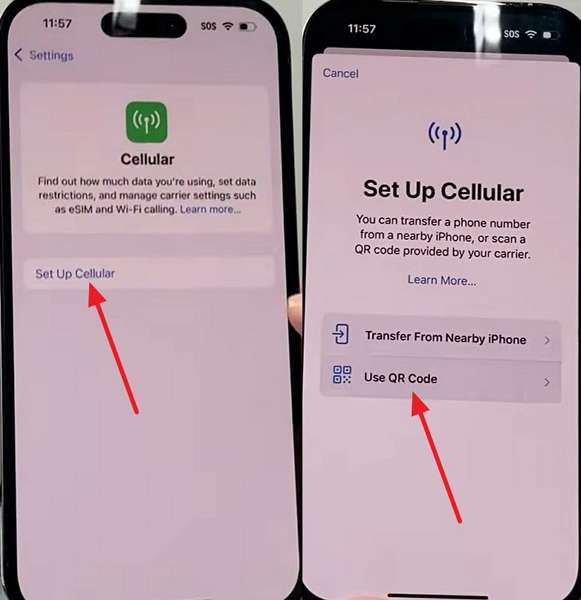
- Step 2. For activation through a carrier link, open the link and tap Allow > Continue to add the eSIM.
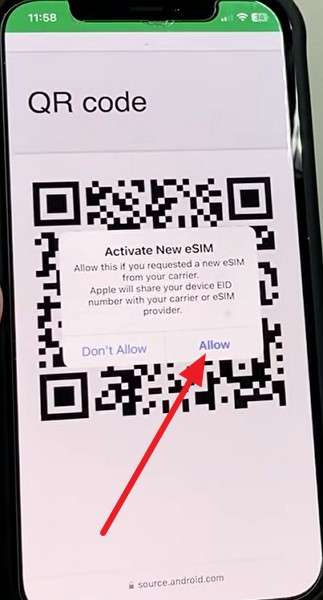
- Step 3. Once activation finishes, go to Settings > Cellular and confirm that the new eSIM line is turned on.
Part 5. Can You Transfer Multiple eSIMs to iPhone Duo?
To transfer multiple eSIMs to iPhone Duo, you must move or activate each line separately. The available transfer method may vary by carrier and each line's eligibility.
How Many eSIMs Can iPhone Duo Store and Use?
Apple states that supported iPhones can store 8 or more eSIMs, with two active at the same time. While only one line can use cellular data at a time, Cellular Data Switching can switch data between supported Dual SIM lines.
Once you transfer an eSIM from iPhone to iPhone Duo, you can manage each line under Settings > Cellular. From there, choose your preferred lines for calls and cellular data.
Set Up Your Lines After the Transfer
After you transfer an eSIM to iPhone Duo, configure each line for calls, cellular data, and everyday use with these settings:
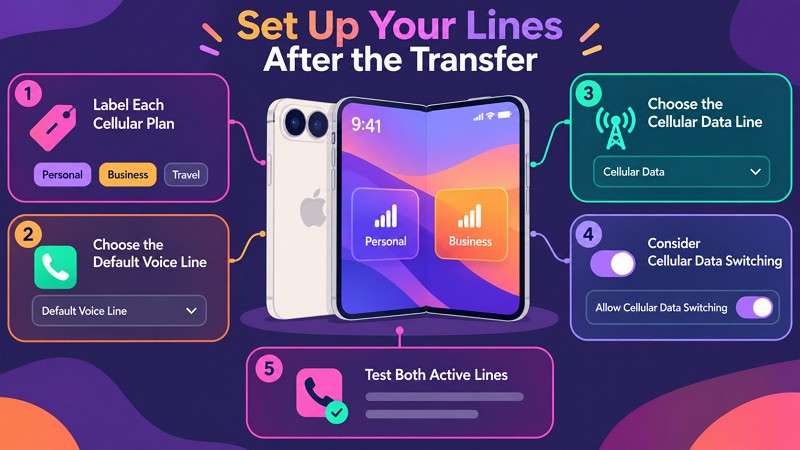
- Label Each Cellular Plan: Start by giving each line a recognizable label. Go to Settings > Cellular, select a line, and choose Cellular Plan Label. You can use Personal, Business, or a custom label.
- Set the Default Voice Line: Open Settings > Cellular > Default Voice Line and choose the number you want iPhone Duo to use for outgoing calls by default.
- Select the Cellular Data Line: Go to Settings > Cellular > Cellular Data and choose which active line should provide mobile data.
- Enable Cellular Data Switching: Turn on Allow Cellular Data Switching if you want iPhone Duo to switch cellular data between active lines when appropriate.
- Test Both Active Lines: Finally, make a call using each active number and confirm the voice and data settings work correctly before retiring your old phone.
Part 6. eSIM Transfer vs iPhone Handoff on iPhone Duo
eSIM Transfer and iPhone Handoff handle your cellular line differently. The table below compares how each option works, followed by when to use each one.
| Feature | eSIM Transfer | iPhone Handoff |
| Primary Purpose | Move the cellular line to a new iPhone | Share one number between two iPhones |
| Where the Number Is Active | New iPhone only | Currently active iPhone |
| Old iPhone | Cellular line is deactivated | Keeps the shared line available |
| Both Phones in Use | No, for the transferred line | Yes, with one cellular connection active at a time |
| Carrier Requirements | eSIM transfer support | iPhone Handoff support |
| Best Use Case | Replacing your old iPhone | Keeping two iPhones with one number |
Choose eSIM Transfer When Replacing Your Old iPhone
When iPhone Duo replaces your current iPhone, transfer the eSIM from iPhone to iPhone Duo to move your cellular service completely. With eSIM Quick Transfer, the plan activates on iPhone Duo and the previous SIM is deactivated after activation.
Choose iPhone Handoff When Keeping Both iPhones
Use iPhone Handoff when you want to keep iPhone Duo and another iPhone connected to the same phone number. One serves as the main iPhone and the other as the secondary iPhone. Only one connects to the cellular network at a time, with the line switching when you unlock the other device.
Part 7. How to Fix eSIM Transfer Not Working on iPhone Duo
If you cannot transfer an eSIM to iPhone Duo, the issue may come from the device, carrier, or transfer setup. The table below covers common problems and the corresponding fixes.
| Problem | Possible Cause | Recommended Fix |
| Transfer From Nearby iPhone Is Missing | Quick Transfer requirements are not met | Check carrier support, software, Bluetooth, and device proximity |
| Transfer From Android Is Missing | Device, Android version, or carrier is unsupported | Check eligibility or use carrier activation instead |
| Transfer Without App Is Missing | Android device or software does not support this method | Use another supported Android transfer method |
| Cellular Plan Does Not Appear | Line is unavailable for direct transfer | Contact the carrier for eSIM activation |
| eSIM Stuck on Activating | Activation or carrier provisioning is incomplete | Check connectivity, restart iPhone, then contact the carrier |
| QR Code Does Not Work | QR code is invalid, expired, or previously used | Request a new activation method from the carrier |
| SOS or No Service Appears | New eSIM is not connected to the cellular network | Check that the line is enabled, then contact the carrier |
| Old Phone Still Has Service | New eSIM transfer or activation has not completed | Confirm activation on iPhone Duo before removing anything |
Part 8. How to Transfer Personal Data to iPhone Duo with MobileTrans
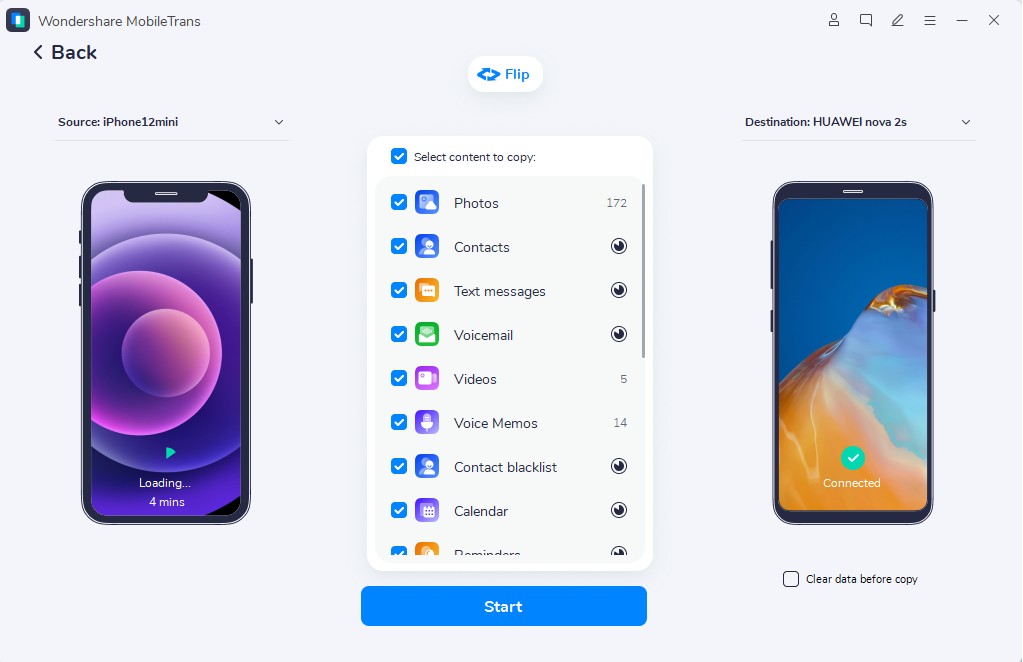
An eSIM transfer moves your cellular plan and phone number, but it does not carry over the personal data stored on your old device. After you transfer the eSIM to iPhone Duo, contacts, photos, videos, messages, documents, and other content may still need to be transferred separately. MobileTrans-Phone Transfer provides a Phone Transfer feature that supports 18+ data types when moving content from an Android or iPhone to iPhone Duo.
This approach can be useful when iPhone Duo is already set up and you want to transfer selected data without resetting the device. MobileTrans also offers a dedicated WhatsApp Transfer feature to move supported WhatsApp and WhatsApp Business data between compatible devices.




Guide to Transfer Data to iPhone Duo with MobileTrans
Now that you know how to transfer an eSIM from Android to iPhone Duo or another iPhone, the next step is moving your data. Follow the steps below using Android to iPhone Duo as an example:
- Step 1. Open MobileTrans and choose Phone Transfer > Phone to Phone. Connect Android and iPhone Duo.

- Step 2. Select the data types you want to transfer, then click Start to move them from Android to iPhone Duo.
Conclusion
The best way to transfer eSIM to iPhone Duo depends on your current device, SIM type, and carrier support. Whether you use Quick Transfer, Android transfer, or carrier activation, confirm that cellular service works before retiring your old phone. Once the eSIM is active, you can use MobileTrans-Phone Transfer to move contacts, photos, messages, and other personal data separately without mixing cellular activation with data migration.



FAQ
-
Can I transfer my existing eSIM directly to iPhone Duo?
Yes, if your carrier and devices support direct transfer. eSIM Quick Transfer can move your line between compatible iPhones. Apple also supports transferring an eSIM from Android to iPhone Duo with eligible Android devices and carriers.
-
Can I transfer a physical SIM to iPhone Duo?
Yes, with a supported carrier. Your phone number can move from a physical SIM to an eSIM during the transfer. If direct conversion is unavailable, contact your carrier to activate a new eSIM on iPhone Duo.
-
Does transferring an eSIM deactivate it on the old phone?
Once the eSIM transfer and activation are complete, the cellular plan on the old device is deactivated. This applies to supported transfers from both iPhone and Android devices.
-
Can I transfer two eSIMs to iPhone Duo?
Two eSIMs can remain active at the same time, with additional eSIMs stored on the device. You can transfer multiple lines during setup when supported, but transfer eligibility depends on each carrier and cellular plan.










