
 TL;DR:
Use Apple's Transfer without App or Move to iOS for full data migration during the initial iPhone Duo setup, or utilize MobileTrans, Quick Share, and USB-C drives to move specific files and WhatsApp chats without factory resetting an already configured device.
● Apple's app-free migration specifically requires iOS 26.5 and an Android 17 device, while Move to iOS supports broader devices and personal WhatsApp transfers, but both tools mandate a complete device reset if the iPhone is already set up.
● MobileTrans is best for transferring text messages and WhatsApp Business chats post-setup without erasing data despite requiring a paid plan, whereas Samsung Quick Share directly sends selected media to AirDrop for free without additional apps.
● Samsung Notes, Secure Folder contents, and Samsung Pass credentials demand manual export before switching platforms, and Galaxy Watch4 or newer wearables cannot pair with the iPhone Duo.
Ask AI for a summary
 ChatGPT
 Perplexity
 Gemini
 Claude
 Grok
Samsung users often rely on Smart Switch for data transfers, but this utility only supports moving data to Samsung devices. Therefore, it cannot transfer files directly from a Galaxy Z Fold 8 to an iPhone Duo. Secure Folder content, app purchases, and WhatsApp backups also require special handling when switching platforms.
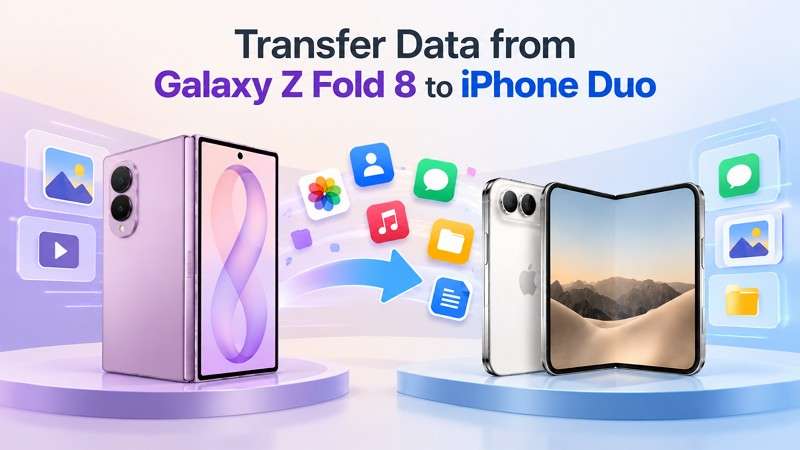
The best way to transfer data from Galaxy Z Fold 8 to iPhone Duo depends on the iPhone's setup status and data types. Apple's setup tools support initial migration, while MobileTrans handles selected data and WhatsApp transfers after setup. Other options include Quick Share, Google services, flash drives, and computers.
In this article

Part 1. What to Check Before Transferring Data from Galaxy Z Fold 8 to iPhone Duo
Before you transfer data from Galaxy Z Fold 8 to iPhone Duo, check available storage, backups, connectivity, and account access. These 4 preparations help ensure a smooth transfer and reduce interruptions during migration:
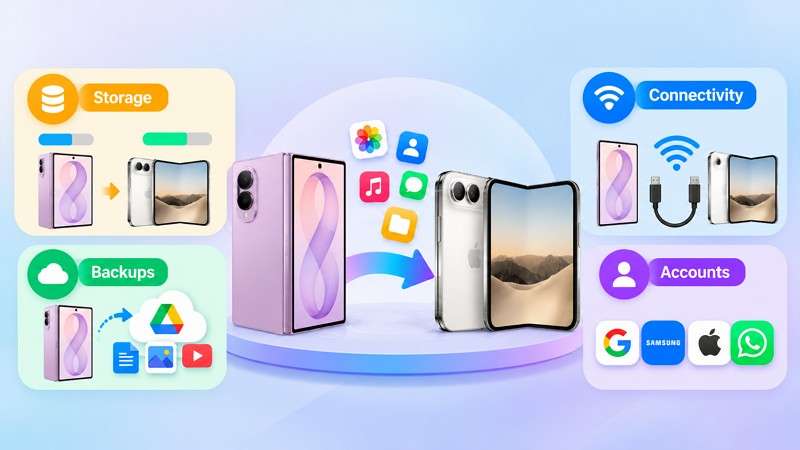
- Storage: Check the storage used on your Galaxy Z Fold 8 and ensure iPhone Duo has enough available space. Insufficient storage can interrupt the transfer of photos, videos, and other data.
- Backups: Create a fresh Google backup through Settings > Google > All Services > Backup > Back Up Now. Save important photos and documents separately to a computer or cloud drive to protect against data loss.
- Connectivity: Keep both phones connected to power and enable Wi-Fi on your Galaxy Z Fold 8. Apple's transfer tools establish a temporary connection, while a compatible USB-C cable supports faster transfers.
- Accounts: Prepare your Samsung, Google, and Apple account credentials before switching. Ensure you can access the phone number linked to WhatsApp to receive verification codes during migration.
Compare Galaxy Z Fold 8 to iPhone Duo Transfer Methods
Several methods are available to transfer data from Galaxy Z Fold 8 to iPhone Duo after setup, depending on the content you want to move. The table compares their supported data and whether they work during or after iPhone setup:
| Method | Type | Supported Data | Works After iPhone Setup |
| Transfer Without an App | Setup migration | Contacts, messages, photos, calendars, call history, and supported eSIMs | No |
| Move to iOS | Setup migration | Contacts, messages, photos, videos, files, and regular WhatsApp | No |
| MobileTrans | Selective transfer | Supported phone data types; WhatsApp and WhatsApp Business separately | Yes |
| MobileTrans App | Selective transfer | Media, documents, contacts, calendars, and WhatsApp | Yes |
| Quick Share and AirDrop | File sharing | Selected photos, videos, and documents | Yes |
| Google Services | Cloud sync | Contacts, calendars, mail, photos, and files | Yes |
| USB-C Flash Drive | Selective transfer | Photos, videos, and documents | Yes |
| Windows or Mac | Selective transfer | Media and documents | Yes |
Verdict: Apple's setup tools are ideal for transferring data to a new iPhone Duo. After setup, Google services, Quick Share, and USB-C drives handle selected files. MobileTrans supports broader data transfers, including WhatsApp and WhatsApp Business, without requiring an iPhone reset.




Part 2. How to Transfer Galaxy Z Fold 8 Data During iPhone Duo Setup
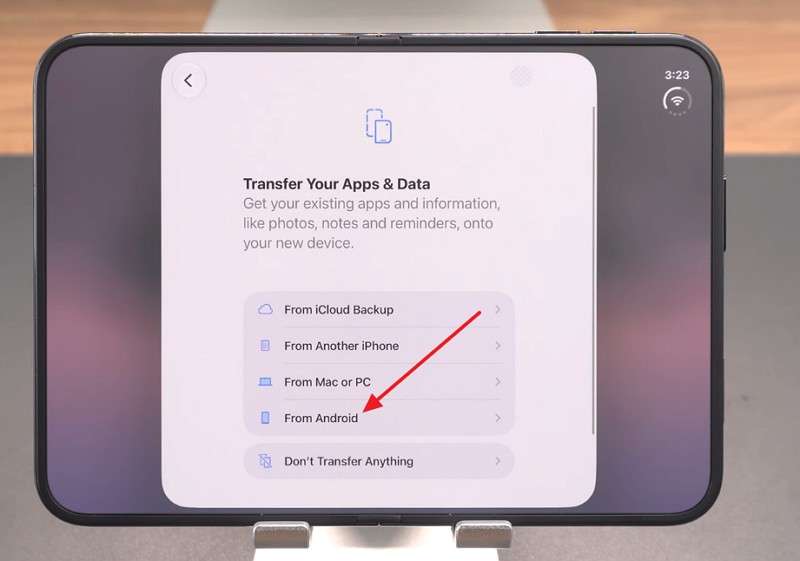
With your Galaxy Z Fold 8 backed up and both phones charged, you can transfer data from Galaxy Z Fold 8 to iPhone Duo using Apple's built-in setup options. Both the app-free method and Move to iOS begin at the Transfer Your Apps & Data screen. Follow the steps below to complete either method:
Method 1. Transfer Data Without an App Using Android 17
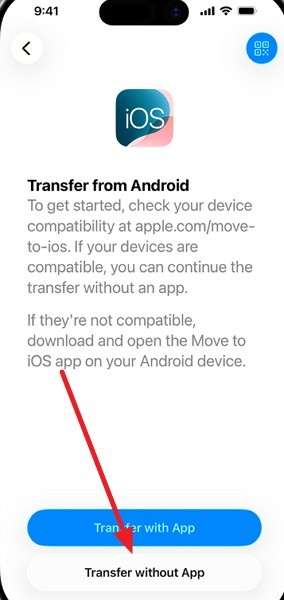
Apple's Transfer without App feature supports Galaxy Z Fold 8 to iPhone Duo without Move to iOS migration on compatible devices. According to Apple's official transfer guide, the feature requires iOS 26.5 or later and a compatible Android 17 device. It uses QR-code pairing to connect both phones during initial setup. Follow these steps to transfer your data using this feature:
Step 1. On iPhone Duo, access Transfer Your Apps & Data, select From Android > Transfer without App, and tap Continue.
Step 2. Scan the iPhone Duo's QR code with Fold 8. Alternatively, tap Other Options on iPhone Duo and select Settings > Google > All Services > Pair with iPhone or iPad > Copy Data on Fold 8.
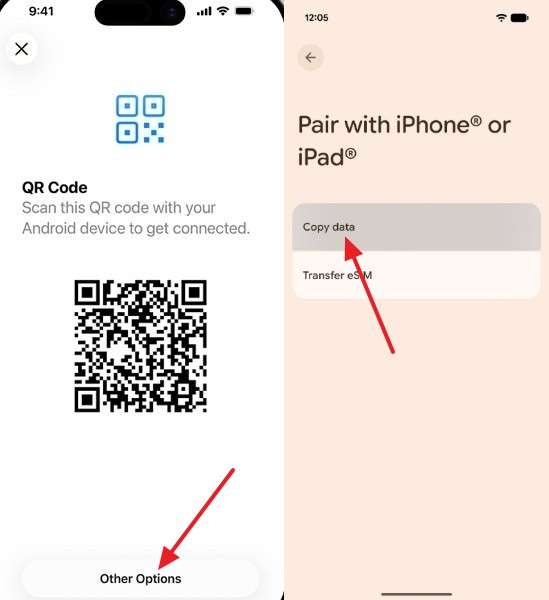
Step 3. Select the data to transfer on Fold 8 and follow the on-screen instructions. Once completed, tap Continue on iPhone Duo.
Method 2. Transfer Data Using Move to iOS
If app-free transfer is unavailable, Apple's Move to iOS app transfers contacts, messages, photos, videos, and calendars during iPhone setup. It also supports transferring WhatsApp from Galaxy Z Fold 8 to iPhone Duo for personal accounts, while WhatsApp's Android-to-iPhone guide excludes Business accounts. Follow these steps to complete the migration with Move to iOS:
Step 1. Download and install Move to iOS on your Galaxy Z Fold 8, then tap Continue on the next two screens.
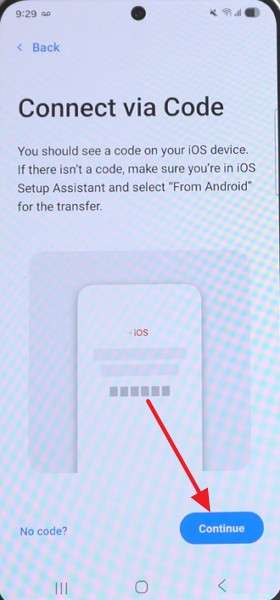
Step 2. Turn on your iPhone Duo > Continue until you reach the Transfer Your Apps & Data screen > Select From Android.
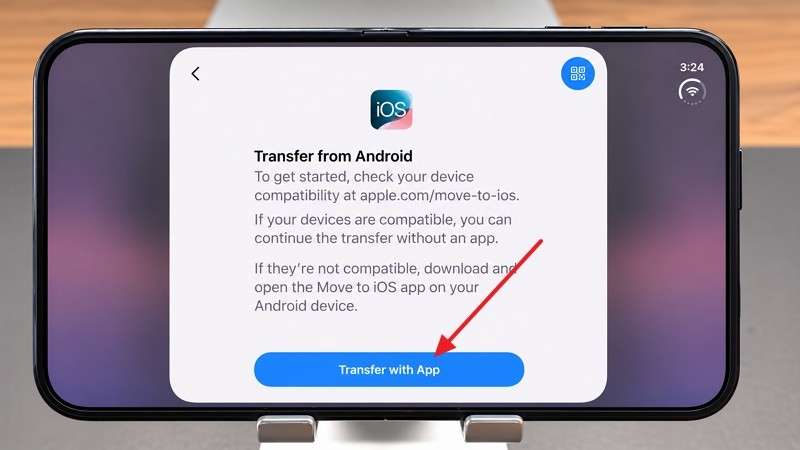
Step 3. Choose Transfer with App and enter the displayed 6-digit code into the Move to iOS app on your Galaxy Z Fold 8.
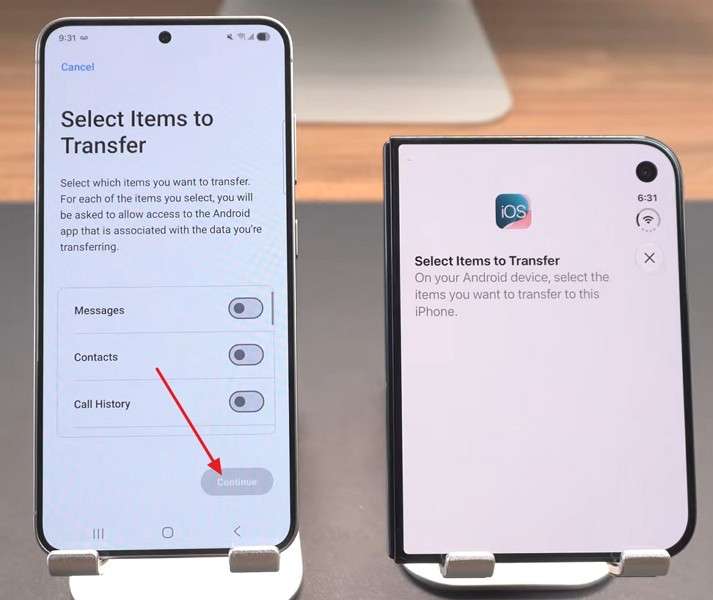
Step 4. On your Z Fold 8, choose the content you want to move. Tap Continue to start the transfer.
Part 3. How to Transfer Data Using MobileTrans or Quick Share After Setup
If iPhone Duo is already set up, Apple's migration tools require a factory reset. For a Galaxy Z Fold 8 to iPhone Duo without Move to iOS transfer, MobileTrans offers options for moving supported data without resetting the device. Alternatively, Quick Share lets you send selected files wirelessly. The following methods explain how to transfer data after setup:
Method 3. Direct Phone-to-Phone Data Transfer Using MobileTrans
To transfer data from Galaxy Z Fold 8 to iPhone Duo after setup, MobileTrans-Phone Transfer provides a desktop-based solution without requiring an iPhone reset. Available for Windows and Mac, it connects both phones through USB cables and supports 18+ data types, including contacts, messages, photos, and videos. Users can select specific data categories instead of transferring everything at once.
For WhatsApp conversations, MobileTrans offers a separate App Transfer feature supporting personal WhatsApp and WhatsApp Business. Its WhatsApp transfer tools provide dedicated migration options for moving chats and attachments between Android and iPhone. Supported workflows also allow users to preserve existing WhatsApp conversations on the receiving device.
Guide to Transfer Galaxy Z Fold 8 Data with MobileTrans
Follow these steps to learn how to transfer data from Galaxy Z Fold 8 to iPhone Duo using MobileTrans without resetting your device:
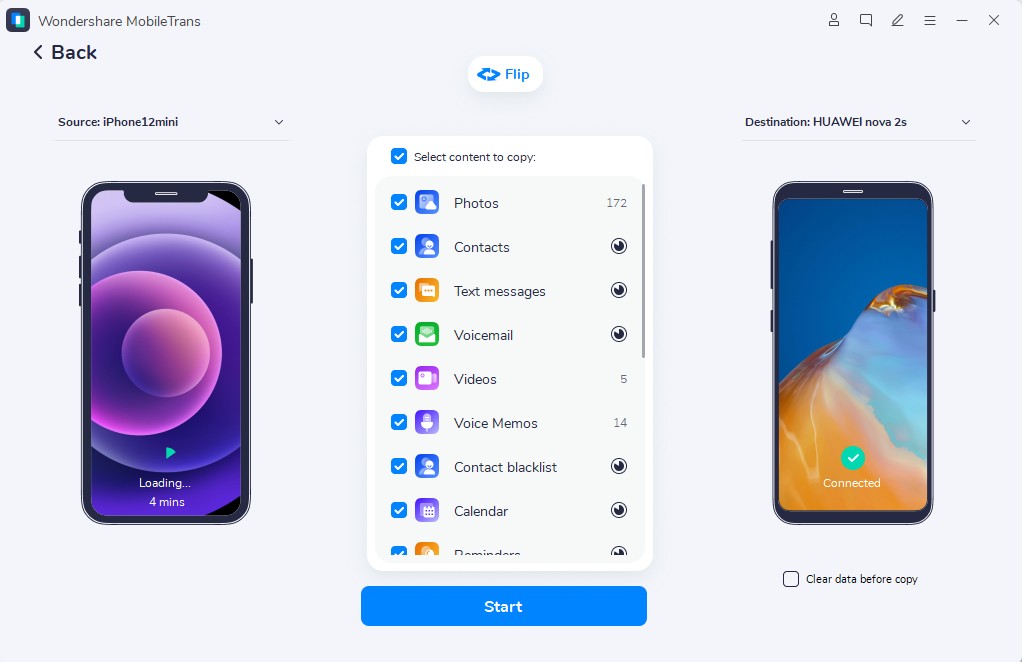
Step 1. In MobileTrans, select Phone Transfer > Phone to Phone and connect both phones using USB cables. Tap Trust or allow the required permissions when prompted.
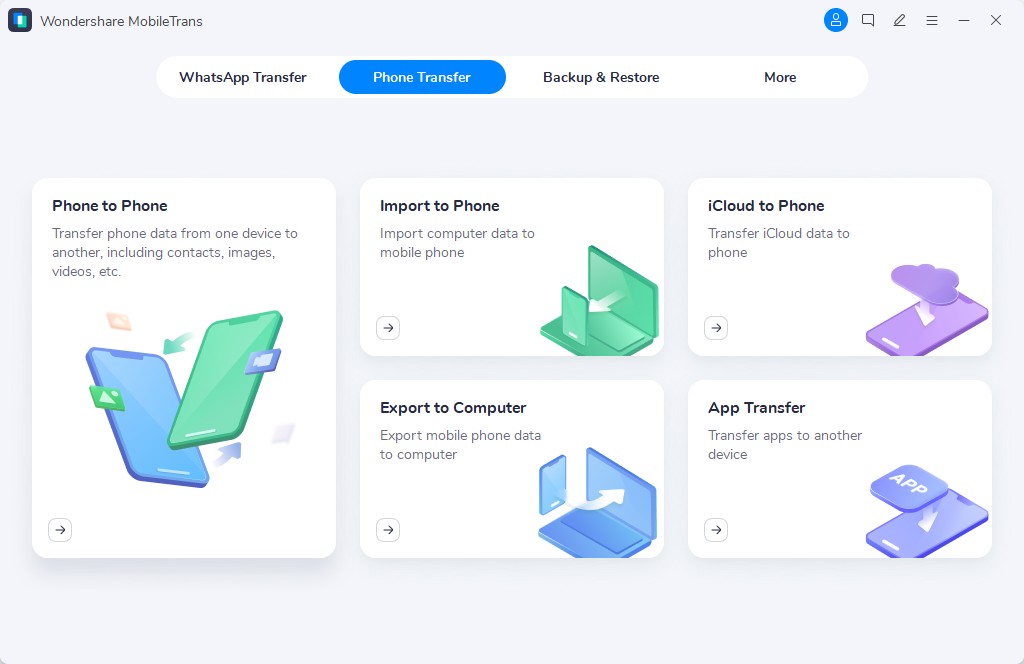
Step 2. Confirm that Fold 8 is the source device and click Flip if needed. Select the data categories you want to transfer.

Step 3. Click Start and keep both phones connected until the transfer finishes. Check the transferred data on iPhone Duo to confirm everything is accessible.
Method 4. Transfer Data Wirelessly Using the MobileTrans App
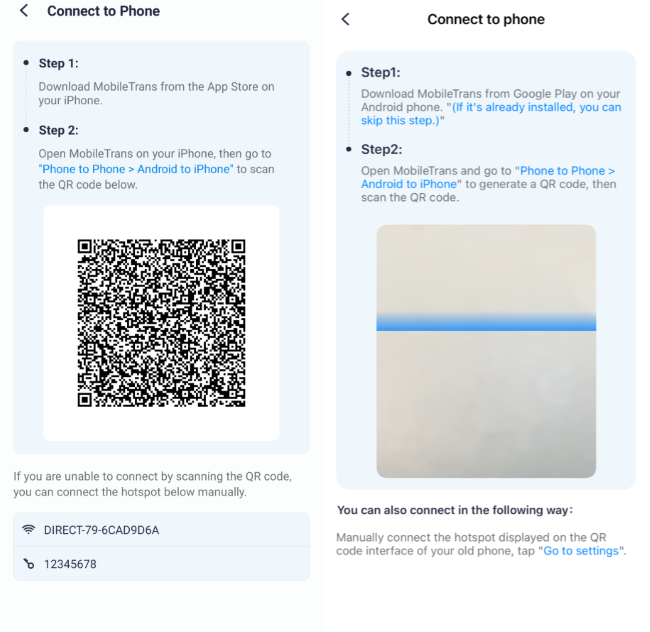
For users who prefer transferring data without a computer, the MobileTrans App offers a wireless solution for Android-to-iPhone migration. It uses QR-code pairing to establish a local connection between both devices. The app also supports WhatsApp migration through dedicated transfer options.
MobileTrans supports Android 7.0 and iOS 12.0 or later, allowing users to transfer selected data without relying on cloud storage. Its wireless transfer functionality eliminates the need for USB cables. To transfer WhatsApp from Galaxy Z Fold 8 to iPhone Duo, users can access the app's dedicated WhatsApp transfer feature.
Guide to Transfer Data Wirelessly with MobileTrans App
Go through these 3 steps to transfer data from Galaxy Z Fold 8 to iPhone Duo after setup using the MobileTrans App:
Step 1. Install the MobileTrans App on both phones and choose Send > Send to iOS on the Fold 8.
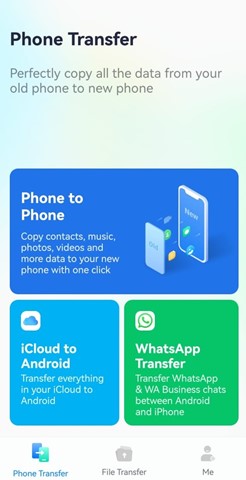
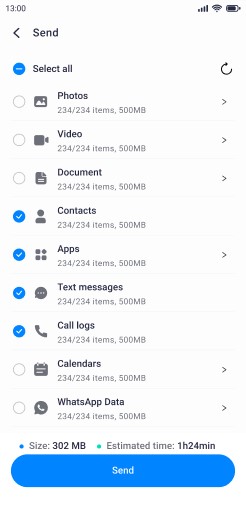
Step 2. Choose the required data types of Fold 8 > Toggle on AI Transfer > Press Analyze with AI.
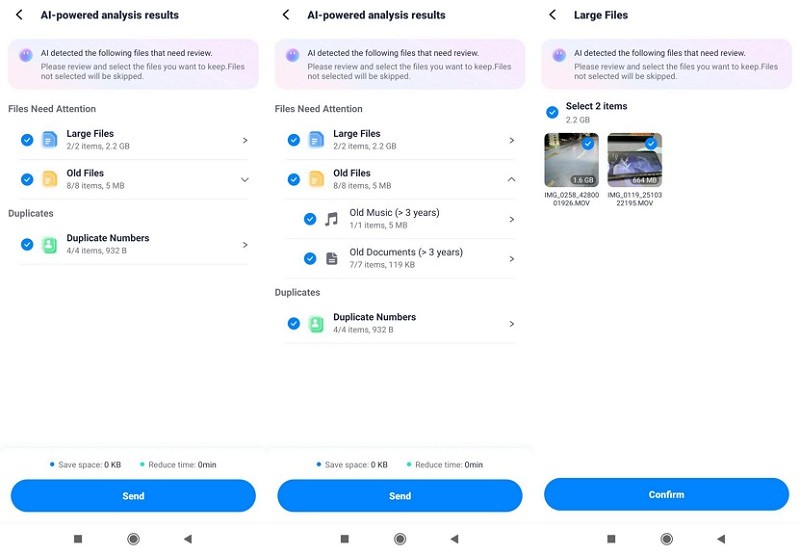
Step 3. Review the analysis results > Select the files you want to keep during transfer and press Send.
Step 4. Open the MobileTrans App on iPhone Duo > Press Receive from Android > Scan the QR code with Fold 8 to start the transfer.
Method 5. Transfer Files Using Samsung Quick Share and AirDrop
Samsung Quick Share supports direct file sharing with AirDrop on compatible Galaxy devices, as confirmed in Samsung's Fold 8 announcement. It allows Galaxy Z Fold 8 users to send photos, videos, and documents directly to iPhone Duo without additional apps. Both devices need Wi-Fi and Bluetooth enabled, while availability depends on software compatibility and region.
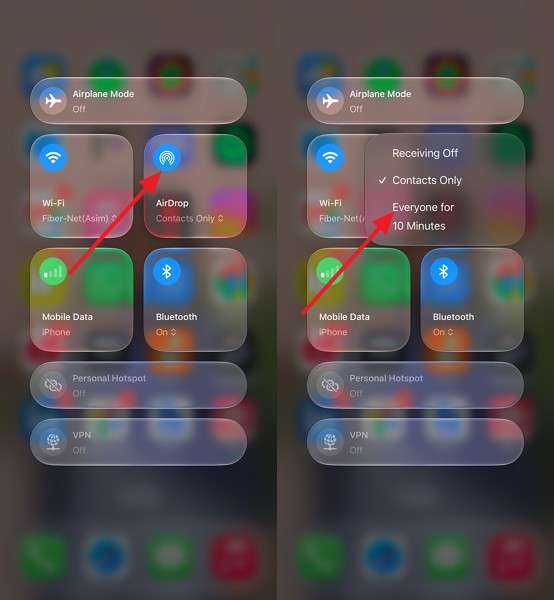
According to Apple's AirDrop guide, selecting Everyone for 10 Minutes makes the receiving iPhone temporarily discoverable. To transfer data from Galaxy Z Fold 8 to iPhone Duo after setup without resetting either device, follow these steps:
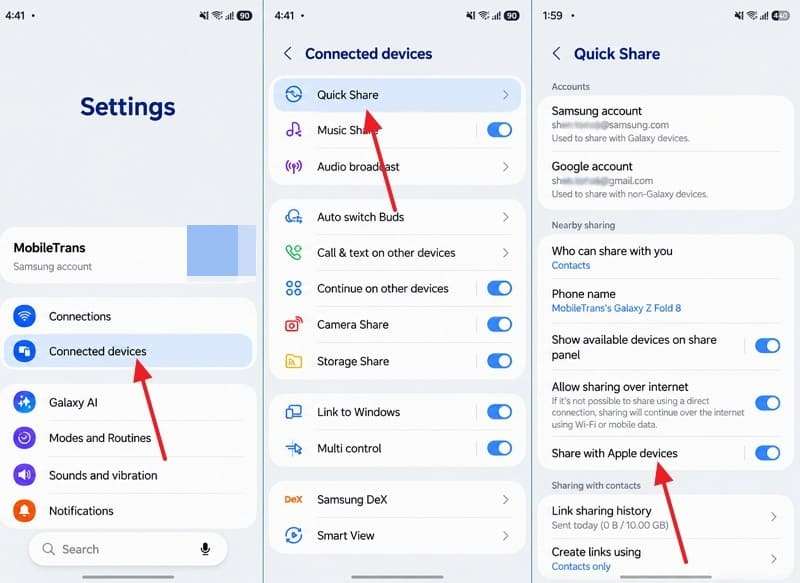
Step 1. On Galaxy Z Fold 8, open Settings > Connected Devices > Quick Share and enable Share with Apple Devices.
Step 2. On iPhone Duo, open Control Center, press and hold the connectivity controls, tap AirDrop, and select Everyone for 10 Minutes.
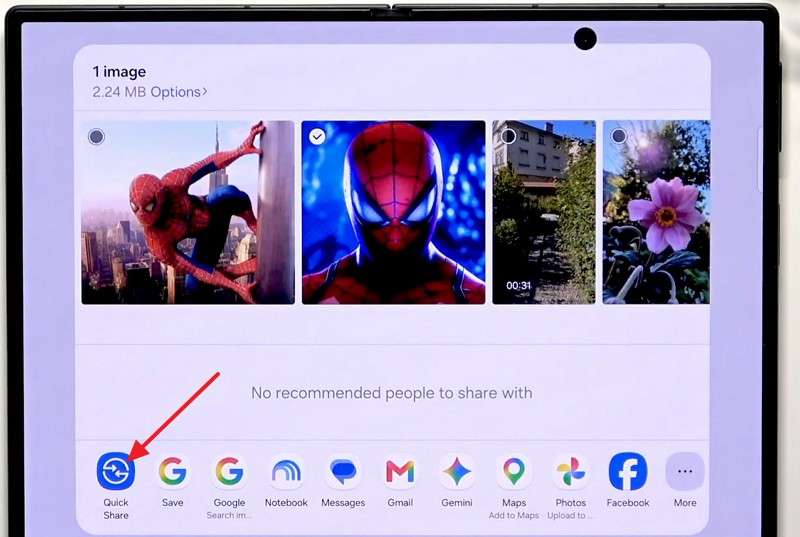
Step 3. On Fold 8, open Gallery or My Files, select the files, and tap Share > Quick Share > iPhone Duo. Tap Accept on iPhone Duo to receive the files.
Part 4. How to Transfer Specific Files and Accounts to iPhone Duo
Besides transferring data from Galaxy Z Fold 8 to iPhone Duo after setup, you can move contacts, photos, and documents individually without resetting your iPhone. Here are 3 practical methods with detailed instructions:
1. Transfer Contacts, Photos, and Documents Using Google Services
Google account sync lets you access contacts, calendars, and Gmail on iPhone Duo. Contacts stored locally or in a Samsung account must first be transferred to Google through Manage Contacts. Photos and Drive files remain in cloud storage until downloaded. Follow these steps to transfer your data:
Transfer Contacts
Step 1. On Fold 8, go to Accounts and Backup > Manage Accounts > Tap your Google account > Sync Account.
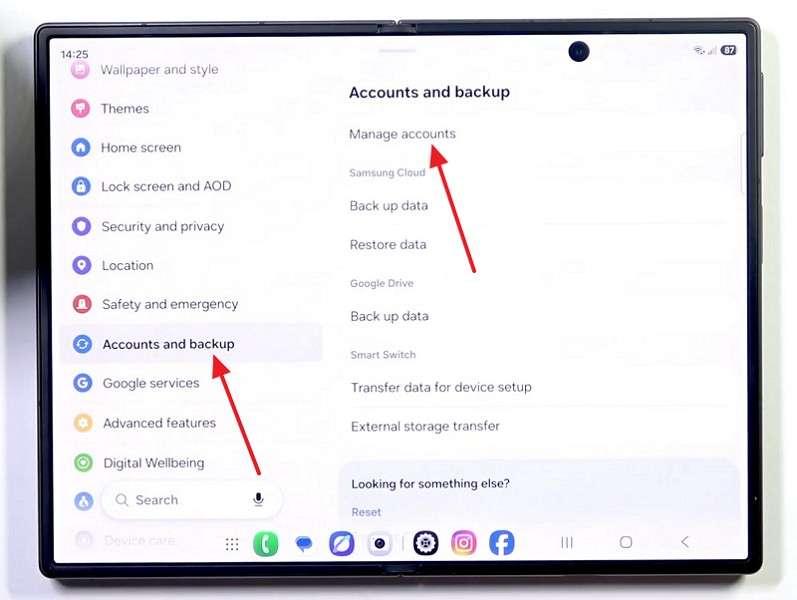
Step 2. Look for the Contacts toggle and ensure it is turned on.
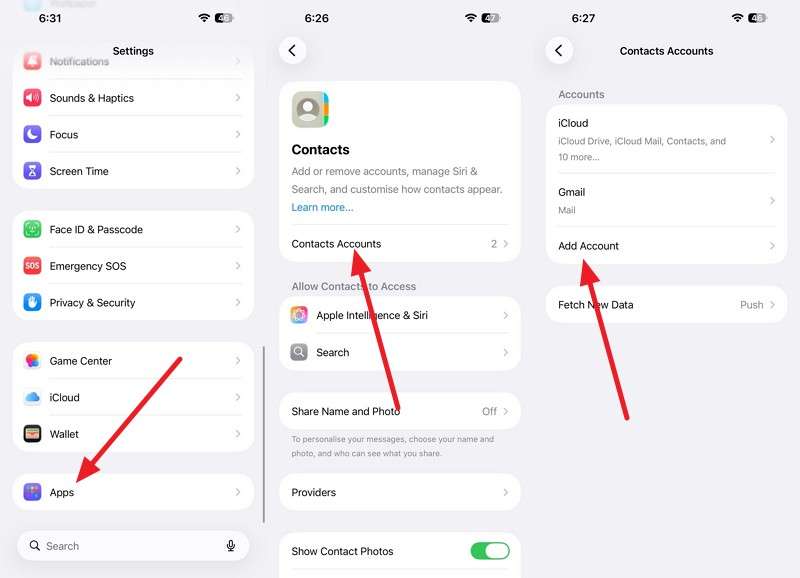
Step 3. Add the same Google account to iPhone Duo through Settings > Apps > Contacts > Contacts Accounts > Add Account.
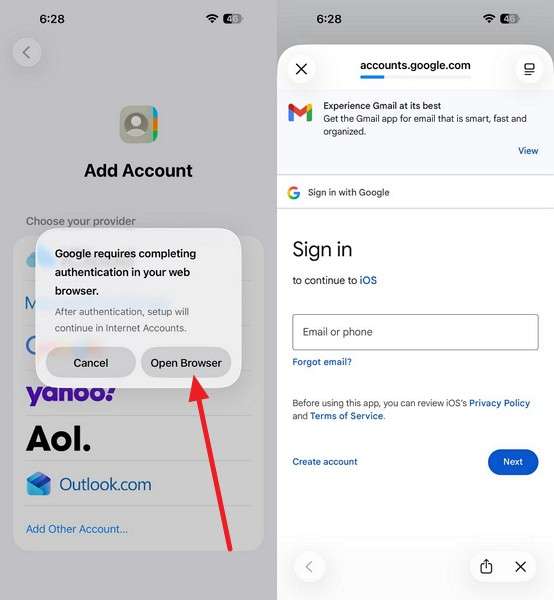
Step 4. Select Google > Open Browser and sign in with the same account > Enable the Contacts sync option.
Transfer Photos
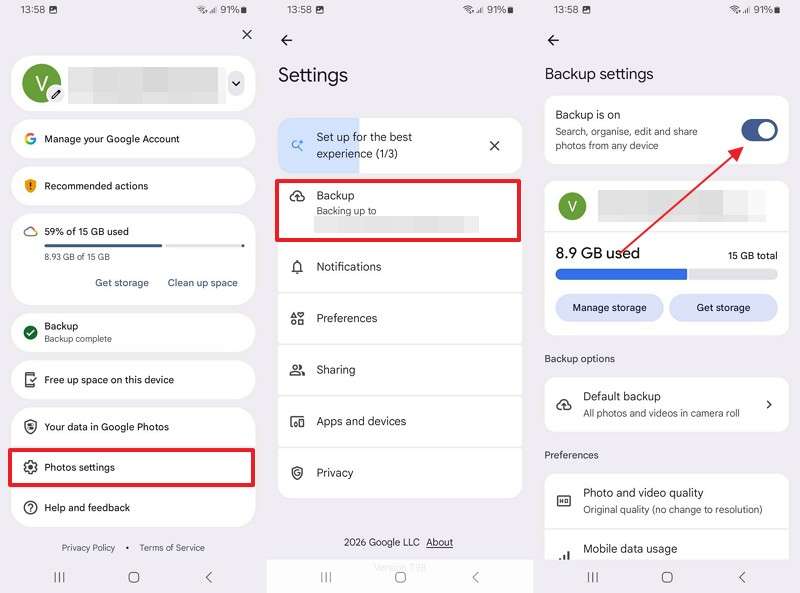
Step 1. On Fold 8, open Google Photos > Press Profile picture > Photos Settings > Backup > Toggle the Backup switch to On.
Step 2. Sign in to Google Photos on iPhone Duo to view the backed-up images, then download any photos you want stored locally.
Transfer Documents
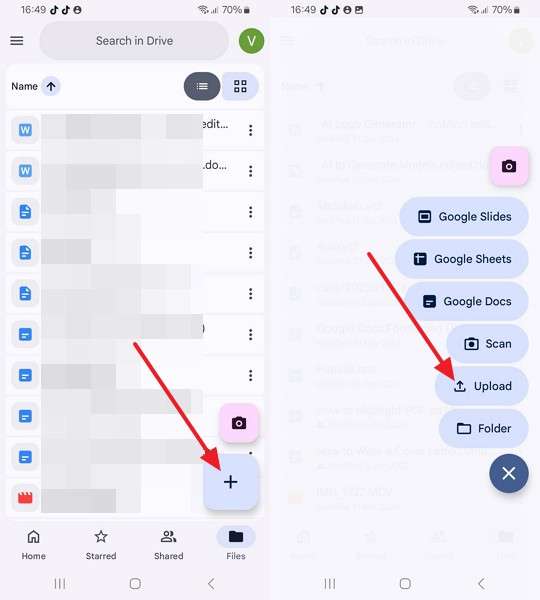
Step 1. Tap + > Upload > Choose Files > Upload documents to Google Drive on the Fold 8.
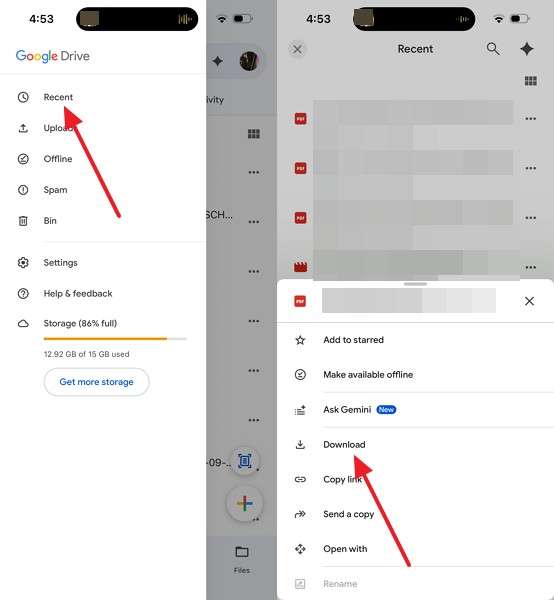
Step 2. Open Google Drive on iPhone Duo, sign in with the same account, go to Recent, locate your file, and tap More (⋯) > Download.
2. Transfer Files Using a USB-C Flash Drive
A USB-C flash drive lets you transfer photos, videos, and documents between phones without internet or cloud storage. Both devices support exFAT, which handles files larger than FAT32's 4 GB limit. However, WhatsApp chats and app data cannot be restored directly from the drive. For a Galaxy Z Fold 8 to iPhone Duo without Move to iOS transfer, use a USB-C drive with sufficient storage and follow these steps:
Step 1. Connect the flash drive to the Galaxy Z Fold 8.
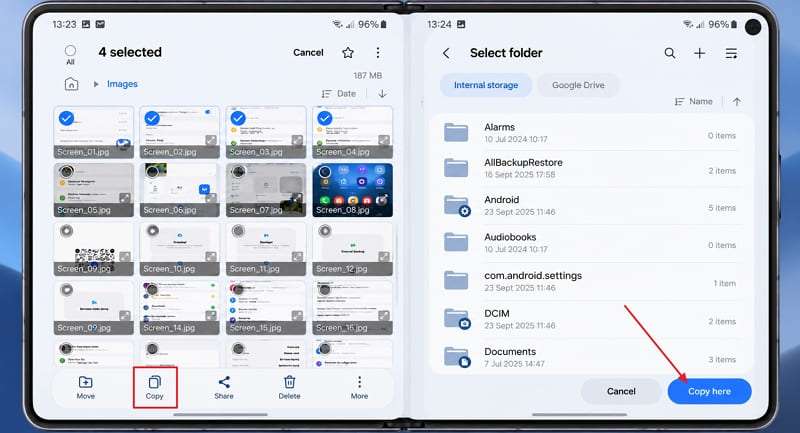
Step 2. Launch the My Files app, select photos, videos, or documents, and tap Copy > USB Storage 1 > Copy Here.
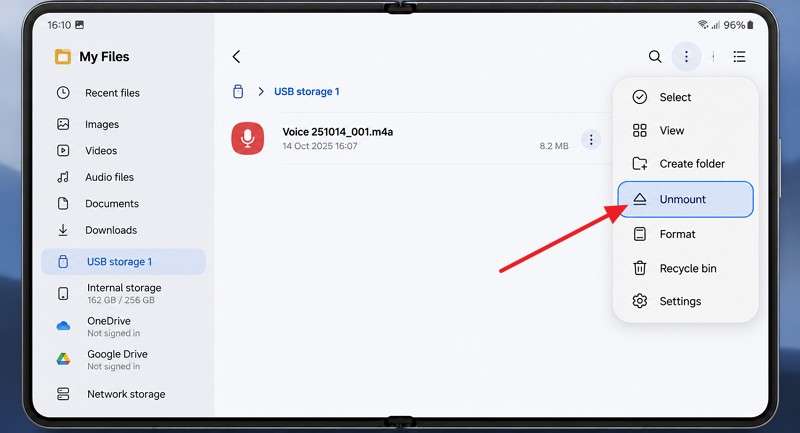
Step 3. Access My Files > USB Storage 1, tap the Three Dots icon at the top-right, and select Unmount before removing the drive.
Step 4. Disconnect it, then plug it into iPhone Duo.
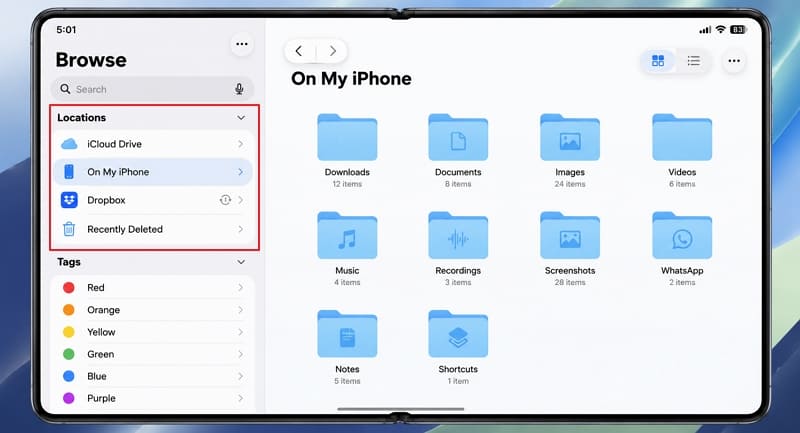
Step 5. Open Files > Browse on iPhone Duo and select the flash drive under Locations. Copy or move the required files to On My iPhone.
3. Transfer Files Using Windows or Mac
Windows and Mac provide another way to transfer photos from Galaxy Z Fold 8 to iPhone Duo. Windows uses File Explorer to copy photos from Android, while Mac supports photo imports through Image Capture or Photos. Once imported, you can transfer the pictures to your iPhone using a supported method. For transferring data from Galaxy Z Fold 8 to iPhone Duo without Move to iOS using Mac, follow these steps:
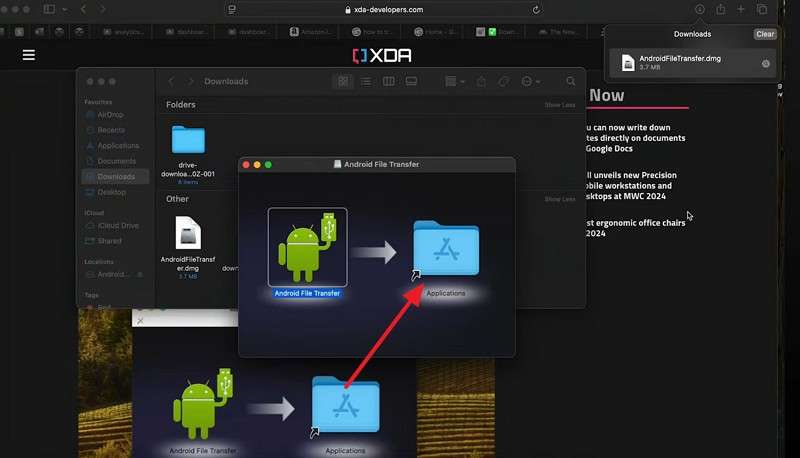
Step 1. Download Android File Transfer, select Show in Folder, open the downloaded file, and drag the app into the Applications folder.
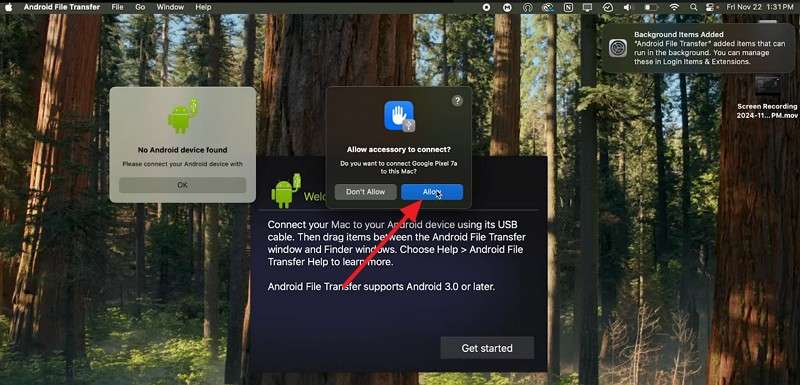
Step 2. Unlock your Galaxy Z Fold 8 with your passcode. Connect it to your Mac using a USB-C cable > Press Allow on Mac.
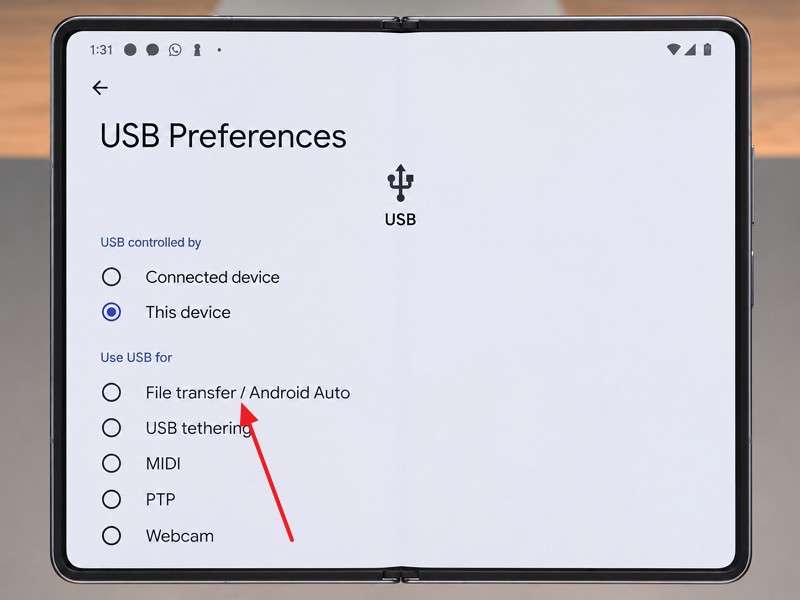
Step 3. Select File Transfer/Android Auto and enter your phone's passcode if prompted.
Step 4. Open the Android File Transfer app on your Mac.
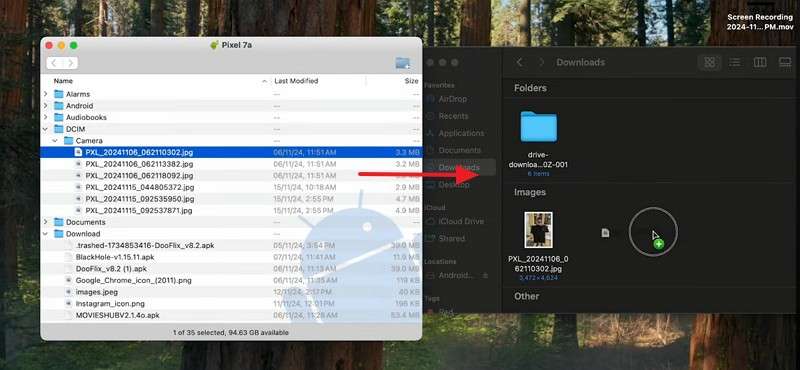
Step 5. Navigate to the DCIM > Camera folder on your Z Fold 8, and drag the photos into a folder on your Mac's desktop.
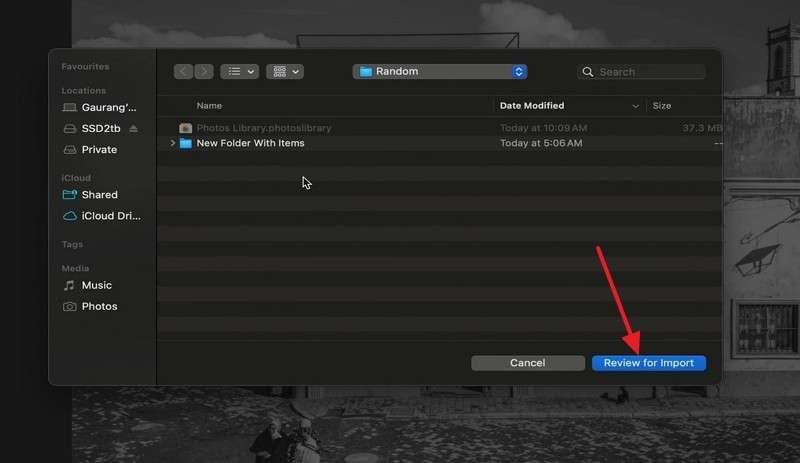
Step 6. Open the native Photos app on your Mac. Drag the photos from your desktop folder directly into the Photos app library > Press Review for Import.
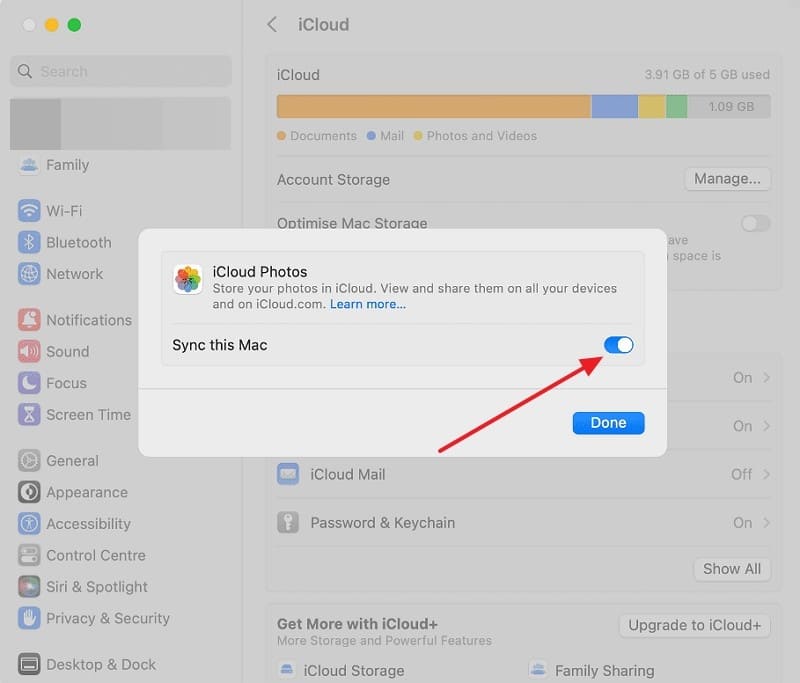
Step 7. Disconnect the Fold 8 and go to System Settings > Click your Apple ID (name) > iCloud > Select Photos and turn on Sync this Mac.
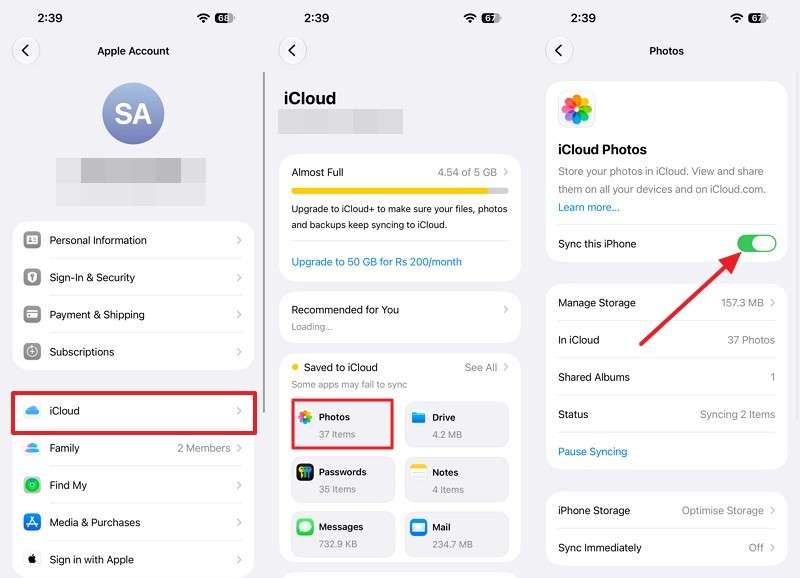
Step 8. On iPhone Duo, choose Settings > Tap your name > iCloud > Photos and turn on Sync this iPhone.
Note: You can also use MobileTrans to transfer supported photos, videos, music, and other files from a Windows PC or Mac to iPhone Duo. Its Computer to Phone feature lets you select and transfer compatible files through a USB connection.
Part 5. What Data Needs Special Handling When Switching to iPhone Duo?
Some Samsung-specific data requires additional steps when switching to iPhone Duo. To transfer data from Galaxy Z Fold 8 to iPhone Duo after setup without losing important information, review the following items before erasing your old phone:
| Data Type | What to Do Before Switching |
| Samsung Notes and S Pen Content | Export notes as PDF, Word, image, or text files using Save as File. |
| Secure Folder | Move important files out using Move out of Secure Folder before transferring them. |
| Samsung Pass and Passkeys | Review saved credentials and set up access on iPhone separately. Check your password manager's compatibility; some passkeys require new registration. |
| Galaxy Apps and Wearables | Reinstall available iOS versions of apps and review purchases separately. Galaxy Watch4 and later cannot pair with iPhone. |
| SIM and eSIM | Transfer your eSIM directly when supported or contact your carrier for activation. |
Conclusion
To transfer data from Galaxy Z Fold 8 to iPhone Duo during setup, use Apple's app-free transfer option or Move to iOS for a comprehensive migration. If your iPhone is already set up, MobileTrans supports selected data transfers, including WhatsApp and WhatsApp Business chats, without requiring a reset.
However, Samsung Notes, Secure Folder files, and Samsung Pass credentials need separate handling. Before erasing your Galaxy Z Fold 8, verify that all important files, conversations, contacts, and accounts are accessible on your new iPhone Duo.

FAQ
-
Can I transfer Galaxy Z Fold 8 data to iPhone Duo without resetting it?
MobileTrans supports transferring selected data from Galaxy Z Fold 8 to iPhone Duo after setup without a factory reset. Quick Share and Google services also allow you to move individual files without erasing either device.
-
Can I transfer Galaxy Z Fold 8 data to iPhone Duo without an internet connection?
Move to iOS uses a temporary Wi-Fi connection to transfer data without internet access. Alternatively, USB-C drives and computers support offline file transfers. MobileTrans also provides local transfer options for moving supported data between devices without relying on cloud storage.
-
Does Samsung Smart Switch support Galaxy Z Fold 8 to iPhone Duo transfers?
Samsung Smart Switch transfers data to Galaxy devices rather than iPhones. For switching to iPhone Duo, use Apple's Move to iOS during initial setup or MobileTrans for supported data transfers after setup.
-
Will transferring data from Galaxy Z Fold 8 to iPhone Duo erase my Samsung data?
Standard transfer methods copy data without erasing the Galaxy Z Fold 8. MobileTrans also supports transfers without resetting iPhone Duo. However, review overwrite and merge options to protect existing data on the receiving device.