



 TL;DR:
Transferring data from Android to iPhone Duo without the Move to iOS app is achieved by using Apple’s QR code pairing during initial setup for Android 17 or later devices, or by utilizing MobileTrans, Google sync, and computer-based file sharing for an already-configured iPhone.
● Apple’s built-in Transfer without App feature strictly functions during the initial device configuration, meaning an iPhone Duo already on the Home Screen must be completely erased before utilizing this Android 17 pairing method.
● Desktop software like MobileTrans bypasses the need for a factory reset on configured iPhones and provides a dedicated workaround for migrating WhatsApp Business chats, which lack an official cross-platform transfer route.
● Documents and local files transferred manually via a computer using Apple Devices or Finder remain isolated within the specific iOS destination app chosen during the transfer rather than being globally accessible across the entire device.
Ask AI for a summary
 ChatGPT
 Perplexity
 Gemini
 Claude
 Grok
Grok
Switching from Android to iPhone Duo doesn't mean Move to iOS is your only option. The app works during initial setup and leaves out music, books, PDFs, and WhatsApp Business. Fortunately, other transfer methods can cover these gaps without complicating the switch.
This guide explains how to transfer data to iPhone Duo without Move to iOS using 4 practical routes. You will explore Apple’s app-free transfer, MobileTrans, cloud services, and computer-based methods for moving different types of data.
In this article


Part 1. Can You Transfer Android Data to iPhone Duo Without Move to iOS?
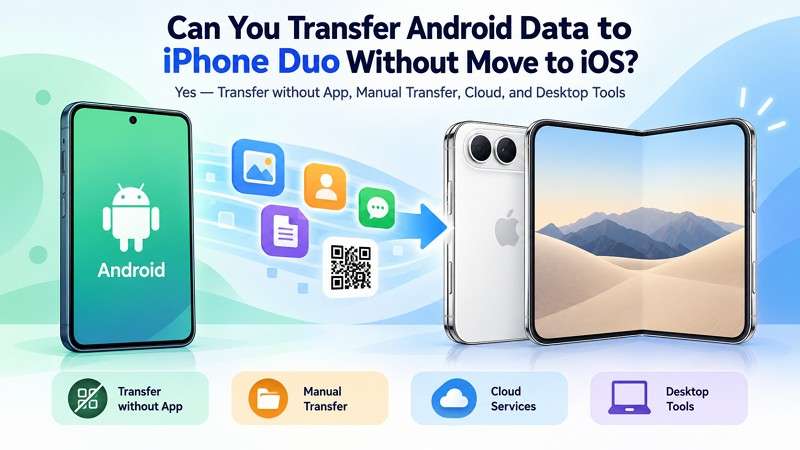
Yes, you can transfer data to iPhone Duo without Move to iOS in several ways. On a compatible Android 17 or later device, Apple supports Transfer without App during iPhone setup. It pairs both devices through a QR code, removing the need to install Move to iOS. For an already-configured iPhone Duo, you can transfer supported content separately.
Apple's manual transfer guide covers mail, contacts, calendars, photos, videos, music, books, PDFs, and documents. Depending on where your data is stored, cloud services or desktop transfer software can provide additional options for moving supported content.
Choose the Right Route Based on Your iPhone Duo Setup
The right way to transfer Android to iPhone Duo without Move to iOS depends on your iPhone’s setup status and where the data is stored. The table below helps you quickly choose the most suitable transfer method:
| Your Situation | Route to Use |
| New iPhone Duo + Compatible Android 17 Device | Apple’s app-free transfer, covered in Part 2 |
| iPhone Duo Already Set Up and in Use | MobileTrans, covered in Part 3 |
| Contacts, Calendars, and Mail Stored in Google | Google account sync |
| Photos and Files Already Backed Up Online | Google Photos or cloud storage |
| Local Music, Books, PDFs, or Documents | Computer with Finder or Apple Devices |
Part 2. Transfer Android Data Without Move to iOS During iPhone Duo Setup
Apple's Transfer without App works on supported devices running Android 17 or later. Available during iPhone setup, it pairs both phones using a QR code without requiring Move to iOS. eSIM transfer also depends on support from the Android device and carrier so that compatibility can vary between devices.
Apple recommends checking with the device manufacturer to confirm support. Since this option works during setup, you must erase an iPhone Duo that has already reached the Home Screen before using it. Follow the steps below to transfer Android data without Move to iOS using this method:
- Step 1. During iPhone Duo setup, access Transfer Your Apps & Data > From Android > Transfer without App.
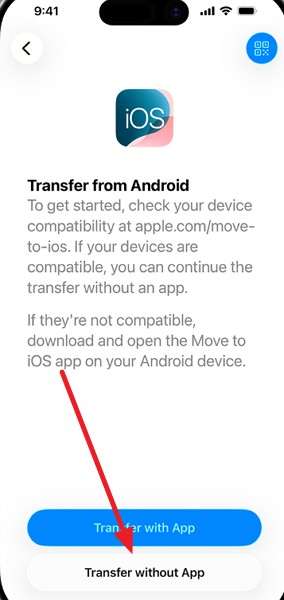
- Step 2. Place the Android phone near your iPhone Duo and tap Continue. Use the Android phone’s camera to scan the QR code displayed on the iPhone.
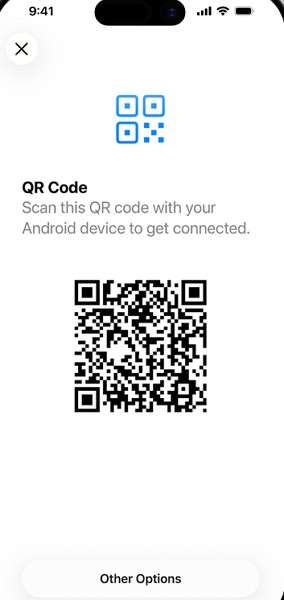
- Step 3. On your old Android smartphone, choose the supported categories you want to move.
- Step 4. Select your phone number and follow the on-screen prompts if your Android device and carrier support eSIM transfer.
Part 3. Already Set Up iPhone Duo? Transfer Data with MobileTrans
For an already configured iPhone Duo, MobileTrans provides a practical way to transfer data to iPhone Duo without Move to iOS. Available for Windows and Mac, it connects both phones through cables for direct migration. Its Phone Transfer feature supports 18+ data types, while the dedicated WhatsApp Transfer module handles WhatsApp and WhatsApp Business data.
MobileTrans supports transfers between Android and iPhone, iPhone and Android, and devices using the same operating system. Instead of moving everything at once, you can select the supported data types you need. This flexibility makes it useful for photos, videos, contacts, messages, and other supported content when switching phones after setup.
Key Features of MobileTrans
- App and Media Transfer: Move supported photos, videos, audio files, contacts, messages, and documents between compatible phones through a computer.
- No Cloud Storage Required: Transfer supported phone data through USB connections without uploading files to cloud storage or depending on cloud capacity.
- WhatsApp Computer Backup: Back up supported WhatsApp chats and attachments, including photos, videos, and voice messages, to a Windows PC or Mac.
- WhatsApp Chat Export: Export WhatsApp conversations to PDF or HTML formats, making selected chat records easier to view, save, or print on a computer.
- iTunes Backup Restore: Restore supported data from an existing iTunes backup to a compatible phone without the original device during restoration.






How to Transfer Android Data to iPhone Duo with MobileTrans
To transfer Android to iPhone Duo without Move to iOS, review this detailed guide for MobileTrans:
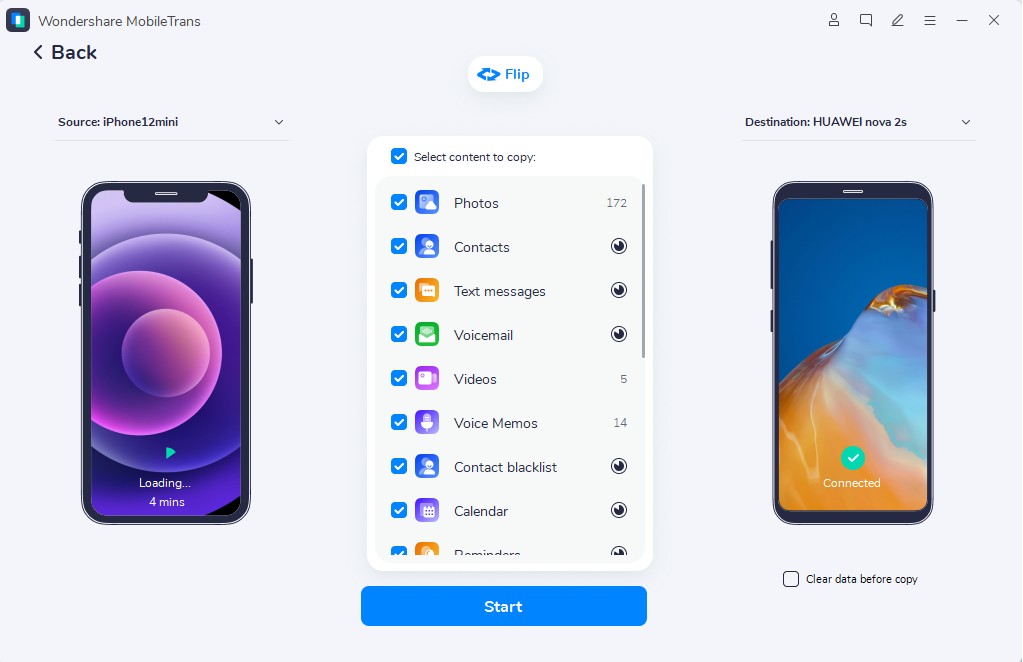
- Step 1. On MobileTrans, choose Phone Transfer > Phone to Phone.

- Step 2. Connect your Android and iPhone Duo > Select the data types > Press Start > Wait for Android data to move to iPhone Duo.
How to Transfer Android WhatsApp to iPhone Duo with MobileTrans?
For WhatsApp and WhatsApp Business data, MobileTrans provides dedicated transfer options outside Apple’s Move to iOS process. To move data to iPhone Duo without Move to iOS, follow these steps to transfer your chats and supported attachments:
- Step 1. Choose App Transfer > WhatsApp > Select Transfer & Merge or Transfer. Connect your old and new iPhone Duo.
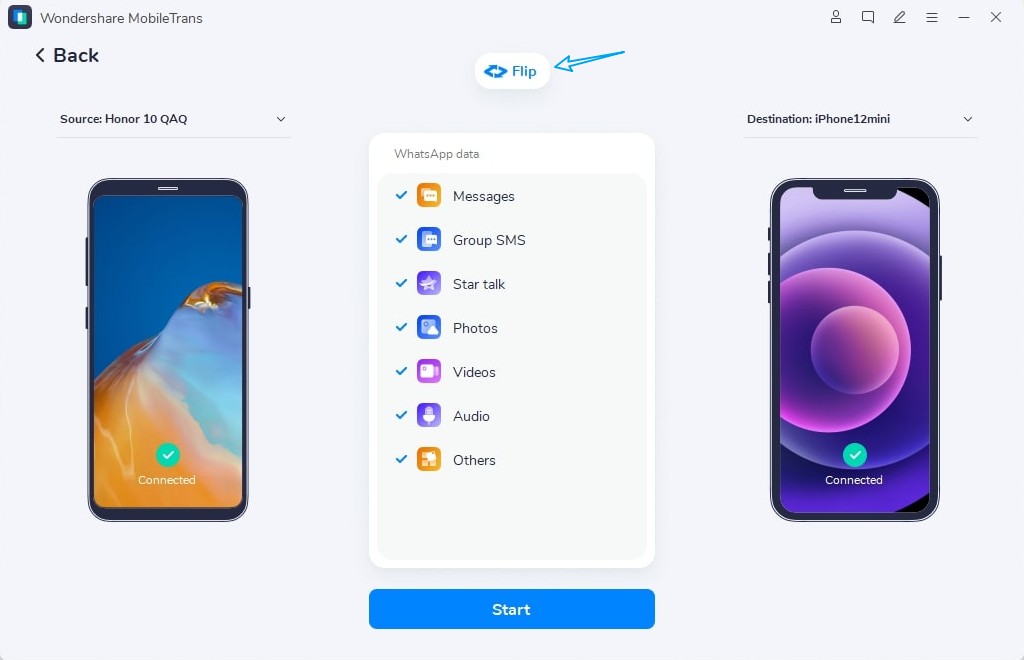
- Step 2. Follow the instructions to complete the required Pre-Transfer Check.
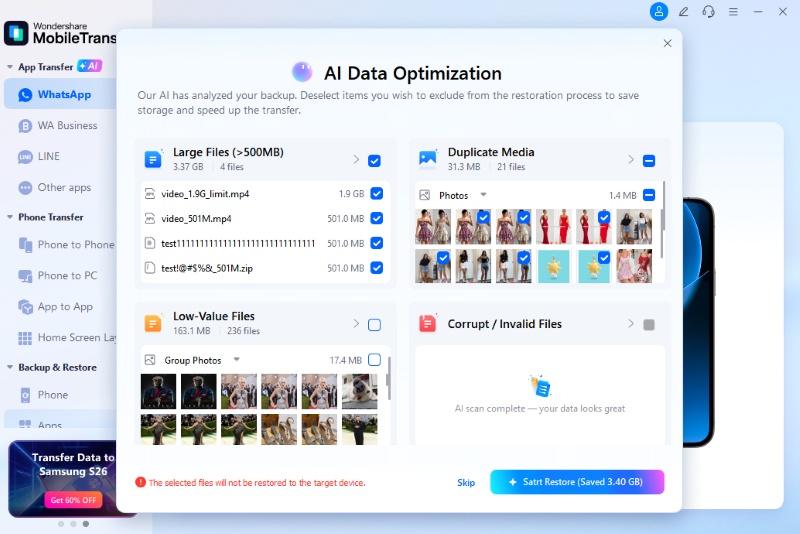
- Step 3. Choose AI-Assisted Backup to complete the WhatsApp backup automatically.
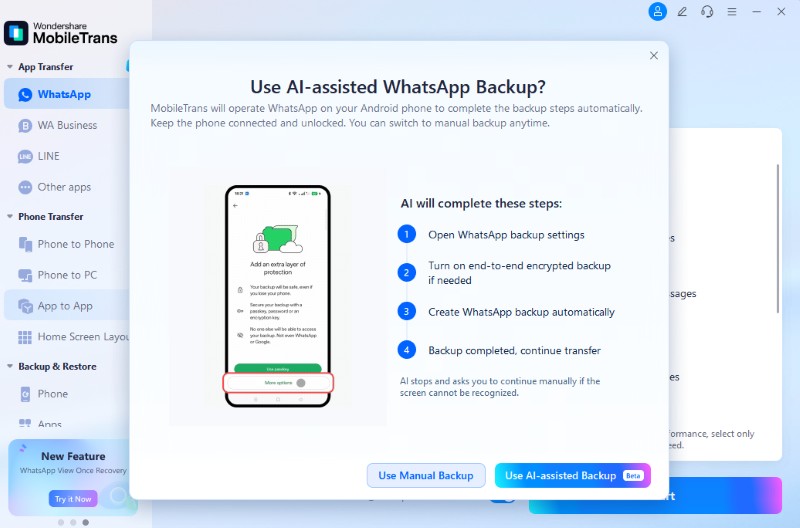
- Step 4. Start sending WhatsApp data to iPhone Duo, then choose Restore Attachments Now or Restore Later.
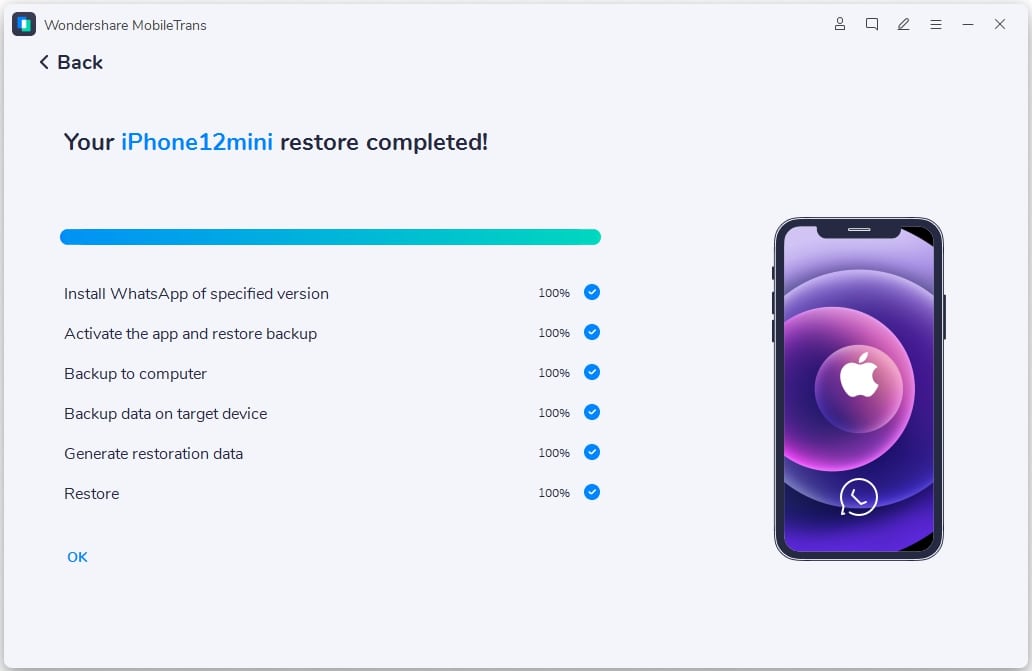
Part 4. Move Contacts, Photos, Files, and Other Data Separately
For specific data categories, you can transfer Android to iPhone Duo without migrating everything at once. The four methods below cover contacts, photos, videos, files, music, books, and other supported content.
Sync Contacts, Calendars, and Mail with Your Google Account
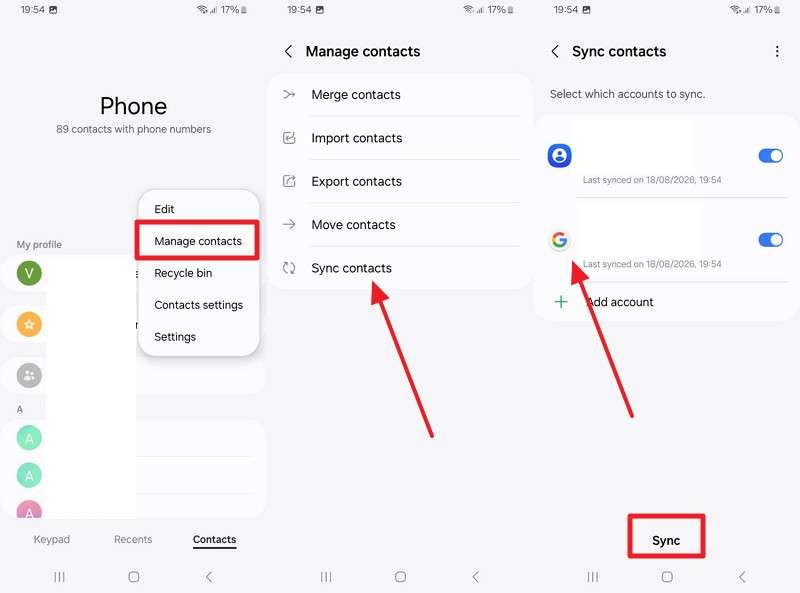
Before you transfer Android to iPhone Duo without Move to iOS, make sure the required data is connected to your Google account. Samsung notes that contacts stored on a Galaxy phone or under another account are not automatically saved to Google. Once synced, the same Google account can help bring contacts, calendars, and mail to your iPhone Duo. Here’s how to set up Google sync across both devices:
- Step 1. Using contacts as an example, open Contacts > Three Dots > Manage Contacts > Sync Contacts on the Galaxy phone. Select Google and tap Sync.
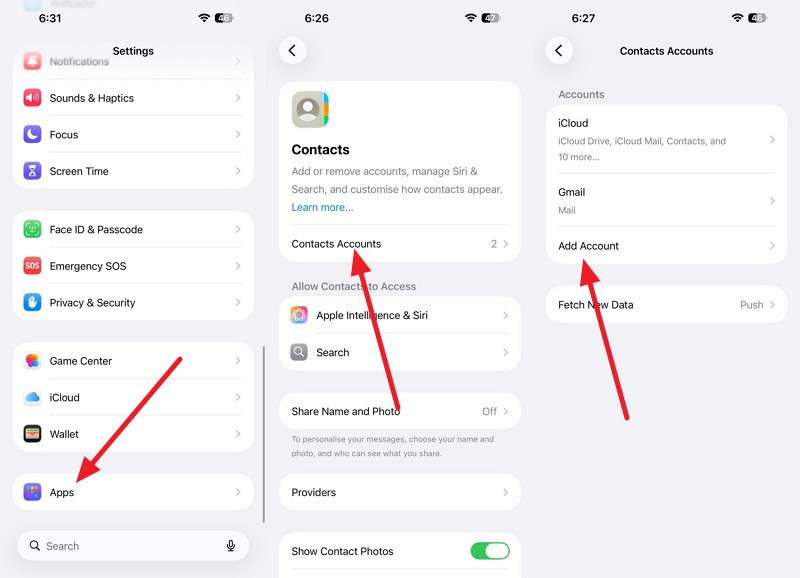
- Step 2. On the iPhone Duo, go to Settings > Apps > Contacts > Contacts Accounts > Add Account.
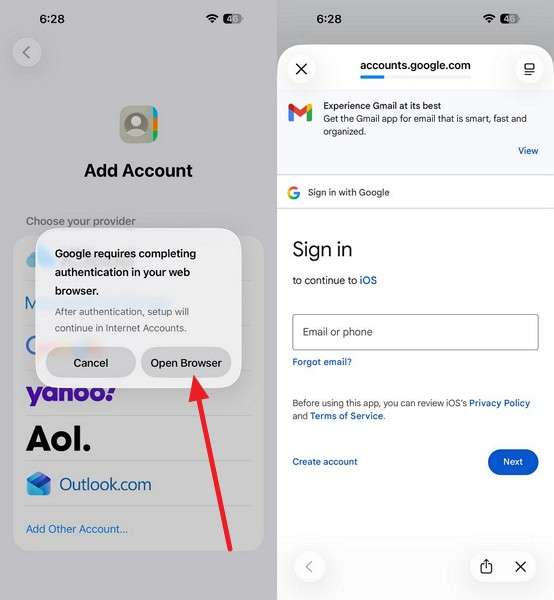
- Step 3. Select Google > Open Browser and sign in with the same account.
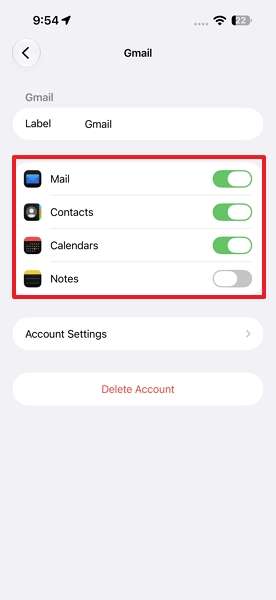
- Step 4. Toggle on Contacts, Mail, Calendar, and Notes if the required data is available and synced with your Google account.
Transfer Photos and Videos with Google Photos or Cloud Storage
Another way to move data to iPhone Duo without Move to iOS is to use cloud services for photos, videos, and other uploaded files. Google accounts include 15 GB of storage shared across Google Drive, Gmail, and Google Photos. OneDrive provides 5 GB of free storage, while Dropbox Basic starts with 2 GB. Once your files finish uploading, you can access them on the iPhone Duo using the same account. Here are two ways to do it:
Method 1. Transfer Photos and Videos with Google Photos
- Step 1. Open Google Photos on Android > Tap Your Profile picture > Photos Settings > Back > Make sure Backup is on.
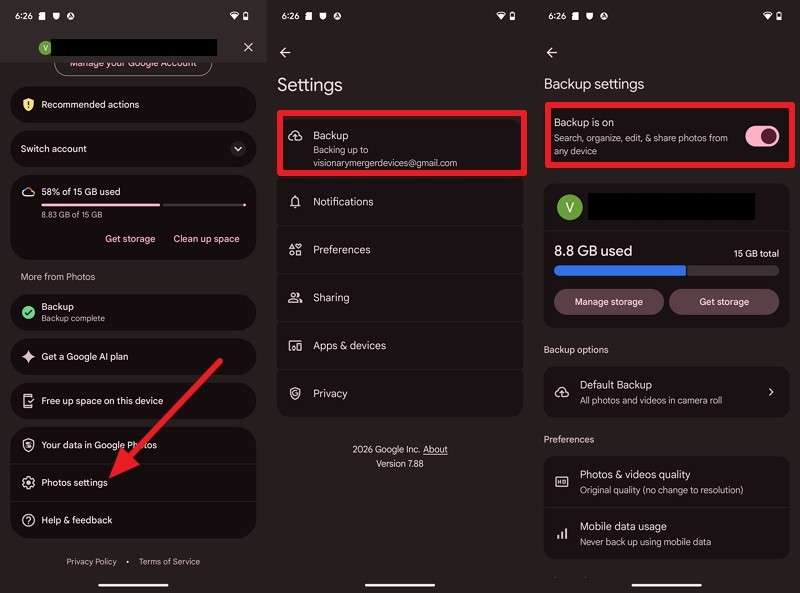
- Step 2. Install Google Photos on the iPhone Duo and sign in with the same Google Account.
- Step 3. The backed-up library will then be available inside Google Photos.
Method 2. Use Dropbox
- Step 1. Open Dropbox, tap + > Upload Files, select the media, and upload it on Android.
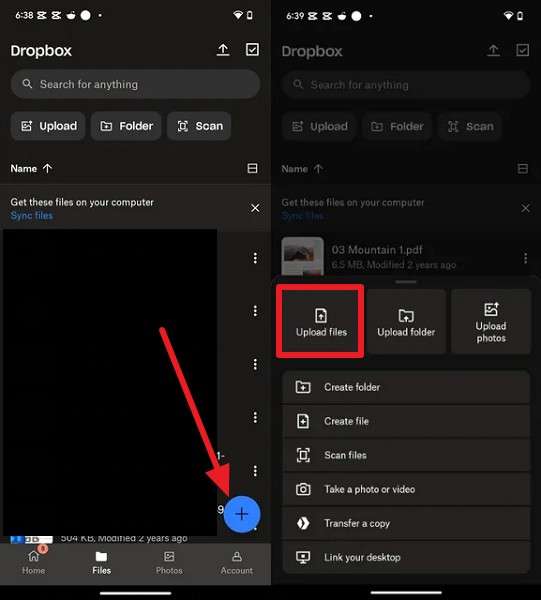
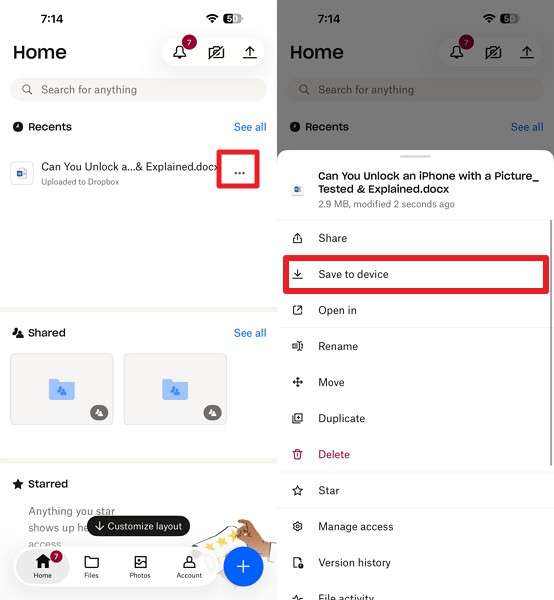
- Step 2. Sign in with the same Dropbox account on iPhone Duo. Go to Recents > Select the required data > Three Dots > Save to Device.
Transfer Files with Apple Devices File Sharing on a Computer
To transfer data to iPhone Duo without Move to iOS, you can use Apple Devices or iTunes on Windows, while Finder provides a similar option on Mac. First, copy the required files from your Android phone to the computer. Apple explains that files transferred through File Sharing remain associated with the selected iPhone app and are generally unavailable elsewhere on the device.
Apple Devices requires Windows 10 or later and an iPhone app that supports File Sharing. Depending on your computer and software version, iTunes or Finder can also handle compatible file transfers. The guide below demonstrates this method using Apple Devices.
- Step 1. Connect Android to PC > Tap the USB Notification > Pick File Transfer.
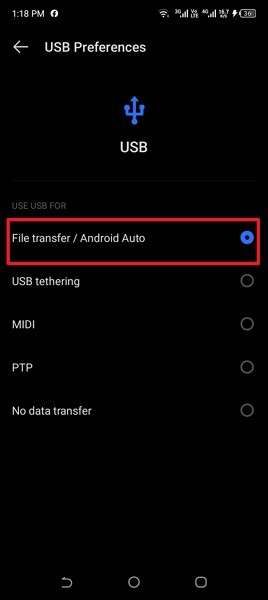
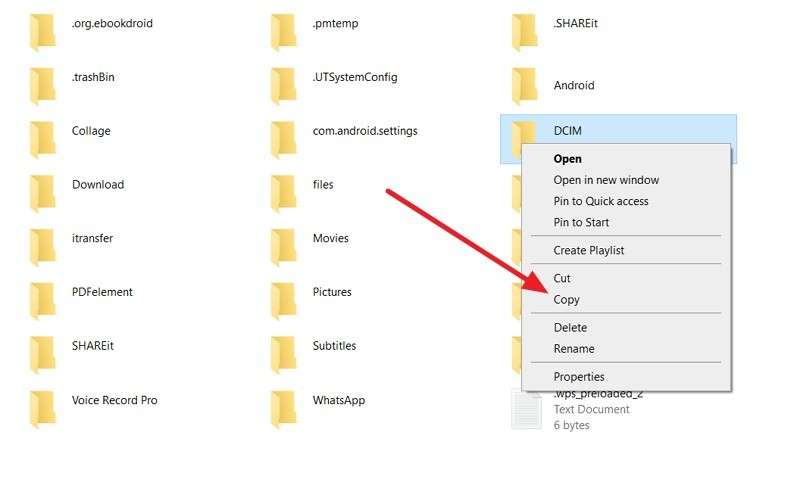
- Step 2. Copy the required files from your Android phone to a folder on the PC, then safely disconnect the device.
- Step 3. Open Apple Devices on your PC > Connect the iPhone Duo > Access Files > Choose the app where you want the document to appear.
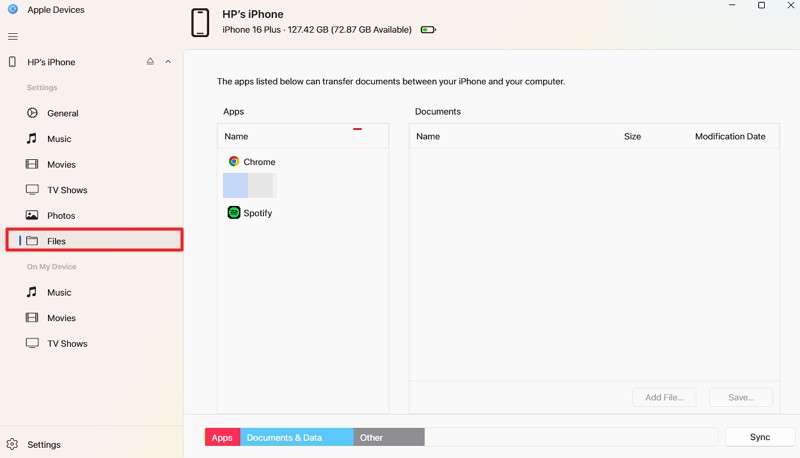
Note: If the Files tab does not appear in Apple Devices, Apple says no compatible file-sharing apps are installed on that iPhone.
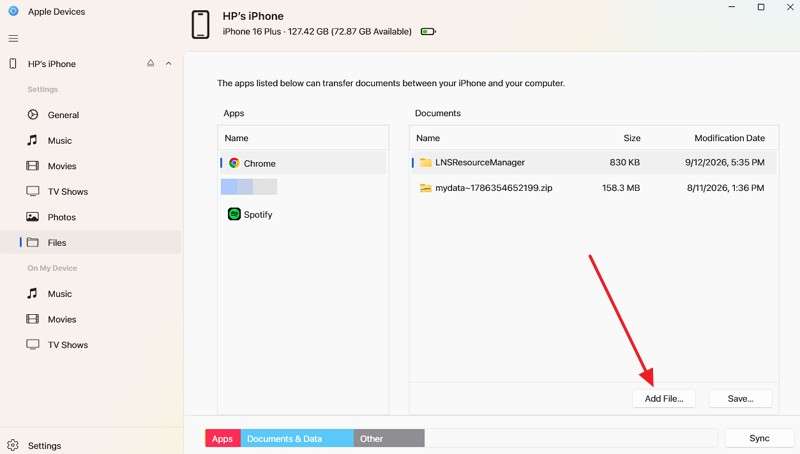
- Step 4. Click Add File, select the files you just saved from your Android phone to the computer, and press Add.
- Step 5. Open the same destination app on the iPhone Duo.
- Step 6. The transferred documents will appear there instead of automatically appearing across the whole device.
Transfer Music, Books, and PDFs Separately
For music, books, and PDFs stored locally on Android, a computer provides a practical way to transfer Android to iPhone Duo without Move to iOS. Apple supports syncing local music through Finder, Apple Devices, or iTunes, and you can add ePub books and PDFs to the Books app.
Music from streaming services usually requires no file transfer. Install the same service on your iPhone Duo and sign in with your existing account. For locally stored content, use the steps below to move it through your computer:
- Step 1. Connect the Android phone to your computer and copy the local music, ePub books, and PDFs into separate folders, following the process explained in Way 3.
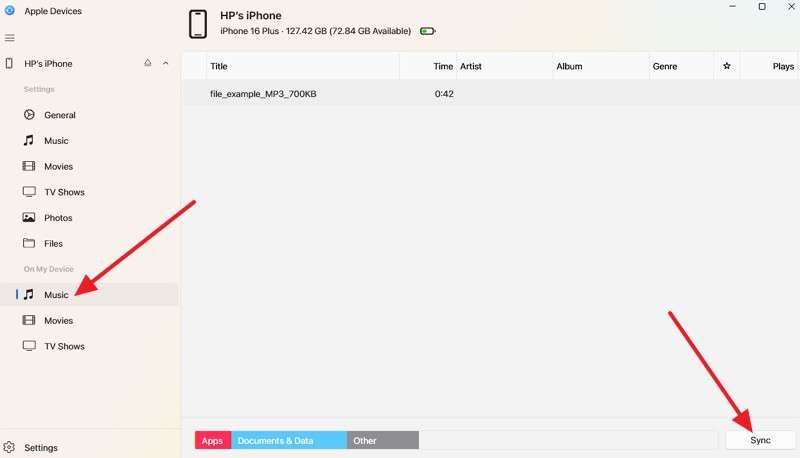
- Step 2. Open Apple Devices > Music, enable music syncing, select the music you want to transfer, and click Apply to sync it with your iPhone Duo.
Part 5. What Will Not Transfer Directly from Android to iPhone Duo?
Some Android content cannot be copied directly to iOS because of platform, app, or account restrictions. When you transfer data to iPhone Duo without Move to iOS, these items may require separate migration methods or iOS alternatives. The table below highlights key examples and the best available options for handling them:
| Android Data | What Happens on iPhone Duo | Best Alternative |
| APK Files | Android APK files cannot run on iOS | Install the iOS version from the App Store |
| App Local Data | Transfer support depends on the individual app | Sign in or use the app’s supported migration method |
| Regular WhatsApp | Requires a dedicated cross-platform migration method | Use MobileTrans after setup, as covered in Part 3 |
| WhatsApp Business | No official Android-to-iPhone chat migration route | Use MobileTrans WhatsApp Business Transfer in Part 3 |
| Music | Local music does not transfer automatically | Sync through a computer or use the same streaming service |
| eSIM or Phone Number | Transfer depends on device and carrier support | Use direct eSIM transfer or contact your carrier |
Conclusion
Moving from Android to iPhone Duo without Apple’s migration app does not have to complicate the switch. Depending on your setup, you can use Apple’s app-free transfer, Google sync, cloud storage, or computer-based methods for specific data. Each option covers a different transfer need.
For an already configured iPhone, MobileTrans offers another way to transfer data to iPhone Duo without Move to iOS. It supports multiple data types and provides dedicated options for WhatsApp and WhatsApp Business transfers.
FAQ
-
Can I transfer Android data to iPhone Duo without Move to iOS?
Yes. You can transfer data to iPhone Duo without Move to iOS using Apple’s app-free transfer, Google sync, cloud storage, Apple Devices, or MobileTrans. Your iPhone’s setup status and data type determine the suitable method. -
Can I transfer data to an already set up iPhone Duo without resetting it?
Google sync and cloud storage can move account-based data and files without resetting your iPhone Duo. For broader phone-to-phone transfers after setup, MobileTrans can move supported data through a Windows PC or Mac. -
Can I transfer WhatsApp and WhatsApp Business without Move to iOS?
MobileTrans can transfer supported WhatsApp chats after iPhone setup and provides a separate workflow for WhatsApp Business. Regular WhatsApp also supports official Android-to-iPhone migration through Move to iOS during initial setup. -
How can I transfer Android files to iPhone Duo using a computer?
MobileTrans can move supported Android data directly to iPhone Duo through a Windows PC or Mac. For individual documents, you can also copy files to a computer and transfer them using Apple Devices, Finder, or iTunes.










