

![Ultimate Guide: How to Disable View Once in WhatsApp [All Devices]](https://mobiletrans.wondershare.com/images/images2025/how-to-diable-view-once-in-whatsapp-1.jpg)

 TL;DR:
WhatsApp does not allow users to disable the View Once restriction for received media, though senders can manually toggle the feature off by tapping the View Once icon before dispatching photos or videos.
● Users wanting to save received View Once media can utilize the MobileTrans View Once Recovery tool, which uses a QR code login to detect and export disappearing files across Android and iOS devices.
● Unopened View Once messages automatically expire after 14 days, and attempting to screenshot them on a desktop results in a blocked blank screen without notifying the original sender.
● Senders cannot configure View Once as a default setting for all outbound media; the restriction must be manually activated for each individual message sent in private or group chats.
Ask AI for a summary
 ChatGPT
 Perplexity
 Gemini
 Claude
 Grok
Grok
Have you ever opened a picture, a video, or played an audio file on WhatsApp, only for it to disappear immediately with the View Once option? Although this is more privacy-enhancing, it may also be annoying when you need to access significant media, such as a special memory.
Many users wonder if there's a way to disable or save this content for later. That is the point where knowing your options becomes crucial. In this guide, we'll explain what View Once is, how to disable View Once in WhatsApp, and review media smartly across devices.
In this article

Part 1. What is WhatsApp View Once Media - Why Do People Use It?
WhatsApp View Once is a privacy feature that allows users to send photos, videos, and voice notes that disappear after being viewed once. When watched, the media cannot be rescued, passed, shared, or duplicated. The recipient should, however, open the message within 14 days; otherwise, it expires automatically. Before you know how to disable View Once on WhatsApp, you must understand the purpose behind using this feature:
- Improved Privacy: It allows individuals to post confidential materials, such as IDs or passwords, without leaving a trace of their history in the chat. This provides users with the assurance that they will not save or share sensitive files.
- Temporary Sharing: In some cases, media is not intended to be viewed again, like a quick response, meme, or surprise. View Once ensures the message disappears, keeping the moment brief and making it more memorable.
- Control Over Content: The senders have greater control since the recipient cannot forward, save, or download the media directly. This will help minimize any chances of misuse or unintentional sharing, ensuring your content remains under your control.
- Reduces Storage Issues: Since View Once media isn't automatically saved to the phone gallery, it prevents unnecessary storage buildup. This is particularly helpful for individuals with limited device space.
- Promotes Immediacy: The feature introduces a fun aspect to conversations by allowing individuals to post personal or light-minded content without fear of it being permanent. This feature makes conversations more enjoyable and lighthearted.
Part 2. Can You Disable View Once in WhatsApp Directly?
You can easily disable the View Once feature when sending media by simply tapping the View Once icon to ensure it's off before sending an image. However, the issue of how to disable View Once in WhatsApp remains pertinent, and currently, the application does not offer this possibility. Once the media is received, the receiver will have only one opportunity to see it.




Part 3. How to Enable or Disable a View Once Message on WhatsApp
Knowing this process gives you more control over what you share. Since many users often ask how to disable View Once on WhatsApp, it's essential to understand that this method involves toggling the icon.
This quick adjustment resolves the issue of accidentally sending media that disappears, allowing you to decide whether your recipient can view it once or keep it for later. Let's now go through the steps for iPhone, Android, and desktop:
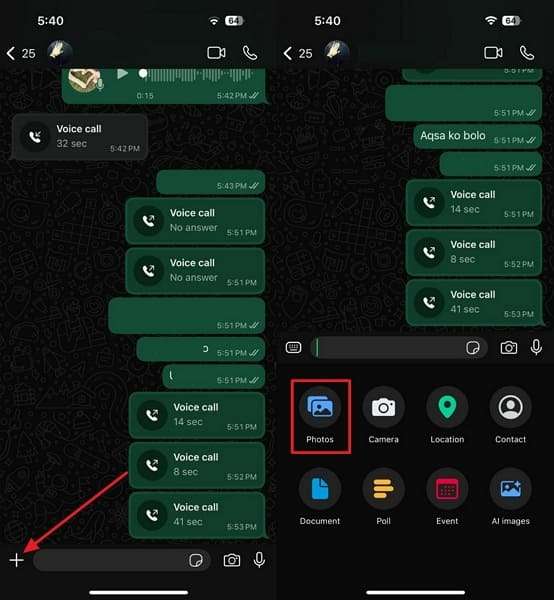
1. For iPhone
Step 1. Access WhatsApp Chat > Press + icon > Choose Photos option.
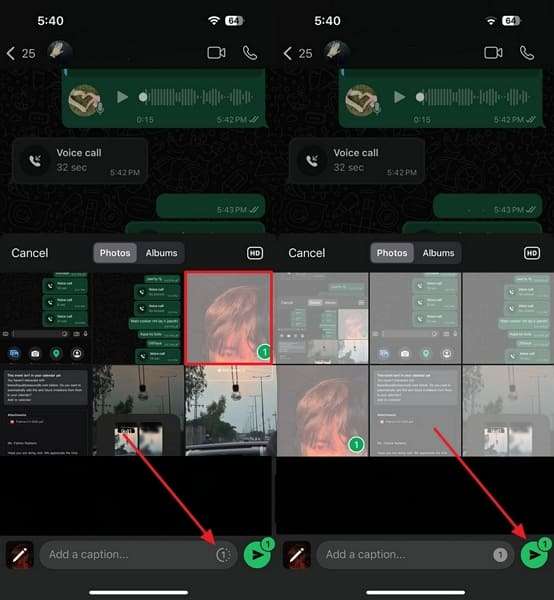
Step 2. Pick a target image from the gallery > Tap the View Once icon to turn on or off > Hit the Send button.
2. For Android
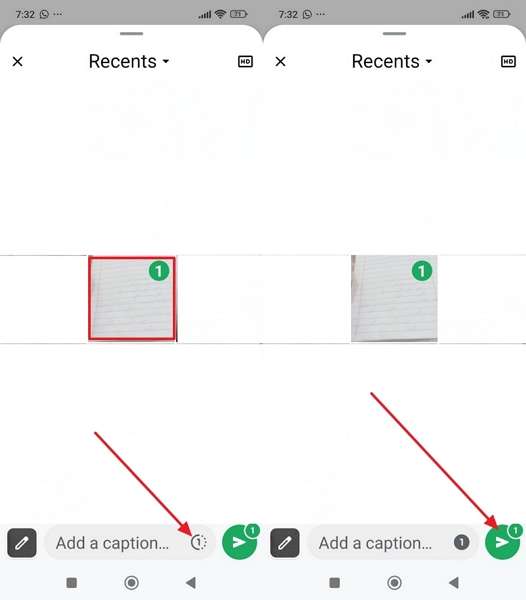
Step 1. Open the target chat on WhatsApp, select the Clip icon, and then choose the Gallery option.
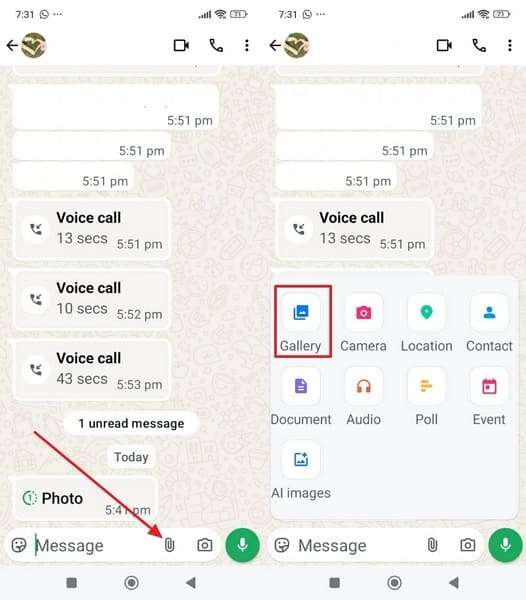
Step 2. Choose photo or video > Press the View Once icon to enable or disable the feature before tapping the Send button.
3. For Desktop
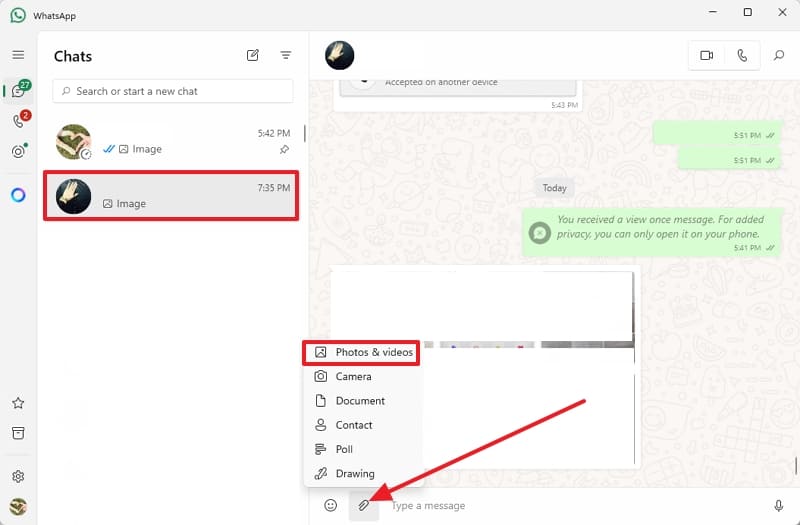
Step 1. Log in to WhatsApp > Launch the target chat > Click the Clip icon > Select the Photos and Videos option and add the desired media.
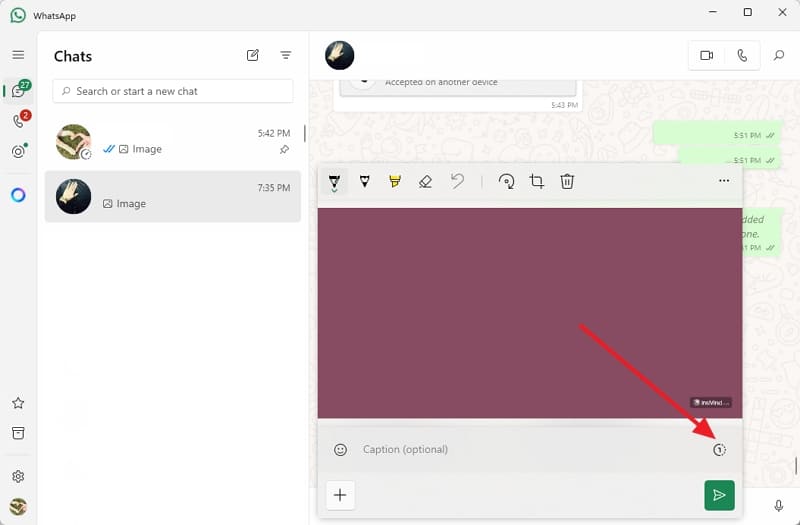
Step 2. Now, press the View Once icon from the slide-up screen to activate or deactivate the feature.
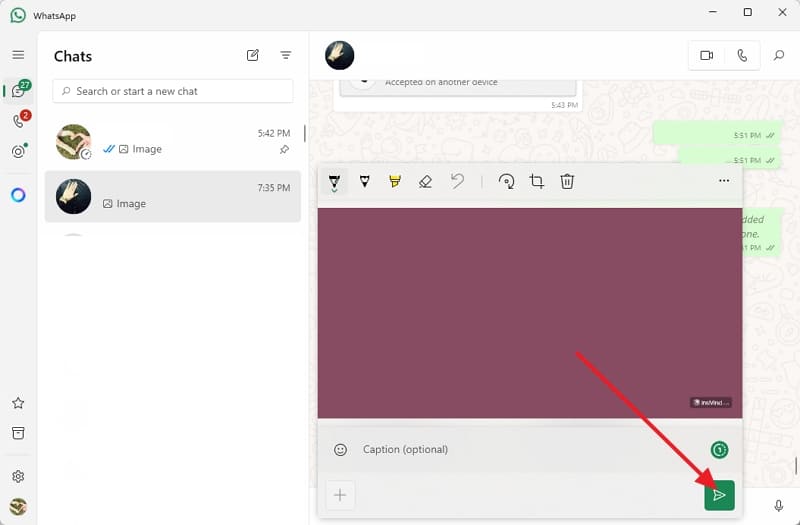
Step 3. Afterward, click the Send button to share the desired media.
Pro Tip. How to Review and Save the WhatsApp View Once Media
Now that you know how to disable View Once in WhatsApp, you can safely save media with MobileTrans. WhatsApp's View Once Recovery tool captures disappearing photos, videos, and voice messages, giving users lasting control.
With secure QR code login like WhatsApp Web, it avoids compatibility issues across devices. The tool syncs in real-time, instantly detecting new View Once messages and allowing previews or downloads before they are deleted. Running quietly in the background, MobileTrans ensures a seamless and private recovery of valuable WhatsApp media.
Key Features
- Cross-Platform: This View Once recovery app supports both Android and iOS platforms, providing a seamless way to save media.
- Security and Privacy: Recovery happens locally, and users decide when to access, what to save, and when to clear data.
- Private and Group Chats: The tool supports media recovery from both private and group chats on the latest WhatsApp versions.
A Complete Guide to Save View Once Media of WhatsApp via MobileTrans
Now that you are familiar with the features of this tool, you may be wondering how to use it. The following section will cover the guide on how to disable View Once on WhatsApp with MobileTrans:
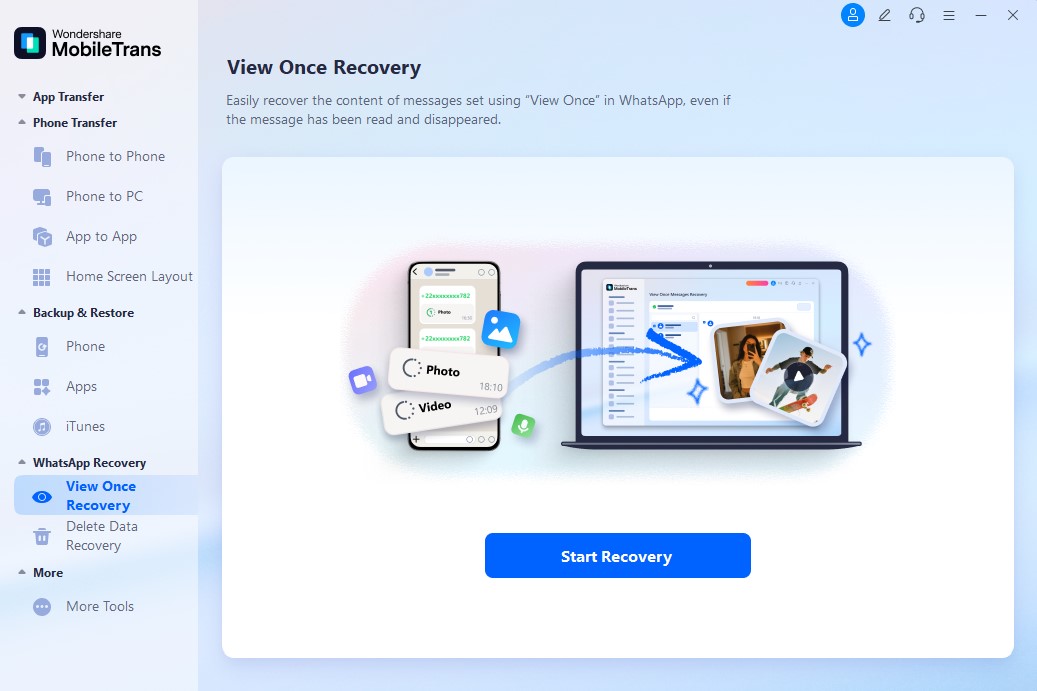
Step 1. Access this data management app > Choose View Once Recovery tool > Press Start Recovery.
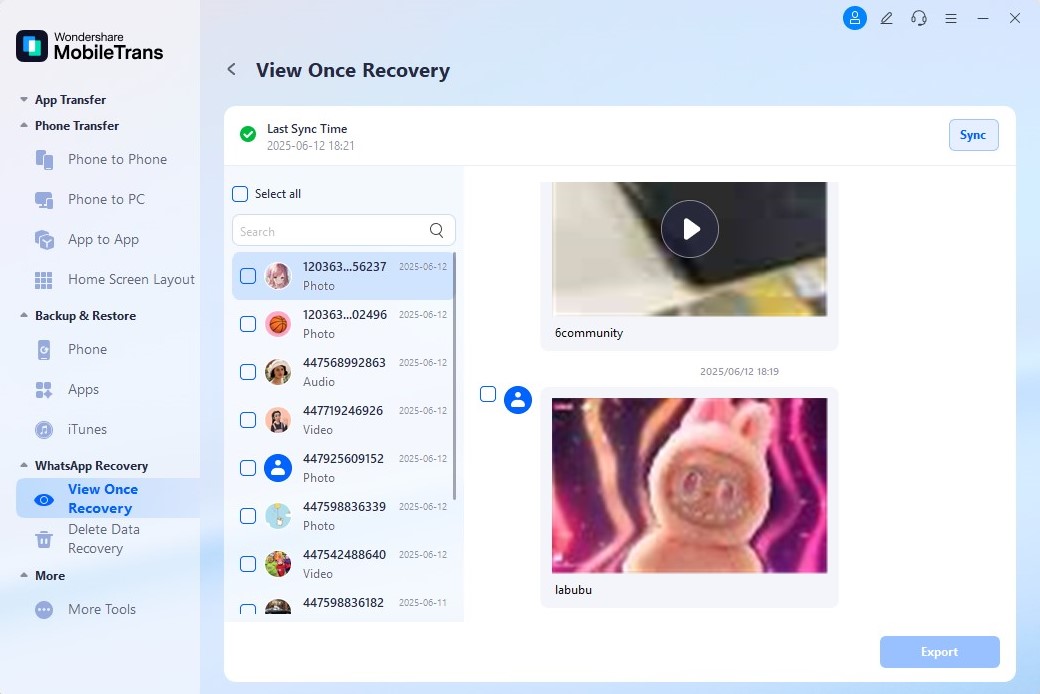
Step 2. Now, link WhatsApp > Open the desired WhatsApp chat & Select the target media and press the Export button to save.
Conclusion
To sum up, the View Once feature of WhatsApp is a handy privacy feature, yet it can at times seem restrictive when sharing valuable media. Although there is no permanent alternative to learning how to disable View Once in WhatsApp, understanding the settings before submitting is essential.
Moreover, if you would like to take one more step, there are specific tools, such as MobileTrans, which allow you to save View Once media safely on your devices.
FAQs
-
Can I set View Once as the default option for all media?
No, View Once is not an option on WhatsApp; you must enable it every time you send media, not set as the default. This design means that the senders are aware of when they want media to disappear, and not all messages are to act temporarily. -
Does WhatsApp notify the sender if I take a screenshot of View Once media?
Trying to take a screenshot on your personal computer may result in a blank screen or an error, making the screenshot unsuccessful. Consequently, you do not send any notification to the sender that you attempted to take a screenshot. -
Can View Once media be sent in group chats?
Yes, it can be used in group chats, and you can also enable View Once, allowing members to view it only once. Although the messages are sent in a group, the same restrictions apply: the media cannot be forwarded, saved, copied, or reopened after being viewed. -
Is there a size limit for View Once media?
No particular file size limit is imposed on View Once media, and WhatsApp applies the same limits as those for standard attachments. This is why the problem of disabling View Once on WhatsApp typically does not arise due to file size.










