

 TL;DR:
Since WhatsApp does not offer a native download feature for its disappearing 24-hour media, saving a status to your gallery requires manual extraction from device caches, utilizing specific sharing permissions, or employing dedicated third-party applications.
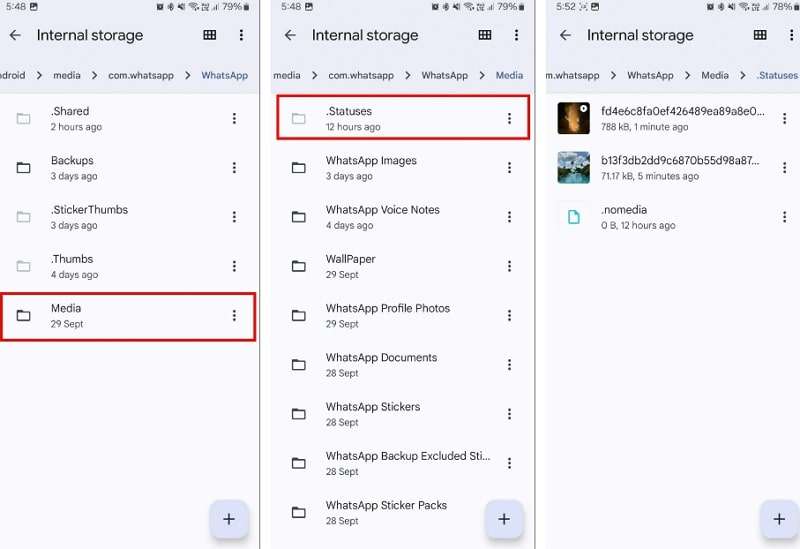
● Android users can retain original-quality media directly by navigating to Internal Storage > WhatsApp > Media > .Statuses in their File Manager and copying the temporarily cached files to a different folder before the 24-hour expiration period deletes them.
● Native forwarding and resharing methods are conditional and only function if the original uploader has enabled the Allow Sharing privacy setting, which permits you to send the status to another number or post it as your own to reset the viewing clock.
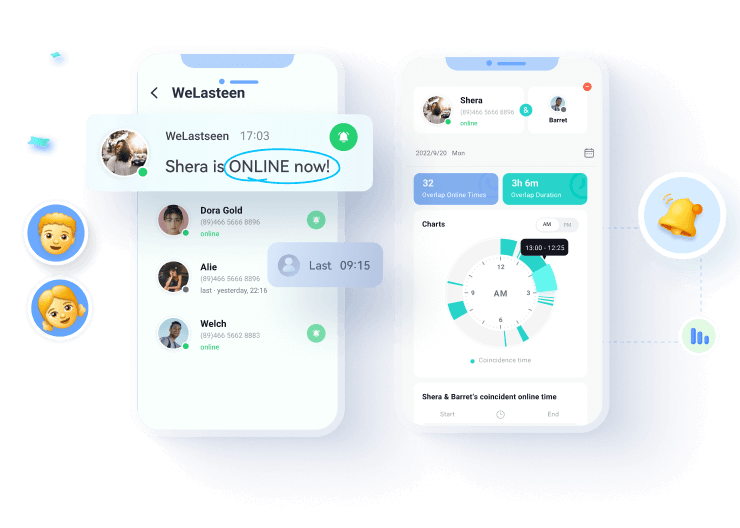
● External trackers like WeLastseen bypass the time limit by allowing you to monitor up to three contacts and download their statuses in original quality even after 24 hours, while modified clients like GBWhatsApp provide a direct download option but operate outside standard official restrictions.
Ask AI for a summary
 ChatGPT
 Perplexity
 Gemini
 Claude
 Grok
Grok

Today, WhatsApp's status feature shares moments just like Instagram's Story feature, but with a different audience. From a private birthday party celebration to a secret trip update, visuals are shared for 24 hours, with selected contacts. However, since the status disappears as the clock runs out, many viewers might wish to save your content as inspiration.
To understand the status saving mechanism and confirm its feasibility, read this guide. Whether you are a status uploader or viewer, learn how to save WhatsApp status in gallery queries using six easy-to-follow methods.
In this article

Part 1. Why Save WhatsApp Status in Gallery?
Before you dive into the actual procedure regarding how to save WhatsApp status videos in the gallery, learn why it matters through the following points:
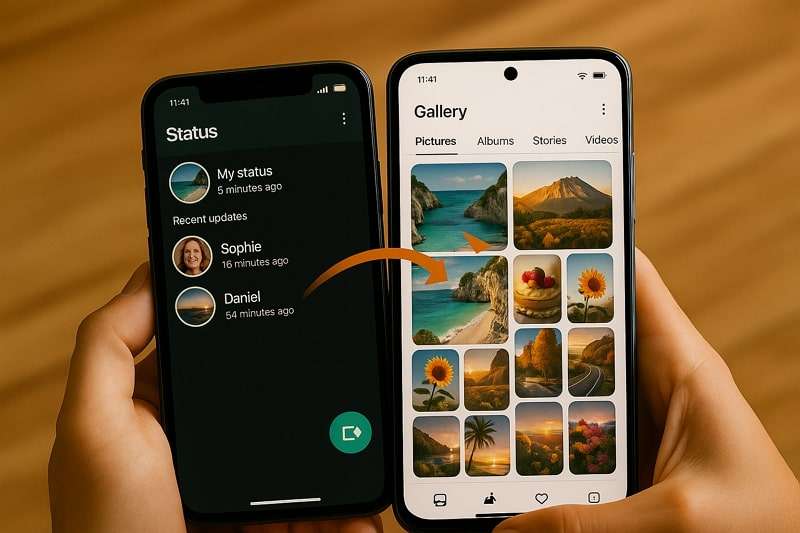
- To Keep Memories: When your friend posts a group photo as a status, you or anyone at your place would instinctively save it as a memory. This way lets you store your precious moments from a celebration without disturbing the uploader to send it over privately.
- Convenient Access, Anytime: Saving status in your gallery brings the convenience of viewing media anytime, without asking the respective WhatsApp contact to resend. Additionally, this act will keep your gallery organized, allowing you to locate downloaded statuses in a separate folder easily.
- To Share Later: Since you have a copy of your group picture saved from WhatsApp status, you can share it directly with anyone or post it on social media. In addition, saving status will allow you to keep a backup of moments, which will be shareable across devices.
- For Creative Editing: After saving your content, whether a picture, GIF, or video, you can edit and remix it through apps like CapCut, Canva, and other similar platforms. Through this, one can make a collage and assemble clips obtained from friends' statuses.
- Offline Viewing: Once you save the WhatsApp status of a targeted contact, you can watch it offline, eliminating the need for the internet. It proves helpful, especially when an informative status is saved, including a food recipe or exercise posture.
Although saving WhatsApp status in smartphones is crucial in many scenarios, it isn't possible through any native feature. So far, the app hasn't introduced built-in functionality, but there are numerous alternative solutions you can turn to.
Part 2. Understanding WhatsApp Status Storage Mechanism
To learn how to download WhatsApp status to the gallery, you must be familiar with its basic mechanism. Hence, know that when someone uploads media to a status, the app automatically stores it on the server. Additionally, it is sent to your device for viewing, which is then saved in your phone's internal storage as a temporary copy.
In Android, the path is Internal Storage > WhatsApp > Media >.Statuses in the File Manager. On iPhone, there is no direct access; however, the caches are stored in WhatsApp's private storage. However, the app deletes these files from the server and local cache as the status expires after 24 hours.
The purpose of transferring the status file temporarily into. Statuses are to load quickly upon reopening. To ensure privacy and align with its end-to-end encryption policy, WhatsApp does not include a native way to download status updates.





Part 3. 6 Tested Methods | How to Save WhatsApp Status in Gallery
There are times when you come across a photo or an announcement in someone's WhatsApp status that you'd like to keep. For your assistance, the section below covers all possible workarounds to assist in saving WhatsApp status to the gallery.
Method 1. Using File Manager [Android Only]
Whenever you view a WhatsApp status on Android, the image or video is temporarily saved in a folder, as previously discussed. If you copy or move these files out of the folder before the 24-hour period expires, you can preserve them indefinitely.
It's even the most direct way to keep original-quality status content, since you're saving the exact file that WhatsApp cached. For more clarity, follow the instructions and save the status via File Manager:
Instructions. Access File Manager on Android, and navigate to the "Internal Storage" option to view your media files. Next, press the "Media" option and choose the ".Statuses" folder from your WhatsApp media section. Now, tap the "Three Dots" icon beside a status and select the "Copy" option to save it in another folder.
Method 2. Taking Screenshots or Screen Recordings
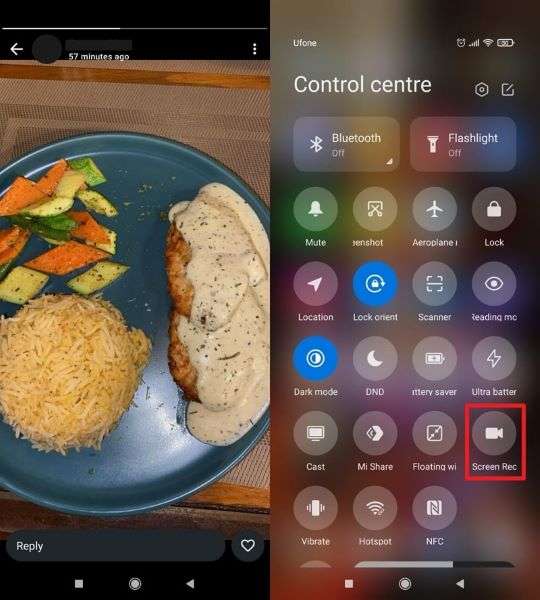
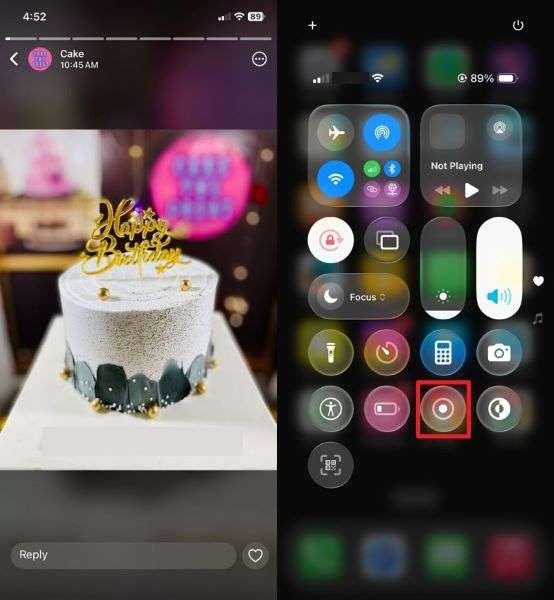
For photos, a screenshot instantly captures the status, while your phone's built-in screen recorder can do the same for videos or audio. To save WhatsApp status in the gallery, this method is fast and requires no extra apps on Android and iPhone.
It's workable for situations when you need to keep only a few statuses without opening a file manager. Follow the tutorial and understand how to capture screen or screen record statuses:
For Android
Instructions. On Android, open someone's WhatsApp status and press the "Power" and "Volume Down" buttons simultaneously to take a screenshot. To do a screen recording, swipe down to access quick settings and tap the "Screen Recording" option. Now, play someone's status and record it until required, ultimately saving the recording in your gallery.
For iPhone
Instructions. To capture a screenshot on an iPhone, press the "Power" and "Volume Up" buttons simultaneously after accessing someone's WhatsApp status. To perform Screen Recording, open Control Center by swiping down from the top-right and tapping the "Record" option. After this, press the status to record and press the red recording indicator to stop or save the recording.
Method 3. Using WhatsApp Status Saver and Tracking Apps
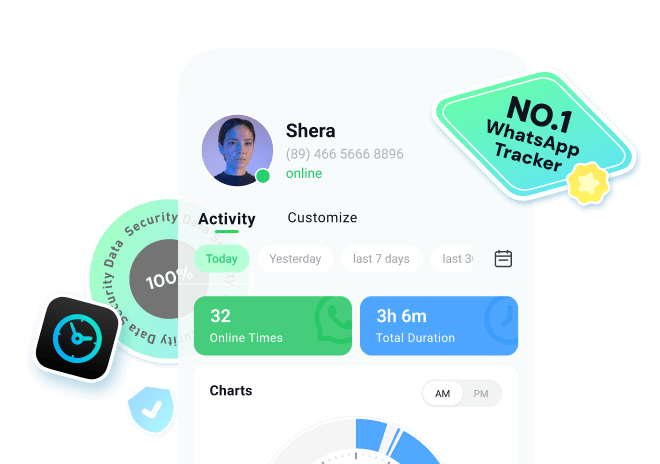
If you're tired of racing against the 24-hour clock to save WhatsApp statuses, status-saving apps like WeLastseen can feel like saviors. It provides insights into social media usage patterns of your contacts and daily life statuses. Beyond tracking, you can monitor the WhatsApp statuses of multiple contacts and save them in your gallery. To download a WhatsApp status to your gallery, preview it, and then export it to your local storage.
All your data on the app is end-to-end encrypted, and state-of-the-art security ensures your identity remains intact. You can receive instant online/offline notifications, either to yourself or your target, even without an internet connection. The platform claims a high success rate in WhatsApp tracking and remains a constant choice for many users. Once your contacts are added, you can access and download any status they upload on WhatsApp even after 24 hours.


Step-by-Step Manual to Save Status on WhatsApp via WeLastseen
To have command of how to save WhatsApp status video to gallery, follow the provided tutorial and get sorted within a blink:
Step 1. Open Status Tracker and Add the Target's Contact Number
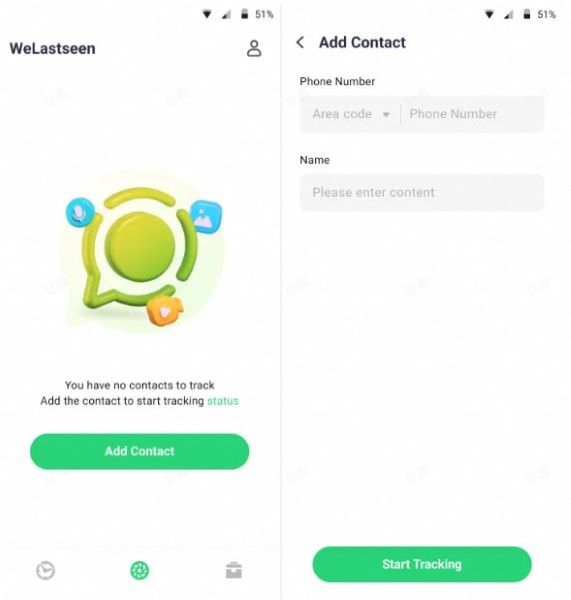
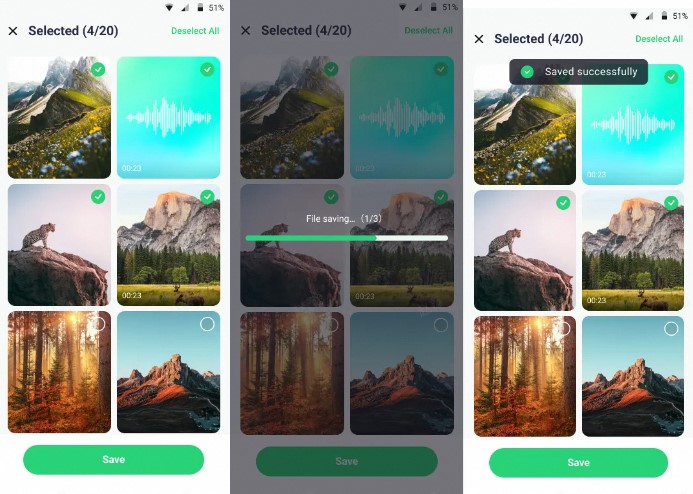
Access the Status Tracker tool, tap the "Add Contacts" button, select the country code, and then enter the phone number. Here, press the "Start Tracking" button to add your target's details and start saving statuses.
Step 2. Pair Your WhatsApp and Access Monitoring Dashboard
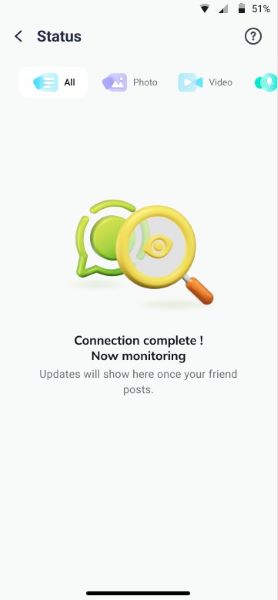
Once done, select the "Link" option to connect your WhatsApp account, then tap on the target contact to view their status timeline. Upon entering the Monitoring Timeline, you'll be able to view statuses uploaded after the contact has been added.
Step 3. Preview and Download WhatsApp Statuses
Now, after previewing your statuses, tap on the "Download" icon and select the statuses you want to save. Finally, press the "Save" button to download your desired statuses to your device.
Method 4. Forward and Save WhatsApp Status
You can forward and save a WhatsApp status if a contact allows you to share their status in your chat. This "Allow Sharing" feature on WhatsApp offers a simple way to share someone else's status and save it on your device.
Users can forward someone else's status to themselves to keep it on another device or WhatsApp account. How to save a status video in the gallery is simplified through the tutorial provided:
On Android
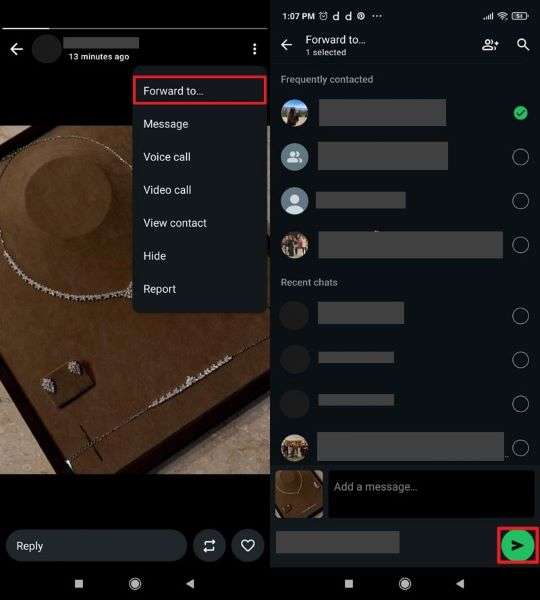
Instructions. To begin, open anyone's status with allowed sharing permissions and tap the "Three Dots" icon at top right. Later, select the "Forward To" option and choose a WhatsApp number to forward the status. After this, press the "Send" icon to forward and then save it to your gallery.
On iPhone
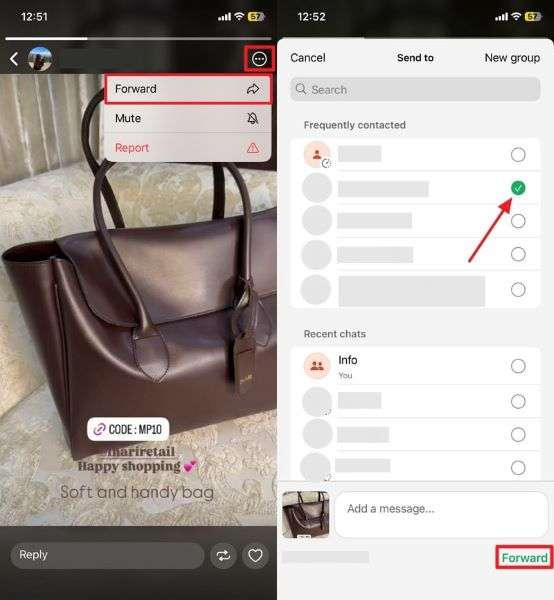
Instructions. On iPhone, access someone's status with allowed sharing settings and press the "Three Dots" icon from the top. Next, choose the "Forward" option from the menu and select another WhatsApp number to "Forward" the desired status. Upon receiving, save the status on your other device's gallery for later reference.
Method 5. Reshare the WhatsApp Status
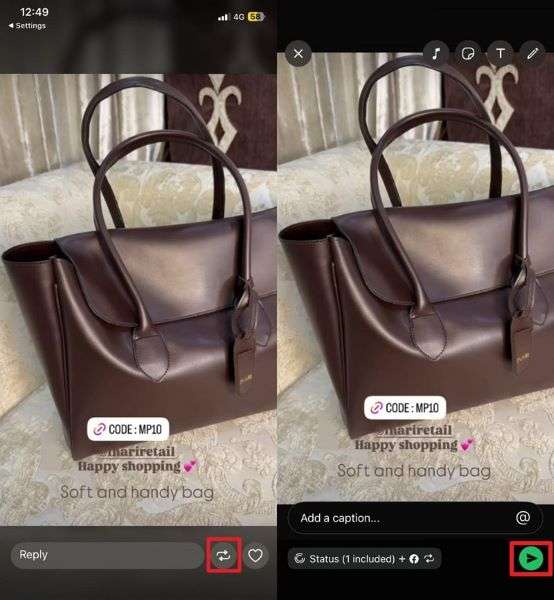
A reshare of a status is a no-risk way to keep your status saved for longer without relying on additional apps. When you repost someone else's status as your own (with their permission), it resets the 24-hour clock for continuous viewing.
Through the new Allow Sharing function, you can add someone else's status as your own, notifying the real owner with a reshare indication. Explore the tutorial to reshare someone else's status on your account:
For Android
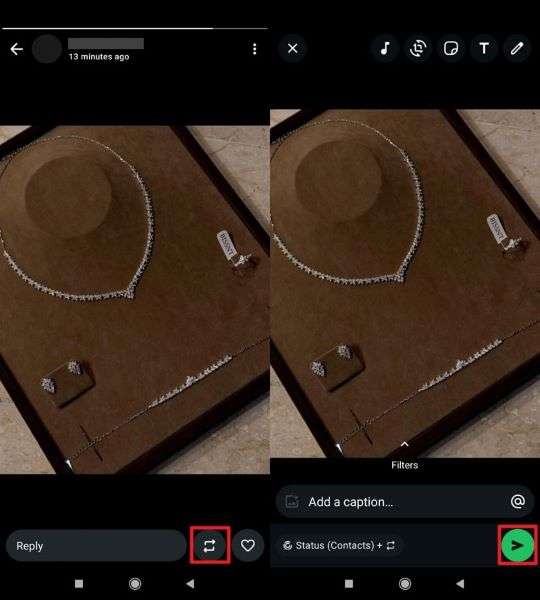
Instructions. First, ask the other user to toggle the "Allow Sharing" option from Status Privacy on WhatsApp. Now, access the Updates section on your WhatsApp and open the status you want to reshare. Move forward, press the "Reshare" icon, add an appropriate caption, and hit the "Send" icon to reshare.
For iPhone
Instructions. To initiate, ask the other contact to access the "Allow Sharing" option in Status Privacy and reshare their status as yours. Once done, open their starred status from the Updates section on your WhatsApp and tap the "Reshare" icon at the bottom. Following this, add a caption and tap the "Send" icon to reshare someone else's status.
Method 6. Use GBWhatsApp
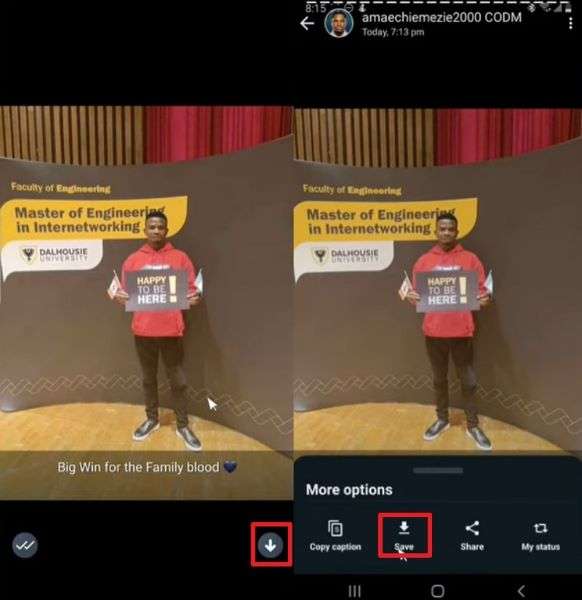
GBWhatsApp is considered a modified version of WhatsApp that surpasses the standard restrictions imposed by the official app. WhatsApp allows you to download a status to your gallery by providing a Download option.
This version also allows you to reshare someone else's status as your own without needing the original poster's permission. For better understanding, adhere to the tutorial and save status via GBWhatsApp:
Instructions. After installing GBWhatsApp on your device, access someone's status and tap the "Download" icon at the bottom. Move forward and choose the "Save" option to keep that status secure in your gallery.
Conclusion
In summary, the status you like on someone else's profile doesn't have to disappear after 24 hours because the right approaches have been revealed. Whether you choose the File Manager approach, enable Allow Sharing, or install GBWhatsApp, you're all set to save any status in your gallery. Among all, WeLastseen remains the safest Status Tracker for saving WhatsApp status in the gallery task.
FAQs
-
What is the Link Preview feature on Status?
You can post a link in the status, and instead of displaying a bare URL, WhatsApp will display a preview that includes a thumbnail. This will make the statuses more captivating and provide viewers with a clearer picture of what they can expect if they do visit. -
Does saving a WhatsApp status reduce its quality?
When saving WhatsApp status to the gallery, screen records, or screenshots, the quality may slightly diminish. With a status saver program like WeLastseen, the original file will be saved in your galleries, and the quality will be kept intact. -
Can I back up saved statuses to the cloud?
After saving a WhatsApp status to your gallery or Photos app —via screenshot, screen recording, or File Manager — you can back it up to Google Photos, iCloud, or any other cloud storage system with just one tap. Cloud backup is not only a way to keep your saved statuses safe in case of loss, but also syncs across multiple devices.