


 TL;DR:
WhatsApp View Once restricts photos, videos, and voice messages to a single viewing while blocking native screenshots, but users can bypass these limits using external recording devices, recovery software like MobileTrans, or modified applications.
● Unopened View Once media will permanently expire from the chat if not accessed within a 14-day window, and the sender cannot revoke or alter the privacy setting once the message is dispatched.
● MobileTrans serves as a cross-platform solution for users needing secure local backups, requiring a QR scan-to-login process to detect and export incoming disappearing media without altering the sender's interface.
● Android users can install the unofficial GBWhatsApp to enable an in-app Anti-View Once download feature, though this method introduces account security risks and violates official platform terms of service.
Ask AI for a summary
 ChatGPT
 Perplexity
 Gemini
 Claude
 Grok
Grok
Online privacy is increasingly fragile, as every content you send can be saved, forwarded, or screenshotted without your knowledge. This loss of control on WhatsApp can feel unsettling when the content you're sharing is personal or intended to be temporary. Here, WhatsApp View Once privacy directly addresses this issue by providing a way to send content that automatically disappears after a single view.
To add an extra layer of protection, read the guide below and learn how to send a View Once message on various devices. You're further facilitated with simple workarounds to access WhatsApp View Once media twice.
In this article

Part 1. What is WhatsApp View Once Privacy?
WhatsApp View Once privacy is a messaging functionality that allows users to send photos, videos, and voice messages that disappear after the recipient opens them. Through this, sensitive media, such as one-time visual confirmations or private images, aren't permanently stored on the recipient's phone. Media sent with the View Once setting is protected by end-to-end encryption and is marked with a one-time icon to indicate its privacy status clearly.
Once you've received a view once message, you'll need to open it within 14 days of it being sent, otherwise it will expire from the chat. After it has been opened, WhatsApp replaces the content in chat with an "Opened" indicator, signaling to both sender and receiver. Additionally, users can't forward, copy, or share content that was sent or received with View Once media enabled.
Part 2. Can You See/Listen to a WhatsApp View Once Media Twice?
By default, the WhatsApp View Once privacy feature allows media messages to be opened and viewed only once. Once the content is displayed, they are removed from the chat and can't be directly revisited. Officially, WhatsApp blocks in-app screenshots and screen recordings for View Once media, and the content is not saved in the gallery anyway.
Besides this, security experts and users have identified ways the feature can be bypassed or recreated. Even though WhatsApp intends for View Once media to be short-lived, users should not rely solely on this feature for highly sensitive content.
Part 3. How to Send a View Once Message on WhatsApp [All Devices]
Now that you have some insights into WhatsApp View Once privacy feature, it's your turn to try it out. For your assistance, the following section covers guidelines to send something that vanished after a single view, regardless of your device:
For Android
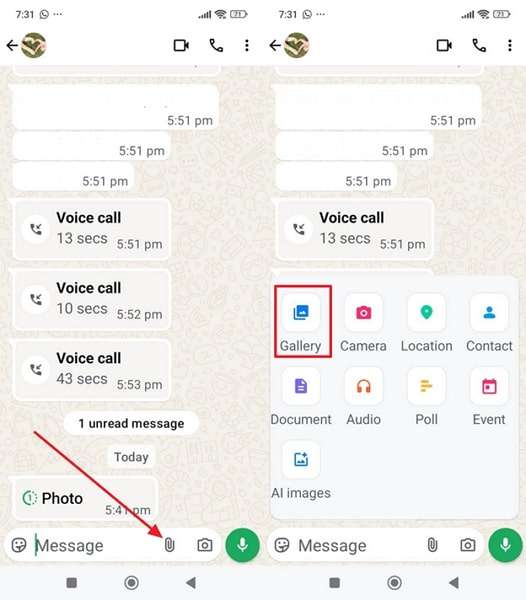
Step 1. Access chat for someone on WhatsApp > Choose the Attachment icon > Gallery option.
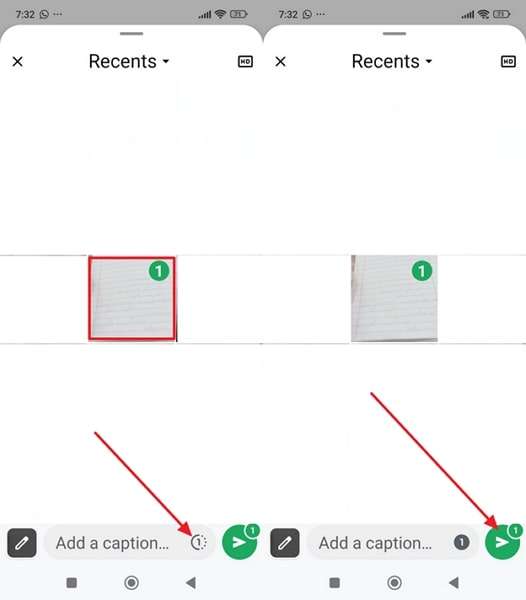
Step 2. Select the content > Press the View Once icon > Tap the Send icon.
For iPhone
Step 1. Open the recipient chat on WhatsApp > Press the + icon > Select the Photos option.
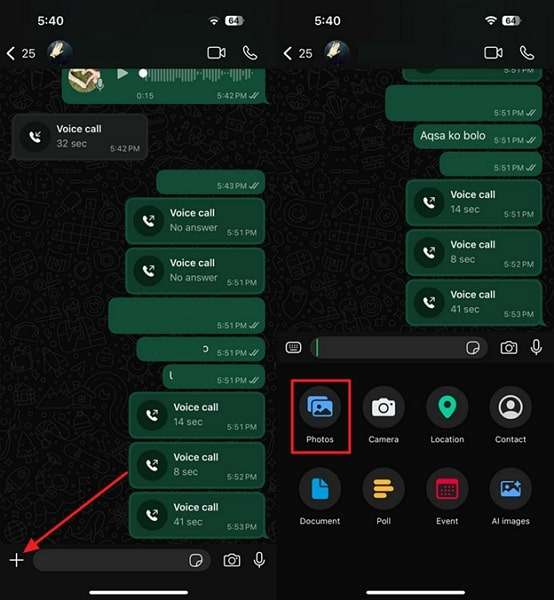
Step 2. Choose an image from the gallery > Press the View Once icon > Tap the Send icon.
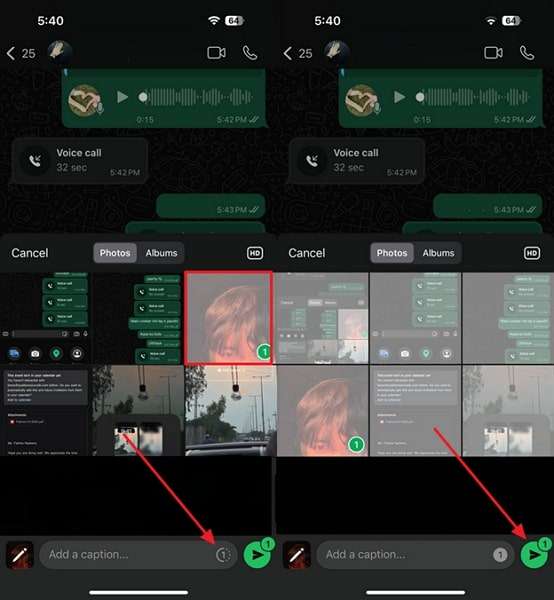
For Desktop Version
Step 1. Log in to WhatsApp > Access the recipient's chat > Clip icon > Photos and Videos > Select the desired media.
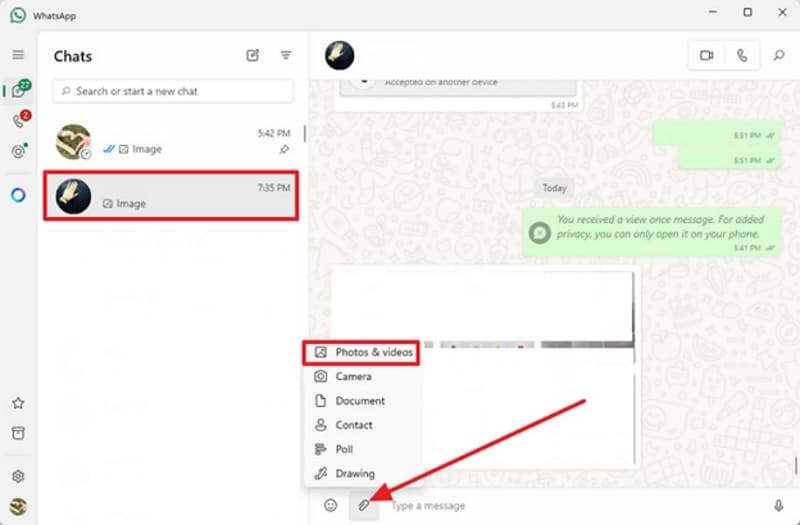
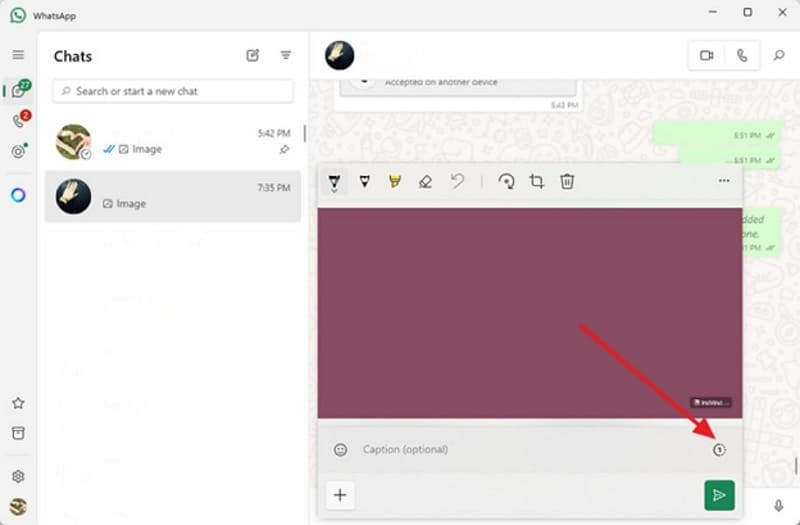
Step 2. Next, click the View Once icon at the bottom of the screen.
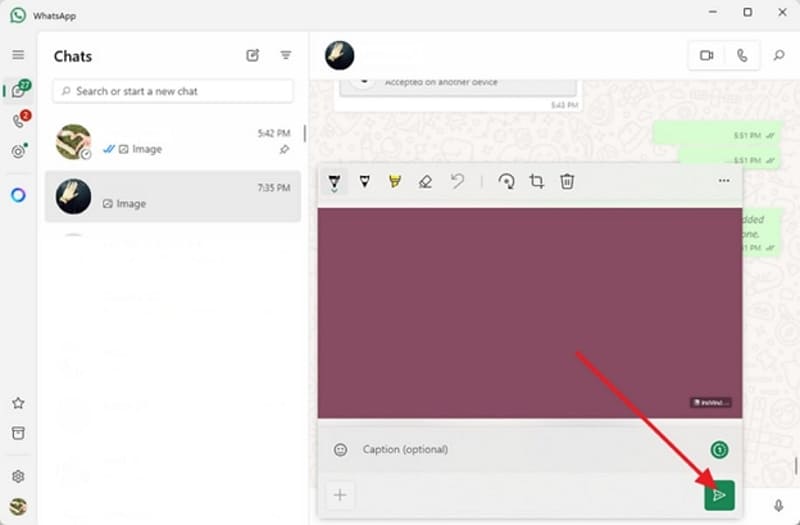
Step 3. Here, press the Send icon to share the View Once media.
Part 4. 4 Simple Workarounds to View WhatsApp View Once Media Twice
There are times when a single view isn't enough; you may need to double-check a detail in a photo, or you accidentally tapped out. Before you dive in, remember these methods to bypass WhatsApp view once privacy is meant to help you for a genuine second look:
Method 1. Use MobileTrans | One-Click Solution for All Users
For anyone seeking a reliable way to recover WhatsApp View Once media, MobileTrans is an excellent choice. Beyond photos, it restores videos and voice messages with a single click, ensuring nothing is missed. Its scan-to-login flow detects incoming View Once messages instantly, while background monitoring works without interruptions.
Additionally, user credentials remain private, with complete control over login and downloads, as all data is handled locally. Supporting both Android and iOS, MobileTrans provides a seamless and secure recovery experience across devices.
Key Features
- Preview First: Once you've recovered all your WhatsApp View Once data, you can examine details and thumbnails before downloading.
- One-Click Download: This feature enables users to save their View Once content to their preferred folder in the gallery with a single tap.
- Private and Group Chats: The platform also supports recovering media from both personal and group chats on the updated WhatsApp version.
Simple Manual to Recover and Access View Once Media via MobileTrans
Follow the given tutorial that shows you a practical approach to bypass the limits of WhatsApp View Once privacy without breaking trust:
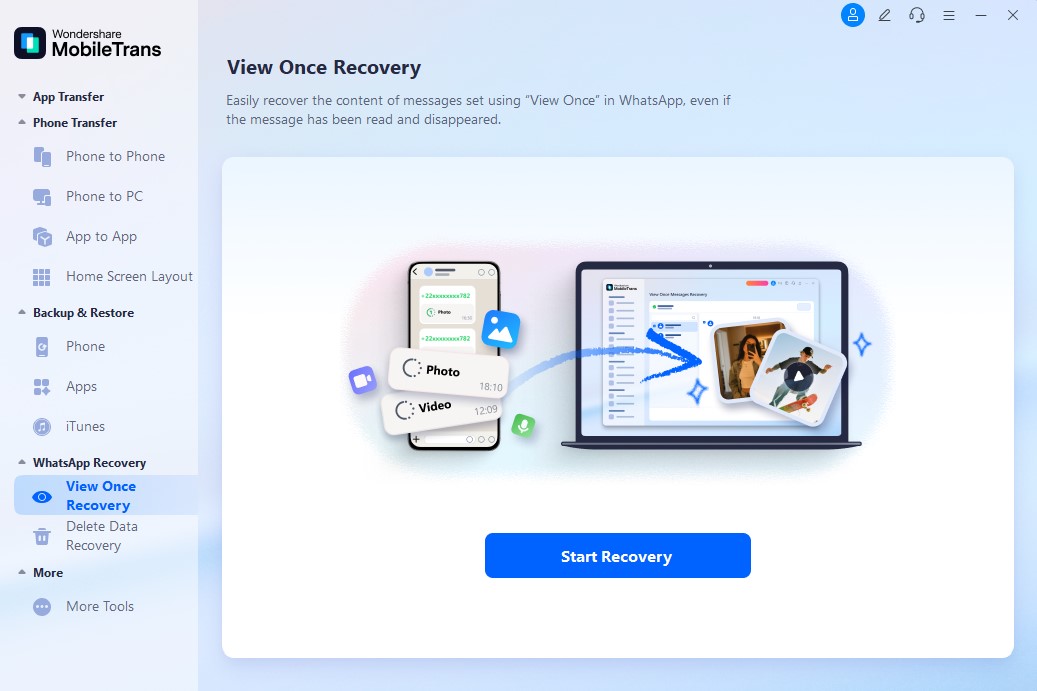
Step 1. Access the WhatsApp Recovery tab from MobileTrans > Choose View Once Recovery > Press the Start Recovery button.
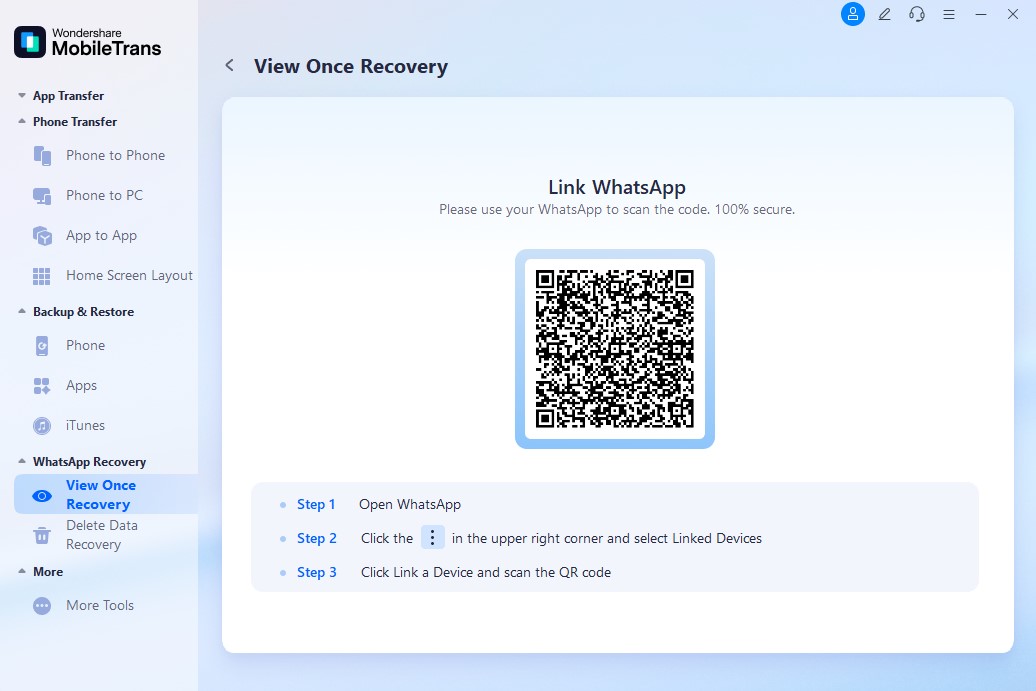
Step 2. Scan the QR code > Follow the on-screen instructions > Wait until the connection is finalized.
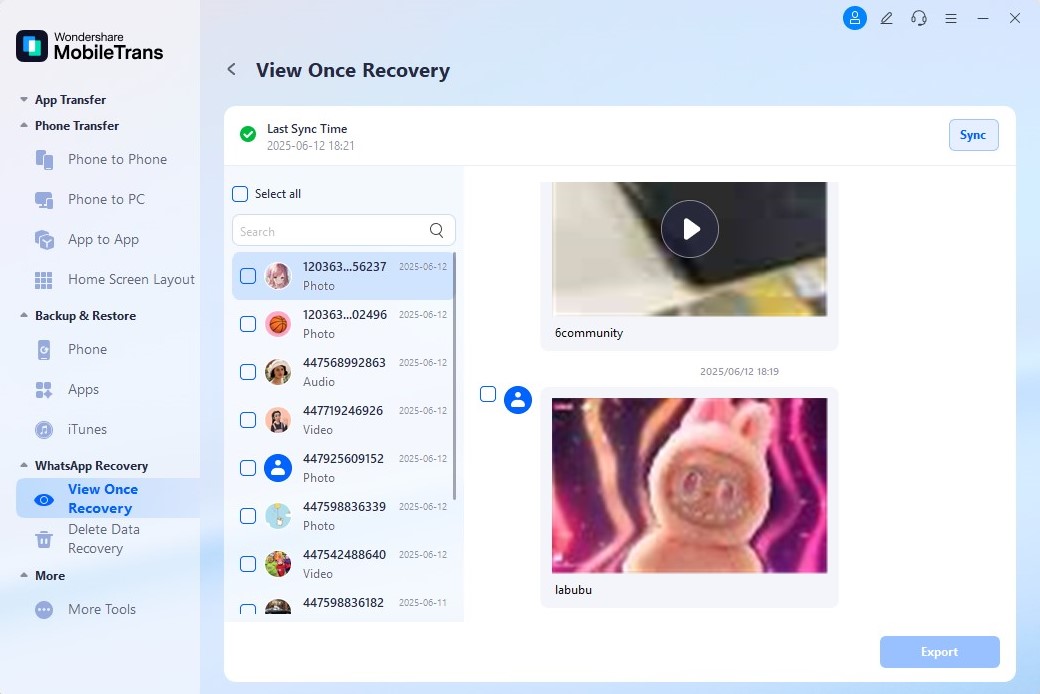
Step 3. Once connected, please tap on the messages to view. Then, press Export to save them locally.




Method 2. Ask the Sender to Resend the Media
Even if you've missed a detail or accidentally closed it, gently ask the sender to resend it, as it's the quickest way to regain access. This approach is entirely within WhatsApp's rules and preserves the motive of WhatsApp View Once privacy, because you're requesting the content.
It also has the added benefit of strengthening trust when you grant permission from the sender, ensuring complete consent and transparency.
Method 3. Use Another Phone to Record the View Once Media
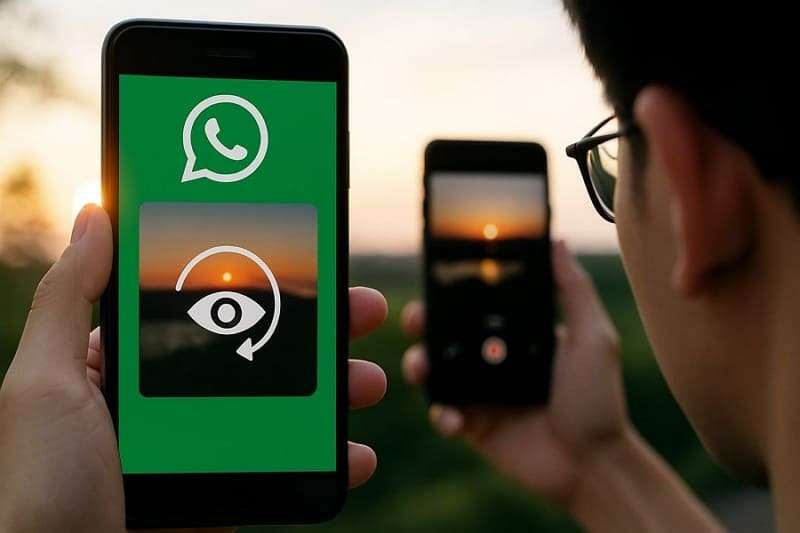
When saving or taking a screenshot isn't possible with WhatsApp View Once privacy, you can use another phone to record it. Open the View Once photo, audio, or video on your primary phone, then record it with another phone's camera.
This low-tech approach works on any operating system, requires no special apps, and doesn't interfere with WhatsApp itself. It's more workable because you end up with a personal copy of your own records.
Method 4. Install and Use GBWhatsApp [For Android]
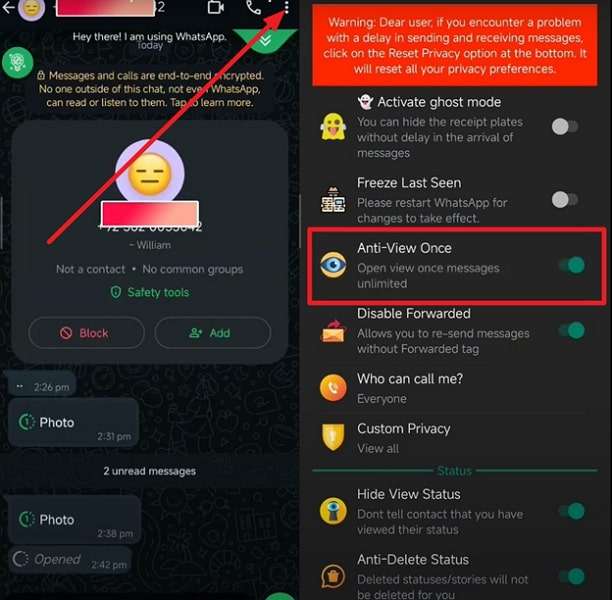
Android users who are comfortable using unofficial apps can refer to GBWhatsApp to save and access their media. This modded version can enable the Anti-View Once feature, allowing you to view disappearing media multiple times.
Use caution because it's not an official app and may violate WhatsApp's terms of service, as well as pose a security risk. If you still want to try, follow the tutorial to use GB WhatsApp:
Step 1. Enter GB WhatsApp > Three Dots icon > Go to GB Settings > Choose Privacy and Security > Enable Anti-View Once option.
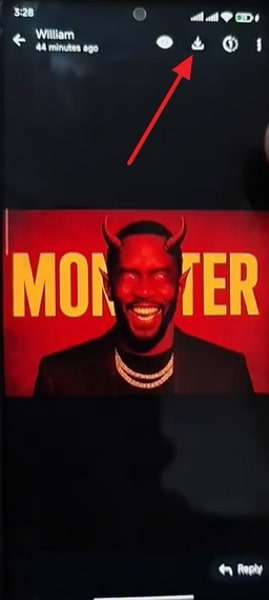
Step 2. Access chat with View Once media > Tap the Save icon to download the media.
Conclusion
In summary, WhatsApp View Once privacy has changed the way we share sensitive content, giving you the freedom to share without leaving a lasting trace. After understanding how it works and its limitations, you can make a more informed decision about what to send and to whom. Still, when you genuinely need a secure backup, MobileTrans is the most secure option.
FAQs
-
What's the difference between View Once and Disappearing Messages?
Although the two features concern privacy, they operate in very different manners. View Once is a feature that lets you send images, audio, or videos designed to be viewed only once by the recipient. Instead, Disappearing Messages impact a whole conversation, where each new message posted to that chat will automatically be deleted after a specified period. -
Can I preview a View Once photo or video before sending it?
WhatsApp View Once privacy allows you to fully preview a photo or video before sending, even when you intend to use the feature. That is why you can re-check the quality of the image and ensure that you are sending the correct file before it fades away. As soon as you press send, the recipient has only one viewing, so the preview helps you avoid errors. -
Can I turn off View Once after I've sent the message?
No, after sending a photo, audio, or video using the "View Once" option, this setting remains permanent on that message. Additionally, you cannot revert it to a regular message, extend its lifespan, or re-read it once it has been opened.










