



 TL;DR:
The most practical methods to transfer contacts from an iPhone to a Samsung device are using the Samsung Smart Switch app for a direct wireless migration or the MobileTrans app for moving a wider variety of file types.
● Samsung Smart Switch requires installing the app on both phones, keeping them in close proximity, and entering a verification code to move contacts directly or via an iCloud import.
● iTunes is a complex method because it requires a computer connection and relies on syncing your iPhone contacts to a Google account, which must then be activated in the sync settings on the Samsung device.
● Using iCloud allows for a one-time manual transfer by exporting a vCard file from iCloud.com, or continuous synchronization by installing the third-party Sync for iCloud Contacts app on your Android device.
Ask AI for a summary
 ChatGPT
 Perplexity
 Gemini
 Claude
 Grok
Grok
If you are moving from an iOS to a Samsung device, like the Samsung S25, you should start by learning how to transfer contacts from iPhone to Samsung. After all, our contacts are the most important part of our smartphone, and it is the first thing that we transfer after getting a new device.
Thankfully, there are plenty of ways to transfer contacts from iPhone to Samsung. In this post, we will teach you in 4 different ways how to move contacts from iPhone to Samsung, to make this transition with no data loss.

Comparison Table of Transfer Methods
| Method | Pros | Cons | Difficulty |
|---|---|---|---|
| MobileTrans | Easy, fast, supports various data types | Requires a computer for the desktop version | Easy |
| Samsung Smart Switch | Wireless transfer, direct phone-to-phone | App required on both phones, compatibility issues may occur | Easy |
| iTunes | Uses existing iTunes setup | Complex, requires Google account, can be slow | Complex |
| iCloud | Wireless, no additional software needed | Depends on internet speed, may require syncing Google account | Moderate |
Part 1: Copy Contacts from iPhone to Samsung using MobileTrans [Easy & Quick]
The MobileTrans App is a powerful tool for transferring contacts from your iPhone to Samsung device. With just a few clicks, you can easily transfer all your important contacts from your iPhone to your new Samsung device, without losing any data in the process. This app is a must-have for anyone who is switching from an iPhone to a Samsung device.




You can learn how to copy contacts from iPhone to Samsung using MobileTrans by following these simple steps.
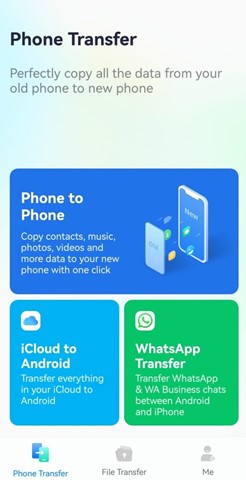
Step 1: Download MobileTrans App on your phone. Tap Phone to Phone button.
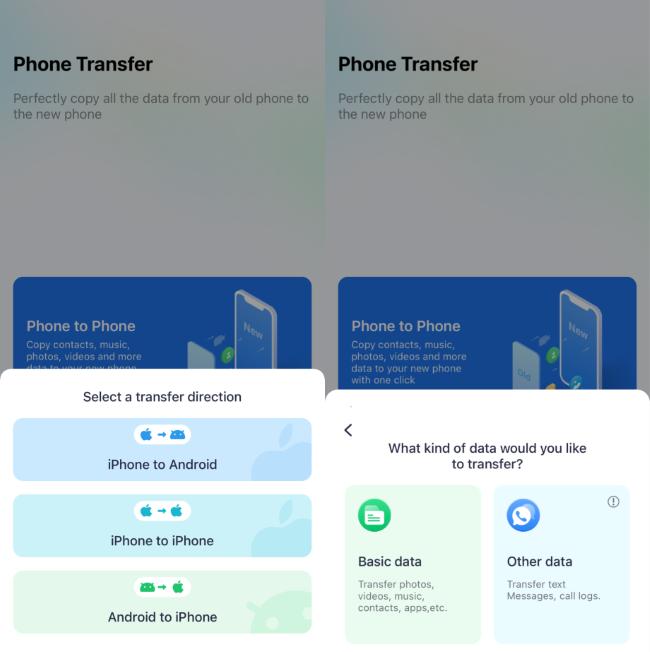
Step 2: Choose iPhone to Android as your transfer direction.
Step 3: Select the data you need to transfer.
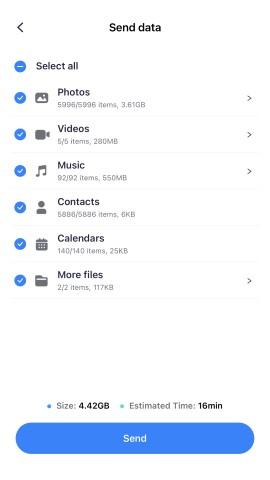
Step 4: The process is to be completed within seconds.
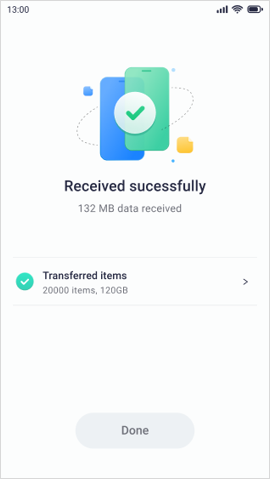
MobileTrans also has a desktop version for users who prefer using a computer.

Need a reliable way for Contact Transfers? Explore Pro Methods Here!



Method 2: Transfer Contacts from iPhone to Samsung using Samsung Smart Switch app
Samsung Smart Switch is the official Samsung app that can be used to transfer your data from an existing iOS or Android to a Samsung device. You can learn how to copy contacts from iPhone to Samsung via the Smart Switch app wirelessly. Before you proceed, make sure that the Samsung Smart Switch app is downloaded on both the devices. Afterward, you can follow these steps to learn how to move contacts from iPhone to Samsung.
1. After downloading the app on both the devices, launch it, and select a mode of transfer.

2. On the target device, you would be asked whether you wish to move data from an iOS or Android phone. Select the iOS device to proceed,

3. Furthermore, you can choose to transfer contacts from iCloud or directly from the iOS device. Tap on the “Import from iOS Device” option.
4. A one-time verification code will be displayed. To connect, match the code on both the devices.

5. After establishing a secure connection, you can just select the content you wish to send from your iPhone. Make sure that the “Contacts” option is enabled.

6. The target Samsung device will automatically start receiving the data and will let you know when the transfer would be completed.
By following this simple drill, you can learn how to transfer contacts from iPhone to Samsung over the air. To make it work, both the devices should be in close proximity.
Method 3: Move iPhone contacts to Samsung using iTunes
If you are already familiar with iTunes, then you can also take its assistance to learn how to copy contacts from iPhone to Samsung. Even though this a more complicated process, you would be able to move contacts from iPhone to Samsung wirelessly.
1. To start with, launch iTunes on your system and connect your iPhone to it.
2. After the iOS device is detected, select it and go to its “Info” tab.
3. You can also enable the feature of “Sync Contacts with” and select “Google Contacts”. Make sure that you have already signed in with your Google account. If not, then a pop-up would launch from where you can configure your Google account.

4. Save your changes by clicking on the “Apply” button.
5. Now, you can easily access these synced contacts on your Samsung device. Make sure that you are using the same Google account on the Samsung device. You can go to its Account & Sync settings to turn on the sync option for Google Contacts.

Method 4: Copy iPhone Contacts using iCloud (Transfer vs. Sync)
Another smart and easy way to learn how to move contacts from iPhone to Samsung is by taking the assistance of iCloud. Using iCloud offers two distinct approaches: a one-time transfer via vCard export, or setting up a continuous sync. If you only need to move your contacts once, the vCard method is sufficient. However, if you want any new contacts on your iPhone to automatically appear on your Samsung, you should focus on syncing your iCloud contacts with your Google account.

1: Import a vCard
After syncing your iPhone contacts with iCloud, go to iCloud.com and log-in to your account. Visit the Contacts section and export your contacts to a vCard file. Later, you can copy this vCard file to your Samsung device and import contacts from it. You can also log-in to your iCloud account from any web browser on your Samsung device as well.

2: Use a third-party app
You can use the Sync for iCloud Contacts Android app to learn how to move contacts from iPhone to Samsung. Simply install the app from here on your Samsung device and log-in with your iCloud credentials. Afterward, you can sync contacts from iPhone to Samsung freely.

After learning different ways of how to copy contacts from iPhone to Samsung, you can easily move to a new Android device with no data loss. As you can see, MobileTrans - Phone Transfer provides one of the easiest ways to transfer contacts from iPhone to Samsung. With just a single click, you can move all the important data files directly from one device to another. Give this remarkable tool a try and teach others how to transfer contacts from iPhone to Samsung in no time.
When switching to a new Samsung phone, you do need to transfer your important app data, like WhatsApp data. MobileTrans is the tool you can turn to, you can transfer whatsapp data from iphone to samsung easily, with the help of it.
FAQs
Q1: How can I ensure I transfer all contacts from my iPhone to Samsung?
To transfer all contacts, methods like MobileTrans or Samsung Smart Switch are recommended as they are designed to move your entire address book. When using iCloud or Google Sync, double-check that all contact groups are selected for syncing in your iPhone's settings.
Q2: What is the best way to transfer my contact list from iPhone to Samsung without a computer?
The Samsung Smart Switch app is the most effective method for transferring your contact list directly between phones without needing a computer. Alternatively, exporting a vCard from iCloud.com on your phone's browser and importing it to your Samsung also works.
New Trendings

Top Stories
All Categories









Axel Nash
chief Editor