



 TL;DR:
You can preserve your Samsung Gallery album structure when transferring to an iPhone by using Move to iOS during the initial device setup, MobileTrans for already configured iPhones, or a Mac with the Keep Folder Organization import setting enabled.
● Windows computers and Google Photos lack automatic folder structure imports, requiring you to manually recreate your Samsung albums and assign images within iCloud on the web or the Google Photos app.
● Pre-transfer preparation is mandatory to prevent missing files; you must move hidden images out of the Samsung Secure Folder and locally download any photos removed by the OneDrive cloud storage feature.
● Because Samsung uses physical storage folders while Apple Photos references a unified Library without duplicating files, nested album groups are not guaranteed to transfer and may require you to merge duplicates or adjust capture dates manually.
Ask AI for a summary
 ChatGPT
 Perplexity
 Gemini
 Claude
 Grok
Grok
Photos and videos usually transfer from Samsung to iPhone more easily than their original album organization. For example, your carefully organized “Japan 2024” album might appear as individual photos in the iPhone Library. Since both devices handle albums differently, preserving their structure when you transfer Samsung Gallery albums to iPhone requires more than copying files.
This guide explains how to transfer photos and preserve album organization using Move to iOS, MobileTrans, a Mac or Windows PC, or Google Photos. You'll also learn how to fix missing albums and choose the right method based on your iPhone's setup status.
In this article

Part 1. Can You Keep Samsung Gallery Albums When Switching to iPhone?
Yes, Samsung Gallery albums can transfer to an iPhone. However, whether you can keep album structure from Android to iPhone depends on how both devices organize photos. Understanding these differences helps you choose a transfer method that preserves as much of your original album organization as possible.
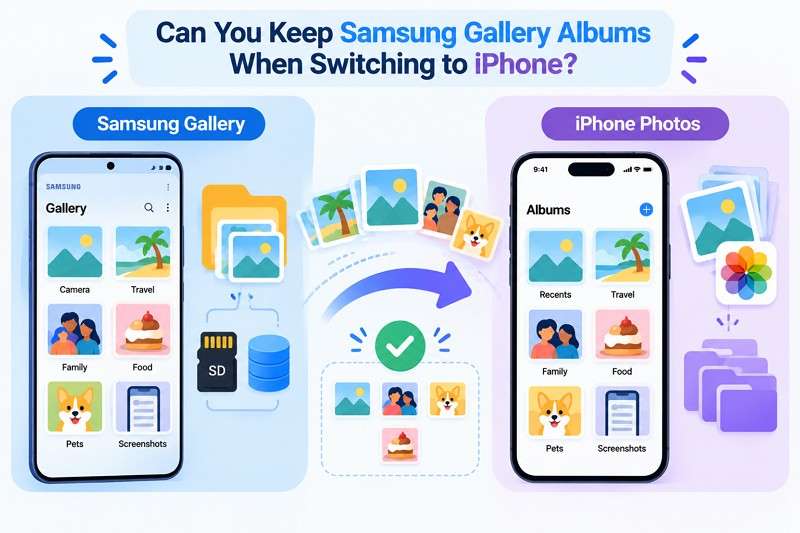
Samsung Gallery Albums vs. iPhone Photos Albums
Standard Samsung Gallery albums generally correspond to storage folders, with camera photos saved in DCIM/Camera by default. Samsung also supports auto-updating albums that group photos by selected people. In contrast, Apple Photos albums organize images already in the Library without creating separate copies. As a result, photos can transfer successfully while album names, groups, or custom arrangements are lost.
This difference matters when you transfer Samsung photos to an iPhone without losing albums. Simply copying image files does not guarantee that their original album organization will transfer. The table below highlights the key differences:
| Layer | Samsung Gallery | iPhone Photos |
| Physical File Folder | Standard albums generally correspond to folders in internal storage or on an SD card. | Photos are managed within the Photos library. |
| Photo Album | Usually organizes files stored in corresponding device folders. | References Library items without creating duplicate copies. |
| Album Group or Folder | Album groups gather several albums. | Folders hold albums or other folders. |
| Cloud-Based Album | OneDrive sync supports selected Samsung Gallery albums. | iCloud Photos syncs albums across devices using the same Apple Account. |






What Should You Check Before Transferring Samsung Albums?
Before learning how to transfer Samsung albums to iPhone, check where your photos are stored. These 6 checks help you avoid missing photos, duplicate files, and incomplete album transfers:
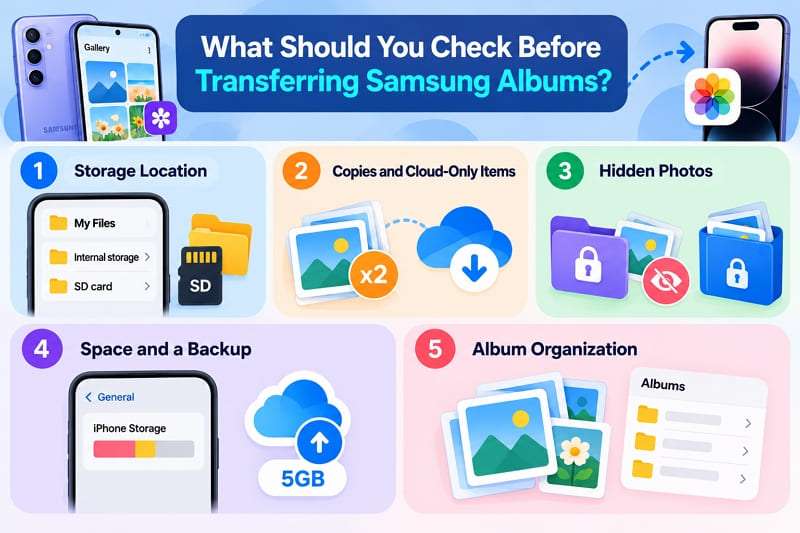
- Storage Location: Check My Files for albums stored internally or on an SD card.
- Copies and Cloud-Only Items: Copied photos can create duplicates, while items removed through OneDrive’s Free up phone space feature need downloading before transfer.
- Hidden Photos: Private album items are hidden from apps accessing your media, according to Samsung’s Gallery instructions. Photos in Secure Folder also need to be moved out before transfer.
- Space and a Backup: Check Settings > General > iPhone Storage, back up your albums, and remember that iCloud Photos uses iCloud storage, with 5GB free by default.
- Album Organization: Review album names, photo counts, and custom arrangements in Samsung Gallery. Keep the original albums until you've verified their contents and organization on your iPhone.
Part 2. How to Transfer Samsung Gallery Albums to iPhone
To transfer Samsung photos to iPhone without losing albums, choose a method based on your iPhone's setup status. The following options cover both new and already configured iPhones:
Method 1. Use Move to iOS During Initial iPhone Setup
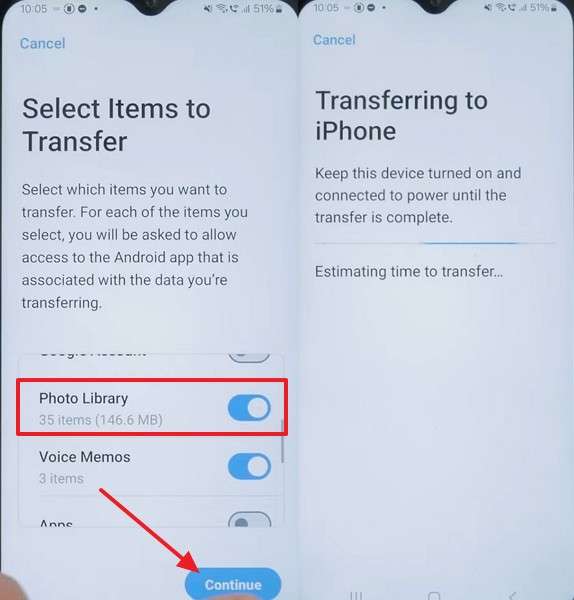
If your iPhone is still being set up, Apple's official Android app, Move to iOS, supports transferring photo albums alongside camera photos, videos, files, and folders. For an already configured iPhone, you'll need to erase it and restart the setup process to use this method. Album groups and custom sorting are not explicitly supported, so check their organization afterward.
To transfer Samsung Gallery albums to iPhone using Move to iOS, connect both devices to power, enable Wi-Fi on your Galaxy, and check that your iPhone has enough storage. Once everything is ready, follow these steps:
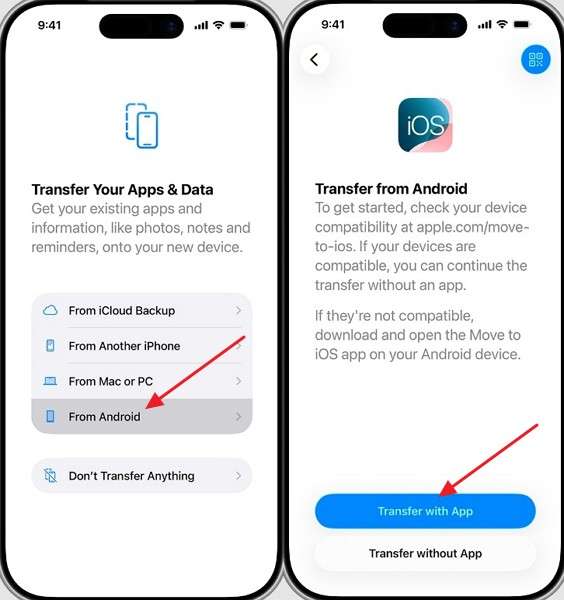
Step 1. On the iPhone's Transfer Your Apps & Data screen, select From Android > Transfer with App.
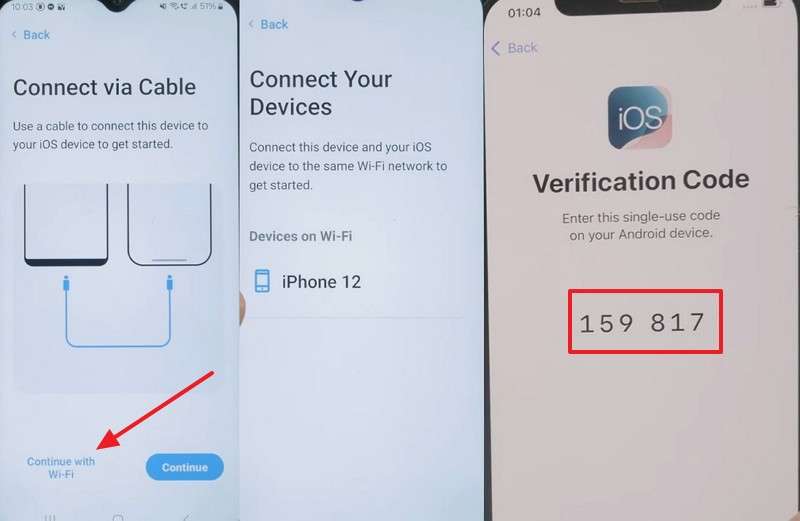
Step 2. On the Galaxy, install and open Move to iOS > Continue > Agree > Continue with Wi-Fi > Choose the iPhone > Enter the one-time code.
Step 3. Select Photo Library > Continue > Keep both devices connected and untouched until the iPhone's progress bar finishes.
Method 2. Transfer Samsung Albums with MobileTrans After iPhone Setup
Unlike Move to iOS, which requires a reset after setup, MobileTrans-Phone Transfer lets you transfer photos from Samsung to iPhone after setup using its desktop Phone Transfer feature. It supports transferring 18+ data types across 6,000+ Android and iOS devices. MobileTrans also offers photo and album preservation, including original image quality and associated metadata. However, album organization can vary depending on the device and software version.
Nested folders, album groups, and custom sorting are not guaranteed to transfer, so check the results afterward. MobileTrans supports Android 16 and iOS 27 across its transfer features. It handles Android-to-iOS, Android-to-Android, iOS-to-Android, and iOS-to-iOS transfers. The software also supports compatible iPads and iPods, along with PC-to-phone transfers covering five data categories. These options provide flexibility when moving content between devices.
Key Features
- iCloud to Android: Transfers iCloud photos, videos, contacts, notes, reminders, and calendars directly to an Android device without restoring an iPhone backup first.
- WhatsApp Transfer: Moves WhatsApp chats, photos, videos, and attachments between supported Android and iPhone devices. It also supports WhatsApp Business transfers.
- Selective Content Transfer: Lets you choose specific content categories, such as photos or videos, instead of transferring everything from your Samsung phone.
- Direct USB Transfer: Connects both phones to a computer using USB cables, allowing transfers without uploading your photos to cloud storage.
- Phone-to-Computer Backup: Backs up supported Samsung and iPhone data to a computer, allowing you to keep a separate copy of important content before switching devices.
How to Transfer Samsung Gallery Albums to iPhone Using MobileTrans
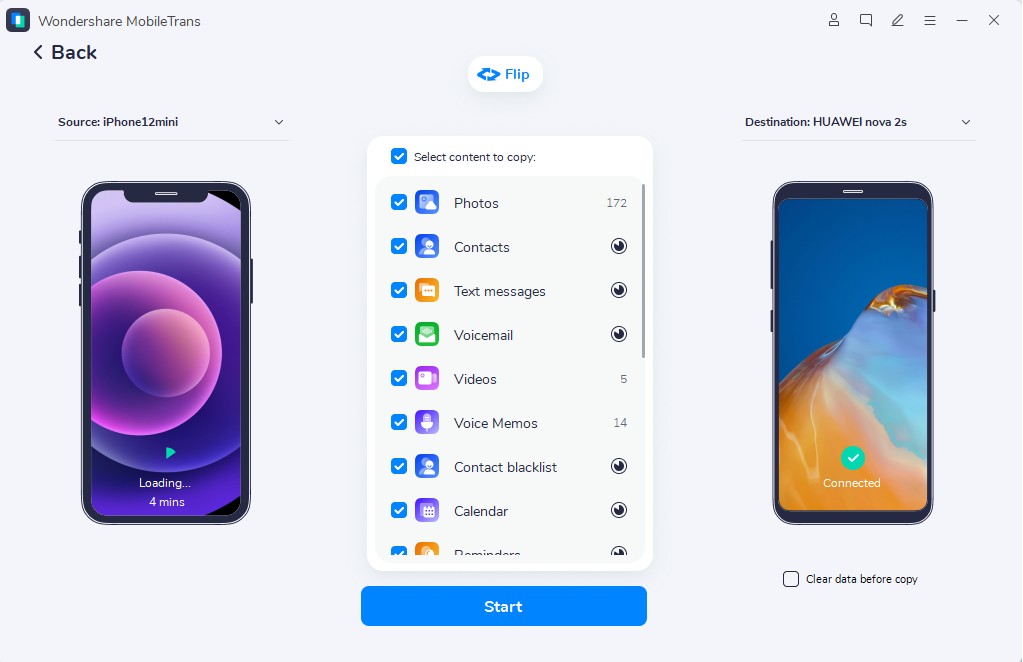
If you want to keep the album structure from Android to iPhone during the transfer, MobileTrans offers a convenient solution. Choose Samsung as the source and iPhone as the destination, then follow these steps to transfer your photos and verify their album organization:
Step 1. Access Phone Transfer > Phone to Phone, and connect both devices using USB cables.

Step 2. Choose Photos and Videos > Leave Clear Data Before Copy unchecked > Press Start to initiate transfer.
Step 3. Keep both devices connected. Compare the transferred albums, photo counts, and important images with Samsung Gallery.
Part 3. How to Move Samsung Photo Folders to iPhone Using a Computer or Cloud
Besides direct phone transfers, you can transfer Samsung photos to iPhone without losing albums using a computer or cloud storage. These methods let you move photos in stages while preserving or manually recreating their original organization. Let's explore how each option handles your Samsung Gallery albums:
Method 3. Import Samsung Folders into Apple Photos on Mac
On a Mac, Apple Photos can convert Samsung photo folders into albums while retaining their original names. Apple's import guide explains the Keep Folder Organization option, which preserves folder hierarchy during import. Once imported, iCloud Photos can sync these albums to your iPhone. This approach helps you move photo folders from Samsung to iPhone while maintaining familiar album organization across devices.
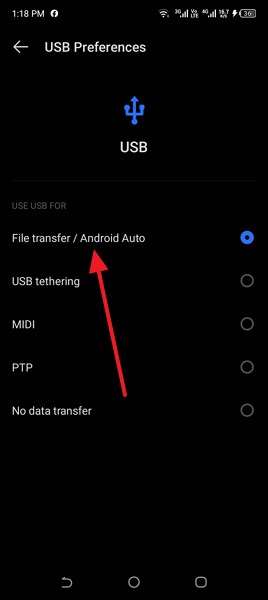
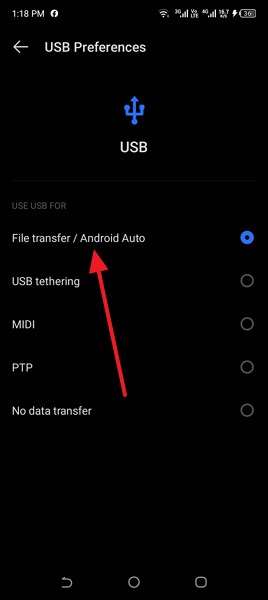
Step 1. Connect your Samsung phone to the Mac using a USB data cable. Unlock the phone, select File Transfer / Android Auto under USB settings, and allow file access.
Step 2. Download and install the Android File Transfer app on your Mac. Copy the required folders from DCIM and Pictures to a new folder on your Mac, keeping their original names.
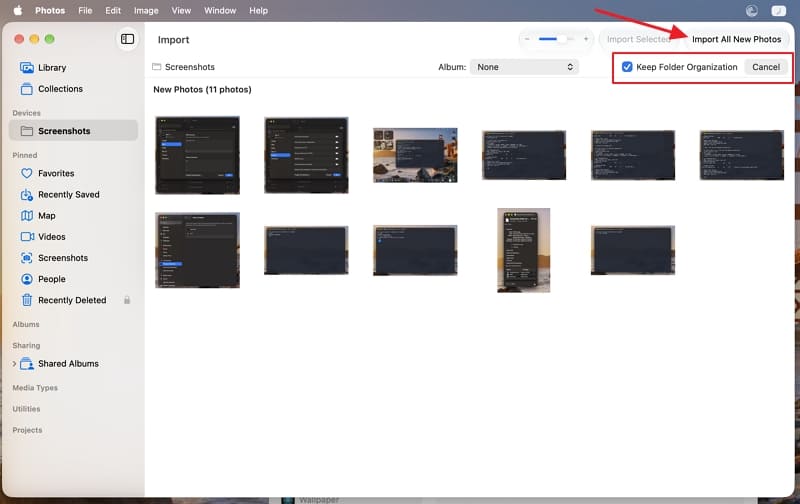
Step 3. Open Photos > File > Import on your Mac. Select the main folder containing your copied Samsung photo folders, then click Review for Import.
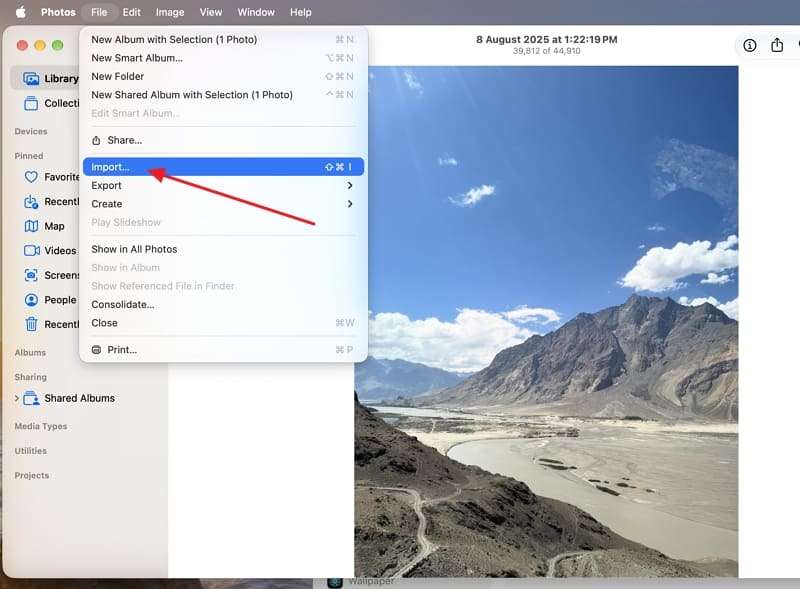
Crucial: Before clicking Import, check the box at the top that says Keep Folder Organization.
Step 3. Click Import All New Photos. Once the import finishes, check the resulting albums in Apple Photos.
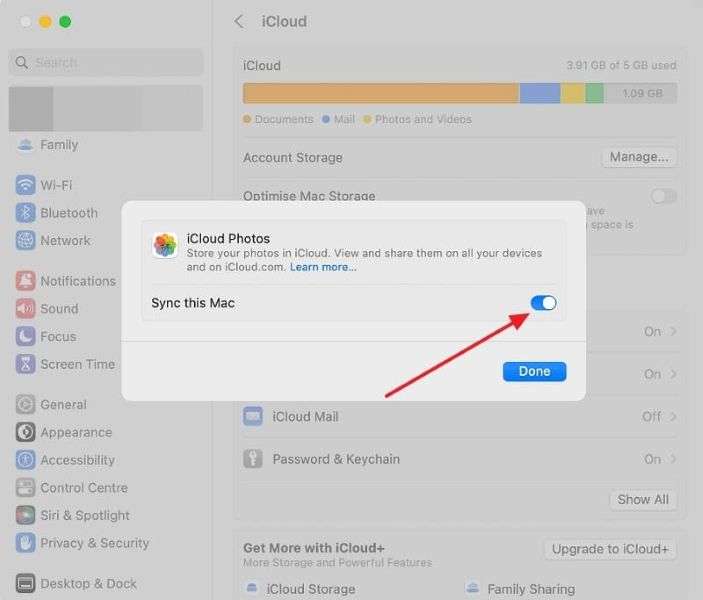
Step 4. On your Mac, open System Settings > [Your Name] > iCloud > Photos and enable Sync this Mac.
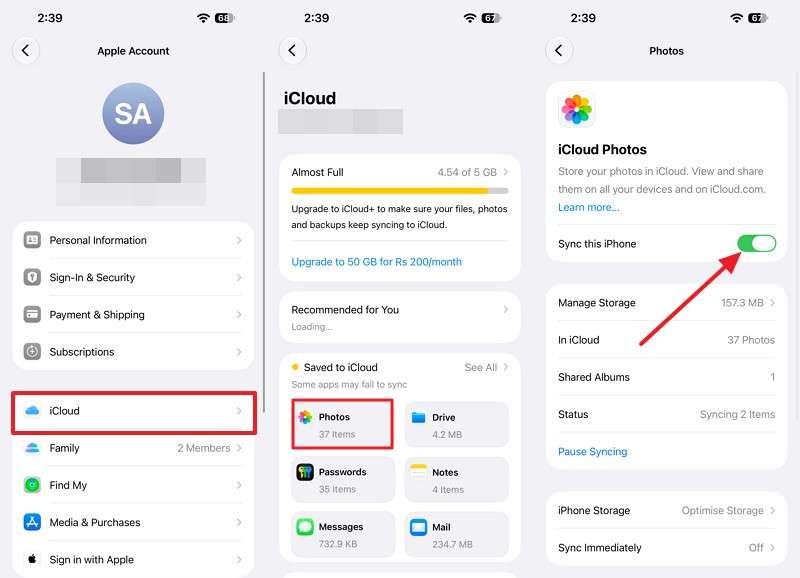
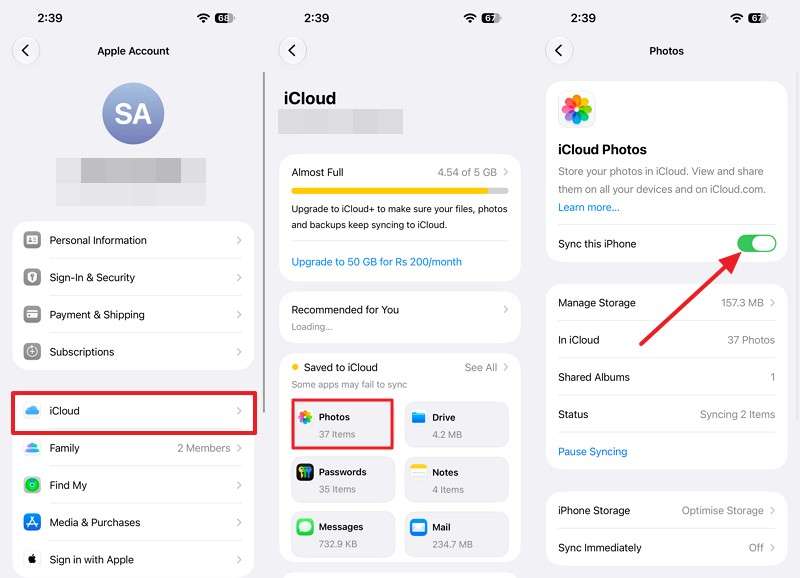
Step 5. On iPhone, choose Settings > [Your Name] > iCloud > Photos and turn on Sync this iPhone.
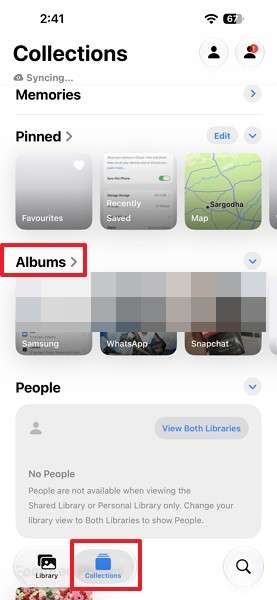
Step 7. Keep both devices connected to Wi-Fi while synchronization completes. Open Photos > Collections > Albums on your iPhone and compare the transferred albums with Samsung Gallery.
Method 4. Recreate Samsung Album Organization Using a Windows Computer
Unlike Apple Photos on Mac, iCloud for Windows doesn't offer the Keep Folder Organization import feature. Apple's iCloud for Windows guide explains how to upload photos, but this process doesn't automatically recreate Samsung Gallery albums. Instead, iCloud Photos on the web lets you manually create albums and organize the corresponding pictures under their original names.
To keep album structure from Android to iPhone, you can use a Windows computer to transfer your Samsung photos and recreate their original albums in iCloud Photos. Follow these steps to complete the process:
Step 1. Connect the phone using a cable > Tap the USB notification > Pick File Transfer.
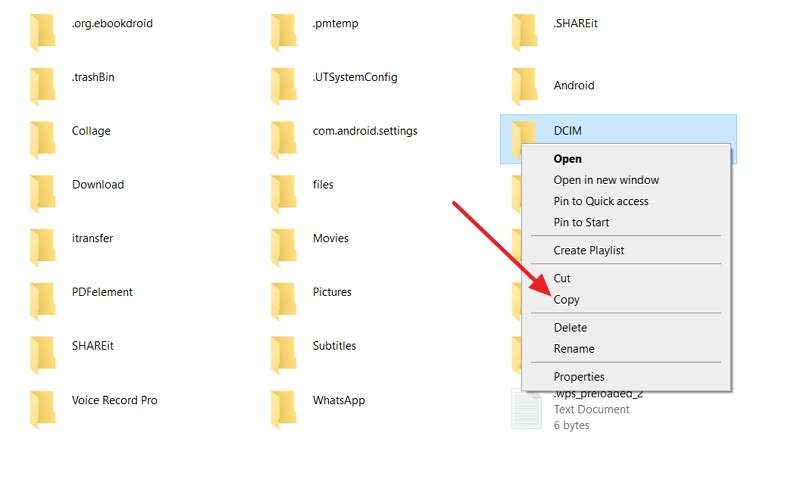
Step 2. Open the phone under This PC, then copy DCIM > Camera and any other folders you need.
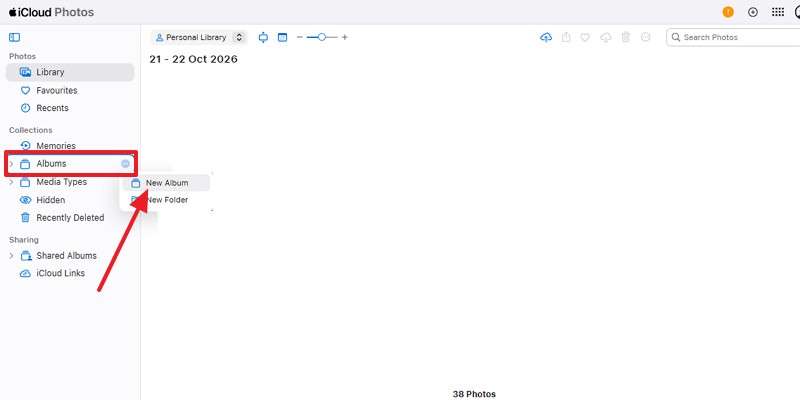
Step 3. Launch iCloud Photos, sign in with your Apple Account, find Albums, click Three Dots > New Album.
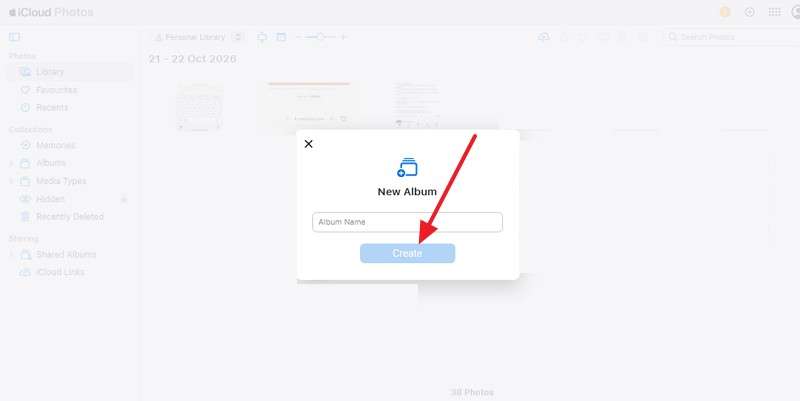
Step 4. Enter the name of a Samsung folder and choose Create. Complete the upload and confirm the photos appear in that album.
Step 5. On the iPhone, enable Settings > [Your Name] > iCloud > Photos > Sync this iPhone, then compare the album names and photo counts.
Method 5. Keep Samsung Albums Accessible Through Google Photos
Unlike computer-based methods that organize photos in Apple Photos, Google Photos keeps albums accessible through its own app on both platforms. Choose Original quality to preserve full resolution when backing up photos, as Storage Saver reduces image quality. However, backing up device folders does not automatically preserve their original Samsung album names. You'll need to recreate the albums in Google Photos, where each supports up to 20,000 items.
You can transfer Samsung photos to iPhone without losing albums by recreating your original album structure in Google Photos. The process involves backing up selected folders and organizing their contents into albums. Follow these steps to get started:
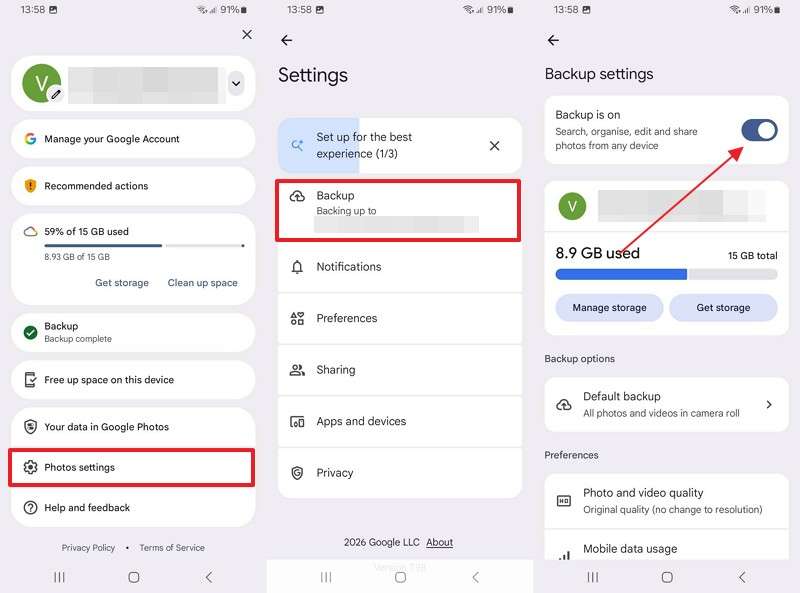
Step 1. On Samsung, open Google Photos > Profile picture > Photos Settings > Backup and turn on Backup.
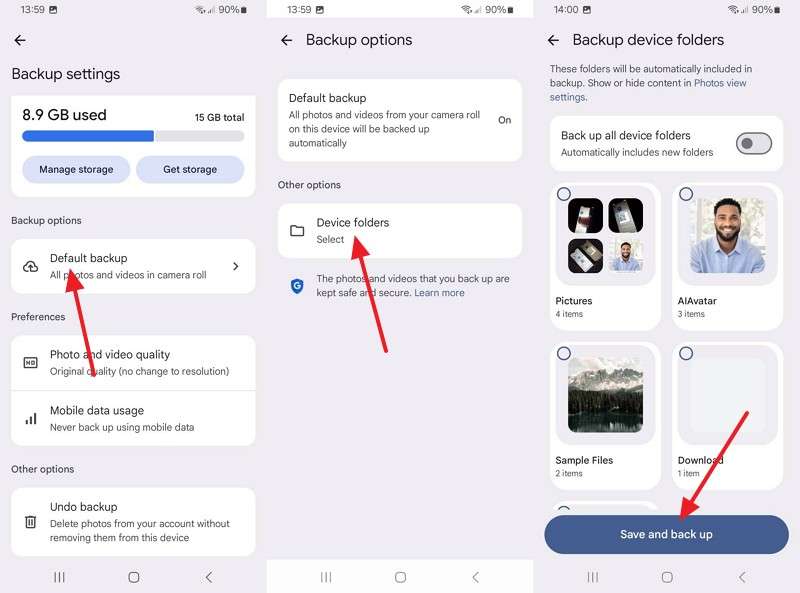
Step 2. Choose Default Backups > Device Folders > Switch on each Samsung album folder > Save and Back Up.
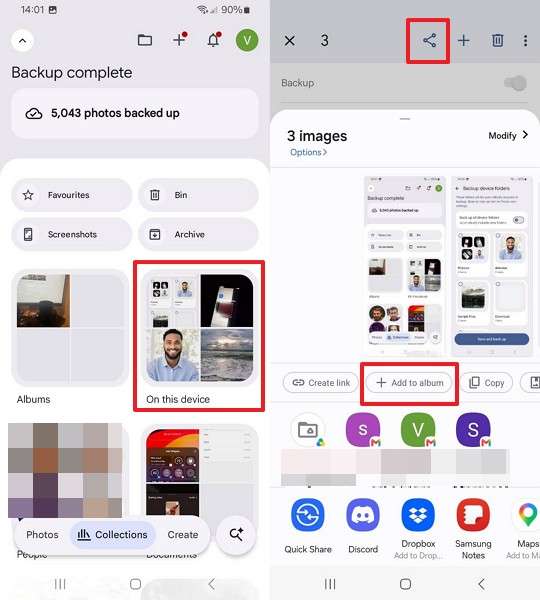
Step 3. Open Collections > On This Device, select a folder > Choose images > Share > Add to Album.
Step 4. Tap + New Album > Create a new album using the original Samsung album name, and tap the Tick icon.
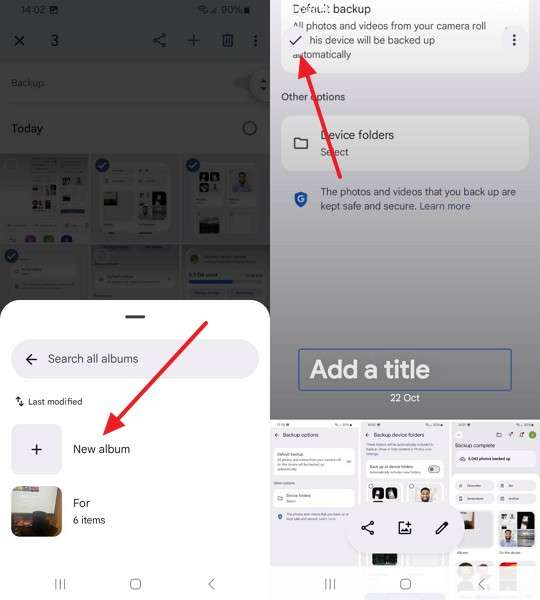
Step 5. Create albums for the remaining folders and wait until Google Photos displays Backup Complete.
Step 6. Install Google Photos on the iPhone, sign in with the same Google Account > Collections > Albums > Verify the photos.
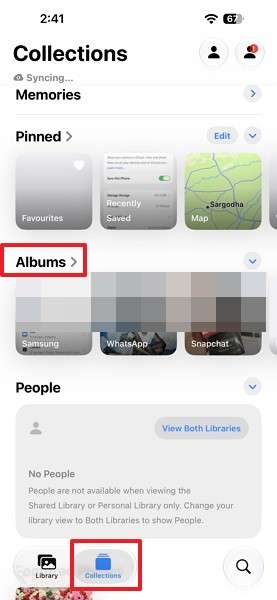
Part 4. How to Fix Missing Albums or Changed Photo Organization After Transfer
After you transfer Samsung Gallery albums to iPhone, you might notice missing photos, changes in album structure, or incorrect photo dates. The following fixes can help you resolve these issues and restore your album organization:
Fix 1. Restore Missing Photos from Samsung Storage Folders
Photos missing after a transfer might still be stored in Samsung's DCIM, Pictures, or Download folders, including those on an SD card. Samsung also explains that a .nomedia file can hide photos from Gallery even when they're accessible through My Files. To locate missing images, compare your Samsung storage folders with the transferred photos on your iPhone:
- Internal Storage: Open My Files > Internal Storage and check DCIM, Pictures, and Download, or SD Card if your Galaxy supports one.
- Collections: Open Photos > Collections > Albums on your iPhone and compare the contents with the corresponding Samsung folders. Identify missing photos by filename, date, or thumbnail.
Once you've identified the missing files, transfer them using MobileTrans, a computer, or Google Photos. Check that the photos appear on your iPhone, then add them to the correct albums if necessary.
Fix 2. Rebuild Albums That Appear as One Photo Library
Sometimes, transferred photos appear together in the iPhone Library without their original album organization. Before making changes, confirm that all expected images are present. Apple Photos lets you organize the same photo into multiple albums without creating duplicate files.
If you couldn't keep the album structure from Android to iPhone during the transfer, you can recreate the missing albums using photos already in your Library. Follow these steps to organize them under their original album names:
Step 1. Open Photos > Collections > Albums > + > New Album > Enter the Samsung album’s name, and tap Tick.
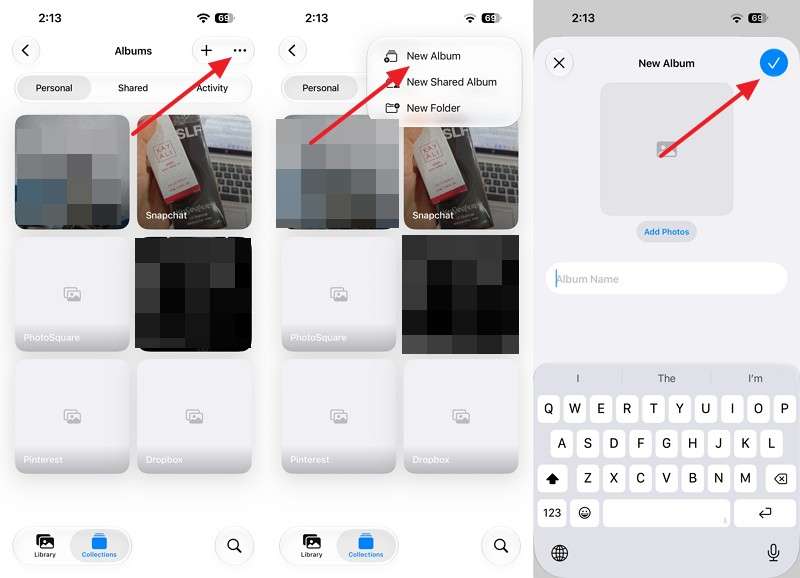
Step 2. Open the new album, press Add Photos, select the remaining images from your Library, and tap Done.
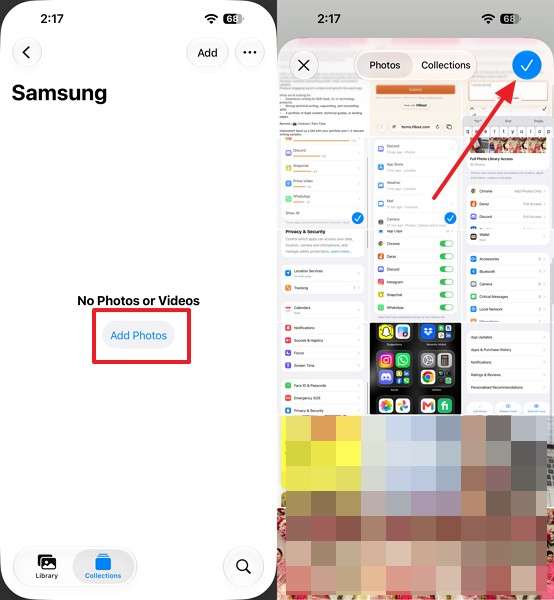
Step 3. Repeat for each missing Samsung album, then compare album names and photo counts with Samsung Gallery.
Fix 3. Correct Photo Sorting and Duplicate Problems
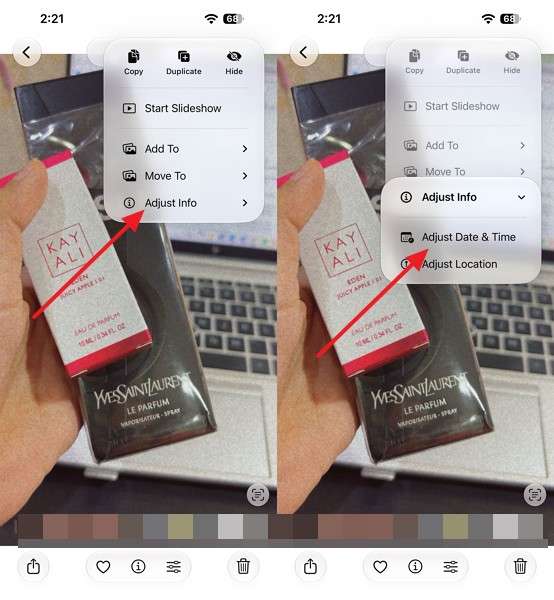
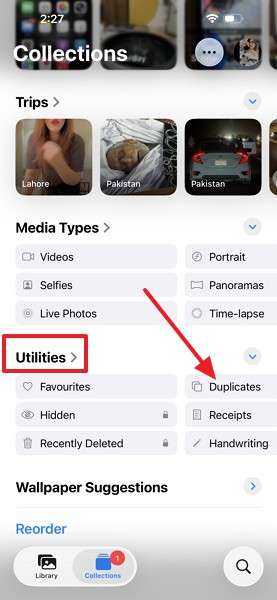
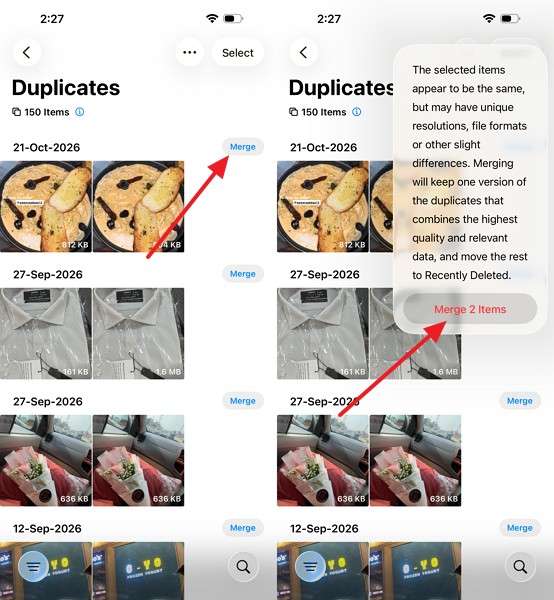
Rebuilt albums can display photos in the wrong order when capture dates are missing, or import dates affect sorting. Samsung's Gallery guide explains that copying photos to another album creates additional files, potentially causing duplicates after migration. Apple Photos lets you adjust photo dates, change Library sorting, and merge detected duplicates. The Duplicates feature requires iOS 16 or later, although its location varies by version.
If photos appear out of order or duplicated after you transfer Samsung Gallery albums to iPhone, start by checking their capture dates and sorting options. Then, review any detected duplicates and follow these steps to resolve the issues without transferring your photos again:
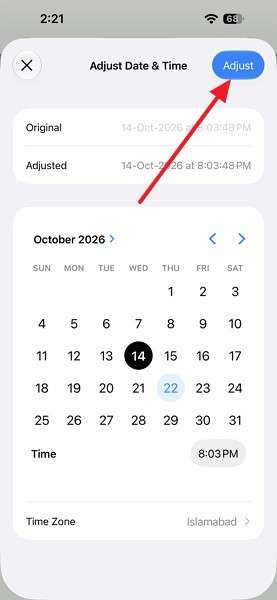
Step 1. Open a misplaced photo in Photos, tap the More (•••) button, choose Adjust Info > Adjust Date & Time.
Step 2. Enter the correct capture date, and tap Adjust. You can also check the original date using Samsung Gallery.
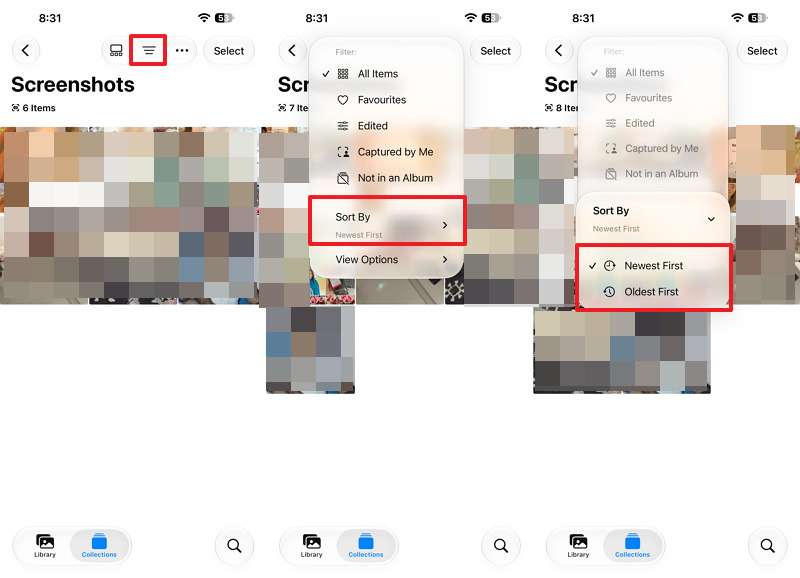
Step 3. Open the album in Photos > Collections > Albums, tap Sort and Filter, and select Sort by Oldest First or Sort by Newest First to arrange photos by date.
Step 4. Open Photos > Collections > Utilities > Duplicates, and review the detected copies.
Step 5. Tap Merge, and confirm Merge [number] Items. Only merge photos you have checked.
Conclusion
To transfer Samsung Gallery albums to iPhone while preserving their organization, choose a method based on your iPhone's setup status. Move to iOS works during initial setup, while MobileTrans transfers photos after setup without requiring a reset. Mac, Windows, and Google Photos provide additional options for organizing albums. Before deleting your Samsung originals, verify the transferred photos, album names, and organization.
FAQs
-
Can Samsung Secure Folder photos and albums be transferred to an iPhone?
Photos stored in Samsung Secure Folder must be moved out before transferring them to an iPhone. To do this, open Gallery inside Secure Folder, select your photos, and choose More > Move Out of Secure Folder. Then, transfer them using MobileTrans or another supported method. -
Can I transfer only selected Samsung Gallery albums instead of the entire photo library?
Yes, a computer lets you copy specific Samsung folders. Google Photos supports backing up selected device folders, but you'll need to recreate their albums. MobileTrans supports content-category selection, although individual album selection isn't guaranteed. -
Do Samsung Gallery Stories transfer as regular iPhone Photos albums?
No, Samsung Gallery Stories don't automatically become iPhone Photos albums. However, you can open a Story, select More > Save as Video, and transfer the resulting video. Alternatively, move its photos and recreate an album. -
Will Samsung Motion Photos become Live Photos after transferring them to iPhone?
Automatic conversion into Apple Live Photos isn't documented for standard transfer methods. To preserve movement, Samsung's Motion Photo guide recommends sharing the photo as a video file, which you can transfer and play on your iPhone.










