



 TL;DR:
To transfer data from a Samsung device to an iPhone 18 Pro, you must use Apple's Move to iOS app during the initial setup or a tool like MobileTrans if the device is already configured, because Samsung Smart Switch strictly does not support transfers to iOS.
● Apple's Move to iOS handles the most comprehensive free migration, including WhatsApp chat history, but strictly requires the iPhone 18 Pro to be on the initial setup screen, though supported Android 17 devices can bypass app installation by pairing directly via QR code.
● If the iPhone 18 Pro is already set up, MobileTrans allows you to migrate specific data categories and WhatsApp messages without requiring a factory reset.
● Proprietary data locked in Samsung Secure Folder, Samsung Cloud, or Samsung Notes cannot migrate automatically; you must manually move this content to regular Galaxy storage or export it to standard file formats prior to the transfer.
Ask AI for a summary
 ChatGPT
 Perplexity
 Gemini
 Claude
 Grok
Grok
Most Galaxy owners reach for Smart Switch and stop there. This tool remains incompatible because Samsung built it exclusively for transfers to Galaxy devices, not iPhones. Apple migration works only during the initial iPhone setup screens.
Furthermore, proprietary items like Samsung Notes, Secure Folder, and Samsung Cloud lack direct iOS counterparts. This guide explains 7 ways to transfer data from Samsung to iPhone 18 Pro.
In this article


Part 1. Choose a Transfer Method Based on Your iPhone Setup
Use this quick comparison to choose the right method for your Samsung Galaxy to iPhone 18 Pro transfer:
| Your Situation | Use This | Why |
| iPhone 18 Pro Is Still on the Setup Screen | Move to iOS | Transfers the most data in one pass and is free |
| iPhone 18 Pro Is Already Set Up | MobileTrans | Transfers supported data without requiring a factory reset |
| You Only Need Specific Files or Contacts | MobileTrans | Selects specific data categories instead of moving everything |
| You Need to Transfer WhatsApp | MobileTrans | Transfers WhatsApp chats and supported media across platforms |
| Your Samsung Runs Android 17 | Transfer Without App or MobileTrans | Choose app-free migration during setup or MobileTrans for a flexible transfer |
Part 2. 7 Ways to Transfer Samsung Data to iPhone 18 Pro
The 7 methods to transfer Samsung data to iPhone 18 Pro fall into 3 groups based on your iPhone’s setup status and transfer needs:
1. If Your iPhone 18 Pro is Not Set Up Yet
Method 1. Transfer Samsung Data with Move to iOS
Apple offers a free, comprehensive tool that moves contacts, messages, call history, photos, albums, and local files. Bookmarks, mail accounts, and accessibility settings move along, and WhatsApp is the one third-party app handled natively. For Samsung/Galaxy users, Apple advises disabling Smart Network Switch if Wi-Fi fails. So, follow these steps and transfer all data from Samsung to iPhone 18 Pro:
Prerequisites:
- Turn on Wi-Fi on your Samsung phone.
- Plug both your Samsung and iPhone into power.
- Check that your new iPhone has enough space for all your Samsung files.
- Download the latest Move to iOS app on your Samsung phone.
Step 1. Set up your iPhone 18 Pro.
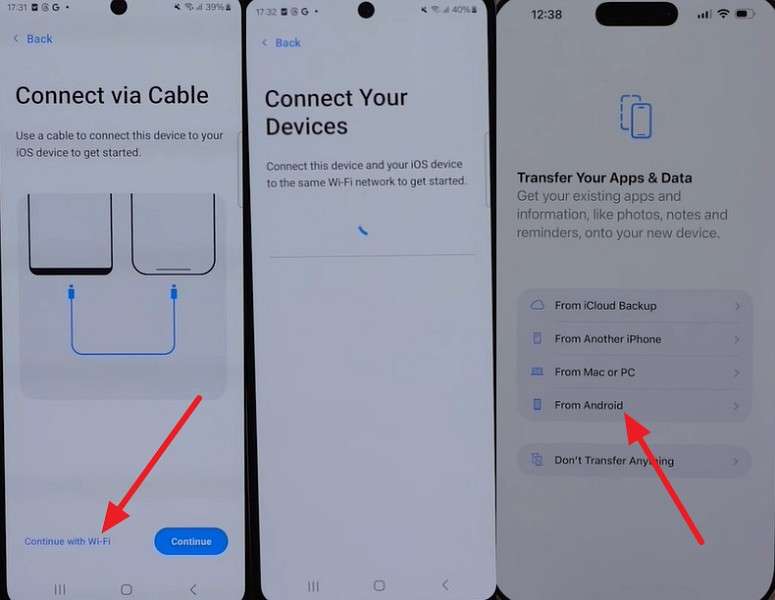
Step 2. On Android, select Continue with Wi-Fi or use a cable. Tap From Android on iPhone and select iPhone 18 Pro on Samsung.
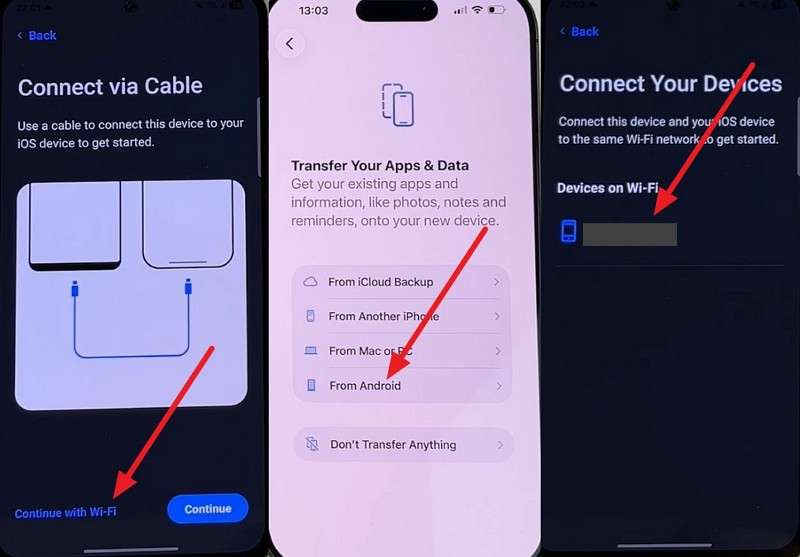
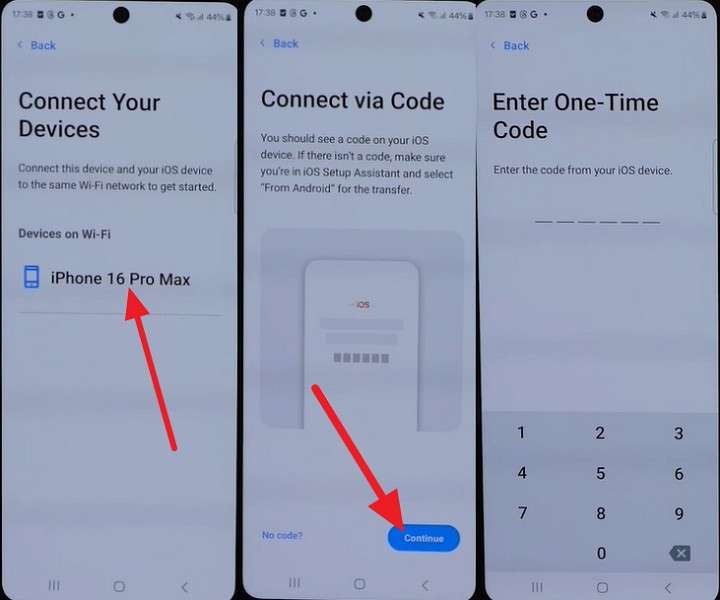
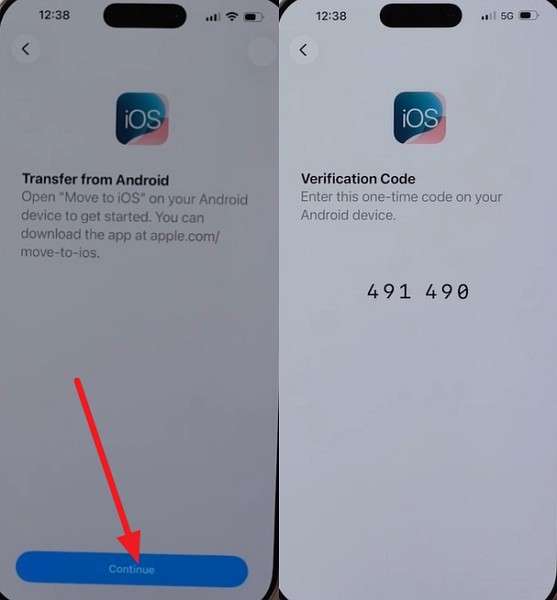
Step 3. Wait for the code on the iPhone 18 Pro > Press Continue > Type the code into the Samsung phone.
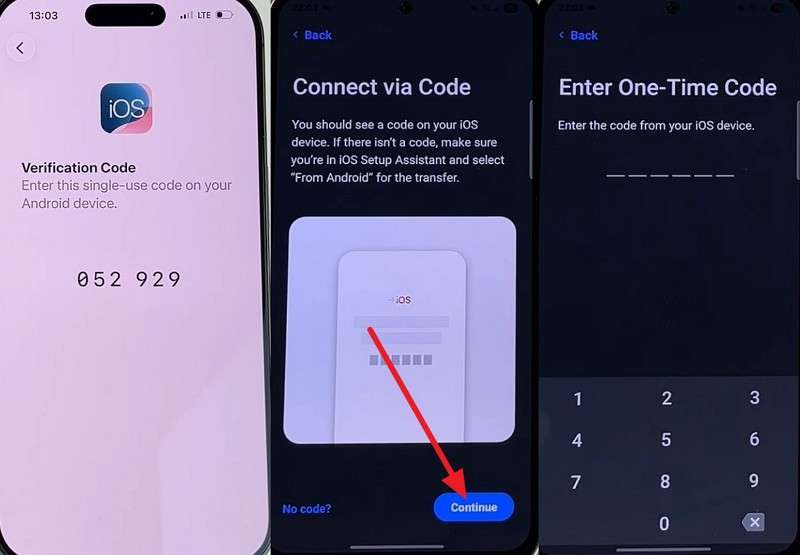
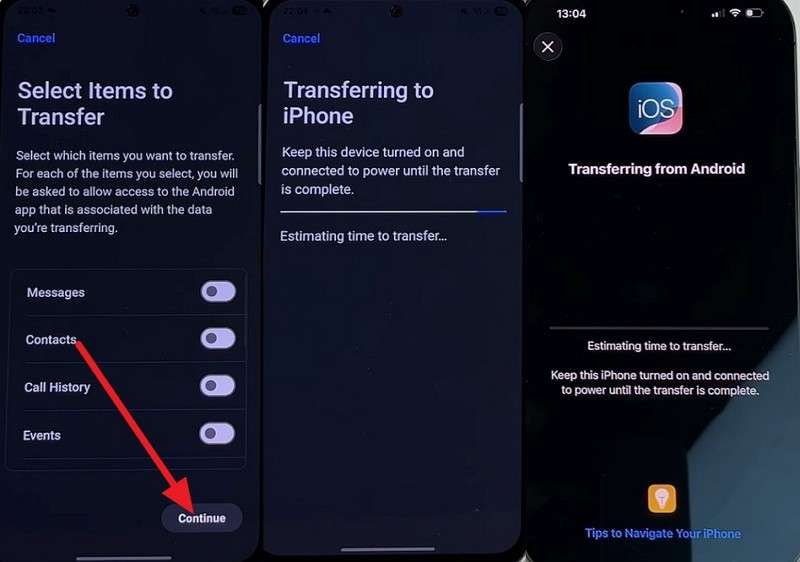
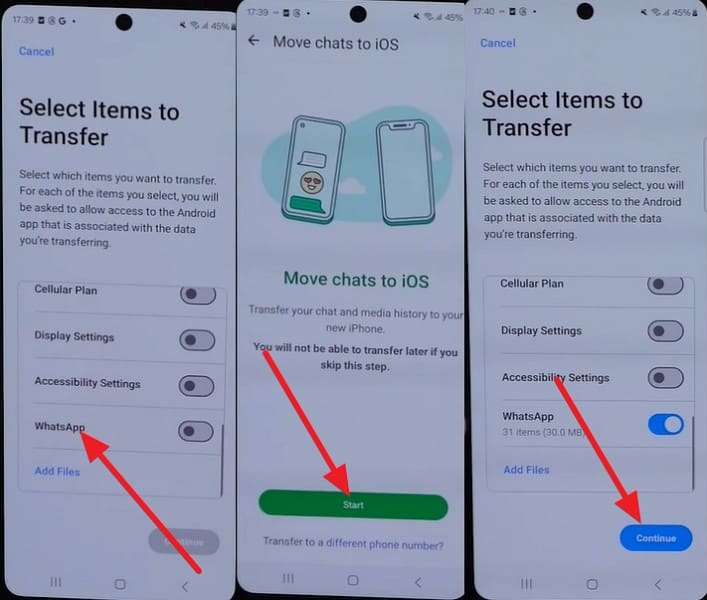
Step 4. Pick what data you want to move > Tap Continue to move the data.
Method 2. Transfer Without Move to iOS on Supported Android 17 Devices
On supported Samsung phones running Android 17 or later, Apple offers a transfer option that works without installing Move to iOS. The phones pair through a QR code during iPhone setup, making the process more direct. On supported devices and carriers, eSIM transfer may also be available. Use these steps to transfer data from Samsung to iPhone 18 Pro without the app:
Step 1. Reach the same iPhone 18 Pro setup screen, select From Android > Transfer Without App.
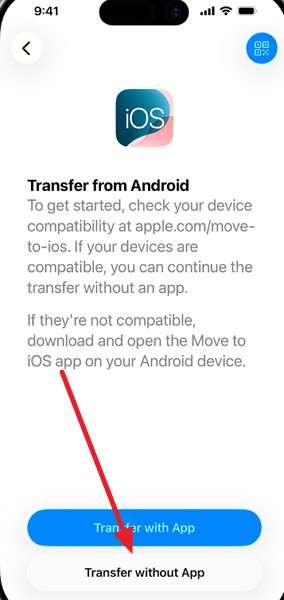
Step 2. Bring both phones together, then use the Samsung camera to scan the QR code displayed on the iPhone.
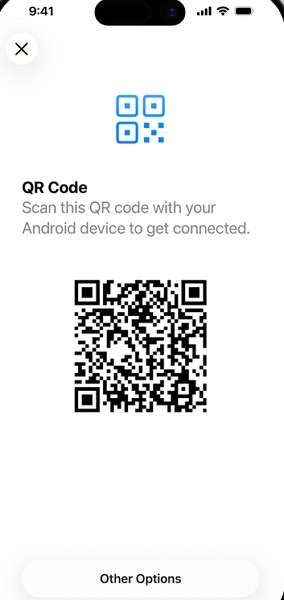
Step 3. Mark your categories, then tap your number so the eSIM travels with them.
2. If Your iPhone 18 Pro is Already Set Up
Method 3. Transfer Samsung Data with MobileTrans
Smart Switch is designed to move data to Galaxy devices, so it cannot handle a Samsung-to-iPhone migration. MobileTrans-Phone Transfer covers this gap with a computer-based transfer that works even after the iPhone has been configured. Connect both phones, set the Galaxy as the source, and move 18+ supported data types without erasing either device.
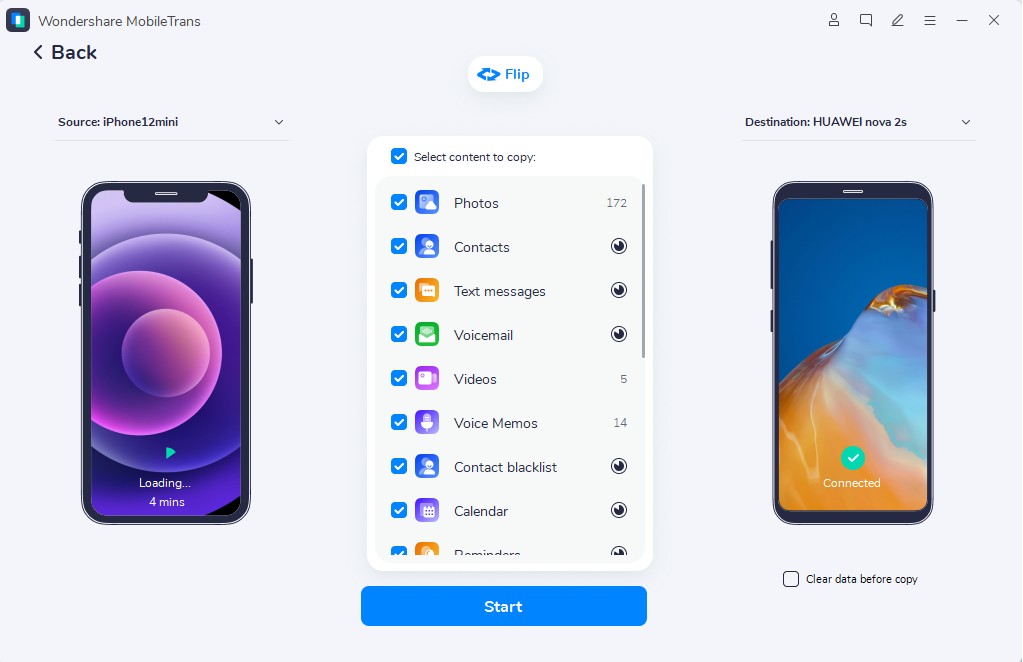
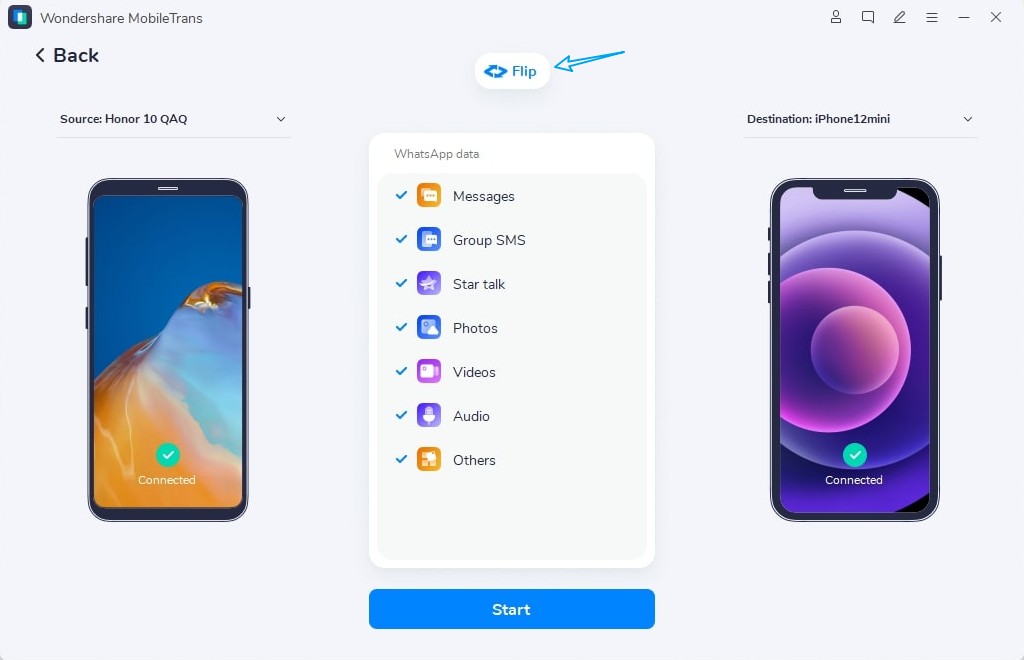
Unlike Apple’s setup-dependent migration, MobileTrans gives you more control over what moves. It scans the connected devices and displays supported data categories for selection before transfer. You can choose the content you need, use Flip to correct the source and destination when necessary, and start the transfer directly to your iPhone 18 Pro.
Key Features
- Extensive Galaxy Compatibility: Supports major Galaxy S, Note, Z Fold, Z Flip, and A series models across multiple generations.
- Call Log Migration: Transfers supported call history from Galaxy to iPhone, along with messages and other selected phone data.
- No-Reset Data Transfer: Moves supported Galaxy content to an already configured iPhone without requiring a factory reset first.
- iCloud-to-Android Transfer: Moves supported iCloud photos, videos, contacts, notes, reminders, and calendars directly to compatible Android devices.
- Two-Way Phone Transfer: Supports both Samsung-to-iPhone and iPhone-to-Samsung transfers, making the software useful when switching platforms again.






Guide to Move Galaxy Data onto a Configured iPhone 18 Pro
Connect both phones to your computer, then follow these steps to transfer data from Samsung to iPhone 18 Pro with MobileTrans:
Step 1. Choose Phone Transfer > Phone to Phone on MobileTrans.

Step 2. Connect both phones, use the Flip icon, and make sure the Galaxy is on the sender side.
Step 3. Select the categories you want to move, then click Start and wait for it to finish.
Method 4. Sync Contacts, Mail, and Calendars with Your Google Account
Samsung Galaxy phones can store contacts locally or sync them across different accounts. Check where your contacts are saved before starting. Contacts already synced with your Google Account become available after adding the same account to your iPhone. Locally stored contacts may require manual export.
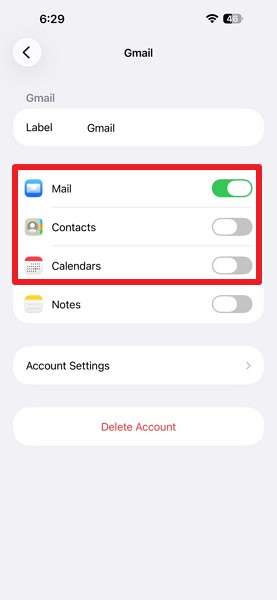
You can also sync supported Google Contacts, Mail, and Calendar data with Apple apps. Follow these steps to transfer Samsung data to iPhone 18 Pro using your Google Account:
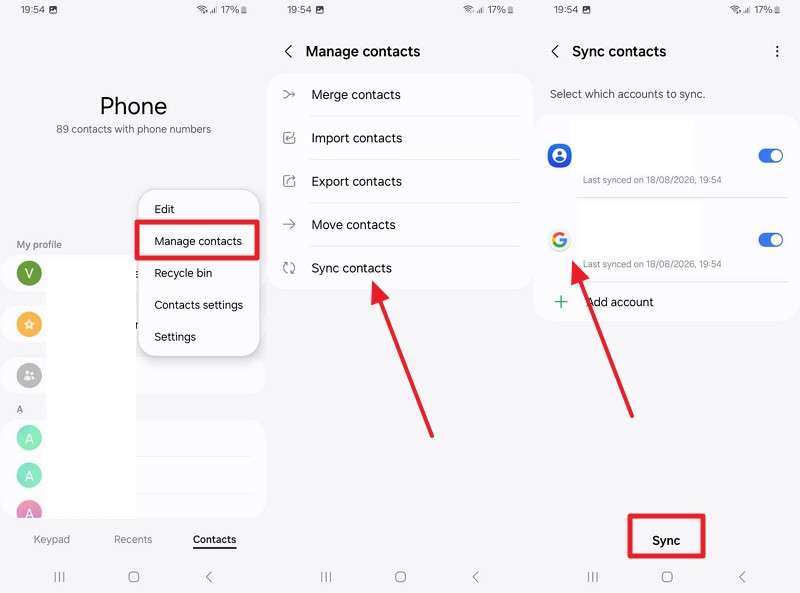
Step 1. In Samsung Contacts, tap Three Dots > Manage Contacts > Sync > Toggle Google Account > Sync.
Step 2. On the iPhone, go to Settings > Apps > Contacts > Accounts > Add Account.
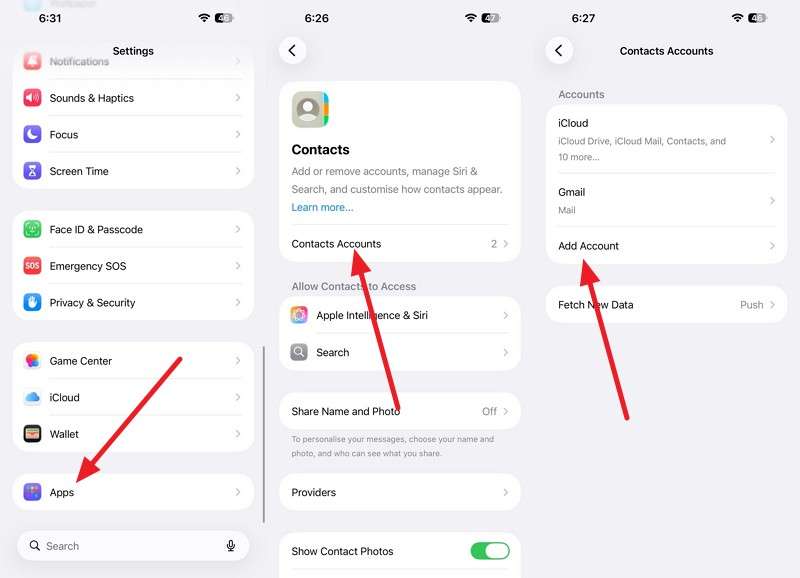
Step 3. Pick Google > Open Browser > Sign in with the same account as Samsung.
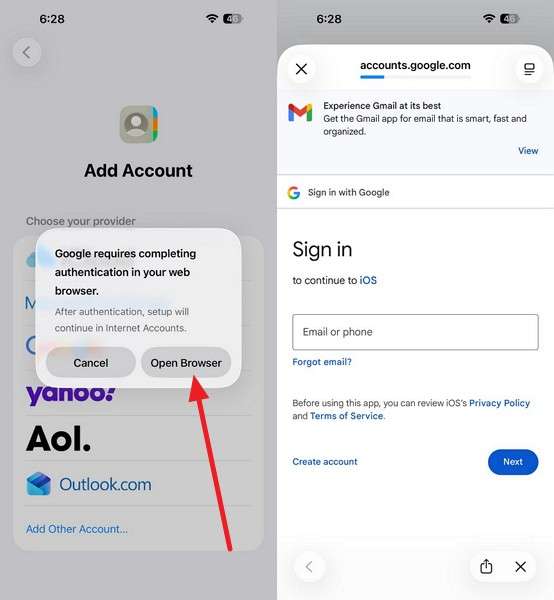
Step 4. Enable Contacts, Calendars, and Mail, then let the first sync finish.
Method 5. Move Photos and Videos with Google Photos
Samsung Gallery and Google Photos work as separate libraries, so your Galaxy photos may not automatically appear in Google Photos. Images upload only when Google Photos backup is enabled for the relevant folders. Before switching phones, confirm the backup has finished to avoid leaving photos or videos behind. Follow these 3 steps for your Samsung Galaxy to iPhone 18 Pro transfer:
Step 1. In Google Photos on the Galaxy, tap your profile, then choose Photo Settings > Backup > Backup is on.
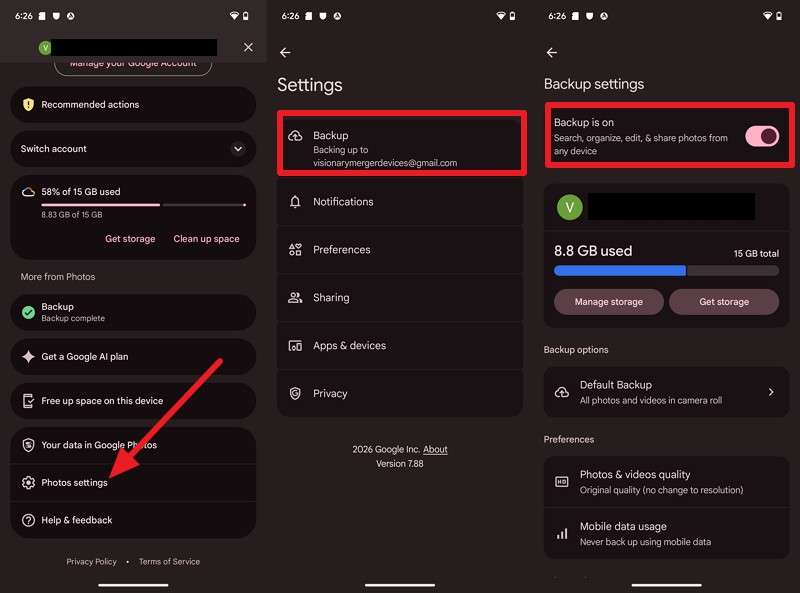
Step 2. Install the app on your new handset and sign in with the same Google account.
3. For Selected Files and Media
Method 6. Transfer Samsung Files to iPhone Using File Sharing
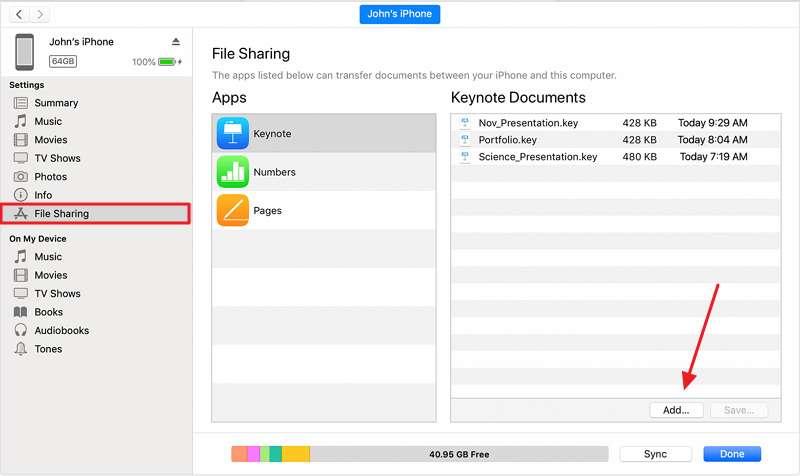
For supported documents, copy the required files from Samsung to your computer first. Then connect the iPhone and use Finder, Apple Devices, or iTunes to transfer them into apps that support File Sharing. Music requires separate syncing rather than File Sharing. Follow these steps to transfer data from Samsung to iPhone 18 Pro using a computer:
Step 1. Connect the Galaxy to the computer and switch its USB mode to file transfer.
Step 2. Copy the required documents or supported files from the Galaxy to a folder on your computer.
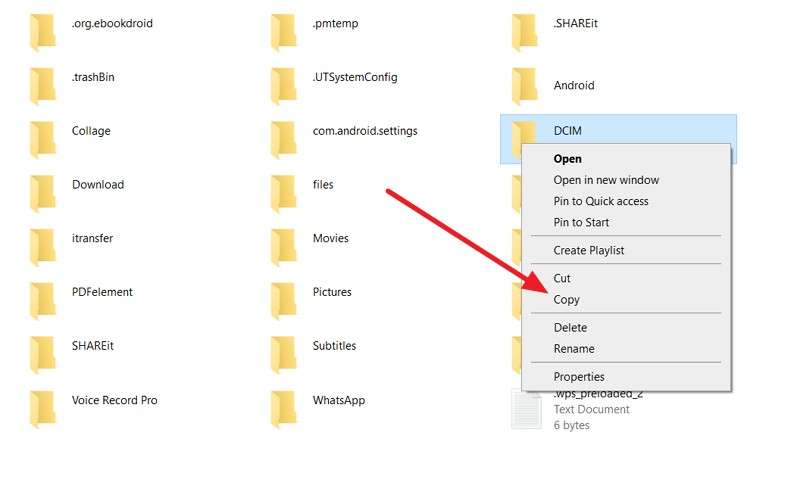
Step 3. Connect the iPhone to the computer, open Finder, Apple Devices, or iTunes, select a supported app under File Sharing, then add the copied files.
Method 7. Move Individual Contacts and Files Manually
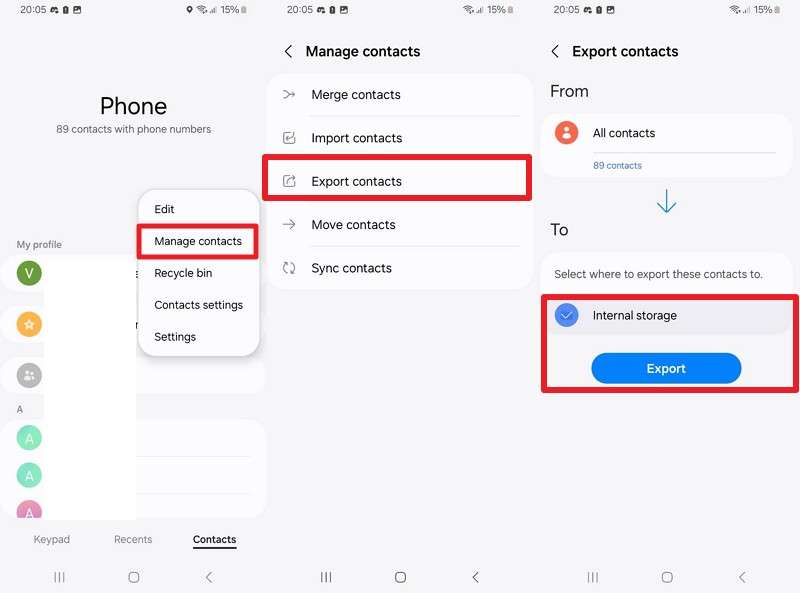
For a handful of contacts or files, a manual transfer can be more convenient than installing additional software. Samsung Contacts lets you export contacts as a vCard file that iPhone can import directly. You can also move documents separately using email or other supported methods. Follow these steps to transfer Samsung data to iPhone 18 Pro, mainly contacts:
Step 1. In Samsung Contacts, choose Manage Contacts > Export Contacts > Internal Storage > Export > OK.
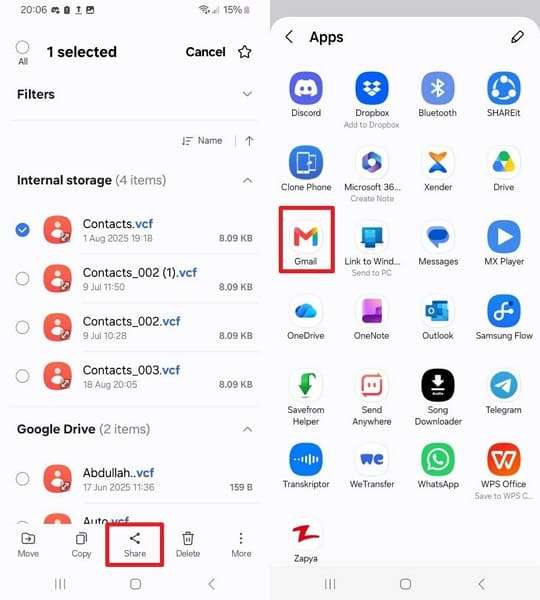
Step 2. Open the Files app > Search VCF > Share > Gmail > Add To > Press Send.
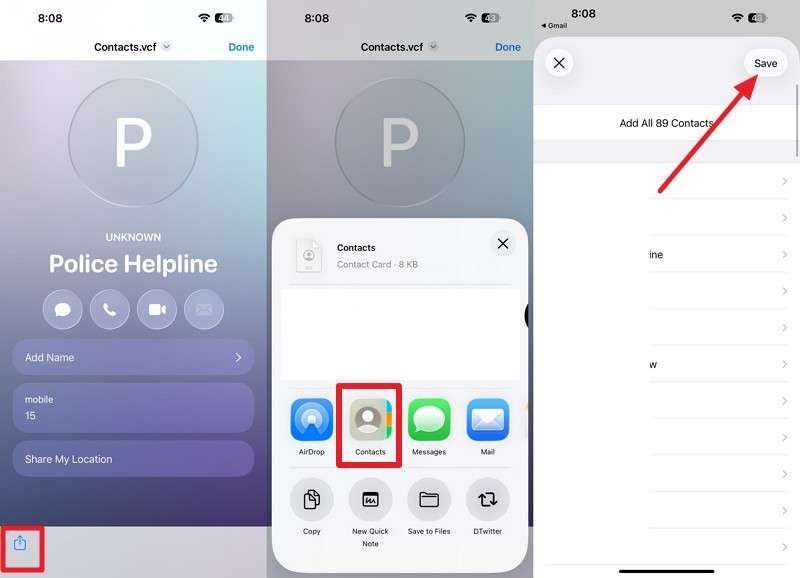
Step 3. Open the VCF file on the new iPhone > Tap Share > Contacts > Save.
Part 3. How to Transfer WhatsApp from Samsung to iPhone 18 Pro
WhatsApp chat history needs special handling because only 2 of the 7 methods to transfer Samsung data to iPhone 18 Pro support it. You can't restore a WhatsApp backup stored in Google Drive directly on an iPhone. Instead, Move to iOS or MobileTrans can handle the cross-platform migration. Both methods below were introduced in Part 2 and apply specifically to WhatsApp.
Method 1. Transfer WhatsApp with Move to iOS
Apple’s Move to iOS can transfer WhatsApp messages and supported media from Samsung to iPhone for free. The process covers chat history and media, but it must be completed during initial iPhone setup. If the iPhone is already configured, you need to erase it and restart setup before using this method.
Step 1. Choose Continue With Wi-Fi on the Move to iOS app > Choose From Android on iPhone 18 Pro.
Step 2. Select iPhone 18 Pro > Press Continue > Get one-time code interface.
Step 3. Press Continue on the new iPhone 18 Pro to get the code.
Step 4. Pick WhatsApp > Start > Next > Continue on Android.
Step 5. This will sign you out of WhatsApp on Android.
Step 6. Set up iPhone 18 Pro > Install WhatsApp > Agree & Continue. Add the same phone number.
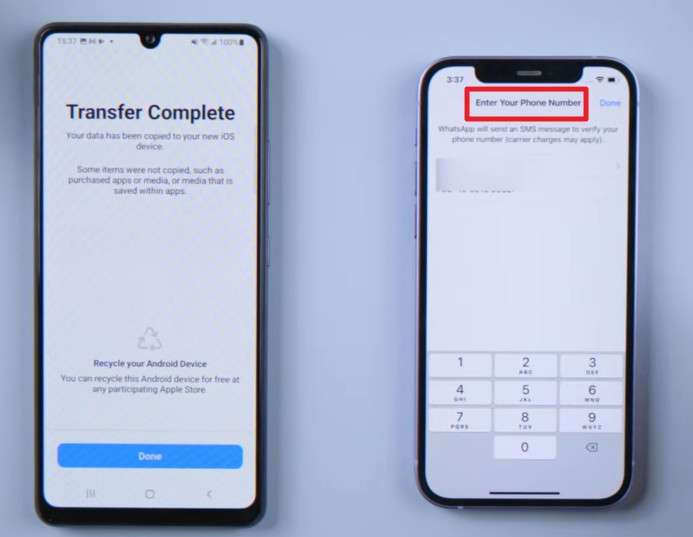
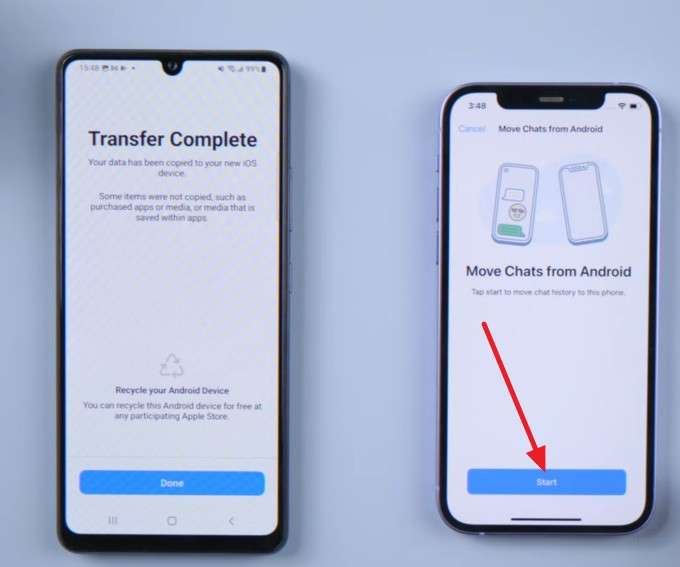
Step 7. Tap Start > Allow access to media > Next > Set up iPhone 18 Pro.
Method 2. Transfer WhatsApp with MobileTrans
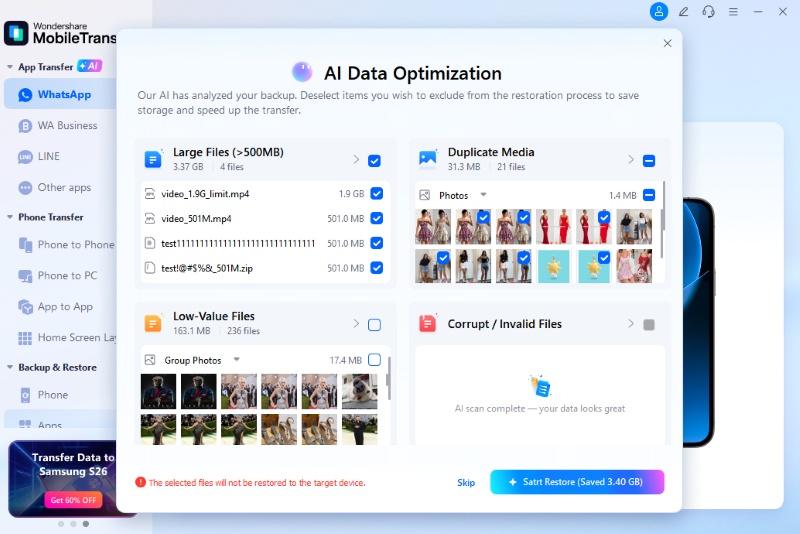
MobileTrans works with an already configured iPhone and supports WhatsApp and WhatsApp Business transfers without resetting the device. Its merge option can retain existing destination chats while adding transferred data. AI Data Optimization also identifies duplicate media, large files, and corrupted data before migration. Follow these steps to transfer data from Samsung to iPhone 18 Pro with WhatsApp:


Step 1. Choose App Transfer > WhatsApp > Connect your Samsung and iPhone 18 Pro.
Step 2. The tool will perform an AI-powered pre-transfer check. Wait till it ends.
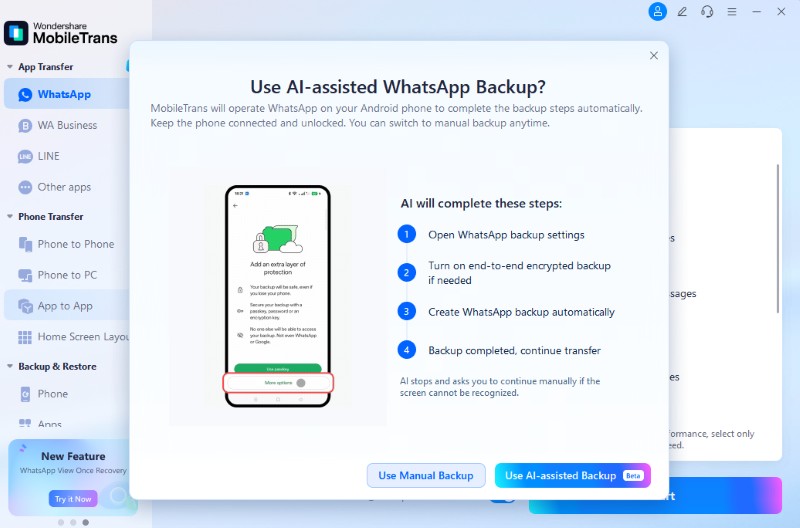
Step 3. Tap AI Assisted Backup or follow steps manually.
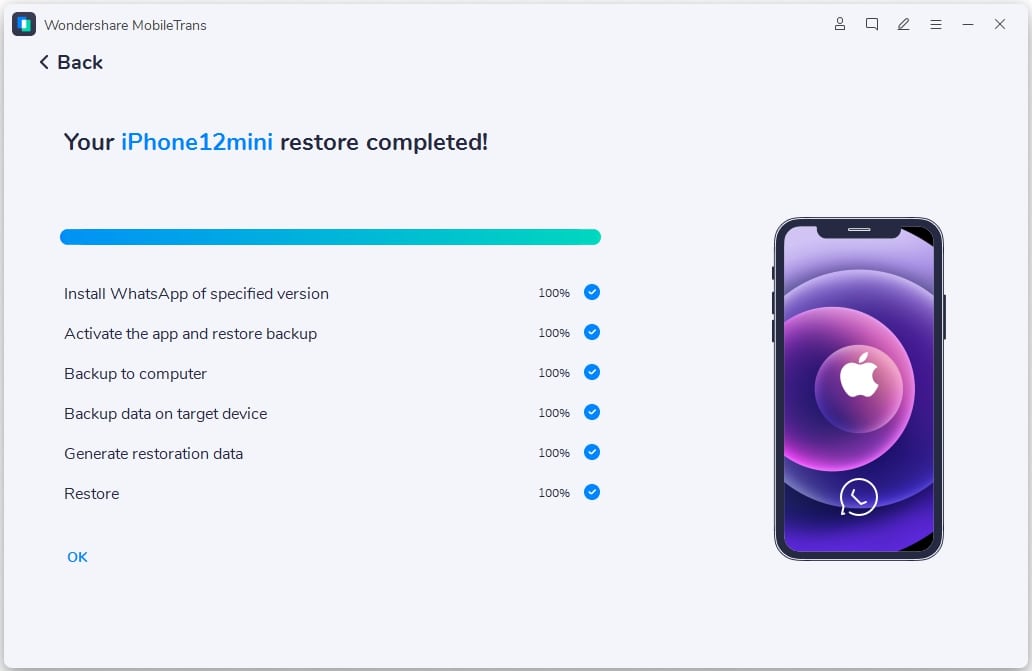
Step 4. Once the transfer finishes, choose Restore Attachments Now to restore media immediately or Restore Later to complete it afterward.
Part 4. What Happens to Samsung-Only Data?
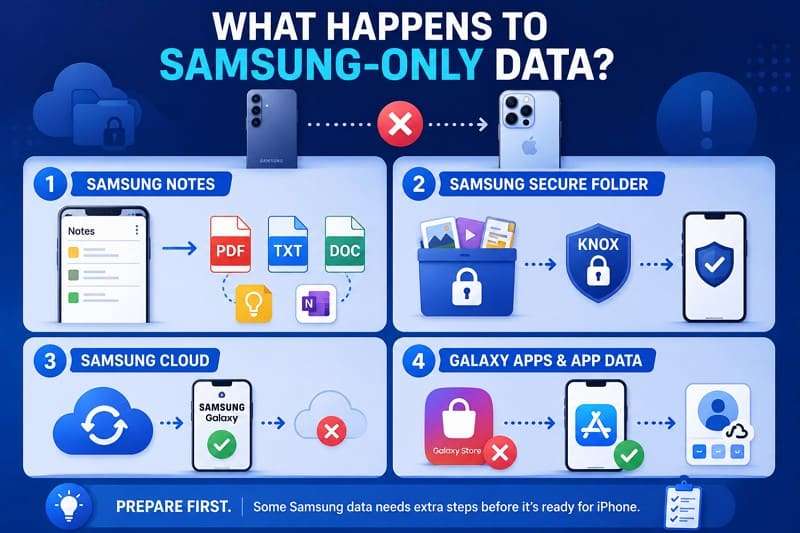
During the Samsung Galaxy to iPhone 18 Pro transfer, review this section to understand what can transfer directly and what requires separate handling.
1. Samsung Notes
Samsung Notes do not transfer through Apple’s standard migration tools, but MobileTrans can move them in bulk from Samsung to iPhone. Connect both phones to a computer, select Notes in Phone Transfer, and start the migration. Manual export to PDF, text, or Word remains useful when you only need specific notes.
2. Samsung Secure Folder
Nothing leaves Secure Folder automatically because Samsung Knox protects its contents. Samsung no longer supports its previous Secure Folder cloud backup method, and standard migration tools cannot directly transfer protected files to iPhone. Move the required content out of Secure Folder into regular Galaxy storage first, then transfer it and secure sensitive files on the iPhone afterward.
3. Samsung Cloud
Samsung Cloud primarily supports Samsung devices and doesn't provide a direct restore path to an iPhone. If important content exists only in Samsung Cloud, restore or download it to your Galaxy first. Once the files are available in regular device storage, you can transfer the supported content to your iPhone using one of the methods above.
4. Galaxy Apps and App Data
Galaxy Store purchases don't transfer to Apple's App Store, and most app-specific data doesn't move directly either. Download the available iOS versions of your apps, then sign in so cloud-based account data can repopulate. Apps that store data only locally may start without their previous content, while Bixby routines need to be recreated using Apple Shortcuts.
Part 5. Why Samsung Smart Switch Is Not the Right Tool for iPhone 18 Pro
While you transfer all data from Samsung to iPhone 18 Pro, this section is worth reading. One tool has been absent from every method so far, deliberately. Smart Switch. Samsung states that Smart Switch transfers content to Galaxy phones and tablets only and cannot transfer data to an iOS device.
- Designed for Galaxy: Smart Switch can import content from Android or iOS devices, but the destination must be a supported Galaxy phone or tablet. Samsung's current documentation explicitly excludes transferring data to an iOS device.
- Use Move to iOS or MobileTrans: Samsung’s own guidance directs iPhone-bound users to Apple’s app, while MobileTrans covers an iPhone that is already configured.
The confusion is understandable because Smart Switch can transfer data from an iPhone to a Galaxy using a cable or iCloud. The key difference is the transfer direction: iPhone > Galaxy is supported, while Samsung/Android > iPhone is not.
Part 6. What to Check Before Erasing Your Samsung Phone
After completing the Samsung Galaxy to iPhone 18 Pro transfer, perform these checks before erasing or resetting your Samsung phone:
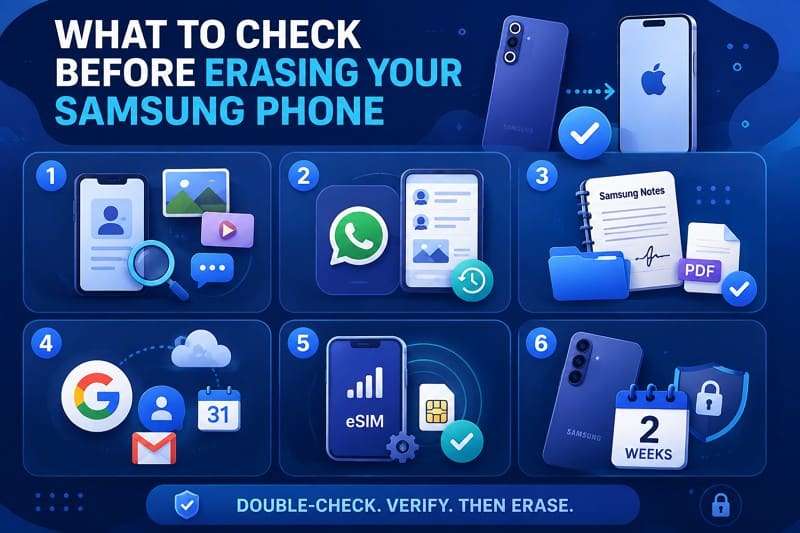
- Compare Contacts, Photos, Videos, and Messages: Open each category on both phones and compare the transferred content, rather than relying only on the progress bar.
- Verify WhatsApp Chats and Media: Open older conversations and check photos, videos, documents, and voice messages to confirm everything important transferred correctly.
- Check Samsung Notes and Important Documents: Open the exported files on your iPhone and confirm their content is readable and complete.
- Confirm Google and Other Account Data: Sign in to each required account and verify that contacts, calendars, and mail have synced correctly.
- Activate SIM or eSIM on iPhone 18 Pro: Complete SIM or eSIM activation if it was not transferred, with carrier assistance where required.
- Do Not Reset the Samsung Phone Until Verified: Keep the Galaxy intact until you confirm all important data and accounts on the iPhone.
Conclusion
Two things determine how to transfer data from Samsung to iPhone 18 Pro: your iPhone’s setup status and the data you need to move. Use Move to iOS during initial setup or MobileTrans once the iPhone is configured. Handle Samsung Notes and Secure Folder content separately, then keep your Galaxy intact until you confirm everything transferred successfully.
FAQ
-
What is the easiest way to transfer everything from Samsung to iPhone?
MobileTrans offers an easy option to transfer all data from Samsung to iPhone 18 Pro, including after setup. It moves 18+ supported data types without requiring a factory reset.
-
Does Samsung Smart Switch work when moving from Samsung to iPhone?
No. Samsung Smart Switch is designed to transfer content to supported Galaxy phones and tablets. It does not support transferring data from a Samsung device to an iPhone.
-
What Samsung data cannot be transferred to an iPhone?
Secure Folder content, Samsung Cloud backups, Galaxy Store purchases, and most locally stored app data do not transfer directly. Samsung Notes requires separate export, while Bixby routines must be recreated using available iPhone features.
-
How do I move data to an iPhone that is already set up?
Use MobileTrans to transfer supported data without resetting the iPhone, or add your Google Account to sync contacts and calendars. Moving to iOS requires erasing a configured iPhone and restarting setup.










