



 TL;DR:
When WhatsApp storage does not decrease on your iPhone after deleting chats, you must manually clear files larger than 5 MB in WhatsApp's Manage Storage or reinstall the application to reset the persistent Documents & Data calculation.
● iOS and WhatsApp calculate storage differently, so removing media may not immediately lower the Documents & Data figure; restart your device and check the top Free Space reading in iPhone Storage to confirm recovered capacity instead of comparing app totals.
● Reinstalling WhatsApp is the last resort to clear stubborn app data, but this deletes local conversations unless you first secure an iCloud backup requiring device free space of roughly 2.05 times the backup size, or use MobileTrans for a computer backup.
● Turning off Media Auto-Download and disabling Save to Photos will prevent active group chats from consuming future storage, but these settings are strictly preventative and cannot remove previously downloaded attachments or duplicate media already copied to your iPhone Photos library.
Ask AI for a summary
 ChatGPT
 Perplexity
 Gemini
 Claude
 Grok
Grok
Deleting a family group or clearing a chat should free up space, yet iPhone Storage often shows little change. This is a common case of WhatsApp storage not decreasing on iPhone. The confusion comes from two different readings: WhatsApp's Manage Storage and the Documents & Data figure in iPhone Settings. Duplicate media, retained app data, and different storage calculations can explain the gap.
This guide covers practical fixes, including removing large files, duplicate media, and separately saved copies. You'll also learn how to address persistent Documents & Data without unnecessarily deleting chats. Reinstalling WhatsApp is the last option, requiring a verified backup. Alternatively, you can use MobileTrans to back up WhatsApp data to a computer.
In this article

Part 1. Why Is WhatsApp Storage Not Decreasing on iPhone?
WhatsApp and iPhone Storage measure usage differently, while retained media and app data can keep storage high after deletion. Understanding these differences helps you identify the cause and choose the right fix.
Why WhatsApp Storage and iPhone Documents & Data Show Different Sizes
If WhatsApp documents and data are not decreasing, the difference can result from how WhatsApp and iOS calculate storage usage. Apple notes that some cached and temporary files are excluded from reported usage, while WhatsApp and iOS measure different data categories. The following comparison explains what each storage reading includes.
|
Storage Category |
Where to Find It |
What It Counts |
|
Manage Storage Total |
WhatsApp > Settings > Storage and Data > Manage Storage |
WhatsApp media and files included in its storage management view |
|
App Size |
iPhone Settings > General > iPhone Storage > WhatsApp |
Storage occupied by the WhatsApp application itself |
|
Documents & Data |
Same iPhone Storage entry |
WhatsApp's stored data, including messages, media, databases, and other app files |
|
Free Space |
Top of the iPhone Storage screen |
Available storage remaining on the iPhone |
Deleting media through WhatsApp can reduce its Manage Storage total without equally reducing Documents & Data. If WhatsApp storage is not updating on iPhone, compare both figures with the device's available space before assuming the cleanup failed.
What Causes WhatsApp Phantom Storage on iPhone?
When WhatsApp storage doesn't update on iPhone, leftover media, saved copies, or different storage calculations could explain the issue. These factors help you determine whether files still occupy space or the displayed figures simply differ. Here are the common reasons why WhatsApp storage is not freeing up after deleting media:
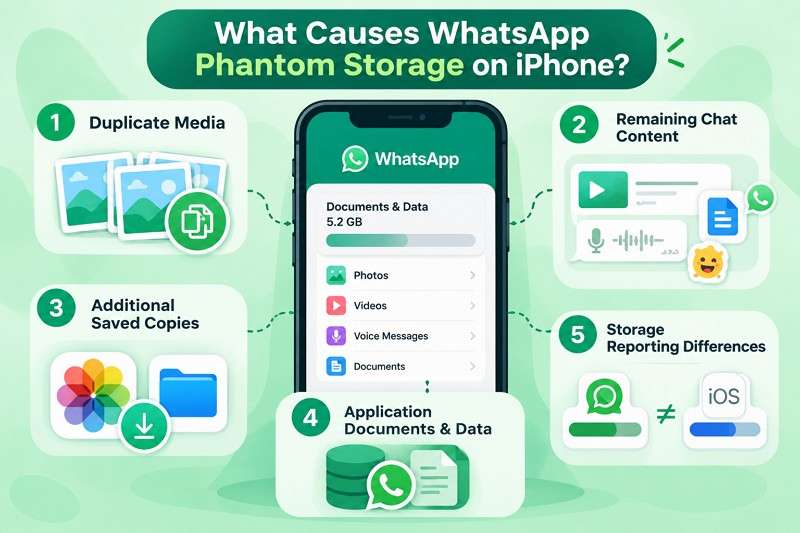
- Duplicate Media: Photos or videos shared across multiple chats can leave additional copies behind after one is deleted.
- Remaining Chat Content: Videos, voice notes, documents, stickers, and other media in active or archived conversations can continue occupying storage.
- Additional Saved Copies: Photos and videos saved separately to the iPhone Photos app or Files remain even after their WhatsApp copies are removed.
- Application Documents & Data: WhatsApp stores message history and other app-related files that might not appear individually in Manage Storage.
- Storage Reporting Differences: WhatsApp and iOS calculate storage differently, so their displayed totals might not match after cleanup.






Part 2. How to Fix WhatsApp Storage Not Decreasing on iPhone
If WhatsApp storage is still full after deleting photos on iPhone, duplicate media, large chat attachments, or separately saved copies could be occupying space. The following fixes help you remove unnecessary files while keeping important conversations intact:
Fix 1. Delete Large and Duplicate Files from WhatsApp Manage Storage
You can find duplicate media and large files in Manage Storage, which sorts chats by size and groups files larger than 5 MB. Its deletion options let you remove additional copies while reviewing starred items separately. However, selecting Delete All can also remove starred messages. Save important files before proceeding. Follow these steps to remove unnecessary media without deleting entire conversations:
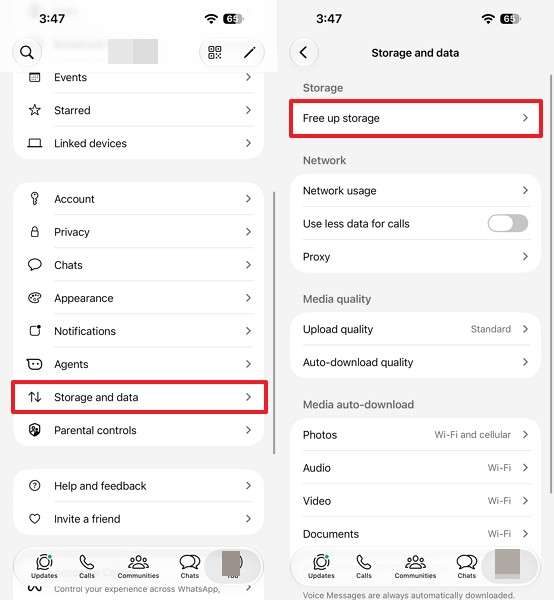
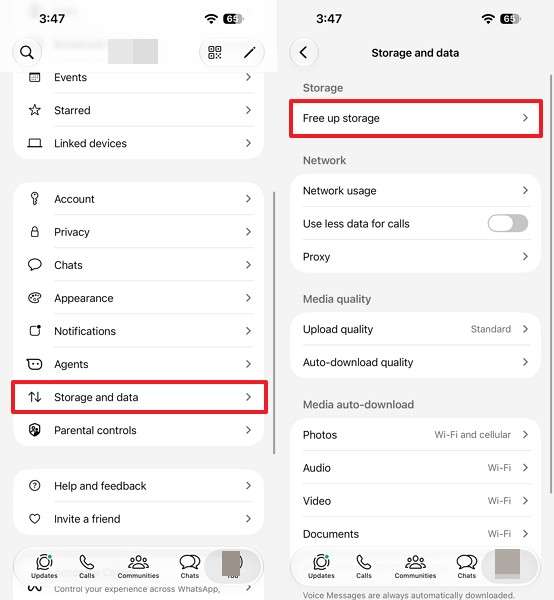
Step 1. In WhatsApp, open Settings > Storage and Data > Free Up Storage.
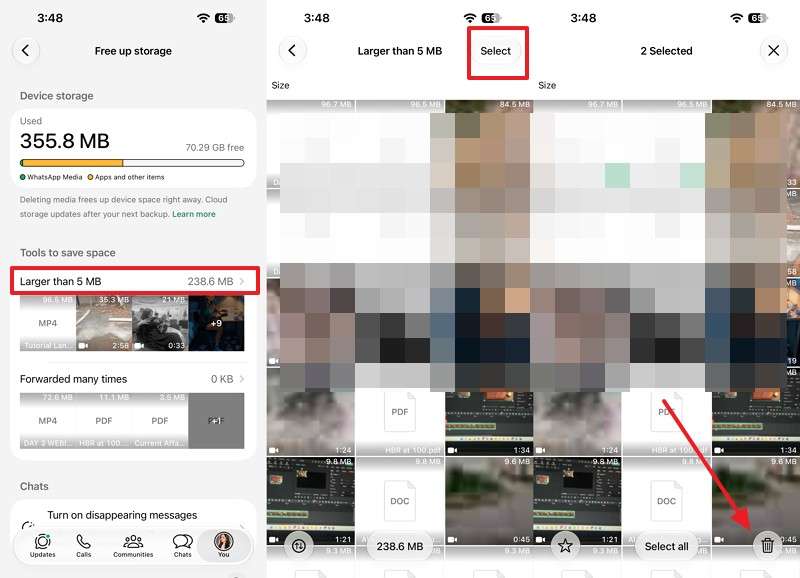
Step 2. Choose Larger than 5 MB > Select > Choose media files > Delete.
Fix 2. Clear Unnecessary Media from Large WhatsApp Chats
Deleting files individually takes time, especially in active family groups where shared media accumulates quickly. Instead of clearing entire conversations, use WhatsApp's Manage Storage feature to identify media-heavy chats and remove unwanted attachments while preserving important messages. If WhatsApp documents and data are not decreasing, focus on conversations occupying the most space. Follow these steps to remove unnecessary media safely:
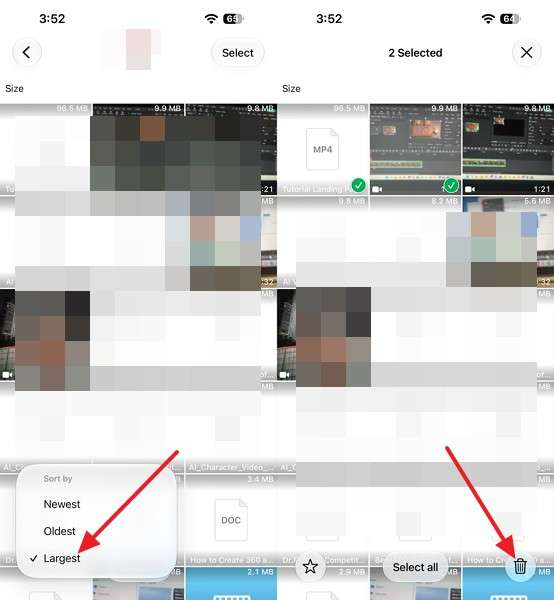
Step 1. Go to Settings > Storage and Data > Free Up Storage > Scroll down and select a conversation using a large amount of storage.
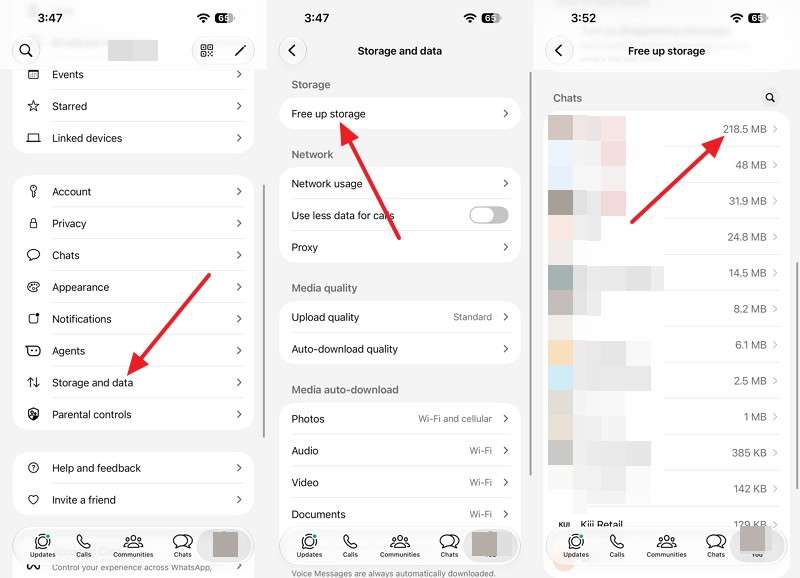
Step 2. Tap Filter > Largest > Select > Choose the media files > Press Delete. Reopen the chat to confirm your messages remain intact.
Part 3. How to Fix WhatsApp Documents & Data Not Decreasing
If WhatsApp storage is not updating on iPhone after deleting unnecessary media, retained app data or delayed storage calculations could explain the issue. To address this, the following fixes help you verify actual storage usage and manage persistent Documents & Data safely:
Fix 1. Refresh WhatsApp and iPhone Storage Calculations
WhatsApp's Manage Storage and iPhone Storage measure different data categories, so their totals might not decrease equally after media deletion. Apple's storage guidance explains how iOS calculates app usage and manages temporary files. Restarting your iPhone and installing available updates can help resolve display issues, but neither guarantees reduced Documents & Data. Follow these steps to compare storage figures and check whether space has been recovered:
Check WhatsApp Storage
Instructions. On WhatsApp, choose Settings > Storage and Data > Free Up Storage and note the displayed storage usage.
Compare iPhone Storage Figures
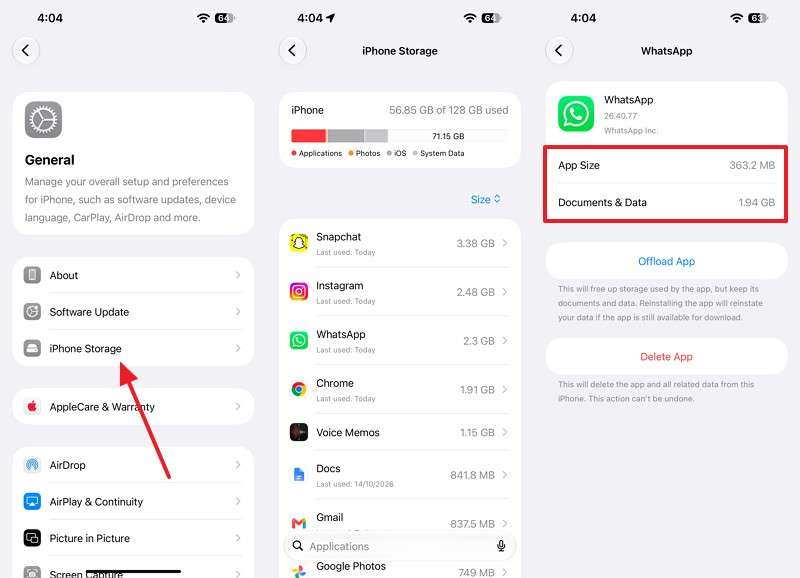
Instructions. Open Settings > General > iPhone Storage > WhatsApp and compare the App Size and Documents & Data figures. Check iPhone storage too.
Restart WhatsApp and iPhone
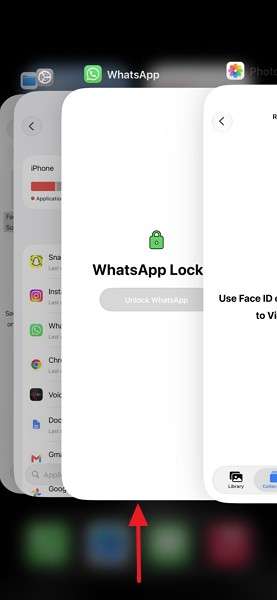
Step 1. If WhatsApp is unresponsive, choose the WhatsApp card in App Switcher > Swipe Up > Reopen.
Step 2. Press Side + Volume Up > Swipe to Power Off > Wait a few seconds > Press the Side button to restart.
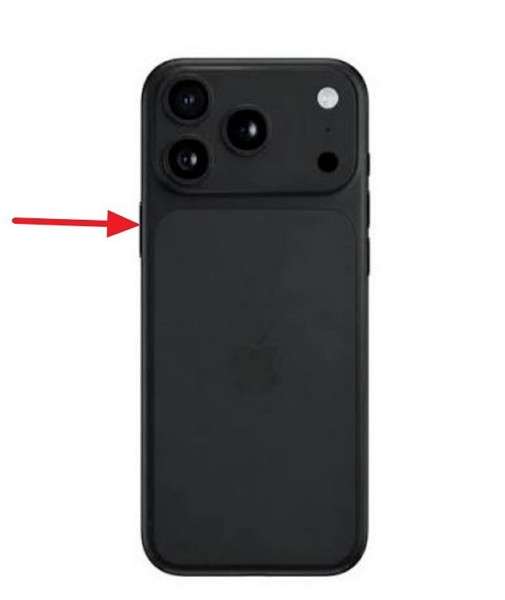
Step 3. Then return to iPhone Storage and allow the storage information to load.
Update WhatsApp and iOS
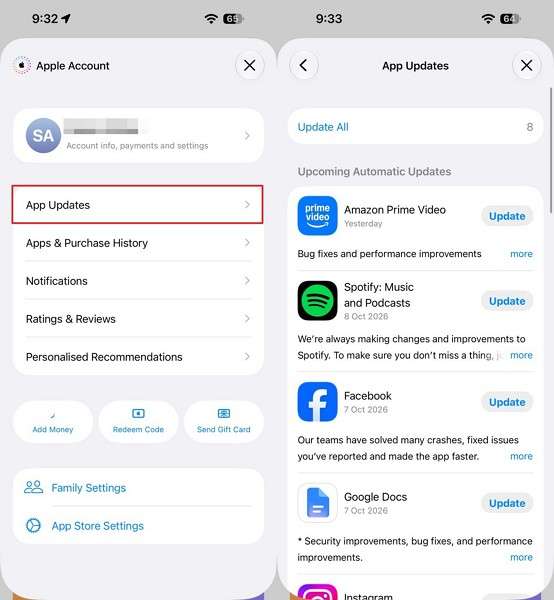
Step 1. Tap the Profile icon in the App Store > App Updates > Select WhatsApp and choose Update.
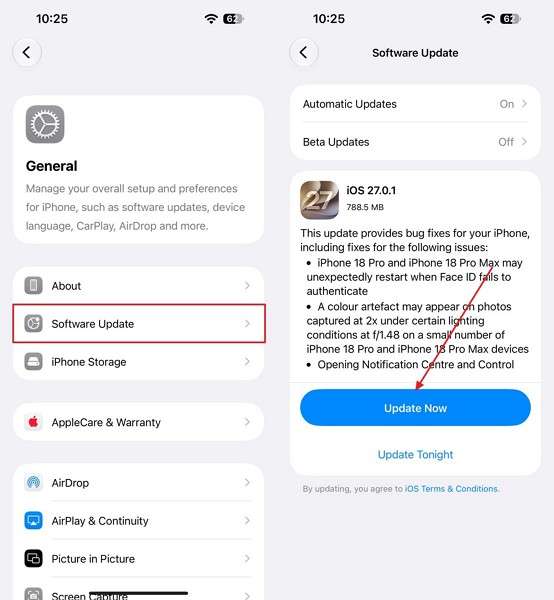
Step 2. Go to Settings > General > Software Update to check for an available iOS update > Press Update Now.
Recheck Storage Usage: Compare WhatsApp's Manage Storage figure with iPhone Storage again. Check whether available device space has increased instead of expecting both figures to match.
Fix 2. Delete and Reinstall WhatsApp After Securing Your Backup
Reinstalling WhatsApp is the last resort when Documents & Data remains high after trying other fixes. According to Apple's storage guidance, deleting an app removes its related local data, including stored files. Since this process also removes locally stored WhatsApp conversations, securing a reliable backup is essential. If WhatsApp storage is still full after deleting photos on iPhone, follow these steps:
Step 1. Open Settings > Chats > Chat Backup in WhatsApp, tap Back Up Now, and check that the backup date updates.
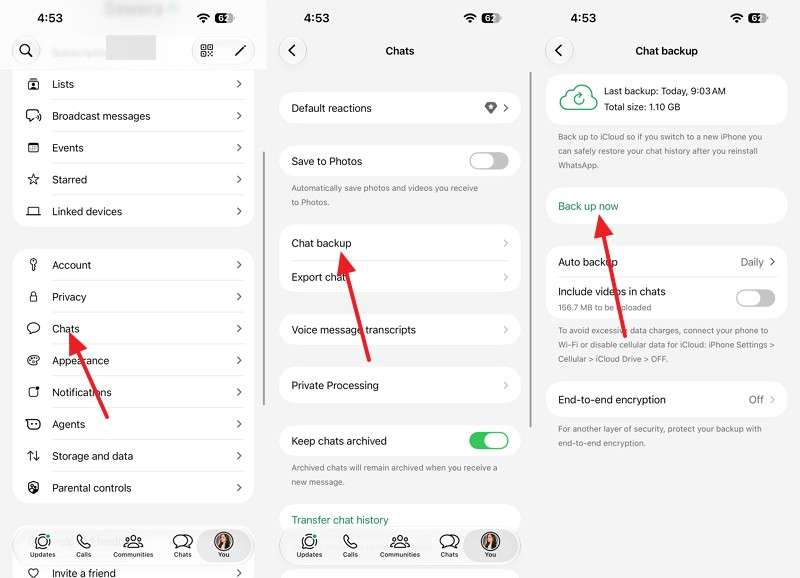
Step 2. Confirm free iCloud and iPhone space of roughly 2.05 times the backup’s size.
Step 3. Note the phone number, the Apple Account, and any password, 64-digit encryption key, or passkey for an encrypted backup.
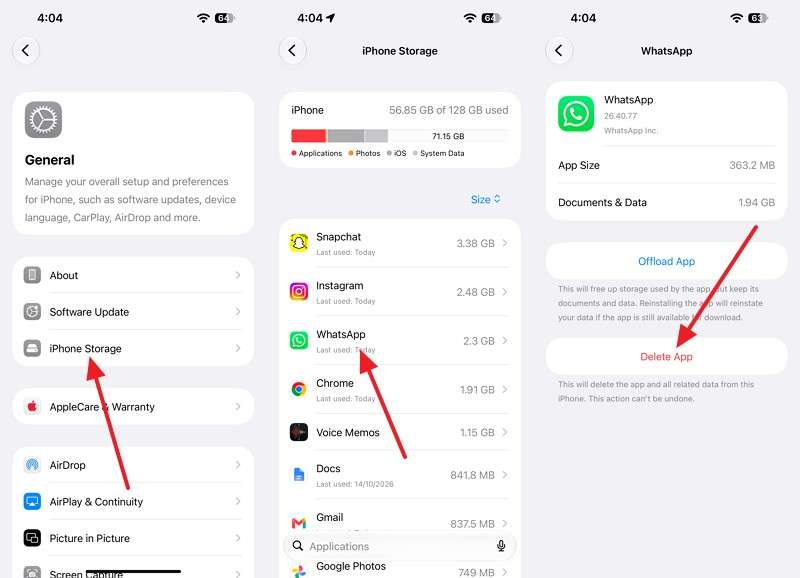
Step 4. Delete WhatsApp from Settings > General > iPhone Storage > WhatsApp > Delete App, then reinstall it from the App Store.
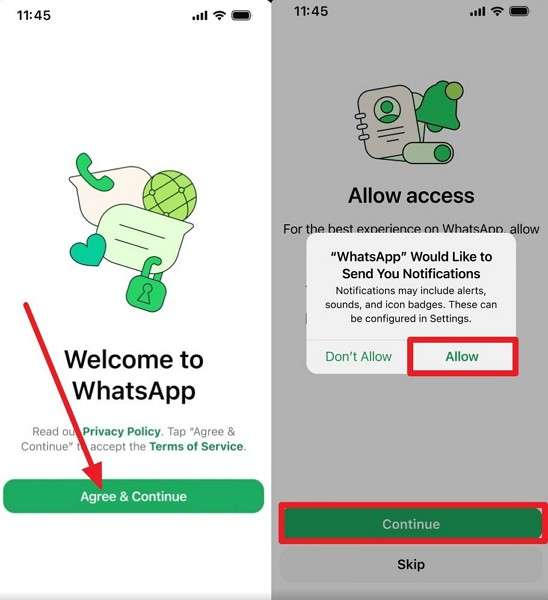
Step 5. Tap Agree & Continue > Add phone number > Continue > Add Code > Press Allow.
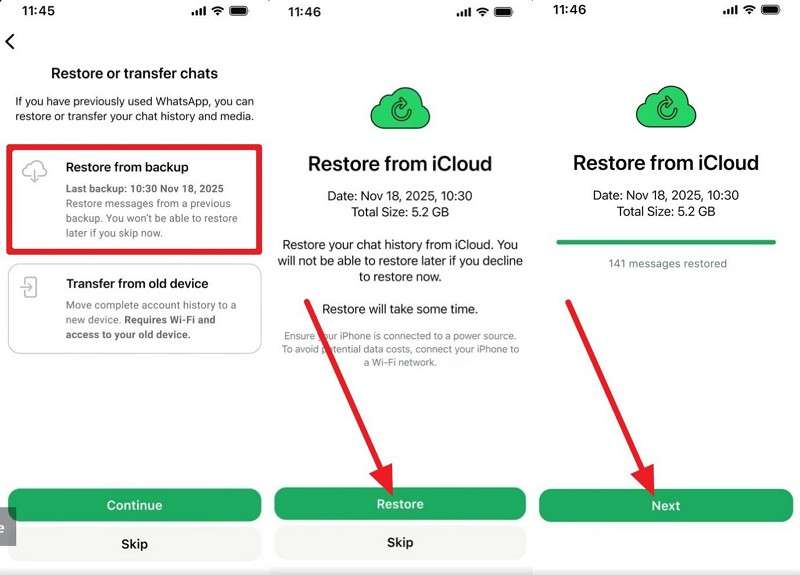
Step 6. Choose Restore from Backup > Restore > Next, and recheck Documents & Data afterward.
Pro Tip. Back Up WhatsApp to a Computer with MobileTrans
When WhatsApp documents and data are not decreasing, reinstalling the app becomes an option after other fixes fail. Before deleting WhatsApp, MobileTrans-WhatsApp Transfer lets you back up conversations, photos, videos, and attachments to a Windows PC or Mac. This creates a separate copy of your WhatsApp data without consuming additional iCloud storage.
MobileTrans also lets you manage saved backups and restore WhatsApp conversations and media to your iPhone. You can check completed backup records on your computer before proceeding with the reinstall. This helps preserve important chat history and attachments while you troubleshoot persistent storage issues.
Key Features
- WhatsApp Business Support: Back up and restore WhatsApp Business conversations and attachments through dedicated workflows.
- Google Drive Backup Restore: Restore WhatsApp conversations and media from Google Drive backups to an iPhone without requiring an Android phone.
- Selective Restoration: Choose supported WhatsApp data for restoration instead of restoring the entire backup.
- Cross-Platform Transfer: Transfer WhatsApp conversations between Android and iPhone devices when switching platforms.
- Local Backup Storage: Keep WhatsApp backups on your computer without depending on available iCloud storage.
How to Back Up WhatsApp to a Computer Using MobileTrans
If WhatsApp storage is still full after deleting photos on iPhone, secure your important conversations with a computer backup before reinstalling. Follow these steps to back up your WhatsApp chats and attachments using MobileTrans:
Step 1. Choose Backup & Restore > App > WhatsApp > Press the Backup button.
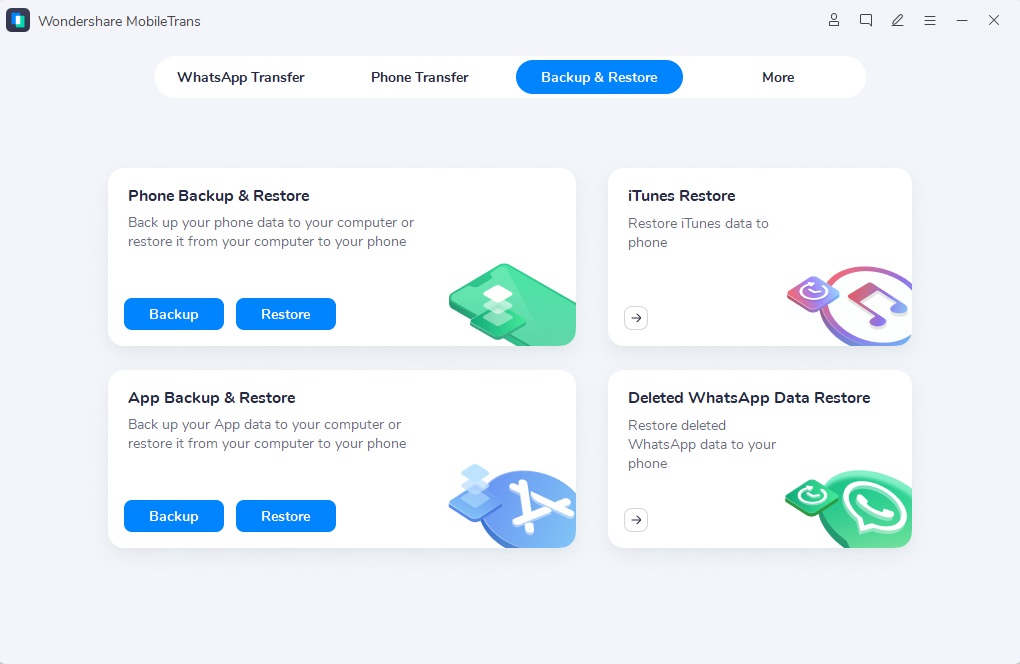
Step 2. Connect the unlocked iPhone using a USB cable, tap Trust if prompted, and click Start.
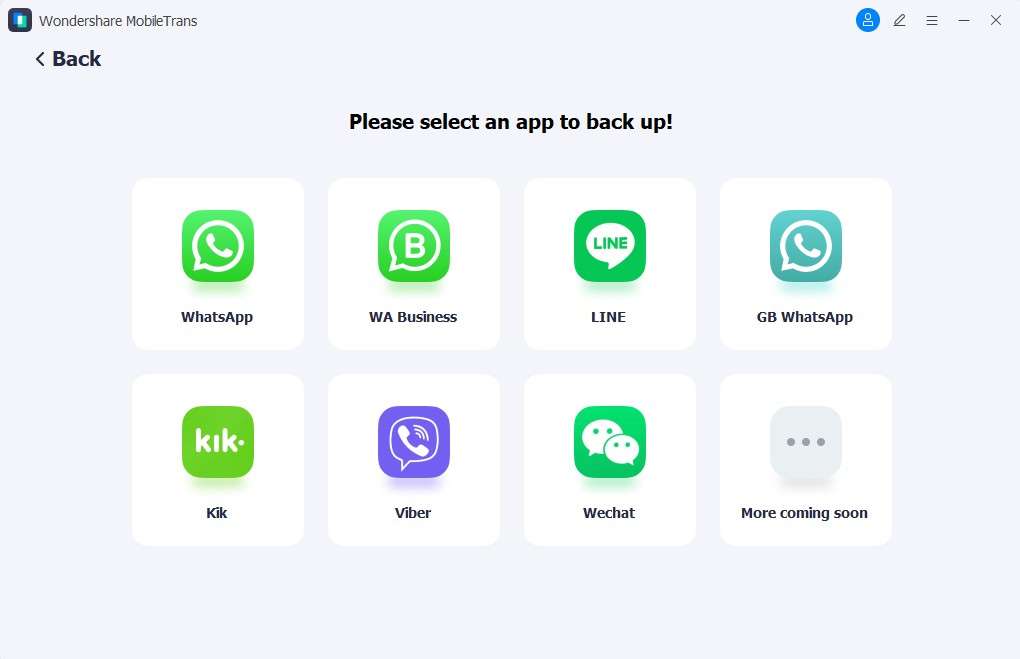
Step 3. Keep the device connected until MobileTrans confirms completion. Open the Restore section to confirm the backup record appears.
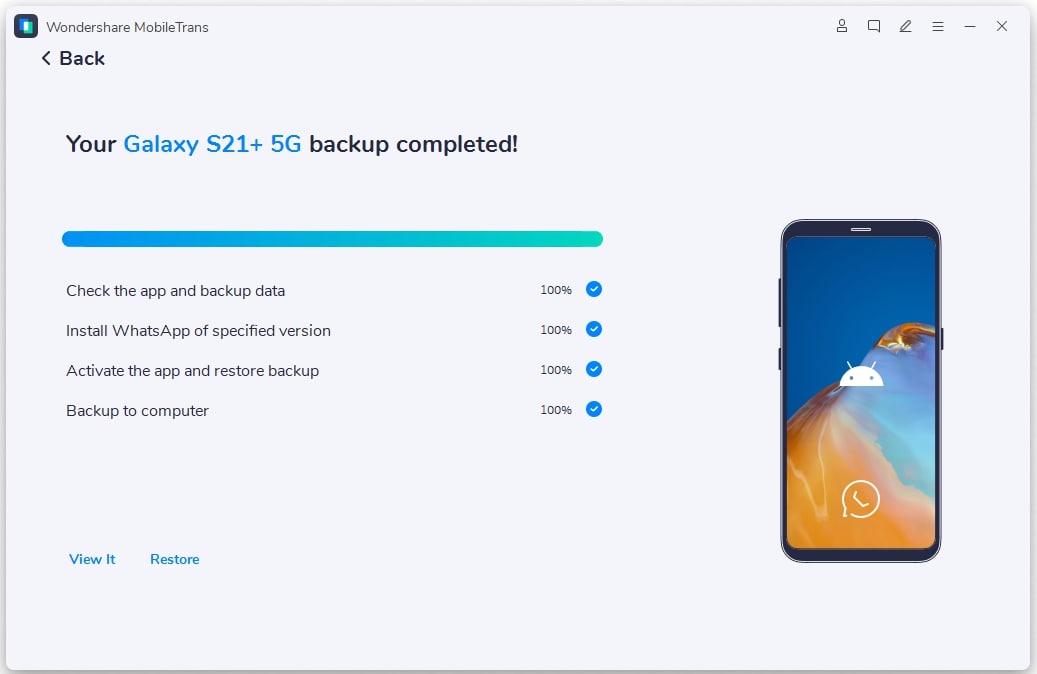
Additional Feature: AI Clean reviews a WhatsApp backup before a supported restore, flagging large files, duplicate media, and low-value or invalid items to leave out. It works inside that backup and restore workflow, not on WhatsApp data already on the iPhone.
Part 4. How to Prevent WhatsApp Storage from Filling Up Again
To prevent WhatsApp storage not decreasing on iPhone issues from recurring, manage how incoming media is downloaded and saved. Limiting automatic downloads reduces unnecessary files within WhatsApp, while controlling saved media prevents additional copies in your Photos library. The following methods help you manage future storage growth without affecting your existing conversations:
Limit Automatic WhatsApp Media Downloads
Photos, videos, audio files, and documents downloaded automatically can gradually increase WhatsApp's Documents & Data, especially in busy group chats. To prevent unnecessary storage growth, WhatsApp's auto-download settings let you control which media types download over mobile data or Wi-Fi. Turning off automatic downloads allows you to download files only when needed. Follow these steps to adjust your media download preferences:
Step 1. Launch WhatsApp and navigate to Settings > Storage and Data > Media Auto-Download.
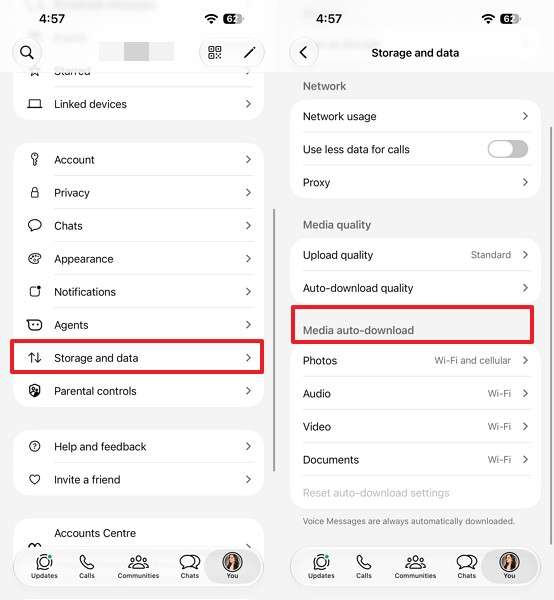
Step 2. Tap Videos and select Never to stop automatic video downloads.
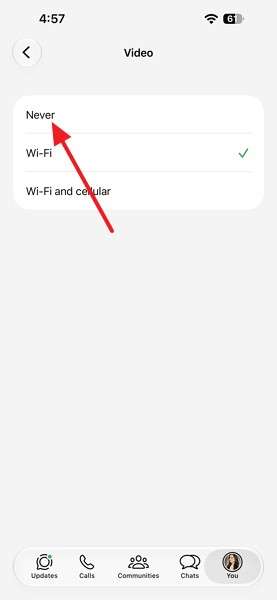
Step 3. Repeat for Documents, or choose Wi-Fi if you prefer downloading those files automatically only when connected to Wi-Fi.
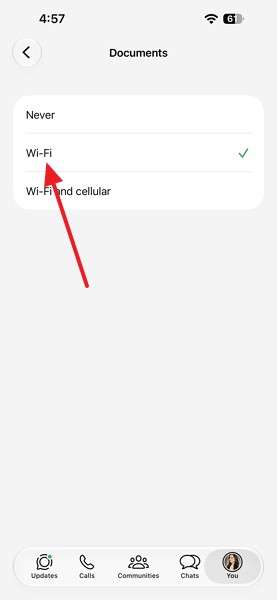
Step 4. Open Photos and Audio and choose Never or Wi-Fi, depending on your preferences.
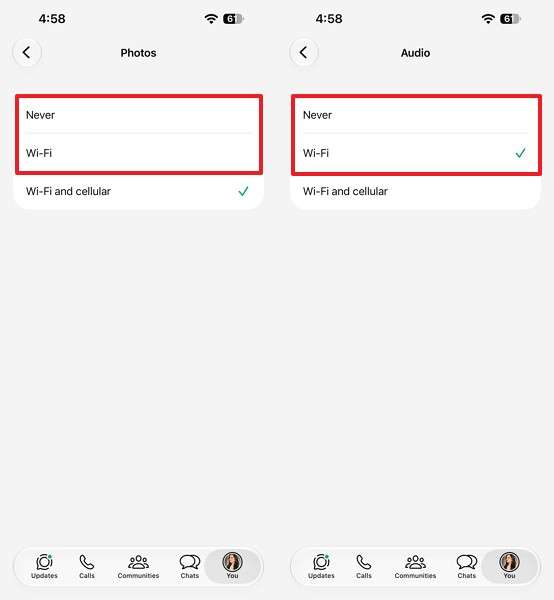
Note: These settings only affect future automatic downloads. Previously downloaded attachments remain in WhatsApp's storage until you delete them using the Manage Storage feature.
Stop WhatsApp from Automatically Saving Media to Photos
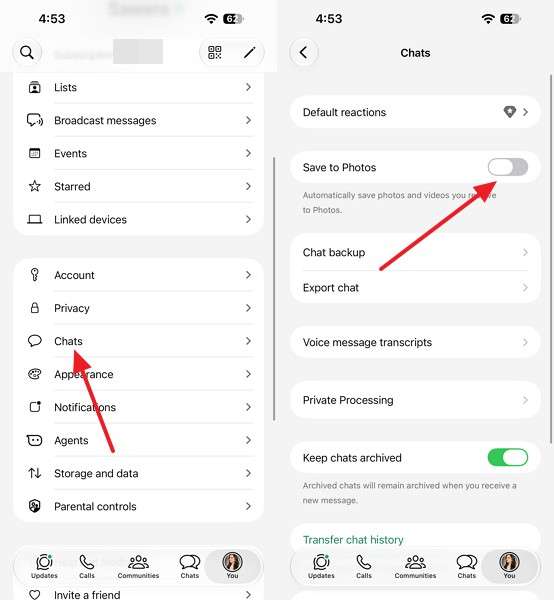
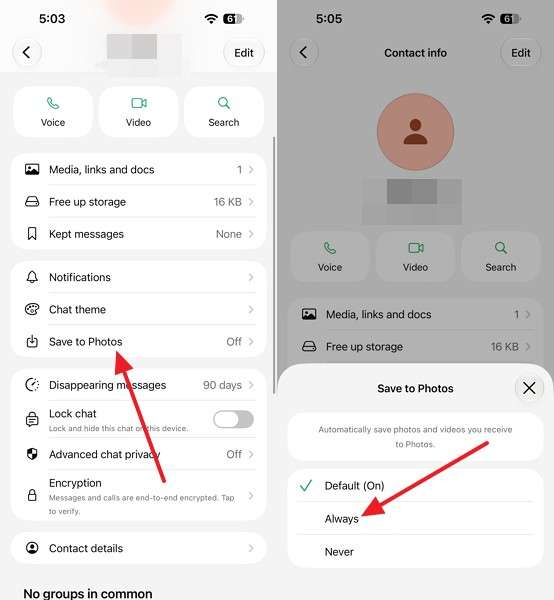
Automatic downloads aren't the only reason WhatsApp media consumes storage. The Save to Photos setting also creates copies of received media in your iPhone's Photos library. You can disable this globally while keeping it enabled for selected chats or groups. However, these changes won't remove existing files. If WhatsApp storage is not freeing up after deleting media, follow these steps to manage future saves and maintain regular cleanup:
Step 1. Go to Settings > Chats and turn off Save to Photos.
Step 2. Open the chat where you want to save media, tap the contact or group name, select Save to Photos, and choose Always.
Step 3. Revisit Manage storage monthly and clear the largest chats after saving the files you need.
Conclusion
If WhatsApp storage is not decreasing on iPhone, begin by removing large attachments and unwanted media through WhatsApp's Manage Storage feature. Then, check your iPhone's available space to see whether the cleanup worked. If Documents & Data remains unusually high despite these fixes, reinstalling WhatsApp is another option. Before proceeding, use MobileTrans-WhatsApp Transfer to back up important conversations and attachments to your computer.
FAQs
-
Does deleting a WhatsApp backup from iCloud free up iPhone storage?
Deleting a WhatsApp backup from iCloud frees up iCloud storage, not your iPhone's local storage. Before deleting an important backup, consider creating a separate computer backup using MobileTrans. However, MobileTrans backups use a different restoration process from WhatsApp's native iCloud backups. -
Why does WhatsApp storage increase even when I rarely send messages?
WhatsApp storage can increase when you receive photos, videos, voice notes, and documents, even without sending messages. Busy group chats can contribute significantly when automatic media downloads are enabled. Adjust your download settings and regularly review large files through Manage Storage. -
Can WhatsApp Channels and group chats increase iPhone storage automatically?
Yes, media received through WhatsApp Channels and group chats can increase iPhone storage usage. Group attachments follow your automatic download settings, while channel media can also occupy local storage. Regularly review downloaded files and remove unnecessary attachments to prevent excessive storage growth. -
Will deleting WhatsApp remove photos already saved to the iPhone Photos app?
Deleting WhatsApp does not normally remove photos and videos already saved to your iPhone's Photos library. Those files remain available until you delete them separately. However, uninstalling WhatsApp removes its locally stored app data, so back up important conversations to iCloud or MobileTrans before proceeding.










