


 TL;DR:
Fix a Google Pixel failing to transfer files to a computer by switching the default charging connection to "File Transfer" mode and verifying the use of a data-compatible USB cable.
● Mac users must install the official Android File Transfer application since macOS lacks native system support, whereas Windows users should update their Universal Serial Bus Controller drivers via Device Manager.
● If basic detection fails, activating USB Debugging by tapping the OS Build Number seven times unlocks developer-level commands that force device recognition and reveal missing transfer preferences.
● For persistent system glitches, the third-party MobileTrans software offers a direct alternative to selectively export six distinct data types without overwriting existing files on the target computer.
Ask AI for a summary
 ChatGPT
 Perplexity
 Gemini
 Claude
 Grok
Grok
Many Pixel users face trouble when their phone doesn't connect to a computer. It can be not very pleasant when you attempt to move files and nothing transpires. Usually, your device will not even appear, and the transfer will be interrupted in the middle of the process. Still, a couple of settings will allow you to begin transferring files once again. So, this guide explains multiple ways to resolve the Google Pixel file transfer not working issue.
In this article
Part 1. Common Reasons: Why Google Pixel File Transfer Is Not Working
Many times, minor issues can stop your Pixel from connecting to your computer. Before trying fixes, it's essential to know what causes the Google Pixel file transfer not working problem:
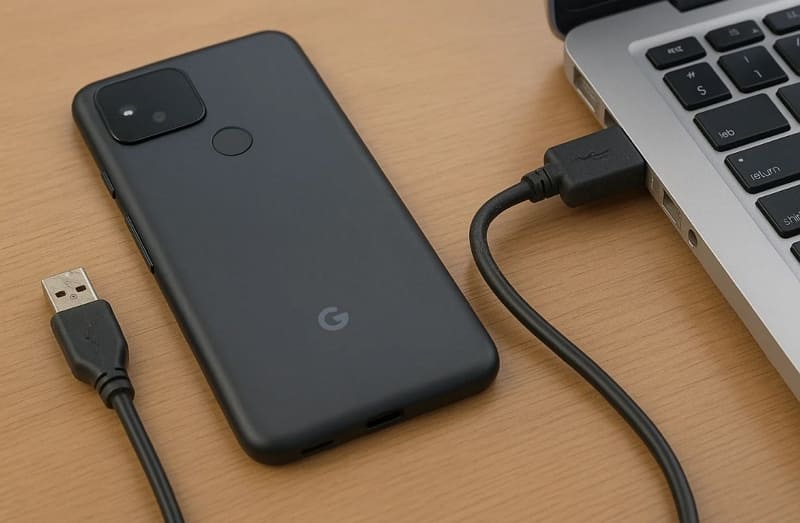
- Faulty Cable: A broken or low‑quality USB cable can interrupt the phone's data connection. It usually fails to maintain a stable link between your computer and Pixel device.
- Dirty Port: Dust or tiny dirt particles can block smooth contact between the cable and port. This dirt buildup interrupts data signal flow and stops proper communication from starting.
- Wrong Mode: In case your Pixel is set to "Charge Only," file communication doesn't get activated. The computer cannot then recognize your device as a data‑sharing source.
- Outdated Software: Older Android versions or computer systems may not support the latest transfer standards. Such a mismatch also leads to detection failures during the file connection process.
- Corrupted Cache: Temporary cache errors in the Pixel system can disrupt transfers with computers. These stored glitches prevent stable recognition during a USB connection attempt.
Part 2. How to Fix Google Pixel File Transfer Not Working
Upon knowing the leading causes, many users are still confused about resolving this issue. So, this section provides 8 methods to address the Google Pixel file transfer not working problem:
Fix 1. Check Cable and Ports
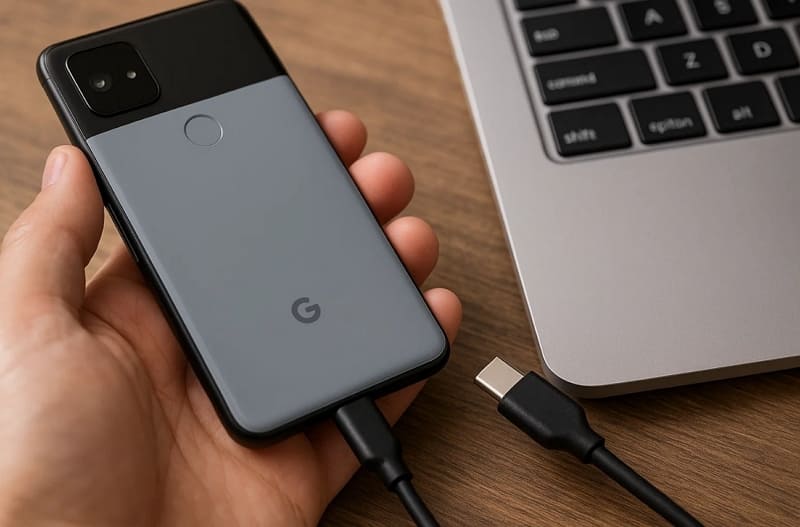
Checking the cable and ports is the first and most practical step in solving transfer issues. Many cables only support charging and not data movement, which causes connection problems. Besides, damaged or low-quality cables often stop the computer from detecting your Pixel.
Dirt or loose ports can also block the connection completely. Thus, using a clean port and an original data cable ensures a stable and smooth file transfer process.
Fix 2. Select File Transfer Mode
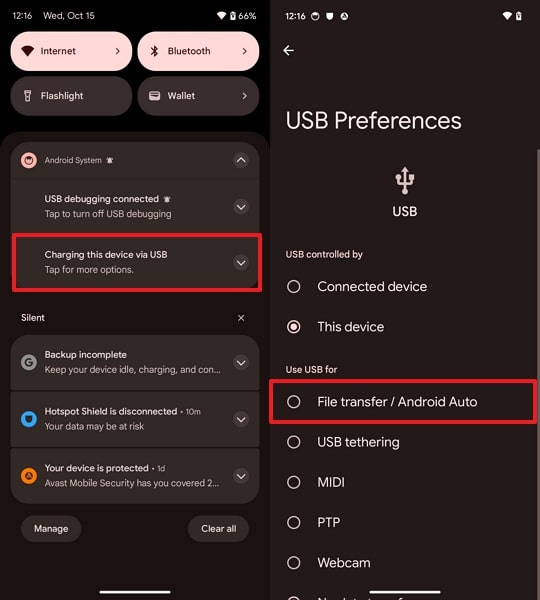
You should also select the File Transfer Mode to make data sharing possible. By default, your Pixel usually connects in charging-only mode, blocking file movement. When you switch to the correct method, it allows your phone to communicate correctly with the computer. Follow the guide to select the transfer mode and fix the Google Pixel file transfer not working:
Instructions. Upon connecting your Pixel to the PC, tap Charging This Device Via USB > Enable File Transfer/Android Auto.
Fix 3. Restart Pixel & Computer
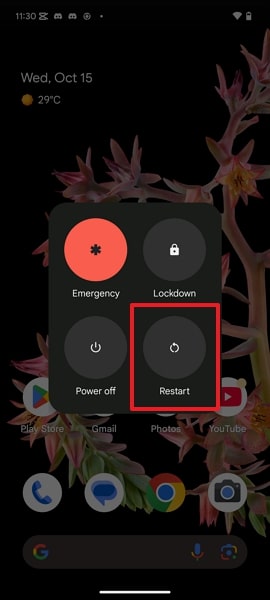
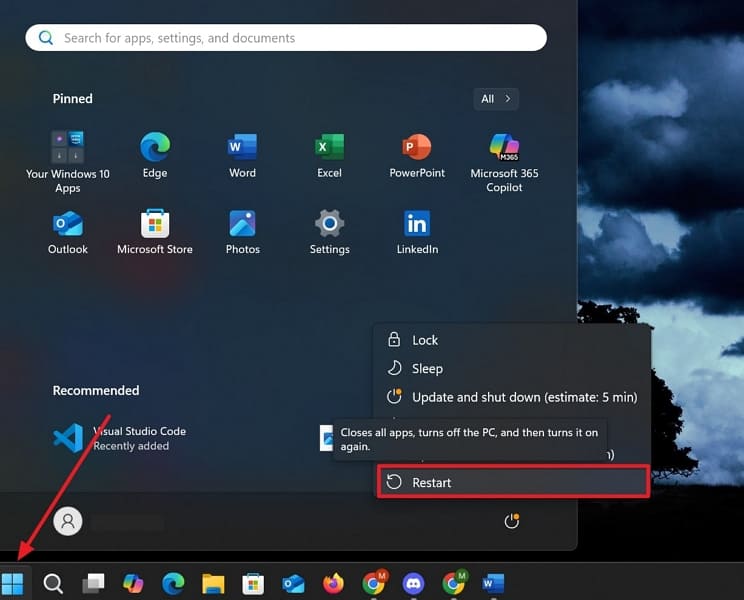
This method is a simple yet effective way to solve connection issues. Upon restarting PC and Pixel, it helps refresh the system and clear temporary glitches that block file transfers. Sometimes, background processes or minor software errors interrupt the connection between devices. A quick restart resets the internal functions and restores smooth communication. Go through the instructions to address the Google Pixel file transfer not working issue in this way:
Restart Pixel: As you press the Power key for a few moments, tap the Restart option.
Restart Computer: Click the Windows logo to press the Power icon and choose the Restart option.
Fix 4. Enable USB Debugging
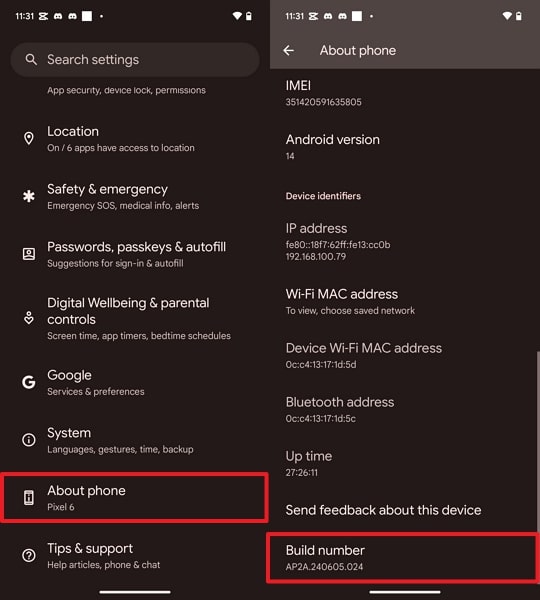
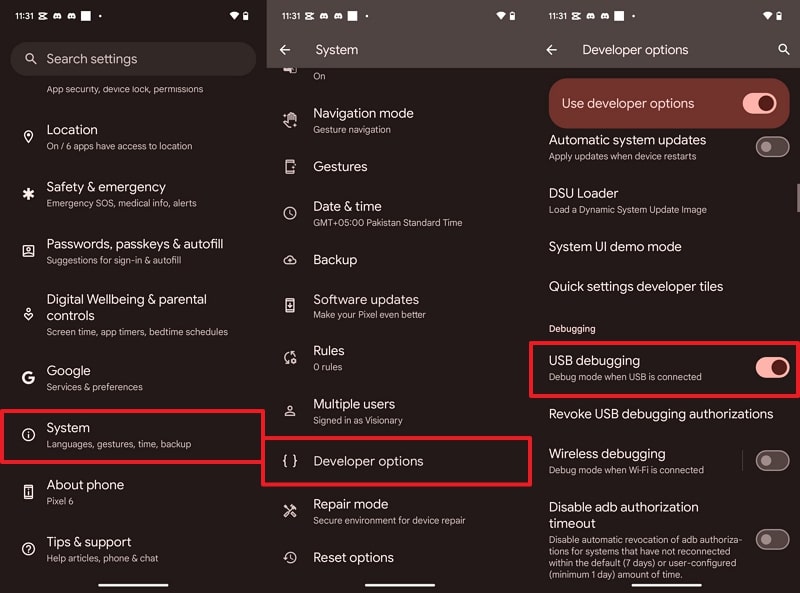
Enabling USB Debugging allows your Pixel to build a stronger link with your computer. It helps the system detect your device quickly and access its internal storage easily. This feature lets phones communicate using developer‑level commands for advanced data interaction. When activated, it reveals missing USB options like the File Transfer preference. Anyway, review the following steps to enable this feature and fix the Google Pixel file transfer not working:
Step 1. Upon accessing Settings, go to About Phone > Tap Build Number for around 7 times.
Step 2. Head to System > Developer Options> Enable the USB Debugging toggle.
Fix 5. Update Pixel & Computer Software
Apart from that, you can also update both your computer and smartphone. Newer software versions resolve hidden bugs that interrupt USB recognition during transfers. They improve how both systems handle drivers, cables, and supported transfer protocols. It also improves overall performance and ensures stable data communication. So, let's explore how to resolve the Google Pixel file transfer not working by updating your devices:
Update Pixel
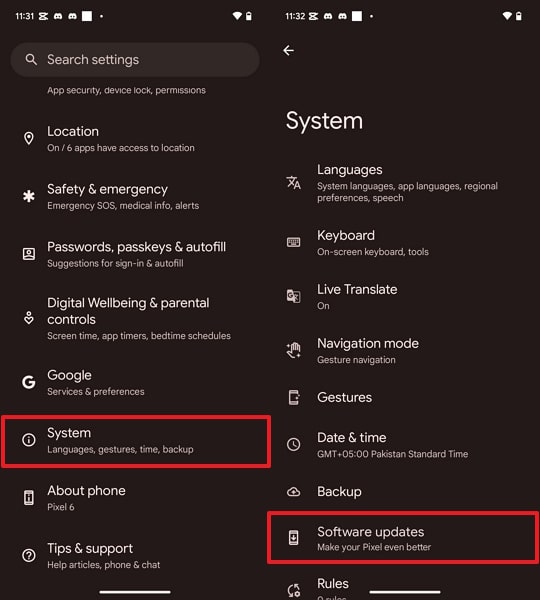
Step 1. Navigate to System > tap the Software Update option.
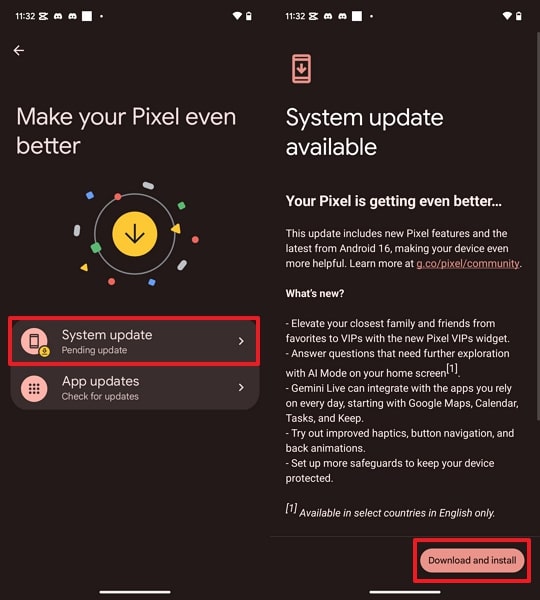
Step 2. Access System Updates > Press Download and Install when available.
Update Computer
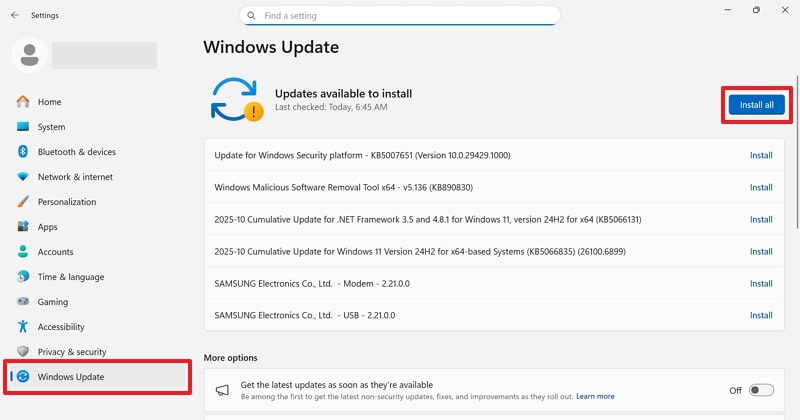
Instructions. Go to Windows Updates from your PC's settings and hit the Install All button.
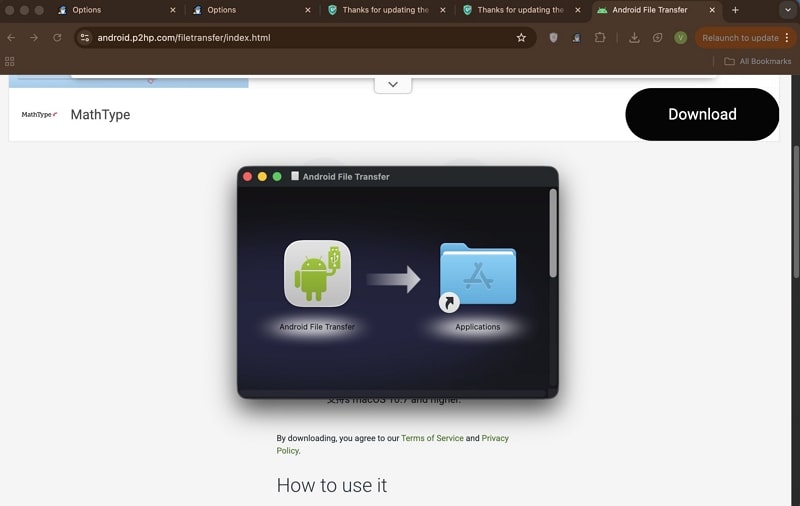
Fix 6. Install Android File Transfer [For Mac]
For Mac users, installing Android File Transfer is an essential step for smooth data sharing. macOS systems do not automatically support direct file transfers from Android devices. This official tool helps your Mac recognize and access files stored on your Pixel easily. It provides a simple interface for viewing, copying, and moving data between devices. Take guidance to understand how to install Android File Transfer:
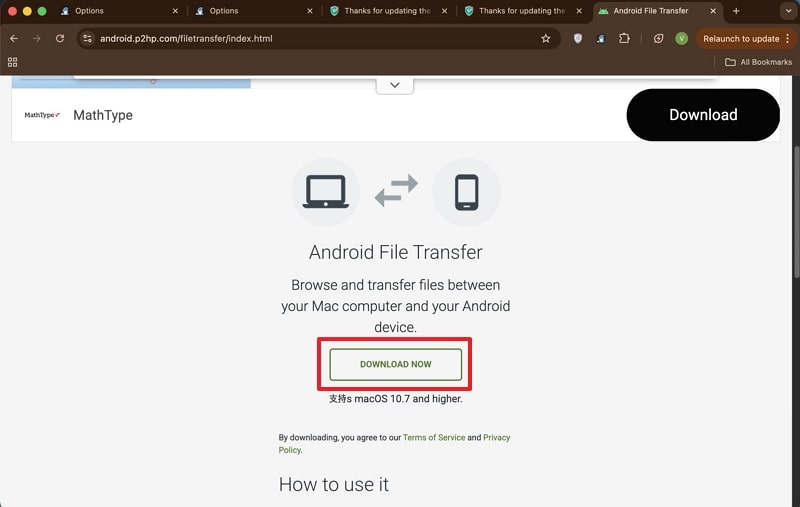
Step 1. Access the official Android File Transfer website and press the Download Now button.
Step 2. Upon downloading, install and open the app to resolve the Google Pixel File Transfer not working.
Fix 7. Install or Update USB Drivers (Windows)
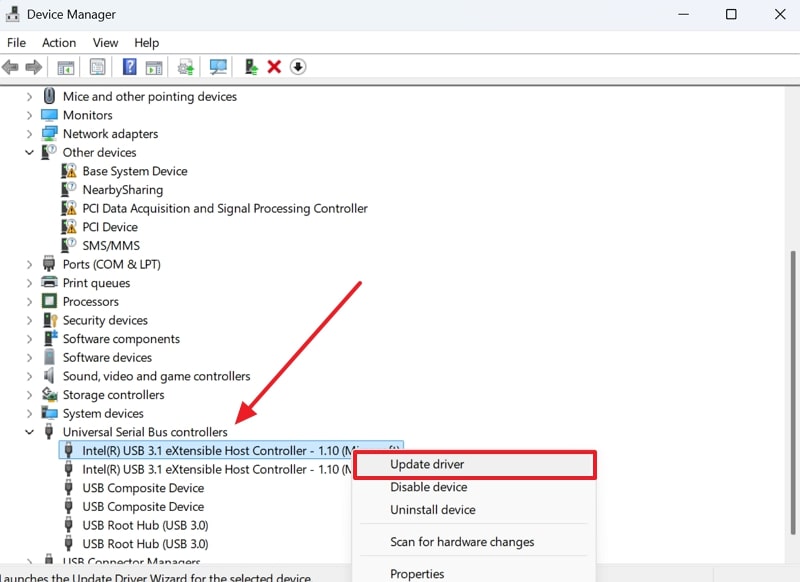
Outdated or missing USB drivers also cause the Google Pixel file transfer not working problem. These drivers enable your computer to recognize and communicate with your phone. When they are broken or old, the computer cannot detect your Pixel device for sharing files. Updating or reinstalling the drivers refreshes the connection and removes hidden software issues. The following steps will help you update your outdated driver without hassle:
Step 1. Go to your Device Manager > Click Universal Serial Bus Controller > Right-click the Driver > Update Driver.
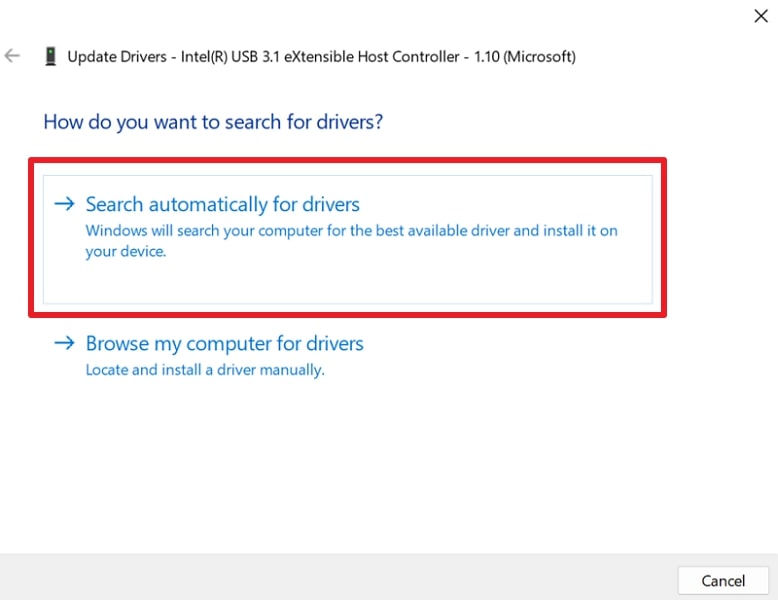
Step 2. As you see a prompt screen, select the Search Automatically for Drivers option.
Fix 8. Try a Different Computer
In case the above fixes don't fix the Google Pixel file transfer not working issue, trying a different computer helps. Sometimes, the problem is with the first computer's settings or hardware. Using another laptop can show if the Pixel device connects properly elsewhere. This step removes doubts about your phone or cable being wrong. When the Pixel connects to the second computer, fixing the first computer becomes easier.
Pro Tip. Try This Game-Changer: MobileTrans for Seamless File Transfers
Apart from the above solution, MobileTrans stands out as a reliable fix when the Google Pixel file transfer not working problem continues. It connects your Pixel and allows exporting 6 data types, including media and contacts. This one‑click transfer feature makes moving content from phone to computer extremely simple and direct. Plus, MobileTrans keeps your data secure and prevents overwriting existing files on the target device completely.
Key Features
- Fast Speed: Transfers data much more rapidly than Bluetooth or standard file-sharing apps.
- Broad Compatibility: Supports over 6000 devices across Android and iOS platforms effortlessly.
- Selective Transfer: Let users choose specific file types apart from transferring everything.
- OS Updates: Supports all recent versions of Android, such as Android 16.
- Import Function: Allows importing files from the computer back to the phone when needed.




Guide to Use MobileTrans for an Effortless File Transfer
After exploring the top feature, many users are still confused about how to transfer their desired types of data, including photos or videos, securely. The steps below will guide you through connecting your Pixel and exporting files without errors:
Step 1. Navigate to the Phone To PC tab and link your Pixel with the computer.
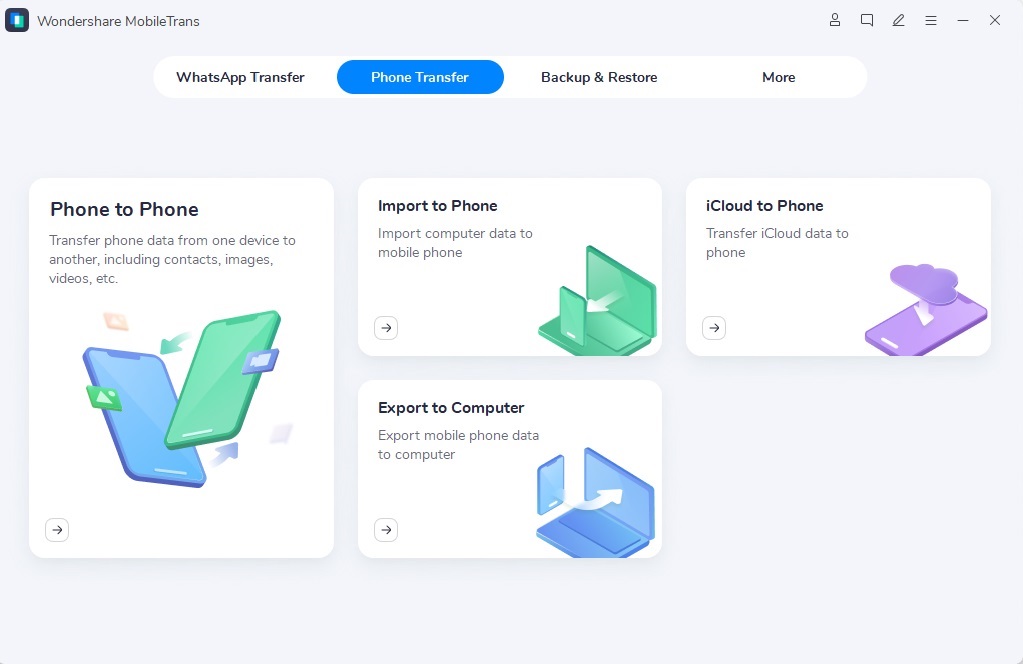
Step 2. When the supported data shows up, choose your desired categories and hit Export.
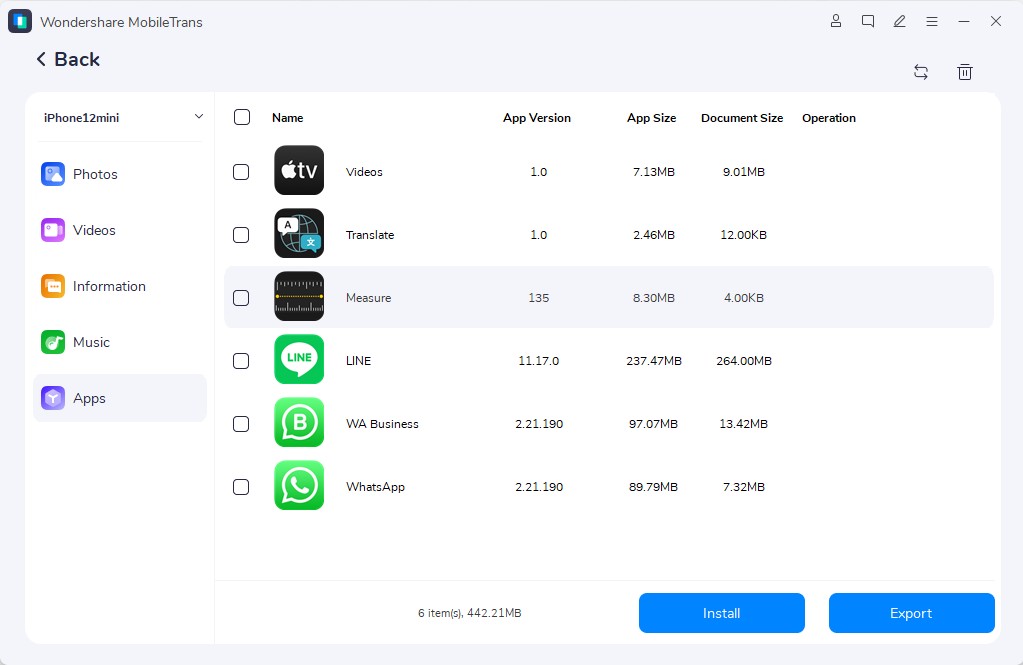
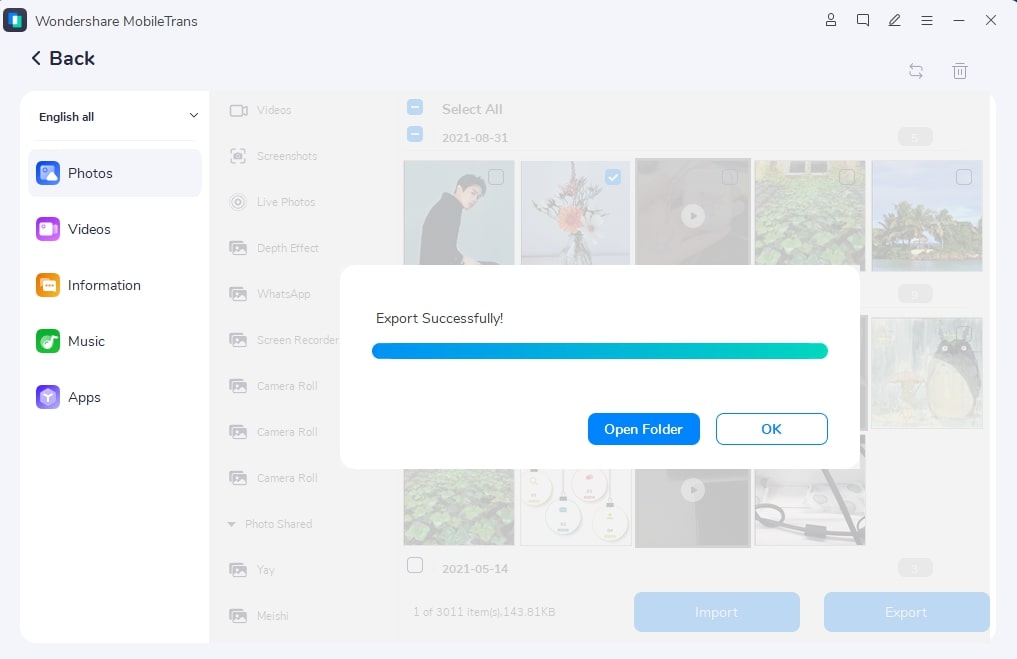
Step 3. After a while, opt for the Open Folder button to view the exported data.
Conclusion
To sum up, fixing the Google Pixel file transfer not working problem becomes easy with the right steps. This article has explored several quick methods to help you reconnect your devices easily. These small actions usually solve most connection troubles without needing expert help. However, if transfers still fail or remain unstable, using MobileTrans is the best choice. It offers fast, secure, and effortless data sharing between your Pixel and computer.










