


 TL;DR:
While Google Takeout allows transferring data to a new account via the "Add to Drive" option, alternative methods like Workspace Admin Tools, direct sharing, or third-party cloud services provide more targeted control without requiring you to manage large downloaded archives.
● Before using Google Takeout, you must verify your storage quota to prevent incomplete exports and update your recovery credentials, as large bulk transfers can trigger security verification lockouts.
● To migrate exclusively Google Drive files without downloading them locally, utilize the native Share and "Transfer Ownership" settings; conversely, use an email client like Mozilla Thunderbird via IMAP to preserve complex folder structures when moving large Gmail inboxes.
● Organizations operating on Google Workspace should use the centralized Data Migration feature in the Admin Console instead of Takeout, whereas users migrating physical devices across Android or iOS can use MobileTrans to transfer over 18 data types without overwriting existing content.
Ask AI for a summary
 ChatGPT
 Perplexity
 Gemini
 Claude
 Grok
Grok
Many people eventually outgrow their original Google account, either due to a job change or for a new start. Whenever that happens, migrating your years of emails, Drive files, and especially photos becomes a real challenge. Due to this, Google Takeout transfer serves as a lifeline, allowing you to export your entire data from one account to another.
However, this isn't the only way; many other reliable alternatives are available that provide more control over what's being moved. Therefore, this ultimate guide explains each alternative with a detailed tutorial to have a better command of the process.
In this article
Part 1. Can I Perform a Google Takeout Transfer to Another Account?
Yes, it's possible to perform a Google Takeout transfer to another account, though the supported data types and processes differ. It's primarily an exporting tool that packages all (or selected) data from your Google account into downloadable files. Besides this, you can choose a destination for another account, such as Dropbox or OneDrive, to upload your files after export is completed.
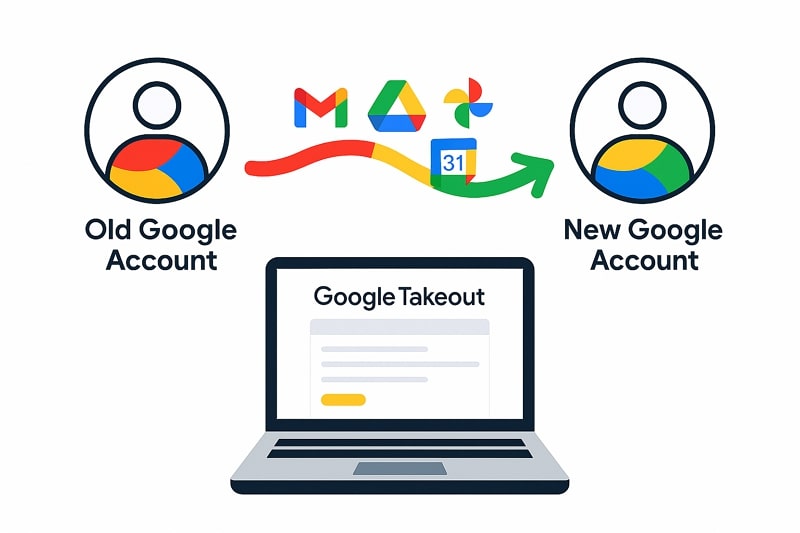
Anyhow, this manual process provides a broader backup option, but it may require extra organizational efforts when transferring content back into Google's ecosystem. Google Takeout to another Google account is further possible via the Add to Drive option, which allows you to enter details for a new Google account.
Part 2. Preparing Your Old Google Account Before You Use Google Takeout for Transfer
Most important is to prepare your old account before you dive into how to use the Google Takeout transfer. For your assistance, we've compiled a few preparations that should be considered beforehand to reduce errors and save time:
- Review and Organize Your Data: Take some time out and go through your Gmail Drive and Google Photos to remove unnecessary and duplicate items. This cleanup not only reduces the size of your export but also guarantees that only the data you need will be transferred.
- Check Your Account Storage Quota: Access your Google account dashboard to analyze how much space is left to give Google Takeout enough room to create an archive. Not enough space can even cause interruptions or incomplete exports when transferring large files in bulk.
- Verify Account Access and Recovery: Make sure your recovery email and phone number are current under your account's Security settings. Google sometimes asks for verification when you initiate large exports, and old recovery information can lock you out at an intense moment.
- Label and Sort Files: Before an export, create folders in Drive and apply labels in Gmail to group important content. This structure makes it easier to find the exact data type once imported into your new account.
- Back Up Important Credentials: When you're using 2-Step verification or app-specific passwords, download your backup codes and store them securely. You might need these credentials when you log in to your new account or to verify ownership during the transfer process.
Part 3. How to Use Google Takeout to Export Data for a New Google Account - Detailed Guide
An export of your data doesn't have to be intimidating, because with the proper preparations and guidelines, you can proceed surprisingly easily. For how to transfer to a new Google account using Google Takeout, walk through the tutorial below and export data for a new account:
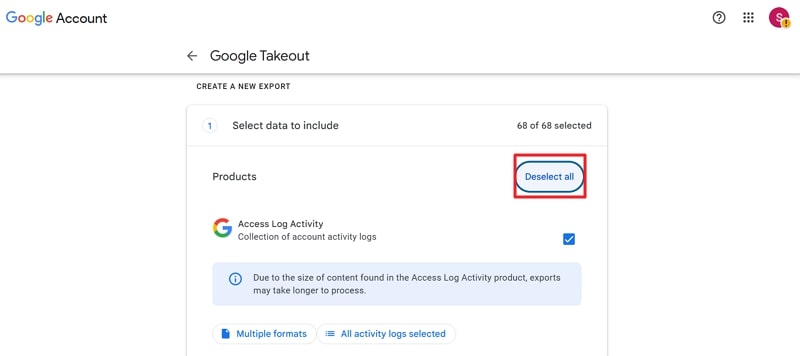
Step 1. Visit Google Takeout > Press the Deselect All option > Choose specific data to export.
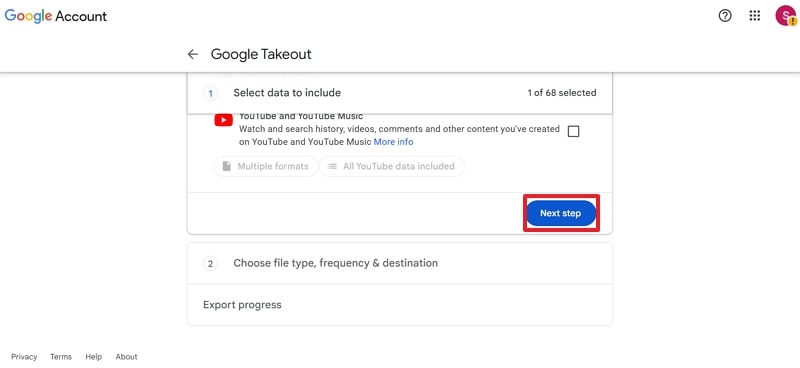
Step 2. Once selected, scroll down and click the Next Step button.
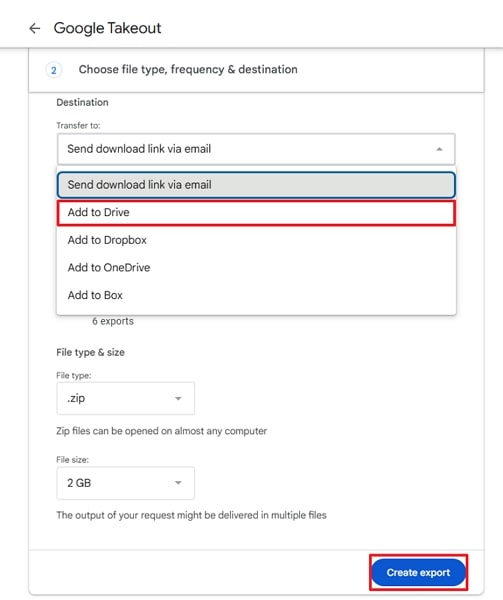
Step 3. Select Add to Drive in Destination > Specify other details > Press the Create Export option.
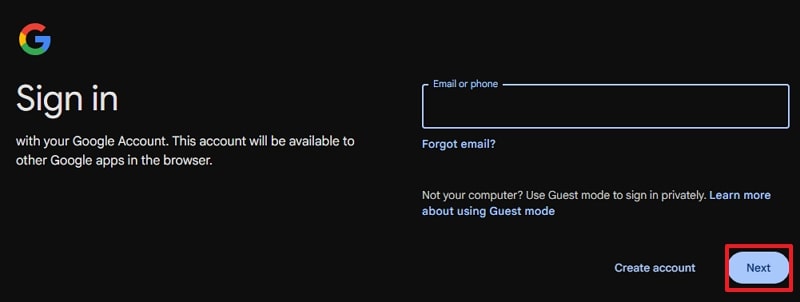
Step 4. Click Use Another Account option > Enter new account credentials > Next > Upload selected data to new account.
Part 4. Alternate Ways for Google Takeout to Export Data for a New Google Account
Google Takeout isn't the only way to move your data; the following methods are worth exploring for transferring to a new Google account:
1. Manual Download & Upload
This approach offers a direct way to transfer data to a new Google account, as it involves manually downloading and uploading files. It's easy to understand, requires no third-party apps or permission, and allows you to hand-pick data.
You can also declutter and reorganize as you migrate to start a new account with a cleaner interface. Follow the tutorial and understand how to download and upload data manually:
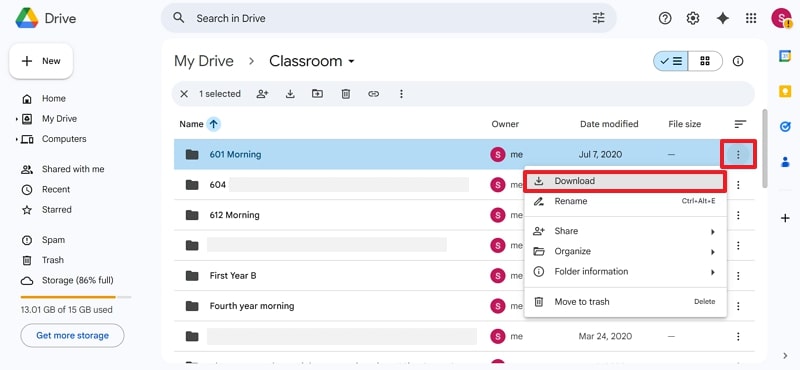
Step 1. Access old Google Drive > Locate specific file/folder > Click Three Dots icon > Choose Download > Zip file downloaded.
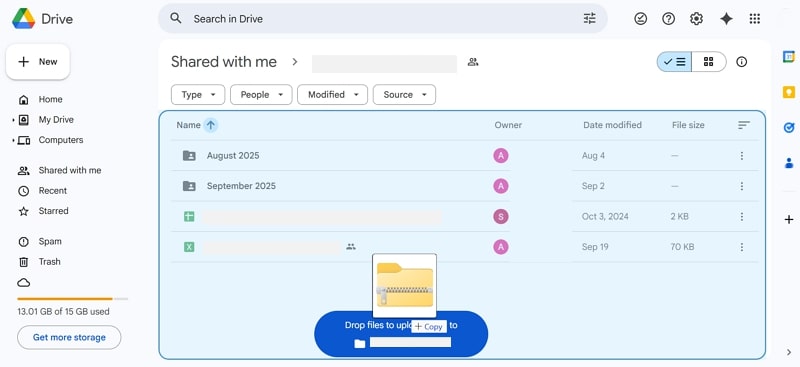
Step 2. Sign in to a new Google account > Press New or Drag and Drop the downloaded file/folder > Organize the uploaded file/folder.
2. Workspace Admin Tools
It's a convenient alternative to Google Takeout transfer for organizations using Google Workspace because it leverages its Data Migration feature. Instead of struggling with downloads or uploads for each user, the admin can move data securely from a single dashboard.
As it's a built-in Google feature, it's also backed up by enterprise-level security, which is important for sensitive data. Explore the manual and make use of the Data Migration feature in Google Workspace:
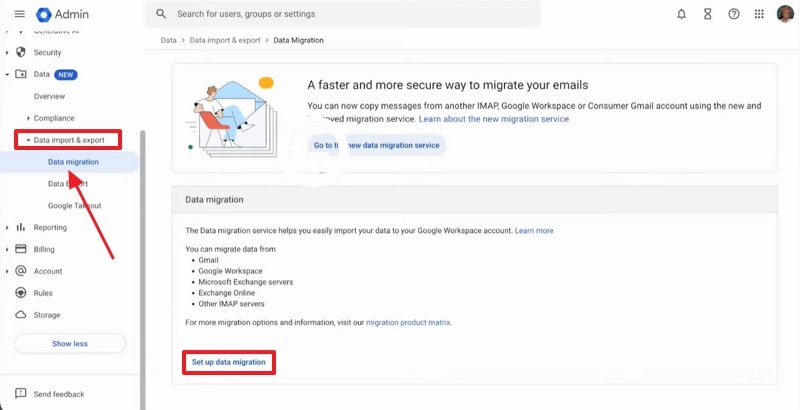
Step 1. Open Admin Console > Expand Data Import and Export > Choose Data Migration > Press the Set Up Data Migration.
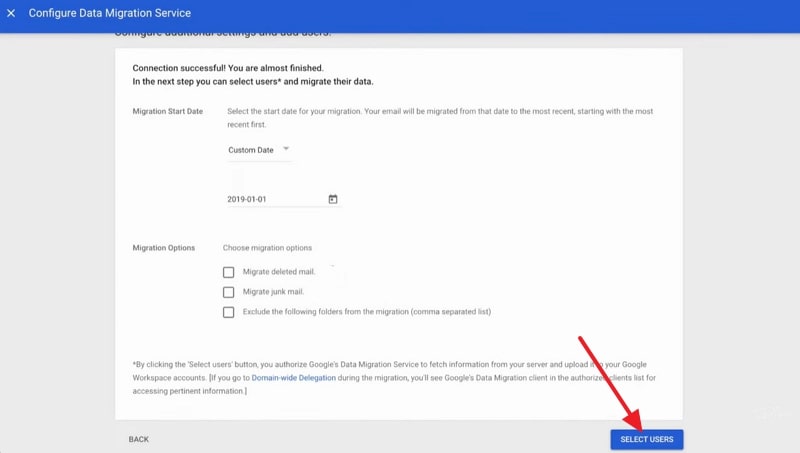
Step 2. Select Gmail as Migration Source > Start > Enter other migration details > Click the Select Users option.
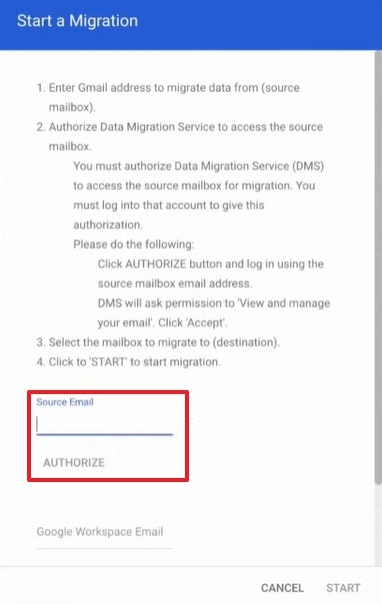
Step 3. Type Source Email > Authorize > Sign in to source Google account > Next > Continue.
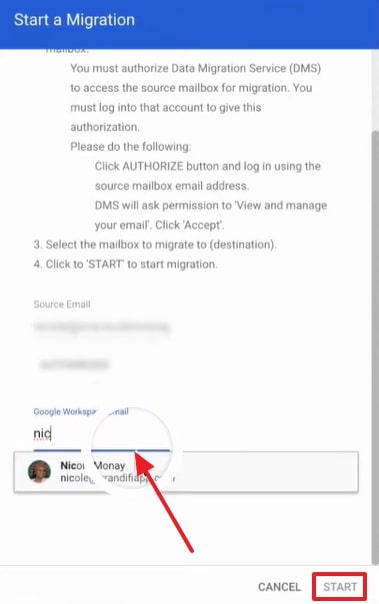
Step 4. Next, select the target Google email account for transferring > Press the Start button.
3. Third-Party Migration Services (VaultMe, MultCloud)
Third-party migration services are convenient for those who want automation, advanced features, and the ability to move a massive amount of data without manual effort. Services like MultCloud are made for cloud-to-cloud migration, facilitating migrations within the working dashboard.
It even allows users to schedule their migration or notify them when it is completed, so they can track the transfer status. To transfer to a new Google account, follow the tutorial for MultCloud:
Step 1. Sign up with MultCloud > Add both old and new Google accounts > Choose the Cloud Transfer feature.
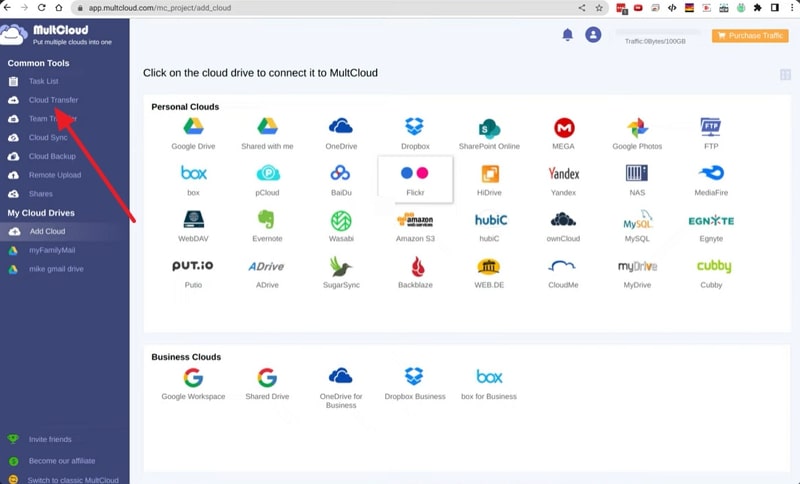
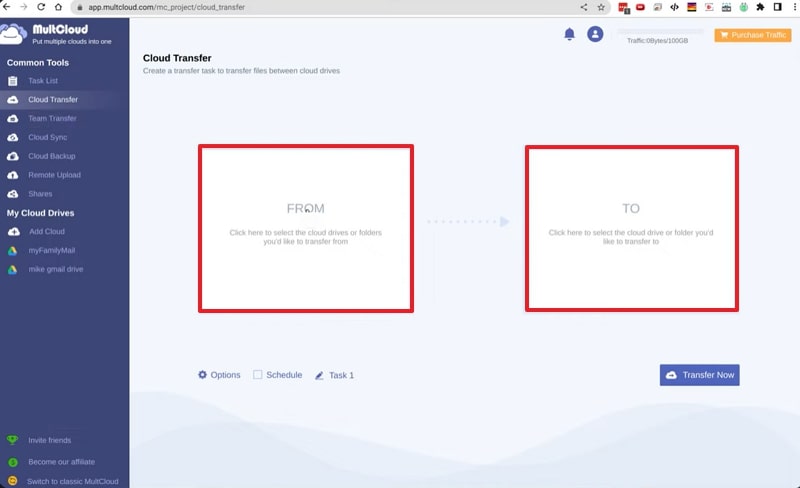
Step 2. Click the From section > Choose the Source Drive from the options > Press the To section > Select the target Drive.
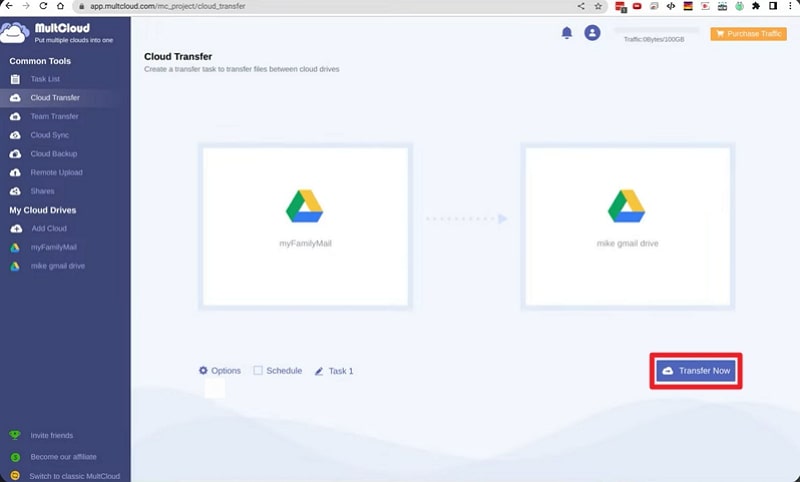
Step 3. Once both Drives are added > Hit the Transfer Now button > Examine files after the transfer completes.
4. Direct Drive Sharing & Transfer
Another option to Google Takeout to another Google account is direct drive sharing and transfer, which doesn't require downloading or re-uploading everything. It's entirely cloud-to-cloud; there's no waiting for large ZIP files to generate or worrying about local storage limits.
The approach is convenient when migrating just Drive data, as it's a no-cost solution that utilizes Google's own sharing function. Go through this guide and perform direct sharing between different accounts:
Step 1. Access Google Drive > Locate the file/folder > Tap the Three Dots icon > Expand Share option > Choose Share option.
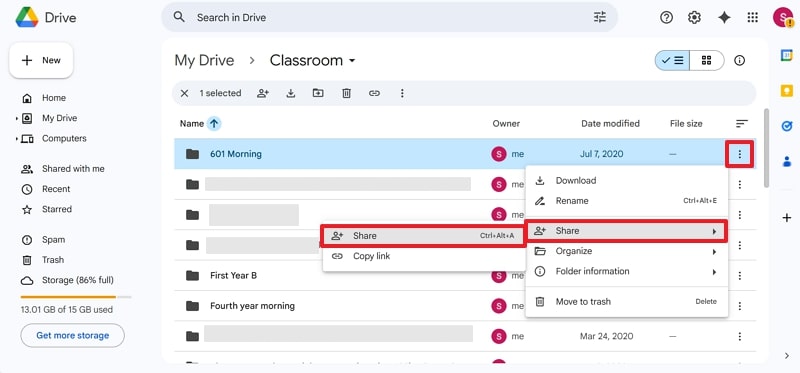
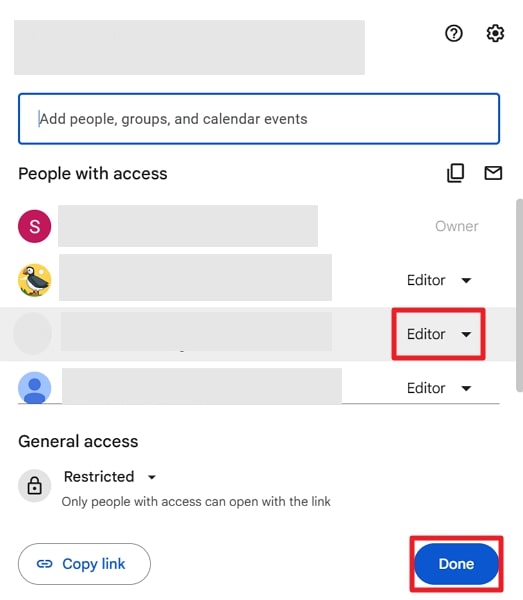
Step 3. Select another Google account > Expand Editor menu > Tap Transfer Ownership > Press the Done button > Migrate selected file.
5. Email Client Apps
A valuable alternative to Google Takeout transfer, which implies moving emails from one Gmail account to another using Client apps like Mozilla Thunderbird. It's workable when you have multiple Gmail accounts or large mailboxes with complex labels and folders that need to be preserved.
They provide fine control over email transfer, allowing you to drag-and-drop into another account without any archive downloading. Follow the tutorial for Mozilla Thunderbird to transfer email between accounts:
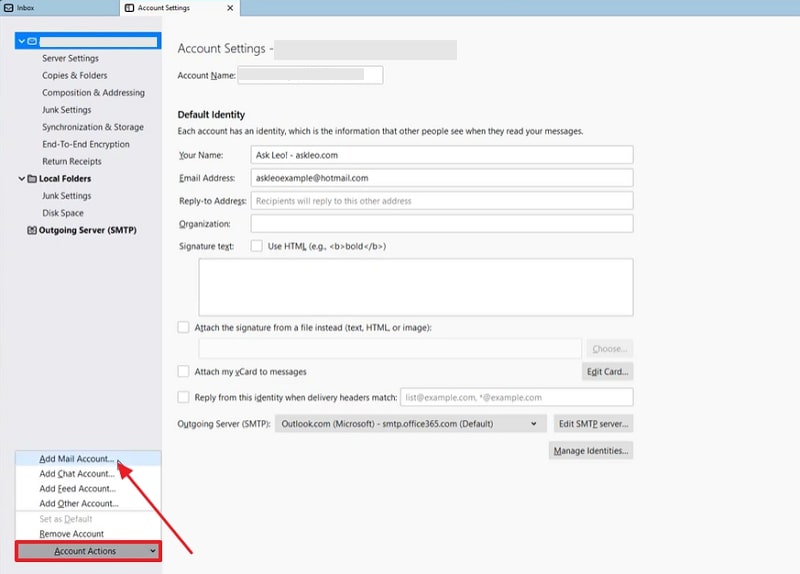
Step 1. Add Old account > Access Tools tab > Account Settings > Account Actions > Add Mail Account > Enter credentials > Continue.
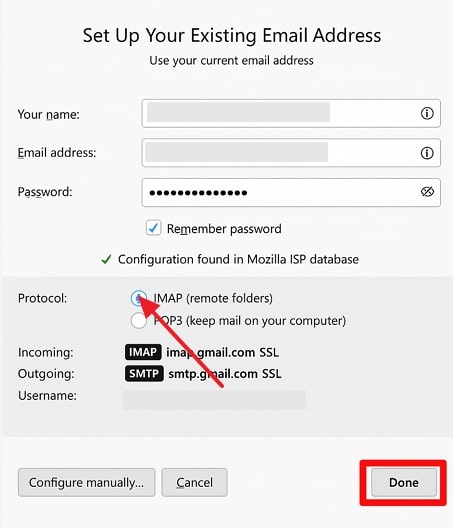
Step 2. Under the Protocol section, choose the IMAP (remote folders) option > Press the Done button.
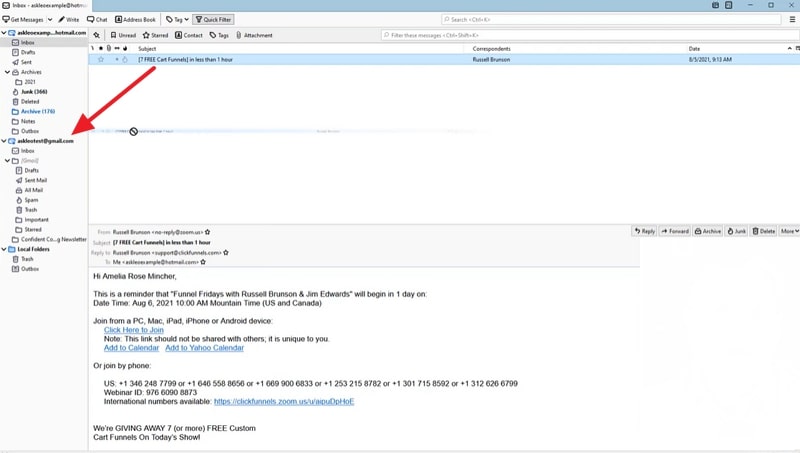
Step 3. Open email to transfer from old account > Drag and Drop it into the newly added account.
Pro Tip: Simplify Your Phone Transfer with MobileTrans
Besides the regular Google Takeout transfer, you might be looking for a way to transfer your data from one device to another without the technicalities. If so, MobileTrans offers a dependable function of Phone to Phone transfer that facilitates over 18 types of data. Plus, the program supports more than 6000 mobile devices, running on both Android and iOS operating systems.
For your convenience, you're provided a one-click solution, enabling you to transfer entire data without any tedious steps. This software also offers the fastest data transmission speed compared to Bluetooth and other data transfer apps.
Key Features
- No Overwriting Data: The platform allows users to freely transfer any content from any device without overwriting the existing data.
- Migrate Data between PC and Phones: With MobileTrans, you can transfer up to 5 types of data between your computer and Android / iOS devices.
- Move Apps Between Devices: You can move apps and in-app data between the same and different operating systems without any data loss.
- Transfer Photos or Videos without Losing Quality: It can transfer photos and videos with full resolution and quality. And also transfers photos with albums.






Here's how to transfer data between devices:
Step 1. Select Phone Transfer > Choose Phone to Phone transfer > Connect both phones to the PC.

Step 2. Select data type > Specify Source and Destination devices > Press the Start button to initiate the process.

Conclusion
In summary, a switch to a new Google account might feel like starting over, but the Google Takeout transfer is a solid first step for exporting. Yet, once you start juggling extensive archives or multiple accounts, the process can quickly become time-intensive.
To get sorted, this article has guided all possible workarounds for seamless transfer from one account to another. Besides this, you're even introduced to a professional phone-to-phone transfer program called MobileTrans.










