


 TL;DR:
Export your Google Photos library as a downloadable offline archive using the official Google Takeout service, or utilize MobileTrans for direct device-to-device transfers that prevent metadata separation.
● To use Google Takeout, deselect all other account services, check the Google Photos option, and request an email download link, keeping in mind that this bulk method often separates image metadata into disconnected files and creates confusing folder structures.
● MobileTrans is recommended for users needing to migrate photos directly between a computer and over 6,000 supported Android or iOS devices, as it bypasses cloud download links to transfer files at full resolution while keeping original album structures entirely intact.
● To transfer photos via MobileTrans, select the Phone to Phone option under Phone Transfer, connect both the source and destination devices to a PC, specify the data type, and start the process with the optional Clear Data Before Copy setting.
Ask AI for a summary
 ChatGPT
 Perplexity
 Gemini
 Claude
 Grok
Grok
With almost everything stored online, our photos are priceless assets that prompt many of us to consider what would happen if they were to disappear. Accounts might get locked out, accidental deletion happens, or a change in service policies can fade years of memories in an instant. Now is the time to take control over your digital treasure through Google Takeout Photos, Google's official export tool.
For your peace of mind, go through the guide below that covers everything from what Google Takeout is to why people opt for it. Plus, an expert guideline is provided to export your Google Photos via Google Takeout.
In this article
Part 1. What is Google Takeout?
Google Takeout is a free service developed by Google that enables users to export and download data stored across their Google account. The purpose of Google Takeout is to give users control over their data, making it easy to move between devices. When using Google Takeout, you can selectively choose which services and types of data to include in your export.
Instead of leaving your content in the cloud, you can create a downloadable archive file and store it offline. Overall, Google Takeout for photos, contacts, or emails serves as a one-stop solution for retrieval in massively usable formats.
Part 2. Why People Export Google Photos with Google Takeout
Our thousands of new moments are stored in Google Photos, every passing year, making their way into every expanding vault of memories. Instead of relying on a single cloud service, explore the reasons why many people refer to Google Takeout for Google Photos:
- To Create Personal Backup: Although cloud storage is convenient, your accounts can be hacked, suspended, or accidentally deleted due to policy changes. An export with Google Takeout helps you create a complete offline copy of every image, stored exactly where you want it.
- Migrating to Another Service: When you switch to a new platform, either to a new Google account, it can be tedious until you use the right tool. Google Takeout simplifies the process by packaging your photos and metadata into supported formats, making it easy to import the collection elsewhere.
- For Organizing and Archiving: Your large cloud libraries can become cluttered quickly or hard to navigate at times. When you export photos via Google Takeout, it lets you take complete control; reorganize your files into new folders or curate albums later.
- Freeing Up Cloud Storage Space: Periodically, your Google Photos storage can eat up valuable space and even force you to pay for additional storage. This approach to exporting photos via Google Takeout lets you reclaim storage space and optimize your Google account for improved performance.
- Legal and Privacy Requirements: For professionals or anyone concerned about data rights, having an easily verifiable copy of your photos is essential. Google Takeout export allows you to comply with privacy laws, audits, or corporate policies by providing a complete and traceable archive.
Part 3. How to Export Google Photos with Google Takeout
As explained, Google Takeout for photos enables users to export and download all their Google Photos in bulk for saving or transferring them. It even allows you to choose your preferred file type, file size, and delivery method before requesting an export. For more command over the process, adhere to the tutorial and learn exporting photos via Google Takeout yourself:
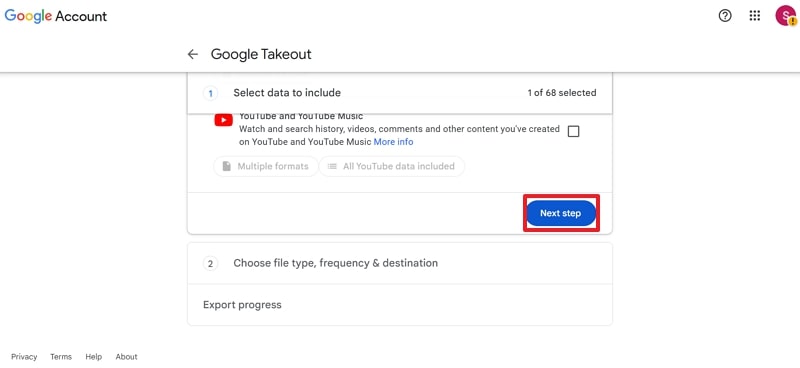
Step 1. Open Google Takeout > Log in to your Google account > Click on Deselect All > Check the Google Photos option.
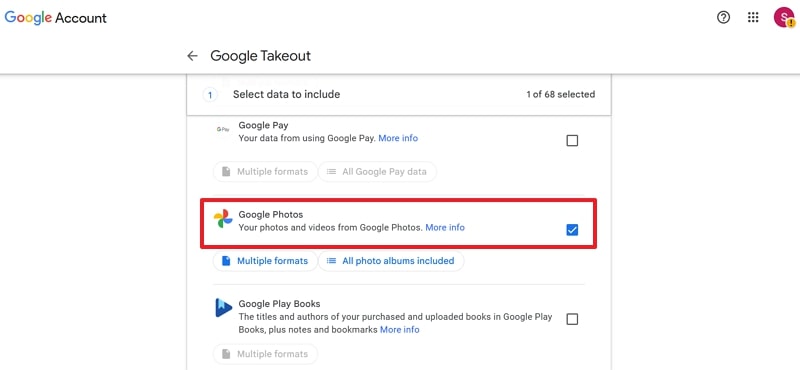
Step 2. After this, scroll down and press the Next Step button.
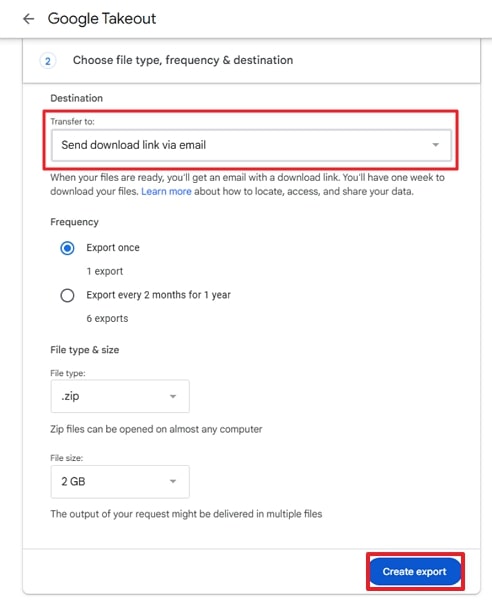
Step 3. Choose the Send Download Link Via Email for Destination > Specify other details > Create Export > Get email with the download link.
Part 4. Fastest Alternative to Transfer Photos Instead of Google Takeout: MobileTrans
While Google Takeout photos remain Google's official method for exporting entire photo libraries, its process might feel fragmented with large volumes of images. Alternatively, MobileTrans, a dedicated program, offers a more refined approach with a focus on speed when transferring photos between devices.
Besides photos, it allows users to migrate over 18 types of data, including contacts, videos, and more. Considering its speed, the program offers far faster data transmission compared to transferring with Bluetooth or other apps. You're free to migrate as much content as you want to any device without worrying about overwriting concerns.
Key Features
- Migrate Content between PC and Phones: With MobileTrans, you can move 5 kinds of data between your computer and mobile devices directly.
- Transfer Apps Between Phones: It enables users to migrate apps and in-app data between Android/iOS devices during the upgrade process.
- Supports a Range of Mobile Devices: The program supports over 6000 mobile devices running on new and old Android and iOS operating systems.
- Transfer Photos or Videos without Losing Quality: It can transfer photos and videos with full resolution and quality.
- Transfer Album Information: MobileTrans can keep your photos and files in the folders they were, which means the transfer process won't lose album information or mess up your photos.






For a faster and reliable alternative to Google Takeout and Google Photos, follow the step-by-step guide provided below for MobileTrans:
Step 1. Select Phone Transfer > Choose Phone to Phone option > Connect both phones to the PC.

Step 2. Specify data type > Select Source and Destination devices > Enable Clear Data Before Copy according to your requirement > Press Start button.

Part 5. Why Choose MobileTrans Over Google Takeout to Export Photos
Over a slow, traditional approach, people look up programs like MobileTrans as a more seamless option than Google Takeout for photos. To know why, go through the section and discover the reasons behind MobileTrans being preferred for transferring photos:
- Single Click and Faster Transfer: It allows users to transfer their pictures from a phone to a PC or vice versa, significantly reducing the time required compared to Google Takeout.
- No Loss of Metadata or File Quality: Unlike Google Takeout, which often separates metadata into separate files, MobileTrans transfers photos with all metadata intact, keeping the original structure.
- Simplified and Easy to Use Interface: The program is convenient to navigate, making the export process simplified, while Google Takeout can result in a confusing folder structure.
- Selective Transfer and Complete Control: MobileTrans allows users to choose specific data types, avoiding unnecessary bulk downloads, whereas Google Takeout often exports everything altogether.
- Multi-Device Compatibility: This transferring program supports direct cross-platform transfers and even restores to a new device, without relying on download links or separate drives.
Conclusion
In conclusion, depending on a single cloud platform for years of collection can be risky overall; that's where Google Takeout Photos proves invaluable. With the ability to export your entire photo library, it also allows you to proactively download content for lasting control. Besides convenience, people now look for a faster and more reliable approach, like MobileTrans, to transfer their data between devices in an organized manner.










