


 TL;DR:
Droid Transfer is a Windows-based utility for backing up Android messages, contacts, and media to a PC, but MobileTrans is the recommended alternative for users who require cross-platform iOS compatibility, WhatsApp migration, and stable handling of large files.
● Droid Transfer operates exclusively between Android phones and Windows PCs, requiring users to install the Transfer Companion mobile app to scan a desktop QR code before initiating any data migration.
● The software is prone to dropping wireless connections and freezing during heavy transfers, while its free tier restricts users to copying a combined maximum of only 100 photos and music files.
● MobileTrans serves as the superior tool for comprehensive data management, offering direct phone-to-phone transfers across 6000+ Android and iOS devices, full WhatsApp Business chat migration, and iCloud or iTunes restoration.
Ask AI for a summary
 ChatGPT
 Perplexity
 Gemini
 Claude
 Grok
Grok
Many Android users need easy ways to move data from their phones to a computer safely. In addition, changing phones or saving files to computers feels confusing without the right tool. This is where software like Droid Transfer comes in, making things easier and clearer. This Droid Transfer review explains its features, followed by the benefits and drawbacks. We will also explore the best alternative to simplify your Android data transfer.
In this article
Part 1. What is Droid Transfer?
Droid Transfer is a Windows software that transfers messages, contacts, and media from Android to PC. It provides easy backup of SMS and MMS messages in different file formats like PDF or HTML. This software also enables printing of Android text messages directly from the PC for record-keeping. Besides, it allows you to move music between Android and PC, and enables playlist management and music file organization.
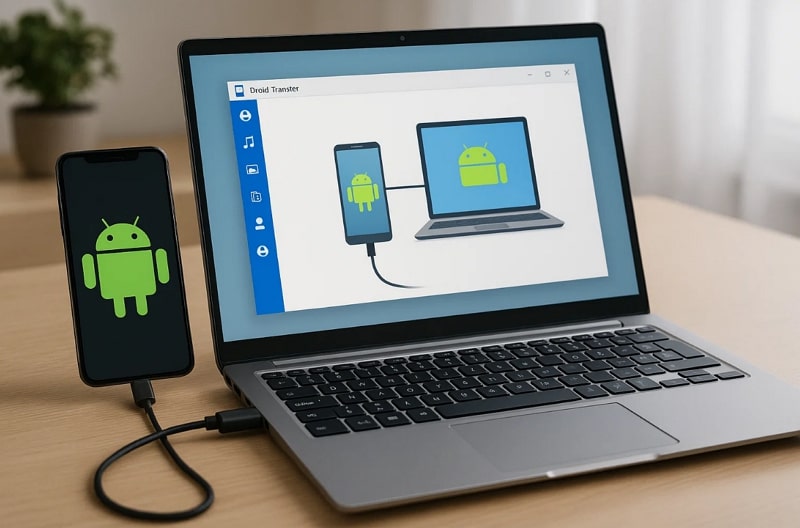
The program works over USB or Wi-Fi connections to efficiently back up and manage Android data. It also allows exporting call logs and syncing music between Android phones and computers. In addition, Droid Transfer lets you export calendars and contacts to standard formats like VCF and Outlook. Users can even back up photos, videos, and music easily for secure storage on a PC.
Part 2. Highlighted Key Features of Droid Transfer
Before deciding if this software is worth using, it helps to know its strengths. Below, we will discover a few key features that Droid Transfer for PC offers to its users:
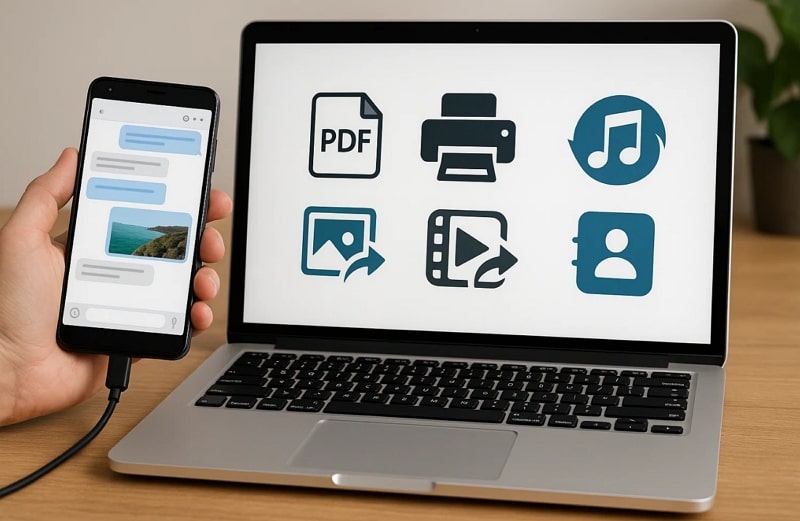
- PDF Export: Export all text conversations into organized PDF files with precise timestamps.
- Message Printing: Print important SMS or MMS directly with sender names and message dates.
- Media Save: Store attached photos, emojis, and videos from conversations on your PC.
- Photo Transfer: Copy, delete, or move pictures between your Android phone and computer.
- Video Transfer: Export and manage video files easily without losing quality or essential details.
- Music Sync: Transfer songs between Android and PC, or sync with iTunes smoothly.
- Contact Backup: Copy and restore phone contacts quickly, preventing accidental data loss situations.
- Calendar Copy: Save calendar events to PC and keep schedules organized and accessible.
- Search Messages: Find specific SMS conversations quickly with built-in search functionality.
- Emoji Support: Even preserves emojis in backed-up messages to keep conversations visually complete.
Part 3. Pros and Cons Breakdown in Droid Transfer
While Droid Transfer offers many helpful features, it's essential to look at both advantages and drawbacks. To understand its real value, let's explore the pros and cons of Droid Transfer clearly.
Part 4. Pricing and Plans of Droid Transfer
When evaluating software, cost is always a major factor alongside features and usability. Many people first try the Droid Transfer free version, then consider upgrading for full access. Thus, let's find out the pricing plans of this advanced data migration tool:
|
Plan/License |
Price |
Features Included |
|
Lifetime License |
$70.00 |
Unrestricted access on 2 PCs. |
|
12 Month License |
$40.00 |
Unrestricted access on 1 PC for 12 months. |
|
6 Month License |
$28.50 |
Unrestricted access on 1 PC for 6 months. |
Part 5. User Feedback and Testimonials of Droid Transfer
Apart from that, user opinions can also offer honest insights about how well the software performs during transfers. In this Droid Transfer review section, you will discover some users' reviews about this data transferring tool:
Positive Reviews
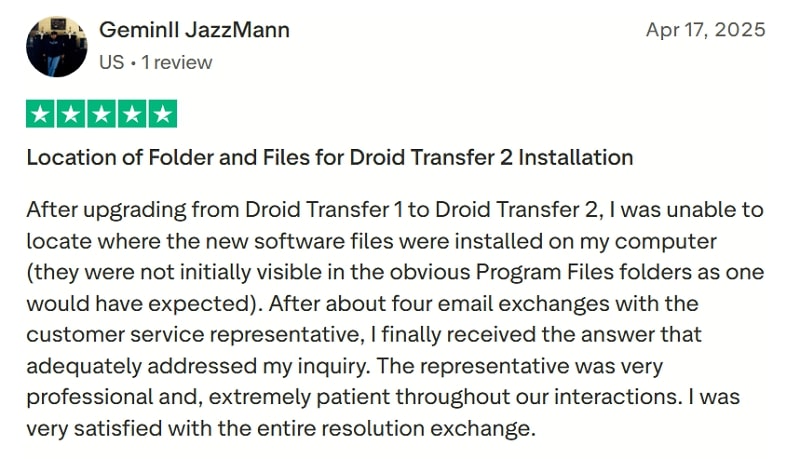
- GeminII JazzMann appreciated the customer support's patience in resolving installation folder location issues. He explained the representative was professional and helpful, leaving him fully satisfied with the assistance.
- Ragul U finds that it removes the need for USB cables, making transfers faster. He also says it handles large files smoothly, ensuring quick movement without interruptions.
Negative Reviews
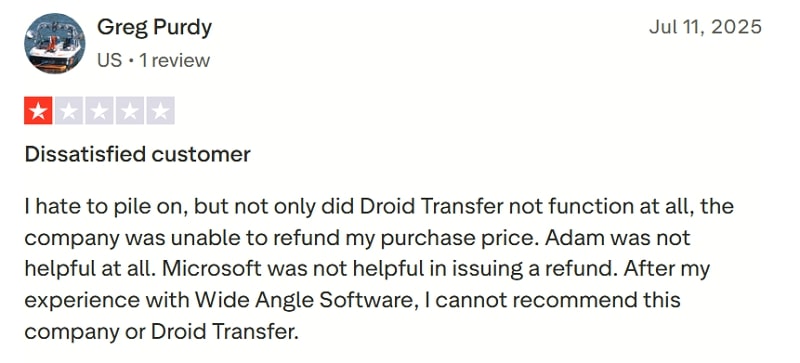
- Greg Purdy shared disappointment, stating Droid Transfer completely failed and never functioned on his computer. He added that refund requests were denied, and support from the company felt unhelpful.
- Eliza expressed strong frustration, saying Droid Transfer failed when moving older texts reliably from the Pixel. She also notes SMS Backup only saves XML, preventing proper PDF exports for the court.
Part 6. How to Use Droid Transfer to Move Data from Android to PC
Droid Transfer makes it easy to move audio files, contacts, and media between devices. In addition to that, calendars and call logs can also be exported, providing complete records when required. With both USB and Wi-Fi connections, Droid Transfer for PC offers flexible transfer options. Anyhow, take guidance from the given steps to learn how you can use this tool to move your phone's data:
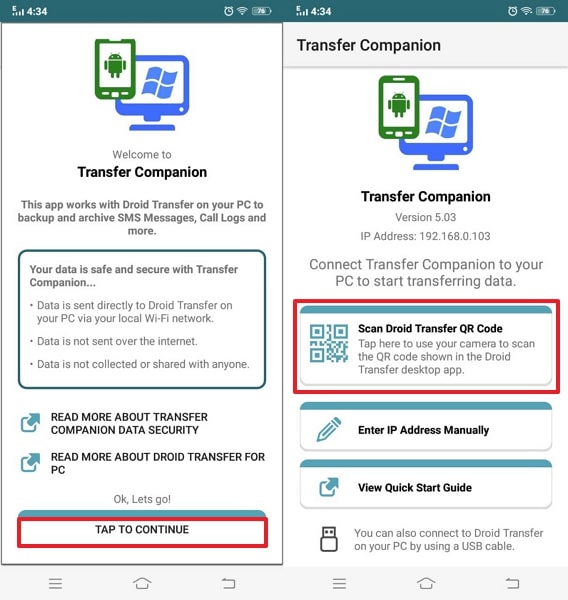
Step 1. Upon opening the “Transfer Companion” app on your Android, press Tap To Continue > Scan Droid Transfer QR Code.
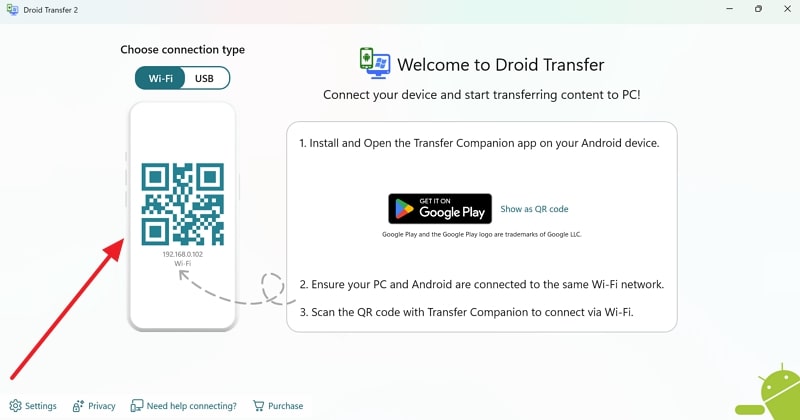
Step 2. On your desktop tool, access and scan the QR code displayed on the main screen.
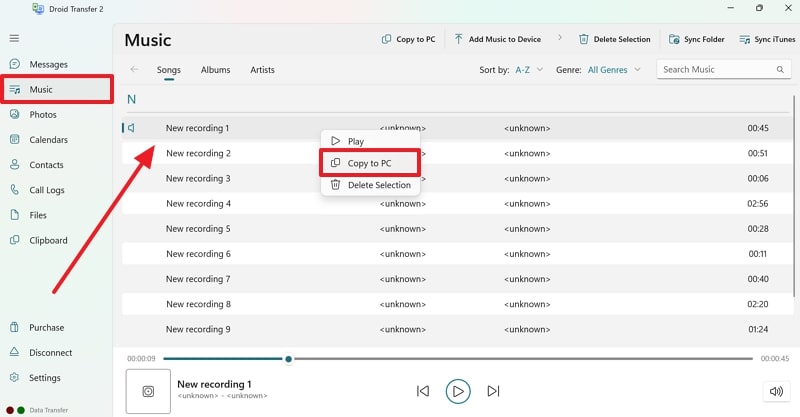
Step 3. When your phone's data appears, head to the Music or any other tab > Right-click the File > Copy to PC.
Part 7. Best Alternative to Droid Transfer: Introducing MobileTrans
When searching for a reliable Droid Transfer alternative, MobileTrans proves a powerful solution. It supports over 6000 devices, allowing seamless exports from the phone directly to the computer. Moreover, users can even pick 6 file categories and directly export them onto their PC. Unlike Bluetooth or basic apps, MobileTrans offers significantly faster data transmission speeds. It works without needing WiFi or internet, ensuring stable performance anytime, anywhere.
Key Features
- Direct Cross-Platform Transfer: Move data easily between Android and iPhone without complicated steps or losses.
- WhatsApp Transfer: Moves WhatsApp and WhatsApp Business chats between devices safely and fully.
- Backup & Restore support: Backs up and restore phone content, including WhatsApp, to a computer for safekeeping.
- Selective Transfer: Choose specific data types from the sidebar, exporting only needed files.
- Export Messages & Contacts: Export your text messages and contacts into HTML, Text, CSV or more formats for printing or sharing.
- Transfer Between Phone and PC: Easily transfer photos, music, videos, files and more between phone and computer.






Follow the given comprehensive steps to utilize this dedicated tool to migrate your phone data to your computer:
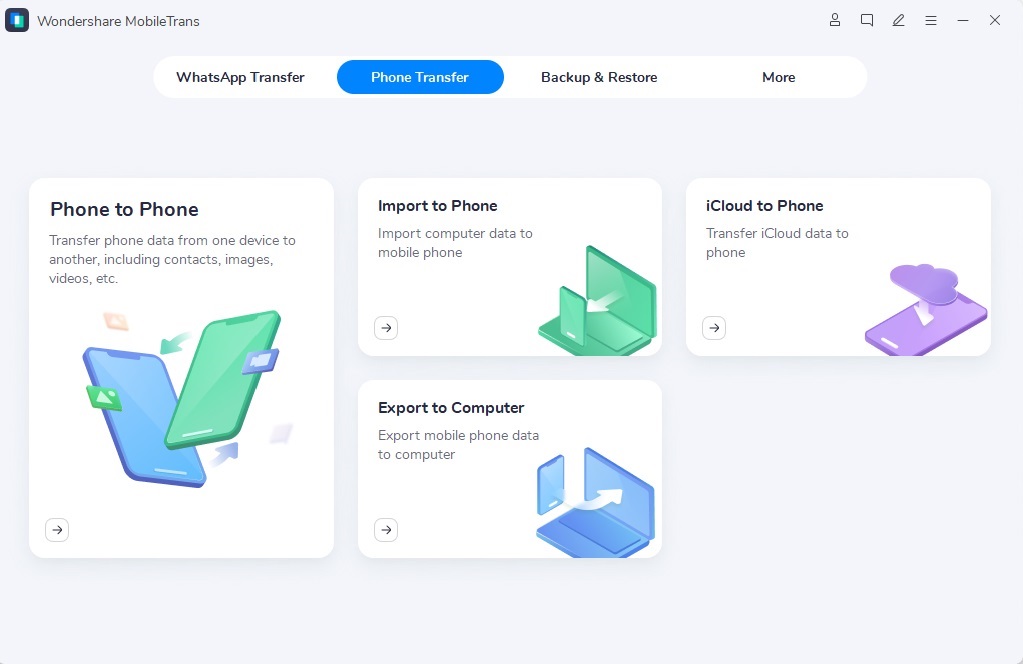
Step 1. Access the Phone to PC tab on MobileTrans, and link your Android smartphone using a USB cable.
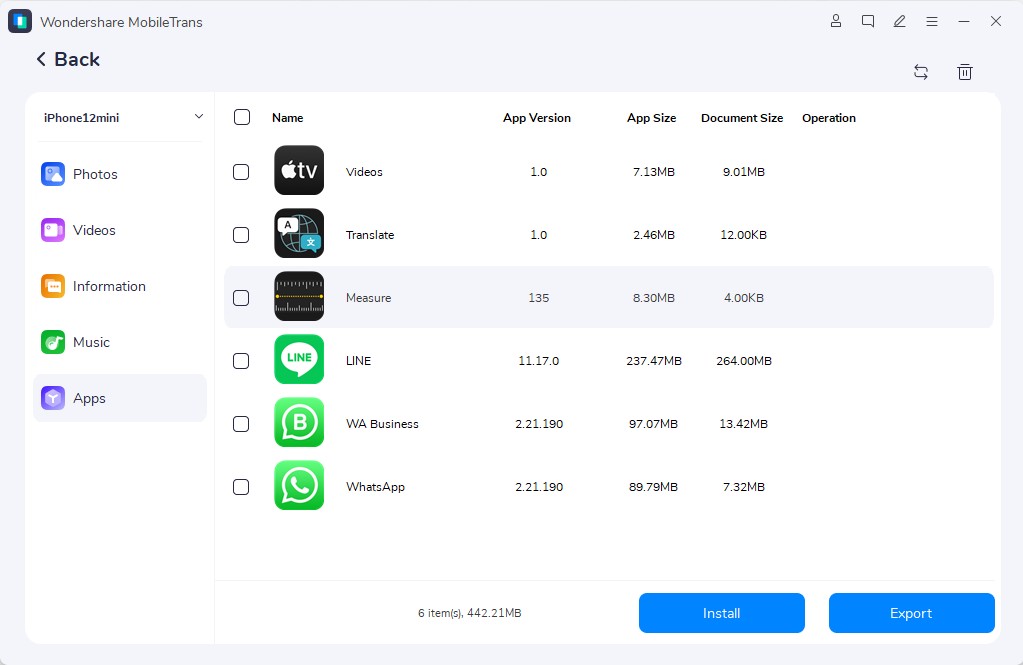
Step 2. After connecting, choose your desired data to transfer and press the Export button.
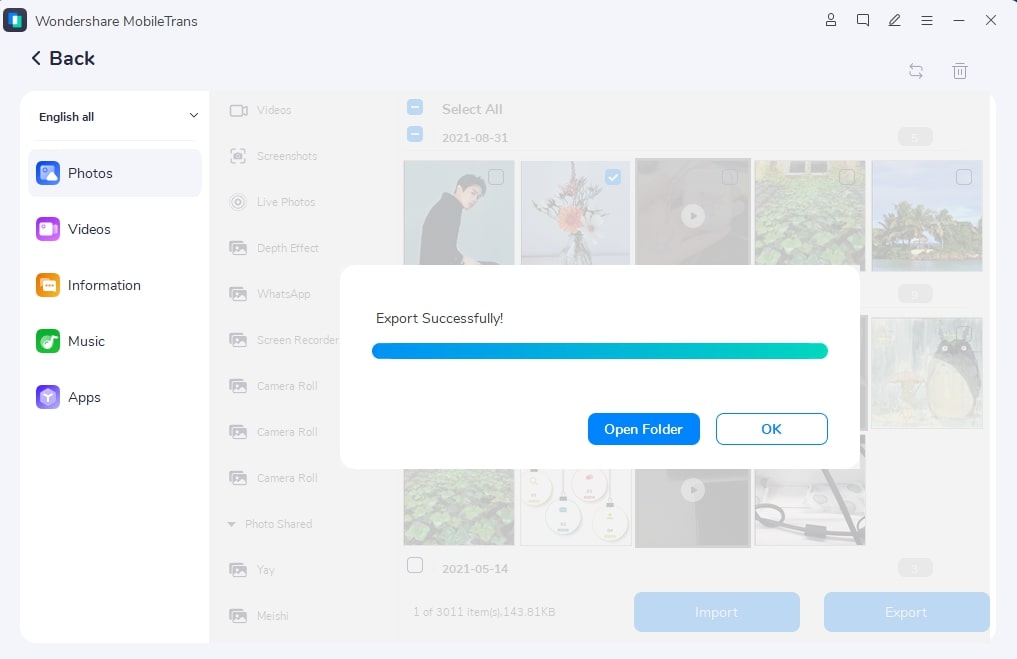
Step 3. When it completes, click Open Folder to view and manage your migrated data on the computer.
While MobileTrans provides an effortless solution, many users still wonder how it compares with Droid Transfer. To help you decide which tool best suits your needs, here's a detailed comparison of their core features:
|
Feature |
MobileTrans |
Droid Transfer |
|
Device Support |
Works with 6000+ Android and iOS devices |
Works only with Android devices on a Windows PC |
|
Connection Mode |
USB cable connection for high-speed transfers |
USB or Wi-Fi connection |
|
WhatsApp Transfer |
WhatsApp and WhatsApp Business |
No |
|
App Transfer |
Yes |
No |
|
Phone Transfer |
Yes |
No |
|
iCloud to Android |
Yes |
No |
|
iTunes to Android |
Yes |
No |
|
Backup Options |
Can back up complete phone data, including WhatsApp |
Offers SMS, MMS, call logs, and contact backups in PDF, HTML, or VCF formats |
|
Restore Function |
Allows restoring data to any device anytime |
Limited restore options; mainly exports |
Conclusion
To conclude, Droid Transfer offers proper Android data backup and transfer features. It works well for basic tasks like exporting messages, photos, and contacts to a PC safely. Based on this Droid Transfer review, users are seeking more device support, faster transfer, and cross-platform compatibility. To address this need, MobileTrans is recommended for a smoother and broader Android data transfer experience.










