Mutsapper: Transfer WhatsApp from Android to Android
Transferring WhatsApp data between two Android phones may seem complex. However, you can easily move all your messages, photos, and attachments with Mutsapper in just a few minutes. Therefore, this guide provides clear steps to help you complete the entire transfer quickly and safely, without losing any WhatsApp data and ensuring it is well organized.


Step 1. Install Mutsapper on Both Android Devices
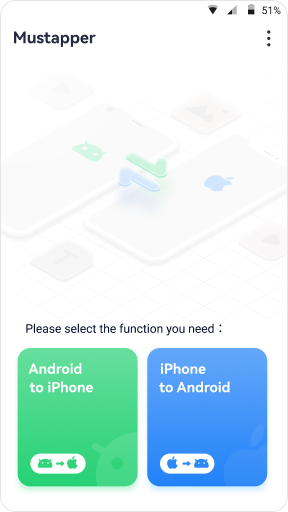
Download and install Mutsapper on both Android phones. From the source phone, tap "Send to Android" and tap "Receive from Android" on the target phone.
Step 2. Select the WhatsApp Account to Transfer
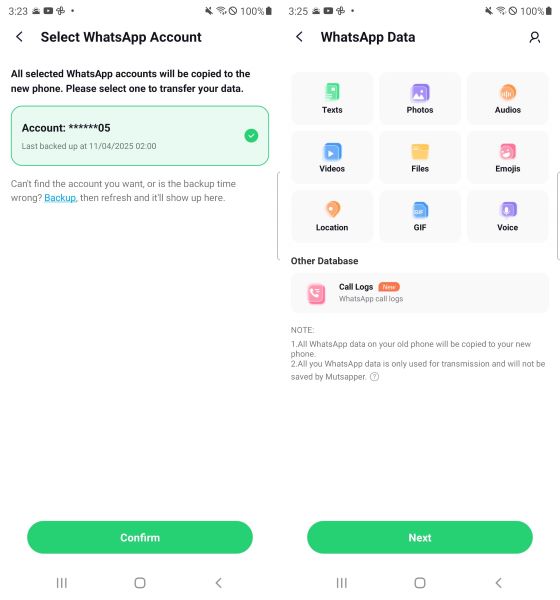
On the source phone, choose the WhatsApp account to transfer and tap "Confirm." Here, hit the "Next" button to migrate all the detected WhatsApp data.
Note: Mutsapper supports transferring data from multiple WhatsApp accounts.
Step 3. Prepare the Target Device for WhatsApp Transfer
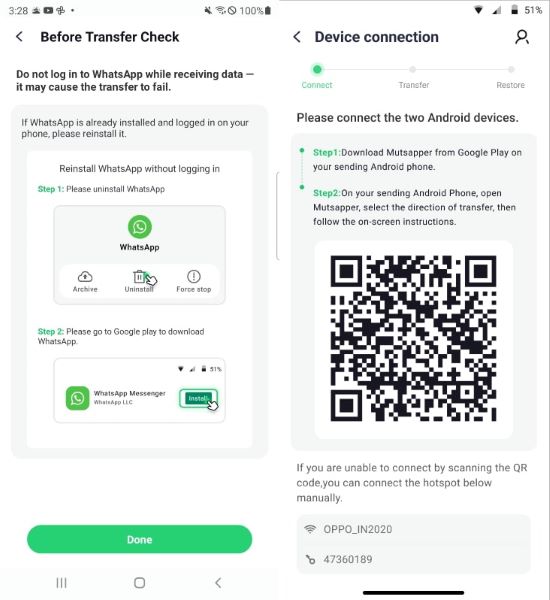
On the target phone, follow prompts to uninstall and reinstall WhatsApp. Once done, Mutsapper will show a QR code screen for connection.
Step 4. Connect Both Source & Target Devices
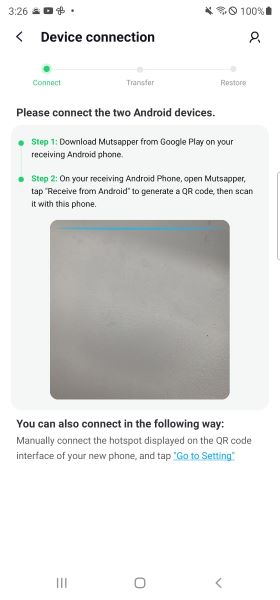
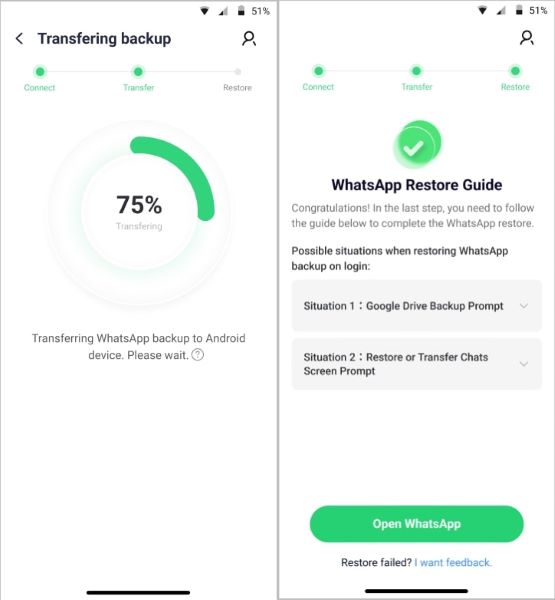
Scan the QR code on the target screen using the source phone. Mutsapper connects both devices and automatically starts the transfer.
Step 5. Complete the Android-to-Android WhatsApp Transfer
When finished, tap "Open WhatsApp" on the target phone. Log in to your account, and your chats and media will appear on the new device.
Conclusion
That’s it! With Mutsapper, moving your WhatsApp messages, media, and attachments from one Android phone to another is straightforward and secure. Follow the on-screen steps, and enjoy your conversations on your new device.