


 TL;DR:
The most effective way to save text messages from an iPhone to a computer is to use professional software like MobileTrans for bulk backups, sync via iCloud to the Mac Messages app for continuous desktop access, or capture screenshots to preserve exact visual layouts for legal evidence.
● The paid MobileTrans software is best suited for exporting thousands of messages along with their media attachments into universally readable HTML, CSV, or Text formats, as it handles high volumes without freezing and supports devices up to the iPhone 17.
● Relying on the Mac Messages app provides automatic backups but requires both your iPhone and Mac to operate under the exact same Apple ID with iCloud Messages sync enabled, allowing you to copy and paste threads directly from the desktop application.
● Manual methods like email forwarding or copy-pasting into a document are free but highly inefficient for long conversations and will result in the loss of original message formatting, unlike the screenshot-to-PDF method which perfectly retains delivery status and colors.
Ask AI for a summary
 ChatGPT
 Perplexity
 Gemini
 Claude
 Grok
Grok
Looking to move your iPhone text messages to your computer? If you're hoping to preserve meaningful chats, you're not alone—many iPhone users choose to back up their messages for safekeeping. This step-by-step guide on how to save text messages from iPhone to computer is here to help. It walks you through the simplest ways to export or backup your text messages from an iPhone to a PC.
Moving your iPhone messages to a PC keeps them safe. You can access old conversations anytime. This process helps when you upgrade to iPhone 17. Your precious messages won't get lost.
We will cover the best ways to export iPhone messages to a PC. Each method for saving text messages from an iPhone to a computer has simple steps.
In this article
Part 1: Top Reasons to Transfer Text Messages From iPhone to PC
There are many good reasons to export SMS messages from your iPhone to your computer. People transfer messages for different needs. Here are the main reasons why you should back up your iPhone conversations.
- Legal Evidence: Court cases often need text message proof.
- Business Records: Work conversations contain important details. Export iPhone messages to PC for business documentation.
- Memory Keeping: Special messages from loved ones deserve saving.
- Storage Space: Old messages take up iPhone space. Exporting SMS messages from an iPhone frees up storage.
- Device Switching: New iPhone setup is easier with backups. How to export text messages from iPhone to computer helps transitions.
- Accidental Deletion: Mistakes happen with message deletion. Backup prevents permanent loss of conversations.
- Organization: Computer storage offers better file management.
- Sharing: Family members might need message copies. Exporting iPhone messages to a PC makes sharing simple.
Part 2: Which is the Best Method to Save Messages from iPhone: Comparison Table
Not every method suits everyone. While some users prefer fast and straightforward options, others require comprehensive message backups. This comparison will help you find the most suitable approach to transfer your iPhone text messages to your computer.
| Method | Ease of Use | Cost | Speed | Format Quality | Best For |
| MobileTrans | Very Easy | Paid | Very Fast | Excellent | Complete backup needs |
| Screenshots to PDF | Easy | Free | Slow | Good | Small conversations |
| Mac Messages App | Medium | Free | Medium | Excellent | Mac users only |
| Forward to Email | Easy | Free | Slow | Fair | Individual messages |
| Copy and Paste | Medium | Free | Very Slow | Poor | Emergency backup |
Part 3: How to Save Messages from iPhone?
Moving your iPhone messages to a PC requires the right approach. Each method has different benefits. Some work faster than others. Choose based on your specific needs.
The best method depends on your situation. MobileTrans works for complete backups. Screenshots work for court evidence. Email forwarding works for single conversations. Pick what fits your goal.
Method 1: Use MobileTrans to Export Messages
MobileTrans is professional software for iPhone data transfer. The program specializes in moving data between devices safely. It exports all message types, including regular texts and iMessages. The software also saves photo and video attachments automatically. MobileTrans preserves message formatting and timestamps perfectly. Users get exact copies of their original conversations.
This tool handles large message volumes easily. Some people have thousands of messages to transfer. MobileTrans processes them all without crashing or freezing. The software exports conversations in readable formats like HTML and CSV. These formats work on any computer system.
MobileTrans is compatible with every iPhone model—even the newest iPhone 17. Frequent updates ensure it stays in sync with the latest iOS releases, offering seamless performance across devices.
When to use MobileTrans:
- You have thousands of messages to back up
- You need attachments and media files saved
- You want professional-quality exports




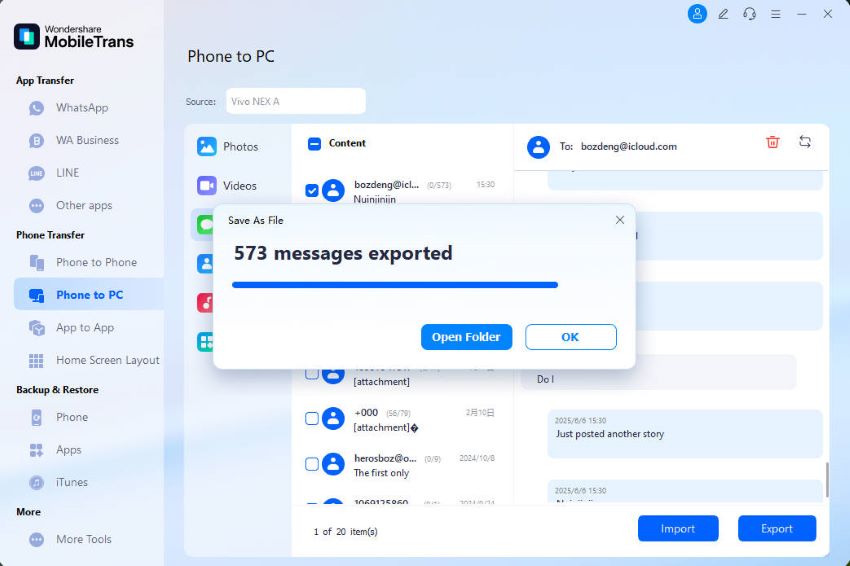
Step 1: Connect your iPhone with a USB cable. Launch MobileTrans. Navigate to Phone Transfer and select Phone to PC.
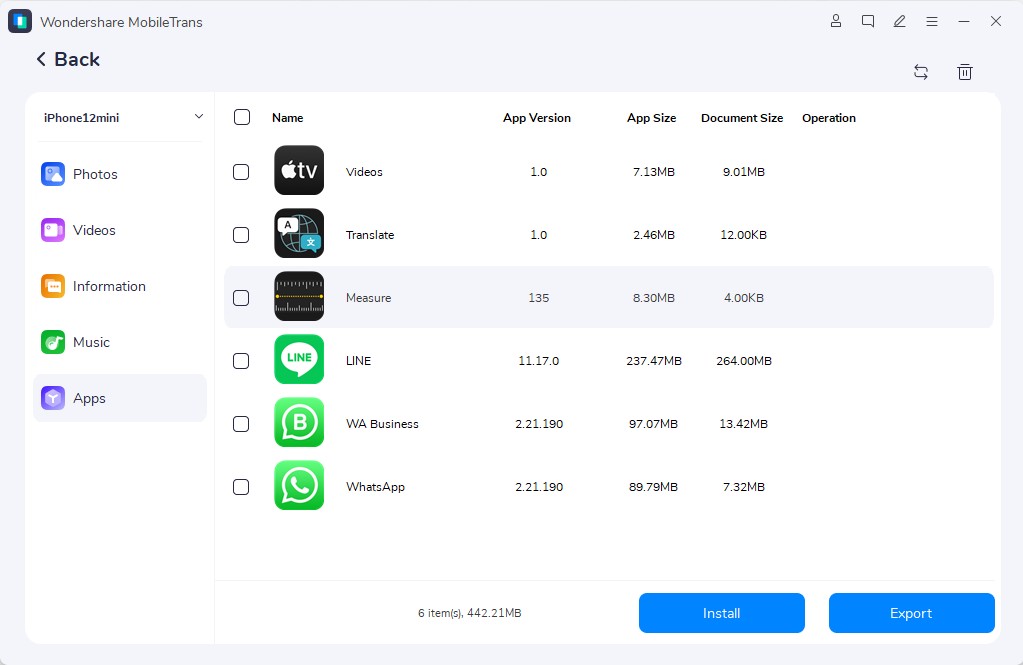
Step 2: Choose "Messages". Select specific conversations or export all messages.
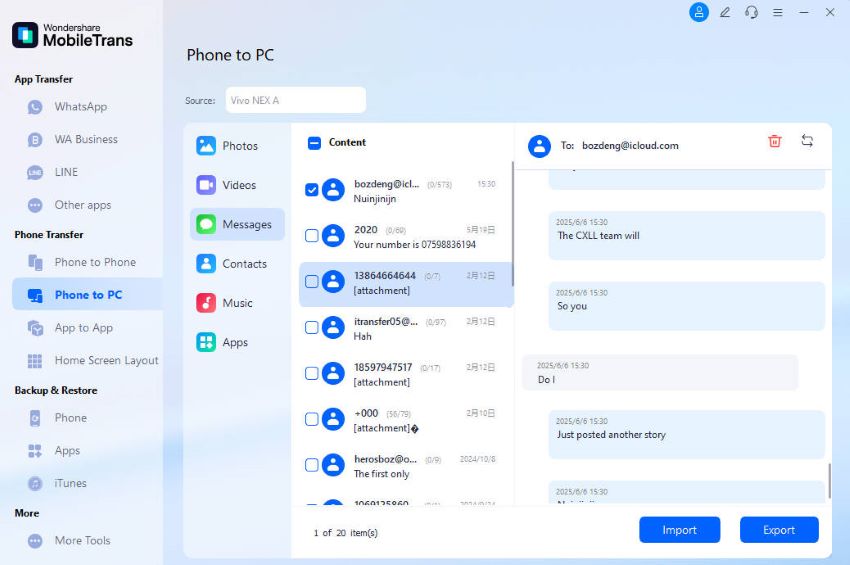
Step 3: Click on the Export button to save the messages in your preferred format: HTML, CSV, or Text.
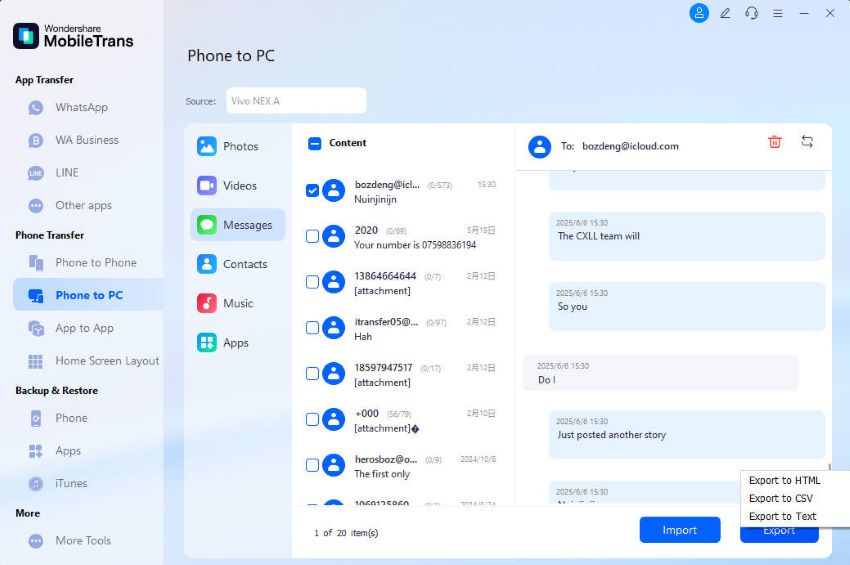
Step 4: The software saves messages to your chosen PC folder. Check the exported files to verify success.
Method 2: Take Screenshots and Convert to PDF
Screenshots capture the exact message appearance on your iPhone screen. This method shows conversations exactly as they look on your phone. Every emoji, image, and text bubble appears perfectly. Screenshots work great for legal documentation purposes. Courts accept screenshot evidence in many cases. The visual proof shows authentic conversation flow. PDF format preserves screenshots without quality loss.
Screenshots offer a free and straightforward way to save your messages. No extra software or paid subscriptions are needed—just a computer with basic PDF tools, which most systems already include. This method preserves the full context of your conversations, including sender names, timestamps, and delivery status. Plus, you can easily highlight key sections before converting the images into a PDF.
When to use Screenshots:
- You need visual proof for legal cases
- The conversation is relatively short
- You want the exact iPhone appearance preserved
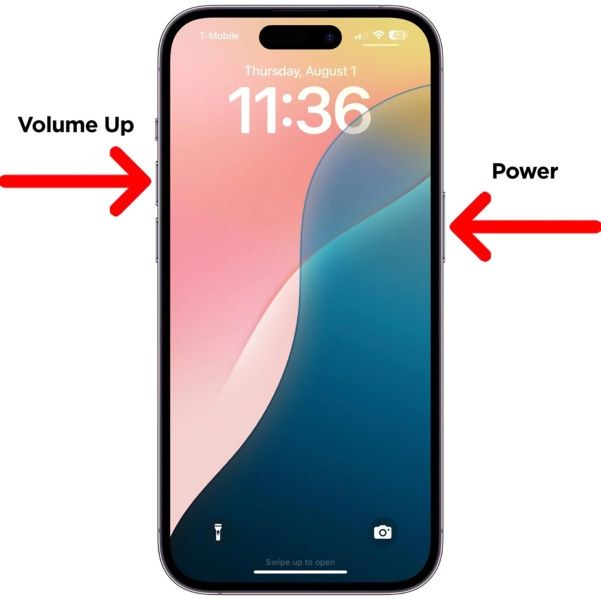
Step 1: Open the message conversation on iPhone. Take screenshots of each screen by pressing the volume up and power buttons together. Save all screenshots to your Photos app. Select multiple screenshots and share them with your computer via email or cloud.
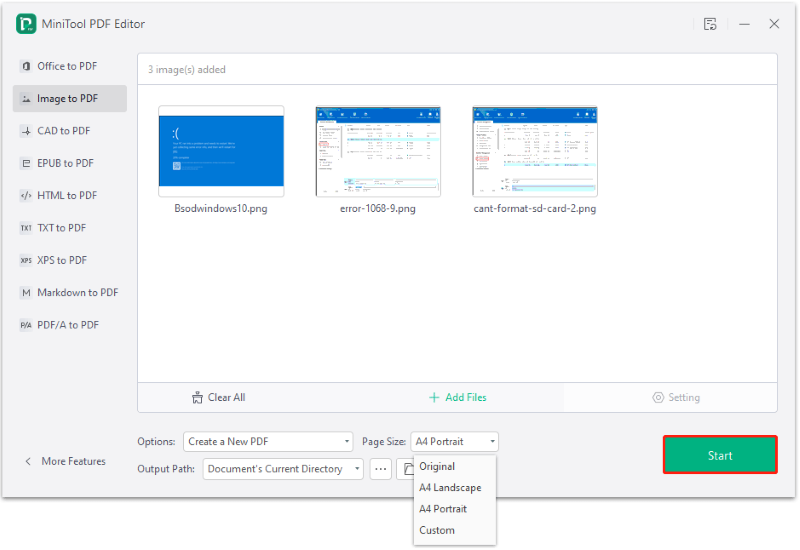
Step 2: Use PDF software to combine screenshots into one document. Arrange screenshots in conversation order. Save the final PDF file.
Method 3: Use a Mac to Export via Messages App
Mac computers sync with iPhone Messages automatically through iCloud. This creates a natural backup system without extra work. The Messages app on Mac shows your complete conversation history. All your iPhone messages appear on the Mac screen. This method requires both devices to use the same Apple ID. The sync process happens in the background continuously.
Mac export works seamlessly with iCloud Messages sync enabled. Messages appear exactly as they do on your iPhone. Colors, fonts, and formatting stay the same. The system updates new messages in real time. This method suits Mac users perfectly for regular backups. You can access old conversations anytime on your Mac. The computer provides better search tools than the iPhone.
When to use Mac Messages:
- You own a Mac computer
- iCloud Messages sync is enabled
- You want automatic message backup
Step 1: Enable Messages in iCloud on both iPhone and Mac. Open the Messages app on Mac and wait for sync completion. Select the conversation you want to export. Use Command+A to select all messages in the conversation thread.
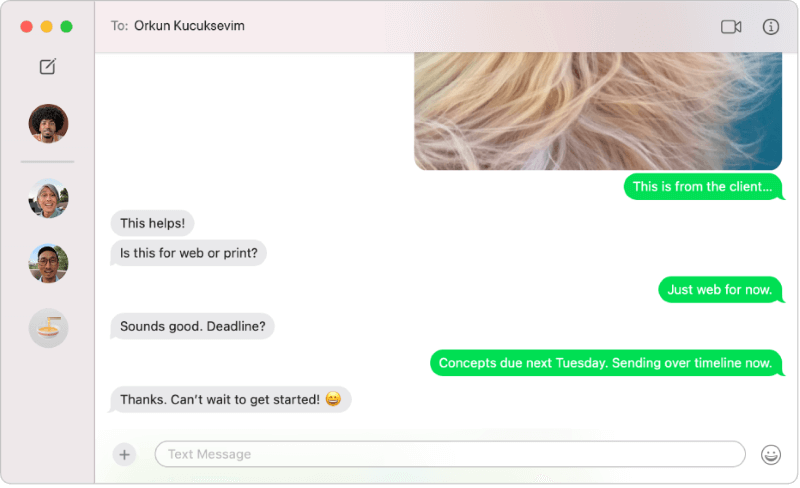
Step 2: Copy selected messages and paste them into TextEdit or Pages. Save the document with conversation details and date.
Method 4: Forward Messages to Email
Email forwarding works for individual important messages. You can forward text and media attachments. Email creates searchable message archives.
This method takes time for long conversations. Each message needs individual forwarding. Email provides cloud storage automatically.
When to use Email Forwarding:
- You need specific important messages saved
- You want cloud-based message storage
- You prefer an email organization system
Step 1: Open the message conversation on iPhone. Long-press the specific message you want to save. Tap "More" then select additional messages if needed. Tap the forward arrow icon in the bottom right.
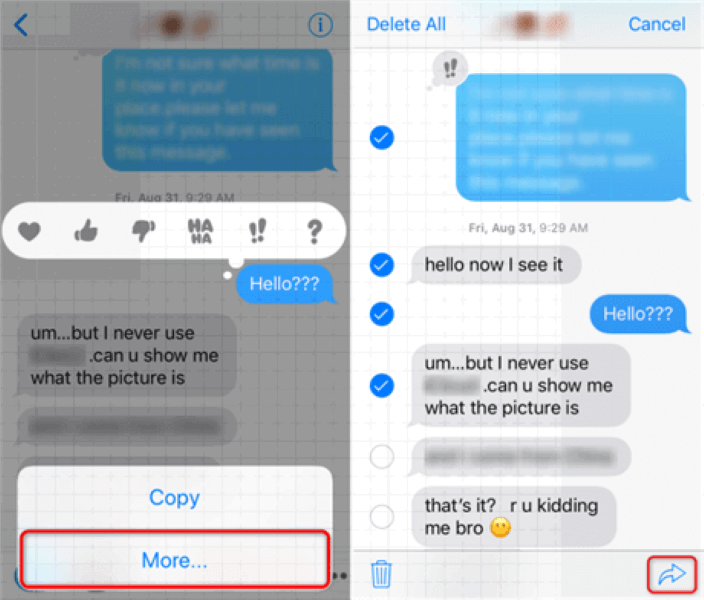
Step 2: Enter your email address and send. Check your email inbox and save messages to computer folders.
Method 5: Copy and Paste into a Document (Paste into Pages, Google Docs, or Notes)
Manual copy-paste works for short conversations. You can edit and organize content easily. Documents integrate with various platforms.
This method offers complete control over formatting. You can add notes and highlights. The process works with any document software.
When to use Copy-Paste:
- You need edited or formatted versions
- The conversation is very short
- You want a custom organization
Step 1: Select the text messages on iPhone by long-pressing and dragging. Copy the selected text using the copy option.
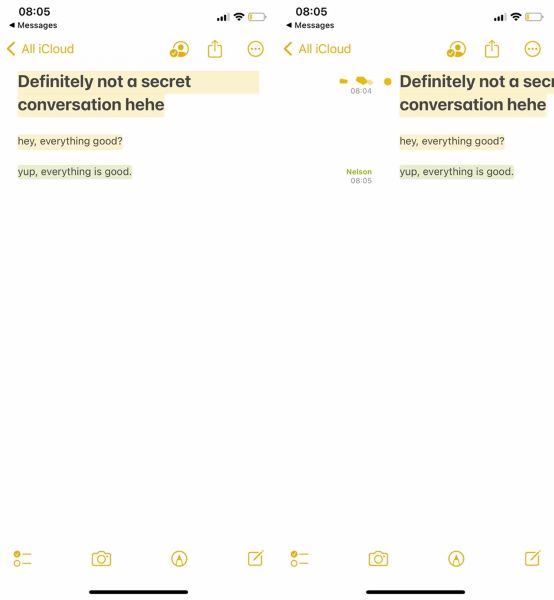
Step 2: Open Pages, Google Docs, or the Notes app. Create a new document and paste the copied messages. Format the document as needed. Add dates, names, and context. Save the document to your preferred location.
Part 4: Pro Tips: Transfer Text Messages from iPhone to PC
Smart preparation makes message transfer easier. These tips help avoid common problems. Following these suggestions saves time and prevents data loss.
- Regular Backup Schedule: Set monthly reminders to export iPhone messages to PC. Consistent backups prevent large data loss.
- Test Small Batches First: Try each method with a few messages before full export. This helps identify problems early.
- Organize by Date: Create folders by month or year when you back up iPhone text messages to a PC. Organization helps later searches.
- Include Contact Names: Add sender names when you export text messages from your iPhone to your computer. Names make conversations clearer.
- Backup Before Updates: Always export SMS messages from iPhone before iOS updates. Updates sometimes cause message loss.
- Multiple Format Storage: Save messages in different formats for safety. How to download text messages from iPhone to PC in various formats adds security.
- Cloud Storage Integration: Upload exported messages to cloud services. This creates additional backup layers for your data.
- Document Important Details: Add context notes when you save conversations. Include dates, locations, and relevant background information.
Conclusion
Learning how to save text messages from an iPhone to a computer protects your important conversations. Each method serves different needs and situations. MobileTrans offers professional results for complete backups. Screenshots work perfectly for legal documentation.
Choose the method that fits your specific requirements. Regular backups keep your messages safe from loss. Backing up iPhone text messages to a PC becomes easy with practice. Start with small conversations before tackling large projects. Your iPhone messages contain precious memories and important information that deserve proper protection.
FAQ
-
Q: Can I export text messages from iPhone to PC without software?
A: Yes, you can export SMS messages from an iPhone without paid software. Several free methods work well for this task. Screenshots convert conversations to PDF format easily. Mac computers sync iPhone messages automatically through iCloud. Email forwarding saves important messages to your inbox. The copy-paste method works for short conversations in documents. Each free method has limitations compared to professional software. Choose based on your message volume and quality needs. Free methods take more time but deliver acceptable results.
-
Q: How long does it take to back up iPhone text messages to a PC?
A: The time to back up iPhone text messages to a PC depends on several factors. Message volume affects transfer speed significantly. Professional software like MobileTrans completes thousands of messages in minutes. The screenshots method takes hours for long conversations. Email forwarding requires individual message processing. Your internet speed impacts cloud-based methods. USB connections transfer faster than wireless methods. Large media attachments slow down all processes. Plan extra time for your first backup attempt.
-
Q: Will exported messages lose their original formatting?
A: Message formatting preservation varies by export method used. Professional software maintains timestamps and sender information perfectly. Screenshots preserve the exact iPhone appearance, including colors and fonts. The Mac Messages app keeps the original conversation layout intact. Email forwarding loses some formatting but keeps essential content. The copy-paste method removes most original formatting elements. PDF exports maintain visual appearance better than text documents. Choose your method based on the formatting importance for your needs.










