



 TL;DR:
iPhone Handoff iPhone Duo enables you to share a single phone number across two iPhones running iOS 27 or later by automatically moving the active cellular connection to the unlocked device, though the line remains active on only one handset at a time.
● The setup strictly requires a companion eSIM and specific carrier support, which is currently limited to T-Mobile in the United States and Telekom in Germany, meaning standard eSIM compatibility from providers like AT&T or Verizon is insufficient.
● Number switching only migrates cellular services like calls and SMS, requiring users to rely on iCloud for continuous native Apple data syncing or utilize MobileTrans for one-time transfers of local files, media, and WhatsApp history without a factory reset.
● Physical SIM cards cannot be used directly and must be converted to an eligible eSIM prior to configuration, while device-specific items like your Apple Watch remain permanently paired to a single primary iPhone rather than following the active number.
Ask AI for a summary
 ChatGPT
 Perplexity
 Gemini
 Claude
 Grok
Grok
Using one phone number across two iPhones is now easier with iOS 27. iPhone Handoff iPhone Duo lets an eligible number switch between two supported iPhones, removing the need to move the SIM whenever you manually switch devices.
However, sharing a number does not mean everything moves between the two iPhones. The line stays active on one device at a time, while local photos, files, and WhatsApp data need separate syncing or transfer. This guide covers Handoff setup, carrier and eSIM requirements, data syncing, and transfer options for anything Handoff leaves behind.
In this article


Part 1. How to Set Up iPhone Handoff on iPhone Duo
Before setting up iPhone Handoff on iPhone Duo, make sure both iPhones, your Apple Account, and your carrier meet the requirements. Confirming compatibility beforehand helps prevent activation issues and ensures the shared-number setup works properly.
What You Need Before Setting Up iPhone Handoff
Before setting up iPhone Handoff to use same phone number on two iPhones, confirm that both devices and your cellular plan meet the required conditions. Apple's iPhone Handoff requirements state that your Apple Account, iCloud settings, eSIM, carrier support, and device software must be compatible. Check the following requirements before starting the setup:
| Requirement | What to Check |
| Two Supported iPhones Running iOS 27 or Later | Update both iPhones to iOS 27 or later before setting up iPhone Handoff. |
| Same Apple Account on Both iPhones | Sign in to both iPhones using the same Apple Account. |
| Both iPhones Connected to Wi-Fi | Make sure both iPhones are connected to Wi-Fi during setup. |
| Messages in iCloud Enabled | Turn on Messages in iCloud to keep iMessage, SMS, MMS, and RCS message history synchronized across both iPhones. |
| Same Apple Account for iMessage and FaceTime | Make sure iMessage and FaceTime use the same Apple Account on both iPhones. |
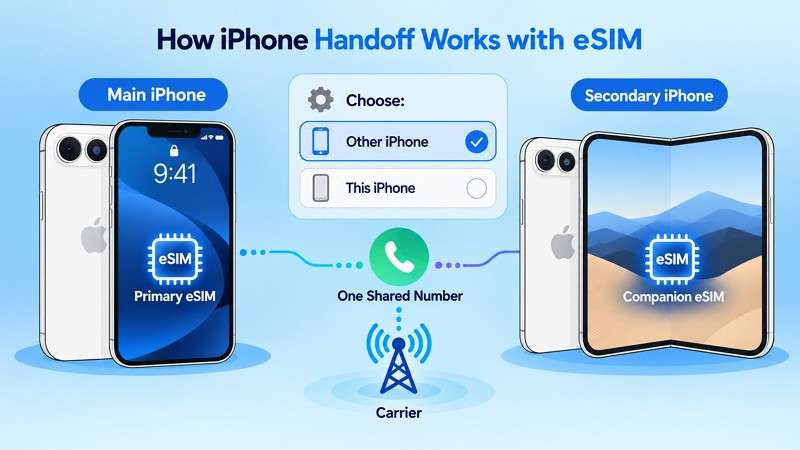
| Eligible eSIM | Keep the primary eSIM on the main iPhone. The secondary iPhone receives a companion eSIM associated with the same number. |
| Carrier Supports iPhone Handoff | Standard eSIM support alone is insufficient. Your carrier must support iPhone Handoff. Apple currently lists T-Mobile in the U.S. and Telekom in Germany, and carrier fees may apply. |
Set Up iPhone Handoff During iPhone Duo Setup
To use same phone number on two iPhones, enable iPhone Handoff during setup. During setup, you can choose which device will serve as your main iPhone and keep the main eSIM. Keep both iPhones nearby so you can respond to prompts on either device. Once everything is ready, follow these steps to set up iPhone Handoff:
Step 1. Follow the normal setup prompts until you reach the cellular setup screen.
Step 2. Select Use Number on This iPhone and Another > Continue > Other iPhone > Continue > Continue.
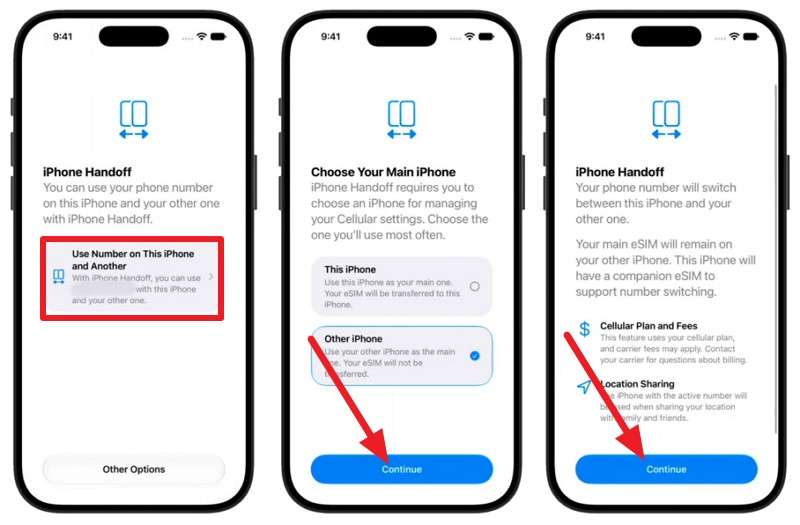
Step 3. Follow the remaining prompts on both devices to finish pairing and assign your main and companion eSIMs.
Set Up iPhone Handoff After iPhone Duo Is Already Set Up
You can also set up iPhone Handoff on iPhone Duo later if you skipped it during the initial setup. You can enable it in Cellular settings and choose which iPhone will be the main device. Keep both iPhones nearby throughout the process, then follow these steps to complete the Handoff setup:
Step 1. Place your iPhones side by side. Go to Settings > Cellular > Set Up Cellular.
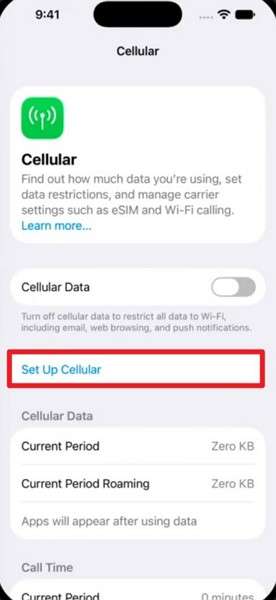
Step 2. Choose Use Number on This iPhone and Another > Select iPhone > Continue > Continue.
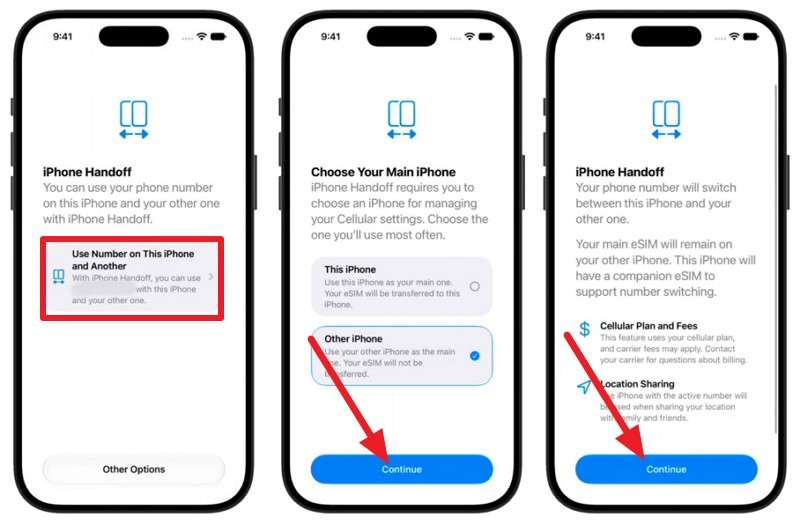
Note: Selecting This iPhone moves the main eSIM profile over to your brand-new device. Choosing Other iPhone keeps the primary line on your current handset instead.
Step 3. Confirm the setup prompts that appear on your current (main) iPhone.
How Does the Phone Number Switch After Setup?
Once the iPhone Handoff eSIM setup is complete, switching the number between your iPhones requires no manual eSIM transfer. Unlock the iPhone you want to use, and the shared number automatically switches to that device. Apple displays “Switched to this iPhone” to confirm that the change is complete.
Only one iPhone uses the shared number at a time. As you switch devices, calls, voicemail, iMessage, RCS, SMS/MMS, and Find My location follow the active iPhone. Other supported information stored in iCloud continues syncing independently across both devices.
Part 2. iPhone Handoff Carrier Support, eSIM, and Common Limitations
iPhone Handoff carrier support is essential because standard eSIM compatibility alone does not make the feature available. Your carrier must specifically support iPhone Handoff and provide the companion eSIM required for number switching between the two iPhones.
Which Carriers Support iPhone Handoff?
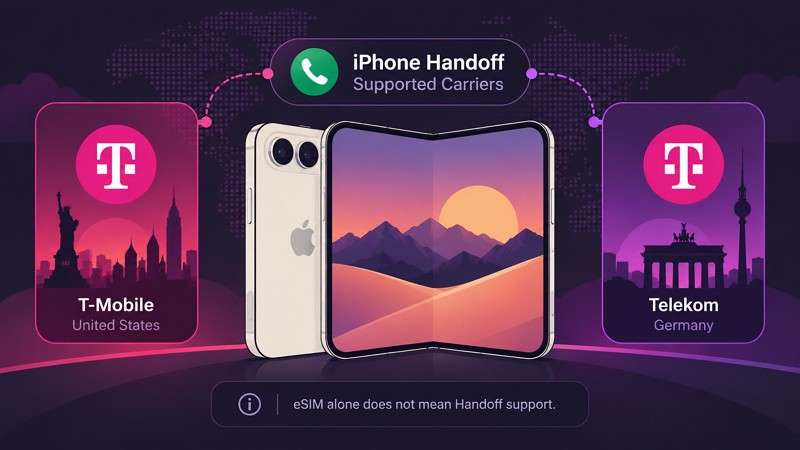
Apple currently lists two carriers that support iPhone Handoff:
- T-Mobile - United States
- Telekom - Germany
This limited carrier availability means eSIM support alone is not enough to use iPhone Handoff. Your carrier must specifically offer the feature and support the companion eSIM setup. If your carrier isn't listed, confirm iPhone Handoff availability before attempting the setup.
What About AT&T, Verizon, and Other Carriers?
AT&T and Verizon support eSIM on compatible iPhones, but Apple does not currently list either carrier as supporting iPhone Handoff. Don't confuse eSIM support with Handoff compatibility, which requires specific carrier support to share a number between two iPhones.
So, if iPhone Handoff not working occurs with AT&T, Verizon, or another unlisted carrier, check Apple’s current carrier information or contact your provider first. This helps confirm whether the issue is carrier availability rather than a problem with your iPhone or eSIM settings.
Can iPhone Handoff Work with a Physical SIM?
iPhone Handoff cannot use a physical SIM directly for its shared-number setup. The phone number must be associated with an eligible eSIM from a carrier that supports iPhone Handoff. If your number currently uses a physical SIM, your carrier must first support moving or converting that line to eSIM before you can configure Handoff.
Once the number is available as an eligible eSIM, you can choose which iPhone will remain the main device. The main iPhone keeps the primary eSIM, while the other receives a companion eSIM for the same number. After setup, you can switch the number between the two iPhones without physically moving a SIM card.
Can You Use Dual SIM with iPhone Handoff?
Yes. Apple confirms that iPhone Handoff supports Dual SIM when both eSIMs come from carriers that support the feature. Dual SIM normally lets one iPhone use two phone numbers, while Handoff makes both eligible numbers available across the paired iPhones.
However, you must configure Handoff for each iPhone eSIM separately. You can set up Handoff for one number during initial iPhone setup, then add the second through Cellular settings afterward. Once both numbers are configured, both eSIMs switch together when you switch to the other iPhone.
Why Is iPhone Handoff Not Working?
If iPhone Handoff not working is an issue you encounter, several setup or compatibility issues may be responsible. The table below covers the common causes, why they affect Handoff, and what to check for each one:
| Check | Why It Matters | What to Do |
| Confirm iPhone Handoff Carrier Support | Standard eSIM support does not guarantee iPhone Handoff support. | Check Apple’s supported carrier list or confirm eligibility with your carrier. |
| Check iOS on Both iPhones | Both iPhones need iOS 27 or later to use the feature. | Go to Settings > General > Software Update and update both devices if needed. |
| Check the Handoff eSIM Setup | Removing or changing an eSIM can disrupt the shared number setup. | Open Settings > Cellular and confirm the required eSIM is available on each iPhone. |
| Restart and Check Carrier Updates | Outdated carrier settings can interfere with cellular activation. | Restart both iPhones and install any available carrier settings updates. |
| Run the Cellular Setup Again | Complete the shared-number setup again through Cellular settings. | Go to Settings > Cellular > Set Up Cellular and look for Use Number on This iPhone and Another. |
Part 3. What Does iPhone Handoff Sync Between Two iPhones?
Once you use same phone number on two iPhones, each type of data or service behaves differently. Some follow the active iPhone, others sync through iCloud, while local and third-party data may require extra steps. The table below shows what happens to each data type and whether any extra action is required:
| Data or Service | How It Works Between the Two iPhones | Extra Action Needed |
| Phone Calls | Automatically moves to the iPhone currently in use | None |
| Voicemail | Moves to the iPhone currently in use | None |
| iMessage | Moves with the active iPhone, while message history stays synced | Keep Messages in iCloud enabled |
| SMS and MMS | Move to the iPhone currently in use | Keep Messages in iCloud enabled for message history |
| RCS Messages | Move to the iPhone currently in use | Keep Messages in iCloud enabled for message history |
| Find My Location | Automatically follows the iPhone currently in use | None |
| Contacts | Sync across both iPhones through iCloud | Enable Contacts in iCloud on both iPhones |
| Photos and Videos | Sync across both iPhones when stored in iCloud Photos | Enable iCloud Photos on both iPhones |
| Notes | Sync across both iPhones through iCloud | Enable Notes in iCloud |
| Calendars | Sync across both iPhones through iCloud | Enable iCloud Calendar syncing |
| iCloud Drive Files | Stay available across both iPhones through iCloud Drive | Enable iCloud Drive on both devices |
| WhatsApp Chats | Follow WhatsApp’s own multi-device, sync, or transfer behavior | Use WhatsApp’s supported method as required |
| Local Photos and Videos | Do not automatically move if they are outside iCloud Photos | Sync through iCloud Photos or transfer separately |
| Local Files and Downloads | Do not automatically transfer through iPhone Handoff | Move separately or store them in iCloud Drive |
| Third-Party App Data | Availability depends on each app’s own syncing behavior | Sign in, authenticate, sync, or transfer as required |
Third-Party Apps Do Not Follow One Universal Rule
After setting up iPhone Handoff on iPhone Duo, third-party apps continue to follow their own account and syncing rules. Some apps may sign you out on one iPhone when you use them on the other, while others may need time to sync. Banking and security-sensitive apps can also require additional verification before you can use them on the second iPhone.
Apple Watch, Wallet, and Other Device-Specific Items
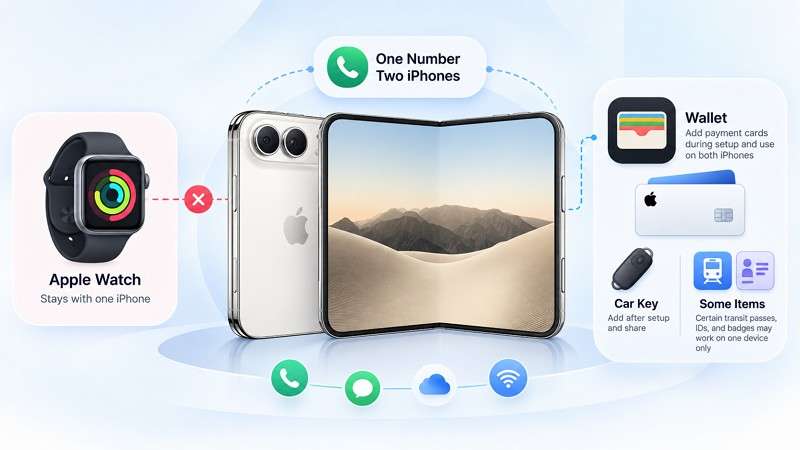
The iPhone Handoff eSIM switches the phone number between two iPhones, but your Apple Watch remains paired with one device. Apple recommends pairing it with the iPhone you use most often.
Wallet works differently. Apple lets you add payment cards during Handoff setup for use on both iPhones, while you can add a car key afterward. However, certain transit passes, IDs, and corporate badges may be limited to one device at a time.
When a Separate Data Transfer Is Still Needed
iPhone Handoff carrier support determines whether your number can switch between the two iPhones, but Handoff does not migrate local data. Since the second iPhone may already be set up, starting over with Quick Start may not be practical. Instead, MobileTrans can transfer supported photos, videos, contacts, files, and WhatsApp data between the iPhones without requiring a factory reset.
Part 4. Supplement iPhone Handoff with MobileTrans for WhatsApp, Photos, and Files
Once iPhone Handoff on iPhone Duo handles the shared phone number, you still need to move data that doesn't sync through iCloud separately. MobileTrans can handle this one-time transfer for supported photos, videos, contacts, files, and other local data. Its App Transfer feature also covers WhatsApp history between iPhones. This makes it useful for keeping both iPhones ready without relying entirely on iCloud.
The tool can move up to 18 data types directly between Android devices, iPhones, or across platforms without requiring a factory reset. It also supports transfers for WhatsApp Business, LINE, Viber, and Kik, depending on the platform. MobileTrans can also move supported iCloud data, including contacts, notes, and calendar events, to Android without downloading each item individually.




Transfer Data from an Older iPhone to iPhone Duo with MobileTrans
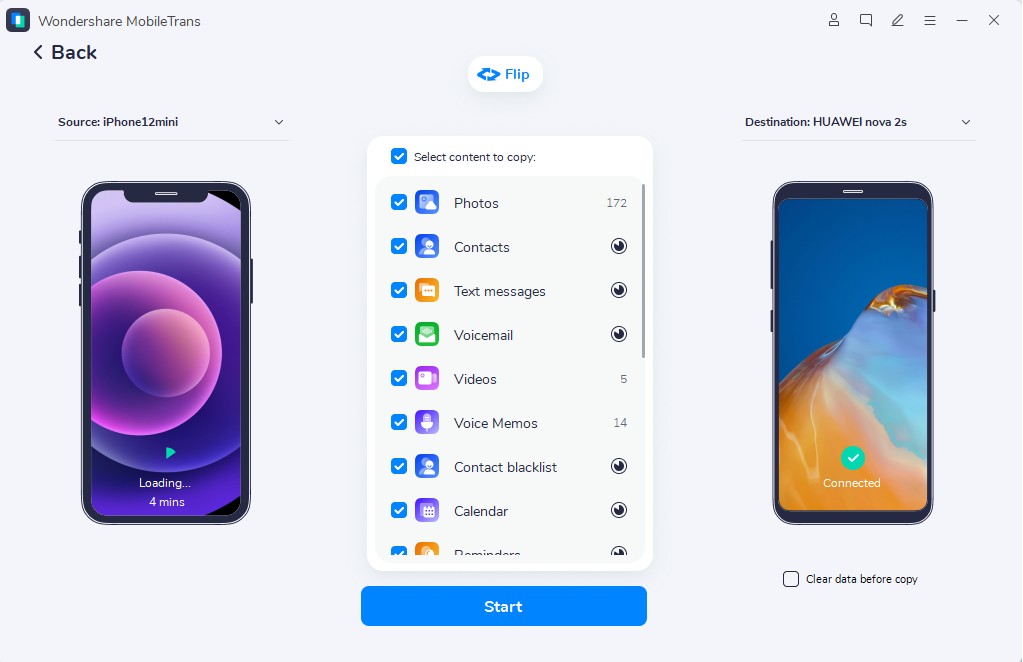
Step 1. Choose Phone Transfer > Phone to Phone > Connect the old iPhone and iPhone Duo.

Step 2. Select the data to transfer > Start > Wait for the transfer to your iPhone Duo to complete.
Transfer WhatsApp Between the Older iPhone and iPhone Duo
Step 1. Open App Transfer > WhatsApp > Select Transfer or Transfer & Merge.
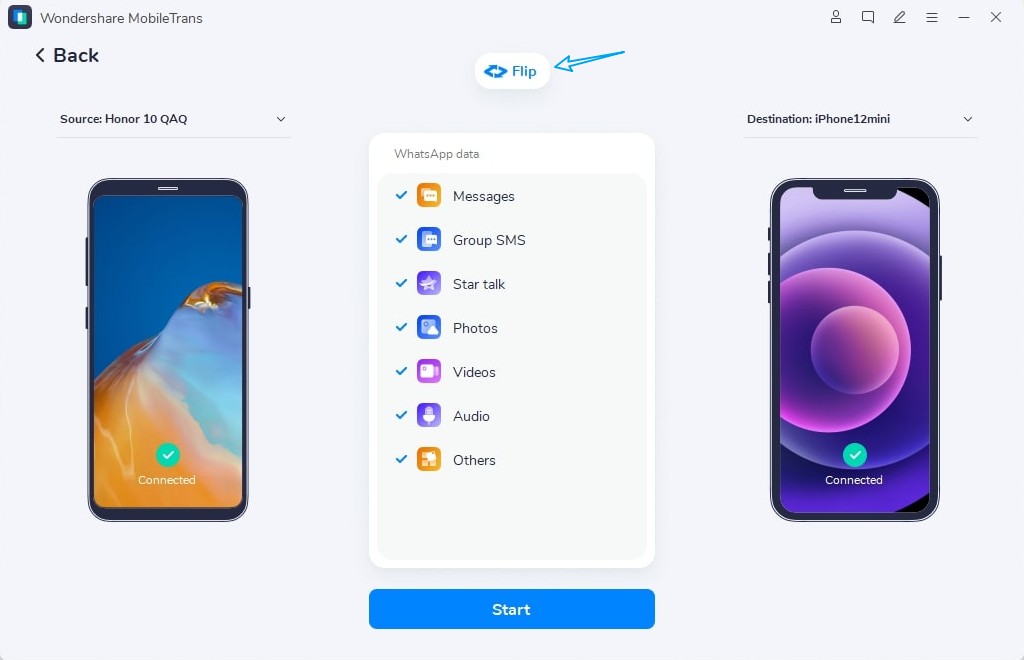
Step 2. Connect your old iPhone and iPhone Duo, follow the on-screen instructions, and complete the required setup checks.
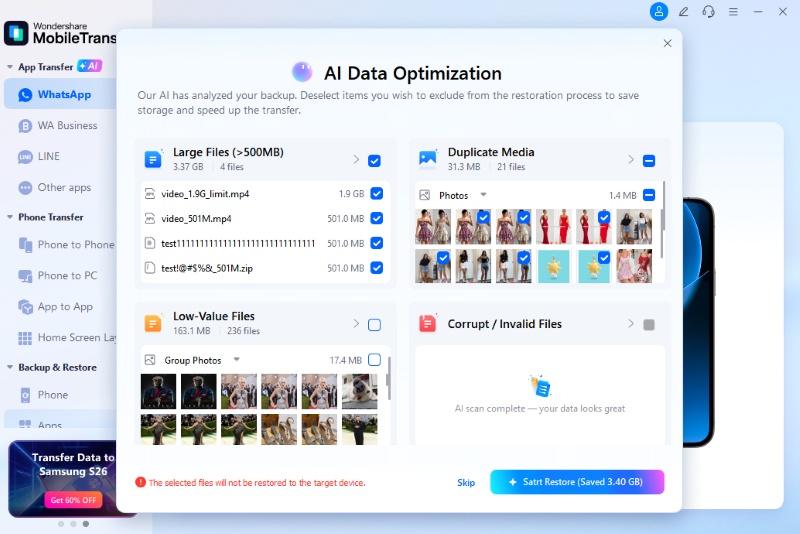
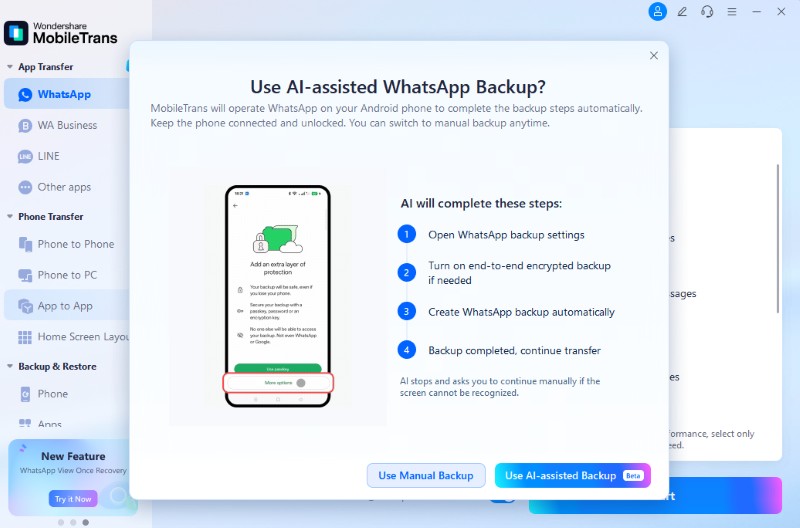
Step 3. Choose AI-Assisted Backup, then let MobileTrans complete the WhatsApp backup process.
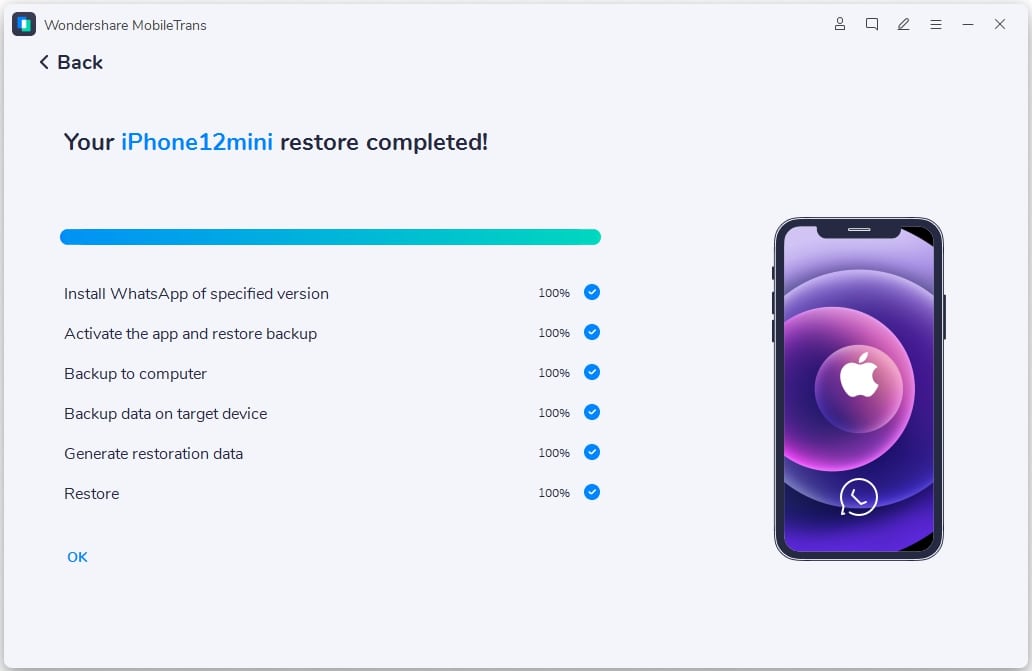
Step 4. WhatsApp chats will automatically restore to iPhone Duo. Choose Restore Attachments Now or Restore Later for media and attachments.
When to Use iPhone Handoff, iCloud, or MobileTrans
If you want to use same phone number on two iPhones while keeping your data accessible, each option serves a different purpose. The table below compares iPhone Handoff, iCloud, and MobileTrans to help you choose the right solution.
| Tool | Best For | What It Handles |
| iPhone Handoff | Sharing one phone number | Switches the active cellular line between two supported iPhones. |
| iCloud | Ongoing data syncing | Keeps supported data, including contacts, photos, notes, calendars, and iCloud Drive files, updated across both iPhones. |
| MobileTrans | One-time data transfer | Transfers supported data, including WhatsApp, photos, videos, contacts, and other device content between iPhones. |
Conclusion
iPhone Handoff iPhone Duo makes it easier to use one cellular number across two supported iPhones, but it does not move all your data. iCloud can keep Apple data synced, while local files and WhatsApp data may need a separate transfer.
For an iPhone that is already set up, MobileTrans can fill this gap without requiring a factory reset. Check carrier support, complete the Handoff setup, and transfer any remaining data to keep both iPhones ready to use.



FAQ
-
Can I use the same phone number on two iPhones at the same time?
Not at the same time. iPhone Handoff lets you use the same phone number on two iPhones, but the number remains active on only one device at a time. Unlocking the other iPhone switches the number and supported cellular services to that device. -
Which carriers currently support iPhone Handoff?
Apple currently lists T-Mobile in the U.S. and Telekom in Germany as carriers supporting iPhone Handoff. Since standard eSIM support does not guarantee Handoff compatibility, check Apple’s latest carrier information or confirm availability with your provider. -
Does iPhone Handoff require only eSIM?
Yes. iPhone Handoff requires an eligible eSIM from a supported carrier. The main iPhone keeps the primary eSIM, while the other iPhone receives a companion eSIM for number switching. A physical SIM can't participate directly in the Handoff setup. -
Why is iPhone Handoff not working on my second iPhone?
Carrier support, eSIM setup, or device requirements may prevent iPhone Handoff from working. Confirm your carrier supports Handoff and that both iPhones run iOS 27 or later. Check the eSIM setup and install any available carrier settings updates before trying again.










