

![How to Fix Move to iOS Stuck on iPhone 18 Pro Issues [Top Ways]](https://mobiletrans.wondershare.com/images/images2026/move-to-ios-stuck-iphone-18-pro-1.jpg)

 TL;DR:
A "Move to iOS" transfer stuck on an iPhone 18 Pro, particularly at the "1 minute remaining" or "Preparing" stages, is usually caused by the iPhone silently unpacking large media libraries rather than a true failure, meaning you should keep both devices untouched until the iPhone's loading bar completely finishes.
● If the connection completely fails, disable Mobile Data and Smart Network Switching on the Android device to prevent Wi-Fi interference, or connect both phones directly with a USB-C cable to bypass wireless dropouts.
● Do not cancel the migration halfway through, as Move to iOS cannot resume incomplete transfers, which will force you to erase all content and settings on the iPhone 18 Pro to access the setup screen and retry.
● If repeated attempts stall, bypass the app using the built-in Transfer Without App QR code method (strictly limited to devices running Android 17 or later) or use MobileTrans via a computer to selectively migrate data without relying on the iOS setup window.
Ask AI for a summary
 ChatGPT
 Perplexity
 Gemini
 Claude
 Grok
Grok
A Move to iOS stuck on iPhone 18 Pro screen does not always mean the transfer has failed. Large photo, video, or WhatsApp libraries can slow migration, while connection issues, limited storage, and interruptions may stop progress entirely.
Knowing the difference between a slow transfer and a genuine failure can prevent unnecessary restarts. This guide explains the common causes and provides 8 practical fixes, starting with the least disruptive solutions.
In this article


Part 1. Is Move to iOS Really Stuck or Just Taking a Long Time?
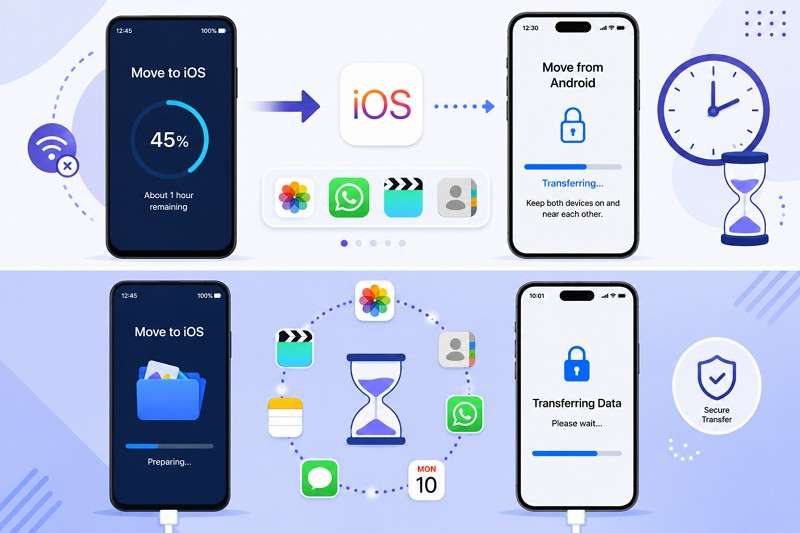
Large photo libraries and WhatsApp media can make data migration take considerably longer. Apple advises keeping both devices connected and untouched until the iPhone's loading bar finishes. Patience is especially important when you're dealing with a frustrating “Move to iOS taking forever on iPhone 18 Pro” situation.
How Long Does Move to iOS Normally Take?
Transfer time varies mainly with the amount and type of content being moved. According to Apple, large photos, videos, and other media libraries can take longer to finish. Rather than relying on a fixed time limit, monitor the progress bar and keep both devices connected and undisturbed. This approach helps you determine whether a Move to iOS stuck on preparing screen needs more time.
Signs the Transfer is Actually Stuck
Use the on-screen progress to decide whether the transfer needs more time or troubleshooting. Avoid restarting simply because the estimate reaches zero or remains at one minute. Apple specifically warns that opening another app or receiving a call on Android before completion can prevent content from transferring.
| Transfer Status | What It Means | Wait or Restart? |
| Progress Bar Has Not Moved for a Long Time | A large file or content library may still be transferring or processing. | Keep waiting if both devices remain connected. Restart if the transfer clearly fails. |
| Time Remaining Keeps Increasing | Transfer speed may fluctuate because of the connection or the amount of content. | Keep both phones close, connected, and untouched. |
| Stuck on Preparing | Move to iOS may still be preparing and calculating the content selected for transfer. | Give the preparation more time before troubleshooting. |
| Stuck on Transferring | The transfer may be progressing slowly or experiencing a connection problem. | Keep waiting if progress continues. Restart after a confirmed failure. |
| Stuck at 1 Minute Remaining | The transfer may still be completing even though the estimate appears unchanged. | Keep both devices connected until the iPhone loading bar finishes. |
| Android Disconnects from the iPhone | The connection required for Move to iOS may have been interrupted. | Restart both devices and retry if the transfer stops. |
Part 2. Why Move to iOS Gets Stuck on iPhone 18 Pro
Before trying any fix, review the table below to understand the common causes behind a “Move to iOS stuck on 1 minute on iPhone 18 Pro” situation and what each can trigger.
| Cause | What Can Happen |
| Large Media Files | Large photo, video, or WhatsApp libraries can make the transfer take considerably longer. |
| Unstable Wi-Fi | Connection interruptions can disrupt or stop the migration process. |
| Mobile Data | Cellular connectivity on Android can interfere with the temporary connection used for migration. |
| Insufficient Storage | Selected Android content may exceed the available storage capacity on the iPhone. |
| App Interruptions | Calls or switching to another Android app can prevent content from transferring successfully. |
| Outdated Software | Older software or app versions may cause compatibility or transfer issues. |
| Low Battery | Running out of power can interrupt a lengthy migration before it finishes. |
Part 3. 8 Fixes for Move to iOS Stuck or Taking Forever on iPhone 18 Pro
To fix the Move to iOS stuck iPhone 18 Pro screen, this section offers you 8 practical fixes, each divided into 3 categories.
1. Quick Fixes
Fix 1. Wait Before Canceling a Large Transfer
A static progress indicator does not always mean the transfer has failed, because processing may continue without visible progress. Give the migration more time before canceling, especially when moving a large amount of data. If you stop the transfer, Move to iOS cannot resume from the same point, so you may need to restart the migration from the beginning.
Fix 2. Restart Both Phones and Start Again
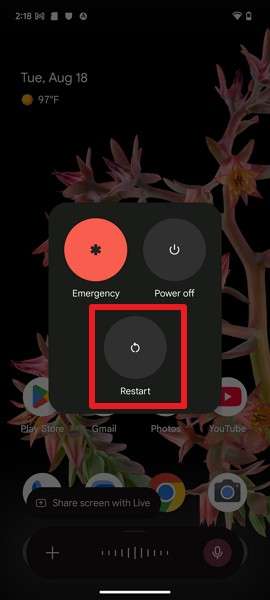
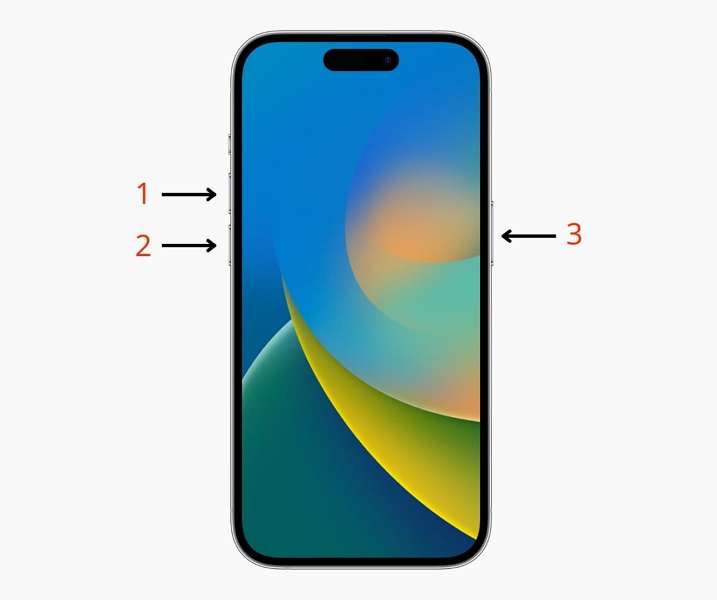
If the Move to iOS connection drops completely, restarting both devices can clear the interrupted session before you try again. Use the steps below to restart Android and force restart the iPhone. Afterward, retry the transfer to see whether the "Move to iOS taking iPhone 18 Pro forever" issue is resolved.
Restart Android
Instructions. Press the Power > Volume Up buttons on Pixel > Select Restart.
Force Restart iPhone
Instructions. Quickly press Volume Up, then Volume Down > Hold the Side button > Release it when the Apple logo appears.
Fix 3. Update Move to iOS on Android and iOS Version
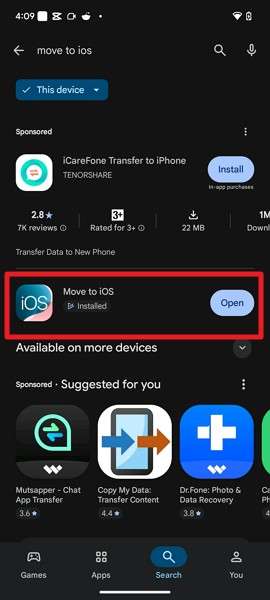
Updating Move to iOS and the iOS version can resolve software-related compatibility or loading issues that interfere with migration. Newer versions may improve transfer stability and address known bugs before you try again. Follow the update steps below, then retry the migration to see whether the “Move to iOS stuck on preparing” issue continues.
Update Move to iOS
Instructions. Open the Google Play Store, search for Move to iOS, and tap Update if available.
Update iOS Version
Note: If your iPhone freezes during the data migration software update screen, finish setting up the iPhone without transferring data first.
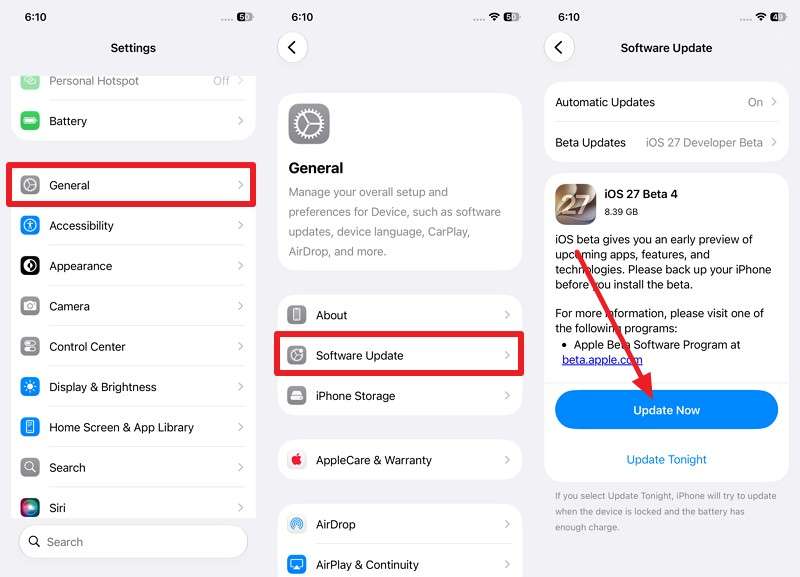
Step 1. Go to Settings > General > Software Update > Update Now.
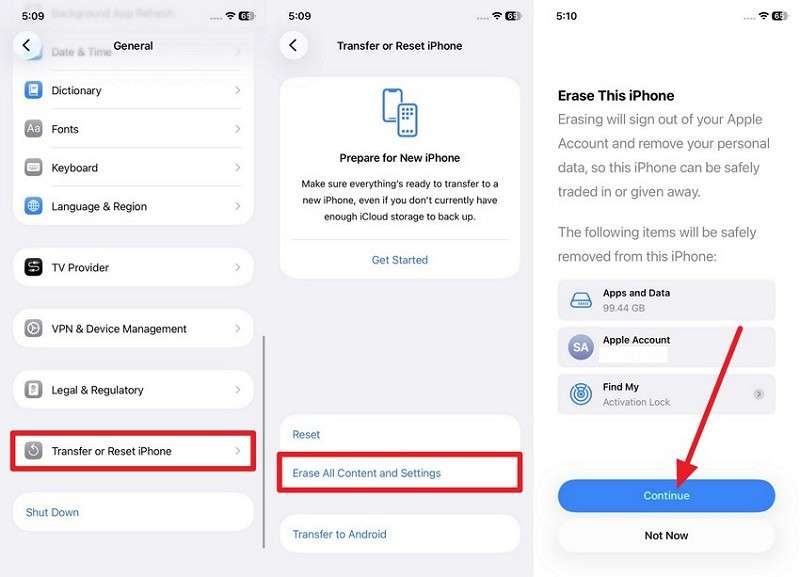
Step 2. Erase the iPhone by going to Settings > General > Transfer or Reset iPhone > Erase All Content and Settings > Continue.
Step 3. Run Move to iOS again on a matching software version.
2. Connection Fixes
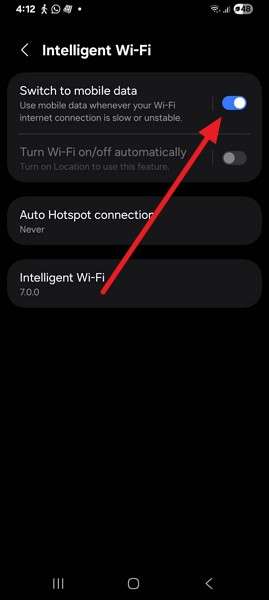
Fix 4. Turn Off Mobile Data and Smart Network Switching on Android
Apple specifically recommends turning off cellular data and settings that may affect the Wi-Fi connection on Android. Doing so helps the phone maintain the temporary network used by Move to iOS during migration. Follow the steps below before retrying to reduce connection interruptions behind a “Move to iOS stuck on 1 minute iPhone 18 Pro” issue.
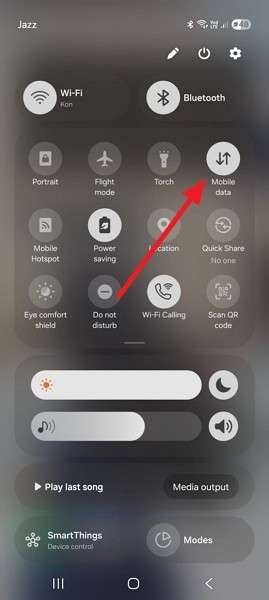
Turn Off Mobile Data
Instructions. Access the Quick Settings panel > Tap Mobile Data > Turn it Off.
Turn Off Smart Network Switching (Samsung)
Step 1. Go to Settings > Connections > Wi-Fi > Three Dots > Intelligent Wi-Fi.
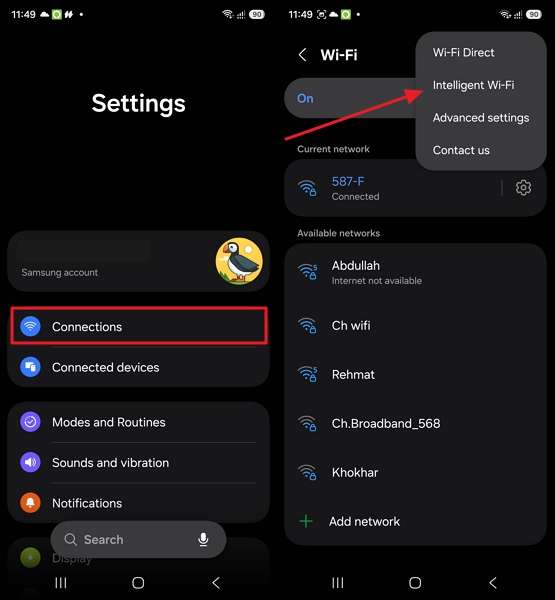
Step 2. Locate Switch to Mobile Data and turn it off.
Fix 5. Use a Wired Android-to-iPhone Transfer
A direct cable connection can reduce wireless interruptions during Move to iOS and may also speed up the transfer. Apple supports connecting compatible Android and iPhone devices directly with a USB-C cable during migration. To retry a Move to iOS stuck on iPhone 18 Pro transfer using a wired connection, follow the steps below:
Step 1. On iPhone, tap From Android > Transfer with App. Connect both phones with a USB-C cable, then open Move to iOS on Android and grant the required permissions.
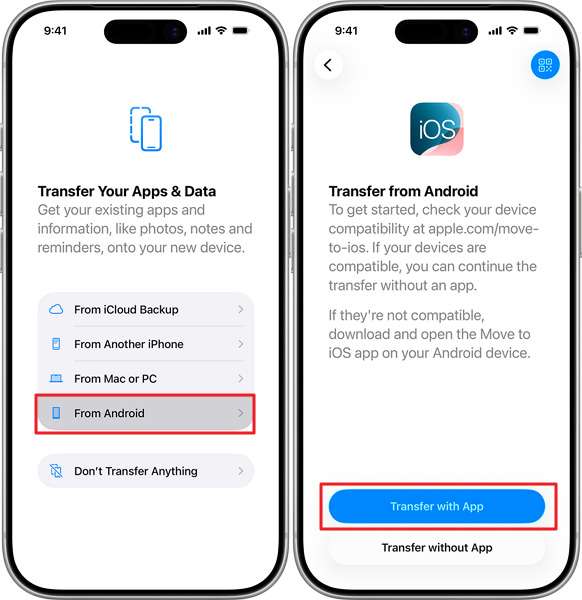
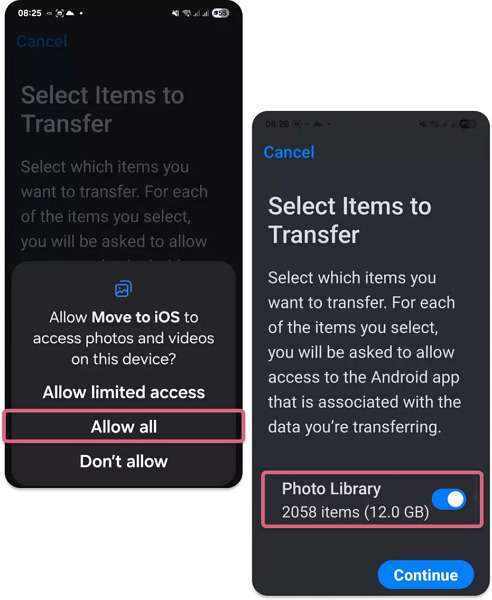
Step 2. Tap Continue on iPhone > Enter the displayed code on Android > Give required permissions > Select the data you want to transfer > Tap Continue to begin the wired transfer.
Fix 6. Keep Both Phones Plugged In and Move to iOS Open
Keep Move to iOS on-screen on the Android device throughout the transfer, as switching to another app can interrupt migration. Connect both phones to power if possible to avoid battery-related interruptions. Prevent incoming calls and leave the Android device untouched until the iPhone loading bar finishes, especially during a "Move to iOS taking iPhone 18 Pro" situation forever.
3. Storage and Transfer Fixes
Fix 7. Check iPhone Storage and Reduce the Data Being Transferred
If the selected Android content exceeds the iPhone’s available storage, Move to iOS may not complete the transfer successfully. Checking capacity and reducing the amount of selected data can help prevent storage-related failures. Follow the steps below before retrying a “Move to iOS stuck on the 1 minute iPhone 18 Pro” transfer:
Step 1. Check iPhone storage under Settings > General > iPhone Storage.
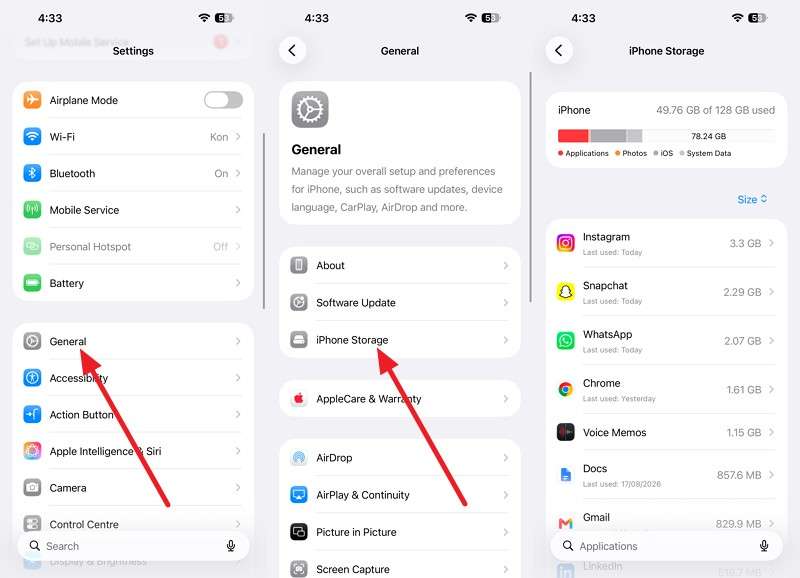
Step 2. If space is insufficient, remove unnecessary large files from the Android device or move them to a computer first.
Step 3. In Move to iOS, return to the content-selection screen and transfer only the data you need.
Fix 8. Erase the Incomplete iPhone Setup and Retry Move to iOS
Erasing the iPhone removes the incomplete transfer and lets you start Move to iOS again during setup. Use this as a final fix for a persistent Move to iOS stuck on iPhone 18 Pro issue after trying the earlier solutions. Since erasing removes existing content and settings from the iPhone, back up anything important first, then follow these steps:
Step 1. On the iPhone, open Settings > General > Transfer or Reset iPhone > Tap Erase All Content and Settings > Continue.
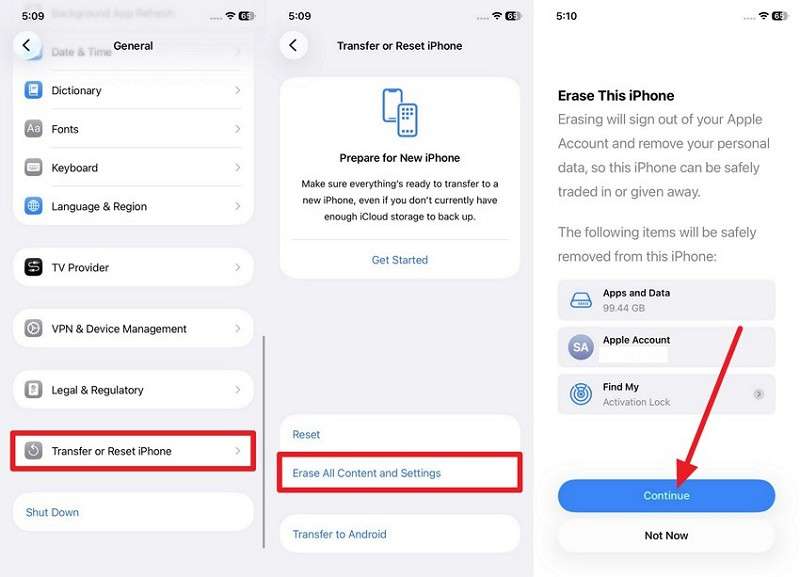
Step 2. Work through setup again to Transfer Your Apps & Data and restart the migration.
Part 4. Fix Move to iOS Based on Where It Gets Stuck
A Move to iOS stuck on the Preparing step may require different troubleshooting than a transfer that stalls later. Use the table below to identify where the migration stops and which fix to try next.
| Stuck Point | Likely Cause | Go Straight To |
| Preparing | Move to iOS may still be preparing a large library before transferring it. | Fix 1, then Fix 7 if the selected content is too large. |
| Connecting | The temporary Wi-Fi connection may not establish correctly, or Android network settings may interfere. | Fix 4, then Fix 2 if the devices still cannot connect. |
| Calculating Time Remaining | Transfer speed may be fluctuating while Move to iOS calculates the remaining time. | Fix 1, while keeping both phones nearby and connected to power. |
| 1 Minute Remaining | The transfer may still be completing even though the displayed estimate appears unchanged. | Fix 1 and wait until the iPhone loading bar finishes. |
| Transferring WhatsApp | A large WhatsApp message and media library can considerably increase the transfer time. | Fix 1, then Fix 7 if content size or storage becomes an issue. |
| Android Finished, iPhone Still Loading. | This can be normal because the iPhone may continue the transfer after Android reports completion. | Keep waiting until the loading bar on the iPhone finishes. |
Part 5. What to Do If Move to iOS Still Takes Forever
After 2 unsuccessful attempts, repeatedly running Move to iOS may not resolve the problem on your particular pair of phones. If you're still stuck on the iPhone 18 Pro screen, consider a different tool. The following 2 alternatives provide other ways to complete the transfer:
Alternative 1. Transfer Android Data to iPhone 18 Pro with MobileTrans
When Move to iOS repeatedly stalls, MobileTrans-Phone Transfer provides another way to move data between Android and iPhone. Both handsets connect to a computer by cable, so the transfer does not depend on the wireless migration session used by Move to iOS.
MobileTrans supports 18+ data types, including contacts, messages, photos, videos, music, and apps. You can also select specific supported data categories instead of moving everything, making it easier to transfer only the content you need to your new iPhone.
Key Features
- Cable-Based Transfer: Connects both phones to a computer by cable, avoiding the wireless migration session used by Move to iOS.
- Flexible Phone Usage: The computer manages the transfer, reducing reliance on keeping a migration app continuously active on either phone.
- Selective Data Transfer: Choose specific supported data categories instead of transferring the entire device contents in one migration.
- Transfer After Setup: Move supported data to an iPhone even after initial device setup, without depending on the Move to iOS setup window.
- Visible Transfer Progress: Displays the transfer status and completion progress, helping you confirm when selected data finishes moving.






Guide to Move Data from Android to iPhone 18 Pro.
Since MobileTrans solves the “Move to iOS stuck on the 1 minute iPhone 18 Pro” screen issue, review these steps to move data:
Step 1. Open MobileTrans on a computer and choose Phone Transfer > Phone to Phone.

Step 2. Connect the Android phone and iPhone 18 Pro to the computer, then use Flip to set Android as the source device.
Step 3. Select the data categories you want to transfer, then click Start to begin moving them to the iPhone 18 Pro.
Alternative 2. Transfer Without the Move to iOS App on Supported Android Phones
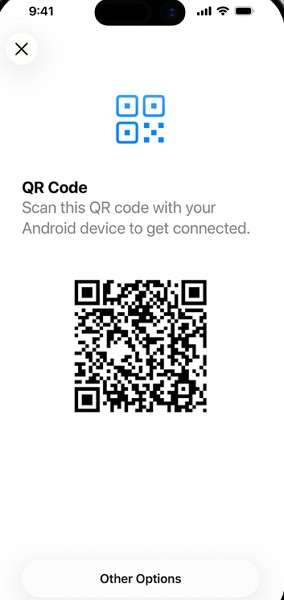
As another option for avoiding a “Move to iOS stuck on the 1-minute iPhone 18 Pro” issue, Transfer Without the App is available on compatible devices running Android 17 or later. Pairing begins by scanning a QR code, while eligible eSIM transfer is handled separately afterward based on device and carrier support.
If a previous attempt has already completed iPhone setup, erase the iPhone 18 Pro before retrying, then follow these steps:
Step 1. On the transfer and setup screen, choose From Android > Transfer Without App.
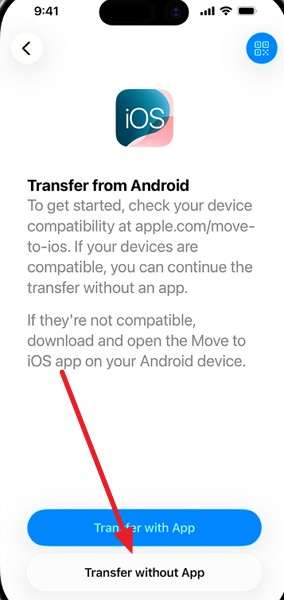
Step 2. Scan the QR code, select the data to transfer, then confirm an eligible number for eSIM transfer.
Part 6. How to Prevent Move to iOS from Getting Stuck Again
To prevent a Move to iOS stuck on preparing issue during your next attempt to transfer data to iPhone 18 Pro, follow the practical precautions outlined in the table below:
| Prevention Tip | What to Do |
| Reduce Large Transfers | Back up or transfer very large videos separately when possible to reduce the amount of content moved in one session. |
| Keep Both Phones Powered | Connect both devices to power and keep them nearby until the iPhone loading bar finishes. |
| Avoid Calls & Interruptions | Leave the Android phone idle and avoid calls that could interrupt the Move to iOS process. |
| Use a Stable Connection | Keep the wireless connection stable or use a compatible cable for direct transfer between supported devices. |
| Check iPhone Capacity | Make sure the iPhone has enough storage capacity for all the Android content selected for transfer. |
| Keep Move to iOS Open. | Leave Move to iOS on-screen on Android and avoid switching to other apps until migration finishes. |
| Keep the Android Data | Do not erase the Android phone until you confirm that all required content transferred successfully. |
Conclusion
A Move to iOS transfer stuck on iPhone 18 Pro does not always indicate failure, especially with large amounts of data. Give the migration enough time, then check storage, connections, software, and possible interruptions. If the problem continues, restart both devices or use a compatible wired transfer. After repeated unsuccessful attempts, MobileTrans offers an alternative computer-based method for transferring selected data from Android to iPhone without restarting the migration process.
FAQ
-
Why does Move to iOS say 1 minute remaining for so long?
Since the estimate tracks Android's sending progress, not the iPhone's writing, once the last file leaves, the iPhone still unpacks and indexes everything it received, which routinely takes 20 minutes with no visible change.
-
What happens if I cancel Move to iOS halfway through?
You lose the run entirely. The app doesn't resume where it left off, and you must erase the partially populated iPhone before the transfer option reappears. That asymmetry is why waiting is the first fix, not the last.
-
Is Move to iOS faster with a cable than Wi-Fi?
Yes. Apple states that a direct USB-C connection can make the transfer faster. A cable also avoids wireless connection instability that may interrupt migration, although it cannot prevent every type of transfer failure.










