



 TL;DR:
To resolve Move to iOS connection failures on the iPhone 18 Pro, disable cellular data and Smart Network Switching on the source Android device to prevent wireless dropouts, or switch to a direct USB-C cable transfer for a faster and more stable migration.
● The Move to iOS application exclusively operates during the initial device setup, requiring you to completely erase the iPhone to factory settings if you have already reached the Home Screen, run out of storage, or experienced an interrupted transfer without a resume option.
● If the official app fails after two attempts, devices running Android 17 or later can utilize Apple's Transfer Without App feature via QR code to migrate data and eSIMs, or you can use the MobileTrans desktop software to transfer files via a computer without being restricted to the setup window.
● Move to iOS does not support the migration of music, books, or PDFs, which require separate manual transfers, while missing WhatsApp data typically occurs if the required in-app confirmation is skipped during the official transfer process.
Ask AI for a summary
 ChatGPT
 Perplexity
 Gemini
 Claude
 Grok
Grok
Blindly restarting a failed transfer wastes time because every error stems from a different root cause. A missing code and a frozen progress bar require entirely separate fixes. This troubleshooting guide links each symptom of Move to iOS not working on iPhone 18 Pro to its exact solution and walks you through 8 clear methods. When Move to iOS remains unreliable or unsuccessful, MobileTrans provides an alternative way to transfer data.
In this article


Part 1. Why Is Move to iOS Not Working on iPhone 18 Pro?
If Move to iOS isn't working on iPhone 18 Pro, use the table below to identify the likely cause. Apple supports both wireless and wired transfers during initial setup from Transfer Your Apps & Data > From Android.
| Problem | Likely Cause |
| Move to iOS Cannot Connect to the iPhone | Android drops the iPhone’s temporary Wi-Fi network or switches to another available connection. |
| Move to iOS Is Stuck on Preparing. | A large amount of data needs more preparation time, or the connection has become unstable. |
| Transfer Gets Stuck or Takes Too Long | Large files, a weak connection, or interruptions on either device are delaying the transfer. |
| Unable to Migrate or Transfer Failed Error | Insufficient iPhone storage, a lost connection, or an interrupted migration can cause the transfer to fail. |
| Move to iOS Code Does Not Appear. | The iPhone has not reached the one-time code screen or the correct setup stage. |
| Only Some Data Transfers | The transfer stopped early, available storage ran out, or certain content is unsupported. |
| Move to iOS Disconnects During Transfer. | Network changes, calls, app switching, or other interruptions can break the connection between devices. |
| iPhone 18 Pro Is Already Set Up | Move to iOS works during initial setup, so you must erase an already configured iPhone before retrying. |
Part 2. 8 Ways to Fix Move to iOS Not Working on iPhone 18 Pro
With the cause identified, work through the 8 fixes in this section to fix the Move to iOS not working on iPhone 18 Pro issue.
1. Quick Device Checks
Fix 1. Restart the Android Phone and iPhone 18 Pro
This solution clears temporary network bugs and closes background apps that block the private Wi-Fi connection. It also refreshes the Move to iOS setup assistant and allows both devices to pair and transfer your data. So, follow the given directions to resolve the Move to iOS not working issue and retry:
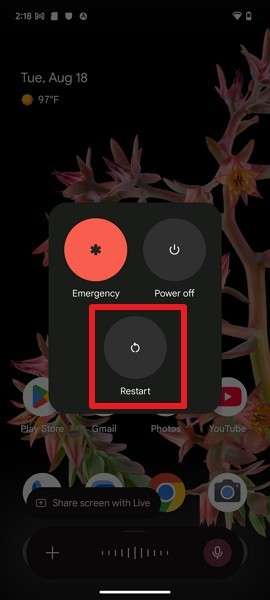
Restart Android (Pixel)
Instructions. Hold Power + Volume Up, then select Restart.
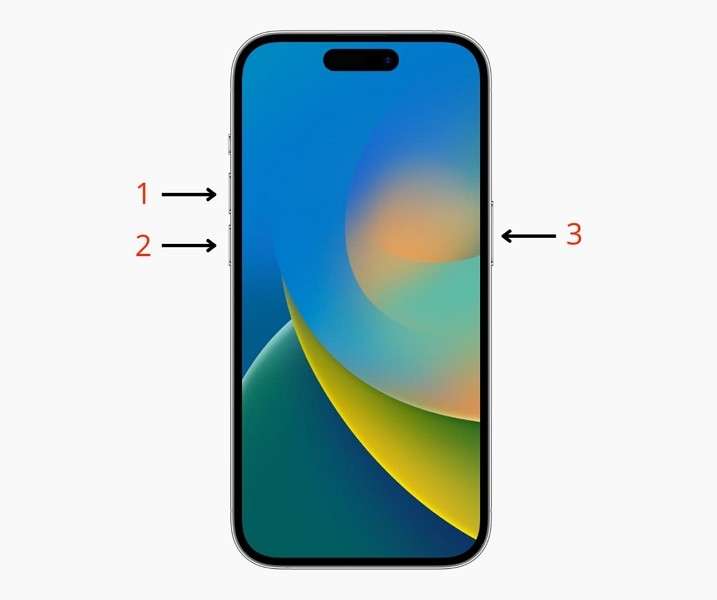
Force Restart iPhone 18 Pro
Instructions. Press and release Volume Up, then Volume Down. Hold the Side power button until the Apple logo appears.
Fix 2. Update Move to iOS, Android, and iOS
Updating Move to iOS can resolve compatibility issues and bugs that may interrupt the transfer. Keeping Android and iOS current can further improve connection stability. Follow the steps below before retrying or considering a Move to iOS alternative.
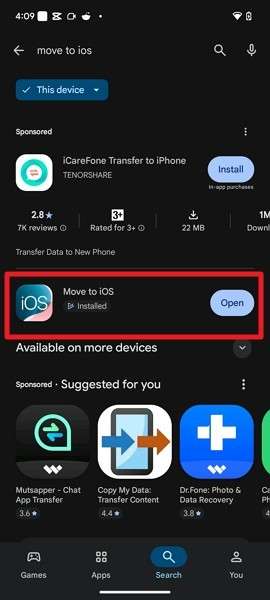
Update Move to iOS
Instructions. Search for Move to iOS on the Google Play Store and tap the Update button if available.
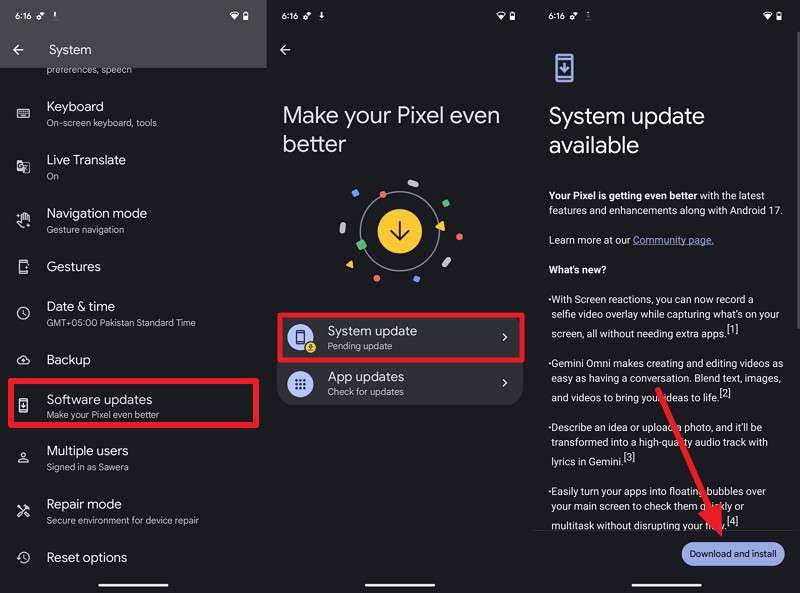
Update Android (Pixel)
Instruction. In Pixel settings, choose System > Software Updates > System Updates > Download and Install.
Update iPhone 18 Pro
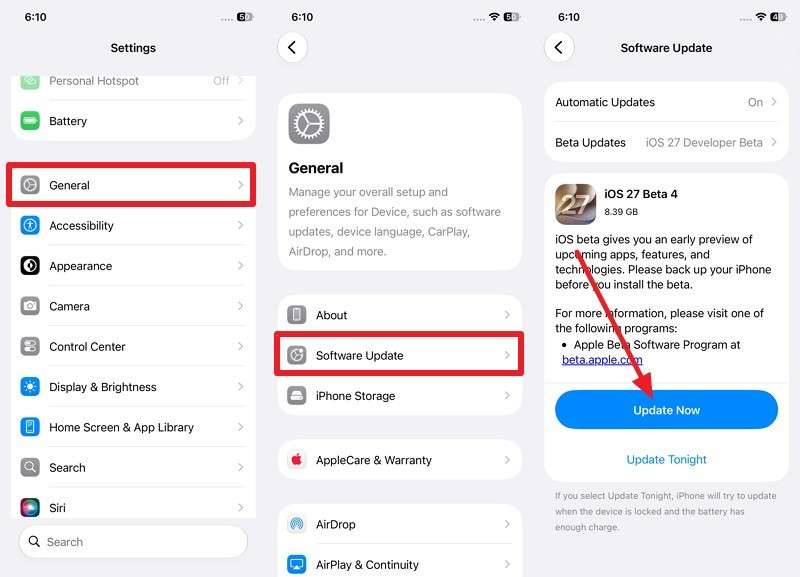
Step 1. Complete the setup without data transfer > Go to Settings > General > Software Update > Update Now.
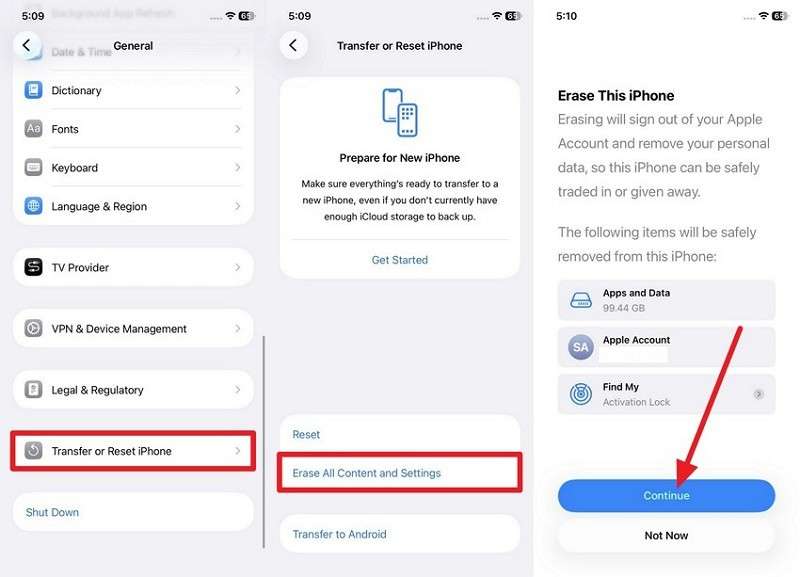
Step 2. In Settings > General > Transfer or Reset iPhone > Erase All Content and Settings > Continue.
Step 3. Restart setup and continue to Transfer Your Apps & Data > From Android.
2. Fix Connection Problems
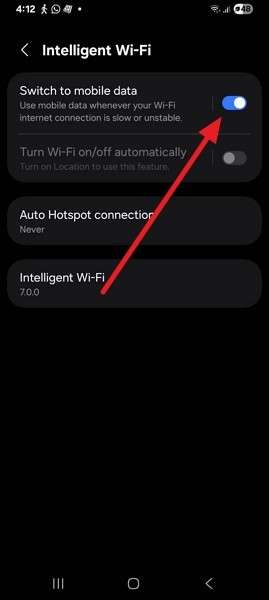
Fix 3. Turn Off Cellular Data and Smart Network Switching on Android
The iPhone creates a private network with no internet access, which Android may treat as a broken connection and leave. Settings that automatically switch to mobile data when Wi-Fi lacks internet can interrupt the transfer. Apple flags this issue, though the setting name and location vary by phone brand. Using Samsung as an example, follow these steps to fix the Move to iOS not working issue:
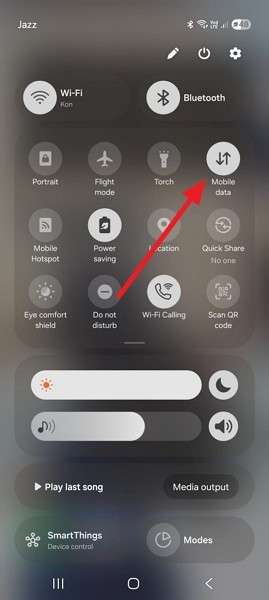
Turn Off Mobile Data (or Cellular Data)
Instructions. Swipe down and toggle off Mobile Data in the Quick Settings panel.
Turn Off Smart Network Switching
Step 1. Go to Settings > Connections > Wi-Fi > Three Dots > Intelligent Wi-Fi.
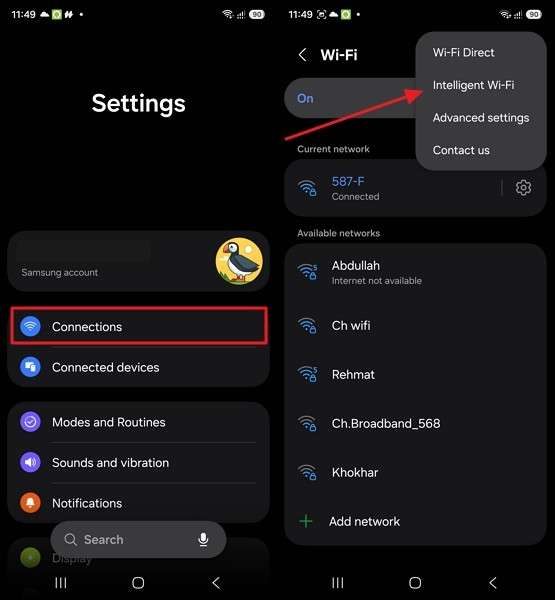
Step 2. Turn off the Switch to Mobile Data option on the new interface.
Fix 4. Use a USB-C Cable Instead of Wireless Transfer
If Move to iOS is not working wirelessly, try a direct cable connection instead. Apple supports connecting Android directly to iPhone with a USB-C cable for a faster transfer. This wired approach avoids Wi-Fi interruptions. Follow these steps to proceed:
Step 1. On iPhone 18 Pro, choose From Android > Transfer with App.
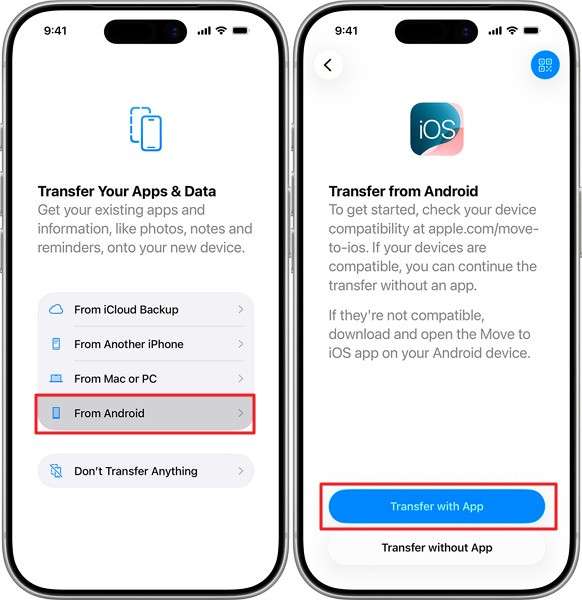
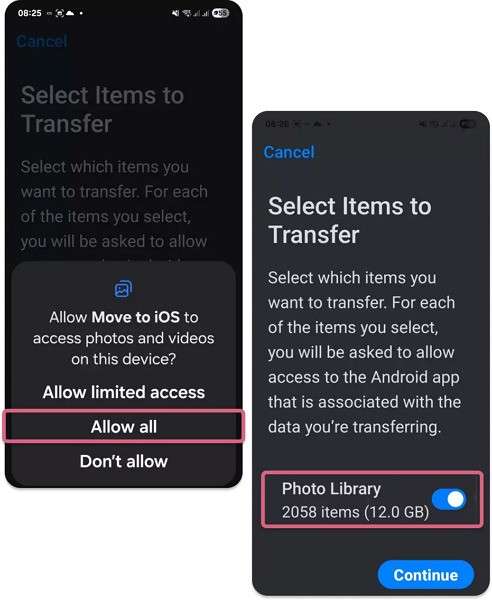
Step 2. Connect both phones with a cable > Open Move to iOS > Allow necessary permissions.
Step 3. Press Continue on iPhone > Enter the code on Android. Tap Allow All > Choose data types > Press Continue to start the wired transfer.
3. Check iPhone Setup and Storage
Fix 5. Make Sure iPhone 18 Pro Is on the Transfer Your Apps & Data Screen
Move to iOS is available only during initial setup. If your iPhone 18 Pro has already reached the Home Screen, you must erase it to return to Transfer Your Apps & Data > From Android or use another transfer method.
Note: Already completed setup? Skip to Fix 8 to erase the iPhone and retry Move to iOS.
Fix 6. Make Sure the Data Fits on iPhone 18 Pro
Insufficient storage can cause Move to iOS not working on iPhone 18 Pro, especially when transferring a large Android library. Since iPhone Settings aren't available during initial setup, check how much storage your Android data uses and compare it with your iPhone's total capacity. If needed, remove unnecessary files or select less content during Move to iOS, then retry the transfer.
4. Prevent the Transfer from Stopping
Fix 7. Keep Move to iOS Open and Both Phones Connected to Power
Battery-saving features can restrict background activity and interfere with the transfer. Keep Move to iOS open on Android, connect both phones to power, and avoid calls or other interruptions until the process finishes. If the transfer still fails, consider using a Move to iOS alternative.
Fix 8. Erase the Incomplete iPhone Transfer and Try Again
Use this as a last resort if partial data transfers and the process stalls. Apple suggests erasing the iPhone and restarting when storage runs out, or files fail to finish. However, this method deletes everything on the device. Back up important files first, as Apple confirms this reset returns the iPhone to factory settings.
Step 1. In Settings, go to Transfer or Reset iPhone > Erase All Content and Settings > Continue.
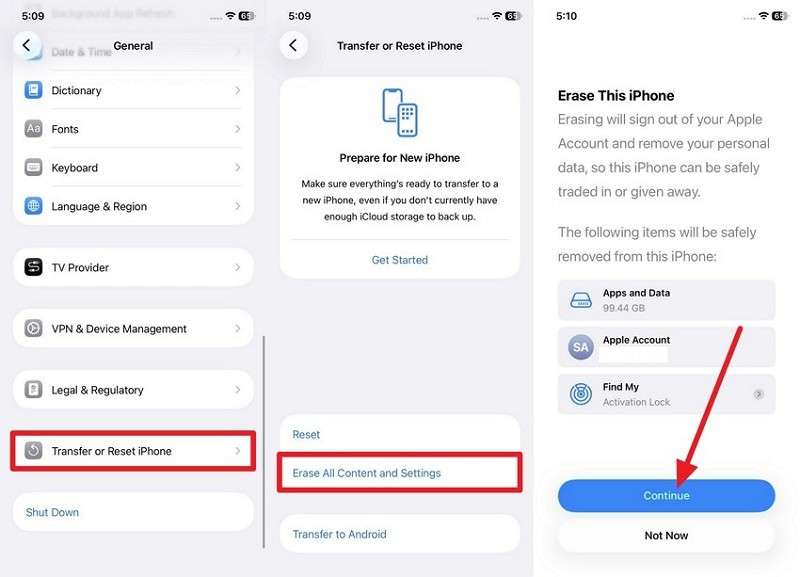
Step 2. After the erase finishes, the iPhone restarts and returns to the initial setup screen.
Step 3. Continue to Transfer Your Apps & Data > From Android, then restart the transfer.
Part 3. Alternatives When Move to iOS Still Does Not Work
Limit yourself to 2 failed attempts. Repeating the same process may not resolve the underlying issue, so after another failure, consider a Move to iOS alternative instead of starting a 3rd retry.
Alternative 1. Transfer Android Data to iPhone 18 Pro with MobileTrans
Most Move to iOS not working or transfer issues stem from 2 common causes: an unstable wireless connection or a setup screen you already bypassed. MobileTrans-Phone Transfer bypasses these limitations by connecting both phones to a computer via cable, without requiring pairing codes or setup windows. It enables seamless transfers between Android and iOS, Android and Android, or iOS and iOS devices.
The tool supports 18+ data types, including messages, photos, videos, contacts, and app data, for phone-to-phone or phone-to-computer transfers. Users can also back up phone data to a computer and restore it to supported devices when needed. For added security, it uses end-to-end encryption while avoiding cloud reliance and third-party access.
Key Features
- WhatsApp Transfer & Merge: Move WhatsApp chats, media, contacts, stickers, documents, and call history between Android and iPhone, with merge support for existing data.
- Google Drive to iPhone Restore: Restore WhatsApp data from a Google Drive backup directly to an iPhone instead of relying on Move to iOS.
- Selective WhatsApp Migration: Choose specific WhatsApp data to transfer when you do not want to move the complete history.
- App Data Migration: Transfer supported app data across platforms, including WhatsApp, WhatsApp Business, LINE, Kik, and Viber.
- Selective Restore Without Overwriting: Restore only the required data from a MobileTrans backup while keeping existing phone content intact.






Guide to Move Data from Android to iPhone When Move to iOS Fails
When Move to iOS is not working, follow these steps to transfer your data seamlessly with this phone transfer tool:
Step 1. Install MobileTrans and pick Phone Transfer > Phone to Phone.

Step 2. Attach Android and iPhone 18 Pro > Choose Android as source with the Flip feature.
Step 3. Select the data categories, click Start, and keep both devices connected until the transfer finishes.
Alternative 2. Transfer Without the Move to iOS App on Supported Android Phones
Apple also provides Transfer without the App, which moves supported Android data to iPhone without installing Move to iOS. Available on compatible Android 17 or later devices, it uses a QR code to pair both phones during initial setup.
If scanning fails, you can pair them manually with a session ID and pairing code. The process can also transfer an eSIM on supported devices and carriers. Keep both phones nearby and follow these steps to use this Move to iOS alternative:
Step 1. On the Transfer Your Apps & Data screen, select From Android, then choose Transfer Without App.
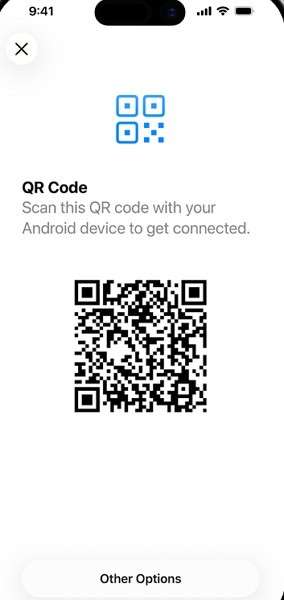
Step 2. Bring both phones close together, then use Android to scan the QR code displayed on the iPhone.
Step 3. Select the data to transfer, then choose your phone number if you also want to move a supported eSIM.
Part 4. What to Do If Some Data Is Missing After Transfer
Even after fixing the Move to iOS not working issue, some data may still be missing after the transfer. If that happens, use the following solutions to recover or move the missing content:
| Problem | Cause | Recommended Solution |
| Contacts or Calendars are Missing | Data may be stored in an online account instead of locally. | Add the same Google account to iPhone and enable Contacts and Calendars. |
| Photos and Videos Did Not Transfer | The transfer stopped early, or the iPhone lacked enough space. | Move the missing media manually using a computer or cloud service. |
| WhatsApp Chats or Media are Missing | WhatsApp migration was interrupted or did not complete correctly. | Retry the official transfer. If data remains missing, use MobileTrans WhatsApp Transfer. |
| Apps Did Not Appear on iPhone | Some Android apps may be unavailable or require reinstallation. | Download available apps from the App Store and sign in again. |
| Music, Books, and PDFs are Missing | These items require manual transfer instead of Move to iOS. | Transfer them separately using a computer or supported cloud service. |
| Messages or Call History are Incomplete | The transfer was interrupted before all selected data finished moving. | Erase the iPhone and retry Move to iOS for the missing supported data. |
| Multiple Data Types are Still Missing | Move to iOS failed repeatedly or left important data behind. | Use MobileTrans to transfer supported data directly from Android to iPhone. |
Part 5. Before You Erase Your Android Phone
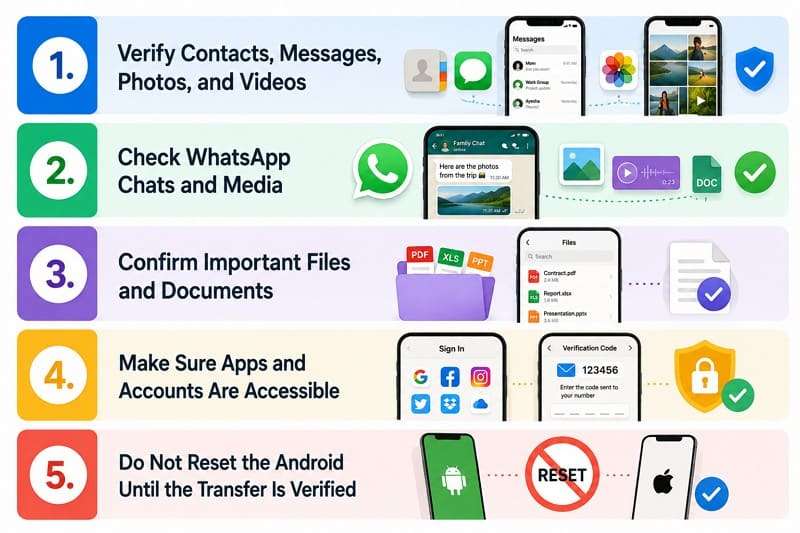
Once Move to iOS, or a Move to iOS alternative completes the transfer, verify that everything arrived correctly. Perform these 5 checks before considering your iPhone 18 Pro migration complete:
- Verify Core Data Categories: Check contacts, messages, photos, and videos from different dates to confirm nothing important is missing.
- Review WhatsApp Chats and Media: Open older and recent chats, then check photos, videos, documents, and voice messages for missing content.
- Open Important Files and Documents: Test several transferred files to confirm they open correctly and are not incomplete or corrupted.
- Check Apps and Account Access: Open essential apps, sign in where needed, and verify that important accounts and synced data remain accessible.
- Keep the Android as a Backup: Do not erase, sell, or reset the source phone until you've verified every important data category on the iPhone 18 Pro.
Conclusion
Fixing Move to iOS not working on iPhone 18 Pro starts with identifying the specific error, whether it involves an unstable wireless connection or the setup stage. Restarting both devices, turning off cellular data, or switching to a cable can resolve common issues. If Move to iOS still fails, MobileTrans offers an alternative way to transfer supported data without erasing the iPhone.
FAQs
-
How long should Move to iOS take to transfer data?
Transfer can take 15 minutes to several hours, depending largely on the amount of media. The Preparing stage may also take time before progress appears, especially with larger transfers. -
Does Move to iOS transfer WhatsApp chats and media?
Yes. Among third-party apps, WhatsApp receives dedicated migration support. The transfer requires confirmation within WhatsApp, and skipping this step can prevent chats and media from appearing correctly. -
Is a cable faster than Wi-Fi for Move to iOS?
Yes, and Apple recommends it. Speed is the secondary benefit, since a wired link also removes the pairing and dropout failures that cause most problems. -
What happens if Move to iOS stops halfway through?
Move to iOS does not provide a resume option for an interrupted migration. If the transfer remains incomplete, Apple recommends erasing the iPhone and starting the transfer again.










