



 TL;DR:
Resolving Move to iOS failures on an iPhone Duo requires executing the transfer strictly during the initial setup screen, disabling Android mobile data and intelligent network switching to prevent temporary Wi-Fi drops, or using a direct USB-C cable connection.
● If your iPhone Duo is already configured, you must erase the device to restart the Move to iOS workflow, or use a computer-based tool like MobileTrans to migrate data post-setup without deleting existing content.
● Compatible devices running Android 17 can bypass the application completely by selecting the Transfer without App option during the initial iPhone setup to migrate supported files via QR code pairing.
● The official Move to iOS process will not transfer music, books, PDFs, or WhatsApp Business chats, requiring you to use manual methods or alternative transfer services for these specific categories.
Ask AI for a summary
 ChatGPT
 Perplexity
 Gemini
 Claude
 Grok
Grok
Move to iOS not working on iPhone Duo can turn a simple phone upgrade into a frustrating process. Setup restrictions, unstable connections, pairing errors, or limited storage can interrupt the transfer before your data reaches the new iPhone. Since Move to iOS works during initial setup, completing setup first can also limit your options.
Compatible Android 17 devices now support Apple’s Transfer without App option using QR code pairing. For failed transfers or an iPhone that is already configured, this guide also explains how MobileTrans can move supported data without repeating the Move to iOS setup process.
In this article


Part 1. Check These Requirements Before Fixing Move to iOS
Before fixing Move to iOS not working on iPhone Duo, confirm the iPhone setup status, software versions, available storage, device connection, and Android compatibility first.
[Image Placeholder]
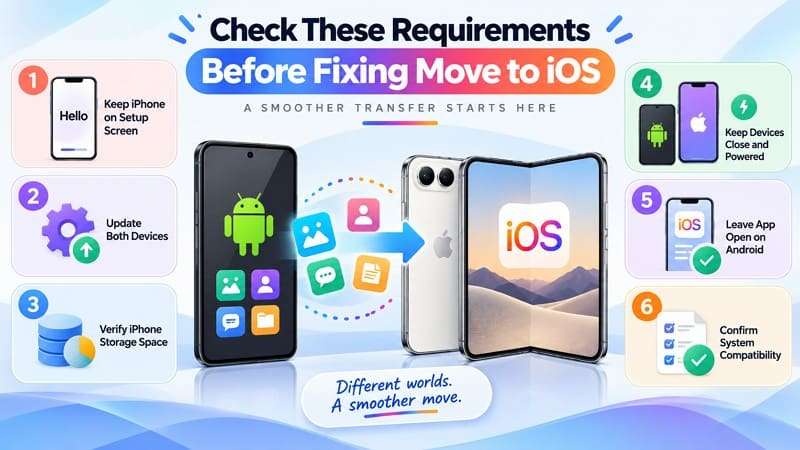
- Setup Screen: Keep the destination phone on the initial transfer screen. Completed setup requires a reset before restarting a full migration.
- Update Devices: Install the latest available software and app version to help avoid compatibility issues.
- Check Storage: Ensure all selected content fits within the available destination storage.
- Keep Devices Connected: Enable Wi-Fi, keep both devices nearby, and connect them to power.
- Keep the App Open: Leave the transfer app on-screen and avoid calls or other apps until migration finishes.
- Confirm Compatibility: Check that both devices meet the software and hardware requirements for the selected transfer method.
What If iPhone Duo Is Already Set Up?
Move to iOS only works during the initial iPhone setup, so completing setup prevents you from starting a full Android migration from the Home Screen. To use Move to iOS again, Apple requires you to erase the iPhone and return to Transfer Your Apps & Data. If you prefer to keep your existing iPhone data, move the remaining content manually or use the post-setup alternative covered in Part 4.
Part 2. How to Fix Move to iOS Not Working on iPhone Duo
To fix Move to iOS keeps failing on iPhone Duo, start with the most common connection and pairing issues before moving to storage and wired transfer fixes:
Fix 1. Restart the Transfer and Fix Pairing Problems
Apple recommends restarting both devices and trying the transfer again when Move to iOS keeps failing on iPhone Duo. Restarting can clear temporary glitches and refresh network connections that may interrupt the migration. After both phones restart, return the iPhone to the transfer screen and reopen Move to iOS on Android. Follow these steps to restart both devices and retry the transfer:
Restart Android
Step 1. On Pixel, press Power > Volume Up > Select Restart.
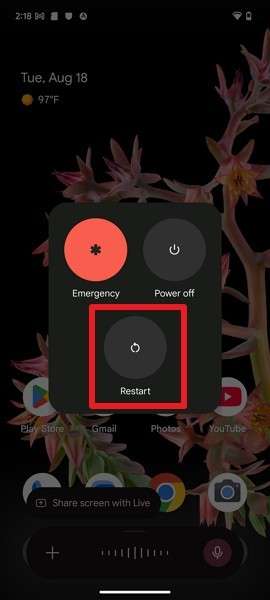
Step 2. Open Move to iOS on Android and continue until the connection screen appears.
Force Restart iPhone Duo
Step 1. Press and quickly release Volume Up, then Volume Down. Hold the Side button until the Apple logo appears on iPhone Duo.
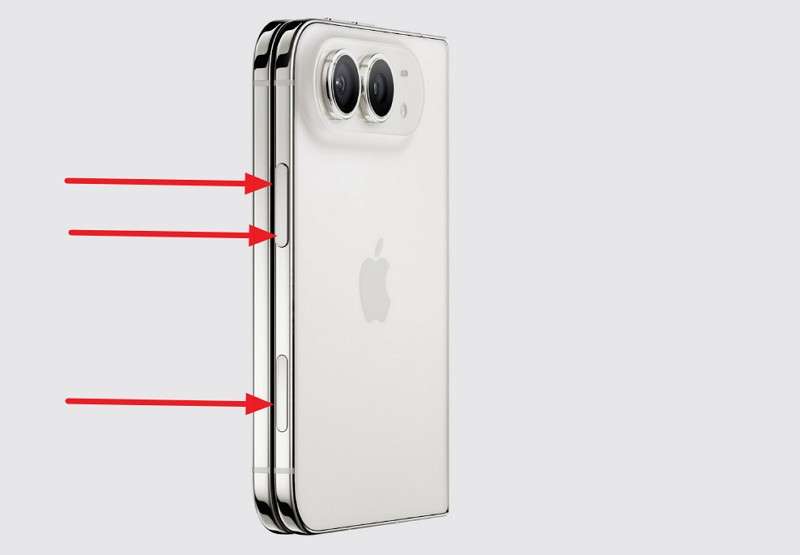
Step 2. On iPhone Duo, continue setup until you reach Transfer Your Apps & Data > From Android.
Fix 2. Stop Android from Switching Network Connections
When Move to iOS is stuck on iPhone Duo or the devices keep disconnecting, check the Android network settings next. During migration, the iPhone creates a temporary Wi-Fi network that Android uses for the transfer. Apple says you can ignore a weak-internet warning while connected to this network. Use the following settings to prevent Android from switching connections during the transfer:
Turn Off Mobile Data on Android
Instructions. Go to the Quick Settings panel > Tap Mobile Data > Turn it Off.
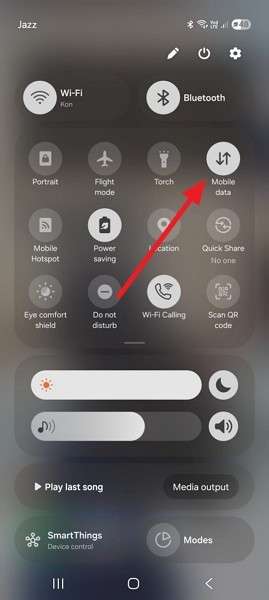
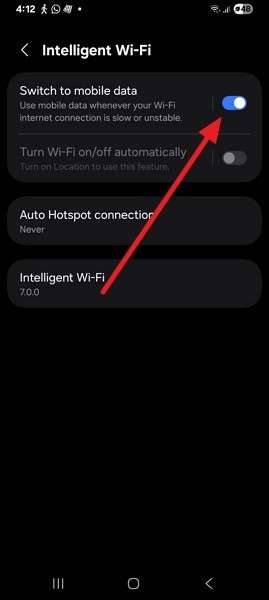
Disable Automatic Network Switching
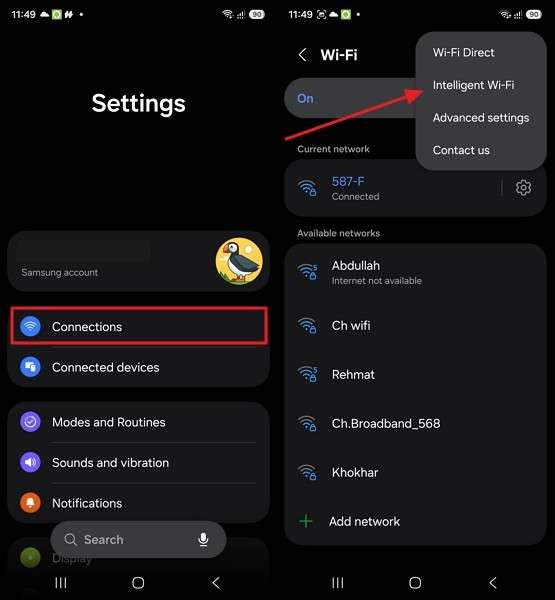
Note: Apple mentions Android settings such as Smart Network Switch and Sprint Connections Optimizer that can affect Wi-Fi connections. The available settings and their names vary by Android device.
Step 1. Select Settings > Connections > Wi-Fi > Three Dots > Intelligent Wi-Fi.
Step 2. Locate Switch to Mobile Data > Turn it off.
Fix 3. Keep Move to iOS Open Until iPhone Duo Finishes
To address Move to iOS not connecting to iPhone Duo, keep the Move to iOS app on-screen throughout the transfer. Apple advises against using other apps or answering calls on Android before the iPhone finishes. Such interruptions can prevent content from transferring, so leave the Android phone untouched until the migration is complete.
Fix 4. Check Storage and Reduce the Transfer Size
If Move to iOS keeps failing on iPhone Duo after you rule out connection and interruption issues, the selected Android content may be too large for the destination. Apple requires transferred content to fit on the new iPhone, including supported files stored on a microSD card. Instead of checking storage from iPhone Settings during setup, reduce the amount of data being transferred and retry with these steps:
Step 1. Restart the Move to iOS process and choose fewer content categories. Leave large or less important files for a separate transfer.
Step 2. Start the transfer with the reduced selection and keep both devices connected until the iPhone Duo confirms completion.
Note: If an earlier attempt filled the iPhone Duo and left the transfer incomplete, erase the device and restart setup, then retry after reducing the selected content.
Fix 5. Retry Move to iOS with a Wired Connection
A direct cable connection can help when Move to iOS won't connect to iPhone Duo over Wi-Fi. Apple supports wired transfers between compatible Android and iPhone devices using USB-C, which can speed up migration without relying on temporary Wi-Fi. To retry the transfer with a wired connection, follow these steps:
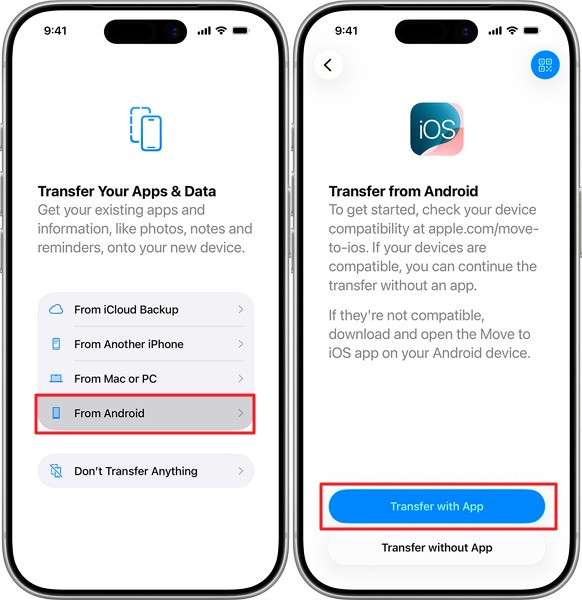
Step 1. Connect your Android and iPhone Duo with a USB-C cable. On iPhone Duo, tap From Android > Transfer with App. On Android, open Move to iOS and allow the required permissions.
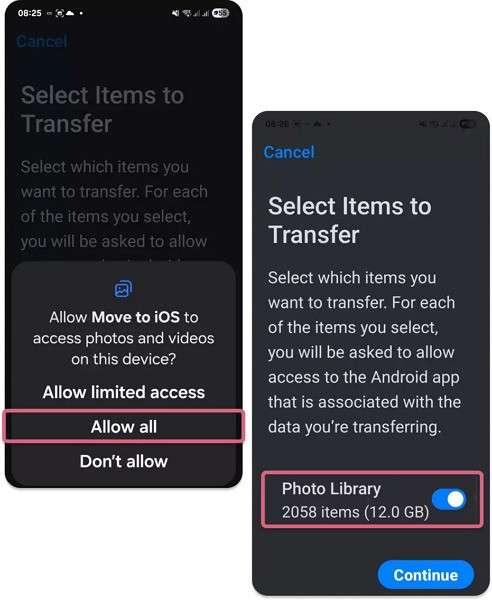
Step 2. Press Continue on iPhone Duo > Enter the code on Android > Give permissions > Select data > Tap Continue to transfer.
Part 3. Move to iOS Finished, but Some Data Is Missing
Even after Move to iOS finishes, some content may be missing from the new iPhone. At this point, Move to iOS keeps failing on iPhone Duo is no longer the concern. Instead, identify which data is missing and use the table below to find the possible cause and next step:
| Missing Data | Why It May Be Missing | What to Do |
| Regular WhatsApp Chats | WhatsApp migration was skipped or interrupted | Repeat the official migration while still in setup |
| WhatsApp Business | Official Android-to-iPhone chat migration is unsupported | Use a supported Business transfer method instead |
| Photos or Videos | Transfer was interrupted, or iPhone storage became full | Compare libraries and check available storage |
| Apps | Only some compatible free apps can transfer | Download missing apps from the App Store |
| App Data | Transfer support varies between individual apps | Sign in or use the app’s migration option |
| Music | Move to iOS does not transfer music | Transfer manually using a computer or service |
| Books and PDFs | Move to iOS does not transfer these items | Transfer them manually using supported methods |
| Google Contacts, Calendars, Mail | Transfer or account synchronization may be incomplete | Add the Google account and enable syncing |
| eSIM or Phone Number | Transfer depends on device and carrier support | Use supported eSIM transfer or carrier activation |
Part 4. Move to iOS Still Not Working? Use an Alternative
If Move to iOS is stuck on iPhone Duo even after trying the recommended fixes, switching to another transfer method may be more practical. Depending on the Android version and iPhone setup status, you can use Apple’s Transfer without App option or a post-setup transfer tool. Explore both alternatives below and choose the one that fits your transfer situation.
Option 1. Use Transfer without App on Compatible Android 17 Devices
Apple’s Transfer without App offers an app-free migration option for supported devices running Android 17. Available during initial iPhone setup, it uses QR code pairing and lets you select supported content such as photos, contacts, calendars, call history, and messages. Keep the Android device near the iPhone while the selected content transfers. Follow these steps to transfer data using this option:
Step 1. During iPhone Duo setup, go to Transfer Your Apps & Data > From Android > Transfer Without App.
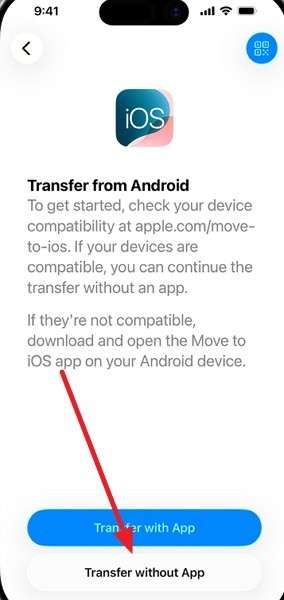
Step 2. Keep the Android phone near the iPhone Duo and tap Continue when prompted.
Step 3. Use the Android phone’s camera to scan the QR code displayed on the iPhone Duo and connect the devices.
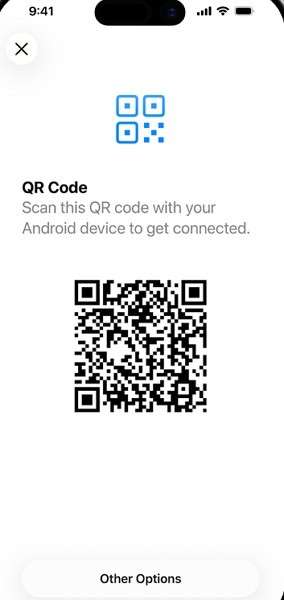
Step 4. On Android, select the supported data you want to move and start the transfer. Once the data transfer finishes, tap Continue on the iPhone Duo.
Step 5. To transfer an eSIM, select the phone number on Android and tap Transfer. After the eSIM transfer finishes, tap Continue to complete iPhone setup.
Option 2. Transfer Android Data to iPhone Duo with MobileTrans
If Move to iOS won't connect to iPhone Duo or the iPhone is already configured, MobileTrans offers a post-setup transfer option without requiring another initial setup migration. Its Phone Transfer feature connects Android and iPhone Duo through a computer and lets users select from 18+ supported data types. The transfer can also retain existing data on the destination iPhone.
MobileTrans provides separate tools for transferring WhatsApp and WhatsApp Business data between Android and iPhone Duo. This is especially useful for WhatsApp Business because the official WhatsApp Android-to-iPhone Duo migration does not support the Business app. It also avoids relying on Move to iOS pairing codes or its setup-only workflow.
Key Features
- Home Screen Layout Transfer: Transfers supported app icons, folders, and layout arrangements between iPhone and Samsung devices, preserving familiar home screen organization.
- Cross-Platform App Migration: Helps transfer supported apps between devices and simplifies installing selected apps on the new phone instead of finding them individually.
- Social App Data Transfer: Provides dedicated migration, backup, and restore options for supported social apps, including LINE, Viber, and Kik.
- WhatsApp View Once Recovery: Provides a separate feature to access and save supported WhatsApp View Once photos, videos, and voice messages to local storage.
- iTunes Backup Restoration: Detects existing iTunes backups on a computer, lets users preview available content, and restores selected supported data to a connected phone.






Guide to Transfer Android Data to iPhone Duo
When Move to iOS keeps failing on iPhone Duo after setup is complete, MobileTrans can transfer supported Android data without restarting the initial setup process. Follow these steps to complete the phone-to-phone transfer:
Step 1. Choose Phone Transfer > Phone to Phone > Connect Android and iPhone Duo.

Step 2. Select the data types you want to move, then click Start to transfer the selected data to iPhone Duo.
Part 5. How to Prevent Move to iOS Problems on Your Next Transfer
To prevent Move to iOS not connecting to iPhone Duo during your next migration, prepare both devices before starting the transfer. These practical tips can help reduce storage, connection, and interruption issues:
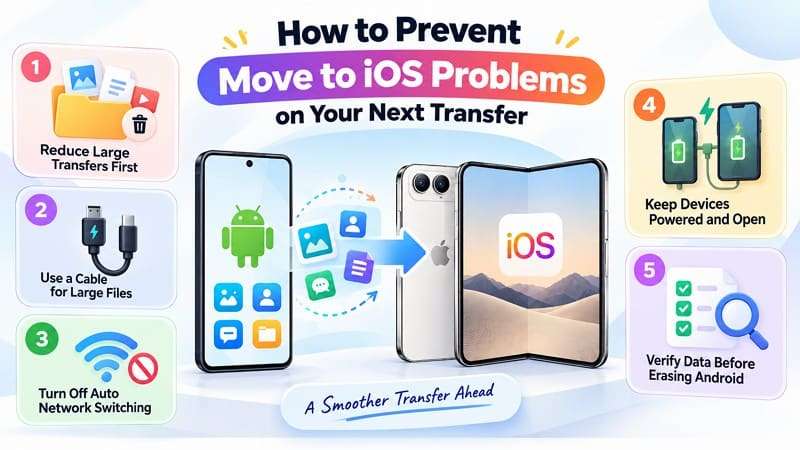
- Reduce Large Transfers First: Make sure the selected Android content, including supported microSD files, can fit on the iPhone Duo. Move less important photos, videos, or other large files separately if needed.
- Prefer a Cable for Large Transfers: Connect compatible devices directly with USB-C when possible. Apple notes that a wired connection can transfer faster than wireless.
- Prevent Automatic Network Switching: Disable mobile data and Android features that may interfere with Wi-Fi. Apple also recommends turning off settings such as Smart Network Switch and forgetting known Wi-Fi networks before retrying.
- Avoid Interruptions During Transfer: Keep both devices nearby and connected to power throughout the migration. Leave Move to iOS on-screen on Android and avoid opening other apps or answering calls until the transfer finishes.
- Check Transferred Data Before Erasing Android: Confirm that important contacts, photos, messages, and WhatsApp data reached the iPhone Duo before wiping the old device. Apple recommends transferring content such as music, books, and PDFs separately when needed.
Conclusion
Fixing Move to iOS not working on iPhone Duo starts with checking the setup stage, connection, transfer size, and possible interruptions. A wired connection can also help if wireless migration keeps failing. For compatible Android 17 devices, Apple's Transfer without App provides another setup-time option. Once the iPhone Duo is already configured, MobileTrans offers a post-setup route for supported data. Always confirm important content before erasing the old Android device.
FAQ
-
Why does Move to iOS keep failing on iPhone Duo?
Move to iOS keeps failing on iPhone Duo due to connection interruptions, network switching, insufficient storage, or leaving the transfer app. Confirm the iPhone stays in initial setup, and keep both devices connected until the migration finishes.
-
Why is Move to iOS stuck at one minute remaining?
Move to iOS may remain at one minute while the transfer is still finishing. Keep the app open and wait for the iPhone progress bar to complete. If it remains stuck, check the connection and transfer size before retrying.
-
Can I use Move to iOS after iPhone Duo is already set up?
Once the iPhone Duo is already set up, using Move to iOS for a full migration requires erasing it and restarting setup. To avoid a reset, move supported content manually or use MobileTrans for a post-setup transfer.
-
What can I use instead of Move to iOS?
Compatible Android 17 devices can use Apple’s Transfer without App option during iPhone setup. For an iPhone Duo that is already configured, MobileTrans provides a computer-based alternative for transferring supported Android data.










