


 TL;DR:
Resolve missing iPhone notifications on iOS 18/26 by verifying that Do Not Disturb is off, disabling Low Power and Low Data modes, and manually enabling Lock Screen alerts for specific applications.
● Background App Refresh must be active and all applications must be updated to their latest versions via the App Store to prevent iOS compatibility issues from delaying or blocking incoming alerts.
● If configuration changes fail on older iPhone models, the developmental iOS 18/26 software is likely incompatible with the device and requires a system downgrade to iOS 17 using the Dr. Fone application.
● Heavy cached data can cause applications to slow down and drop notifications, a limitation that can be bypassed by transferring large apps and gaming data to a new device like the iPhone 17 using MobileTrans.
Ask AI for a summary
 ChatGPT
 Perplexity
 Gemini
 Claude
 Grok
Grok

Notification not showing on iPhone lock screen is a common problem that users are facing on iOS 18/26. It can be unpleasant to miss notifications, especially if you are expecting an important call or text.
So, why are your iPhone notifications not showing on iOS 26? And what should you do when your notification is not showing on your iPhone?
This article will reveal different possible reasons why you can't see notifications on your iPhone and easy ways to resolve the problem on iOS 18/26 in no time.
In this article

Part 1: Why is iPhone Not Showing Notifications After Upgrading to iOS 26?
iOS 18/26 is still in its development stage, which is why it may cause many annoying issues on your device, such as notifications not showing up on the iPhone lock screen.
Here are other possible reasons your iPhone doesn't show notifications:
- The iOS 26 is not compatible with your iPhone - This is common for old iPhone and iPad models.
- iPhone is on Do Not Disturb/Silent mode.
- You have disabled app notifications via settings.
- The mobile network or Wi-Fi connection is weak, so new notifications may not appear on your iPhone.
- Your iPhone is in low power mode and is blocking incoming notifications.
Next, let's check out different ways to fix the problem.






Part 2: How to Fix iPhone Notifications Not Showing After iOS 18/26 Update
Since there are different possible reasons your iPhone notification isn't showing on iOS 26, there is no one-size-fits-all solution to the problem. You should try each fix below to find which solution works for you.
Here is how I fixed the notification not showing on my iPhone 17:
1. Reset Network and Connectivity Settings
If your iPhone network or wireless connection is incorrect, you will not receive new notifications. So, reset network settings to fix the issue.
- Go to Settings on your iPhone and tap on General.
- Scroll down to Transfer or Reset iPhone and tap on Reset.
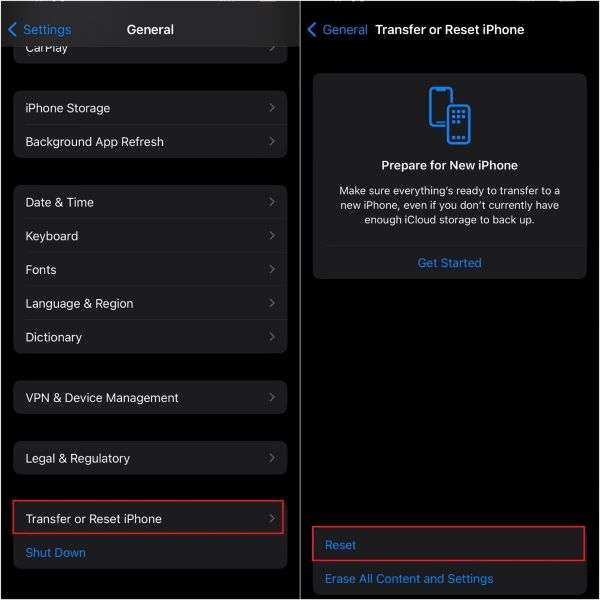
- Tap on Reset Network Settings and follow the onscreen instructions to authorize the prompt.
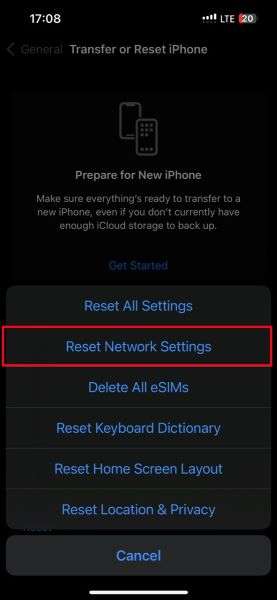
2. Check DND and Silent Button
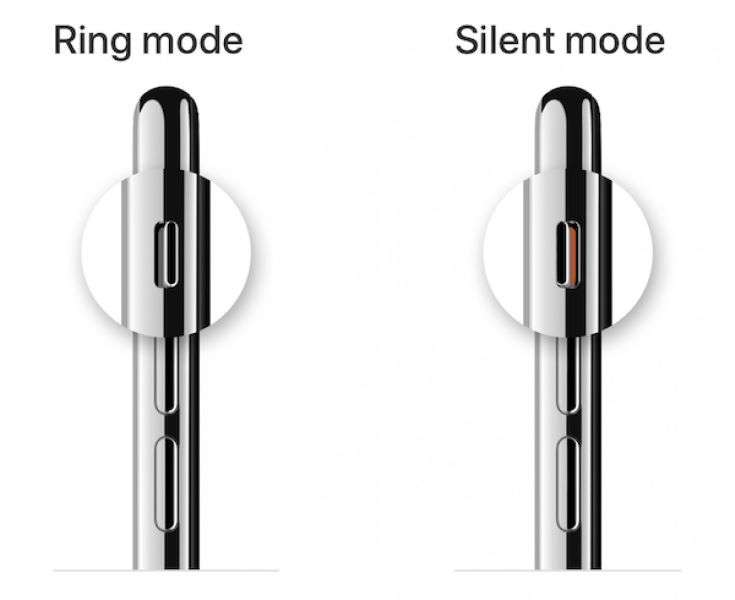
- Locate the Silent/Ring switch on the left side of your iPhone. Slide the switch to the top to turn off Silent mode.
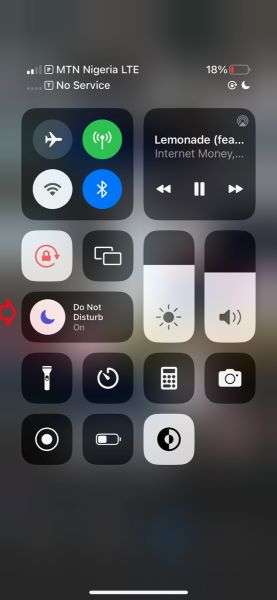
- Slide down the control panel from your iPhone's home screen and turn off the Do Not Disturb.
3. Enable Lock Screen Alerts
The lock screen alerts feature ensures that you receive the latest notifications on your iPhone lock screen even when you are not using the device.
Follow these steps to enable lock screen alerts on your iPhone:
- Open Settings > Notifications.
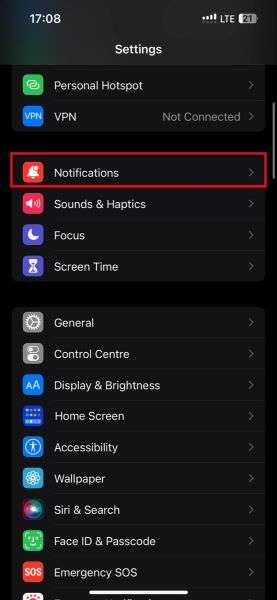
- Find and tap on the app that you are not receiving notifications for.
- Enable the Lock Screen notification.
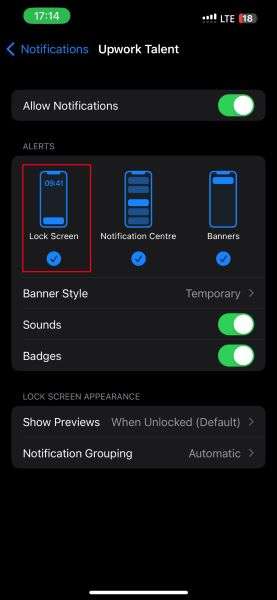
4. Allow App Permission to Send Notifications on iPhone
Many users complain that their iPhone doesn't show notifications when app notifications are disabled or they use notification blockers.
- Open Settings and tap on Notifications.
- Tap on the apps you wish to receive notifications for one after the other.
- Turn on the Allow Notifications toggle switch at the top of the screen to start receiving notifications for the app.
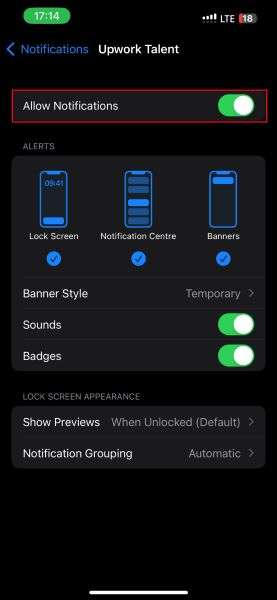
You should also disable or uninstall notification and ad blockers on your iPhone.
5. Reset All iPhone Settings
If you still can't get notifications on your iPhone, it's time to reset your iPhone to its default settings. Doing this should fix all software bugs and glitches that are blocking incoming notifications on iOS 26.
- Go to Settings > General.
- Scroll down and tap on Transfer or Reset iPhone. Tap on Reset.
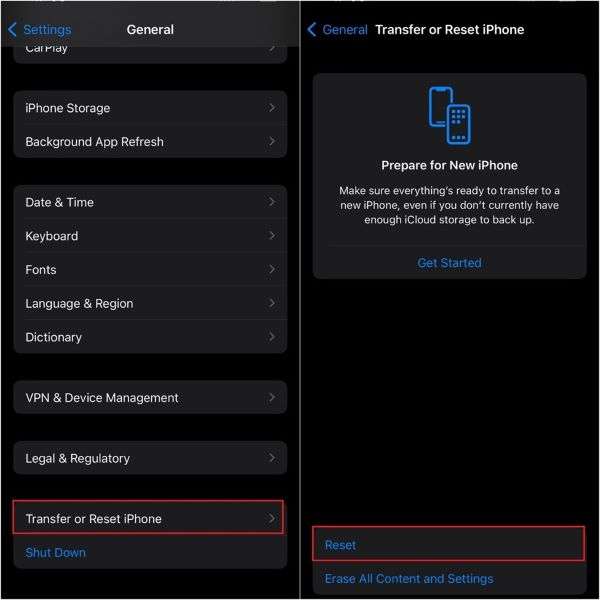
- Tap on Reset All Settings and follow the onscreen instructions to authorize the prompt.
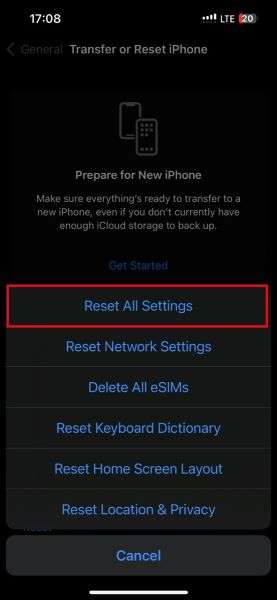
Force-reboot your iPhone, and you should start receiving notifications.
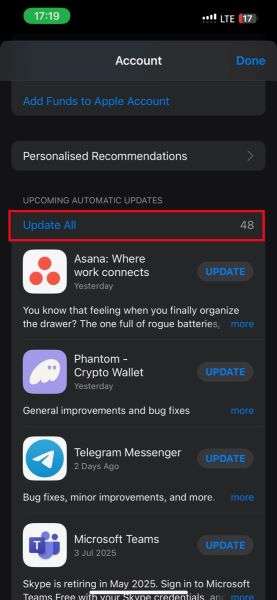
6. Update and Reinstall iPhone Apps to Receive Notifications
You need to update your iPhone apps to their latest versions to make them compatible with the new iOS to receive notifications.
- Go to your App Store and tap on your profile icon.
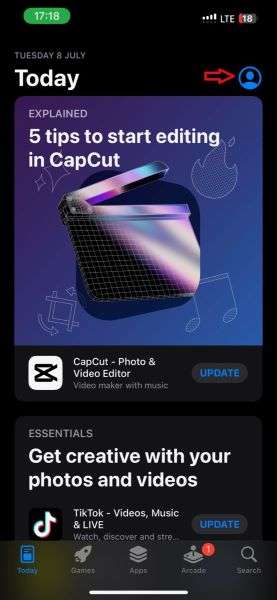
- Scroll down to the Upcoming Automatic Updates tab and tap on Update All.
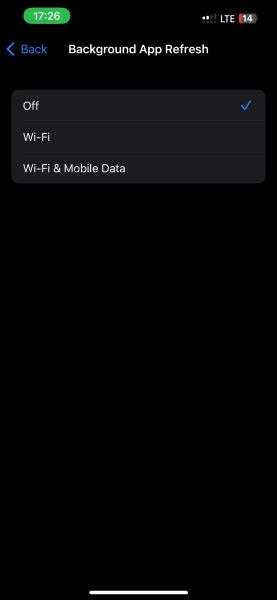
7. Enable Background App Refresh
Some apps, like Reddit and Apple News, can't update or receive new notifications if you turn off background app refresh in settings.
- Go to Settings > General.
- Turn on Background App Refresh, so your apps can stay updated, and you will receive new notifications.
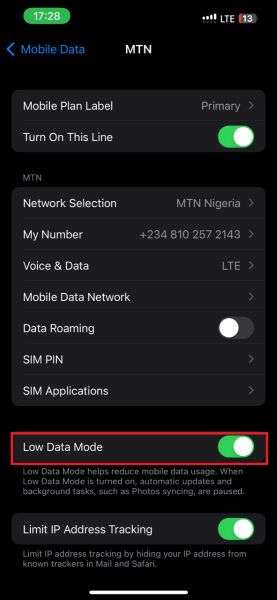
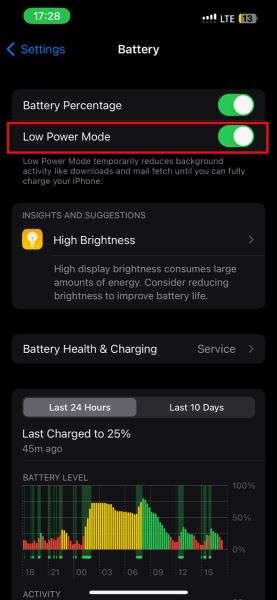
8. Disable Low Power and Low Data Mode
When your iPhone is in low power mode or low data mode, the device automatically reduces power and data usage to extend battery life. This includes blocking incoming sound notifications and message alerts.
- Open Settings > Mobile Data.
- Tap on your primary SIM card or e-SIM number and disable Low Data Mode.
- Go to Settings > Battery.
- Disable Low Power Mode.
9. Downgrade iOS 26 to iOS 17 – Dr. Fone
If none of the steps above worked to restore your iPhone notifications, it means the new iOS isn't compatible with your device.
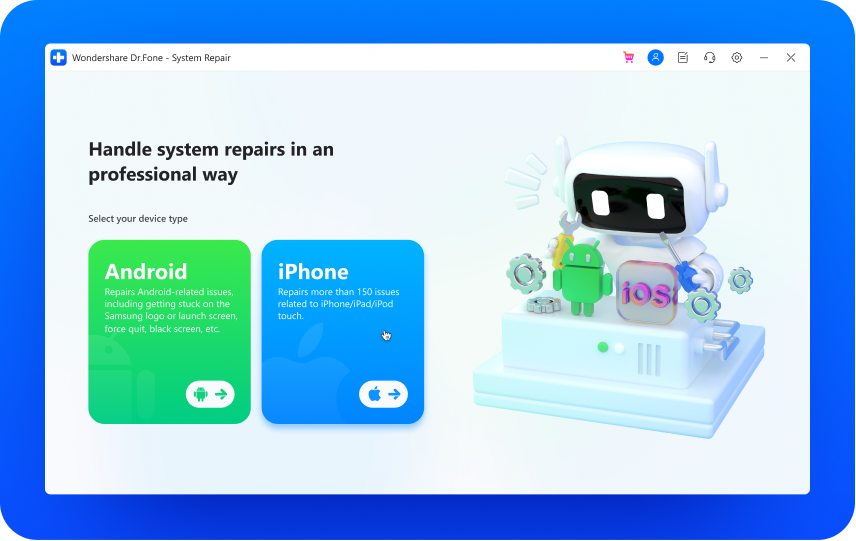
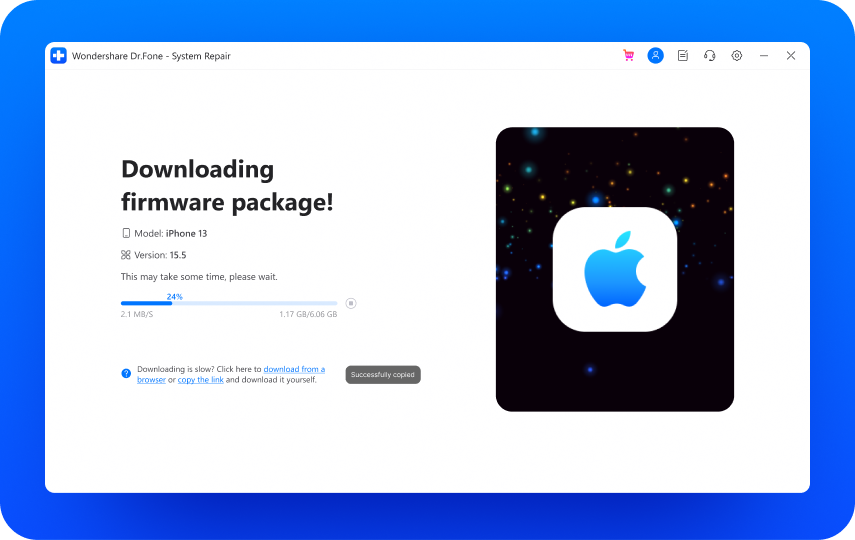
In this case, you need to downgrade your software to its previous iOS version. You can use the Dr. Fone app to downgrade your device's iOS to a compatible version.
Follow these steps:
- Install the Dr. Fone app on your laptop.
- Connect your iPhone to your computer. Then open the Dr.Fone app and click on the "iPhone" module.
- Select the "iOS Upgrade/Downgrade" module and then tap on "Downgrade iOS."
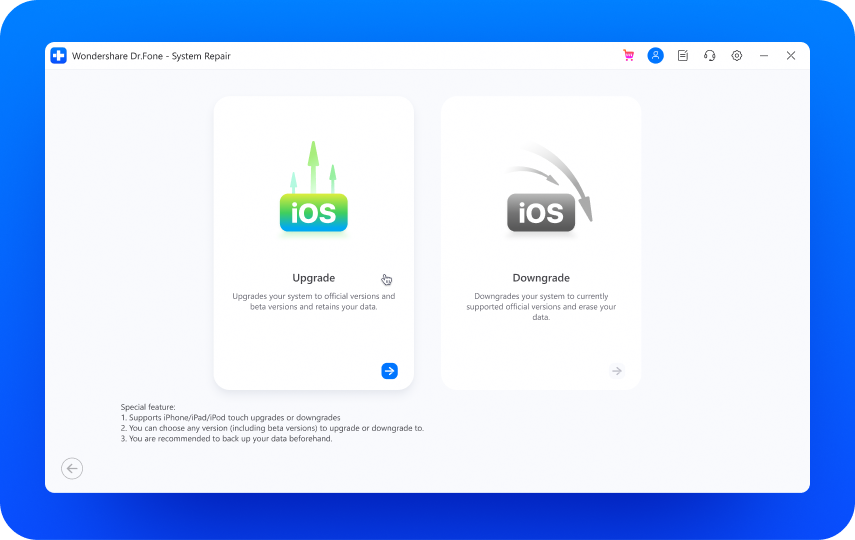
- Choose the previous iOS version you want to downgrade to and download the recommended firmware package for your device.
Bonus: How to Transfer All Apps to your new iPhone 17
If you have a lot of stored or cached data on your phone, some of your apps may start to slow down, and you may miss incoming notifications.
In this case, your best bet is to transfer your apps to your new iPhone using MobileTrans.
With MobileTrans, you can transfer large apps and gaming data from your old phone to your new iPhone, so you can free up storage and receive new notifications.
MobileTrans is user-friendly, effective, and encrypted, so your apps are safe.

How to Transfer Apps to iPhone via MobileTrans
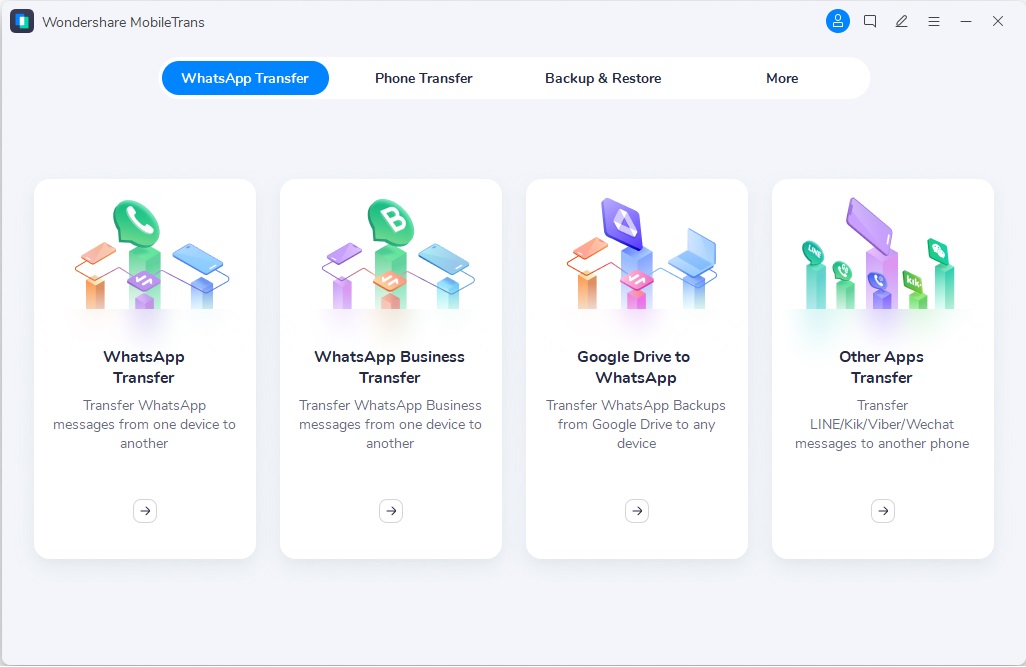
- Start MobileTrans - Launch the MobileTrans app on your computer and tap on Phone Transfer. Then select App to App Transfer and connect your iPhone to the PC.
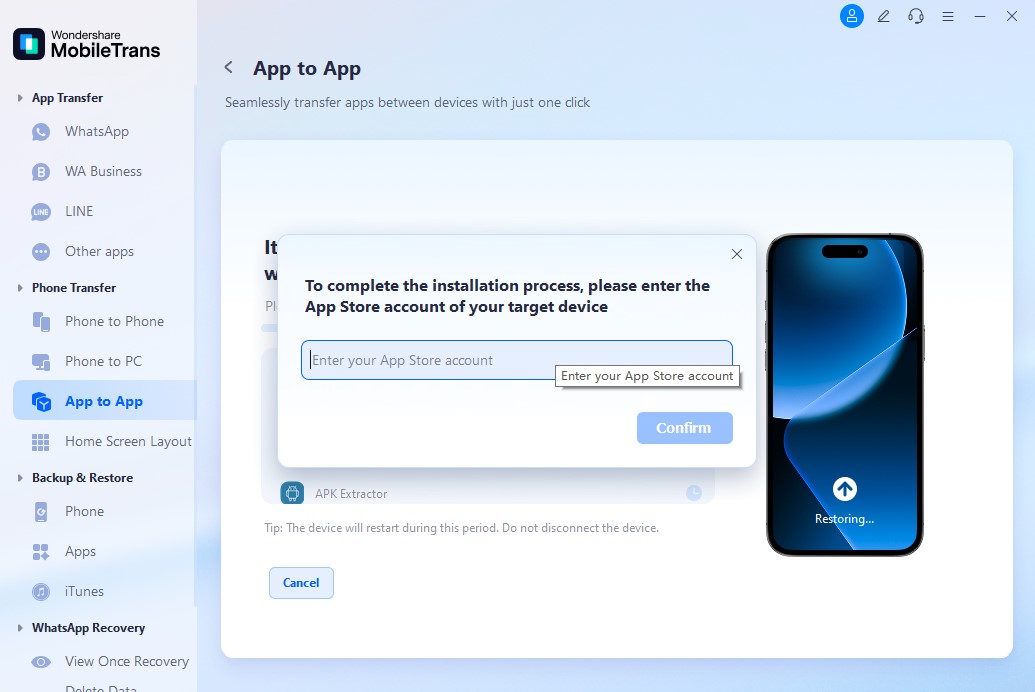
- Sign in to your App Store - Sign in to your App Store account using your Apple ID so that the app can retrieve your complete app list.
- Start App Transfer - Choose the apps that you wish to transfer to your new iPhone and tap on Start to initiate the app transfer process.
- App Transfer Complete - The MobileTrans app will notify you once the app transfer to your iPhone is complete.

Conclusion
Some common reasons for the notification not showing on iPhone include poor network, incorrect notification settings, and a low battery. You should turn off low power and data mode and update your apps from the App Store.
If that doesn't work, you can downgrade your iPhone software to a compatible version using the Dr. Fone app or transfer large apps using the MobileTrans-App Transfer tool. This will free up space on your iPhone, and you can start receiving notifications again.
FAQs
-
Why are iPhone App notifications not showing on iOS 26?
Possible reasons include outdated apps, incorrect notification settings, and disabled app permissions. Ensure to update all your iPhone apps and widgets from the App Store to start getting notifications again—also, grant permission to your apps to send messages and enable Lock Screen notifications via settings. If iPhone notifications are still not showing, you can transfer your app data to a new iPhone using the MobileTrans app and reinstall your apps. -
iOS 18 notifications keep appearing as stacked even when the list is selected?
If your iOS 18 notifications keep displaying as a stack or group even when you select list format, chances are the new iOS isn't compatible with your device. You may also notice the notifications switch from stack to list frequently. You should restart your iPhone to see if this fixes the issue. If the problem continues, you should downgrade your iPhone software to the previous iOS version. -
Why are iPhone notifications delayed on iOS 18/26?
Some common reasons include: delayed app permissions, notification blockers, and poor network. If you wish to receive iPhone notifications in time, connect your iPhone to a ber data or Wi-Fi network and turn off notification blockers. Also, keep essential apps running and enable background app refresh, so the apps are automatically updated every few minutes.










