


 TL;DR:
Successfully activating your iPhone 17 requires charging the device above 50 percent, connecting to a stable Wi-Fi network, signing in with your Apple ID, and preparing a physical SIM or a carrier-provided QR code for cellular setup.
● Initiate the process by pressing the Side button and swiping up, then follow the on-screen prompts to the Set Up Cellular screen where you select Use QR Code to scan your eSIM credentials.
● Transfer data via PC or Mac using MobileTrans, which supports selective offline migration across devices running iOS 6 to iOS 26 beta and Android 4.6 to Android 16 without overwriting existing target data.
● For mobile-based data migration without a computer, the MobileTrans app establishes a local hotspot to transfer over 18 data types, including cross-platform WhatsApp chats, at speeds up to 30MB per second with zero mobile data consumption.
Ask AI for a summary
 ChatGPT
 Perplexity
 Gemini
 Claude
 Grok
Grok
Many new users feel confused when setting up a fresh iPhone for the very first time. It can seem stressful if not seen with clear steps, but the process makes it easy when you're properly guided. If you have recently purchased Apple's newest model, knowing how to activate iPhone 17 is important. This guide will show you everything from basic setup to enabling eSIM and transferring data.
In this article
Part 1. Before You Begin: Preparation Checklist
Ahead of the actual arrangement, it is necessary to plan everything beforehand to prevent any time loss. Below, we will explore a checklist to ensure an effortless activation process and reduce delays while setting up your device:
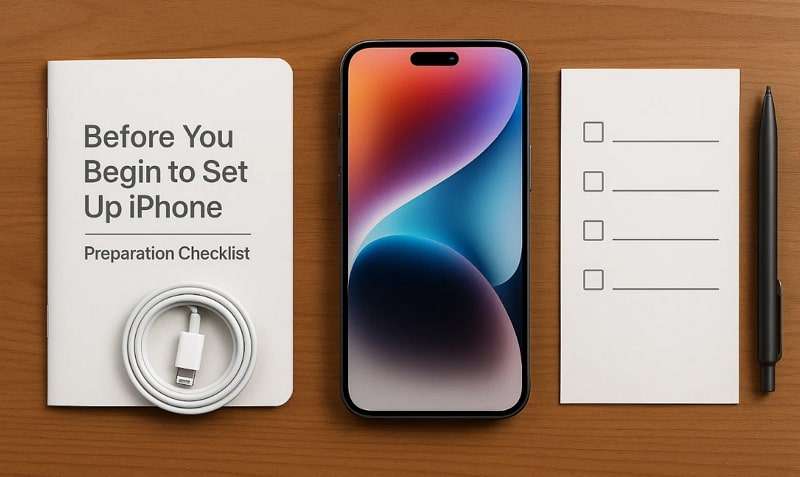
- Charge Your iPhone 17: Ensure your new smartphone is fully charged or at least above 50 percent to prevent shutdown during setup. The low battery may halt the process halfway, when you would need to restart the whole process afresh.
- Internet Connection: Wi-Fi network must be capable of executing updates and necessary upkeep on activation without oversights. A lack of a stable connection invalidates the service use, such as iCloud, Apple ID, and updates.
- Apple Account: Keep your Apple account and password ready to sign in during initial setup and verification. Without them, you cannot access important Apple services required to continue the process.
- SIM/eSIM Requirements: Insert your SIM card or prepare eSIM details since connectivity is essential when setting up. If you plan to use eSIM, ensure your carrier provides a valid QR code beforehand.
- Optional: Backup Your Old iPhone: Back up your old iPhone if you want to restore and transfer data conveniently later. Preparation allows a smoother migration of contacts, media, and apps when learning how to activate a new iPhone 17.
Part 2: How to Activate iPhone 17 (Using Wi-Fi Setup)
The easiest and most commonly used form of starting to use your phone is the Wi-Fi setup process. It enables you to get connected fast, log in using your Apple ID, and have access to vital services. With this method, you can also update settings, restore backups, and personalize your device smoothly. If you want to learn how to activate iPhone 17 easily, take guidance from the following steps:
Step 1. Keep pressing the Side button and Swipe Up > Continue > Follow On-screen Instruction.
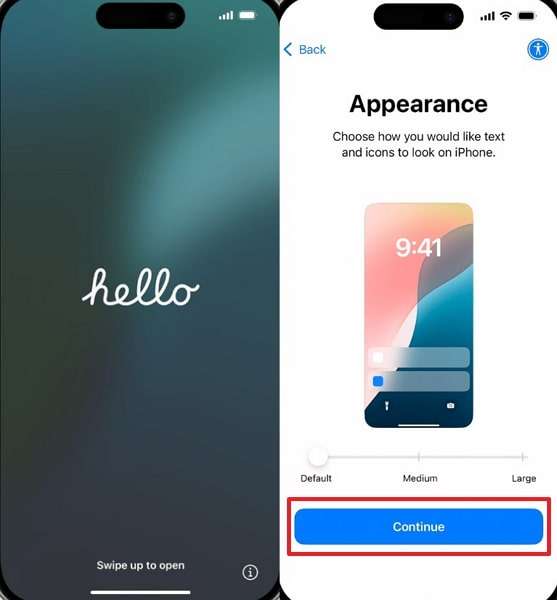
Step 2. When you see the Choose Wi-Fi Network screen, connect with your Wi-Fi and adhere to the given instructions.

Part 3. How to Activate eSIM on iPhone 17 (Using Carrier QR Code)
A carrier QR code is an easy and efficient procedure because it allows you to activate your eSIM in minutes. Rather than using a physical SIM card, you scan a code to connect quickly. This method offers flexibility and convenience, ideal for those who change networks or travel often. Thus, review the given guide below to understand how to activate eSIM on iPhone 17 without hassle:
Instruction. Upon accessing the Set Up Cellular screen during setup, press Use QR Code > Scan Code > Follow Instructions > Continue.

Part 4. How to Transfer Data to iPhone 17 with MobileTrans
When upgrading to a new iPhone, one of the biggest challenges is shifting essential data. Many users struggle to learn how to transfer data to the iPhone 17 without hassle. Instead of wasting hours with complicated methods, you can rely on MobileTrans for seamless transfers. This tool is designed to provide a simple and fast solution for phone migration. This dedicated tool even supports 18+ types of data, including messages and videos to transfer.
The program also supports over 6,000 Android and iOS devices, ensuring cross-platform compatibility without errors. It enables app transfers between iOS and Android devices, something many tools cannot guarantee. MobileTrans is significantly faster than Bluetooth-based transfers and does not require Wi-Fi or an internet connection.
Key Features
- Data Protection: Preserves existing data on the target phone without overwriting during transfers.
- Optional Transfer: Choose which files or data types to transfer, avoiding unwanted items on iPhone 17.
- OS Versions: Supports iOS 6 to iOS 26 beta and Android 4.6 to Android 16 versions effortlessly.






After exploring the top features, many users are still confused about using this dedicated data transferring tool. So, this section will help you understand how to transfer data to iPhone 17:
Step 1. Access MobileTrans, head to the Phone to Phone tab, and connect your iPhone 17 and old phone to the PC/Mac.

Step 2. Choose the Data you want to move to iPhone 17 and hit the Start button.

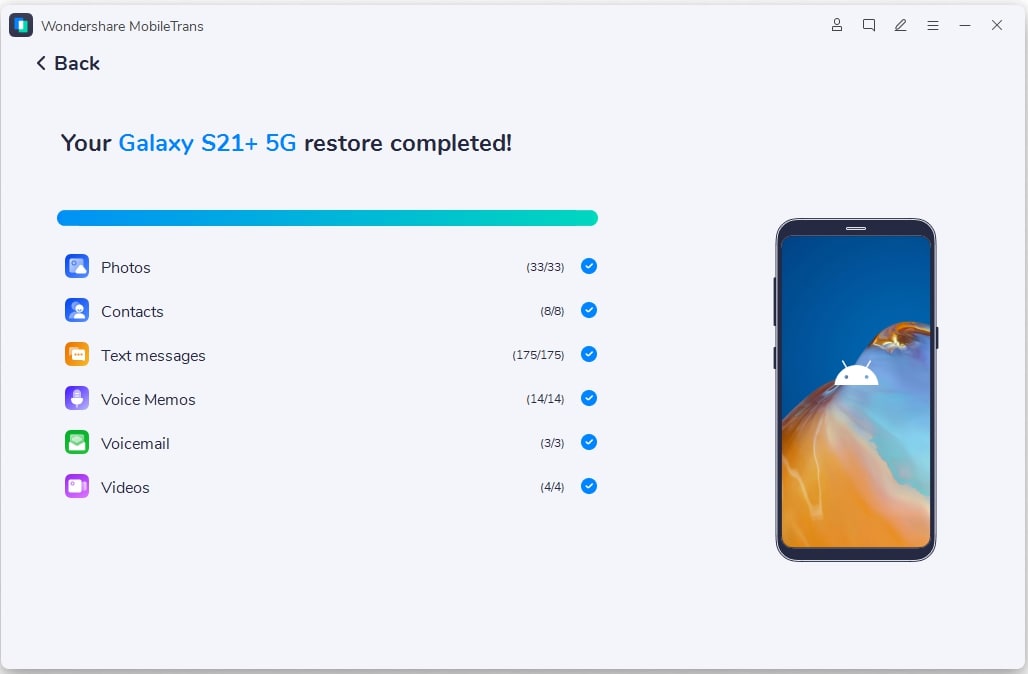
Step 3. You will see a confirmation interface when your iPhone 17 receives all selected data.
For users who prefer a mobile-based solution, MobileTrans App is equally reliable. It transfers all types of data with incredible speed, up to 30MB per second. The app uses a local hotspot to ensure 0 mobile data consumption during transfers.
Besides, it supports WhatsApp data migration between 2 phones, including chats and even stickers. Plus, connection is established via QR code scanning while keeping transfers secure, private, and straightforward.
Conclusion
In summary, understanding how to activate iPhone 17 helps avoid confusion and saves time. From preparing your device to activating with Wi-Fi or eSIM, each stage is important. When it comes to moving your data, trusted tools save time and prevent unnecessary stress. Among the available options, MobileTrans is highly recommended to make moving files stress-free and fast.










