


 TL;DR:
The free Apple Devices app for Windows officially replaces iTunes for backing up, restoring, and managing iOS devices via USB, but users switching between iOS and Android platforms should use MobileTrans instead.
● To prevent data transfer failures, you must use an original USB cable, ensure the mobile device has at least 70% battery, temporarily disable passcodes or Face ID, and avoid heavy PC multitasking during the process.
● MobileTrans is explicitly recommended for direct device-to-device migration because it supports macOS environments and can transfer complex data sets like WhatsApp chats and applications across different operating systems.
Ask AI for a summary
 ChatGPT
 Perplexity
 Gemini
 Claude
 Grok
Grok
Switching phones or setting up a new computer is common today. But moving files, apps, and photos between devices is often stressful. Many people worry about losing contacts or important data in the process.
Apple has created a simple solution for Windows users. The Apple Devices app helps you manage iPhones and iPads on a PC. It also supports Apple devices' data transfer, so you can back up and restore your content without stress.
In this article
Part 1: What is the Apple Devices App?
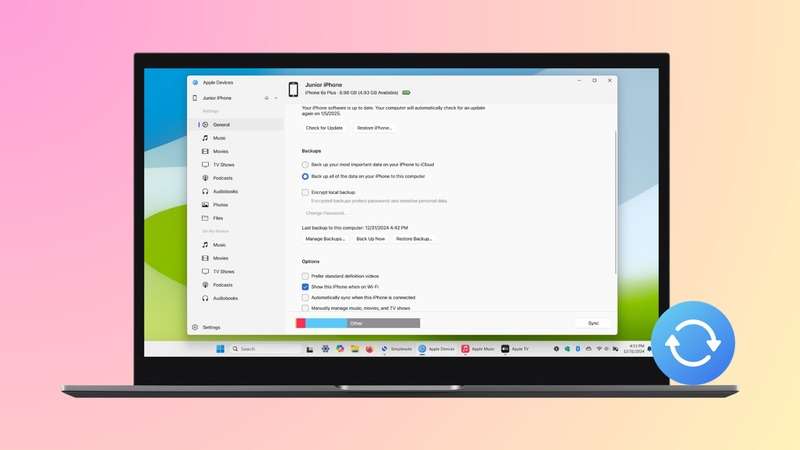
The Apple Devices app is modern software made for Windows users. It lets you connect your iPhone, iPad, or iPod to a PC. You can update software, restore devices, and handle data.
This app replaces many old functions of iTunes. It has a simple design, works faster, and supports the latest devices. For people who use Windows, it is now the official way to manage Apple devices.
The app is updated often. Apple uses feedback to improve performance and fix bugs. You can safely download the Apple Devices app on Windows from the Microsoft App Store.
Key Features of Apple Devices App:
- Manage and connect Apple devices on a PC.
- Update device software with one click.
- Restore devices in recovery mode.
- Create safe backups of your data.
- Sync content between the device and the computer.
- Clean and modern interface for easy use
Part 2: Can the Apple Devices App Be Used for Data Transfer?
Yes. The Apple Devices app data transfer is designed to help you move files. It supports backup and restore, so you can protect or recover your content. Still, it comes with both strengths and weaknesses.
Part 3: Step Guide: Using the Apple Devices App on Windows
Using the Apple Devices app is simple once installed. You only need a Windows PC, a USB cable, and your iPhone or iPad.
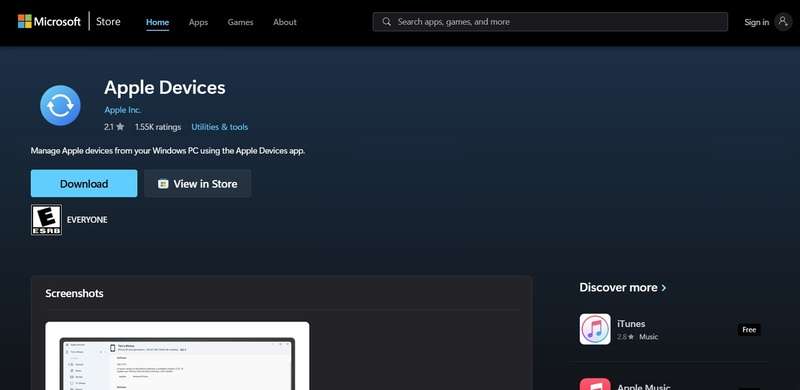
Step 1: Go to the Microsoft App Store. Search for the Apple Devices app on Windows. Download and install the latest version.
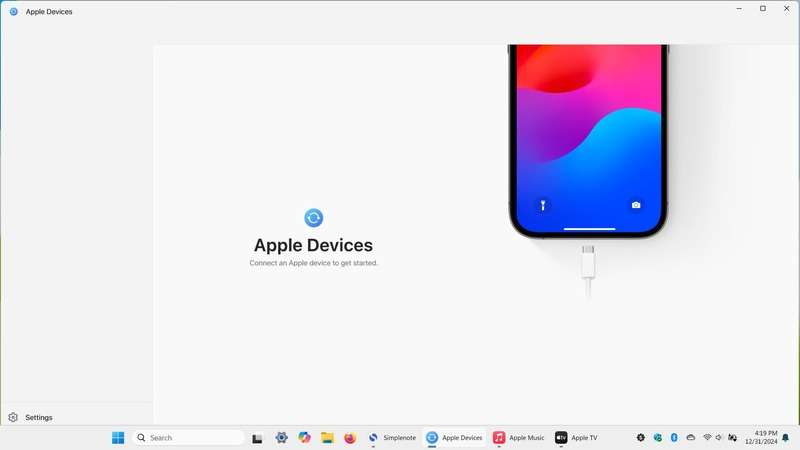
Step 2: Use a trusted USB cable. Connect your iPhone, iPad, or iPod to the computer. Wait for the PC to recognize it.
Step 3: Open the Apple device's software. Select "Back Up" to save your data. Choose "Restore" if you want to bring old data back.
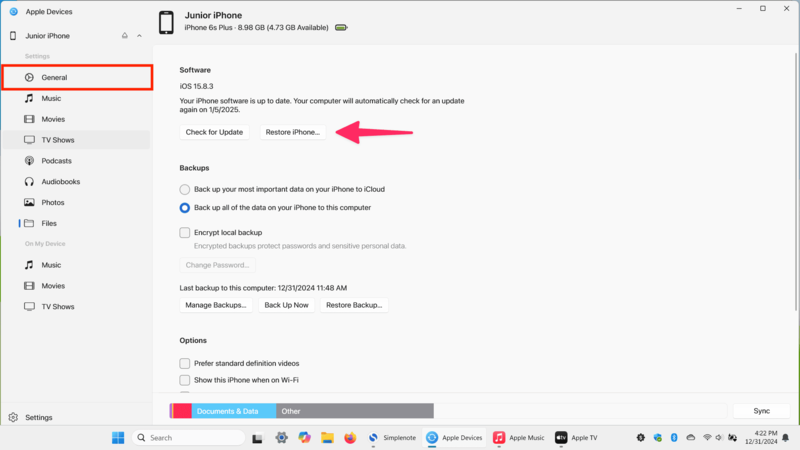
Step 4: Allow the process to complete. Do not unplug your device. Wait until the app shows a success message.
This is how you can transfer data with Apple devices safely on Windows.
Part 4: Best Alternative to Apple Devices App: Use the MobileTrans Tool
The Apple Devices app works well. But it is not always enough. Right? Well, yes! Many users want fast, flexible tools. MobileTrans is one of the best choices.
MobileTrans is made for both iOS and Android. It allows quick data transfer from Apple devices and also supports cross-platform moves. You can switch from iPhone to Android, or the other way around, in just minutes.
It is trusted by millions of people around the world. Unlike the Apple Devices software, MobileTrans supports WhatsApp chats, media files, and even apps. This makes it a complete tool for device migration.
Why Choose MobileTrans:
- Easy one-click transfer.
- Works on Windows and Mac.
- Supports both iOS and Android.
- Moves contacts, messages, photos, videos, and apps.
- Very fast transfer process. Protects against data loss. No complex setup needed




Quick Steps to Use MobileTrans:
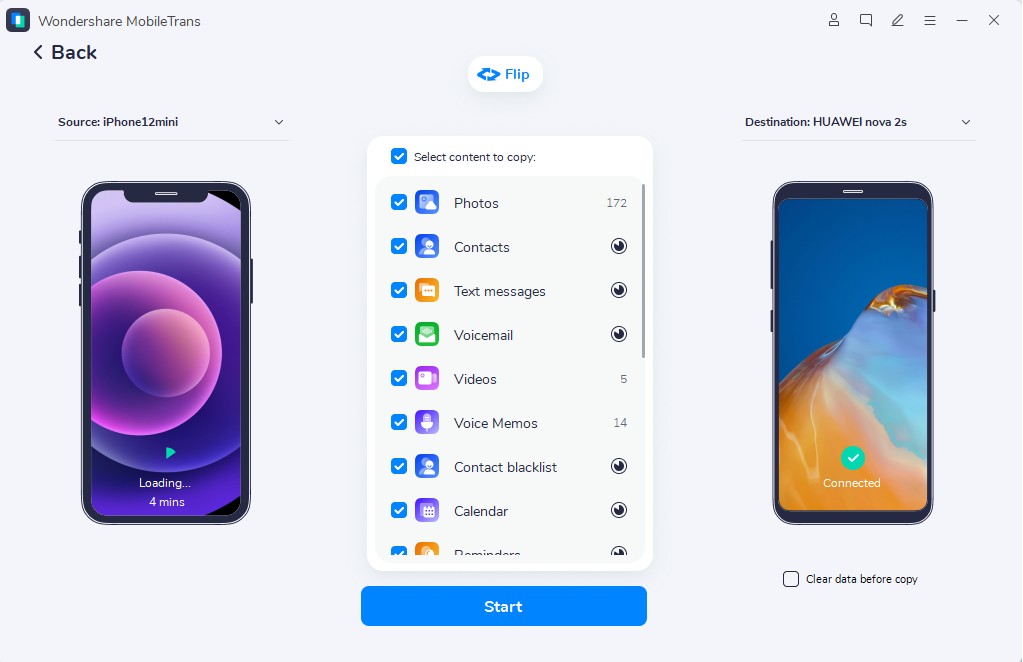
Step 1: Open MobileTrans on your PC. Connect both devices with USB cables. Choose "Phone to Phone Transfer" from the menu.

Step 2: Choose data to copy. Click "Start" and wait until the transfer finishes.
Part 5: Pro Tips for a Perfect Data Transfer
Data transfer is smooth if you follow smart habits. Here are useful tips to avoid mistakes:
- Charge devices: Make sure both devices have at least 70% battery.
- Use original cables: Fake cables can break the transfer.
- Backup first: Keep a copy before moving files.
- Check updates: Install the latest Apple Devices software.
- Disable screen locks: Turn off passcodes and Face ID for transfer.
- Do not multitask: Avoid heavy work on the PC during transfer.
- Stay connected: Keep devices plugged in until the process ends.
- Use trusted tools: Stick to apps like the Apple Devices app or MobileTrans.
Conclusion
The Apple Devices app is an official tool that makes it easy to connect your iPhone or iPad with a Windows PC. You can use it for backup, restore, and basic Apple device data transfer.
However, it is limited to cross-platform use. If you want faster results or need to move between iOS and Android, MobileTrans is the smarter choice. Together, these tools ensure your data stays safe and easy to access.
FAQ
-
Q: Is the Apple Devices app free to use?
A: Yes. The Apple Devices app on Windows is free to download. You can get it from the Microsoft App Store. There are no charges for updates. Apple provides new versions often. These updates improve speed and fix bugs. You can back up, restore, and manage devices without paying. For basic needs, Apple Devices app data transfer is a safe choice.
-
Q: Can I transfer data between an iPhone and an Android with the Apple Devices app?
A: No. The Apple Devices software only works with iPhone, iPad, and iPod. It cannot connect to Android phones. This app is made for people who use Apple devices with a Windows PC. It is good for backups and restores, but not for cross-platform transfer. If you want to move data between an iPhone and an Android, you should use a tool like MobileTrans.
-
Q: What makes MobileTrans a better choice?
A: MobileTrans offers more options. It can transfer contacts, photos, videos, chats, and apps. It supports both iOS and Android devices. You can move data between two phones in minutes. The steps are simple. Connect both phones, pick the files, and start the transfer. Unlike the Apple Devices app data transfer, it works across platforms. This makes it a better option if you are switching to a new type of phone.










