


 TL;DR:
You can restore WhatsApp Business data natively using Google Drive or local storage on Android and iCloud or iTunes on iPhone, while cross-platform restorations between different operating systems require the MobileTrans tool.
● Native cloud restorations via Google Drive or iCloud strictly require the use of the exact same phone number and respective Google account or Apple ID linked to the original backup.
● Restoring through iTunes or Finder provides an offline PC backup method but will overwrite all current data on the iPhone, leading to the loss of recent conversations.
● MobileTrans enables cross-device cloud transfers, such as moving iCloud backups to Android or Google Drive backups to an iPhone 18 on iOS 27, while allowing you to keep existing messages on the destination device.
Ask AI for a summary
 ChatGPT
 Perplexity
 Gemini
 Claude
 Grok
Grok
If any business owner loses their chat accidentally, it can be stressful for them. WhatsApp Business backup restore can help you save your chat data safely. Besides, when you change phones or reinstall the app, restoring keeps data where you left off. Thus, this guide shows easy ways to restore Business backup on Android or iPhone.
In this article
Part 1: WhatsApp Business Backup Restore on Android
When you are wondering how to restore WhatsApp Business backup on Android, it's quite simple. This part will guide you through easy ways to bring back your chats and data safely.
Restore WhatsApp Business Backup from Google Drive
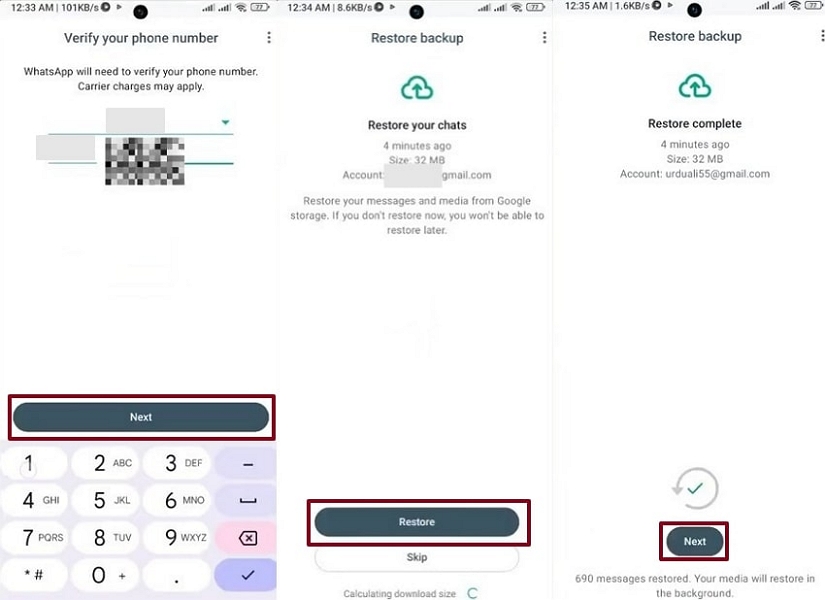
WhatsApp Business restore backup from Google Drive helps to recover chats if you turn on your backup. You can quickly get back all messages and media files if your data is saved in Google Drive. This backup keeps your conversations safe in case of phone loss or reinstallation. Yet, make sure you use the same Google account and phone number linked to your backup. Adhere to the guide below to recover your chats:
Instruction: Press Agree & Continue > Put your Phone Number > Next > Restore > Next when completed.
Restore Data from Local Storage
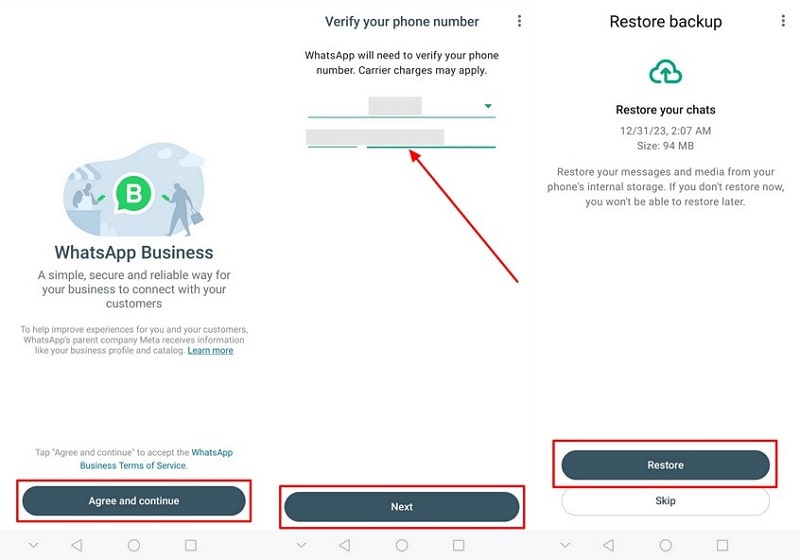
You can still restore WhatsApp Business backup using your phone's local storage. WhatsApp Business saves data files on your device under the "com.whatsapp.w4b" folder automatically. You can restore data in case the backup files are stored physically on your phone. Always ensure your backups are recent and correctly stored to avoid losing chat data. Go through the instructions below to recover data from your phone's local storage:
Instructions. Press Agree & Continue > Register your Mobile Number > Next > Follow the prompts > Restore.
Part 2: WhatsApp Business Backup Restore on iPhone
Restoring data on an iPhone is simple when you know the correct steps to follow. Here you will learn how to restore WhatsApp Business backup safely using iCloud or iTunes:
Restore WhatsApp Business Backup from iCloud
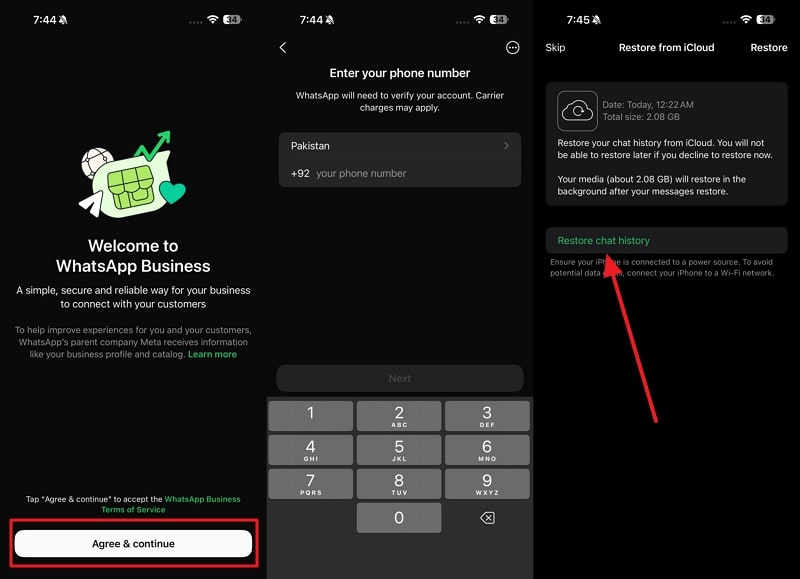
iCloud offers an easy way to restore WhatsApp Business backup on iOS devices. It automatically saves your chats and media, like Google Drive, to keep your business data protected. You can sign in using the same Apple ID to access your stored WhatsApp backups. It helps restore WhatsApp Business backup after reinstalling the app or switching phones. So, follow the instructions below to restore your business chats through iCloud:
Instructions. Start with Agree & Continue > Provide your Phone Number > Next > Follow prompts > Press Restore.
Use iTunes/Finder to Restore
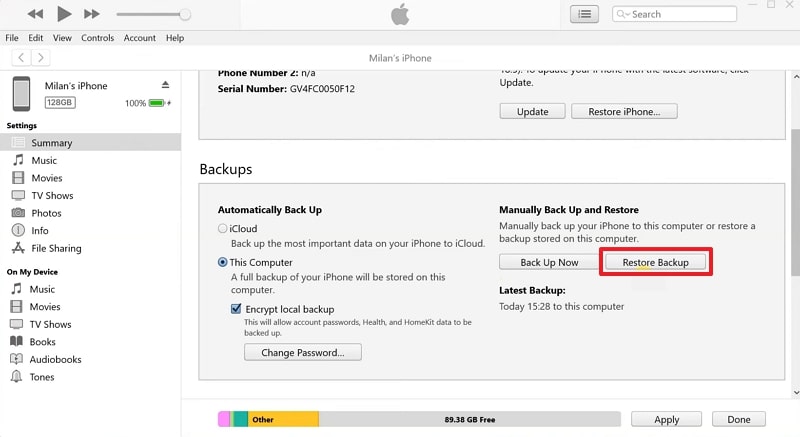
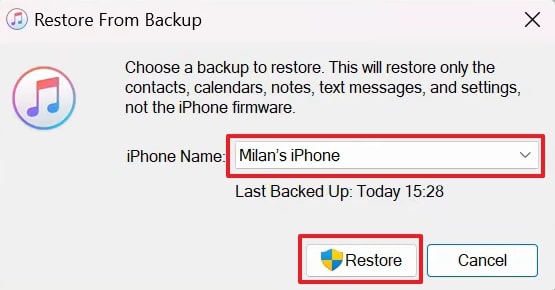
iTunes provides another reliable way to restore WhatsApp Business backup securely. It lets you create full device backups, including all chats and media files, to your computer. You can restore your business conversations from your computer without needing the internet. Yet, this method replaces existing data on the iPhone, causing loss of recent data. Anyhow, take guidance to learn how to restore WhatsApp business backup via iTunes:
Step 1. Connect the iPhone to the PC > Launch iTunes > head to the Summary tab, and press Restore Backup.
Step 2. Choose the recent backup from the prompt and press Restore.
Part 3: How to Restore WhatsApp Business from Cloud Drive (To a Different OS)
You can also restore your business chats using a dedicated tool, known as MobileTrans. So, this part will help you learn how to restore chat on WhatsApp Business without hassle:
Restore WhatsApp Business from iCloud to Android
MobileTrans allows users to easily restore WhatsApp Business backup from iCloud to Android. It lets you log into your iCloud account to access stored WhatsApp Business backups. The tool offers data preview, letting users export selected chats or media conveniently.


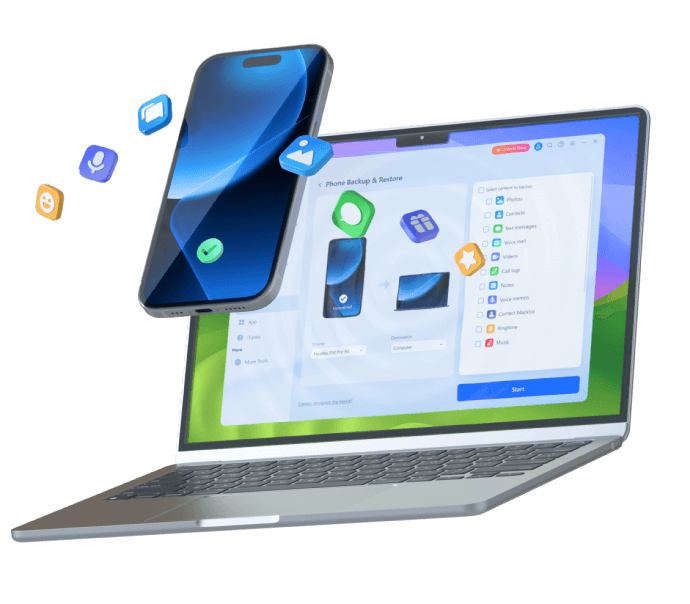
It offers secure identity verification using your phone number and a verification code. Users can pick their preferred save location on the PC for storing recovered data. Follow the given steps to learn how to restore WhatsApp Business chat from iCloud to Android:
Step 1. Go to the WA Business tab > Drive/iCloud Transfer > iCloud Data Transfer > Sign in
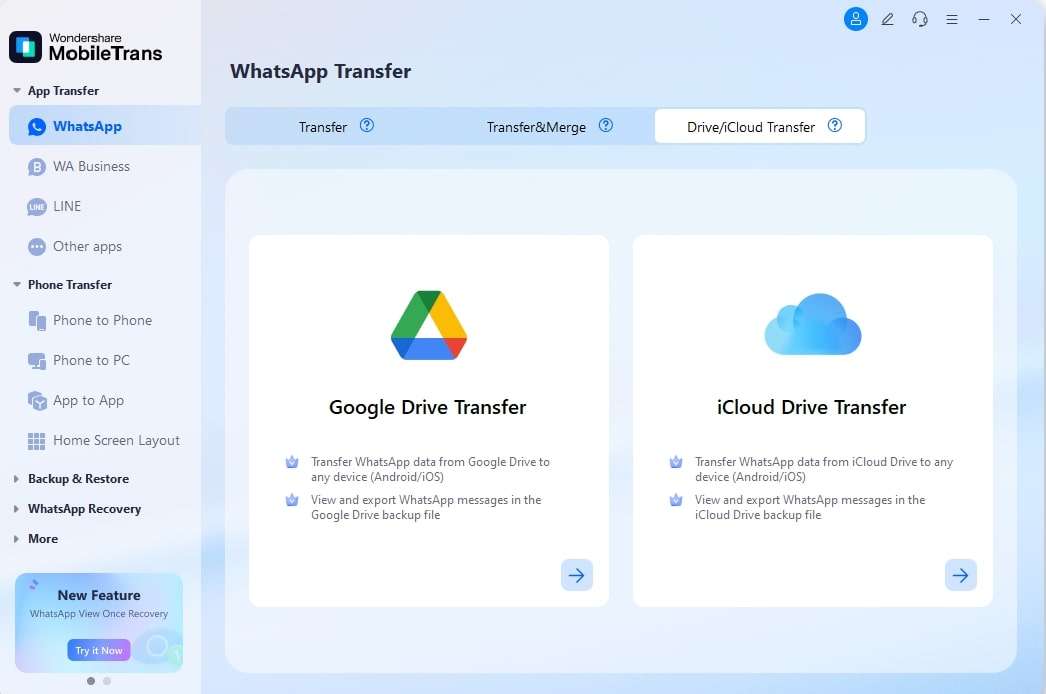
Step 2. Pick the desired backup > Verify your account > Load WhatsApp backup details
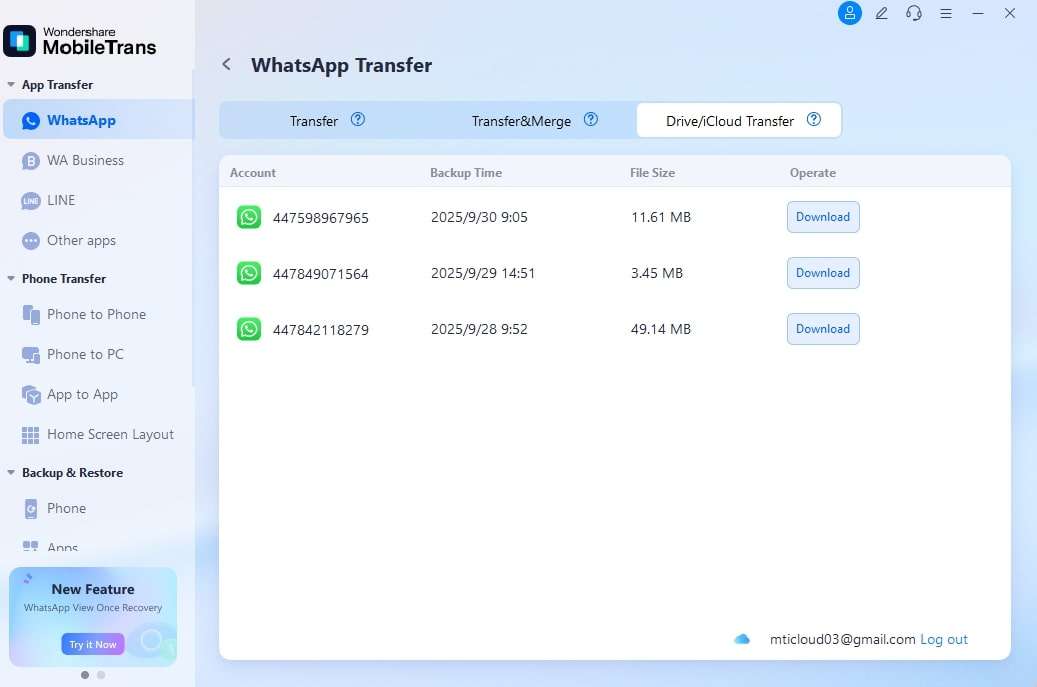
Step 3. Attach your Android to the PC > Preview WhatsApp content > Press Restore to Device > Hit Start to begin transfer.
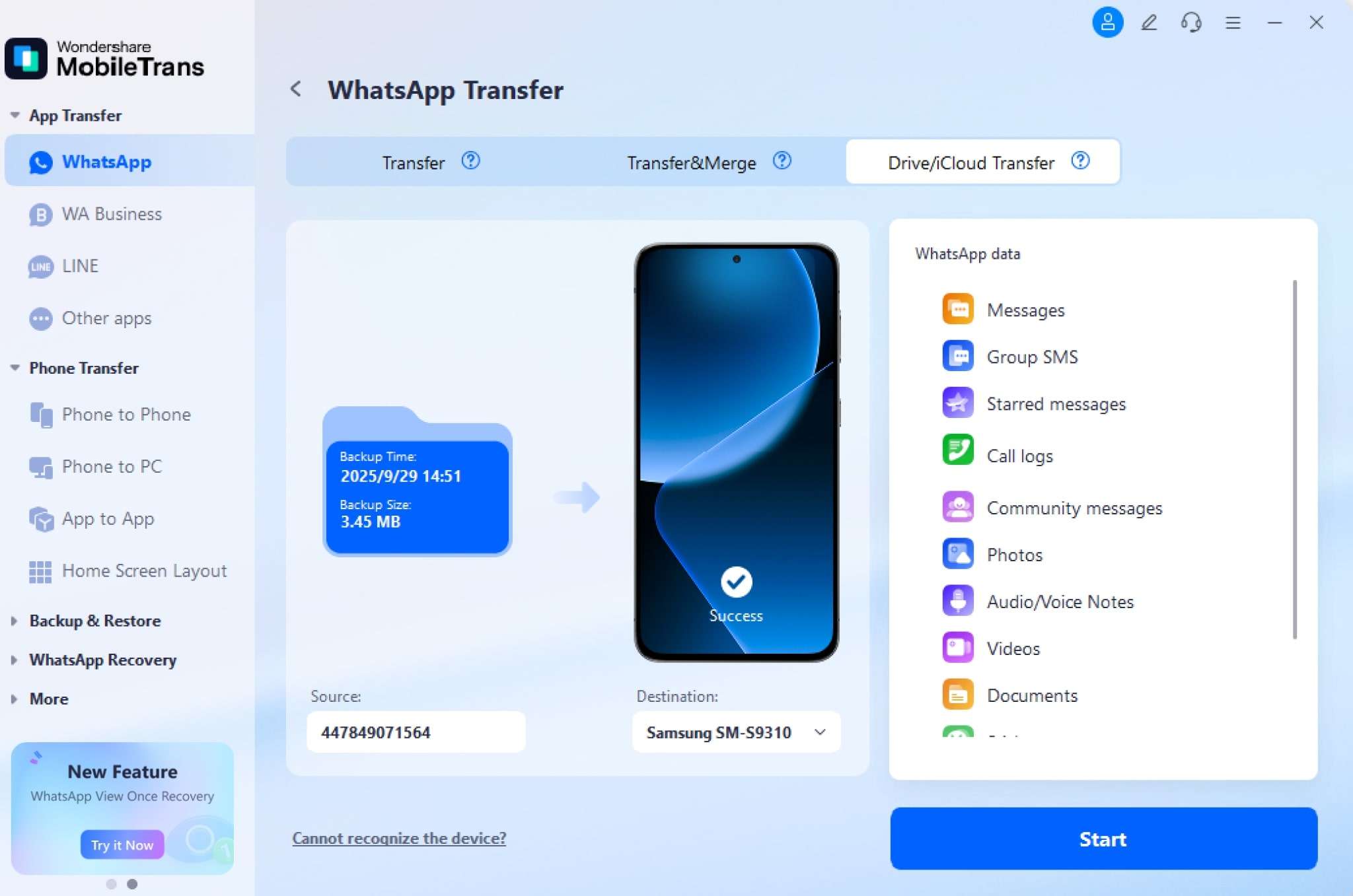
Restore Google Drive WhatsApp Business Backup to iPhone
It also lets users perform a WhatsApp Business restore backup from Google Drive. Upon accessing the data, you can download the selected backup to transfer to your iPhone. You can even keep existing WhatsApp messages on iPhone while adding the new backup.
Plus, it supports the latest iPhone 18 and iOS 27, letting you transfer data effortlessly. Review the steps to restore WhatsApp Business backup to your iPhone from Google Drive via MobileTrans:
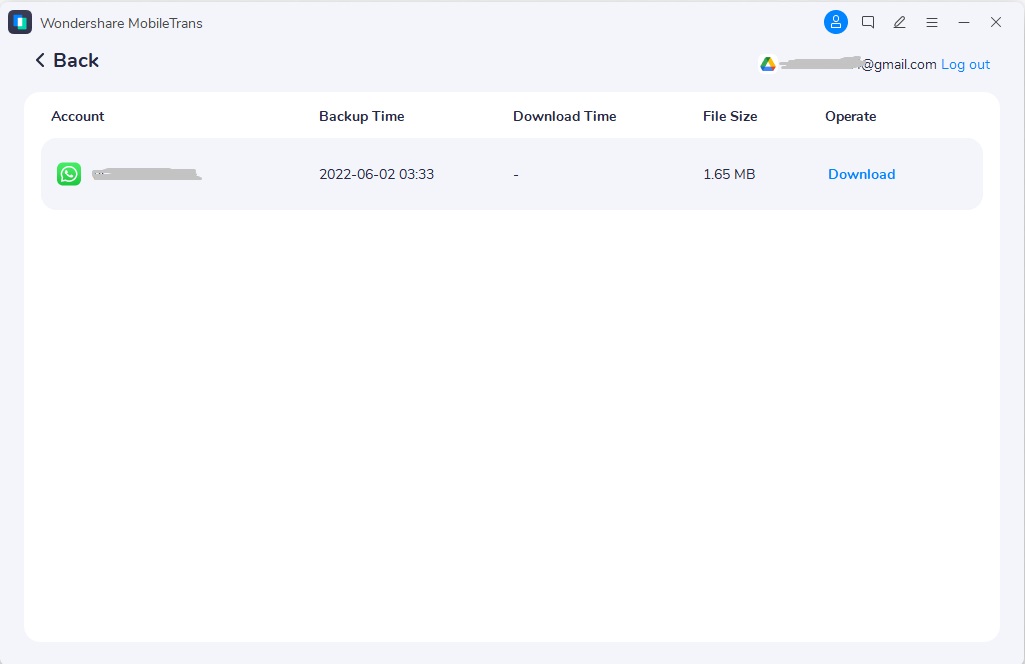
Step 1. Access Drive/iCloud Data Transfer tab > Google Drive Transfer > Log in.
Step 2. Press Download on the recent backup > Verify your account to access the backup data.
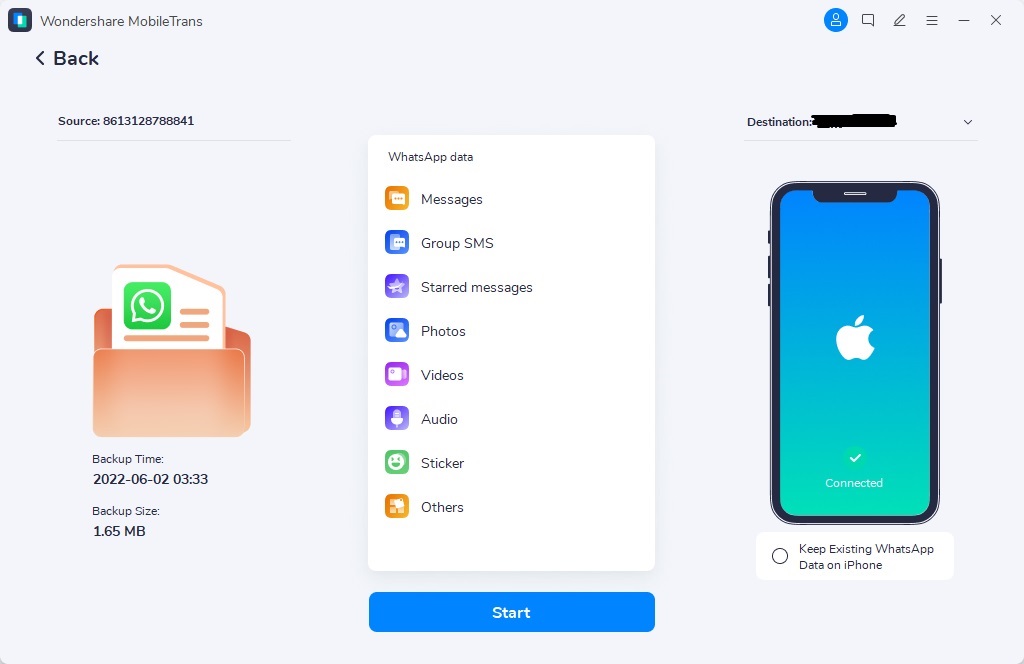
Step 3. Preview your WhatsApp Business data > Press Restore To Device > Connect your iPhone and hit the Start button.
Conclusion
In summary, restoring WhatsApp Business chats is important for keeping customer conversations protected. Android and iPhone users can recover messages using cloud backups or local storage. Choose the method that matches your device, so business data remains available forever. For simple WhatsApp Business backup restore with cross-device support, choose MobileTrans today confidently.













