


 TL;DR:
You can back up WhatsApp Business data using built-in cloud options like Google Drive for Android and iCloud for iPhone to automate daily saves, or utilize a desktop tool like MobileTrans for cross-platform, selective backups that prevent data overwriting.
● Google Drive and iCloud only support full data restoration on their respective operating systems, requiring the original linked account and relying on limited free cloud storage capacities of 15GB and 5GB.
● Manual chat exports via email are restricted to 40,000 messages without media or 10,000 with media attached, and these exported files are read-only and cannot be restored back into the WhatsApp application.
● iTunes and local device backups require complete device restorations that erase current phone data, whereas MobileTrans requires a USB desktop connection but allows selective restoration and chat exports to PDF or HTML formats.
Ask AI for a summary
 ChatGPT
 Perplexity
 Gemini
 Claude
 Grok
Grok
Many small and large companies use WhatsApp Business to talk with their customers. Losing important chats or media can seriously hurt trust and daily business operations. A WhatsApp Business backup helps protect conversations, orders, and customer details safely. It becomes helpful when switching phones or fixing unexpected app issues anytime today. Therefore, this guide shows different ways to back up data easily on any modern device.
In this article
Part 1: Why It Is Important to Create a WhatsApp Business Backup
Running a business means your customer chats hold real value and must stay protected. Below, you will explore a few essential points that explain the importance of backing up your business chats:

- Data Safety: A WhatsApp Business chat backup keeps your customer messages safe from technical problems. It prevents data loss caused by system errors, mistaken deletion, or device damage.
- Customer Trust: Saved chats help solve client issues fast without asking them details again later. Reliable history builds confidence and supports communication across business growth phases daily.
- Device Change: When switching phones, backup ensures your entire chat history transfers easily. You can move smoothly from one device to another without losing communication records.
- Proof Records: Chats may include receipts and agreements important for business record-keeping. Having copies protects you from disputes by showing a clear conversation history when needed.
- Work Continuity: A proper backup keeps you working smoothly even during phone replacement or repairs. It reduces downtime, which helps maintain sales and customer responses quickly every day.
Part 2: Compare the Methods Available to Back Up WhatsApp Business
Multiple methods are available to perform a WhatsApp Business chat backup, each with unique features. Upon comparing them with the given table, it helps you choose the safest and most convenient method for your business:
|
Feature / Method |
Backup |
Backup |
Automation |
Encryption |
Cross-Platform |
Storage |
Internet |
Data Restore |
|
Cloud-based |
Full chats and media |
Yes (daily, weekly, monthly) |
Encrypted by Google |
Android only |
15GB free storage |
Yes |
Full restore only |
|
|
Cloud-based |
Full chats and media |
Yes (daily, weekly, monthly) |
End-to-end Apple encryption |
iPhone only |
5GB free storage |
Yes |
Full restore only |
|
|
Local (phone storage) |
Full chats and media |
Automatic daily backup |
Device encryption only |
Android only |
Limited by internal memory |
No |
Full restore only |
|
|
Local (computer storage) |
Full chats and media |
One-click process |
Local file encryption is supported |
Android & iPhone supported |
Limited by computer space |
No |
Selective restore available |
|
|
Manual file export |
Specific conversations only |
Manual for each chat |
No encryption applied |
Readable only (no restore) |
Depends on attached media |
Needed for email/cloud export |
No data restoration support |
|
|
Local (computer backup) |
Entire device, including WhatsApp |
Manual, full-device backup |
Optional encrypted backup |
iPhone only |
Limited by computer storage |
No |
Full device restore only |




Part 3: How to Back Up WhatsApp Business on Android and iPhone
Backing up your business chats is important to keep messages and documents always safe. This part will show how to back up WhatsApp Business on your device without using complex steps:
1. Google Drive Backup (Android)
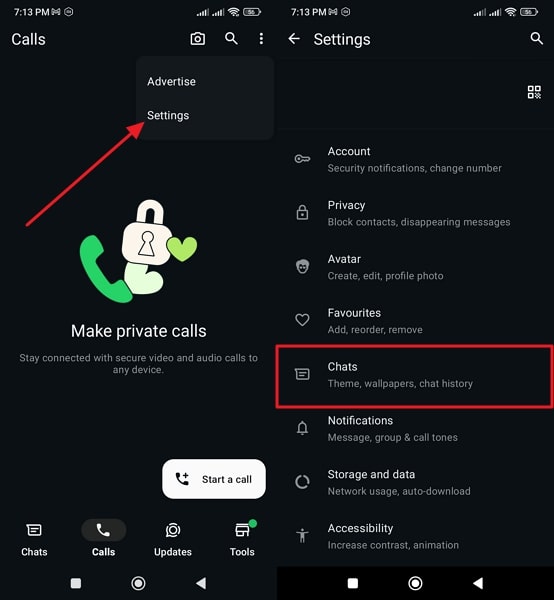
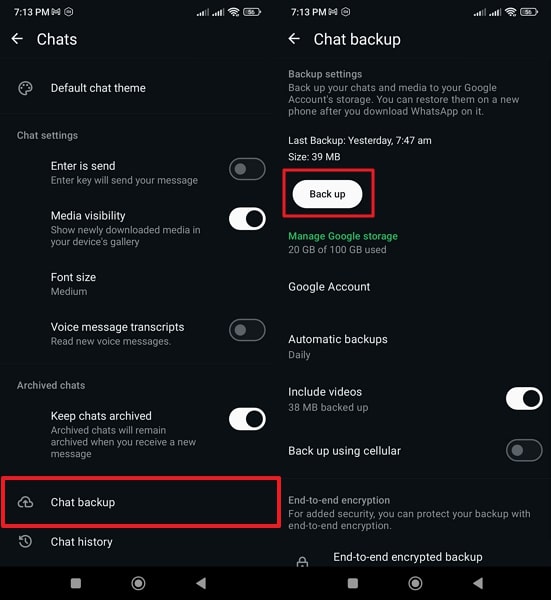
Google Drive is the most common option for Android users to keep chats securely stored online. It automatically saves conversations, images, and files to your connected Google account. Plus, you can choose to include or skip videos for faster cloud backup. It supports automatic daily, weekly, or monthly backups without needing extra manual effort. So, review the following steps to learn how to back up WhatsApp Business on Drive:
Step 1. Tap Three Dots > Settings > Chats.
Step 2. Head to the Chat Backup feature and press the Back Up Now button.
2. iCloud Backup (iPhone)
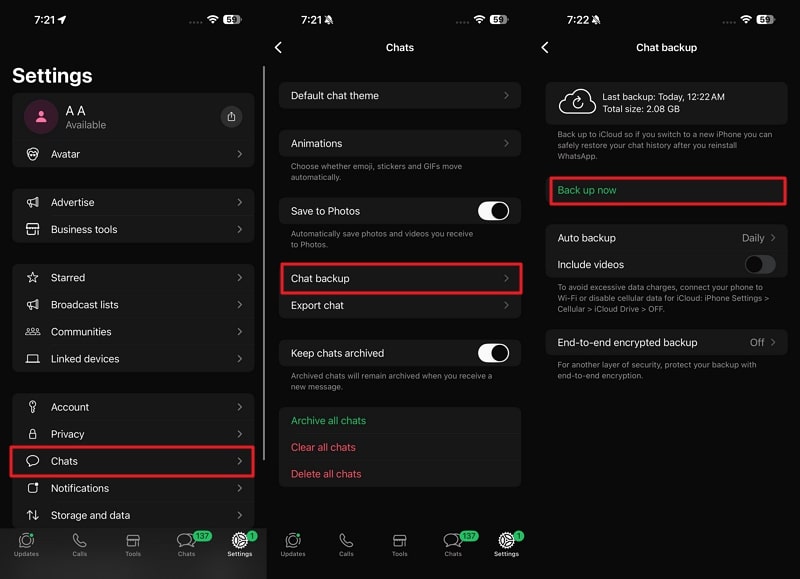
iCloud backup keeps WhatsApp Business chats safe inside your linked Apple account securely. The process can run daily, weekly, or monthly without manual effort each time. Moreover, media and chat data are encrypted to help protect important information from unauthorized access. Yet, this WhatsApp Business chat backup method works only with the same Apple ID. Thus, go through the given steps to back up your chats to iCloud:
Instructions. Go to Settings > Chats > Chat Backup > Back Up Now.
3. Local Device Backup
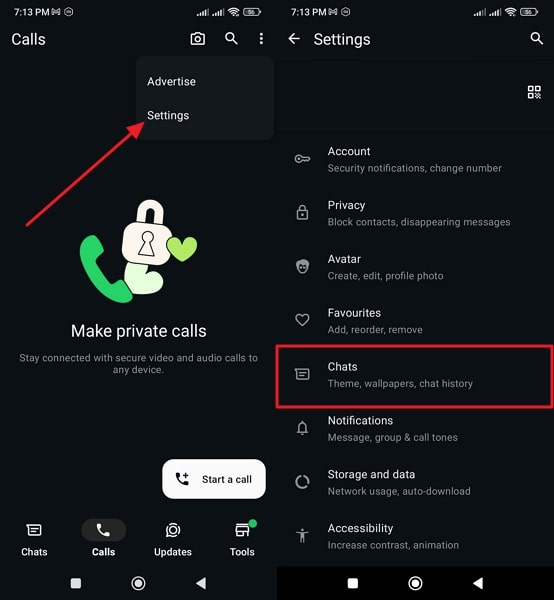
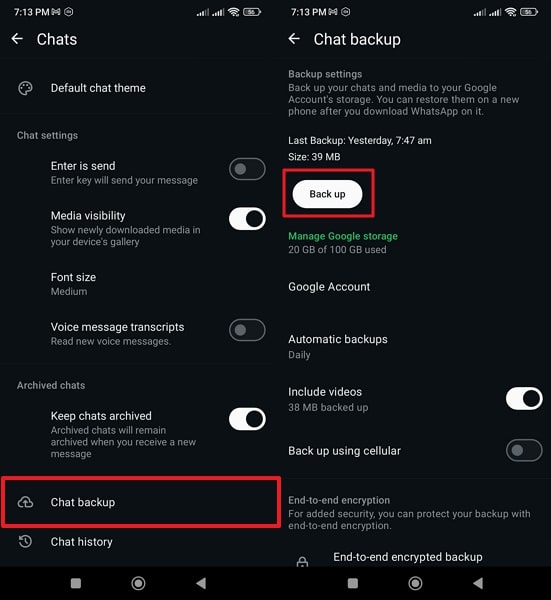
Local device backup offers offline protection for all your WhatsApp Business chats and files. It automatically creates encrypted copies of chats inside your phone's internal storage every night. These backups help restore chats when cloud options fail due to technical issues. You can move backup files to the SD card or computer for extra protection anytime. For users wondering how to back up my WhatsApp Business, follow the steps below:
Step 1. Tap Three Dots to go to Settings and tap the Chats section.
Step 2. Navigate to the Chat Backup section and hit the Back Up Now button.
4. MobileTrans (Backup to Computer)
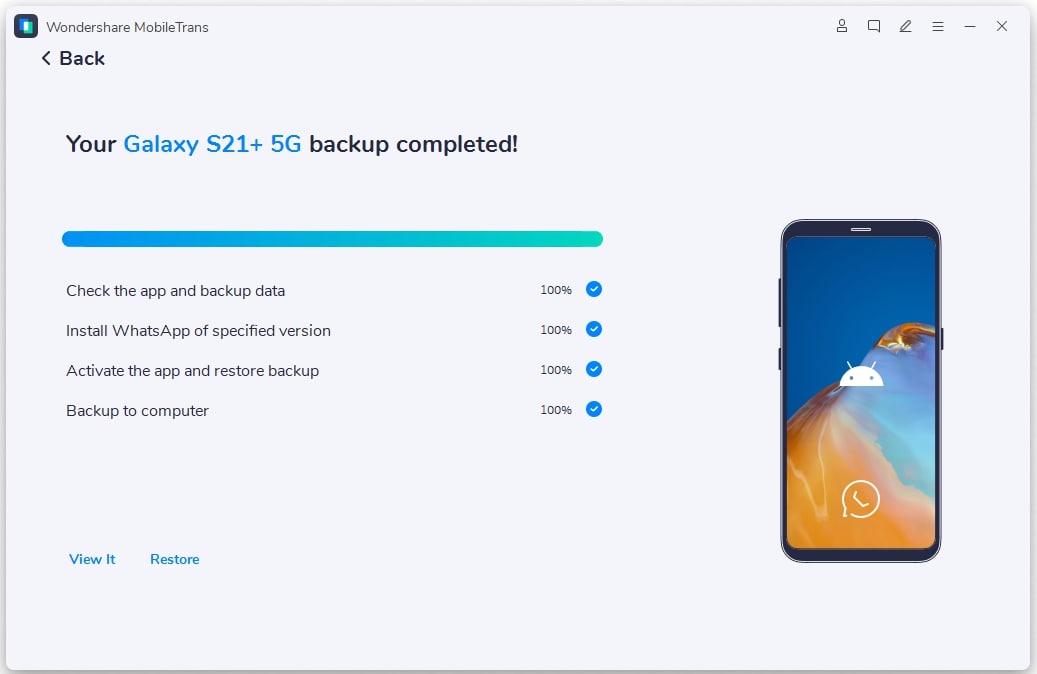
For an effortless experience, MobileTrans provides a smart way to back up your WhatsApp Business data. It supports over 18 data types, including chats, multimedia, and attachments. You can export WhatsApp and Business chats to computer files in PDF or HTML format. This tool allows selective backup or restore, giving full control over chosen files.
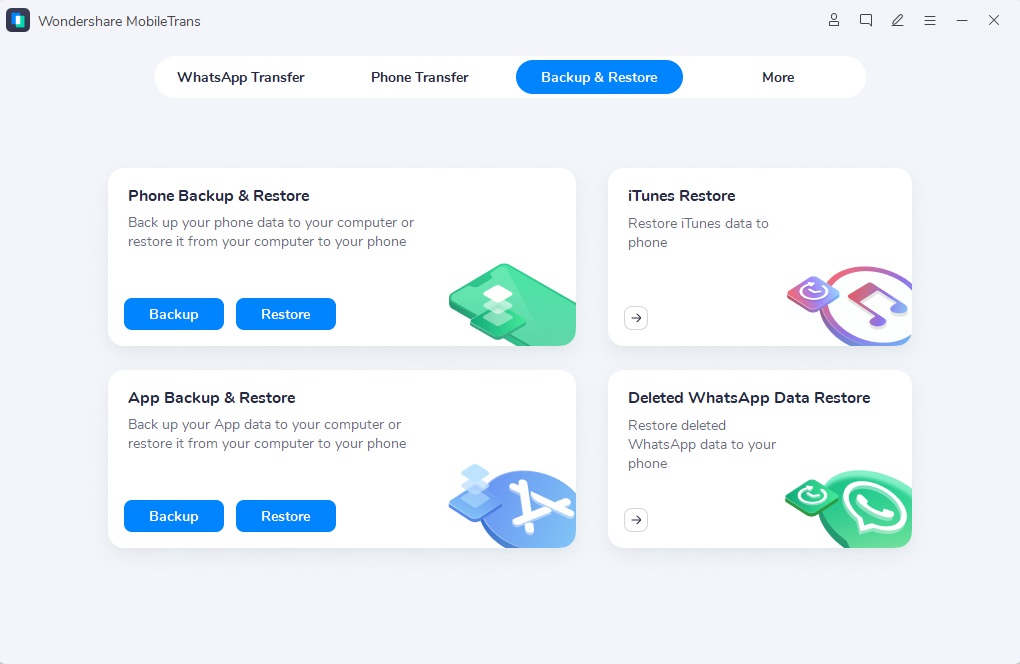
It prevents any data overwriting, keeping your phone safe during WhatsApp Business backup restore. You can follow the given guide to find out how to back up your essential WhatsApp Business chat using MobileTrans:
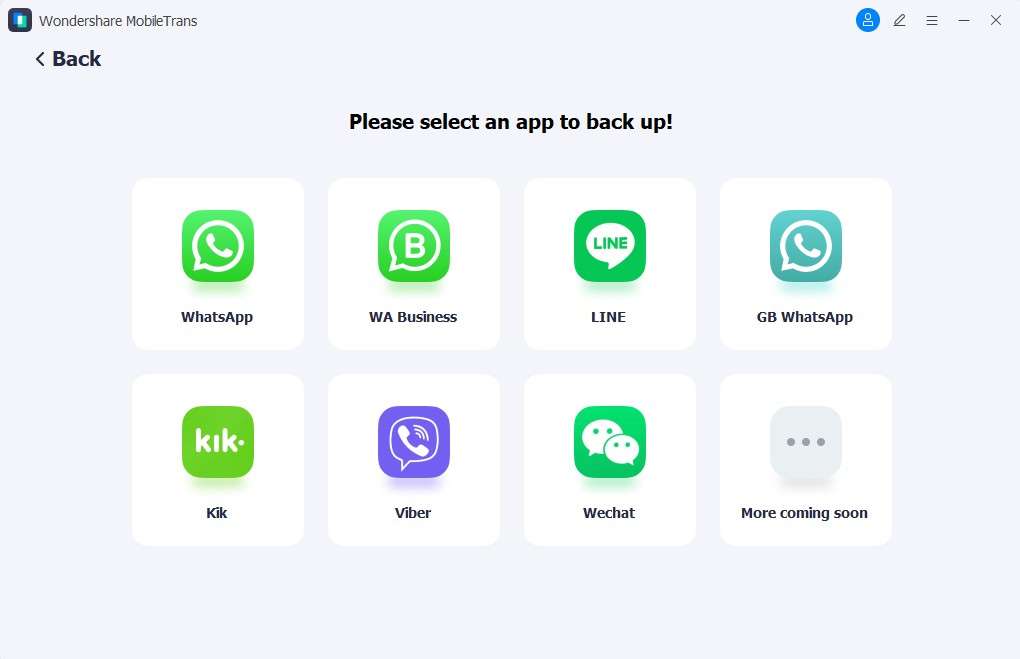
Step 1. Navigate to Apps under the Backup & Restore section > WA Business > press Backup.
Step 2. Connect your phone to the computer > Choose WhatsApp Business Data to backup and press Start.
Step 3. Follow the on-screen instructions if backing up WhatsApp Business from Android to complete the process.
5. Manual Chat Export (Email or Cloud)
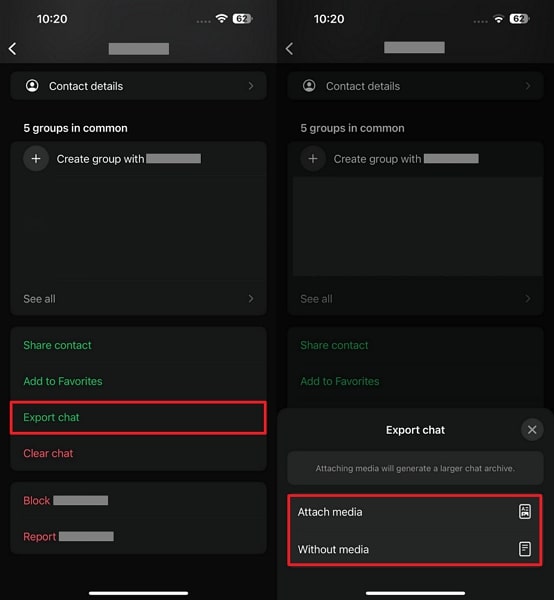
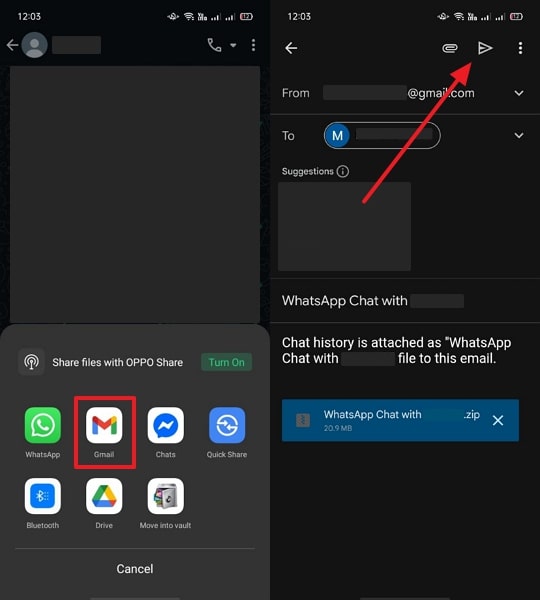
Manual chat export also helps save selected business conversations outside the app as readable files. It lets you include or remove media depending on storage and sharing needs quickly. These files can be stored on email, cloud, or phone storage for easy access anytime. It works well for saving important chats separately without full WhatsApp Business backup requirements. Adhere to the given steps to export a specific WhatsApp Business chat:
For iPhone
Step 1. Head to the specific client chat > Contact Info > Choose Export Chat > Attach Media / Without Media.
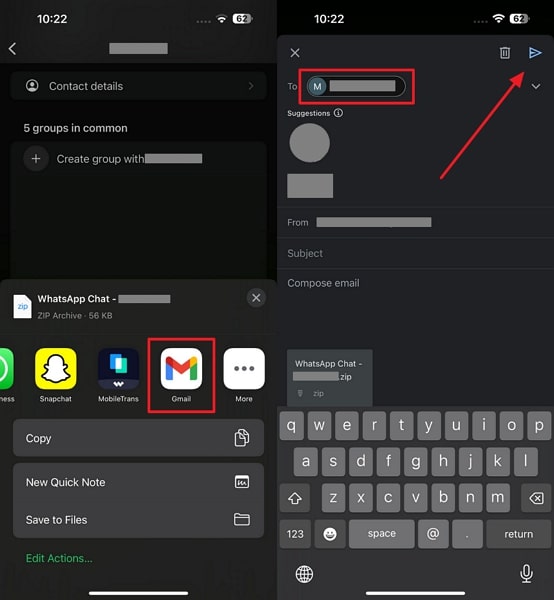
Step 2. Select the desired email platform > Enter your Email Address > Hit the Send button.
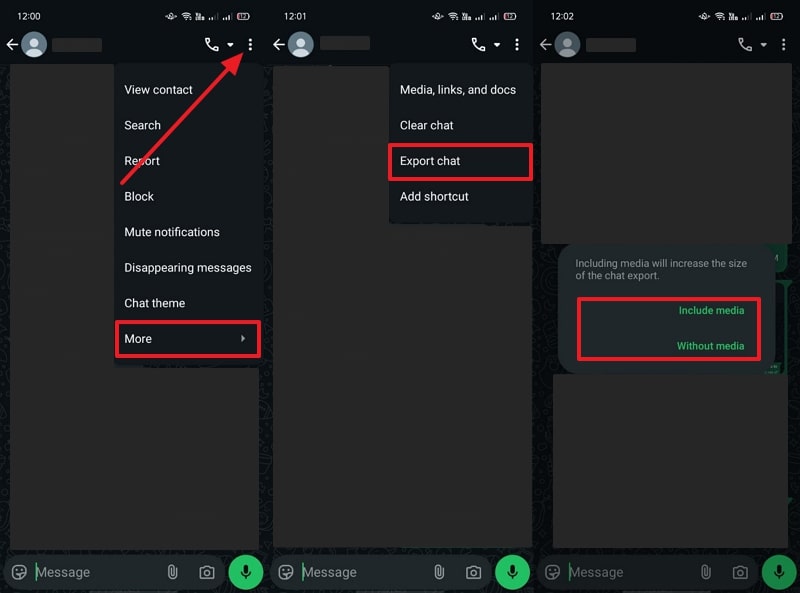
For Android
Step 1. As you access the specific Business conversation, tap Three Dots > More > Export Chat > Include Media / Without Media.
Step 2. Choose a platform like Gmail > Add the Email Address > Tap the Send icon.
6. iTunes/Finder (Local Backup for iPhones)
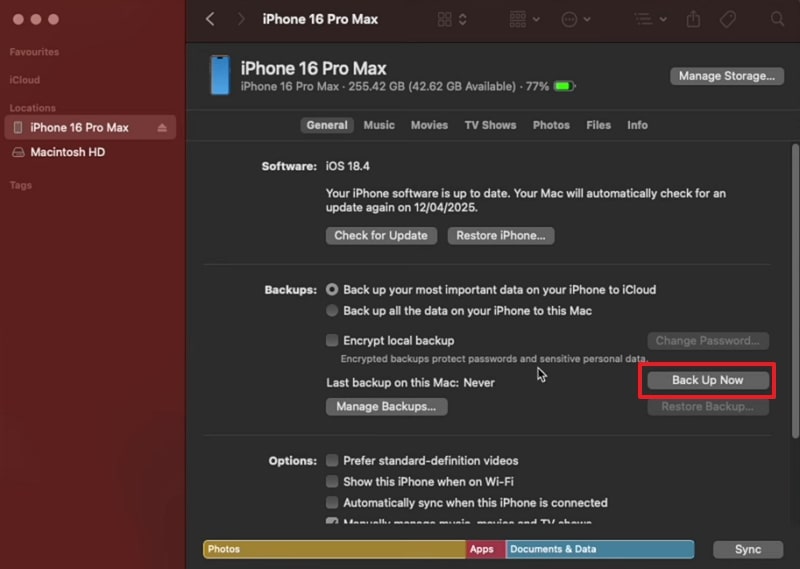
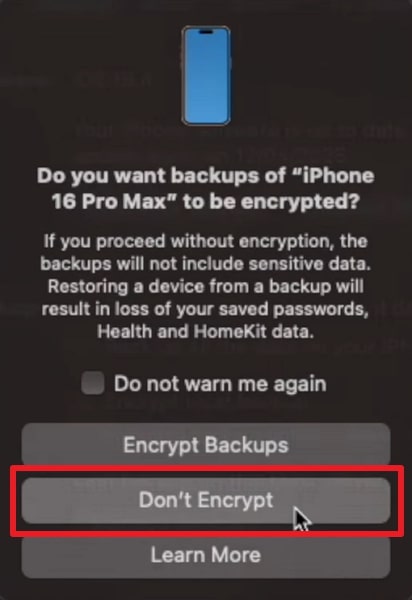
iTunes or Finder also allows full offline backups of iPhone, including WhatsApp Business data. You can encrypt backups for added privacy, protecting messages and account information from others. The process stores all app data securely, ideal for users who avoid iCloud premium storage. Anyway, take guidance from the steps below to understand how to back up WhatsApp Business, along with all your phone data:
Step 1. Run iTunes/Finder and connect your iPhone to the PC/Mac > Press the Back Up Now button.
Step 2. When a prompt appears, click Don't Encrypt to start backing up.
Conclusion
To sum up, backing up WhatsApp Business is essential to protect chats and customer data. This article has explored 6 different ways to back up your data without hassle. Different methods offer various features and security levels for storing your messages. Therefore, choosing the right solution ensures effortless device changes and safe data restoration anytime. For the most flexible and secure experience, MobileTrans is recommended for reliable WhatsApp Business backup.










