


 TL;DR:
You can resolve a stuck iPhone WhatsApp backup by verifying sufficient iCloud storage, clearing temporary system glitches, or using a dedicated desktop tool if native Apple services fail.
● Toggle off "Include Videos" in the WhatsApp Chat Backup settings to prevent heavy file loads from freezing the progress bar, which is highly effective if the backup hangs or stays at 0%.
● Do not delete the WhatsApp application to troubleshoot a stalled backup, as this causes permanent data loss for recent chats; try force-quitting the app or restarting the iOS device instead.
● MobileTrans is the best alternative when weak Wi-Fi or iCloud storage limits block the process, allowing you to securely back up and restore data locally to a Windows or Mac computer without relying on internet speed.
Ask AI for a summary
 ChatGPT
 Perplexity
 Gemini
 Claude
 Grok
Grok
WhatsApp is one of the most used apps on iPhone. For many, WhatsApp backup is the safety net that prevents data loss. But sometimes, users see their WhatsApp backup stuck iPhone screen for hours. This issue is common, and it can cause stress.
When an iPhone WhatsApp backup stuck problem happens, you may feel helpless. The backup might freeze at "preparing" or "uploading." It may also fail without warning.
In this guide, we explain causes and give step-by-step fixes. You will also find pro tips and prevention methods to avoid future problems.
In this article
Part 1: Possible Causes – WhatsApp Backup Stuck on iPhone
When you see WhatsApp backup iPhone stuck, it could be due to different reasons. Here are the most common ones:
- Weak internet: A slow Wi-Fi or mobile network delays uploads.
- Low iCloud space: Backups need free storage to complete.
- Large videos: Videos take more time and often freeze the process.
- iCloud Drive disabled: If disabled, WhatsApp cannot access storage.
- Outdated app or iOS: Old versions create bugs during backups.
- Glitches in WhatsApp: Temporary bugs can cause freezes.
- iPhone performance issues: Low RAM or storage slows the phone.
- Background restrictions: If background refresh is off, backup fails.
Part 2: 8 Fixes to Resolve the Issue – iPhone WhatsApp Backup Stuck
When you face WhatsApp chat backup stuck on iPhone, the good news is that there are many solutions. Each method focuses on a different cause, so you may need to try more than one.
Fix 1: Check iCloud Storage
One of the most common reasons for WhatsApp backup stuck on iPhone is low iCloud storage. Backups require enough free space to upload chats, photos, and videos. If your iCloud is full, the backup will stop midway or not even begin. Many users overlook this simple cause and end up frustrated.
Checking your iCloud space is quick and easy. Once you know how much storage is left, you can either free up space or buy more. This step ensures the backup has room to complete without interruption. It is often the first thing you should check before trying more complex fixes.
Why use it:
- Ensures storage is available.
- Prevents failed backups.
- Allows smooth uploads.
Steps:
Step 1. Go to Settings > Apple ID > iCloud.
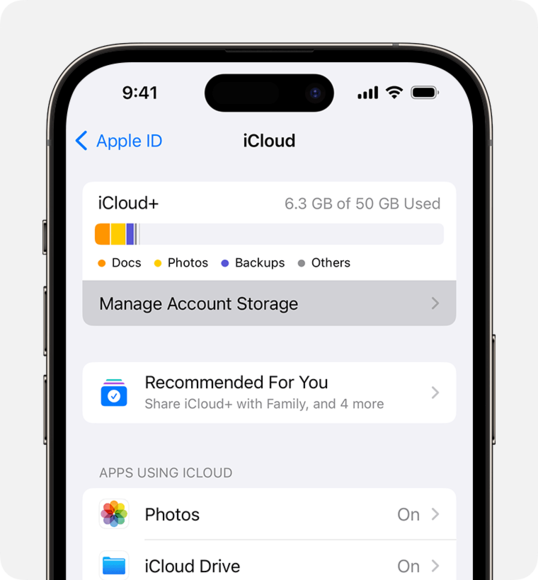
Step 2. Check available storage. Free up space if needed.
Fix 2: Force Quit WhatsApp
Sometimes, the WhatsApp app itself gets stuck during the process. Even if your iPhone is fine, a glitch inside the app can freeze the backup. Force quitting is a simple way to refresh the app and clear out the bug. It's quick and does not harm your chats or data.
Think of it like closing and reopening a frozen program on a computer. Once restarted, the app works normally again. This trick solves many iPhone WhatsApp backup stuck cases without extra steps. If the backup screen does not move, this should be your next try.
Why use it:
- Refreshes app functions.
- Removes temporary bugs.
- Saves time when the backup hangs.
Steps:
Step 1. Swipe up from the bottom of the iPhone screen.
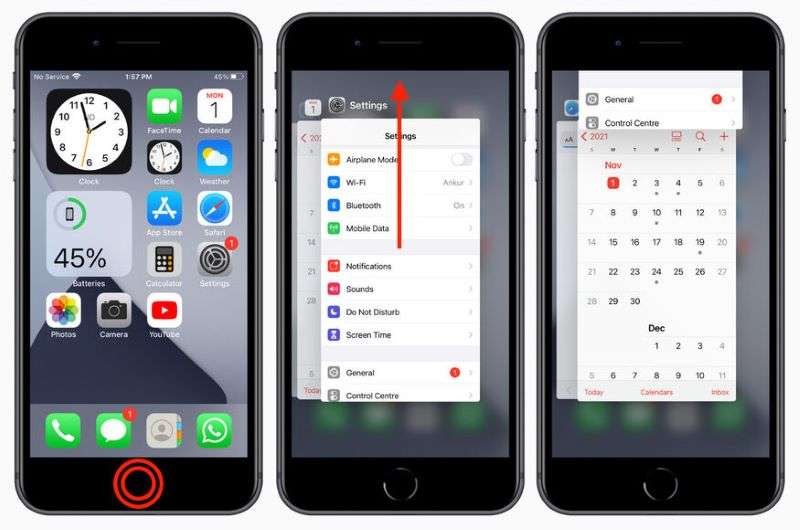
Step 2. Swipe away WhatsApp to close it fully.
Fix 3: Restart iPhone
Your iPhone itself may have temporary issues that block backups. When too many processes run in the background, performance slows. Restarting clears memory and refreshes system functions. It is one of the oldest yet most effective fixes.
If you see your WhatsApp backup iPhone stuck at the same percentage for too long, a restart can help. Once the device restarts, open WhatsApp and try again. This often solves hidden errors that are not visible to the user.
Why use it:
- Clears temporary memory.
- Fixes small system errors.
- Speeds up performance.
Steps:
Step 1. Hold the power button until "Slide to power off" shows.
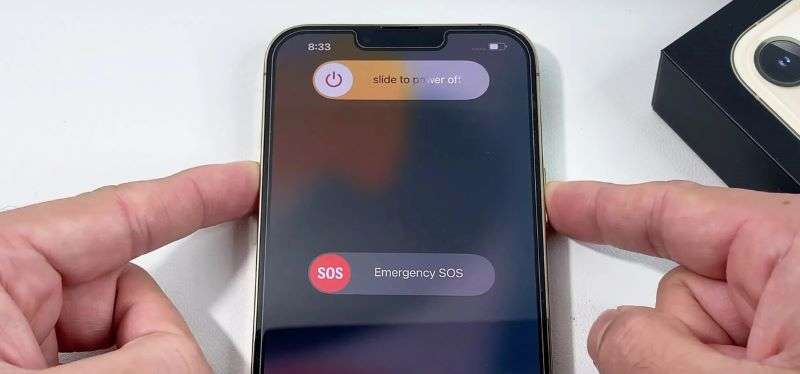
Step 2. Restart and open WhatsApp again.
Fix 4: Disable Video Backup
Videos are large files. They take more time to upload than texts and photos. If your WhatsApp chat backup stuck iPhone happens often, the problem may be videos. When the app tries to upload gigabytes of video files, it slows down or freezes.
Disabling video backup speeds up the process. You can still back up your chats and images, which are lighter. Later, you may re-enable videos if you want. This option gives you flexibility and avoids unnecessary delays.
Why use it:
- Speeds up backup.
- Reduces file size.
- Prevents freezing at high data loads.
Steps:
Step 1. Go to WhatsApp > Settings > Chats > Chat Backup.
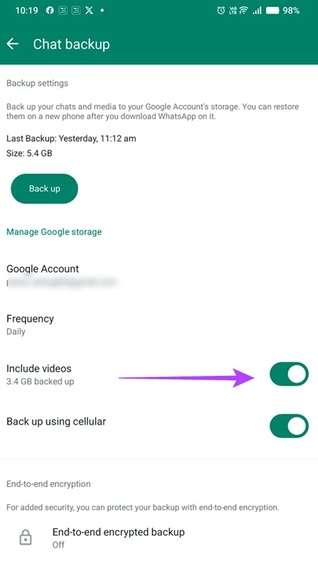
Step 2. Toggle off "Include Videos."
Fix 5: Ensure iCloud Drive is Enabled
WhatsApp depends on iCloud Drive to save backups. If this option is off, the backup cannot proceed. Many users forget to check this setting and wonder why their WhatsApp backup iPhone stuck screen does not move.
Enabling iCloud Drive is simple and ensures the app has the required access. Once turned on, the backup resumes normally. This is a quick check that solves a big problem for many people.
Why use it:
- Grants access to iCloud storage.
- Avoids unnecessary errors.
- Keeps data synced.
Steps:
Step 1. Go to Settings > iCloud > iCloud Drive.
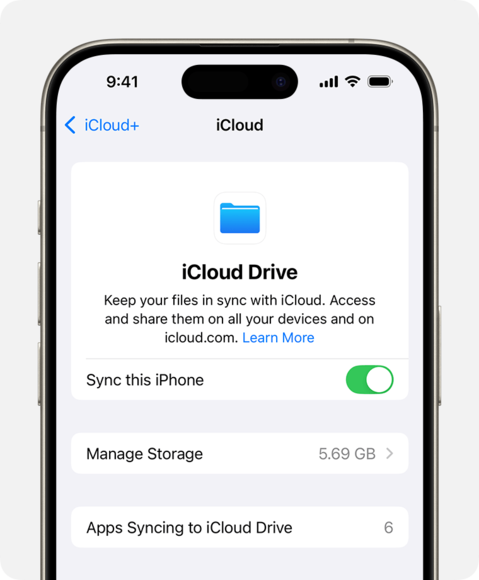
Step 2. Turn it ON.
Fix 6: Update WhatsApp and iOS
Outdated apps and software often cause problems. If your iPhone runs an old version of iOS, or your WhatsApp app is outdated, bugs may block backups. Developers release updates to fix such issues.
Updating both WhatsApp and iOS ensures you have the latest features and patches. Many WhatsApp backup stuck iPhone complaints vanish after updating. It is a safe and reliable fix.
Why use it:
- Fixes security flaws.
- Improves compatibility.
- Boosts speed.
Steps:
Step 1. Update WhatsApp from the App Store.
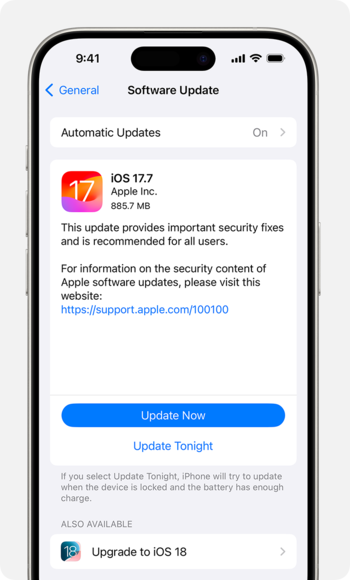
Step 2. Update iOS from Settings > General > Software Update.
Fix 7: Try a Manual Backup
Sometimes the auto-backup feature does not work properly. It may freeze or fail without notice. Running a manual backup gives you control over the process. It also helps test whether the problem is with automation or with the backup itself.
This fix is simple yet effective. Many users report success after pressing "Back Up Now." If the manual method works, you can trust that your chats are safe even when auto-backup fails.
Why use it:
- Gives control to the user.
- Works when auto mode fails.
- Ensures backup progress.
Steps:
Step 1. Go to WhatsApp > Settings > Chats > Chat Backup.
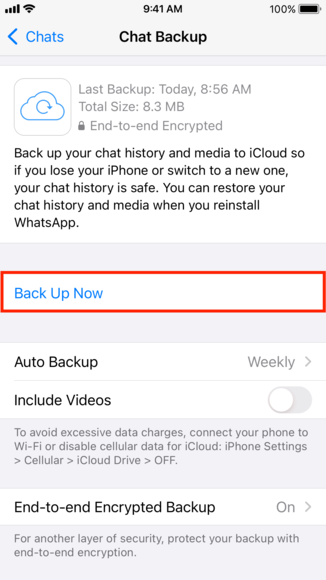
Step 2. Tap "Back Up Now."
Fix 8: Use a Third-Party Tool like MobileTrans
If all else fails, you may need external help. MobileTrans is a trusted third-party tool for WhatsApp. It works on both Windows and Mac computers. Unlike iCloud, it does not depend on internet speed or Apple servers.
The tool is user-friendly and very reliable. It helps with backup, restore, and even transferring WhatsApp data between phones. If your WhatsApp chat backup stuck iPhone problem continues, MobileTrans is the ultimate solution.
MobileTrans features:
- Works on Windows and Mac.
- Fast backup and restore.
- Transfers WhatsApp data between devices.




Steps:
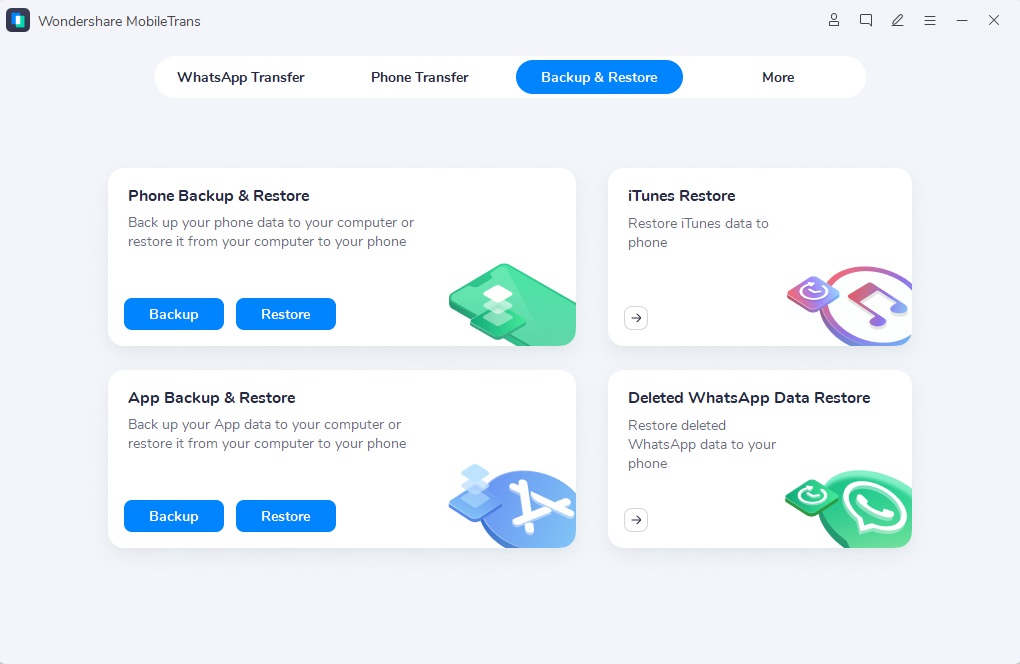
Step 1. Install MobileTrans on your computer. Plug your iPhone or Android into your computer. Open Backup & Restore, then tap on App Backup & Restore. Select WhatsApp.
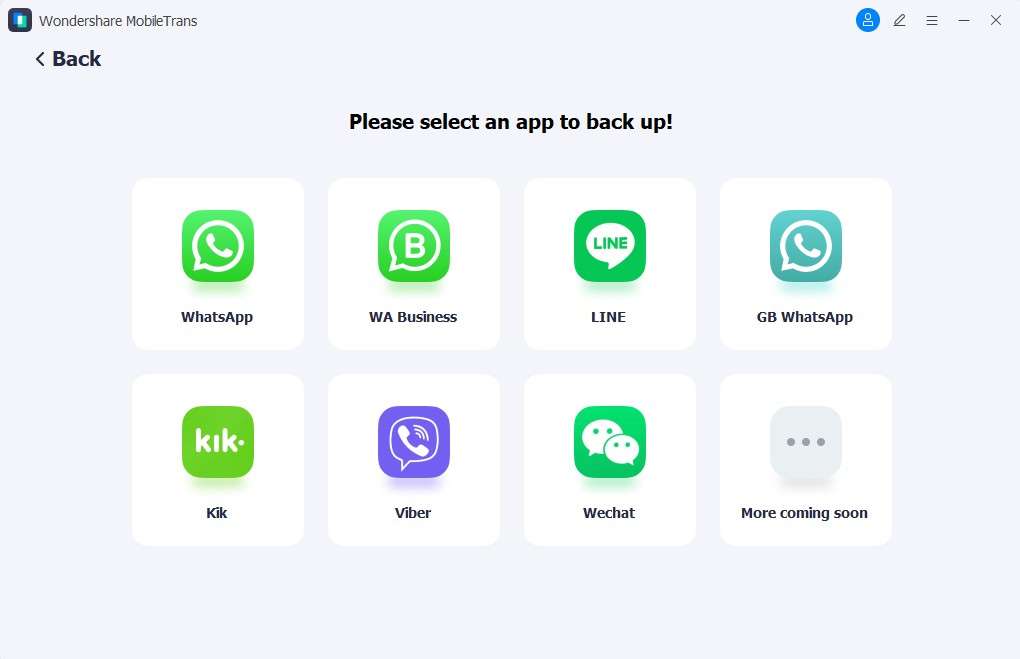
Step 2. Choose data types to transfer.
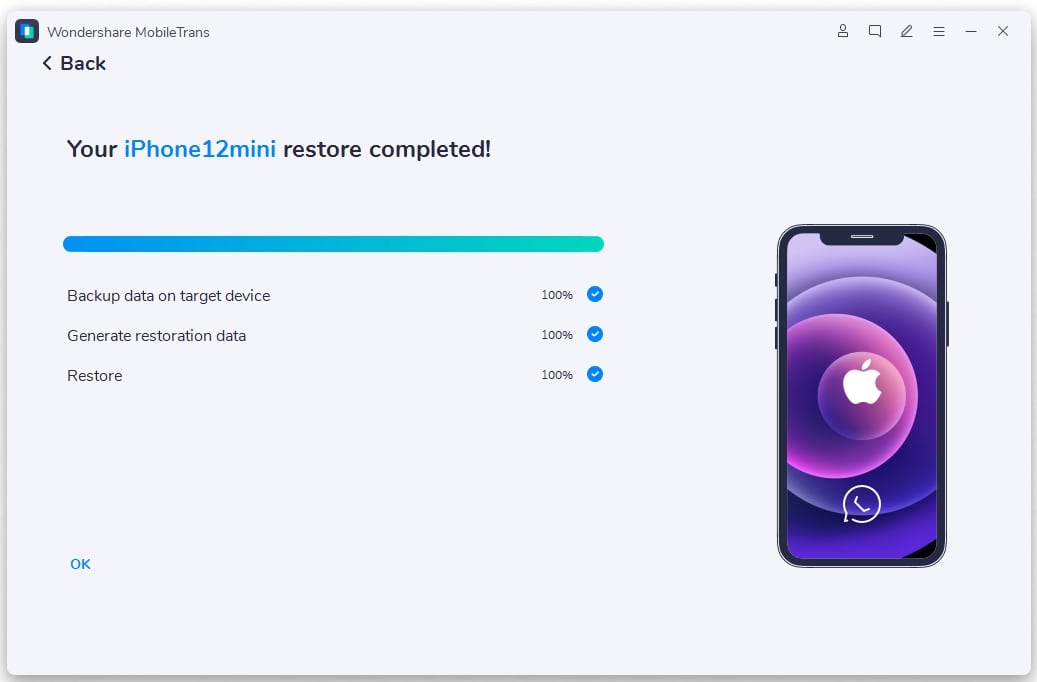
Step 3. Make sure your phone stays connected until the backup finishes. Once it's done, you'll see a confirmation message in the software.
Part 3: Pro Tips and Prevention of Issues
You can avoid future WhatsApp backup iPhone stuck problems with these tips:
- Keep iCloud storage free.
- Use strong Wi-Fi during backup.
- Update iOS and WhatsApp often.
- Avoid backing up large videos.
- Restart the iPhone once a week.
- Do regular manual backups.
- Keep iCloud Drive enabled.
- Do not overload iPhone storage.
Conclusion
A WhatsApp backup stuck on iPhone issue can be annoying. But the fixes are simple. From freeing storage to updating software, most problems clear quickly. If nothing works, MobileTrans provides a strong alternative.
FAQs:
-
Q: Why does my iPhone WhatsApp backup stuck at 0%?
A: When your backup stops at 0%, it means the process never begins. Weak Wi-Fi is the most common reason. A backup needs a stable and strong internet connection. If iCloud is full, the backup will also fail. Outdated iOS or WhatsApp may block the process. Try checking your Wi-Fi, clearing iCloud space, and restarting your iPhone. If it still fails, turn off video backup and try again.
-
Q: Can I fix a WhatsApp backup stuck iPhone without deleting the app?
A: Yes, you can. In most cases, deleting WhatsApp is not needed. Removing the app may cause data loss if your last backup did not finish. First, try simple fixes like force-quitting WhatsApp, restarting your iPhone, or updating iOS. Freeing space in iCloud also helps.
-
Q: Is it safe to use MobileTrans for WhatsApp backup?
A: Yes, it is safe. MobileTrans is built for WhatsApp backup and restore. It works on both Windows and Mac. The tool does not delete or damage your data. It also does not depend on slow Wi-Fi or iCloud servers. Backups complete faster and with fewer errors. Many users and professionals trust MobileTrans for moving or saving WhatsApp data.










