



 TL;DR:
Because WhatsApp natively prevents direct call history exports, iPhone users must extract their call logs using external software like MobileTrans and convert the resulting files to achieve a CSV format.
● The specific conversion workflow requires backing up and exporting the call logs as a PDF via MobileTrans, uploading that document to HiPDF's PDF to Excel Converter, and manually renaming the downloaded Excel file extension to .csv.
● Built-in alternatives like iCloud backups or screen captures cannot produce CSV files and impose strict limitations, including a 5GB free storage cap, no selective log backups, and unavoidable data overwriting during device restoration.
● WhatsApp stores call records until they are manually cleared from the Calls tab, but your call logs are likely to be lost if you reinstall the application without an existing backup.
Ask AI for a summary
 ChatGPT
 Perplexity
 Gemini
 Claude
 Grok
Grok
As many users know, WhatsApp helps us stay connected through daily chats and calls. Often, people need to keep their call history for record-keeping or personal reasons. Unfortunately, WhatsApp does not give an easy option to save these call logs.
This creates a clear need to find ways to extract this data. Thus, in this guide, you will learn how to export WhatsApp call history to a CSV on an iPhone.
In this article

Part 1. Can You Export WhatsApp Call History to CSV on an iPhone Directly?
When it comes to managing your calls, all users face limits. The platform only allows you to export chats or media, but does not support exporting call history directly. This means you cannot save call logs in formats like CSV without help. Many people assume call records can be exported the same way, but that’s not true.
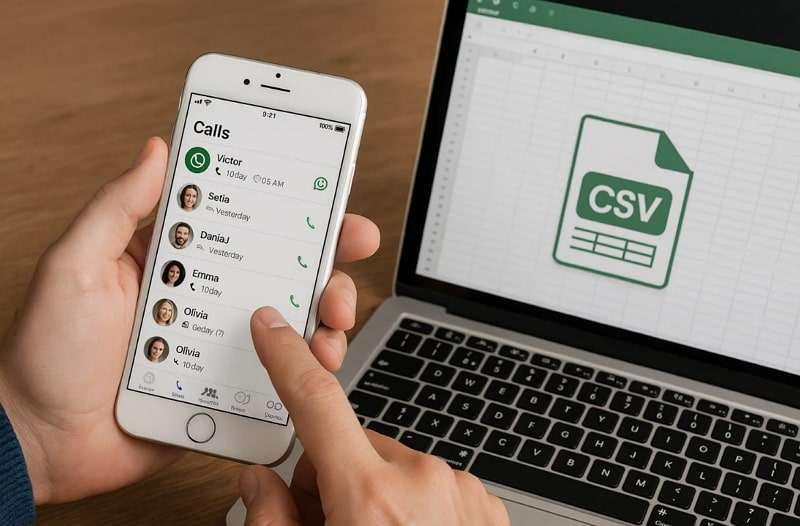
This creates challenges for those who need call logs for work, reports, or personal needs. That's why users look for alternative methods to properly save their WhatsApp call history. Still, if you want to export WhatsApp call history to CSV on an iPhone, you'll need external help. Such tools enable extracting and converting call history into usable formats.
Part 2. How to Export WhatsApp Call History to CSV iPhone with MobileTrans
MobileTrans makes managing phone data simple with its smart backup and restore functions. It allows users to back up and restore WhatsApp or WhatsApp Business data efficiently. You can also back up over 18 data types, like contacts and call logs. It supports exporting WhatsApp messages to a computer in PDF or HTML format. After exporting, you can convert files into other formats to export WhatsApp call history to CSV for iPhone.



Guide to Export WhatsApp Call History to CSV iPhone
After exploring the features, follow the steps to export WhatsApp call history to CSV on iPhone:
Step 1. Head to the Backup & Restore section > Apps > WhatsApp> Connect your phone > Create your WhatsApp backup.
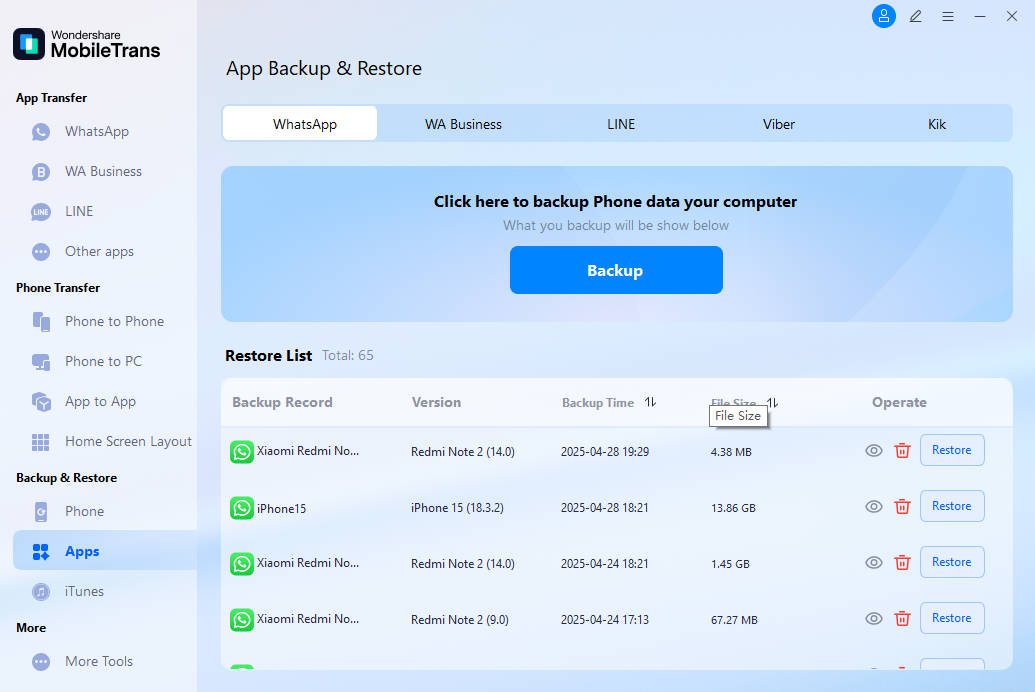
Step 2. Access the newly created WhatsApp backup, choose the Call Logs option, and press the Restore To Device button.

Note: MobileTrans supports
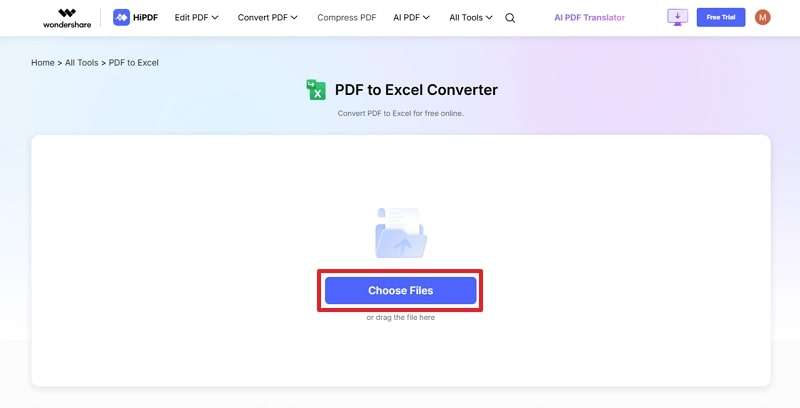
Step 3. Access HiPDF’s PDF to Excel Converter >Press Choose Files > Upload your exported call log document.
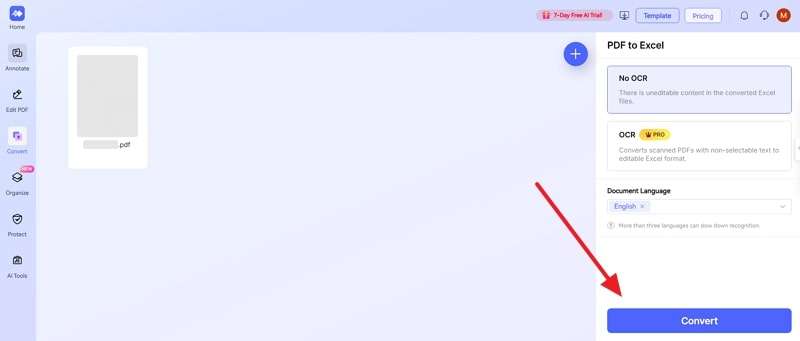
Step 4. Once it is uploaded, press the Convert button, and the tool will automatically download an Excel file.
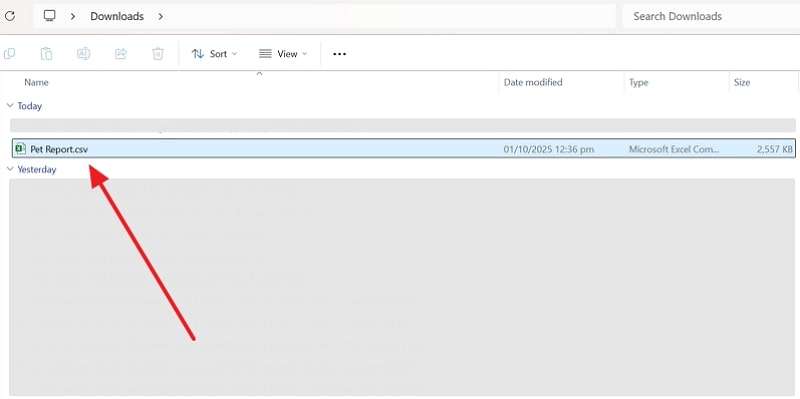
Step 5. Rename the convert call log file to .csv format.
Part 3. Other Approaches to Export WhatsApp Call History
Apart from using MobileTrans, there are a few indirect ways to export your WhatsApp call history. So, this section covers 2 alternative ways to save or export the call history of your messaging app:
Way 1. Take a Screenshot or Do a Screen Recording
You can either take screenshots or use screen recording to save WhatsApp calls. This way, you can capture call details directly and store them as visual records. Screenshots are great for keeping specific call details, while recordings capture longer histories easily.
While this method cannot export WhatsApp call history to a CSV on iPhone, it still creates helpful records. Go through the guide below to find out how you can perform this task:
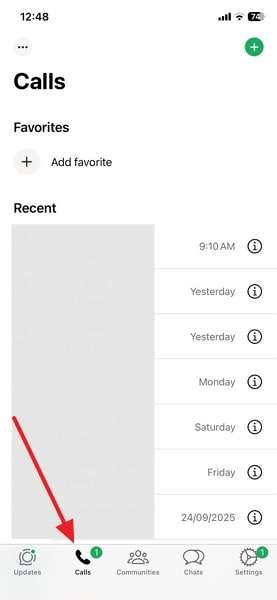
For Screenshot: Navigate to the Calls tab on WhatsApp, then press the Volume Up and Power buttons together to take a screenshot.
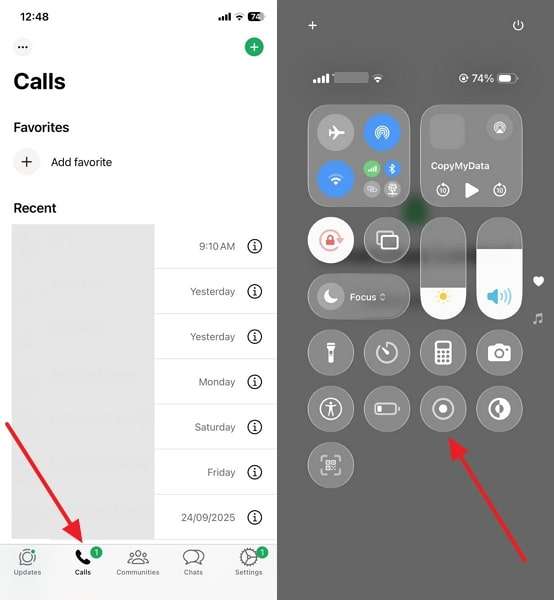
For Screen Recording: On the Calls tab, swipe down from the top-right corner to open Control Center, then tap the Screen Recording icon.
Limitations
- Cannot be converted into CSV format.
- Difficult to organize multiple saved images or recordings.
Way 2. Create & Restore a WhatsApp Backup
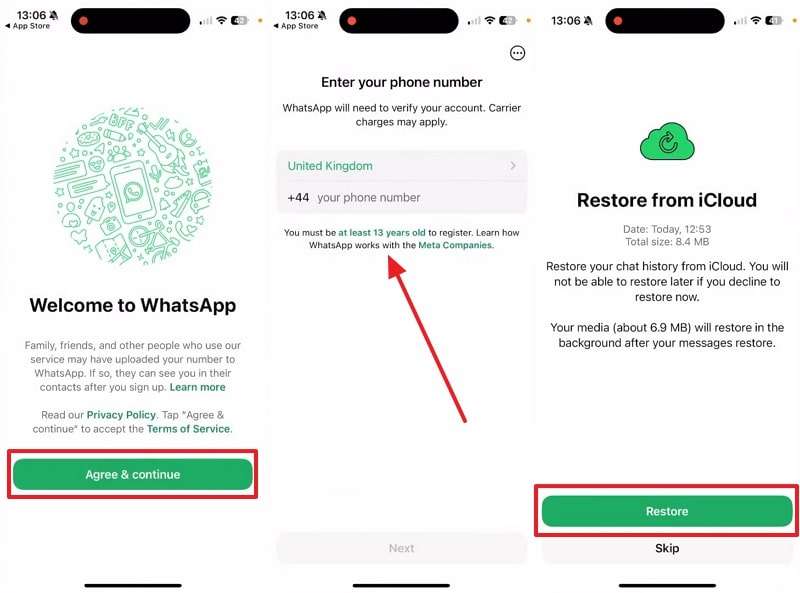
Creating and restoring a WhatsApp backup is another way to manage your calls. This method lets you store all your WhatsApp data, including call logs, in iCloud. Plus, restoring a backup will overwrite your existing data, replacing everything on the device.
Moreover, this way cannot directly export WhatsApp call history to CSV on iPhone, but it secures complete information. Let’s explore how to create and restore a backup on iPhone:
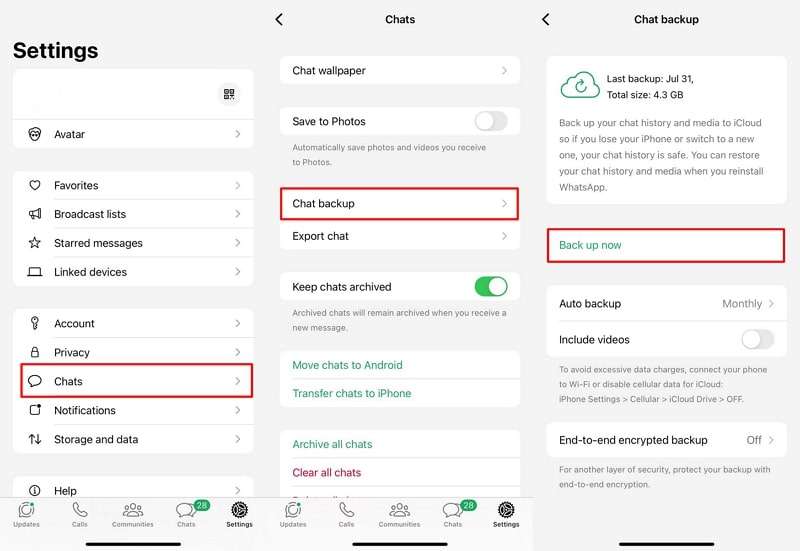
Step 1. Go to Settings > Chats > Chat Backup, then tap Back Up Now.
Step 2. On your new iPhone, launch the newly installed WhatsApp and tap Agree & Continue > Enter the Same Number > Next > Restore.
Limitations
- iCloud offers only 5GB of free storage.
- No option for selective call log backup.
Conclusion
In conclusion, exporting WhatsApp call history is challenging since the app lacks direct options. While screenshots or backups can help, they have clear limits and may not suit everyone. Many users need a safe and reliable way to keep complete call records. If you want to export WhatsApp call history to CSV on iPhone quickly, MobileTrans is the effortless choice.



FAQs
-
Q1. How long does WhatsApp keep call logs on iPhone?
WhatsApp stores call history until you manually clear it from the Calls tab. Your call logs are likely to be lost if you reinstall the app without a backup. This is why you should make regular backups so you can access history in the future. -
Q2. Can WhatsApp call logs be exported directly from the app?
The texting app does not allow exporting call logs directly through the official feature. Users mistakenly believe the "Export Chat" option covers calls, but it only supports conversations and media. Therefore, to manage or export call history, alternative solutions or external tools like MobileTrans are necessary. -
Q3. Can I convert WhatsApp chat export files into CSV directly?
The native export chat feature saves data in TXT or email-readable format, not CSV. When you need CSV, you must convert files manually using external software tools. Without an external tool's help, you cannot directly transform exported WhatsApp chat or call logs.










