


 TL;DR:
Do not delete or reinstall WhatsApp if it crashes or displays a black screen; instead, secure your locally stored chats using computer-based backup tools like MobileTrans, Finder, or Apple Devices/iTunes before applying safe fixes.
● MobileTrans can back up and selectively restore WhatsApp data without opening the app, whereas Finder and Apple Devices/iTunes encrypted backups generally require restoring the entire iPhone; both methods only succeed if the iPhone can trust the computer and the local chat data remains readable.
● Safe troubleshooting includes offloading other apps to maintain at least 1 GB of free storage and updating the system (WhatsApp requires iOS 15.1 or later, increasing to iOS 15.5 by November 30, 2026), but you must strictly avoid deleting WhatsApp's iCloud storage entry to prevent permanent data loss.
● Reinstallation should only be attempted if you confirm a restorable backup accessible with your current phone number and Apple Account, because deleting the app permanently removes local Documents & Data, and WhatsApp servers do not store chat histories for recovery.
Ask AI for a summary
 ChatGPT
 Perplexity
 Gemini
 Claude
 Grok
The last WhatsApp backup date is available through the in-app Chat Backup screen. However, users cannot access it when WhatsApp crashes, freezes, or displays a black screen. Deleting and reinstalling the app without a usable backup can permanently erase locally stored chats and media.
If WhatsApp won’t open without losing chats is your concern, protecting existing data should come first. MobileTrans helps back up WhatsApp conversations from an iPhone to a computer without opening the app, provided the stored data remains accessible. This guide explains how to preserve your chats and apply 5 safe fixes to restore WhatsApp functionality.
In this article

Part 1. What Should You Do First If WhatsApp Won’t Open and Chats Aren’t Backed Up?
When “WhatsApp crashes before backup iPhone” occurs, recent conversations might exist only on the device. Before attempting any fixes, check whether your chats remain stored locally and identify any existing backups. The following sections explain how to assess your data and protect it from accidental loss:
What to Do First
Start with these checks to assess existing backups, preserve locally stored chats, and identify possible causes without deleting WhatsApp:
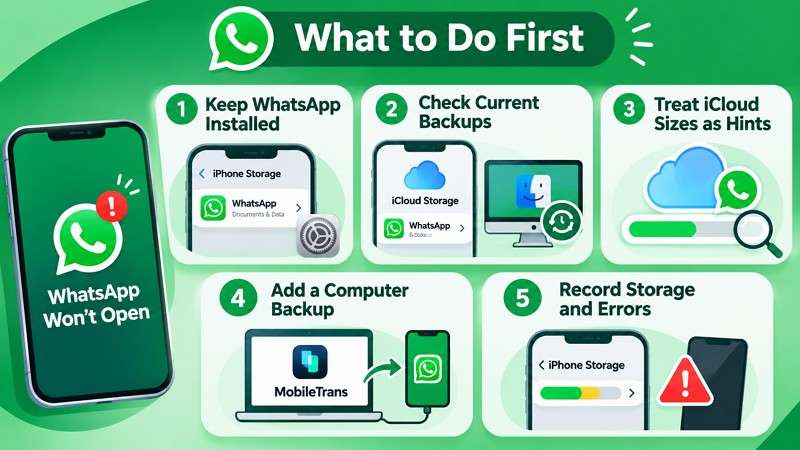
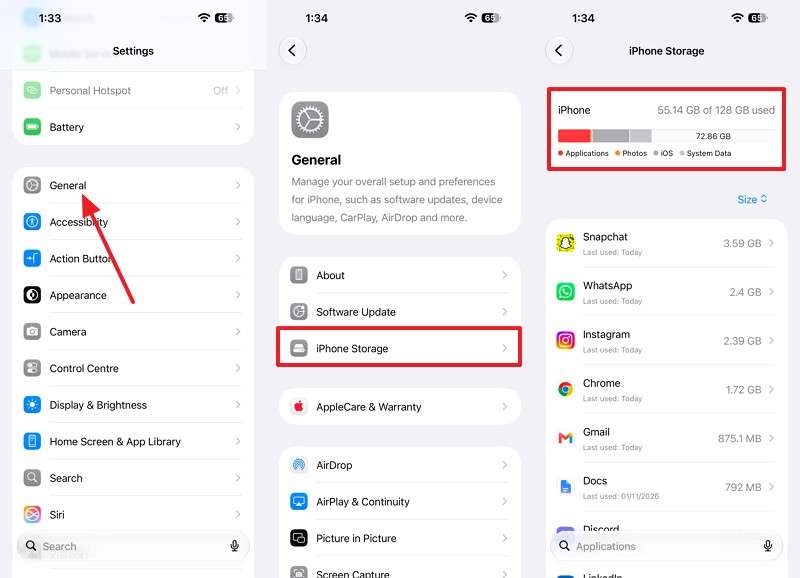
- Keep WhatsApp Installed: Go to Settings > General > iPhone Storage > WhatsApp to check its Documents & Data size. Apple confirms that deleting an app removes its stored data, including chats without a usable backup. Keep WhatsApp installed while troubleshooting.
- Check Current Backups: Open Settings > Your Name > iCloud > Storage to look for a WhatsApp entry. However, this does not confirm a restorable Chat Backup. On a computer, open Manage Backups in Finder or Apple Devices/iTunes to review existing iPhone backups and their dates.
- Treat iCloud Sizes as Hints: A WhatsApp entry in iCloud indicates storage usage but does not confirm the latest chat backup date, its contents, or whether restoration is possible. If WhatsApp cannot open, its in-app Chat Backup screen remains inaccessible.
- Add a Computer Backup: Use MobileTrans WhatsApp Backup to save WhatsApp chats and attachments or create an encrypted iPhone backup with Finder or Apple Devices/iTunes. Both methods can work without opening WhatsApp, provided the iPhone is accessible and its stored data remains readable.
- Record Storage and Errors: Check available space under Settings > General > iPhone Storage and note any crash messages or black screens. Apple recommends maintaining sufficient free storage to prevent performance problems. Keep these details ready if you need to contact WhatsApp Support.
What to Avoid
To fix a WhatsApp black screen on an iPhone without deleting data, avoid the risky actions listed below. Some can permanently erase chats or backups, while others complicate recovery. The table also provides safer alternatives to protect your conversations:
| Risky Action | What It Can Cost | Safer Alternative |
|---|---|---|
| Erasing or Resetting the iPhone | Erase All Content and Settings removes locally stored chats and other device data. However, not all reset options erase personal data. | Avoid erasing the iPhone until a usable backup and restoration method are confirmed. |
| Deleting WhatsApp's iCloud Storage Entry | Removing WhatsApp's backup data can eliminate the only available copy of chats outside the iPhone. | Preserve existing WhatsApp backup data until its contents and restoration options are verified. |
| Deleting or Overwriting Older Backups | New backups can replace earlier copies containing chats from before the crash. | Archive important computer backups under Manage Backups to prevent replacement. |
| Counting on an iCloud Device Backup | An iCloud device backup does not guarantee that a separate, restorable WhatsApp Chat Backup exists. | Confirm which backup type is available and understand its restoration requirements before reinstalling WhatsApp. |
Part 2. How to Preserve WhatsApp Chats When the App Won’t Open
If “WhatsApp crashes before backup iPhone” describes your situation, you can still protect your conversations using computer-based backups. MobileTrans and Finder or Apple Devices/iTunes offer 2 methods to preserve WhatsApp data without opening the app. However, successful backups require an accessible iPhone and readable stored data.
Option 1. Back Up WhatsApp Using MobileTrans
When WhatsApp crashes or shows a black screen on an iPhone, MobileTrans can back up existing conversations without opening WhatsApp. It supports WhatsApp messages, personal and group chats, photos, videos, voice messages, audio files, documents, stickers, and other supported attachments. The backup is stored on a Windows PC or Mac, where users can view or restore their saved data.
MobileTrans performs iPhone WhatsApp backups without requiring users to open the app. However, the iPhone must connect successfully, trust the computer, and contain readable WhatsApp data. Backup success depends on the condition of the stored data.
Key Features
- Multiple Backup Versions: Maintains separate WhatsApp backup records, allowing users to access earlier copies without overwriting previous conversations.
- WhatsApp Chat Export: Exports saved WhatsApp conversations and media attachments as readable PDF or HTML files on a computer.
- Selective Data Restoration: Allows users to preview available backup content and select specific WhatsApp data for restoration.
- AI-Powered Backup Cleanup: Identifies large files, duplicate media, and unnecessary content before restoration to reduce storage usage.
- WhatsApp Business Support: Backs up and restores WhatsApp Business chats and attachments, preserving important business conversations on a computer.


Guide to Back Up WhatsApp with MobileTrans
To back up WhatsApp when the app won’t open, follow the MobileTrans workflow below. These steps explain how to select the WhatsApp backup option, start the process, and verify the saved conversations:
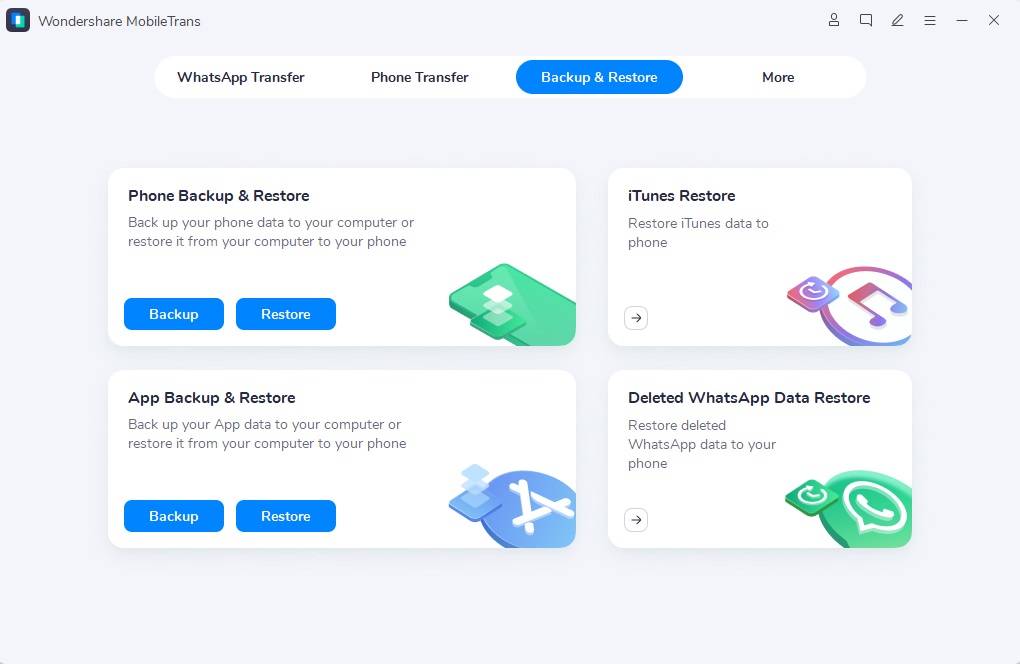
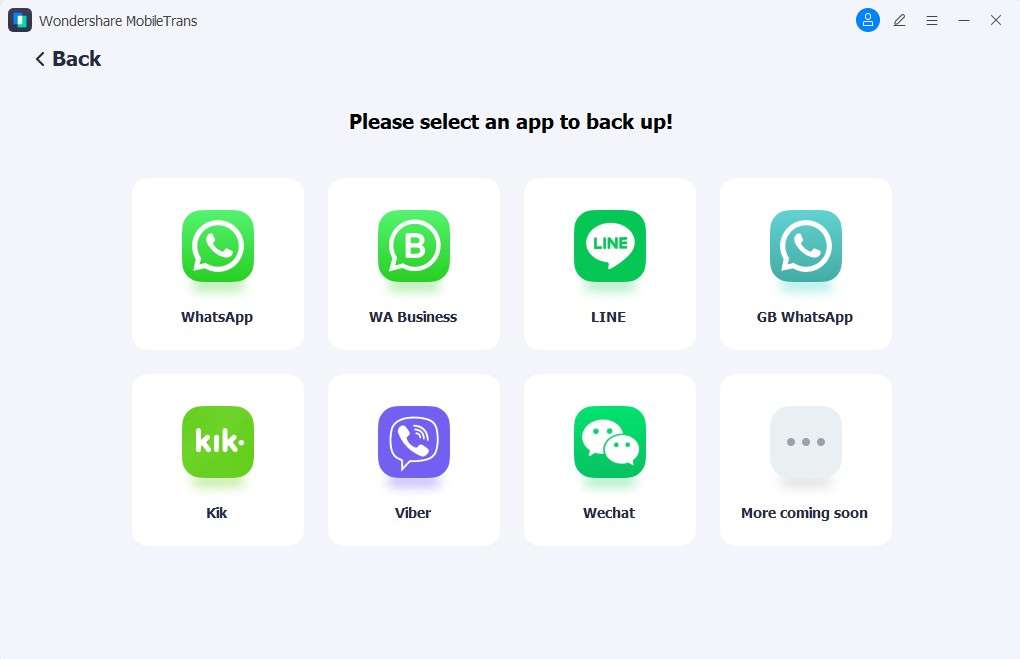
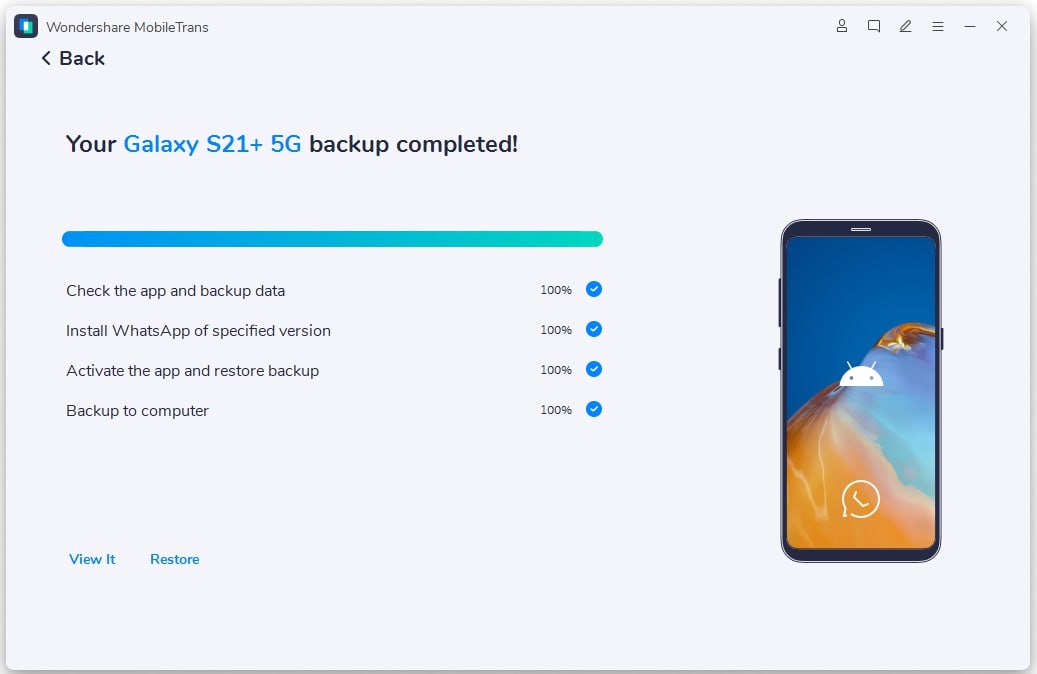
Step 1. Select Backup & Restore, and choose WhatsApp under App.
Step 2. Connect the iPhone using a USB cable. Tap Trust on the iPhone and enter its passcode if prompted.
Step 3. Click Start and keep the iPhone connected until MobileTrans reports that the backup is complete.
Step 4. Open the saved backup using View It to check whether your chats and attachments are accessible.
Option 2. Create an Encrypted iPhone Backup Using Finder or Apple Devices/iTunes
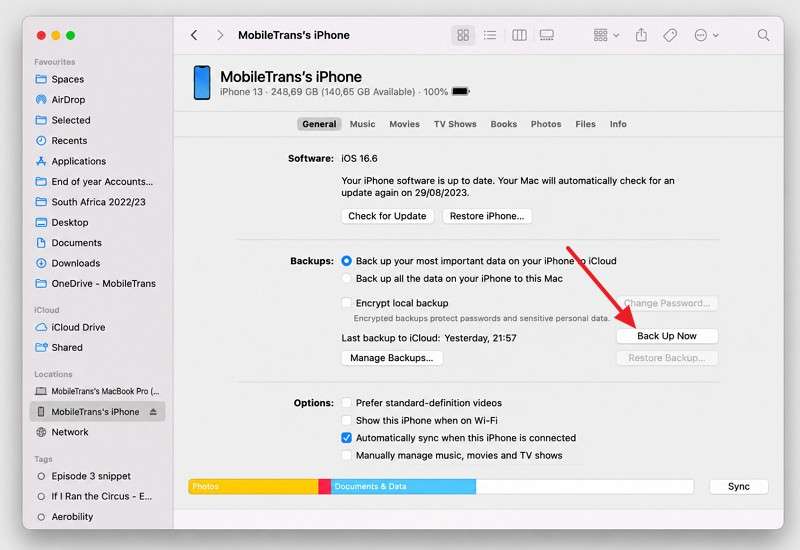
Finder on Mac and the Apple Devices app on Windows create full iPhone backups, including locally stored WhatsApp data. iTunes also supports backups on compatible Windows systems. Unlike WhatsApp's Chat Backup, recovering data from these backups generally requires restoring the entire iPhone.
However, restoration depends on the data successfully captured. If “WhatsApp won't open without losing chats” is your concern, an encrypted computer backup provides additional protection. Follow the steps below for Mac or Windows:
For Mac
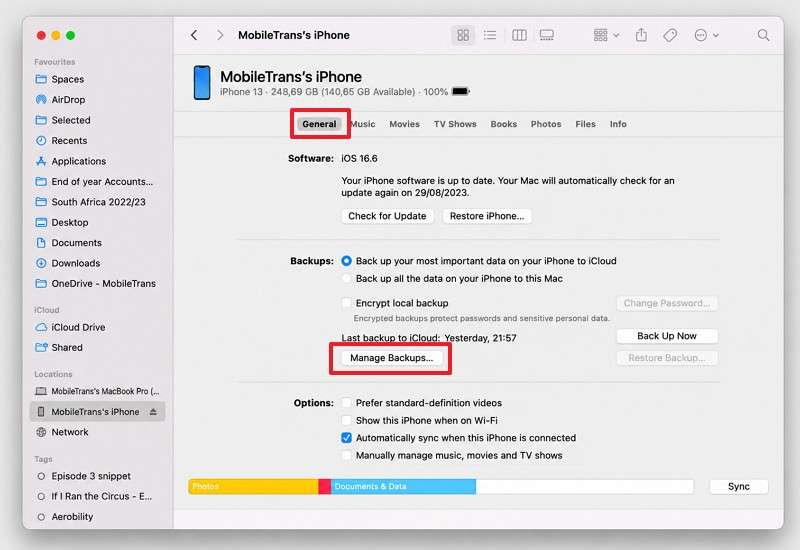
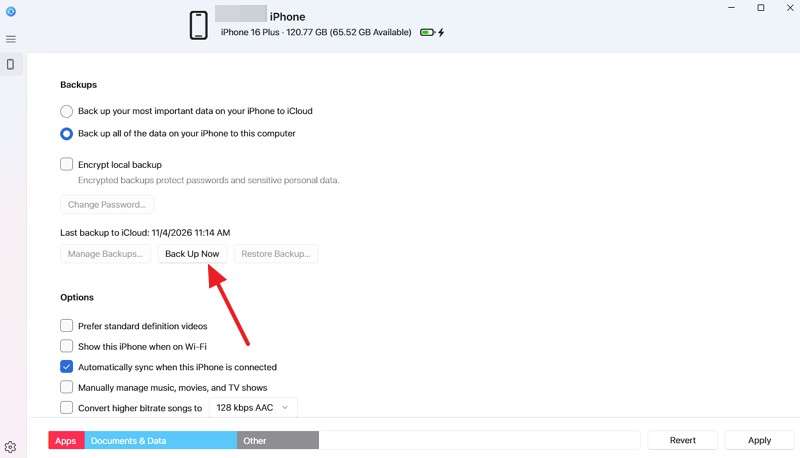
Step 1. Connect your iPhone to the Mac and approve Trust if prompted. Open Finder > Select your iPhone > General > Manage Backups.
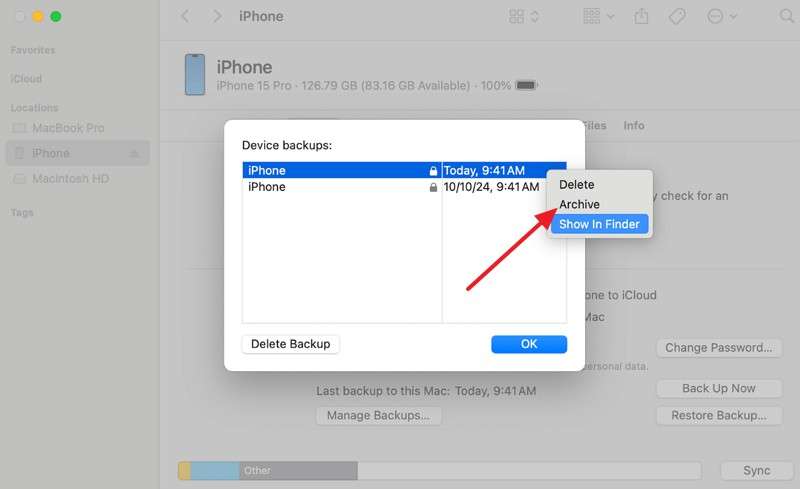
Step 2. If an older backup contains important data, right-click it under Manage Backups and select Archive to prevent future backups from overwriting it.
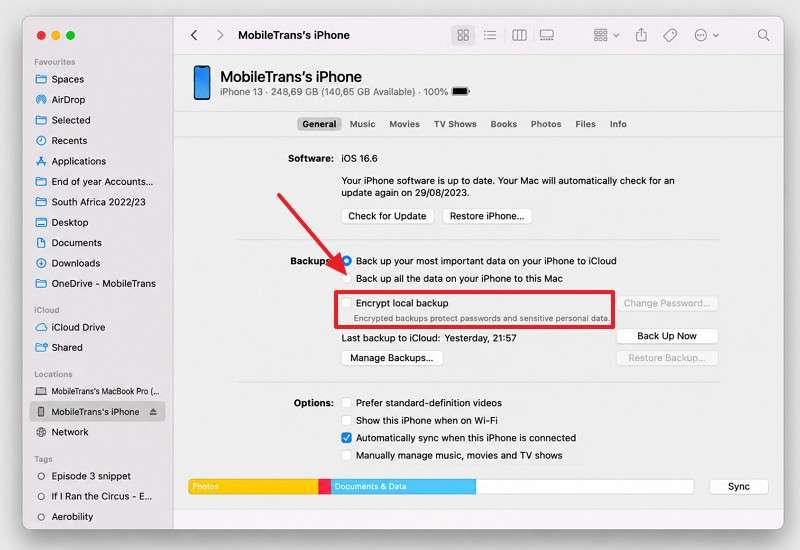
Step 3. Close Manage Backups > Select Back Up All of the Data on Your iPhone to This Mac > Enable Encrypt Local Backup > Create and confirm a password.
Step 4. Click Back Up Now and wait for the backup to finish. Check the latest backup date and time in Finder to confirm completion.
For Windows PC
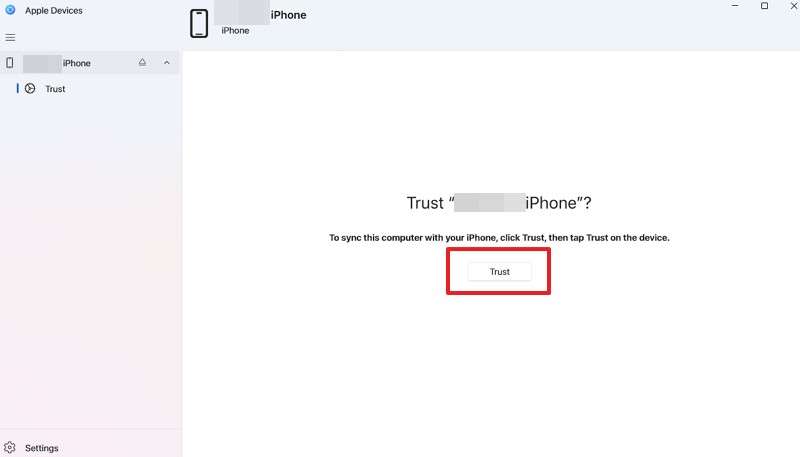
Step 1. Open the Apple Devices app. Connect your iPhone, unlock it, and approve Trust if prompted.
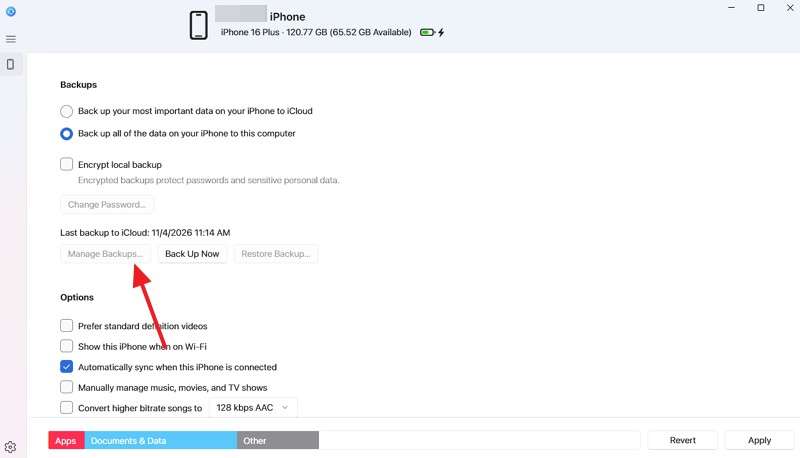
Step 2. Select your iPhone > Manage Backups. Archive an existing backup if you need to preserve it.
Step 3. Choose Back Up All of the Data on Your iPhone to This Computer > Encrypt Local Backup > Set a password.
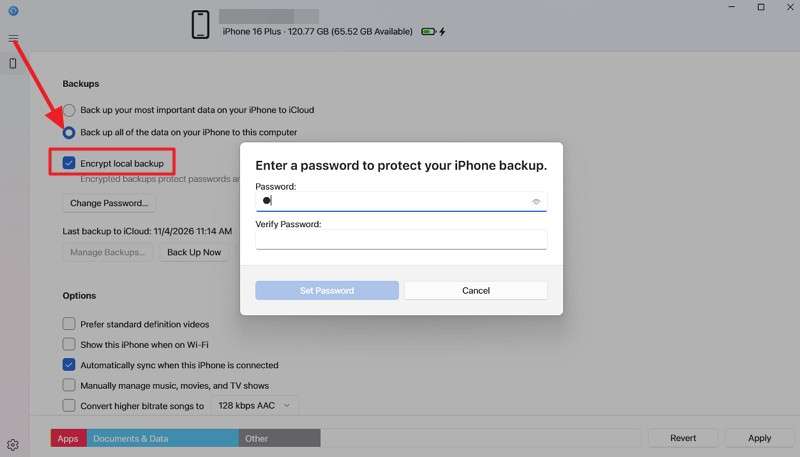
Step 4. Click Back Up Now and keep the iPhone connected until the backup finishes.
Part 3. How to Fix WhatsApp Crashing or Showing a Black Screen Without Deleting Chats
After protecting your chats, follow Apple's recommended troubleshooting methods, including closing unresponsive apps, restarting the iPhone, and checking for updates. To resolve “WhatsApp won't open without losing chats,” try these 5 fixes before considering reinstallation.
Fix 1. Force Close and Reopen WhatsApp
Force closing WhatsApp can resolve temporary freezing or launch issues without deleting stored chats or media. Apple recommends closing apps when they become unresponsive. However, this does not guarantee that the underlying problem will be resolved. To check whether a temporary app issue is causing the crash, close and reopen WhatsApp using these steps:
Step 1. Access App Switcher > Locate WhatsApp > Swipe up to close the app.
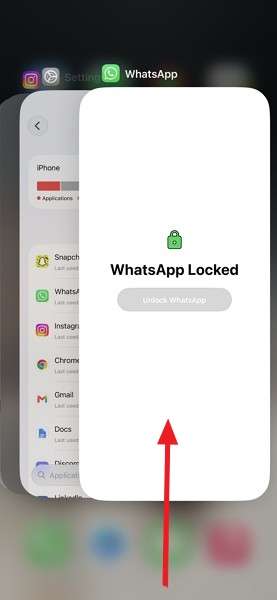
Step 2. Wait a few seconds, then tap the WhatsApp icon to reopen it. Check whether your chats load normally.
Fix 2. Restart the iPhone
If “WhatsApp crashes before backup iPhone” describes your situation, restarting the device can resolve temporary iOS issues without deleting chats. Apple recommends a standard restart, while a force restart is appropriate when the iPhone becomes unresponsive. Follow these steps to restart your iPhone safely:
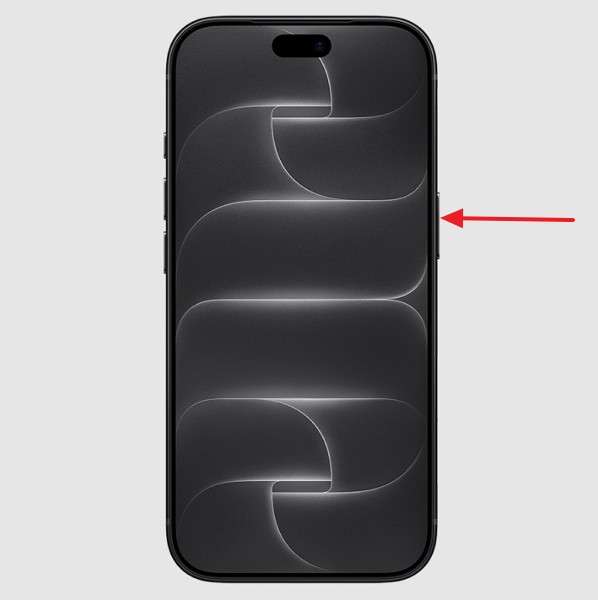
Step 1. Press the Volume Up > Power buttons > Slide right on the Slide to Power Off slider.
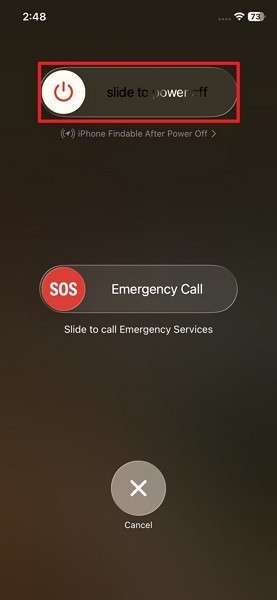
Step 2. Wait for a few seconds > Hold the Power button > Open WhatsApp and check whether your chats load.
Fix 3. Free Up iPhone Storage Without Deleting WhatsApp
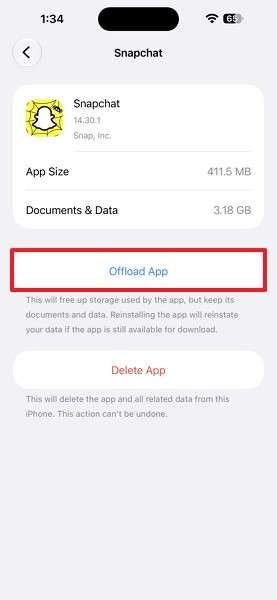
When you want to fix a WhatsApp black screen on an iPhone without deleting data, try this solution. WhatsApp confirms that critically low storage can affect app functionality, while Apple recommends at least 1 GB of free space to help prevent slowdowns. Free up space outside WhatsApp to preserve its chats and media through these steps:
Step 1. Open Settings > General > iPhone Storage and check the available space.
Step 2. Select an unwanted app and tap Offload App to free up space while preserving its Documents & Data.
Fix 4. Update WhatsApp Without Reinstalling It
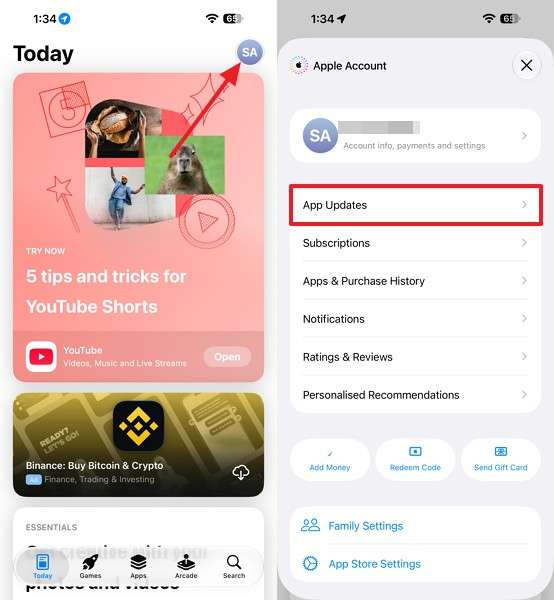
Updating WhatsApp can resolve crashes caused by outdated app versions or software bugs. Apple recommends updating unresponsive apps as part of troubleshooting. Unlike deleting the app, a standard update preserves existing Documents & Data. This makes updating a safer option when you need to "back up WhatsApp when the app won't open" without risking your conversations. Follow these steps to update WhatsApp:
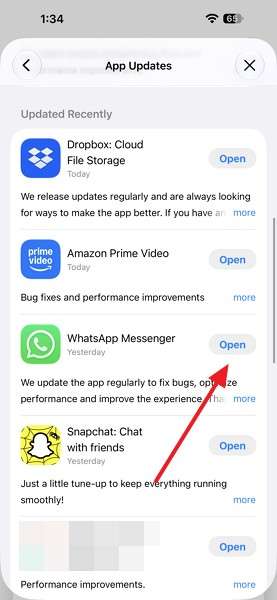
Step 1. Go to App Store > Press the Profile icon > App Updates > Find WhatsApp > Choose Update.
Step 2. Once the update finishes, tap Open and check whether WhatsApp launches and your chats appear.
Fix 5. Update iOS to Resolve Compatibility Problems
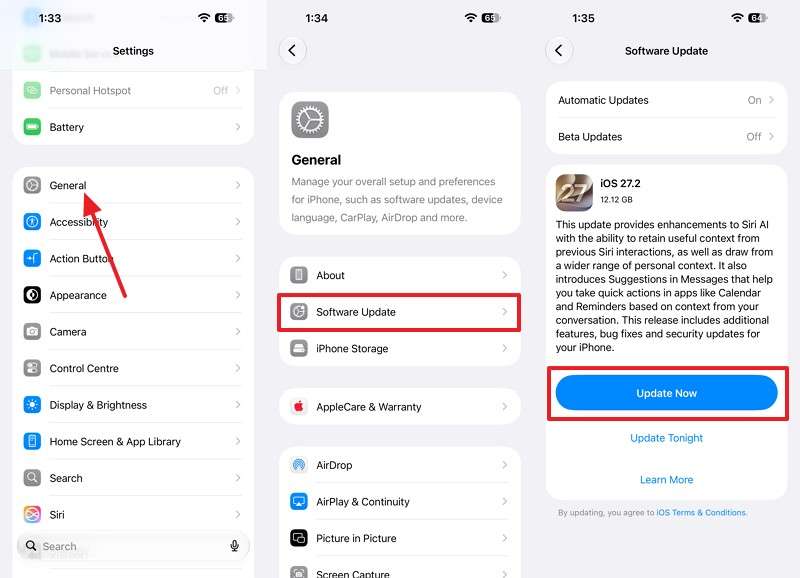
An outdated iOS version can cause WhatsApp compatibility issues, making system updates worth checking when “WhatsApp won't open without losing chats” becomes a concern. WhatsApp requires iOS 15.1 or later, with the minimum increasing to iOS 15.5 on November 30, 2026. However, not every crash results from an outdated iOS version. Follow these steps to check for available updates:
Instructions. Open Settings > General > Software Update. If an iOS firmware update is available, tap Update Now.
Part 4. What If WhatsApp Still Won’t Open and No Backup Is Confirmed?
If WhatsApp still won't open after troubleshooting, avoid reinstalling it without a verified backup. Contact WhatsApp Support for further assistance, providing your iPhone model, iOS version, and error details. However, WhatsApp cannot recover lost conversations from its servers because it does not store users' chat history.
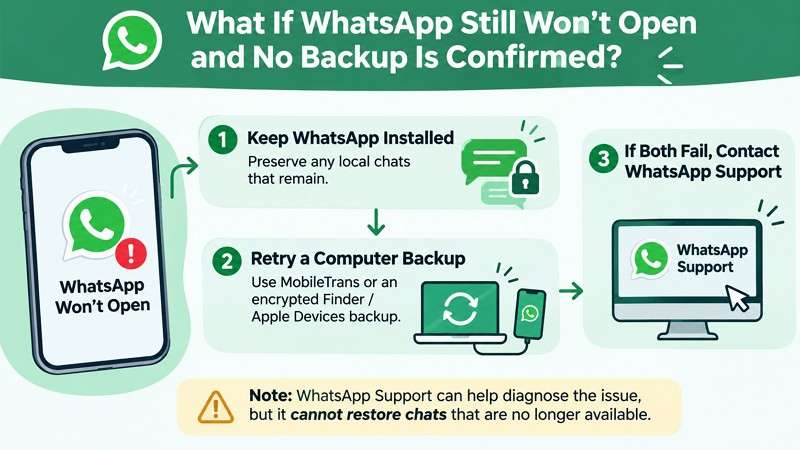
Before considering reinstallation, review the table below to understand the available backup options, restoration requirements, and potential limitations:
| Backup Status | Reinstall? | What to Expect |
|---|---|---|
| Chat Backup with a Confirmed Recent Date | Consider only after verifying the backup and access to the same phone number and Apple Account. | WhatsApp's restore process can recover chats saved through the backup date. Later messages will not be included. |
| Verified MobileTrans or Finder Backup | Consider this after confirming the backup contains usable WhatsApp data and understanding the restoration requirements. | MobileTrans supports restoring WhatsApp data from its backup, while Finder generally requires restoring the entire iPhone. |
| No Usable Backup | No. Avoid reinstalling WhatsApp because it removes locally stored chats. | Conversations might exist only in the current installation. If the data is corrupted or unreadable, recovery is not guaranteed. |
Conclusion
When “WhatsApp won’t open without losing chats” becomes a concern, protecting existing conversations should be the priority. Simple fixes like restarting the iPhone, freeing storage, and updating WhatsApp can resolve common issues without deleting chats.
Before attempting these fixes, MobileTrans offers a way to back up conversations to a computer without opening the app. If the problem persists, avoid reinstalling WhatsApp until you confirm a usable backup and understand its restoration requirements.
FAQs
-
Can I back up WhatsApp on my iPhone without opening the app?
Yes. If you need to back up WhatsApp when the app won't open, MobileTrans can save chats and attachments to a computer. Finder or Apple Devices/iTunes can also create a full iPhone backup, provided the stored data remains accessible. -
Will updating WhatsApp delete my chats if I haven’t backed them up?
Normally, no. Updating WhatsApp through the App Store preserves existing chats and media. Follow Apple's app-update guidance to install the latest version without deleting the app. However, updates cannot repair already corrupted chat data. -
Can I reinstall WhatsApp without losing chats if I don’t have a backup?
Reinstalling WhatsApp without a usable backup risks permanent chat loss because deleting the app removes locally stored data. Before proceeding, try MobileTrans or an encrypted computer backup and verify its restoration requirements. -
Can I recover WhatsApp chats if the app won’t open and there is no backup?
Recovery is possible if the local chat data remains readable. When WhatsApp crashes before backup on iPhone, MobileTrans can attempt a backup without opening the app. However, its official guide does not guarantee recovery of corrupted data.