


 TL;DR:
Lifebox Transfer is a freemium migration tool suitable for moving basic files between modern Android and iPhone devices, while MobileTrans is recommended as a more stable alternative for users transferring large media files or app data.
● The free version restricts data volume and compresses photos, and its reliance on local wireless connections means any signal drop or older hardware crash requires restarting the entire process from scratch.
● To prevent transfer interruptions, users must charge both devices to at least 50 percent battery, clear sufficient destination storage beforehand, and keep the phones in close physical proximity.
● MobileTrans provides a computer-based alternative using a USB connection, which resolves wireless instability and supports complex transfers like call logs and app data without lagging or freezing older phones.
Ask AI for a summary
 ChatGPT
 Perplexity
 Gemini
 Claude
 Grok
Grok
Moving data between phones can be tough. Right? Well, yes! Many people struggle when they switch devices. They worry about losing photos, contacts, and apps. This is where data transfer tools help. They make moving files easy and safe.
Lifebox transfer is one such tool. It helps users move data from old phones to new ones. This Lifebox transfer review will show you everything about this tool. We will look at its features, how it works, and if it's worth using.
Data transfer tools are getting more popular. People buy new phones often. They want their old data on the new device. Lifebox transfer promises to make this simple. But does it really work? If you're curious about Lifebox transfer, this guide has all the answers.
In this article
What is Lifebox Transfer?
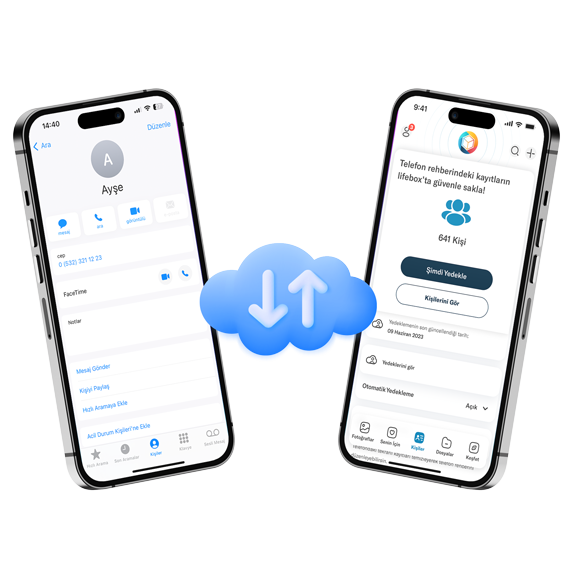
Lifebox transfer is a data moving tool. It helps people move files between phones. The tool works with Android and iPhone devices. Users can transfer photos, videos, contacts, and messages. The process is meant to be quick and easy.
The tool was made to solve common problems. When people get new phones, they want their old data. Manual copying takes too long. Cloud services can be slow or costly. Lifebox transfer aims to do this job faster. It links two devices to enable direct data transfer between them.
How Does Lifebox Transfer Work?
How Lifebox Transfer Works: Lifebox Transfer uses a direct connection. It does not rely on cloud storage. Users install the app on both phones. Data is transferred directly from the old phone to the new one using a local network connection. Since most files don’t require uploading to the internet, the transfer is quicker and offers enhanced security.
Starting the Transfer. The process begins with pairing the devices. Both phones must have the app open. One phone creates a hotspot. The other phone connects to it. This forms a private link between the devices. Once connected, users choose what to transfer. Options include photos, videos, contacts, and more.
Automatic and Simple Process. After selection, the app takes over. It moves the data automatically. Users don’t need to adjust settings. The transfer is quick and smooth. Progress is shown on the screen. When done, users get a confirmation. It’s a simple way to switch phones without using the internet.
Is Lifebox Transfer Free?
Lifebox Transfer offers a free version. This version has basic features. Users can move some types of data without paying. However, the free version has limits. It may only transfer small amounts of data.
The full version costs money. Paid users get more features. They can transfer larger files. The paid version also works faster. Premium support is included with paid accounts. Users must decide if the extra features are worth the cost.
Is the Lifebox Transfer Tool Trustworthy?
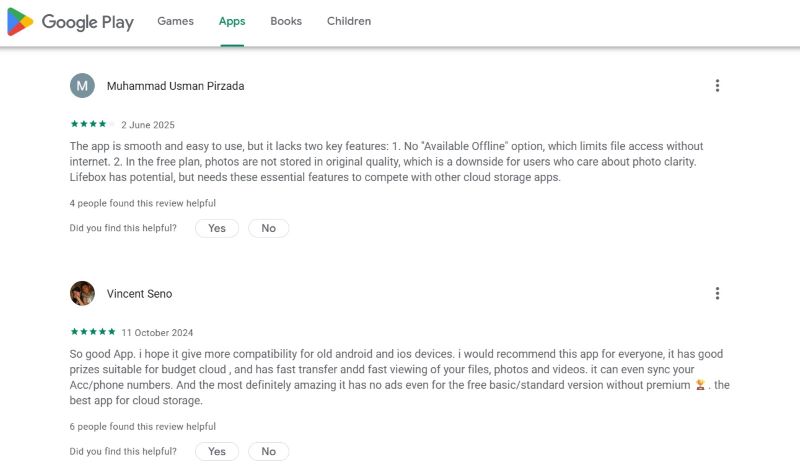
User Comments:(Google Play Store)
- “So good, App. I hope it gives more compatibility for old Android and iOS devices." - Vincent.
- "The app offers a user-friendly experience with a sleek interface, but it falls short in two important areas. First, the absence of an “Available Offline” feature restricts access to files without an internet connection. Second, the free plan compresses photos, compromising image quality for users who value clarity.” - Muhammad Usman Pirzada
- "Transfer speed was good. However, some apps didn't move properly. Had to reinstall a few." - Lisa K.
- "Customer support helped when I had problems. The tool is decent for basic transfers." - John D.
- "Works better than expected. My contacts and messages moved fine. Recommended for simple transfers." - Anna T.
Media Reviews: Tech websites offer a range of opinions on Lifebox Transfer. Many praise its simple setup and user-friendly design. They highlight how easy it is to connect devices and start transferring. For users who need a quick solution, Lifebox often gets positive feedback.
How to Use the Lifebox Transfer? Why is Lifebox Transfer Not Working?
Using Lifebox Transfer: Lifebox Transfer is easy for most users. The app shows each step clearly. People can follow along without much trouble. It helps with choosing files and connecting devices. But not everyone has a smooth experience. Some users face problems, especially with older phones. These phones may crash or freeze during transfer.
Common Problems During Transfer:
- Weak connection: Lifebox uses WiFi Direct or Bluetooth. A poor signal can interrupt the transfer.
- Transfer failure: If the connection breaks, the process may stop or restart.
- Old devices: Older phones may not support the app well. They can lag or crash.
- Low performance: Devices with limited memory or outdated software may struggle.
- App compatibility: Some phones may not meet Lifebox’s system requirements.
Why Lifebox May Stop Working? Sometimes Lifebox stops working. This can happen for many reasons. A poor internet connection is one cause. Low storage space is another. If the phone is full, the transfer won’t work. Some devices also have compatibility issues. Always check the internet, storage, and device settings before starting.
Steps to Use Lifebox Transfer:
Step 1. Go to lifeboxtransfer.com in your browser. Upload your files. Click “Select Files” or “Select Folders”. Choose the files from your computer.
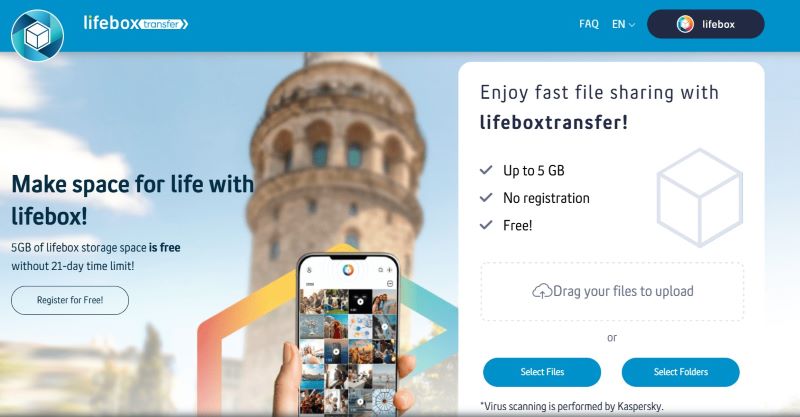
Step 2. Pick how to share
- Email: Enter your email and the recipient’s email.
- Link: Skip email and create a shareable link.
Verify your email If using email, check your inbox for a code and enter it to confirm.
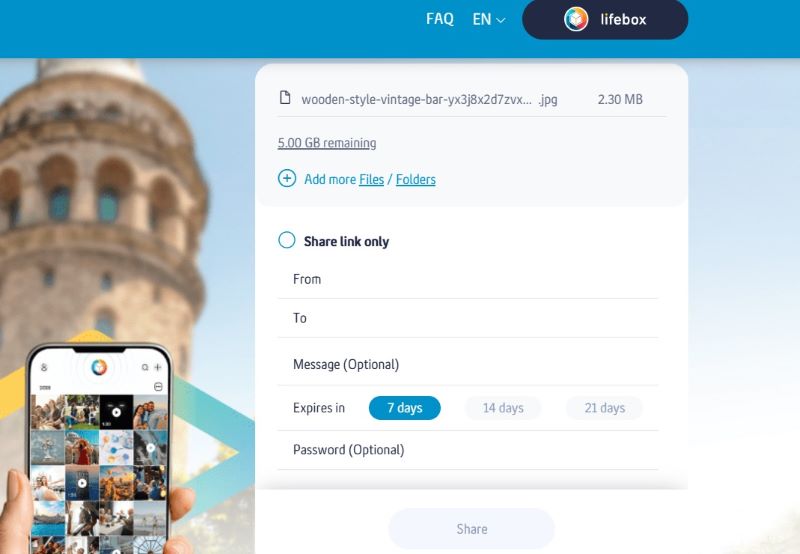
Step 3. If using email, the recipient gets a download link. If using a link, copy it and send it anywhere—chat, text, or social media.
Done! The recipient can download the files easily.
MobileTrans: Try the Best Alternative to Lifebox Transfer
MobileTrans is widely recognized as one of the best tools for transferring data between devices. It offers a clean interface and reliable performance, making it suitable for both beginners and advanced users. The app is designed to work across different platforms, including Android, iOS, and Windows. Its consistent success rate and ease of use have made it a popular choice for people switching phones or backing up important files.
One of MobileTrans’s biggest strengths is its ability to support a wide range of file types. It can transfer photos, videos, contacts, messages, call logs, and even app data. Unlike many other apps, it handles large transfers without slowing down or crashing. Whether you're moving a few files or an entire phone’s contents, MobileTrans performs smoothly. This makes it ideal for users with lots of media or business data.
Why Users Prefer MobileTrans Over Lifebox? Many users choose MobileTrans instead of Lifebox Transfer. It’s faster, more stable, and works well with more devices. Lifebox may struggle with older phones or weak connections, but MobileTrans is built to handle those challenges. Its broader compatibility and better performance give it an edge. For users who want a hassle-free experience, MobileTrans often becomes the go-to solution.
How MobileTrans is Better than Lifebox Transfer:
- Supports more file types and phone models
- Faster transfer speeds with stable connections
- Better success rate with large file transfers
- Professional customer support available 24/7
- More reliable with older and newer devices
- Advanced features for business users






Steps to Use MobileTrans:
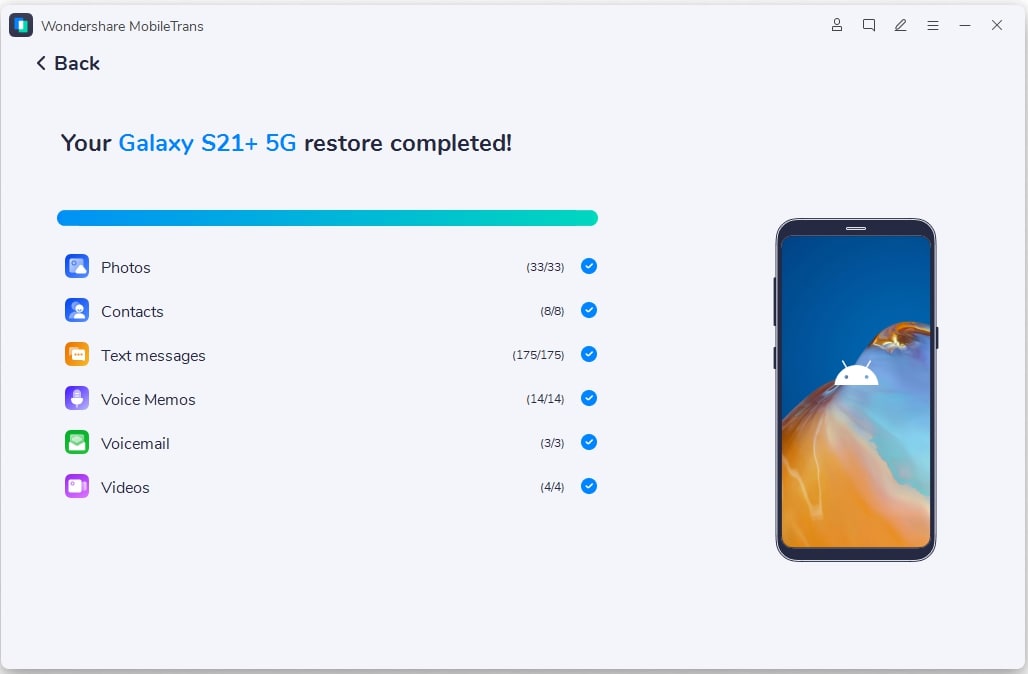
Step 1: Download MobileTrans. Install it on your computer. Connect both phones using a USB cable. Launch the software and choose "Phone Transfer." Select source and target devices. The app will detect both phones automatically.

Step 2: Choose data types to transfer. Click the "Start" button. Keep both phones connected until finished.

Step 3: Check the new device for transferred data. Disconnect phones when transfer is complete. The process is now finished successfully.
Additional Tips to Use Lifebox Transfer
- Charge both phones to at least 50% battery before starting. This prevents shutdowns during the transfer process.
- Clear storage space on the receiving device beforehand ensures there's enough room for incoming data.
- Close other apps to free up phone memory during transfer. Improves performance and reduces interference.
- Use a strong WiFi connection for better transfer stability. Helps maintain a fast and reliable connection.
- Update both phones to the latest software versions available. Ensures compatibility and smoother operation.
- Back up important data before starting any transfer process. Protects against accidental data loss.
- Test the connection with small files first before big transfers. Check stability before sending large data.
- Keep phones close together during the entire transfer process. Reduces signal drops and speeds up transfer.
Conclusion
This Lifebox transfer review shows the tool's strengths and weaknesses. It works well for basic data transfers. The setup process is simple for most users. However, the free version has many limits.
For heavy users, paid alternatives work better. MobileTrans offers more features and reliability. It handles larger transfers without problems. The extra cost is worth it for important data moves.
Choose based on your needs. Lifebox transfer works for simple transfers. For complex moves, consider better tools. Always back up your data before any transfer. This keeps your files safe if something goes wrong.
FAQ
-
Q: Does Lifebox Transfer work with all phone types?
A: Lifebox Transfer is compatible with most modern Android and iPhone devices, making it easy to move data across platforms. However, very old models or phones running outdated operating systems may not be supported. It's best to check the official compatibility list on the Lifebox website or app store before downloading to ensure your device is eligible.
-
Q: How long does a typical transfer take?
A: Transfer duration varies based on the amount of data being moved. Small transfers—like contacts and a few photos—usually take between 10 to 30 minutes. Larger transfers involving videos, apps, and full media libraries can take several hours. The speed and stability of your connection (WiFi or cable) also play a major role in how long it takes.
-
Q: Is my data safe during transfer?
A: Yes, Lifebox Transfer prioritizes data security by using local connections (like WiFi Direct or Bluetooth) for most transfers, meaning your files don't pass through external internet servers. That said, it's always wise to back up important files beforehand, just in case something goes wrong during the process.










