



 TL;DR:
Migrating data from Android to an iPhone 18 Pro without Move to iOS requires choosing between Apple's Transfer Without App for new device setups, MobileTrans for comprehensive post-setup transfers without a factory reset, or cloud and manual methods for moving selective files.
● Apple's Transfer Without App performs a broad direct migration that can include eligible eSIMs, but it strictly requires a compatible source device running Android 17 or later and must be executed during the initial iOS setup sequence.
● MobileTrans requires a computer connection to move restricted data like text messages, call history, and WhatsApp chats to an already-configured iPhone, and can extract and merge Google Drive WhatsApp backups without overwriting existing conversations.
● Cloud syncing through Google accounts and manual file transfers via iTunes or VCF files allow you to move isolated contacts, calendars, and media at any time, but cannot migrate Android APK files, Google Play purchases, or local app settings.
Ask AI for a summary
 ChatGPT
 Perplexity
 Gemini
 Claude
 Grok
Grok
Apple's Move to iOS works during initial iPhone setup, so it may not suit users whose iPhone 18 Pro is already configured. Resetting the device to migrate data may also be inconvenient, especially when important files and settings are already stored on it.
Fortunately, several ways exist to transfer data from Android to iPhone 18 Pro without Move to iOS. Depending on what you need to move, you can use Apple’s app-free transfer, MobileTrans, cloud syncing, a computer, or manual methods. This guide explains each option and helps you choose the right approach for your data.
In this article


Part 1. What Can You Transfer Without Move to iOS?
Before exploring how to transfer data from Android to iPhone 18 Pro without Move to iOS, check the table below to see which data types you can transfer and the best method for each:
| Data Type | Best Route Without Move to iOS |
| Contacts | Google sync, VCF file, Apple Transfer Without App, or MobileTrans |
| Photos and Videos | Google Photos, computer, Apple Transfer Without App, or MobileTrans |
| Messages | Apple Transfer Without App or MobileTrans |
| Call History | Apple Transfer Without App or MobileTrans |
| Calendars and Mail | Google account sync or Apple Transfer Without App |
| Music | Computer or MobileTrans |
| Documents and Files | Cloud storage, computer, Apple Transfer Without App, or MobileTrans |
| WhatsApp Chats and Media | MobileTrans WhatsApp Transfer |
| Some App Data | MobileTrans or signing in to the corresponding iOS app |
| SIM or eSIM | Apple Transfer Without App or carrier activation |
Full Transfer vs Selective Transfer
The main differences between these methods are how much data they transfer and whether they work during initial setup or after the iPhone is already configured:
- Two Broad Migration Paths: Broader data transfers use Apple’s Transfer Without App setup route or MobileTrans. Both have limitations, while other alternatives generally move selected data types.
- Google Sync is Selective: Google account sync handles specific synced data, such as contacts and calendars. It does not restore a complete Android backup to an iPhone.
- Post-Setup MobileTrans Flexibility: MobileTrans can transfer supported data after initial iPhone setup. This flexibility is useful when moving data to an iPhone 18 Pro without resetting it.
Part 2. 7 Ways to Transfer Data to iPhone 18 Pro Without Move to iOS
This section covers 7 ways to transfer data from Android to iPhone 18 Pro without Move to iOS. These include direct transfers, account syncing, cloud services, and manual methods.
1. Direct Phone-to-Phone Transfer
Method 1. Transfer Without the Move to iOS App on Supported Android 17 Phones
Apple’s Transfer Without App option lets compatible Android phones transfer data directly to a new iPhone. It requires Android 17 or later, with support depending on the device manufacturer. Supported devices can also transfer an eligible eSIM during the process. Follow these steps to use this method:
Step 1. Set up iPhone 18 Pro, go to Transfer Your Apps & Data > From Android > Transfer Without App.
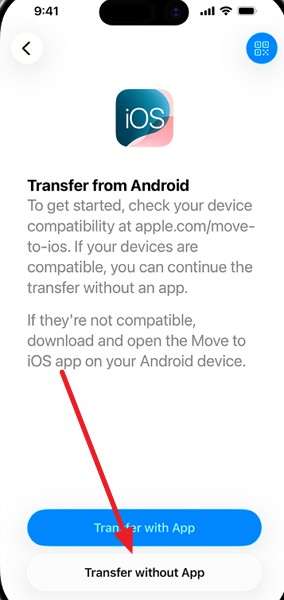
Step 2. Hold the phones together, then tap Continue.
Step 3. Use the Android camera to scan the QR code displayed on the iPhone.
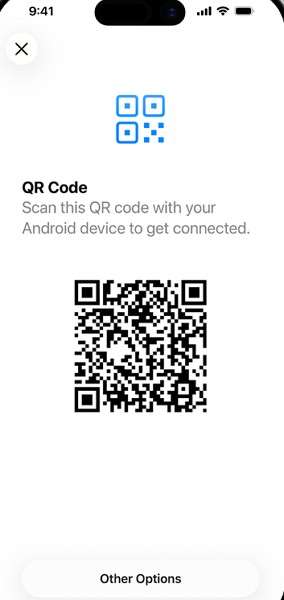
Step 4. On Android, select the data you want to transfer and complete the data transfer.
Step 5. If you also want to transfer a supported eSIM, select the phone number on the Android device and tap Transfer.
Method 2. Transfer Android Data to iPhone 18 Pro with MobileTrans
For users who need a broader migration option, MobileTrans Phone Transfer moves messages, contacts, photos, and videos directly between phones. None of the other six methods can transfer text messages, while only one supports call history. It handles transfers between Android and iPhone in either direction. A factory reset is not required, making it suitable for an already-set-up iPhone.
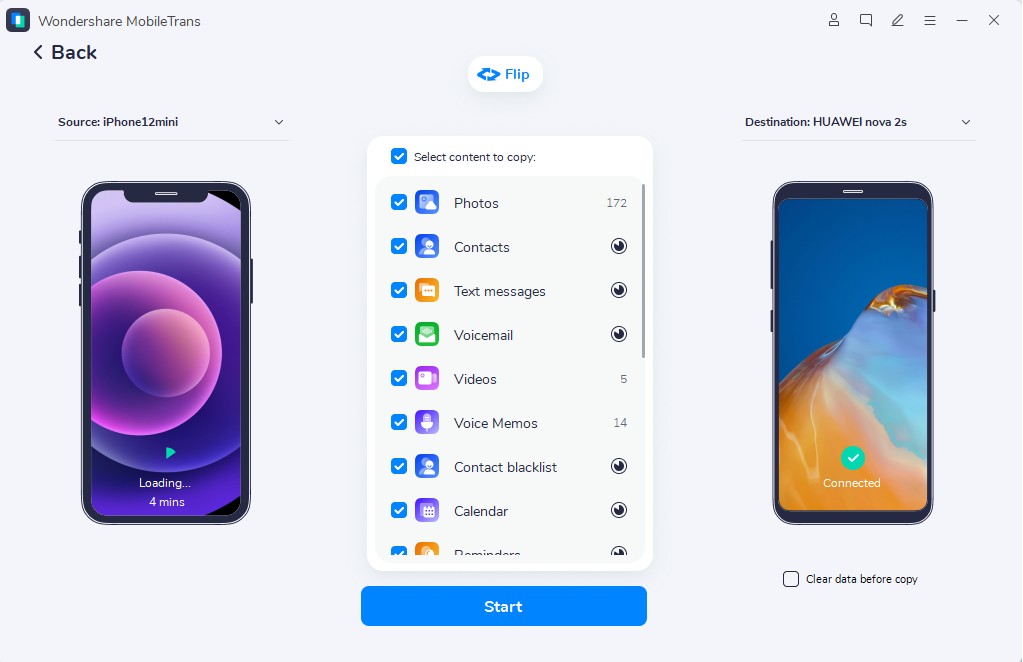
The tool supports over 6,000 phone models from Apple, Samsung, Huawei, Xiaomi, and other brands. It can also move iCloud data directly to Android without restoring it to an iPhone first. The Flip option lets you assign the source and target devices. You can then select the data types you want to transfer to the iPhone 18 Pro.
Key Features
- App and App Data Transfer: Moves supported apps together with associated data, including saved content such as game progress.
- Secure and Private Transfer: Uses end-to-end encryption and transfers data without relying on cloud storage or Wi-Fi.
- Simple 3-Step Process: Connect both devices, select the data types you want to move, and start the transfer.
- Broad OS Compatibility: Works on Windows and macOS and supports devices running iOS 6+ and Android 4.6+.
- Computer-to-Phone Transfer: Transfers five supported data types from a computer to a phone in batches for more efficient migration.






Guide to Move Data from Android to iPhone 18 Pro.
If you want to transfer data from Android to iPhone 18 Pro after setup with MobileTrans, here is the guide you can follow:
Step 1. Install MobileTrans and choose Phone Transfer > Phone to Phone.

Step 2. Connect both phones with cables > Use Flip to set the Android as the source and the iPhone 18 Pro as the target.
Step 3. Choose the data you want from your Android > Press Start > Wait for the process to end.
2. Google and Cloud Transfer
Method 3. Transfer Contacts, Mail, and Calendars with a Google Account
Google allows Google Contacts, Gmail, and Calendar data to sync with corresponding iPhone apps. Contacts stored only on the Android phone will not sync automatically, so add them to your Google Account first. Once syncing is enabled, supported changes can appear across devices using the same account. Follow these steps to transfer data from Android to iPhone 18 Pro without resetting:
Step 1. Choose Passwords, Passkeys & Autofill on Android (Pixel) > Choose your Google Account > Account Sync > Select data > Three Dots > Sync Now.
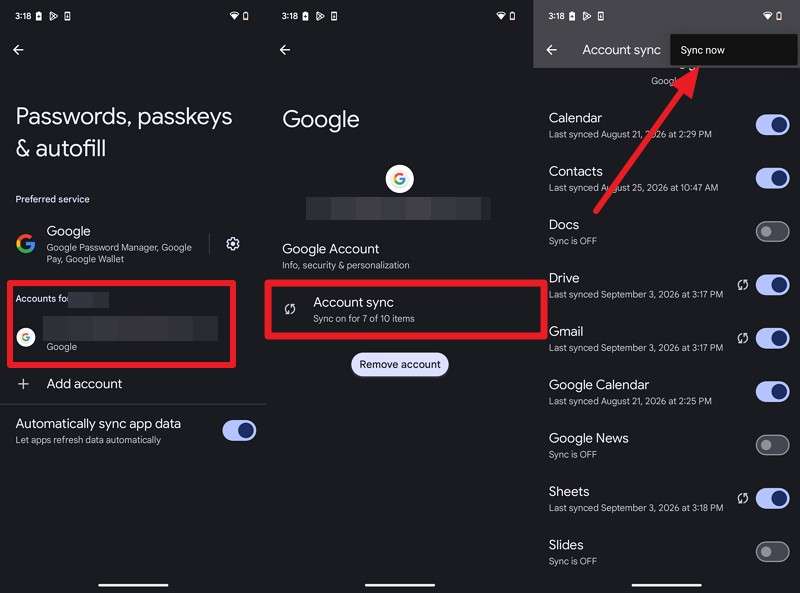
Note: Make sure the data you need, such as Contacts and Calendar, is enabled.
Step 2. On iPhone 18 Pro, go to Settings > Apps > Contacts Accounts > Add Account.
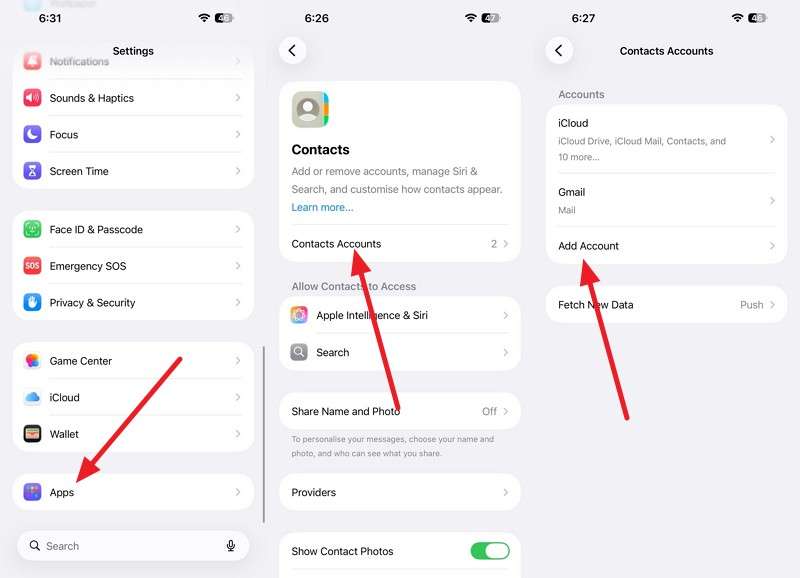
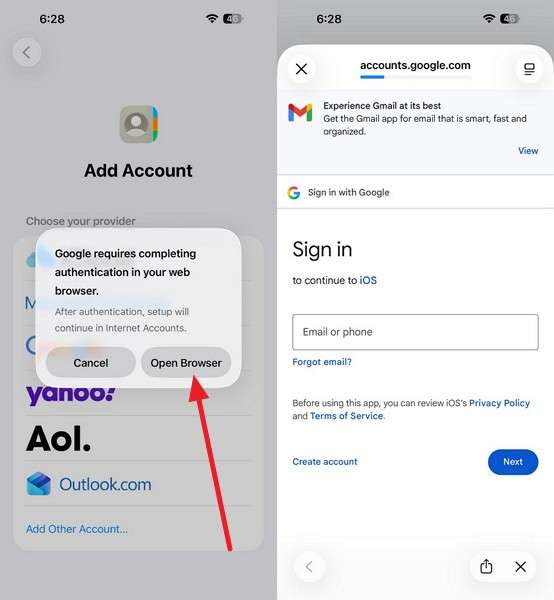
Step 3. Tap on Google > Open Browser > Sign in.
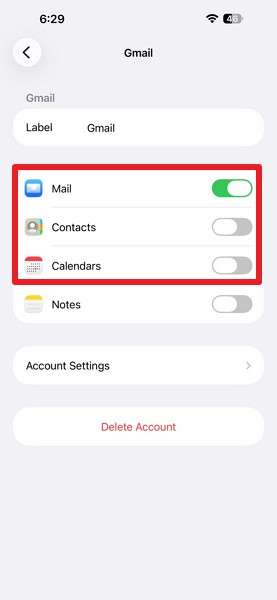
Step 4. Toggle options for Contacts, Calendars, and Mail.
Method 4. Transfer Photos and Videos with Google Photos
Another practical option for moving photos and videos is Google Photos, which provides cloud-based access without Move to iOS. Enabling Backup on Android saves supported media to your Google Account. You can then access the same library by signing in on the iPhone. Follow these steps to transfer data from Android to iPhone 18 Pro without Move to iOS:
Step 1. In Google Photos > Tap Profile Picture > Photo Settings > Backup > Backup Is On.
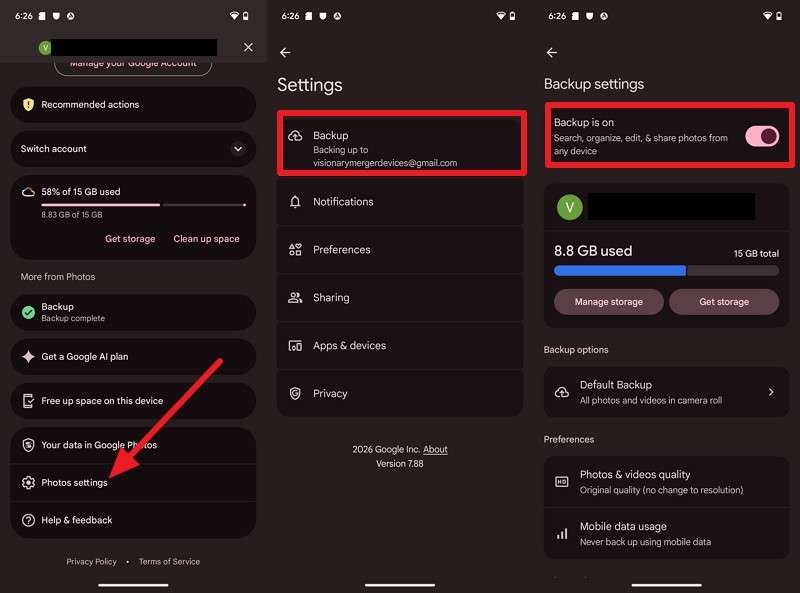
Step 2. Install Google Photos on the iPhone and sign in with the same Google Account.
Step 3. Your backed-up Android photos and videos should then be available in Google Photos.
Method 5. Transfer Documents with Google Drive, OneDrive, or Dropbox
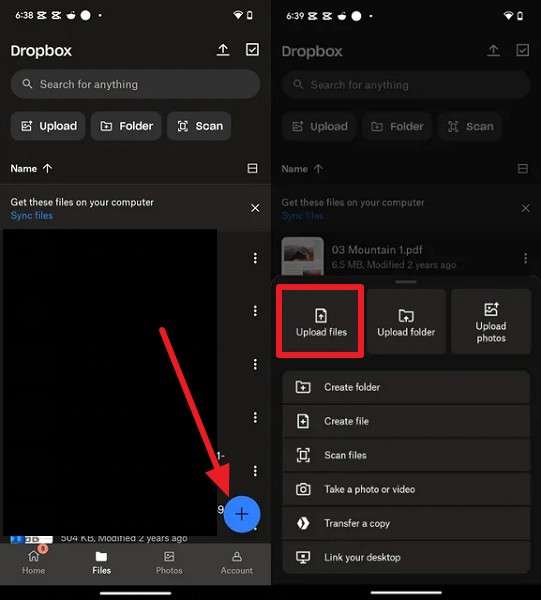
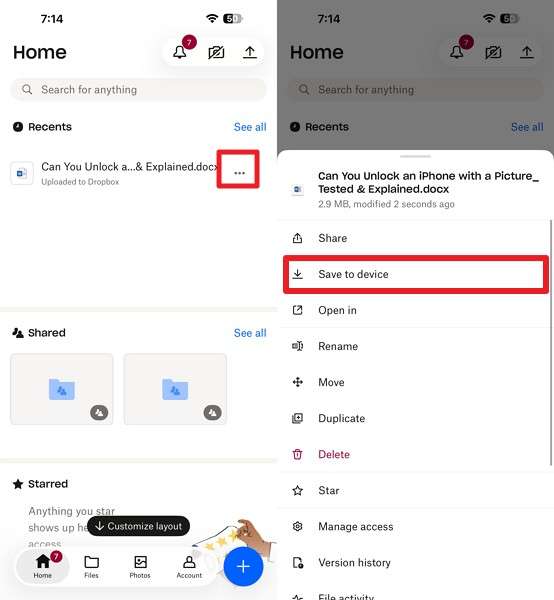
Cloud storage services offer another way to move selected files without Move to iOS. Upload files from Android, then access them through the same account on your iPhone. A Google Account includes 15 GB of shared storage, while free OneDrive accounts provide 5 GB. Using Dropbox as an example, here is how to transfer data from Android to iPhone 18 Pro without Move to iOS:
Step 1. Choose the + > Upload Files option. Select the files and upload them.
Step 2. Install the app on iPhone 18 Pro > Sign in with the same account > Go to Recents > Three Dots > Save to Device.
3. Manual Data Transfer
Method 6. Transfer Photos, Videos, Music, and Files Using iTunes/Finder
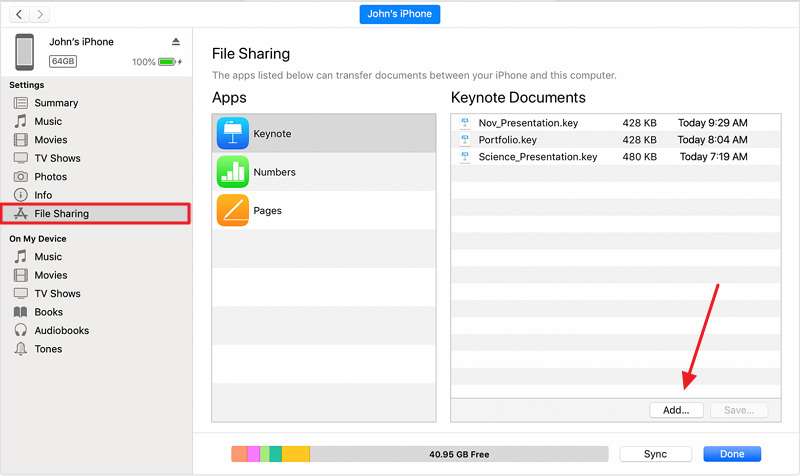
Apple provides a manual computer-based option for moving supported files from Android to iPhone without Move to iOS. The File Sharing feature in iTunes or Finder supports transferring files between a computer and compatible iPhone apps. This approach is useful for selected documents and other app-supported files. Here is how to transfer data from Android to iPhone 18 Pro without resetting:
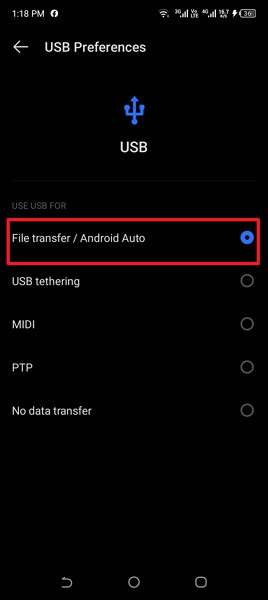
Step 1. Connect the Android phone using a cable > Tap the USB notification > Select File Transfer.
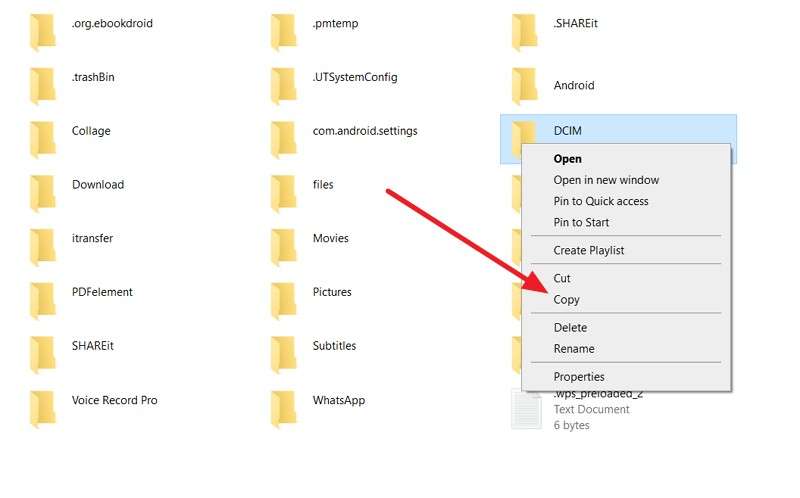
Step 2. Copy the required files from the DCIM, Music, and Downloads folders to your computer, then disconnect the Android phone.
Step 3. Connect the iPhone to the computer > Open iTunes/Finder > File Sharing > Select a compatible app > Press Add to import the required files.
Method 7. Transfer Contacts Using a VCF File
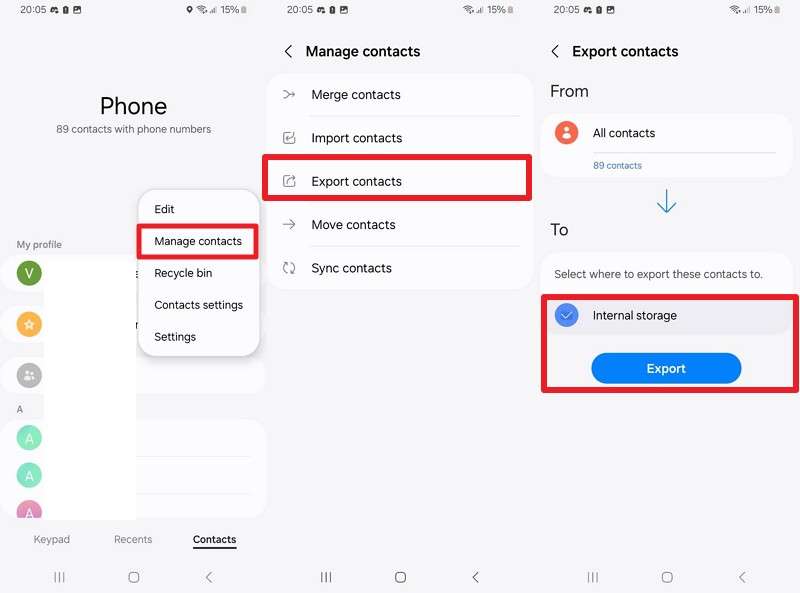
A VCF (vCard) file offers a straightforward way to move contacts without continuous Google Contacts syncing. You can export contacts from Android, share the VCF file, and import them directly on the iPhone. This method also works once the iPhone is already configured. Follow these steps to transfer data from Android to iPhone 18 Pro after setup, specifically contacts:
Step 1. In Android Contacts, tap the three dots > Manage Contacts > Export Contacts > Internal Storage > Export > OK.
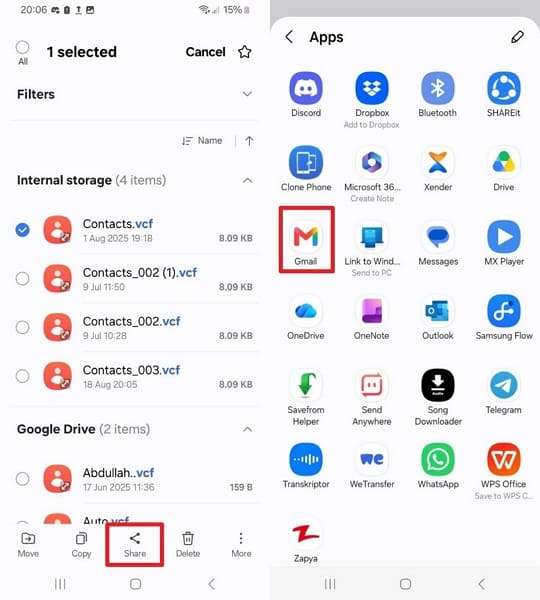
Step 2. Access the Files App > Search VCF > Share > Choose Gmail > Add Recipient > Tap Send.
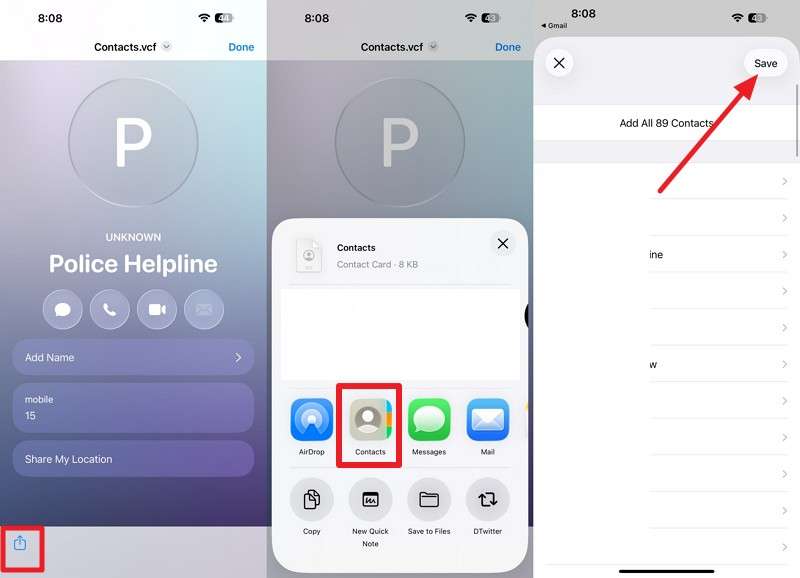
Step 3. Open Mail on iPhone 18 Pro > Share > Contacts > Save.
Part 3. How to Transfer WhatsApp Without Move to iOS?
Now that you know how to transfer data from Android to iPhone 18 Pro without resetting, WhatsApp needs separate attention. The following two methods help transfer WhatsApp chats and media without Move to iOS.
Method 1. Transfer WhatsApp from Android to iPhone 18 Pro with MobileTrans
MobileTrans WhatsApp Transfer supports WhatsApp transfers across 6,000+ iOS and Android devices, including WhatsApp Business. It works with already-set-up iPhones and can merge transferred chats with existing conversations instead of overwriting them. Its AI-assisted process checks transfer requirements and helps optimize the migration. Once WhatsApp is installed and the number is verified on the iPhone, follow these steps to begin the transfer:


Step 1. On MobileTrans, go to App Transfer > WhatsApp > Choose Transfer or Transfer & Merge.
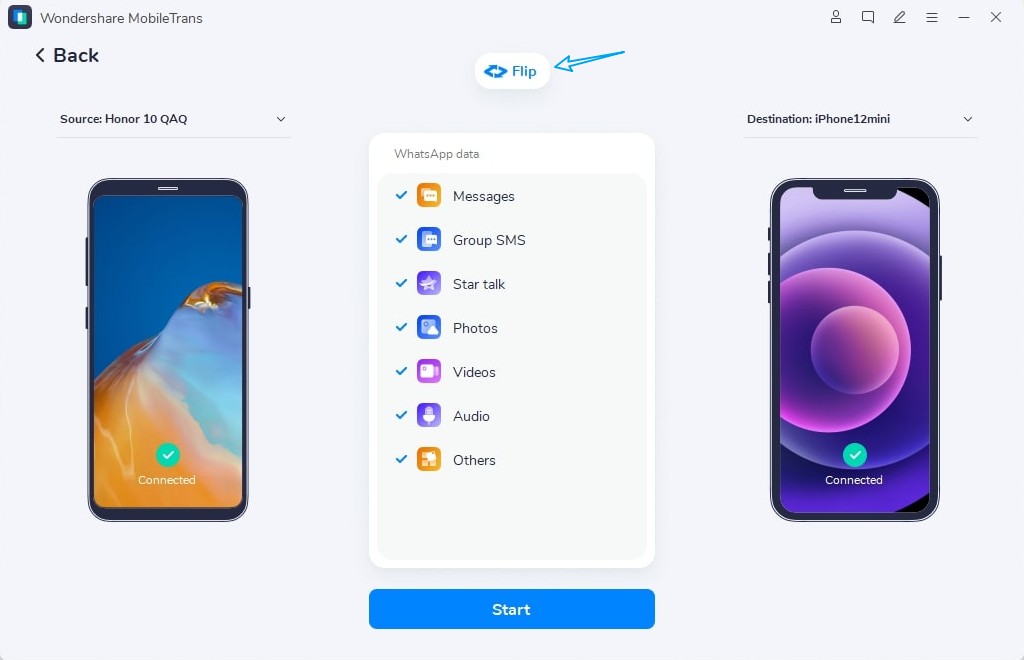
Step 2. Connect the devices. The tool will check whether the devices meet the requirements.
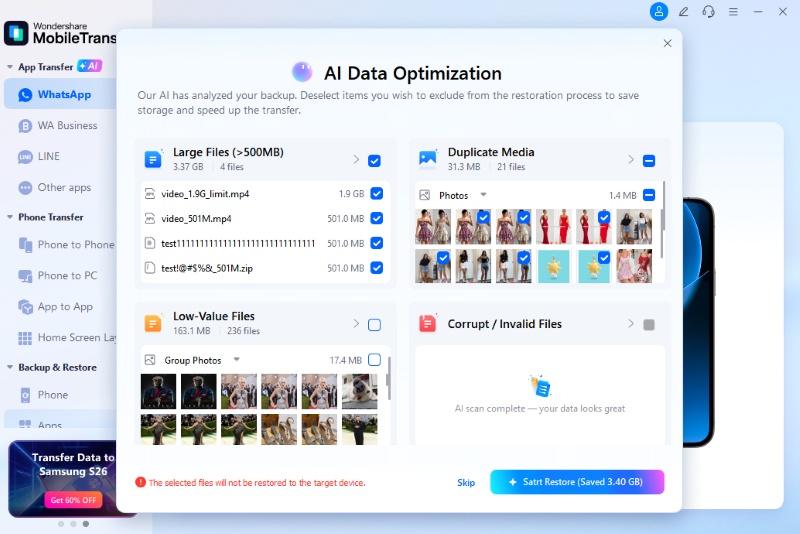
Step 3. Choose AI-Assisted Backup and wait for the tool to complete the WhatsApp backup process.
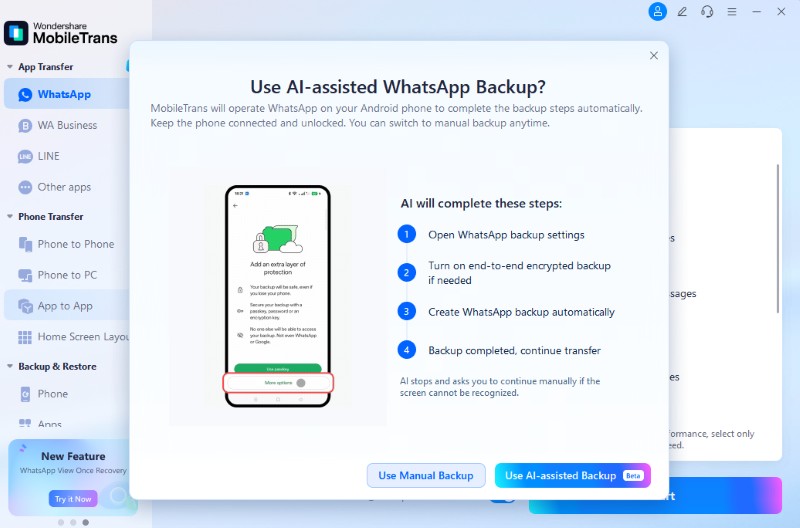
Step 4. Follow the on-screen instructions to restore WhatsApp data to the iPhone 18 Pro.
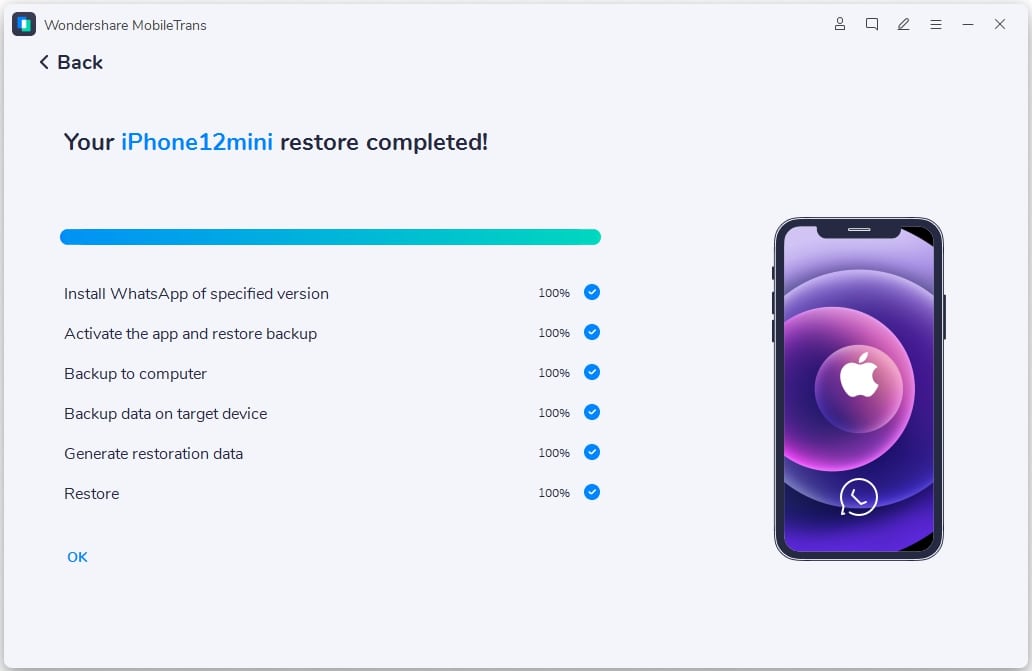
Method 2. Restore a Google Drive WhatsApp Backup to iPhone with MobileTrans
Android WhatsApp backups stored in Google Drive cannot be restored directly to an iPhone. MobileTrans WhatsApp Transfer bridges this gap by extracting WhatsApp data from Google Drive or iCloud backups and restoring selected chats without resetting the device. To transfer data from Android to iPhone 18 Pro after setup through WhatsApp backup restoration, follow these steps:
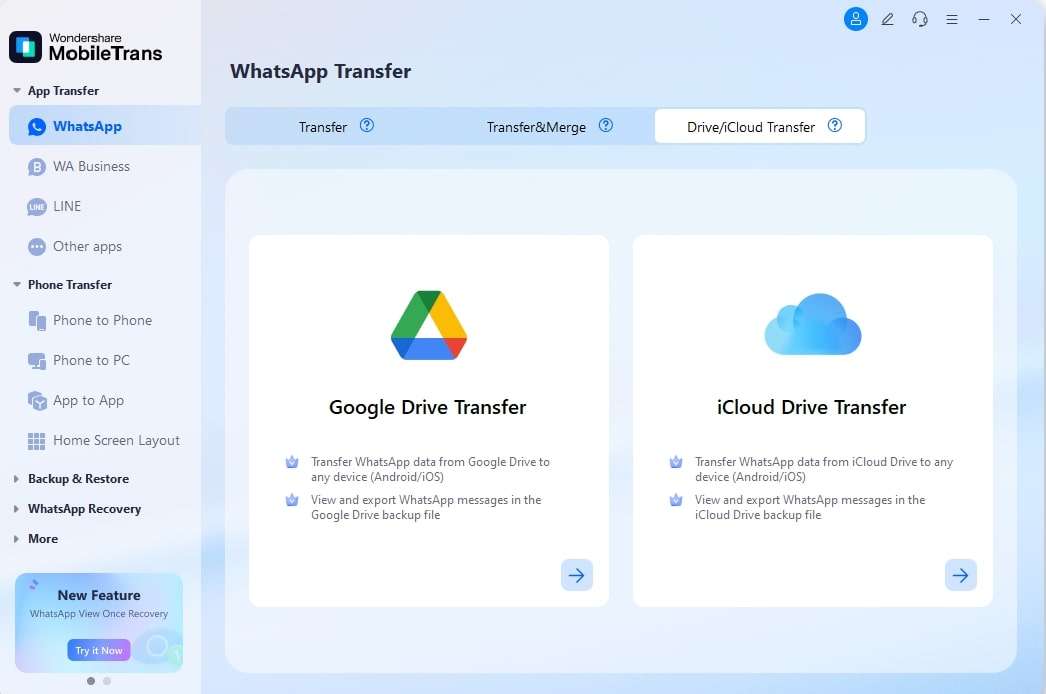
Step 1. Choose App Transfer > WhatsApp > Drive/iCloud Transfer > Google Drive Transfer.
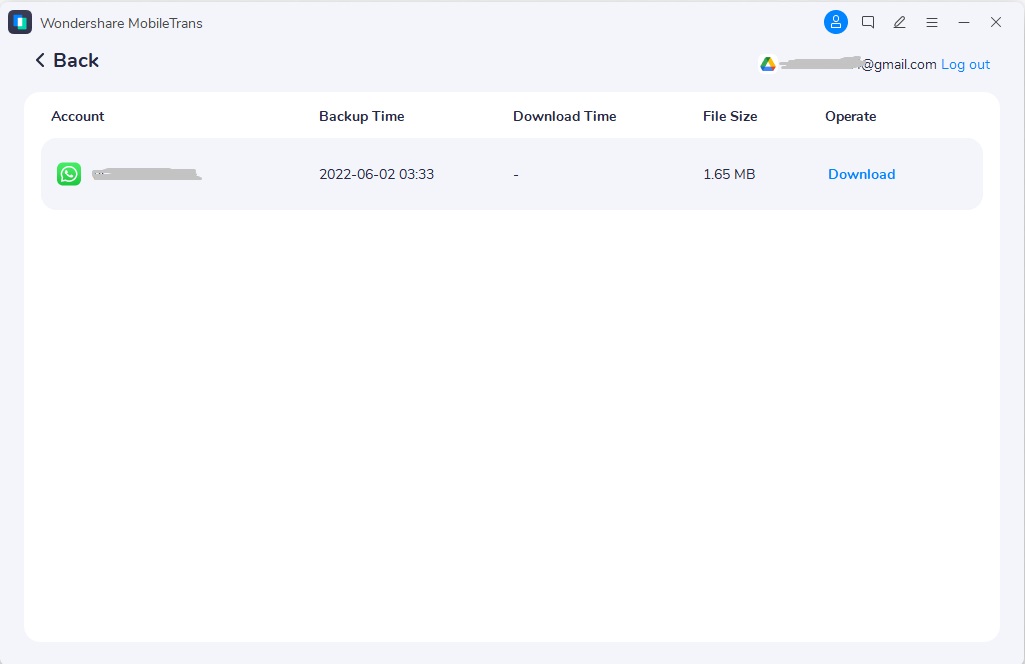
Step 2. Connect your iPhone 18 Pro > Tap Login > Sign in > Choose the backup file > Download.
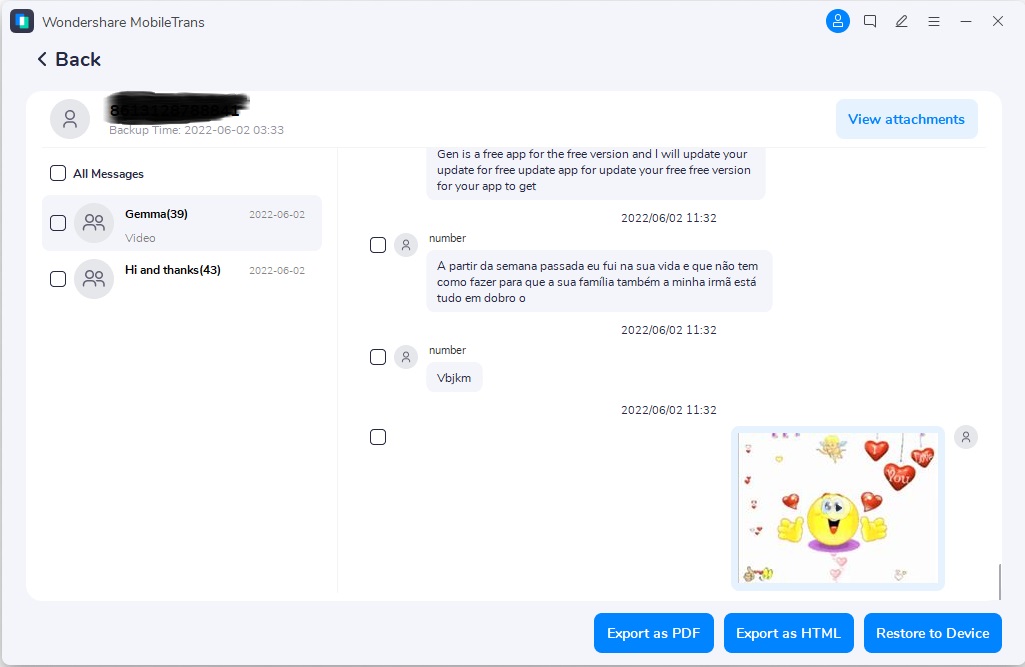
Step 3. Verify your Google account with the code > Press View > Select the required messages > Click Restore to Device.
Part 4. What Android Data May Not Transfer to iPhone 18 Pro?
While you transfer data from Android to iPhone 18 Pro without Move to iOS, some Android data may not transfer directly or work the same way on iOS:
| Android Data | What Happens on iPhone |
| APK Files | Cannot be installed on iOS |
| Google Play Purchases | May require repurchase from the App Store |
| App-Specific Data | Local-only data may not transfer |
| Android Settings | Layouts, widgets, and notification settings do not transfer directly |
| DRM-Protected Downloads | May remain tied to the original app, account, or device |
| Unsupported App Data | May not transfer without an iOS version or supported export option |
What Happens to Your Android Apps?
Before switching platforms, it is important to understand what happens to your Android apps and their data on the iPhone:
- Download the iOS Versions: Many popular apps are available on both platforms, so search the App Store and reinstall the iOS versions you need.
- Sign in to Recover Synced Data: App data stored with an online account may reappear after you sign in. This commonly applies to social apps, subscriptions, and other account-based services.
- Check Purchases and Subscriptions: Paid Android apps may require a separate App Store purchase. However, some cross-platform subscriptions and accounts remain available after signing in on iOS.
- Migrate Apps That Need Special Steps: Some authenticators, password managers, and similar apps require their own transfer or export process. Complete these steps before erasing your Android phone.
Part 5. Compare Ways to Transfer Android Data Without Move to iOS
Use the comparison table below to see which methods work after setup and which can transfer data from Android to iPhone 18 Pro without Move to iOS:
| Method | During Setup | After Setup | PC Needed | Internet Needed | Scope | Best For | Watch For |
| Apple Transfer Without App | Yes | No | No | No | Broad | New iPhone setup | Requires supported Android 17+ |
| MobileTrans | Yes | Yes | Yes | No | Broad | New or Already-set-up iPhone | Paid software |
| Google Account Sync | No | Yes | No | Yes | Selective | Contacts, calendars, and mail | No messages or call history |
| Google Photos | No | Yes | No | Yes | Selective | Photos and videos | Media remains in Google Photos |
| Cloud Storage | No | Yes | No | Yes | Selective | Documents and files | Storage limits may apply |
| Computer Transfer | No | Yes | Yes | No | Selective | Music, photos, videos, and files | More manual steps |
| VCF File | No | Yes | No | Depends | Selective | Contacts only | Some contact organization may not carry over |
Verdict: MobileTrans is the better choice for a broader Android-to-iPhone transfer, especially after iPhone setup. It moves multiple supported data types without requiring a factory reset, making migration more flexible than setup-only methods.
Part 6. What to Check After Transferring to iPhone 18 Pro
After you transfer data from Android to iPhone 18 Pro without resetting, use the following checklist to confirm that your important data transferred correctly:
| Check | What to Verify |
| Contacts | Compare important contacts on both phones. |
| iPhone Storage | Confirm enough storage remains after the transfer. |
| Photos and Videos | Check both older and recent media. |
| Messages and Calls | Confirm transferred messages and call history appear. |
| Open older chats, photos, videos, and voice notes. | |
| Documents and Files | Open important files and confirm they work. |
| Apps and Accounts | Install required apps and confirm account sign-ins. |
| SIM/eSIM | Confirm the cellular line is active and working. |
Conclusion
To conclude, there are several ways to transfer data from Android to iPhone 18 Pro without Move to iOS. Apple’s Transfer Without App works during setup on supported Android 17+ devices, while Google sync and manual methods handle selected data.
For a broader post-setup transfer, MobileTrans can move supported data without resetting the iPhone. It is especially useful for transferring multiple data types through one desktop solution. Keep your Android phone until you verify contacts, media, messages, WhatsApp data, and other important files.
FAQs
-
Can I transfer everything from Android to iPhone without Move to iOS?
You can transfer most common data without Move to iOS. Apple’s Transfer Without App supports compatible Android 17+ devices, while MobileTrans transfers 18+ supported data types even after iPhone setup.
-
Which Android phones support Apple Transfer without an app?
Apple Transfer Without App requires a compatible phone running Android 17 or later. Support can vary by manufacturer and model, so confirm compatibility before starting the transfer.
-
How do I transfer Android data to an iPhone that is already set up?
You can use Google sync or cloud storage for selected data. For a broader transfer, MobileTrans can move supported Android data to an already-set-up iPhone without a factory reset.
-
Can WhatsApp transfer from Android to iPhone without Move to iOS?
Yes. MobileTrans WhatsApp Transfer can move supported WhatsApp chats and media from Android to an iPhone without Move to iOS, including an already-set-up iPhone.










