



 TL;DR:
AirDrop does not transfer actual app files or internal data between iPhones; it only sends a direct App Store link requiring the recipient to manually download each app one at a time.
● MobileTrans requires a PC, USB cables, and your App Store ID to directly transfer multiple apps simultaneously, supporting both iOS and Android cross-platform migrations.
● Apple's Family Sharing allows up to six family members to download each other's purchased apps without repurchasing, while the App Store's "Gift App" feature lets you pay for and send a premium app to a specific user.
● Quick Start, iCloud, or iTunes/Finder backups are required to transfer complete app layouts and saved data, but these methods are strictly limited to the initial setup or full restoration of a new iPhone.
Ask AI for a summary
 ChatGPT
 Perplexity
 Gemini
 Claude
 Grok
Grok

Sitting next to your friend and imagining them saying, "What app is that?" and within seconds, it's already on their screen. To iPhone users, AirDrop is a form of convenience that will make them share more, discover more, and be connected. No cables, no additional tools, and a convenient method of sharing what you like most directly between two iPhones.
To add this convenience to your daily tasks, you'll need to find out how to share apps from iPhone to iPhone via AirDrop. This article covers a detailed step-by-step tutorial on how to process this sharing. Besides, the most frequently asked question about whether you can really share apps via AirDrop has been answered. So, continue reading to explore the best alternatives further and simplify app sharing even more.
In this article

Part 1: Can You Share Apps from iPhone to iPhone via AirDrop?
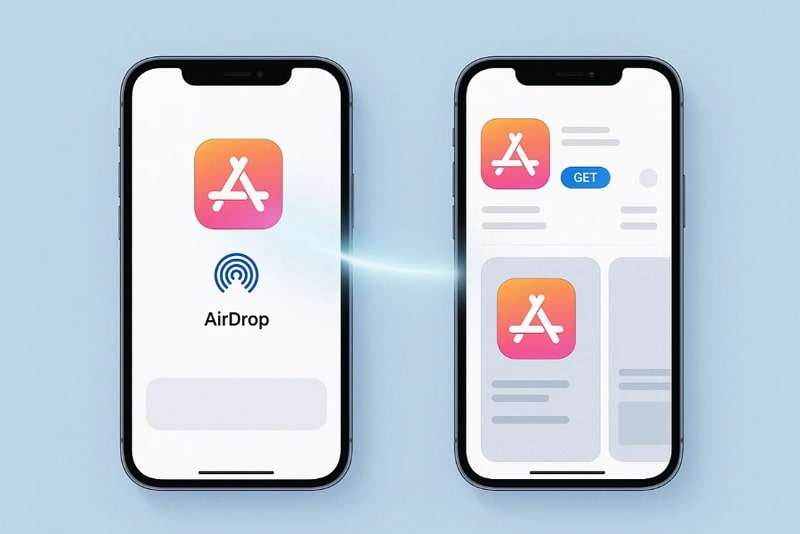
Put in simpler words, AirDrop does not move the app itself but sends the direct App Store link to the recipient device. This makes it so simple that one can easily view and download the same app on his/her iPhone by just clicking on a link. Finally, how to send apps from iPhone to iPhone via AirDrop is the most convenient way to pass along app suggestions to nearby friends.
Part 2: How to Send Apps from iPhone to iPhone via Airdrop
When you're tired of typing out app names, here's how to share apps from iPhone to iPhone via AirDrop; a smooth spread of finds:
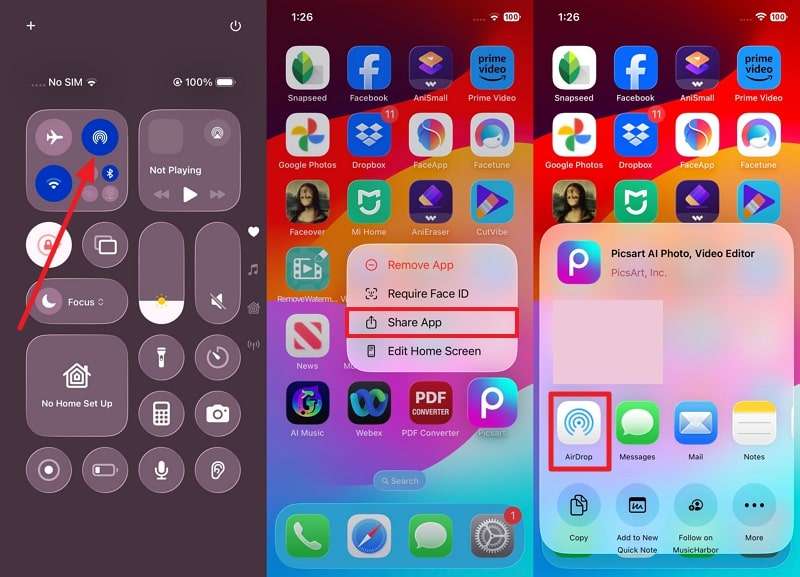
Step 1. To do this, drag down the top right corner and find the Control Centre on your iPhone. Next, tap the icon labeled "AirDrop" and select between the two options, "Contacts Only" or "Everyone for 10 Minutes." After this, long-press the app you want to share and select the "Share App" option from the menu. Now, prefer "AirDrop" as a sharing option, and choose the recipient of your choice.
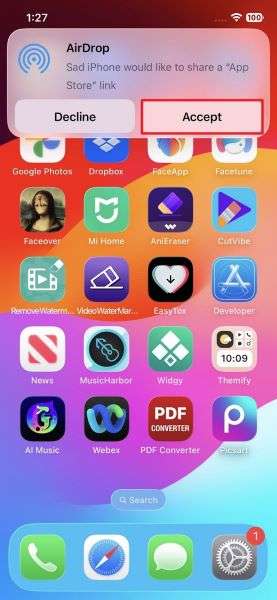
Step 2. On the recipient side, similarly, access AirDrop and press the "Accept" button to receive the shared app link.
Part 3: Other Alternatives to Send Apps from iPhone to iPhone
To share an app rather than a link, follow the section below, containing alternatives to how to send apps from iPhone to iPhone via AirDrop:
1. Move Apps Using MobileTrans




If you think that sharing app links via AirDrop still requires extra time to download the app later, consider MobileTrans as a direct solution. It offers a one-click solution to swiftly transfer apps from one iPhone to another without any hassle. Besides, the platform claims to transfer data faster than Bluetooth or third-party apps. Unlike traditional transferring tools, it allows users to feel free and share content with any device.
The program supports more than 18 types of data transfer, which include messages, contacts, and apps. Not only this, but it facilitates over 6,000 mobile devices running on Android and iOS systems, including the latest iOS 27. For the transfer process, you'll need to establish a connection between the devices and monitor the ongoing process. Apart from iPhone to iPhone, you can even transfer apps from an Android device to an iPhone.
Key Features
- Shift Data from Android/iOS to PC: You can easily back up mobile data, including apps, directly on your computer and free up space on your phones.
- Move Data from Computer to Mobile Devices: This feature enables one to transfer 5 types of data from their computer to any iOS or Android device.
- Transfers iCloud Data to Android: It moves all your iCloud contacts, photos, and calendar data to your new Android phone without any manual downloads.
Detailed Manual on Transferring Apps Between Old and New iPhones
As an alternative to how to share apps from iPhone to iPhone via AirDrop, follow the provided tutorial for app transferring:
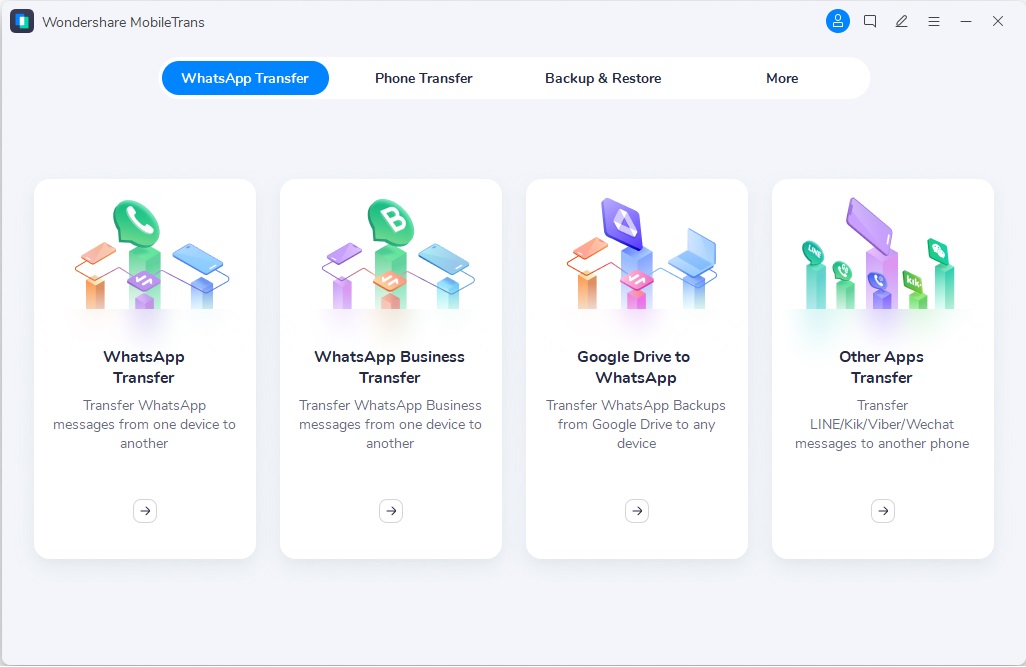
Step 1. Access the App-to-App Transfer Tool
Commence the program on your PC and access the "Phone Transfer" function to choose the "App to App" feature. Next, pair your computer with both iPhones using a USB cable. Now, specify the "Source" and "Destination" models of your iPhones to select the data type.



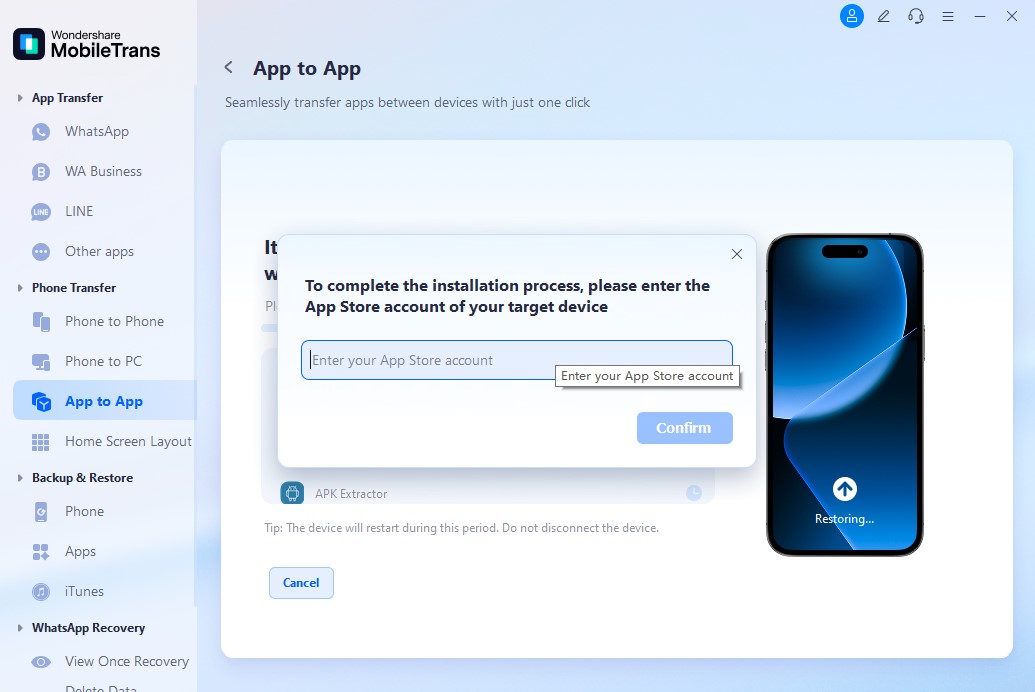
Step 2. Type Your Apple App Store Account
To proceed with installation, log in with your App Store ID from your old iPhone. Following this, allow the system to retrieve your app list securely.
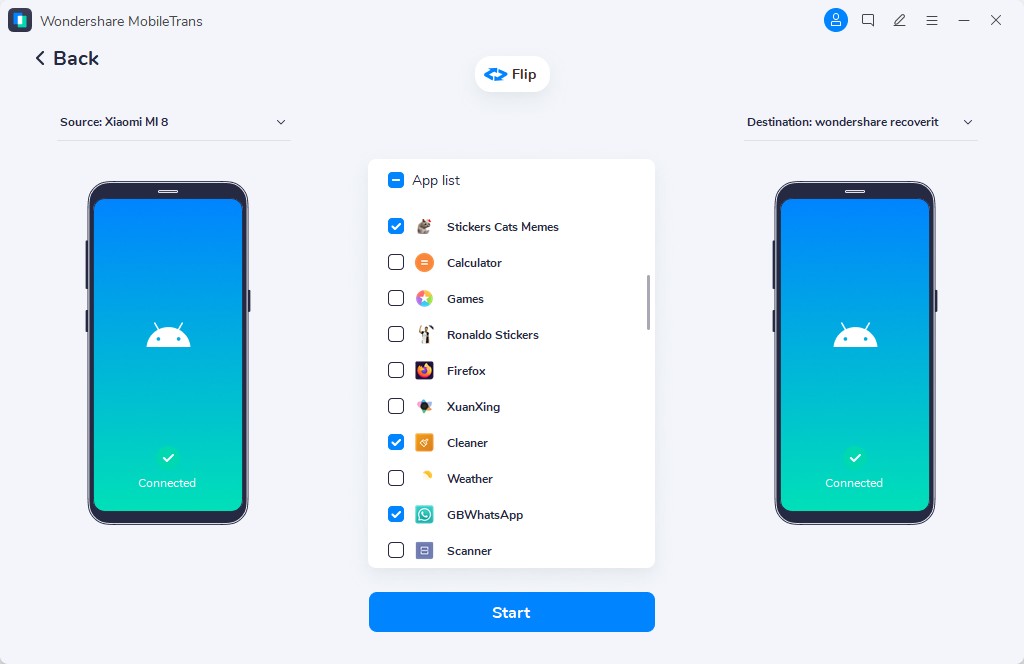
Step 3. Complete the App Transferring Process
Now, the program will start transferring data and installing it on your iPhone. Stay connected until the transfer completes and review the apps appearing on your iPhone's home screen.
2. Share Apps via Family Sharing Feature
For iPhone users, Apple's Family Sharing is a practical way to let up to 6 family members access each other's purchased apps. This simply means that once a family member buys an app, everyone in the group can download it without having to purchase it again.
It can be a long-term alternative to "how to send apps from iPhone to iPhone via AirDrop" for families to share apps across multiple devices. For better understanding, explore the step-by-step tutorial to share apps via family sharing:
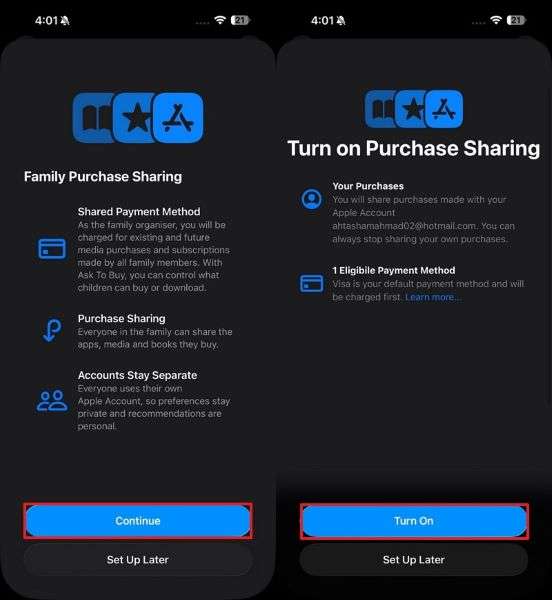
Step 1. To do so, visit your iPhone's "Settings" and tap your "Profile" from the top. After this, look for the "Family" option and access the "Purchase Sharing" option on the next screen.
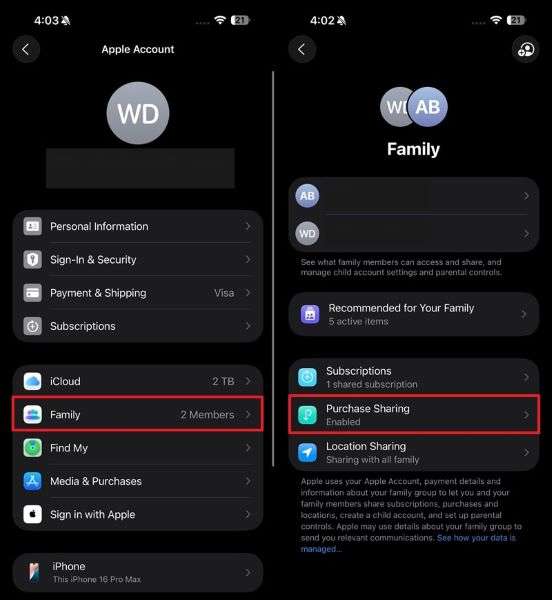
Step 2. Move ahead and press the "Continue" button from the Family Purchase Sharing window. Later, tap the "Turn On" button and allow your family members to download the purchased apps.
3. Gift the App to the Targeted Person
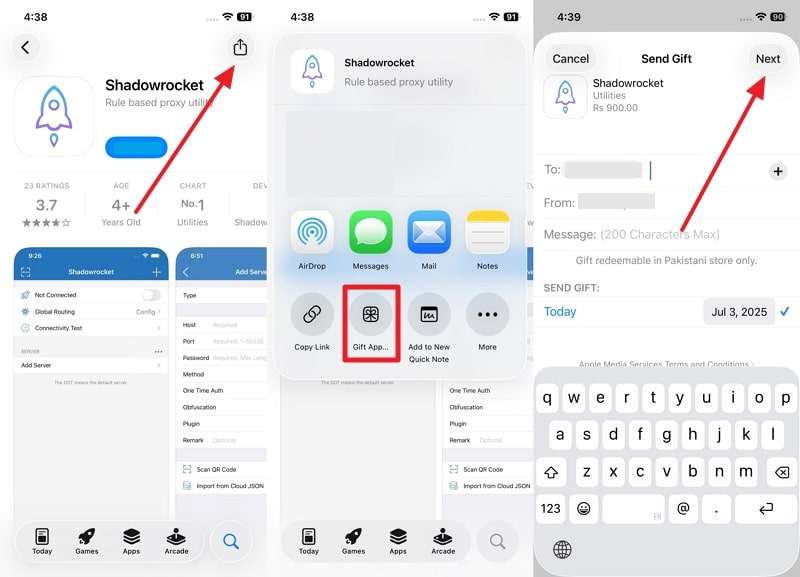
To pursue a more personal approach, consider Apple's "Gift the App" feature, which allows you to send a paid app to another iPhone user. It offers a step forward by covering the cost and making the app transfer a memorable experience. It's a convenient alternative for how to share apps from iPhone to iPhone via AirDrop because you can share the app, which isn't free, through the given steps.
Instructions: Open the App Store, search for your desired paid app, and navigate to the "Share" icon in the top right corner. From the Share menu, choose the "Gift App" option and enter the recipient's details in the next screen. Finally, proceed to the "Next" button at the top right and send a paid app as a gift.
4. Move All Apps to New Phone via Quick Start
If you're planning for an upgrade and want apps to be transferred to your new iPhone, Quick Start is the best option. This tool enables you to transfer your entire iPhone setup to a new device by placing your old iOS device alongside. To ensure a smooth transfer, keep your Bluetooth and Wi-Fi connections enabled on both devices. Follow this tutorial, an alternative to "how to send apps from iPhone to iPhone via AirDrop."
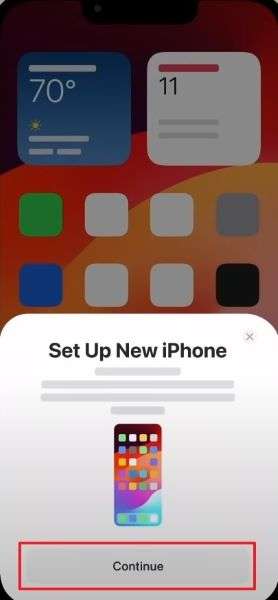
Step 1. To begin, switch on Bluetooth on your old iPhone and make a connection over Wi-Fi. After this, follow the provided prompt to access the "Quick Screen" on your new iPhone. Now, place your old device next to the new one and select the "Continue" option on the old one.
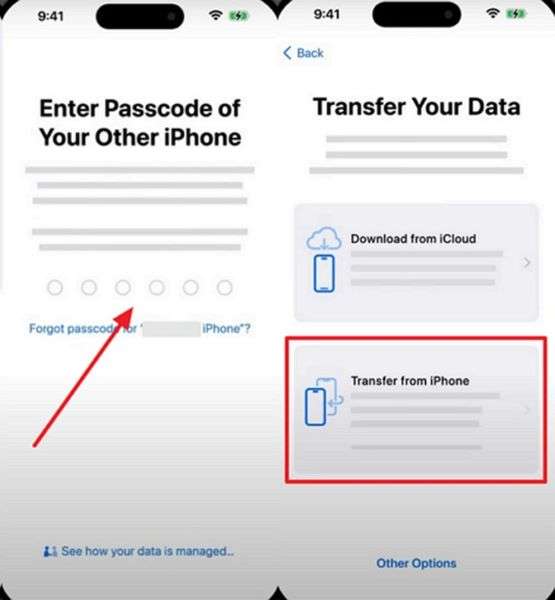
Step 2. Following this, enter the passcode on the new one and then follow the ongoing prompts to navigate to the "Transfer Your Data" screen. After this, select the "Transfer from iPhone" option, agree to the terms and conditions, and follow the given prompts to transfer your data.
5. Restore iPhone Apps via iTunes/Finder Backup
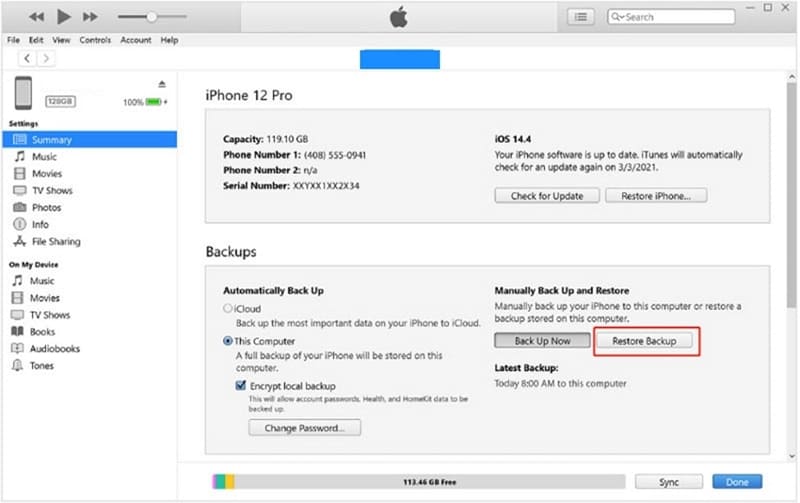
Those who prefer a computer for backups can use iTunes/Finder to back up their old iPhone and restore that backup to their new device. This technique not only transfers apps but also your settings, app data, and other media. It's convenient when you want an offline backup or need to perform a complete restoration after a reset. To explore this alternative to "how to share apps from iPhone to iPhone via AirDrop", follow the instructions:
Instructions: To initiate, connect your devices via USB cable, choose the "Phone" icon at the top-left, and navigate to the "Summary/Phone" tab in iTunes/Finder. Move forward, press the "Restore Backup" button, and confirm the restoration of all apps using the "Restore" button in the next pop-up.
6. Use iCloud Backup to Send Apps to the New Phone
Another approach, as an alternative to how to send apps from iPhone to iPhone via AirDrop, is restoring iCloud backup. When your old iPhone is backed up to iCloud, you can restore it when setting up the new iPhone. This includes all the previously installed apps, along with their data, layout, and entire settings. For wireless or computer-free transfer, follow the provided manual for iCloud backup:
Step 1. Approach your iPhone settings and tap on your "Apple ID" from the top to select the "iCloud" option from the upcoming screen.
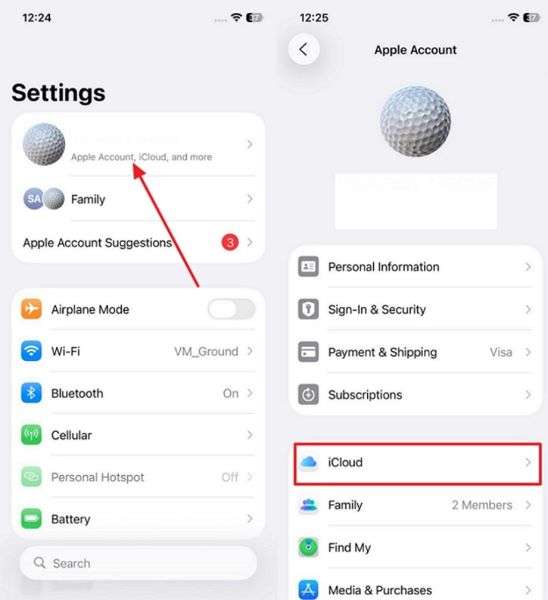
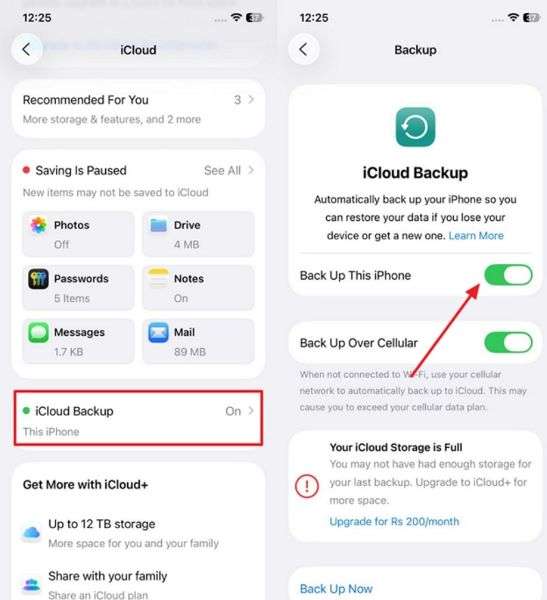
Step 2. After this, hit the "iCloud Backup" option and access the "Backup" screen to turn on the "Back Up This Phone" option on your old iPhone.
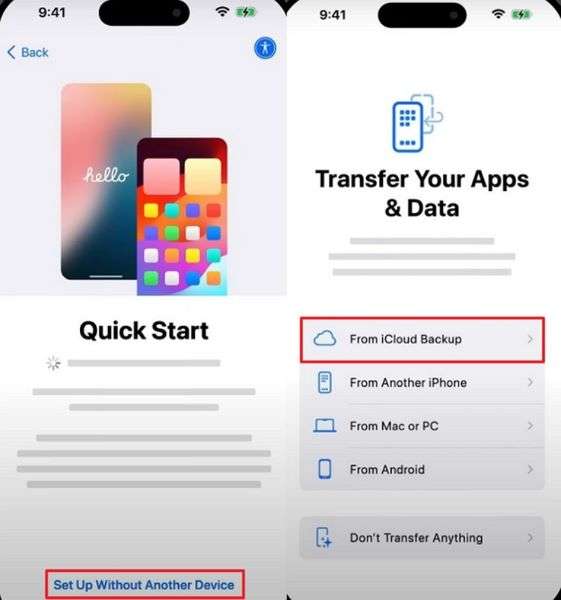
Step 3. On your new iPhone, begin the setup by pressing the "Set Up Without Another Device" option on the Quick Start screen. In the new interface, choose the "From iCloud Backup" option to continue signing into your Apple account.
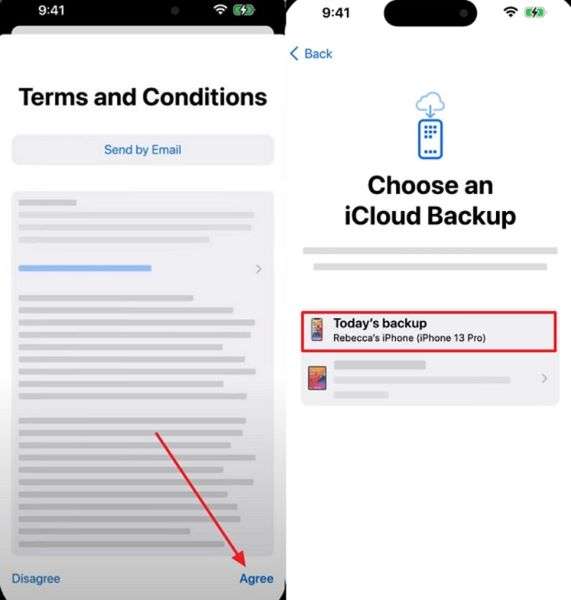
Step 4. Following this process, press the "Agree" button to accept the terms and conditions. Now, select the mobile device under the "Choose an iCloud Backup" screen to begin restoring backed-up apps.
Conclusion
In a world where great apps can make life easier, having AirDrop on your phone makes transferring them much more convenient. On your journey of learning how to share apps from iPhone to iPhone via AirDrop, remember you can only share app links, not the app itself. For your assistance and complete app transfer, we’ve outlined MobileTrans as a simplified data transferring solution.
FAQs
-
Q1. Will the app's data also be transferred through AirDrop?
AirDrop on iPhone only shares the App Store link to the app, not the actual app file or its internal data, such as login details. This indicates the recipient will need to download the new app from the App Store, which means no app data will be transferred. -
Q2. Can I AirDrop multiple apps at once?
When understanding how to send apps from iPhone to iPhone via AirDrop, remember you can only share one app link at a time. When you have sent multiple apps, this process can turn out to be time-consuming and repetitive using AirDrop. Anyhow, users can opt for a platform like MobileTrans, which allows them to select and transfer multiple files simultaneously. -
Q3. What should I do if AirDrop isn't working?
In order to overcome this issue, make sure the iPhones are connected to the internet and Bluetooth is turned on. Besides, AirDrop is set to accept from the right group (Contacts and Everyone), and both devices are active and within close range.










