

![How to Transfer Call Logs from iPhone to iPhone [Top 4 Ways]](https://mobiletrans.wondershare.com/images/images2026/transfer-call-log-from-iphone-to-iphone-1.jpg)

 TL;DR:
To transfer call logs between iPhones without performing a factory reset, you must use a third-party tool like MobileTrans, as Apple's official solutions strictly mandate full device restorations.
● MobileTrans enables the selective migration of specific call records to an already configured device, operating either offline via a computer or through a mobile app reaching speeds of 30 MB/s.
● iCloud and iTunes/Finder backups replace the current contents of the target iPhone with a complete historical backup, with iCloud additionally requiring sufficient cloud storage and an active internet connection.
● Apple's Quick Start tool facilitates wireless device-to-device transfers but only works if both iPhones run iOS 11 or later and are currently on the initial new device setup screen.
Ask AI for a summary
 ChatGPT
 Perplexity
 Gemini
 Claude
 Grok
Grok
The call history on your iPhone keeps essential records of all your communications. When switching to a new device, you might not want to lose that valuable data. Therefore, many users search for how to transfer call logs from iPhone to iPhone without hassle. It saves time, avoids confusion, and ensures an effortless switch. So, this guide explains clear options that help move call history without fear.
In this article

Part 1. Is It Easy to Transfer Call History from iPhone to iPhone
You can move call history between iPhones, but Apple provides limited official flexibility. Apple supports moving call logs through full device backups and complete restore processes. During the new iPhone setup, restoring a previous backup automatically brings the call history. So, knowing how to transfer call history from iPhone to iPhone depends on the method and setup used.
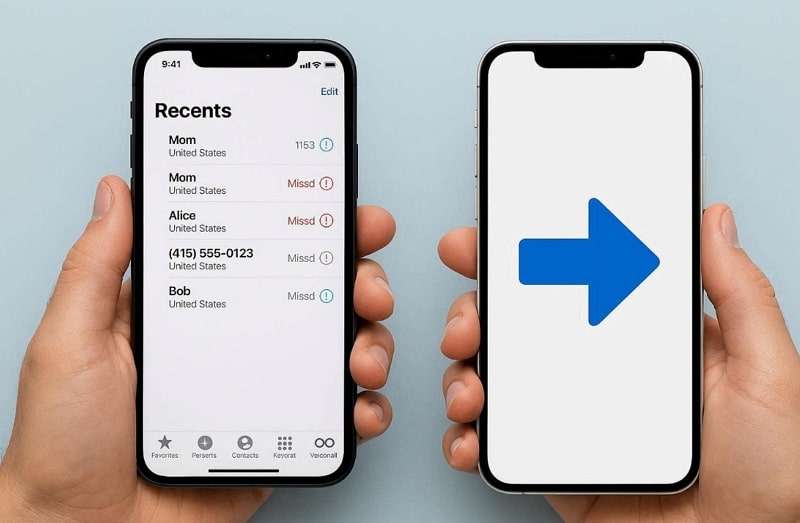
Why You Should Transfer Call History Between iPhones
Moving call records matters because they store details people need later. Below, you will find a few key use cases behind the importance of migrating call history:
- Work Proof: Call logs document past client conversations, helping confirm tasks and decisions. Keeping them avoids confusion when switching phones during busy workday periods.
- Legal Records: Some calls relate to services or deliveries that may matter later. Saved histories help recall dates and numbers if questions appear suddenly again.
- Personal Memory: Call lists remind users who they contacted during important personal moments. Moving them keeps small memories safe when upgrading to a new phone.
- Customer Support: Saved call history helps reconnect with service centers or support teams when needed. It avoids searching through messages to find previous inquiries or complaint calls.
- Backup Safety: Having call history backed up ensures recovery if data is lost. This helps restore vital communication details without worry or technical issues.
Part 2. How to Move Call Log from iPhone to iPhone Without Factory Reset
While learning how to transfer call logs from iPhone to iPhone, MobileTrans makes the process effortless. Its dedicated phone transfers feature helps you move 18+ data types without a factory reset. Before migration, you can even select specific call logs instead of transferring the entire list. Alongside that, the process is 96% faster than other methods while keeping complete data intact.
Key Features
- Wide Support: Works with over 6000+ iOS and Android devices without compatibility issues.
- App Transfer: Moves apps and their in‑app data automatically to your new device.
- End-to-End Encryption: Secures every transfer with end‑to‑end encryption for confidentiality.
- WhatsApp Transfer: Also transfers WhatsApp and WhatsApp Business chats between phones.
- iOS Support: Supports iOS versions starting from iOS 6 up to the latest 26 releases.
Guide to Move Call Log from iPhone to iPhone via MobileTrans
Adhere to the following guide to learn how to transfer call history from iPhone to iPhone using the Phone Transfer feature of MobileTrans:






Step 1. Go to Phone to Phone > Connect both iPhones > Choose Call Logs > Press Start.

Step 2. The program will then initiate moving your call logs to your new iPhone.
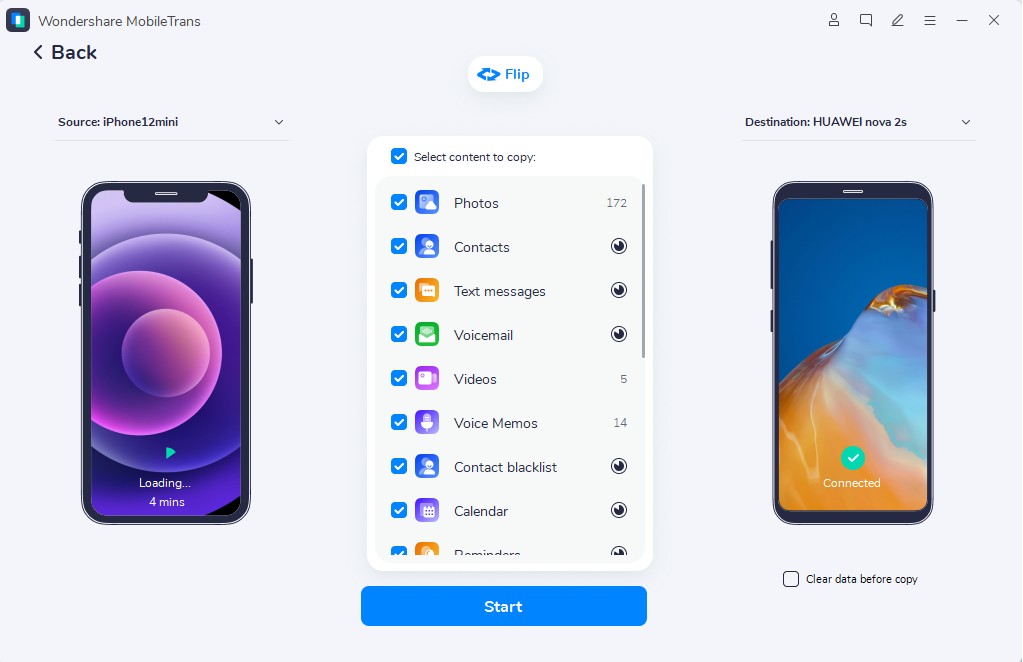
Step 3. Upon completing the task, MobileTrans will display a confirmation screen.
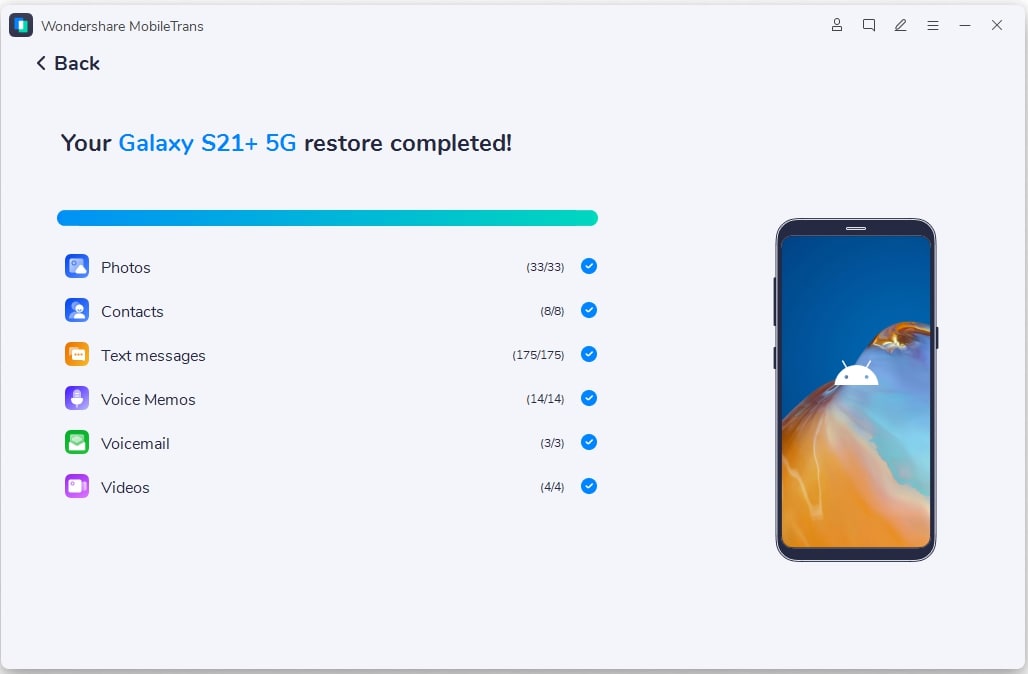
You can also try the MobileTrans App for a faster and portable solution. It works effortlessly for instant transfers when you don't have access to a computer. Along with call logs, the app transfers phone data at an average speed reaching up to 30 MB/s. Moreover, the MobileTrans App consumes absolutely no mobile data during the entire file transfer process.
Part 3. How to Transfer Call Log from iPhone to iPhone via iCloud Backup
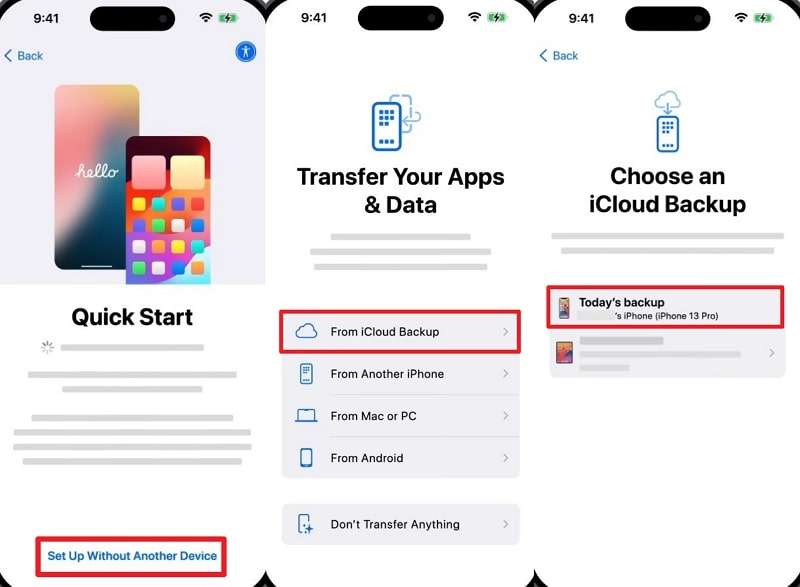
Another way to move your call logs is through an iCloud Backup. It enables you to store your old device data, including call logs, in the cloud. You can restore the backup during the new iPhone setup to get all records. However, transferring requires sufficient storage space and a stable internet connection. Thus, review the steps to understand how to transfer call log from iPhone to iPhone using iCloud Backup:
Step 1. On your old phone, tap Settings > Apple Account > iCloud > iCloud Backup > Enable Back Up This iPhone > Tap Back Up Now.
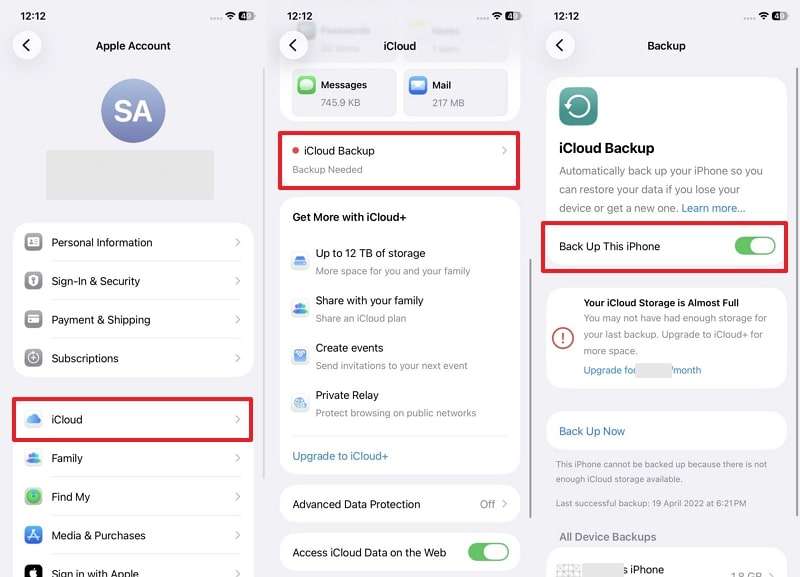
Step 2. On the Quick Start screen > Press Set Up Without Another Device > Choose From iCloud Backup > Sign in to restore the backup.
Limitations
- Requires a whole device restore instead of moving only call logs.
- This method requires you to perform a factory reset on your iPhone.
Part 4. How to Restore iTunes/Finder Backup to Transfer Call History from iPhone to iPhone
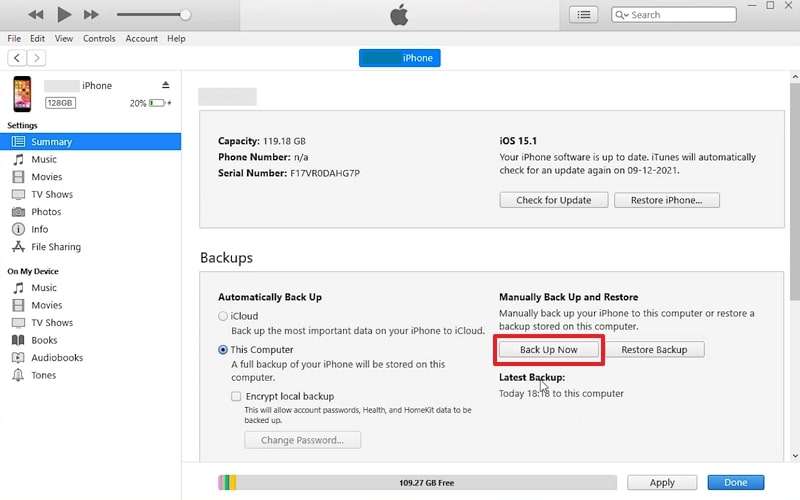
Using iTunes or Finder backup is another quick option for transferring data. It enables you to move your call history and other phone content. Therefore, you can create a full backup on your computer and restore it later. This method works offline, keeping your information secure without any Wi‑Fi. Hence, you need to go through the following steps to learn how to transfer call history from iPhone to iPhone:
Step 1. Run iTunes > Connect your old iPhone to the PC > Click the Mobile icon > Enable This Computer > Press Back Up Now.
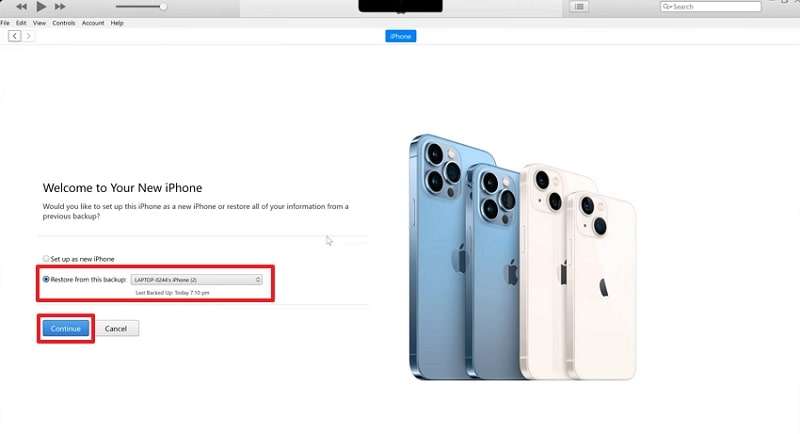
Step 2. Connect your new iPhone while setting up > Select Restore From This Backup > Choose the latest backup > Press Continue to start.

Limitations
- Restoring data restores your iPhone to the configuration of the previous backup.
- iTunes or Finder doesn't let you restore only specific data, such as call logs.
Part 5. How to Use Quick Start to Move Call History from iPhone to iPhone
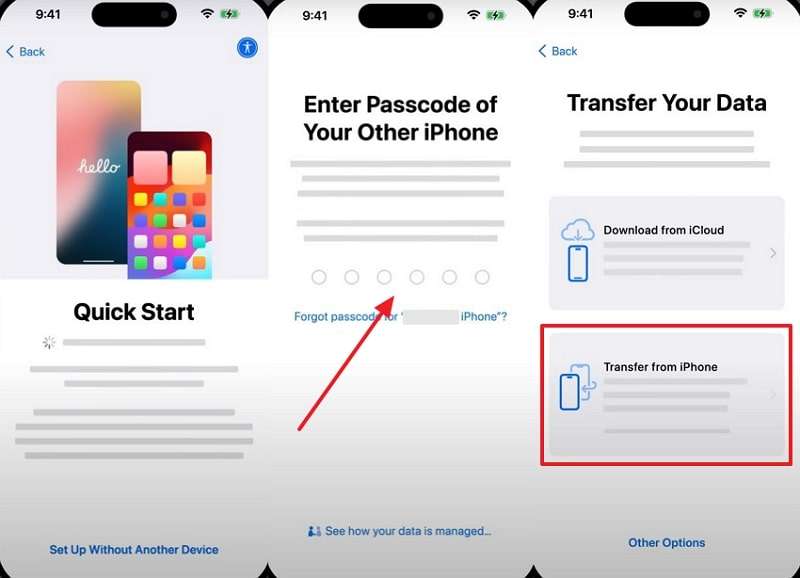
Quick Start is another Apple native tool that simplifies transferring data between iPhones. This task works wirelessly by placing your new device next to the old one. During setup, it automatically brings together your call history, contacts, and preferences. Besides, the process uses device‑to‑device migration for faster speed and fewer steps overall. So, take guidance from the steps below to find out how to transfer call log from iPhone to iPhone:
Step 1. When accessing Quick Start on the new phone, enable Bluetooth and Wi-Fi on both iPhones, then tap Continue on the old one.
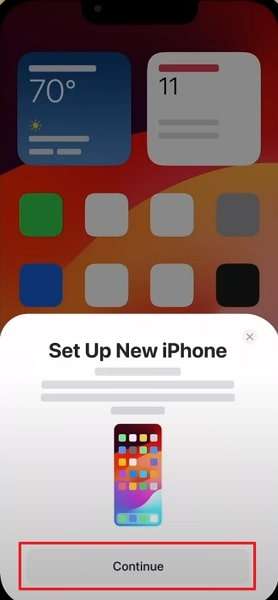
Step 2. On your new iPhone, enter the Old iPhone’s Passcode and select Transfer From iPhone.
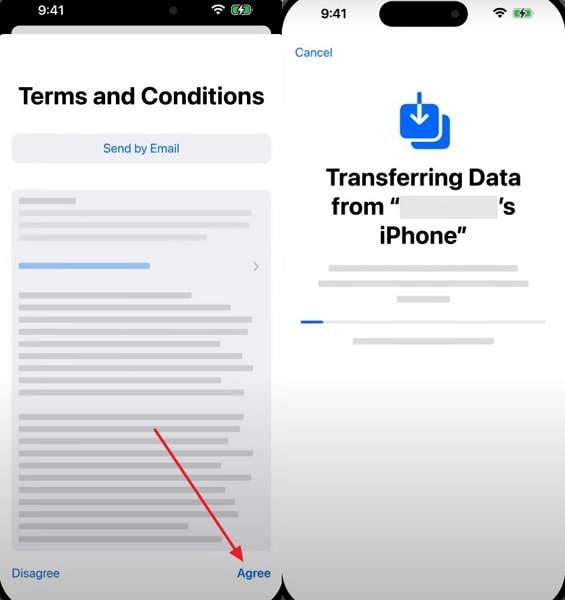
Step 3. Tap Agree on the Terms and Conditions screen to begin the data transfer.
Limitations
- Only works during the initial setup of a new iPhone.
- Both your devices must run iOS 11 or later to use Quick Start.
Part 6. Tabular Comparison of the Methods to Move Call Log Between iPhones
Comparing the discussed solutions helps you identify which transfer method best fits your situation. Thus, the table below lists the main comparison points for clearer understanding:
| Comparison Points | MobileTrans (Desktop) | iCloud Backup | iTunes/Finder | Quick Start |
| Selective Transfer | Yes | No | No | No |
| Requires Factory Reset | No | Yes | Yes | Yes |
| Internet Needed | No | Yes | No | Yes |
| Transfer Speed | Very Fast | Moderate | Fast | Moderate |
| Data Security | High (Encryption) | High | High | High |
| Ease of Use | Very Easy | Moderate | Moderate | Easy |
| Compatibility | 6000+ iOS/Android devices | iOS only | iOS only | iOS 11 or later |
| Backup Option | Yes (Local) | Yes (Cloud) | Yes (Computer) | No |
| Flexibility | Highest | Low | Low | Moderate |
Hence, MobileTrans clearly emerges as the most potent and effortless method overall. It delivers reliable speed and maximum flexibility without requiring a reset or Wi‑Fi. So, you should download and try MobileTrans now for an effortless call log migration.
Conclusion
In conclusion, migrating your call history ensures that no critical records or contacts are lost. Each method shared above helps you securely move your data between iPhones. However, choosing a convenient, quick, and safe option makes the process stress‑free. When you wonder how to transfer call log from iPhone to iPhone without a factory reset, use MobileTrans.
FAQs
-
Does transferring call history delete data from my old iPhone?
No, transferring your call logs does not delete them from your current device. The data remains available unless you perform a factory reset after the transfer finishes. It simply copies the existing call log details to your new iPhone. -
Can I use Quick Start for an iPhone already set up?
This native process only works during initial iPhone setup before first use. You cannot skip the setup and apply Quick Start after the initial configuration completes. For post-setup transfers, MobileTrans offers a safe solution that doesn't require resetting your device. -
Are call logs included in iPhone Quick Start transfers?
Yes, Quick Start carries over call logs and related system preferences together. It's part of the complete data migration process offered during new phone setup. However, it's only available on compatible iPhones running iOS 11 or later.










