


 TL;DR:
You can choose between four primary methods to transfer contacts from an Android device to an iPhone 17: Apple's Move to iOS app, Google Account Sync, manual vCard export, or the MobileTrans desktop software.
● Apple's free Move to iOS app wirelessly transfers contacts alongside other data via a temporary local network, but this method is restricted strictly to the iPhone 17's initial "Apps & Data" setup phase.
● Enabling Google Account Sync in the iOS mail settings provides the fastest, most automatic transfer if your Android contacts are already stored in Gmail, requiring only your login credentials and an active internet connection.
● For offline execution, exporting a vCard (.vcf) file directly from Android storage allows you to manually select specific contacts to transfer, while the MobileTrans USB tool automatically merges duplicate entries but limits advanced features to a paid tier.
Ask AI for a summary
 ChatGPT
 Perplexity
 Gemini
 Claude
 Grok
Grok
Thinking about switching from Android to iPhone 17? It’s an exciting upgrade—but what about your contacts? Those names and numbers represent years of connections: friends, family, colleagues. Losing them in the transition? Definitely not an option. So how do you make sure they move with you, seamlessly and securely? Let’s break it down.
The iPhone 17 promises amazing new features. It will have better cameras. The battery life will be longer. The display will be brighter. But all these features mean nothing if you lose your contacts. Isn’t it? Well, that's why learning how to transfer contacts from Android to iPhone 17 is so important. You want to enjoy your new phone without losing touch with people.
This guide covers how to transfer contacts from Gmail to an iPhone 17. You'll discover official Apple tools. You'll also find third-party solutions. By the end, you'll know exactly how to move your contacts safely.
In this article
Part 1: Ready for iPhone 17? Here's How to Switch from Android!
Many Android users are planning to switch. The iPhone 17 will make switching more attractive. But switching phones means moving data. Contacts are the most important data to transfer. Learning how to transfer contacts from Android to iPhone 17 is essential.
Part 2: 4 Simple Methods: Transfer Contacts from Android to iPhone 17
Moving contacts between phones used to be hard. Not anymore. Today, there are several reliable methods. Each method has its own benefits.
The key is choosing the right method for you:
- Consider how many contacts you have.
- Think about where they're stored. Some are in your Google account. Others might be on your SIM card. Some could be in your phone's local storage.
Method 1: Transfer Contacts Using MobileTrans
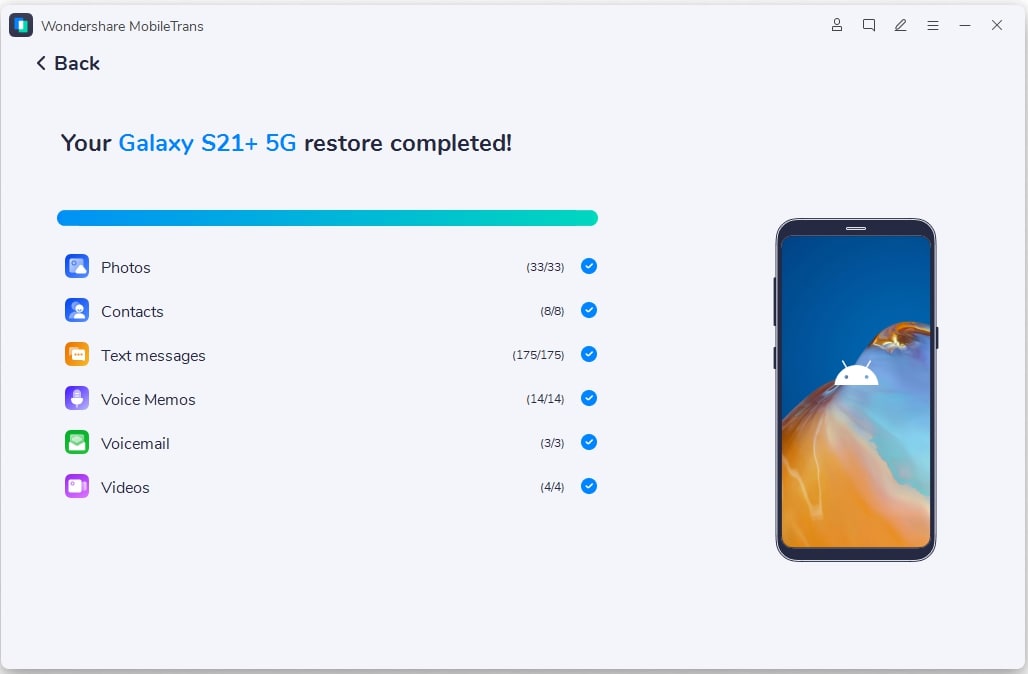
MobileTrans is a professional phone transfer tool. It can move contacts directly between phones. The process is simple and fast. You connect both phones to your computer. The software handles everything else.
MobileTrans offers special contact features:
- Merge duplicate contacts automatically, saving you time and cleaning up your contact list.
- Export contacts to CSV or vCard files. These files work as backups. Available to import into other devices later.
- Detect and remove duplicate entries, keeping your contact list clean and organized.






The phone-to-phone transfer is the main feature. It moves contacts in minutes, not hours. You don't need technical knowledge. It works with all Android and iPhone models, including the upcoming iPhone 17. The transfer is direct and secure. Your data doesn't go through internet servers.
Steps:
Step 1: Use USB cables to link your Android device and iPhone 17 to your computer. Open MobileTrans and choose the "Phone to Phone" option. The program will automatically recognize both connected phones.

Step 2: Choose "Contacts" from the data types list. Click "Start" to begin moving contacts from Android to iPhone 17.
Method 2: Using the Move to iOS App (Official Apple Method)
Move to iOS is Apple's official transfer app. It's free and reliable. Apple designed it specifically for Android users to switch to iPhones. The app creates a secure connection between phones. It can transfer contacts along with other data. This method is perfect for first-time iPhone users. It's also great for transferring multiple data types at once.
The app works wirelessly. You don't need cables or a computer. Both phones need to be connected to Wi-Fi. The transfer happens over a direct connection. Your data doesn't go through the internet. This makes it secure and private.
Move to iOS works best with new iPhones. You should use it during initial iPhone setup. The app creates a temporary network. Your Android phone connects to this network. Then it sends all selected data to the iPhone. The process can take from minutes to hours. It depends on how much data you're moving.
Steps:
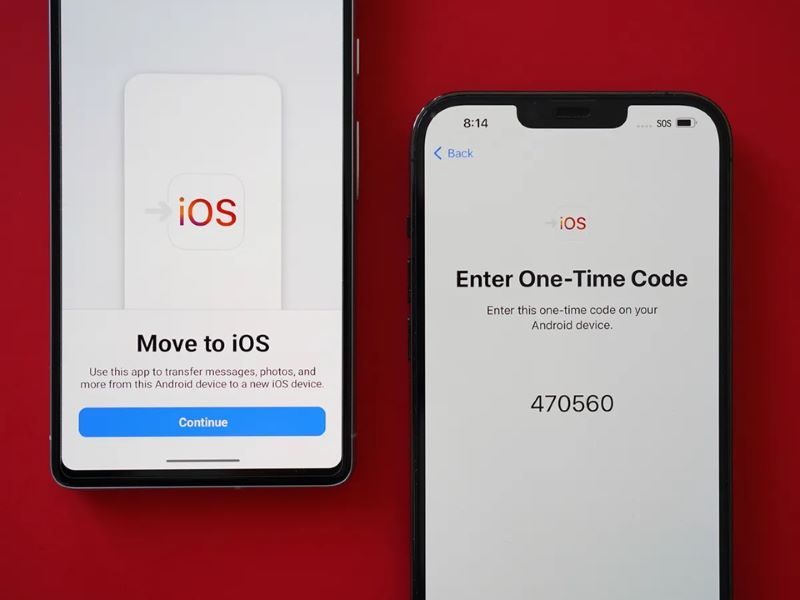
Step 1: Set up your iPhone 17 until you reach the "Apps & Data" screen. Select "Move Data from Android."
Step 2: Get the "Move to iOS" app from the Google Play Store. Open it and tap "Continue." On iPhone 17, tap "Continue" and type the provided code into your Android device.
Method 3: Enable Google Account Sync
Google Account Sync is the easiest method. Most Android phones already sync contacts to Google. Your Gmail account stores these contacts. You just need to add the same Google account to your iPhone 17. The contacts will sync automatically. This method works great if you use Gmail regularly.
The sync happens over the internet. Your contacts are stored in Google's cloud. When you add your Google account to your iPhone, it downloads all contacts. The process is automatic. You don't need any special apps or tools. The iPhone's built-in settings handle everything.
This method works best for Google users. If you use Gmail as your main email, your contacts are probably already there. You can check by logging into Gmail on a computer. Go to Google Contacts. If you see your contacts there, this method will work perfectly. It's also the best way to keep contacts synced between multiple devices.
Steps:
Step 1: On your iPhone 17, go to Settings and tap "Mail." Then tap "Accounts" and select "Add Account." Choose "Google" and enter your Gmail login details.
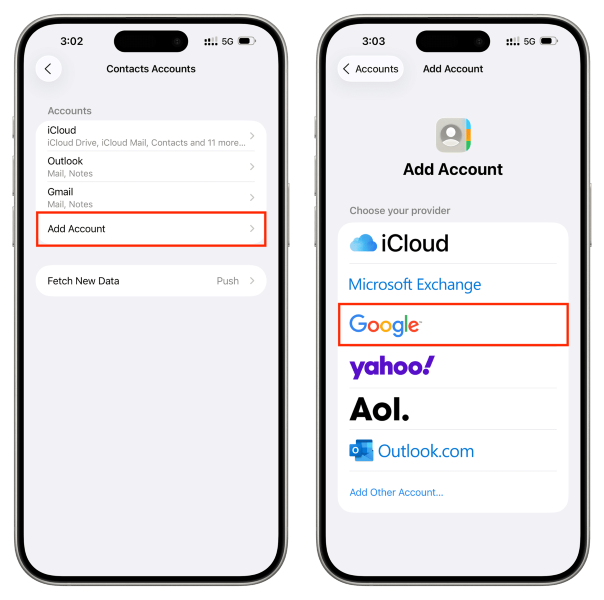
Step 2: Make sure to enable "Contacts" sync.
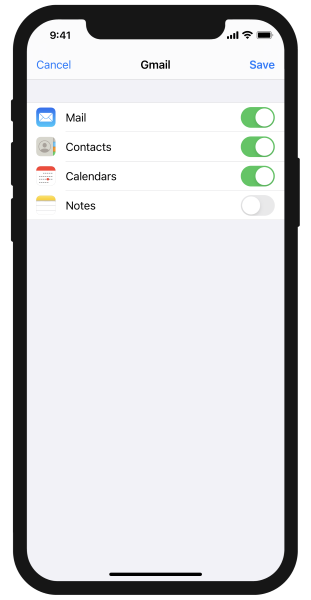
Step 2: Wait for the sync to complete. Your contacts will appear in the iPhone's Contacts app automatically.
Method 4: Export to vCard (.vcf) File
vCard files are the universal contact format. Almost all phones can read them. You can export contacts from Android as a vCard file. Then import this file into your iPhone 17. This method gives you complete control. You can choose exactly which contacts to transfer.
The vCard method works offline. You create the file on your Android phone. Then you can email it to yourself. Or save it to cloud storage. Download the file on your iPhone 17. Then import it into the Contacts app. The process is simple but requires a few steps.
This method is perfect for selective transfers. Maybe you don't want all your Android contacts. You can create multiple vCard files. One for work contacts. Another for family. A third for friends. This gives you better organization on your new iPhone 17.
Steps:
Step 1: Open the Contacts app on your Android phone. Tap the menu (three lines) and select "Settings" or "Manage contacts." Choose "Export" or "Import/Export." Select "Export to storage" and choose vCard format (.vcf).
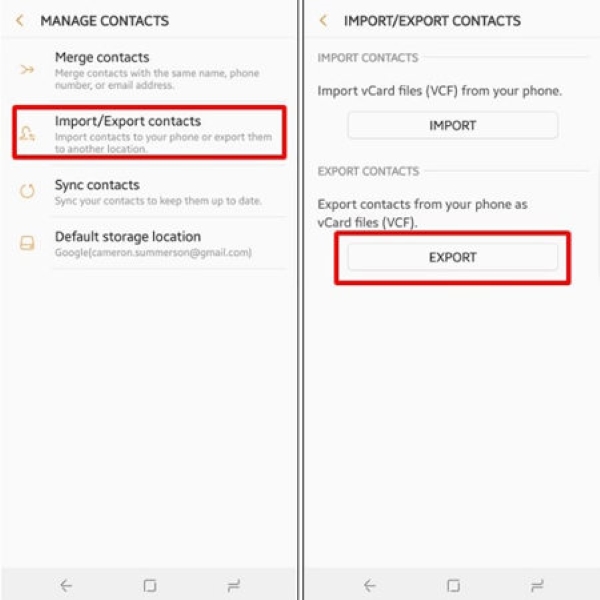
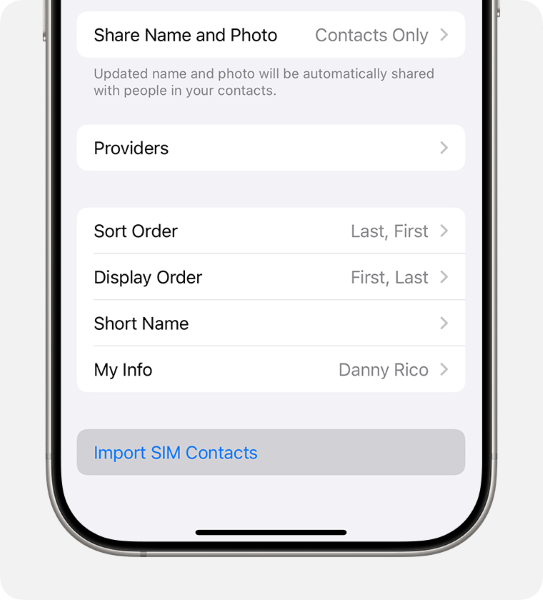
Step 2: Save the file and transfer it to your iPhone 17. Open the file in iPhone's Contacts app to import all contacts.
Part 3: Pro Tips to Transfer Contacts from Android to iPhone 17
Getting your contacts transferred is just the first step. Smart preparation makes the process smoother. These pro tips will help you avoid common problems. They'll also ensure you don't lose any important information. Follow these suggestions for the best results when you transfer contacts from Android to iPhone 17.
- Back up your contacts first - Always create a backup before starting any transfer. Export your Android contacts to a vCard file. Keep this file safe. If something goes wrong, you can try again.
- Clean your contacts before transferring - Remove duplicate contacts from Android first. Delete old or wrong numbers. This saves time and keeps your iPhone 17 contact list clean.
- Check contact storage locations - Some contacts might be stored on your SIM card. Others could be in phone storage. Make sure you're transferring from all locations.
- Update contact information - Review your contacts before transferring. Update old phone numbers. Add missing email addresses. Fix incorrect names or spellings.
- Test the transfer with a few contacts first - Don't transfer everything at once. Try with 10-20 contacts first. Make sure the method works properly before doing the full transfer.
- Ensure both phones are charged - Transfer can take time. Make sure both your Android phone and iPhone 17 have plenty of battery. Connect them to chargers if needed.
- Use stable Wi-Fi for cloud methods - If using Google sync or Move to iOS, connect to reliable Wi-Fi. Unstable connections can cause transfer failures or data loss.
- Verify the transfer completed successfully - After transferring, check your iPhone 17 contacts. Compare the number with your Android phone. Make sure all important contacts made it through.
Conclusion
Moving to iPhone 17 from Android doesn't have to be stressful. Your contacts can be transferred safely and easily. This guide showed you four reliable methods. Each method works for different situations. Choose the one that fits your needs best. Whether you prefer official Apple tools or professional software, you have options.
Remember to prepare before you start. Back up your contacts. Clean up duplicates. Charge your devices. These simple steps prevent problems. They also make the transfer faster and more reliable. The time you spend preparing pays off with better results.
Your new iPhone 17 will be more enjoyable with all your contacts. You won't have to ask friends for their numbers again. You won't lose touch with important business contacts. The methods in this guide ensure a smooth transition. Follow the steps carefully. Soon you'll be enjoying your new iPhone with all your contacts safely transferred.
FAQ
-
Q: Can I transfer contacts from Android to iPhone 17 without a computer?
A: Yes, you can transfer contacts without a computer. Use the MobileTrans App, Move to iOS app, or Google Account sync method. All work wirelessly. MobileTrans App creates a direct connection with the QR code. Move to iOS connects phones with WiFi. Google Account uses your Gmail account to move contacts to the cloud.
-
Q: Will I lose any contact information during the transfer?
A: Most contact information transfers completely. This includes names, phone numbers, and email addresses. However, some custom fields might not transfer. Photos attached to contacts may also be lost. Always back up your contacts before transferring to be safe.
-
Q: How long does it take to transfer contacts from Android to iPhone 17?
A: Transfer time depends on the method and number of contacts. Google Account sync is usually fastest, taking just a few minutes. Move to iOS can take 10-30 minutes, depending on the data amount. MobileTrans typically completes in under 10 minutes for contacts only.










