


 TL;DR:
You can securely transfer your data from an Android device to an iPhone 17 Pro Max using Apple's free Move to iOS app during the initial setup process, or by utilizing third-party tools like MobileTrans and Google cloud services for offline or file-specific needs.
● The official Move to iOS app is ideal for free, wireless transfers of standard data like messages and photos, but it strictly functions only during the iPhone's initial setup phase and relies on a stable Wi-Fi connection that can struggle with large files.
● MobileTrans software provides a faster, offline alternative capable of moving extended file types such as call logs directly between devices, but unlocking its complete transfer capabilities requires purchasing the full version.
● Using Google Sync for contacts and Google Drive for photos offers an alternative cloud-based approach, provided you stay within the 15GB free storage limit and accept that photo files may lose some quality during the manual download process.
Ask AI for a summary
 ChatGPT
 Perplexity
 Gemini
 Claude
 Grok
Grok
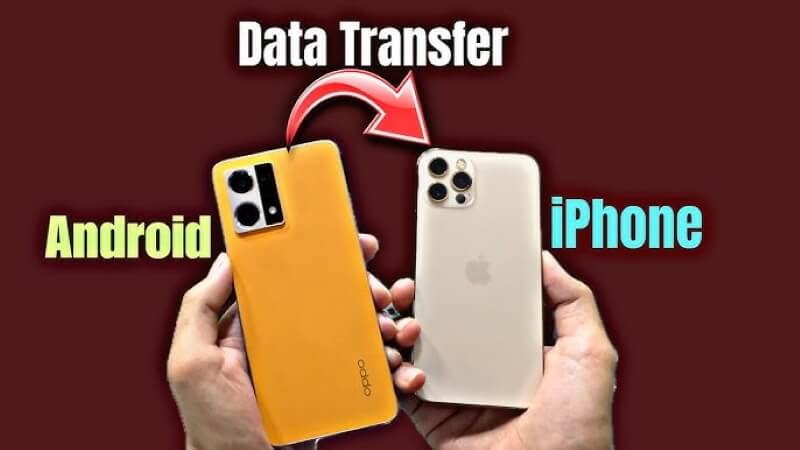
Do you use an Android phone right now? Are you thinking about getting an iPhone instead? The iPhone 17 Pro Max is coming out soon. It will launch later this year.
🔄 Worried About Moving Your Data?
Switching phones can feel tricky. You may worry about losing your files. But don’t worry—it’s easier than you think. You can move everything safely. Your photos will transfer without problems. Your contacts will move too. Even your messages can be saved.
📘 How to Transfer Your Data
This guide will help you. It shows how to move your data step by step. Each method is simple. You don’t need to be a tech expert. Just follow the instructions and learn how to transfer data from Android to iPhone 17 Pro Max.
Soon, your new iPhone 17 Pro Max will feel like home.
In this article
Part 1: Switching From Android to iPhone 17 Pro Max: Getting Started Tips
Getting ready to switch phones takes some planning. Here are key tips to make the process smooth. These steps will help you prepare for the move.
- Back up your Android phone first. This keeps your data safe during the move.
- Check your iPhone 17 Pro Max storage space. Make sure it can hold all your files.
- Update both phones to the latest software. This prevents transfer problems.
- Charge both devices fully. The transfer process can take time and drain batteries.
- Connect to strong Wi-Fi. A fast internet connection speeds up the transfer.
- Sign out of apps on your Android phone. This prevents account conflicts.
- Write down important passwords. You will need them to sign into apps again.
- Clean up unnecessary files first. Delete old photos and apps you don't use.
Part 2: How to Transfer Data from Android to iPhone 17 Pro Max
Moving your data requires the right method. Different tools work better for different types of files. Choose the method that fits your needs best.
The transfer process can move many types of data. You can transfer contacts, photos, and messages. Apps and music can move too. Some methods work faster than others. Pick the one that seems easiest for you.
Method 1: Use the MobileTrans
MobileTrans is a third-party tool for phone transfers. It works with many phone types. The software can move data directly between phones. Here are its features:
- No need to upload files to the cloud.
- Supports many file types, including contacts, photos, messages, call logs, and more.
- Moves data 8 times faster than Bluetooth.
- Transfers without the internet. You only need the internet to set up, saving data and avoiding connection issues.
- Protect your private data. The tool does not share your files nor store them online. Everything stays between your two device






Steps:
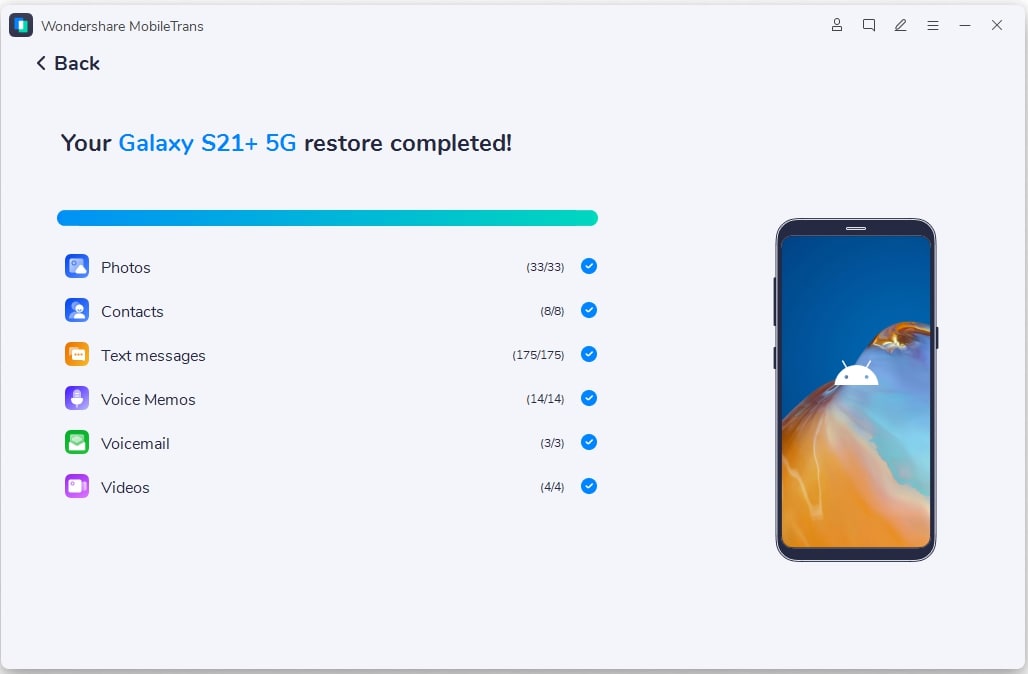
Step 1: Download MobileTrans on your computer. Install the software and open it. Connect both phones with USB cables. Select "Phone to Phone Transfer" mode. Choose your Android as the source phone. Set the iPhone 17 Pro Max as the target phone.

Step 2: Choose which kinds of data you want to transfer.

Step 3: Click "Start". Let the transfer finish. Keep both phones connected until it's done.
Method 2: Using Move to iOS
Move to iOS is Apple's official transfer app. You can download it from the Google Play Store. The app is free to use. Apple designed it specifically for Android users.
This app moves your most important data. It transfers contacts and message history. Photos and videos move safely, too. The app also helps move some apps. It works during the iPhone setup process.
Move to iOS connects phones through Wi-Fi. No cables are needed for this method. The app creates a secure connection. Your data transfers privately between devices.
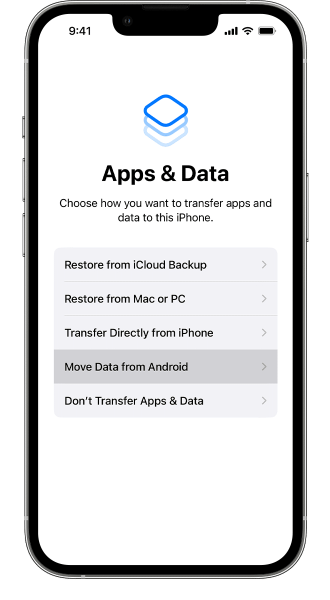
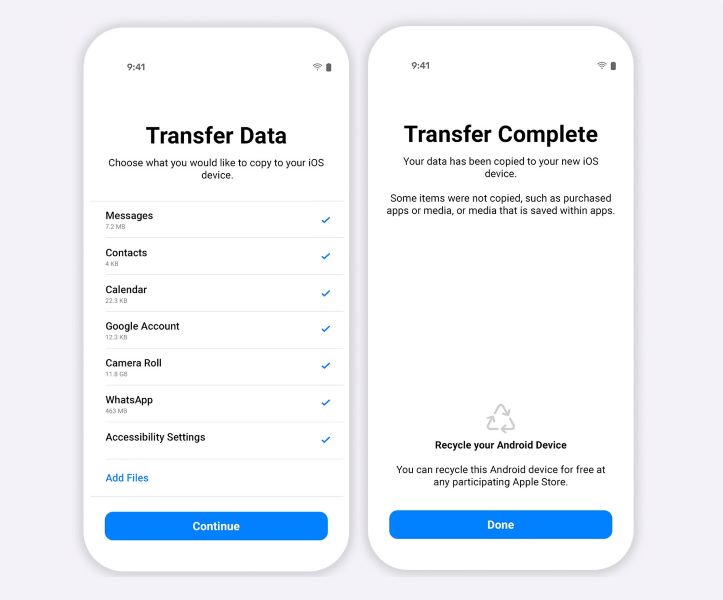
Step 1: Get the Move to iOS app on your Android phone. Start setting up your iPhone 17 Pro Max. Choose the "Move Data from Android" option.
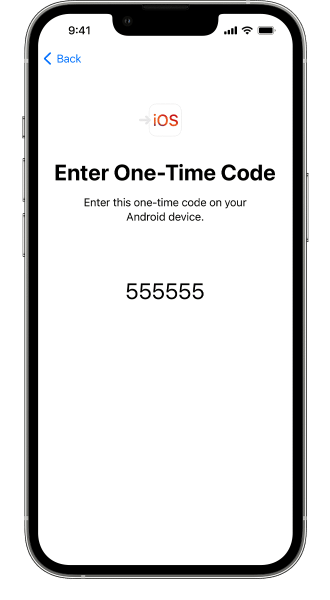
Step 2: Open Move to iOS on Android. Enter the code shown on the iPhone screen. Wait for devices to connect securely.
Step 3: Select data types to transfer. Tap "Continue" to start the process. Keep phones close together until the transfer finishes.
Part 3: How to Transfer Contacts from Android to iPhone 17 Pro Max via Google Sync
Google Sync is a simple way to move contacts. Most Android phones already use Google contacts. This makes the transfer process easier. You just need to sync contacts with your iPhone.
This method works through the cloud. Your contacts upload to Google servers first. Then they download to your iPhone 17 Pro Max. The process happens automatically once set up. You don't need to do much work.
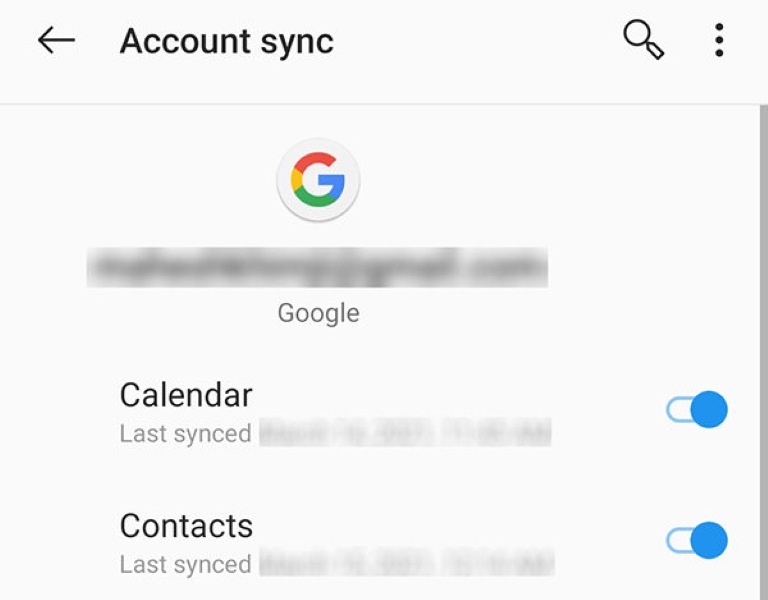
Step 1: Open Settings on your Android phone. Go to "Accounts Sync" and select Google account. Make sure "Contacts" sync is turned on.
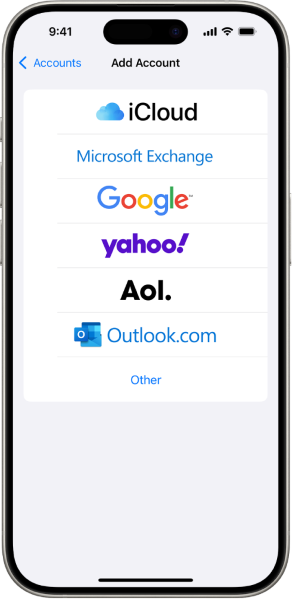
Step 2: On your iPhone 17 Pro Max, go to Settings. Tap "Mail" then "Accounts" and "Add Account". Choose Google and sign in.
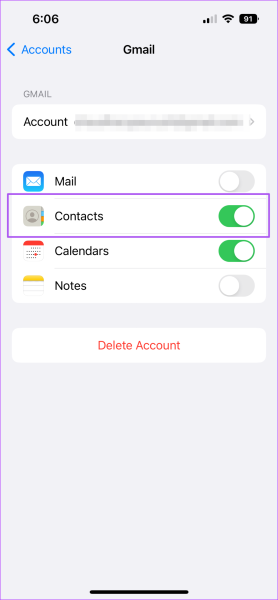
Step 3: Turn on "Contacts" sync for your Google account. Wait for contacts to appear in iPhone contacts app. Check that all contacts transferred correctly.
Part 4: How to Transfer Photos from Android to iPhone 17 Pro Max via Google Drive
Google Drive offers free cloud storage. You can upload photos from Android first. Then download them to your iPhone 17 Pro Max. This method works well for large photo collections.
Most people have Google accounts already. This makes Google Drive easy to use. The service gives you 15GB of free space. You can buy more space if needed. Photos stay safe in the cloud during transfer.
Step 1: Install Google Drive on your Android phone. Sign in with your Google account. Upload all photos you want to transfer.
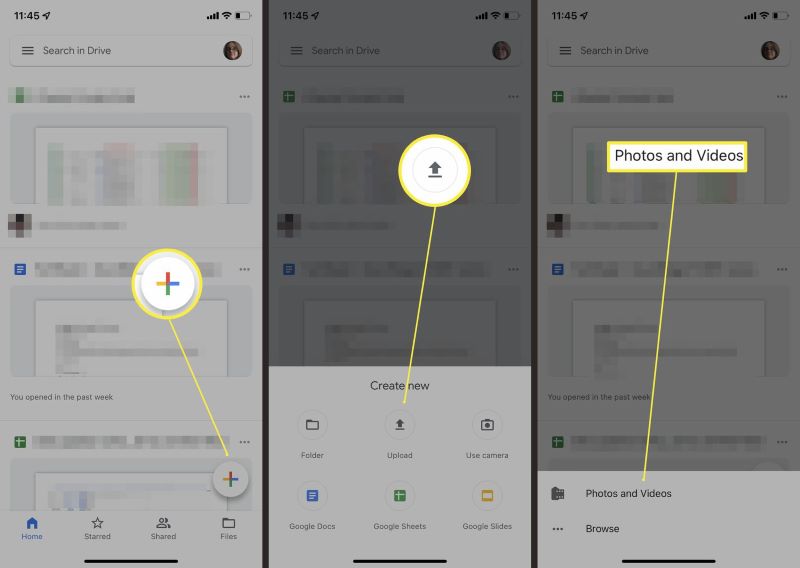
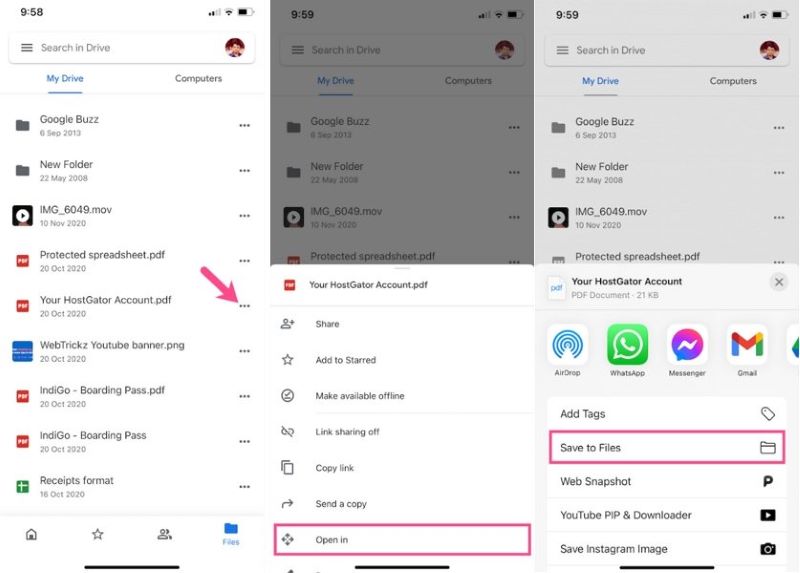
Step 2: Download Google Drive on your iPhone 17 Pro Max. Sign in with the same Google account. Select your uploaded photos and tap the download button. Save them to your iPhone's photo library.
Part 5: Pro Tips to Transfer Data from Android to iPhone 17 Pro Max
These expert tips will make your transfer smoother. Use them to avoid common problems. They can save you time and prevent data loss.
- Start the transfer process early. Don't wait until the last minute to move your data.
- Test each method with a few files first. Make sure everything works before transferring everything.
- Keep your old Android phone for a few weeks. Check that all data moved correctly.
- Update all apps after the transfer. This ensures they work properly on iOS.
- Use multiple methods for important data. This creates backup copies of key files.
- Clean up duplicate files after transfer. Remove any files that were copied twice.
- Sign into all your apps manually. Some apps won't transfer login information.
- Check your iPhone 17 Pro Max storage regularly. Delete files you don't need anymore.
Conclusion
Learning how to transfer data from Android to iPhone 17 Pro Max is important. The process doesn't have to be hard. Many tools can help you move your files safely. Each method has its own benefits.
The iPhone 17 Pro Max will be worth the switch. Your photos will look better on the new screen. The phone will run faster than your old Android. All your contacts will work the same way. You won't lose any important data.
Remember to plan your transfer carefully. Back up everything before you start. Test the methods with small amounts of data first. Keep your Android phone until everything works perfectly. Soon you'll enjoy your new iPhone 17 Pro Max with all your data intact.
FAQs:
FAQ
-
Q: Can I transfer data from Android to iPhone 17 Pro Max without losing anything?
A: Yes, you can transfer most of your data safely. Use the correct method for each type of file. Photos, contacts, and messages usually transfer without issues. Always back up your Android phone before you start. This helps protect your data from accidental loss. Some apps may not transfer directly. You can download those apps again from the App Store. App data may not move, so check each app individually.
-
Q: How long does it take to transfer data from Android to iPhone 17 Pro Max?
A: The time depends on how much data you have. If you have only a few files, it may take 10 to 30 minutes. If you have many photos or videos, it could take a few hours. Using Wi-Fi makes the transfer faster and more stable. Avoid using mobile data, as it can slow things down. Keep both phones charged during the process.
-
Q: Do I need to pay for any apps to transfer data from Android to iPhone 17 Pro Max?
A: Many transfer tools are free to use. Apple’s Move to iOS app is free and works well. Google services like Google Photos and Google Contacts are also free. Some apps, like MobileTrans, offer paid versions. The paid version includes extra features. Most people can transfer everything using free tools. You don’t need to spend money to make the switch.










