


 TL;DR:
To securely transfer your data from an Android device to the iPhone 17, you must choose between Apple's official wireless setup utility, individual cloud synchronization services, or third-party wired desktop software depending on your specific file types.
● The free Move to iOS app creates a private Wi-Fi connection to migrate standard files, but it only functions during the initial iPhone setup screen and cannot transfer WhatsApp chat histories.
● MobileTrans provides a faster, wired transfer method via computer USB cables that bypasses Wi-Fi instability and successfully moves WhatsApp data, though the full software requires a paid license.
● Installed Android applications cannot transfer directly across different operating systems; you must manually download the iOS equivalents from the App Store after the migration is complete.
Ask AI for a summary
 ChatGPT
 Perplexity
 Gemini
 Claude
 Grok
Grok
Making the leap from Android to iPhone 17? Here's how to do it without losing a thing. Switching smartphones can feel overwhelming. Especially when you're moving from Android to iPhone. One of the biggest fears people have is losing their precious data.
But with the iPhone 17 just around the corner, packed with powerful new features and sleek design upgrades, it's no wonder many Android users are ready to make the switch.
In this guide, we'll walk you through the best ways to transfer your data from Android to iPhone 17. You'll learn how to move your contacts, photos, videos, calendar events, and even some apps—so you can start enjoying your new device without missing a beat.
In this article
Is switching from Android to iPhone 17 with your data possible?
Switching from Android to the iPhone 17 is a breeze. Apple has streamlined the process, offering multiple reliable ways to transfer your data. The iPhone 17 is compatible with all major migration methods, allowing you to carry over nearly everything that matters—from contacts and photos to apps and settings.
The transfer process works with any Android phone. It does not matter what brand you use. Samsung, Google, OnePlus, and other phones work fine.
You can transfer contacts, photos, messages, and even apps to your new iPhone. Although a small portion of data might not carry over perfectly, most of your content will shift smoothly and reliably.
2 Quick Methods: Easily Transfer Data from Android to iPhone 17?
Understanding how to shift your data from an Android device to the iPhone 17 is essential—especially when it comes to preserving cherished memories and vital contacts. Fortunately, there are multiple secure methods available to ensure everything makes the move safely.
The best methods are simple and fast. They work for beginners and experts alike. Choose the method that fits your needs best. Each method has its own benefits and drawbacks.
Method 1: Using MobileTrans: All-in-1 Solution
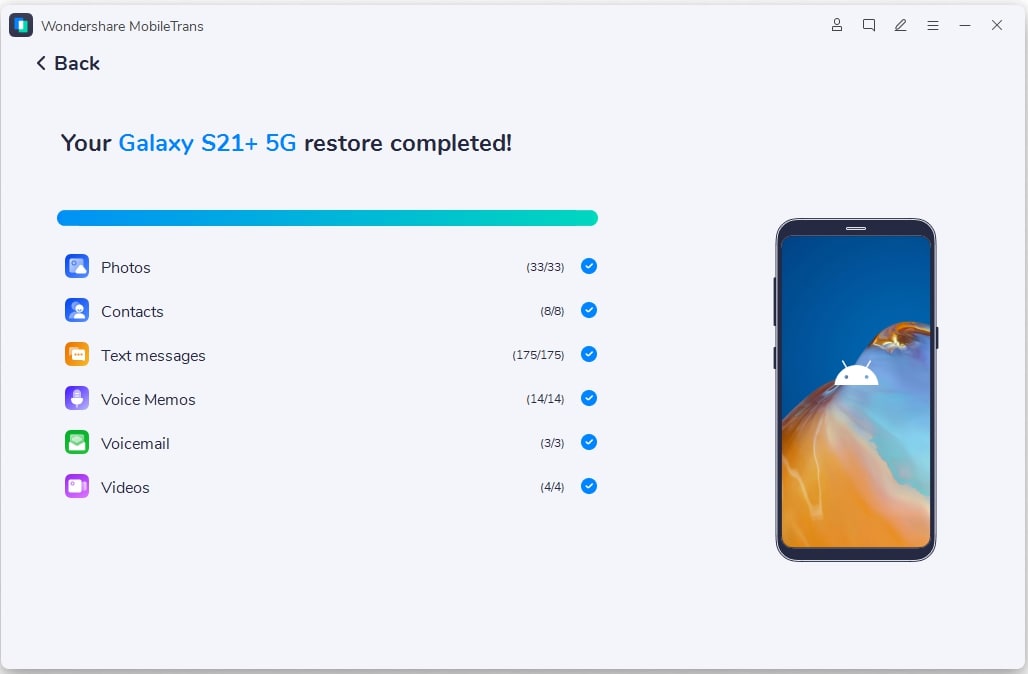
MobileTrans is a powerful tool for phone transfers. With just a single click, this software can transfer data from your Android device to the iPhone 17. It supports a wide range of file types and operates more quickly than many traditional transfer options.
The program supports over 6000 phone models. It transfers contacts, photos, videos, music, and messages. You can also transfer your WhatsApp conversations along with data from other apps. The entire process is designed to be both secure and reliable, ensuring your information stays protected.
MobileTrans keeps your data private during transfer. It does not store your information online. The transfer happens directly between your phones. This makes it very secure and fast.






Steps:
Step 1: Connect both Android and iPhone 17 to your computer using USB cables. Launch the MobileTrans software. Select "Phone to Phone". Choose your Android as the source device and iPhone 17 as the target device.

Step 2: Simply choose the types of data you’d like to move—whether it’s photos, contacts, messages, videos, or more. You’re in control of what gets transferred.

Step 3: Tap the “Start” button. Let the process run its course, and be sure to keep both devices connected until everything is fully moved.
Method 2: Using Move to iOS: Official Method
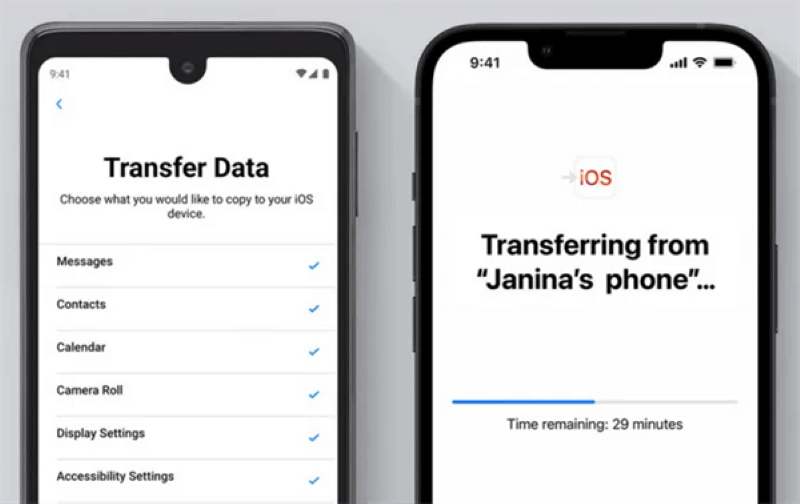
Move to iOS is Apple's official transfer app. Designed with Android users in mind, this free app makes moving your data to the iPhone 17 simple and hassle-free. It’s a user-friendly tool built by Apple to streamline the switch.
The app transfers your most important data. It moves contacts, messages, photos, and videos. It also transfers your Google accounts and bookmarks. The app works during iPhone 17 setup.
Move to iOS creates a private Wi-Fi network. Your data transfers securely between phones. The process takes 10 minutes to several hours. Transfer time depends on how much data you have.
Steps:
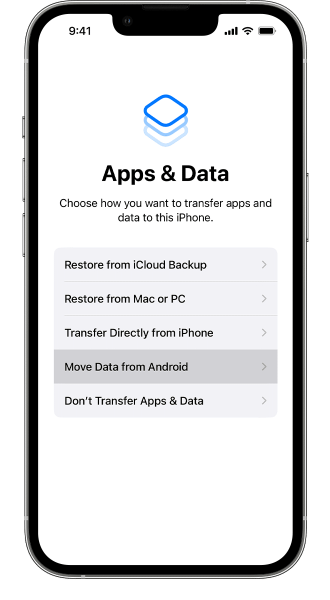
Step 1: Get the Move to iOS app (Samsung phone). Start setting up your iPhone 17 until you reach the "Apps & Data" screen. Select the "Move Data from Android" option.
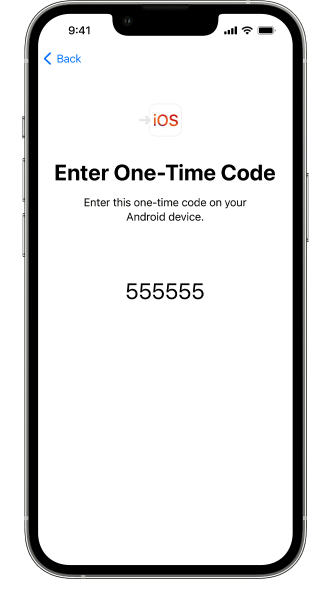
Step 2: Open Move to iOS on Android and tap "Continue." Enter the code shown on your iPhone 17 screen. Choose the specific data you’d like to move from the available options.
Step 3: Tap "Next" to start the transfer process. Keep both devices nearby and plugged in throughout the process. Allow the transfer to fully complete before disconnecting anything.
Sync Contacts to iPhone 17 with a Google Account
Your contacts are very important data. You need them on your new iPhone 17. Google makes it easy to sync contacts between devices. This method works great for most people.
Google stores your contacts in the cloud. This means you can access them from any device. Once you add your Google account to iPhone 17, your contacts appear. The process is automatic and fast.
Steps:
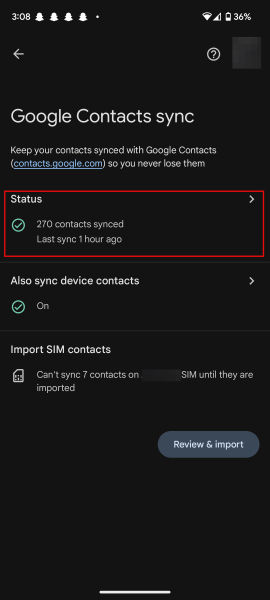
Step 1: Make sure your Android contacts are synced with your Google account. Go to Android Settings, then Accounts, then Google. Turn on "Contacts" sync if it is not already on.
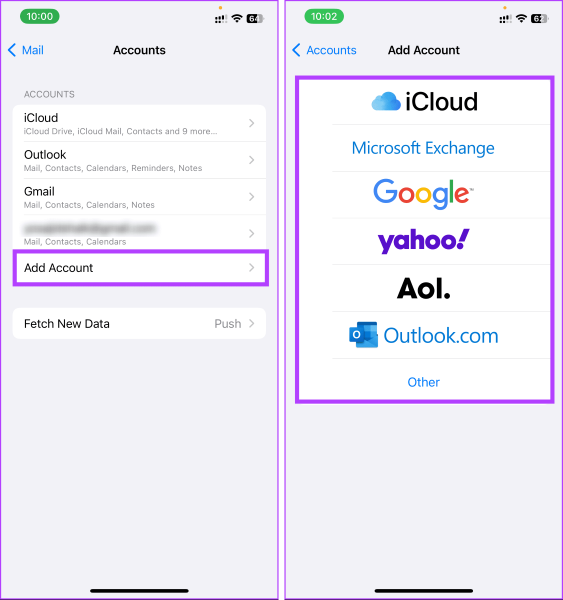
Step 2: On your iPhone 17, go to Settings and select "Mail." Tap "Accounts," then "Add Account". Choose "Google." Enter your Google account details and turn on "Contacts" sync. Your contacts will appear in the iPhone contacts app.
Transfer Photos to iPhone 17 Using the Google Photos App
Photos hold your precious memories. You want them safe on your iPhone 17. Google Photos is the best way to transfer photos from Android to iPhone 17. It works fast and keeps photos organized.
Google Photos stores unlimited photos in the cloud. It backs up photos automatically from Android. Once you install it on iPhone 17, all photos sync. The app is free and easy to use.
Steps:
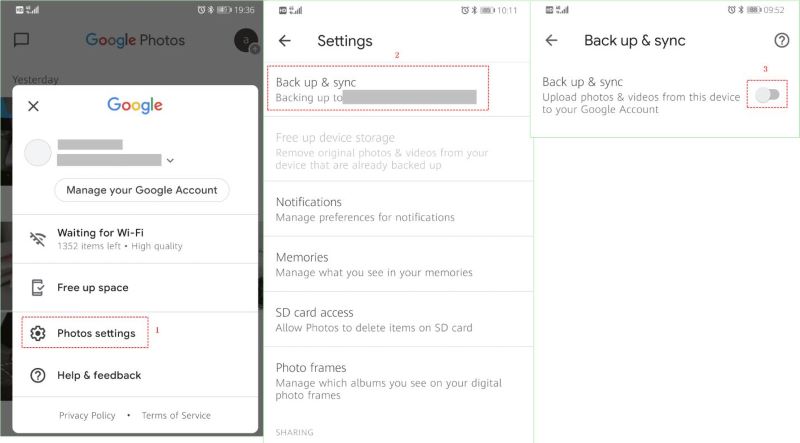
Step 1: Install Google Photos on your Android if not already installed. Open the app and turn on backup sync. Wait for all photos to upload to Google Photos cloud storage.
Step 2: Download the Google Photos app on your iPhone 17 from the App Store. Sign in with the same Google account used on Android. All your photos will appear in the iPhone Google Photos app automatically.
Pro Tips to Transfer Data from Android to iPhone 17
- Make sure both phones are fully charged. A full battery helps avoid interruptions during the transfer.
- Connect to a strong, stable Wi-Fi network. Reliable Wi-Fi ensures faster and error-free wireless transfers.
- Back up your Android device beforehand. A backup gives you peace of mind in case anything goes wrong.
- Close all apps on both phones before starting. This keeps the devices focused on the transfer and prevents glitches.
- Keep both phones close together during wireless transfer. Staying nearby helps maintain a strong connection between devices.
- Don’t use either phone while the transfer is happening. Let the process run uninterrupted to avoid delays or data loss.
- Check your data once the transfer is complete. Make sure everything—photos, contacts, messages—moved successfully.
- Delete sensitive data from your old phone afterward. Once your info is safe on the new device, clear it from the old one to protect your privacy.
Conclusion
Moving to iPhone 17 from Android is exciting. You now know how to transfer data from Android to iPhone 17 safely. These methods work for contacts, photos, and other important data.
Choose the method that works best for you. MobileTrans offers the most complete solution. Move to iOS is free but has limitations. Google services work great for contacts and photos.
The transfer process is easier than you think. Take your time and follow the steps carefully. Your data will move safely to your new iPhone 17. Enjoy your new phone with all your important information intact.
FAQ
-
Q: How long does it take to transfer data from Android to iPhone 17?
A: The time depends on how much data you have and which method you use. Small transfers take 10-30 minutes with the Move to iOS app. Large transfers with lots of photos and videos can take several hours. MobileTrans is usually faster than Move to iOS for big transfers. Using Google services like Google Photos happens in the background and can take hours to days for large photo libraries. Plan extra time for your first transfer. Keep both phones charged and connected during the whole process.
-
Q: Will all my Android apps transfer to iPhone 17?
A: No, Android apps will not transfer directly to iPhone 17. The two systems use different app stores and formats. However, most popular apps are available on both Android and iOS. Move to iOS will suggest iPhone versions of your Android apps. You will need to download them again from the App Store. Some apps may not have iPhone versions available. Check the App Store before switching to make sure your important apps are available.
-
Q: Can I transfer WhatsApp messages from Android to iPhone 17?
A: Yes, but it requires special tools or methods. Regular transfer apps like Move to iOS cannot transfer WhatsApp messages. You need software like MobileTrans or Dr.Fone to move WhatsApp chats. WhatsApp also offers an official method using a USB-C to Lightning cable. The process is more complex than other data transfers. Make sure to back up your WhatsApp data before attempting the transfer. Some message formatting may change during the transfer process.










