



 TL;DR:
Choosing the optimal data transfer method for your iPhone 18 Pro depends strictly on its setup status: use Apple's free Move to iOS app during the initial setup phase, or utilize MobileTrans to selectively migrate files without erasing an already configured device.
● Devices running Android 17 or later can bypass the Move to iOS app entirely by using the "Transfer Without App" feature, which pairs the phones via a QR code during the initial iPhone setup.
● Move to iOS successfully transfers core content like messages, photos, and WhatsApp history, but it does not migrate music tracks or paid Google Play apps, which may require manual computer file sharing or a separate App Store purchase.
● To prevent data loss or interruption, keep both phones connected to power during the transfer and do not erase the old Android device until you verify that your core files, eSIM activation, and app data are fully functional on the iPhone 18 Pro.
Ask AI for a summary
 ChatGPT
 Perplexity
 Gemini
 Claude
 Grok
Grok
Platform migration can preserve most important data, but the transfer method depends on whether the iPhone has already been set up. Apple's Move to iOS works during setup and transfers supported content directly from Android. If you skip that stage, you'll need to erase the iPhone first to use it later.
MobileTrans offers another way to move supported data without resetting an already configured device. This comprehensive guide covers 7 practical ways to transfer data from Android to iPhone 18 Pro.
In this article


Part 1. Before You Transfer Data to iPhone 18 Pro
Check these essentials before you move data from Android to iPhone 18 Pro using any transfer method:
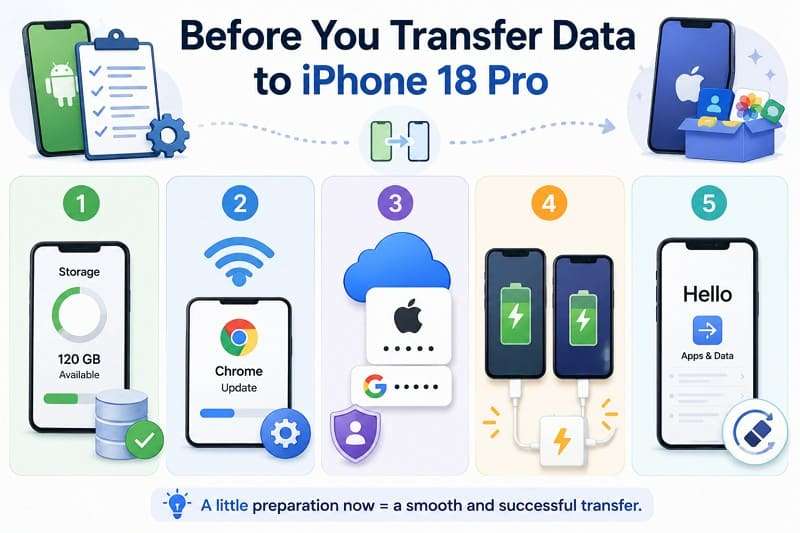
- Storage Check: Make sure the iPhone has enough free space for the Android data you want to move. Apple notes that limited storage can prevent the transfer from finishing successfully.
- Chrome Update: Update Chrome on Android before transferring bookmarks. Apple specifically recommends using the latest Chrome version for bookmark migration.
- Account Readiness: Keep your Apple Account credentials ready for iPhone setup. Have your Google Account details available if you need Google services or cloud-stored content afterward.
- Power Connection: Keep both phones connected to power throughout the transfer. Large photo or video libraries may take longer, and power loss can interrupt the process.
- Setup Status: Decide whether to use Move to iOS during setup or another transfer method afterward. If setup is finished, Apple requires you to erase the iPhone before using Move to iOS.
Part 2. 7 Ways to Transfer Data from Android to iPhone 18 Pro
With your devices prepared, explore the 3 sections below to transfer data from Android to iPhone 18 Pro. They cover direct, cloud, and manual methods for different transfer needs.
1. Direct Phone-to-Phone Transfer
Method 1. Transfer Android Data to iPhone 18 Pro with MobileTrans
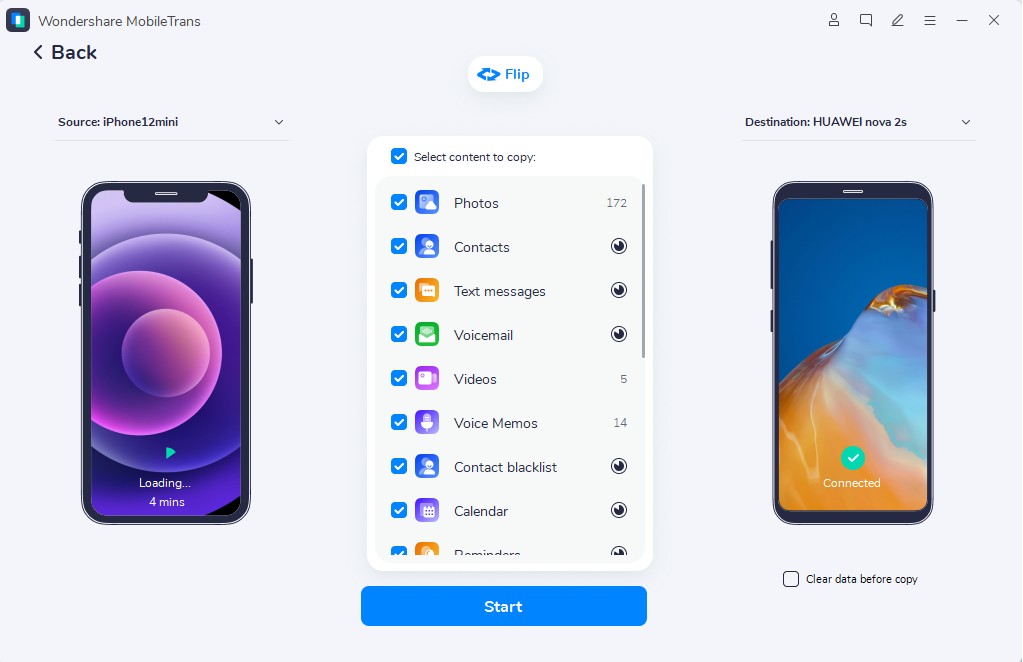
MobileTrans-Phone Transfer offers another option when the iPhone is already set up. Connect both phones to a computer and transfer 18+ supported data types without erasing either device. You can also choose specific categories instead of moving everything at once.
This phone transfer software can even restore supported data from iCloud backups to Android or iOS devices without using another phone as an intermediate step. It uses encrypted transfer processes designed to protect data while it moves between connected devices.
Key Features
- App Migration: Detects apps on the old phone, supports batch installation, and can move compatible in-app data between supported devices.
- AI Speed Optimization: Uses parallel processing and optimized routing to speed up transfers, with performance varying by device, file type, and connection conditions.
- Phone-to-PC Transfer: Moves supported files between phones and computers for local backup, easier access, and selective file management.
- Cross-Platform WhatsApp Transfer: Transfers and merges supported WhatsApp chats, photos, videos, files, contacts, and other data between Android and iOS.
- AI Pre-Check: Runs a quick diagnostic before WhatsApp transfers to check available storage and connection stability, helping reduce transfer failures.






Guide to Move Android Data onto an iPhone Already in Use
For the Android to iPhone 18 Pro transfer with MobileTrans, follow this simple step-by-step guide:
Step 1. Install MobileTrans, go to Phone Transfer > Phone to Phone.

Step 2. Cable both handsets to the computer, then use Flip if the Android lands on the destination side.
Step 3. Tick the data types you want and press Start, leaving both phones plugged in throughout.
Method 2. Transfer Data with Move to iOS
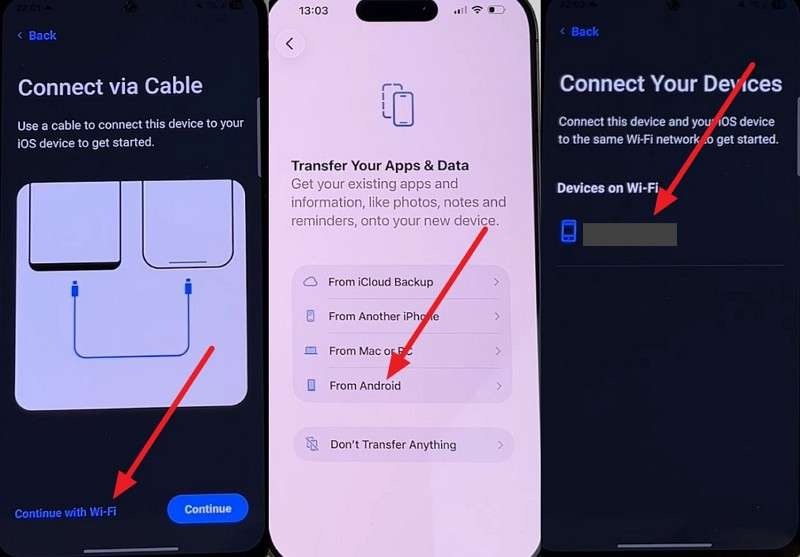
Apple’s free Move to iOS app transfers more than basic contacts. Its official list includes messages, photos, files, mail accounts, calendars, and selected settings. The option appears during initial iPhone setup. If you skip it, you'll need to erase the iPhone before using Move to iOS later. Here is how to transfer data from Android to iPhone 18 Pro:
Step 1. Install the Move to iOS app on the Android > Set up iPhone 18 Pro.
Step 2. Choose Continue with Wi-Fi or connect with a USB-C or Lightning cable > Tap From Android on Android > Choose iPhone 18 Pro on Android.
Step 3. Get the connection code on iPhone > Press Continue on Android and enter the code.
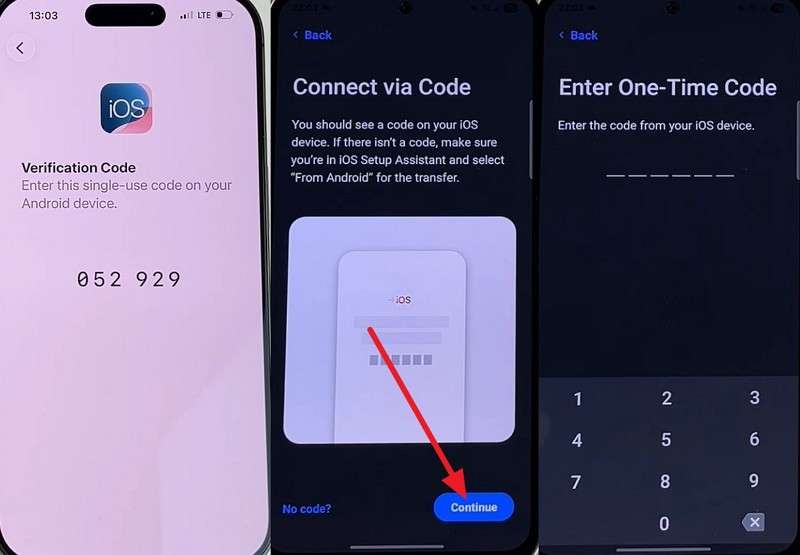
Step 4. Accept the connection on Android > Choose data types > Continue > Wait for the process to finish.
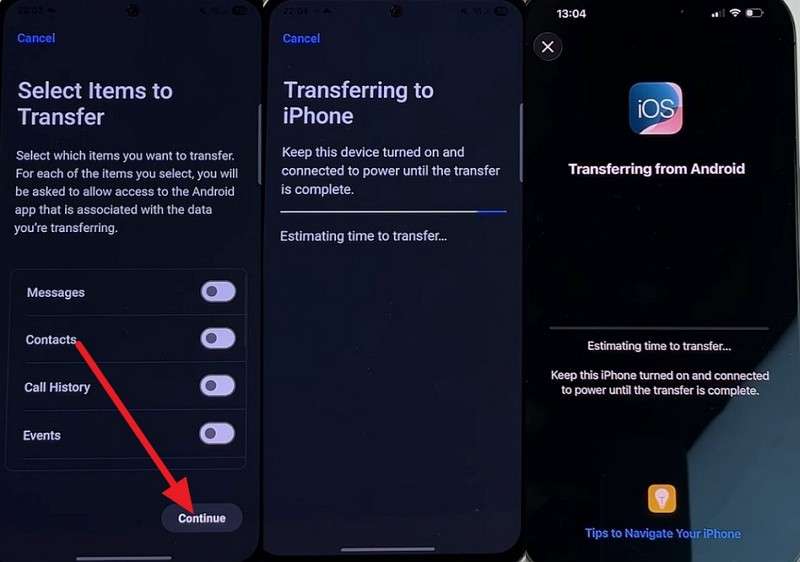
Method 3. Transfer Without Move to iOS on Supported Android Phones
This method requires Android 17 or later, so confirm your device supports it first. Compatible phones pair through a QR code without installing Move to iOS. Data transfers during setup, while eSIM transfer is handled separately afterward when supported. Follow these steps to move data from Android to iPhone 18 Pro:
Step 1. From the Transfer Your Apps & Data screen, tap From Android, then Transfer Without App.
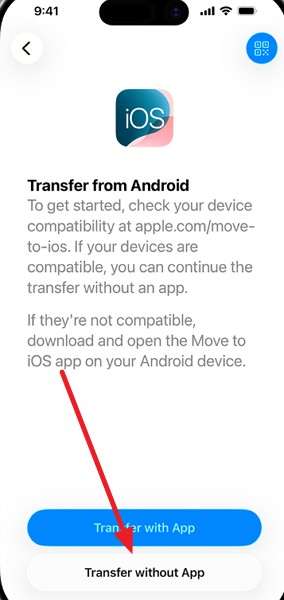
Step 2. Hold the phones together > Continue > Scan the iPhone’s QR code with the Android.
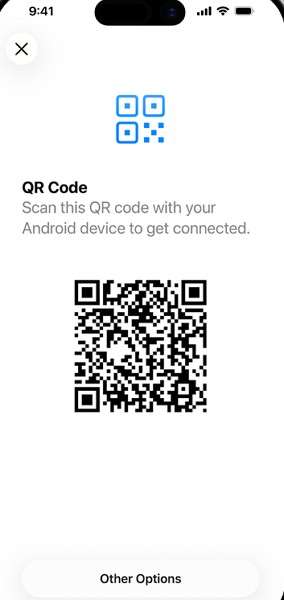
Step 3. Choose your data on the Android, then select your number to move the eSIM.
Note: If the camera cannot scan the QR code, tap Other Options. Then go to Settings > Google Services > All Services > Pair with iPhone or iPad > Copy Data.
2. Cloud and Account Transfer
Method 4. Sync Contacts, Mail, and Calendars with Google Account
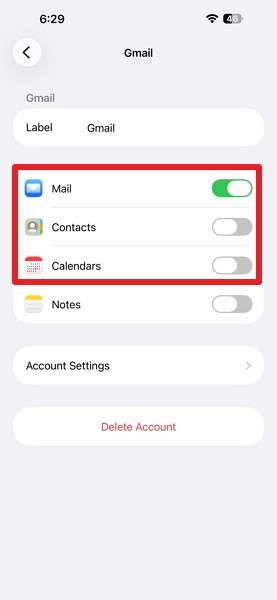
Adding your Google account to iOS pulls contacts, mail, and calendars down automatically and keeps them synced afterward. It is the least destructive option here and takes under a minute. Photos, messages, files, and app data each need a second method, and your contacts end up living in Google rather than iCloud.
This matters if you switch Apple devices later. To transfer data from Android to iPhone 18 Pro, you can do this before or after setup.
Step 1. Open Settings > Apps > Contacts Accounts > Add Account on the iPhone.
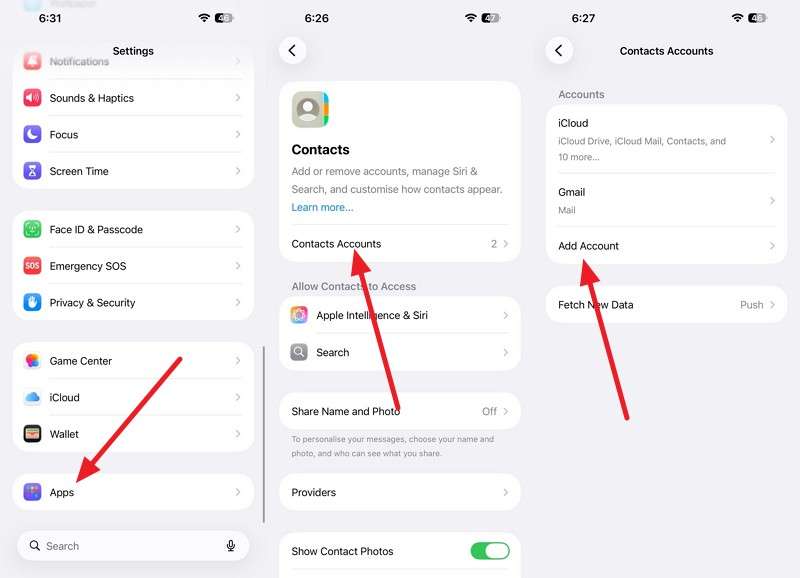
Step 2. Pick Google > Open Browser > Sign in with the account Android phone uses.
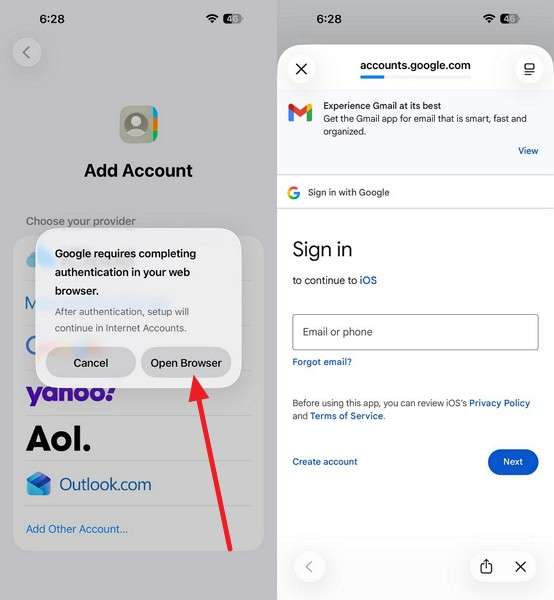
Step 3. Toggle on Contacts, Calendars, and Mail, then wait for the first sync.
Method 5. Transfer Photos and Videos with Google Photos
If your camera roll is already backed up to Google Photos, this method gives you easy access on the iPhone. Install Google Photos on iOS and sign in with the same Google Account to view the backed-up library. The photos remain stored in Google Photos unless you save copies to the iPhone.
Google also provides 15GB of free storage shared across Gmail, Drive, and Photos. Follow these 3 steps to learn how to transfer data from Android to iPhone 18 Pro:
Step 1. On Android, open Google Photos > Profile Picture > Photo Settings > Backup > Backup Is On.
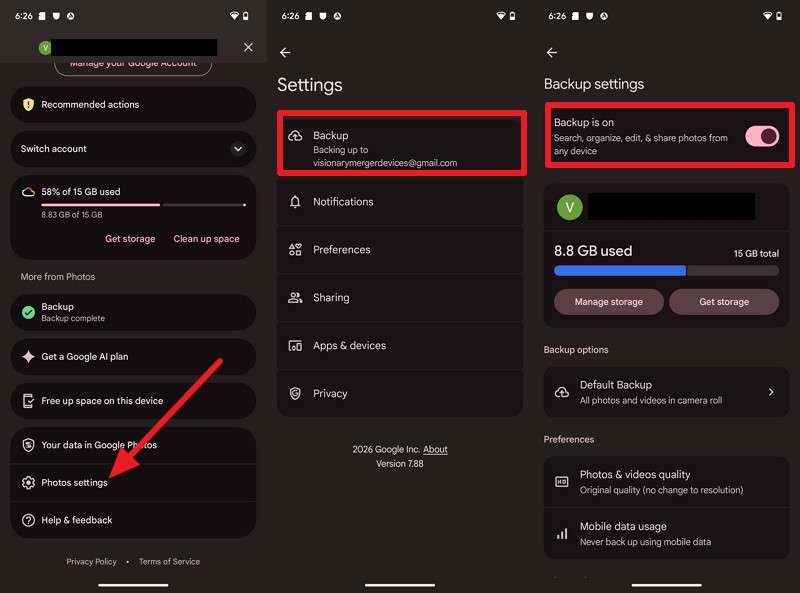
Step 2. Install Google Photos on the iPhone 18 Pro and sign in with the same Google Account.
Step 3. Your backed-up photos and videos will be available there.
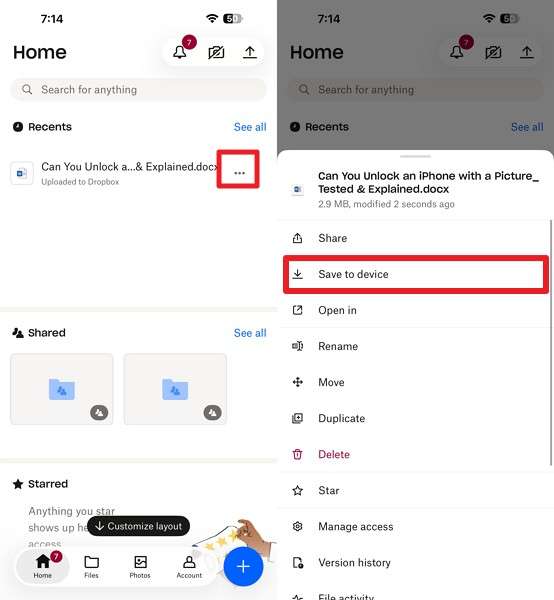
Method 6. Transfer Documents with Google Drive, OneDrive, or Dropbox
Apple’s migration tools do not cover every document workflow, so cloud storage can help move PDFs, spreadsheets, and files. Uploaded content is available through the provider’s iOS app and can appear in Files after enabling the service. Google Drive offers 15GB shared with Gmail and Photos, OneDrive 5GB, and Dropbox 2GB. Using Dropbox as an example, follow these steps for Android to iPhone 18 Pro transfer:
Step 1. Tap + > Upload Files > Choose files and upload them.
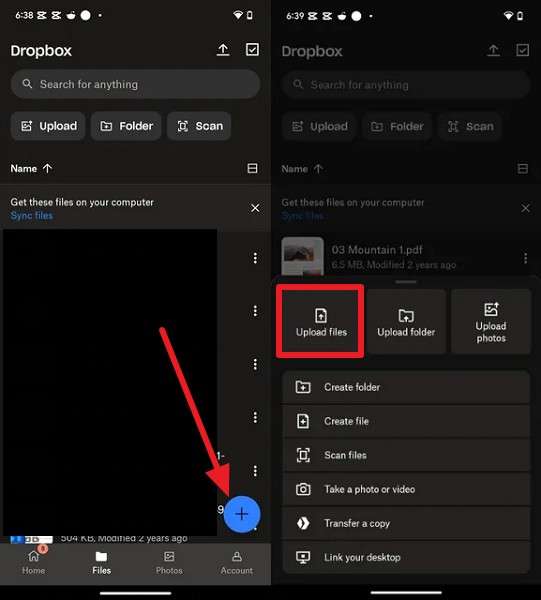
Step 2. Install the app on iPhone and log in with the same account. Access Recents > Three Dots > Tap Save to Device.
3. Manual and Selective Transfer
Method 7. Transfer Files Using File Sharing
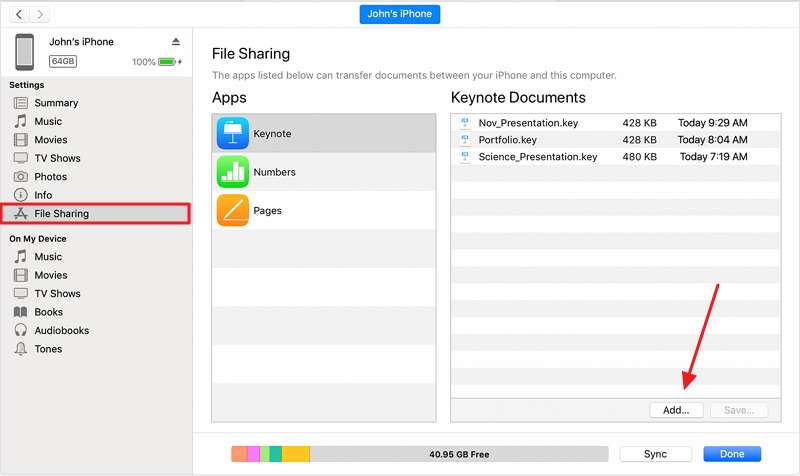
File Sharing lets you move supported documents between a computer and compatible iPhone apps. It works through Finder on Mac, Apple Devices on newer Windows systems, or iTunes where supported. After setup, the feature is useful because it doesn't require resetting the iPhone. However, only apps that support File Sharing appear in the available app list.
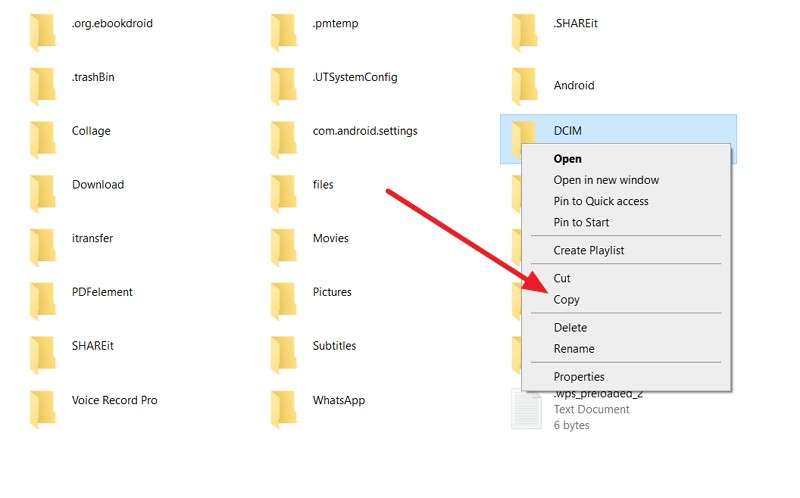
Step 1. Connect the Android phone to your computer and copy the files you want to transfer into a local folder.
Step 2. Connect the iPhone, open Finder, Apple Devices, or iTunes, then use File Sharing to add those files to a supported app.
Part 3. What Data Can You Transfer from Android to iPhone 18 Pro?
Each transfer method supports different types of content. The table below shows which data each option can move when you want to transfer all data from Android to iPhone 18 Pro:
| Data Type | Move to iOS | MobileTrans | Google Account | File Sharing |
| Contacts | Yes | Yes | Yes, synced | No |
| Messages and Call History | Yes | Yes | No | No |
| Photos and Videos | Yes | Yes | Google Photos | Yes |
| WhatsApp Chats and Media | Yes | Yes | No | No |
| Calendars and Mail Accounts | Yes | Yes | Yes, synced | No |
| Files and Documents | Yes | Yes | Google Drive | Yes |
| Music | No | Yes | No | Yes |
| Apps and App Data | Free app matches | Yes | No | No |
Note: Music libraries, paid apps, and some messaging data may need separate handling. Apple does not transfer music tracks or paid app purchases through Move to iOS. Paid apps may require another App Store purchase, while services like Telegram usually restore cloud-based chats after you sign in.
Part 4. Compare Android-to-iPhone 18 Pro Transfer Methods
This section compares what each Android-to-iPhone 18 Pro transfer method requires. Some need a computer, others require internet access, and some options work only during initial setup.
| MobileTrans | Direct | Yes | No | Yes | Yes | Already-set-up iPhone | Paid software |
| Move to iOS | Direct | No | Wi-Fi or cable | No | Yes | New iPhone setup | Setup only |
| Transfer Without App | Direct | No | No | No | Yes | Supported Android 17 phones | Setup only |
| Google Account | Cloud | No | Yes | Yes | Yes | Contacts, mail, calendars | Limited data types |
| Google Photos | Cloud | No | Yes | Yes | Yes | Photos and videos | Cloud storage required |
| Cloud Storage | Cloud | No | Yes | Yes | Yes | Documents and files | Manual upload |
| File Sharing | Manual | Yes | No | Yes | Yes | Photos, music, and files | Supported content only |
Verdict: MobileTrans is a strong choice whether the iPhone 18 Pro is new or already configured, especially for selective transfers without resetting the device. Move to iOS remains Apple's free option for supported Android content during initial setup.
Part 5. What to Do After Moving to iPhone 18 Pro
After you move data from Android to iPhone 18 Pro, verify that everything arrived correctly before relying on the new device. These 5 checks help confirm the migration is complete and your important content is ready to use.
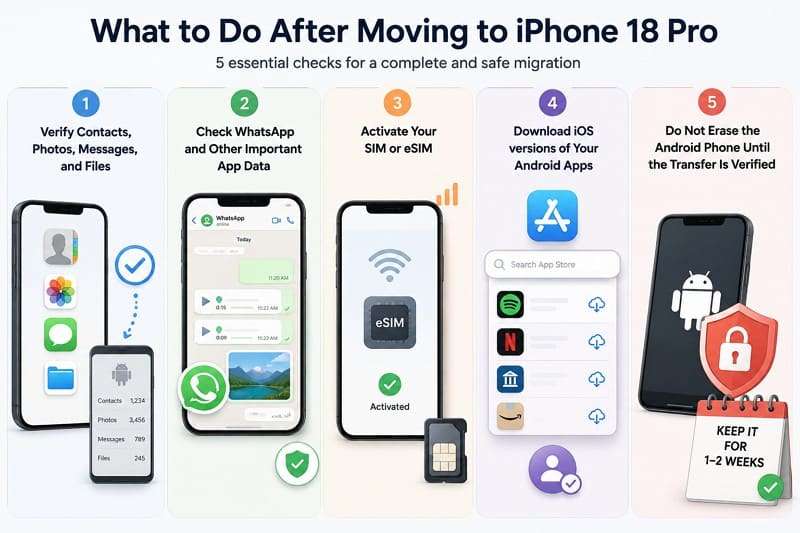
- Verify Core Data: Open Contacts, Photos, Messages, and Files to confirm important content transferred correctly. Compare key items with the Android before considering the migration complete.
- Review WhatsApp and App Data: Open WhatsApp and other important apps, then check older chats, media, and account data. Sign in again where required.
- Activate SIM or eSIM: Confirm calls, texts, and mobile data work on the iPhone. Complete carrier activation if the SIM or eSIM did not transfer automatically.
- Reinstall Missing Apps: Download the iOS versions of apps that did not transfer. Sign in with your existing accounts to restore supported subscriptions and cloud-based data.
- Keep the Android Phone Temporarily: Don't erase the old phone immediately. Keep it available until you confirm your important files, chats, accounts, and settings are accessible on the iPhone.
Conclusion
The best way to transfer data from Android to iPhone 18 Pro depends on when you start. MobileTrans works for both new and already configured iPhones without requiring a reset. Move to iOS remains Apple’s free option during initial setup, while supported Android 17 devices can use the no-app route. Keep the old Android until you confirm your essential data transferred correctly.
FAQ
-
How long does it take to transfer data from Android to iPhone?
Transfer time depends on data size and connection quality. MobileTrans uses a wired connection, which can provide a faster and more stable transfer for large libraries.
-
Does Move to iOS transfer everything from Android?
No. It supports contacts, messages, photos, WhatsApp, call history, and other selected content. MobileTrans supports additional data types and selective transfers between devices.
-
What happens to paid Android apps when switching to iPhone?
Google Play purchases do not transfer to the App Store. Some apps restore access after you sign in, while others may require a separate iOS purchase.
-
Is a cable faster than Wi-Fi for Android-to-iPhone transfer?
Yes. Apple recommends a compatible USB-C cable for faster Android-to-iPhone migration. MobileTrans also uses wired connections, which can be useful for transferring larger data libraries.










