



 TL;DR:
To transfer data from Android to iPhone Duo, use Apple's official migration tools during the initial device setup, or utilize MobileTrans, Google Sync, and cloud storage to seamlessly move content onto an already configured iPhone without performing a factory reset.
● Direct app-free migration is exclusively available for source devices running Android 17 or later, while older Android models must rely on the Move to iOS app over a wireless connection or a direct USB-C cable.
● Apple's built-in transfer tools do not support WhatsApp Business, music, books, or PDFs; migrating these specific formats requires a wired desktop transfer via MobileTrans or manual selective uploads to cloud drives.
● Moving regular WhatsApp chat history via Move to iOS is strictly limited to the initial configuration stage, making third-party desktop software mandatory if you need to migrate messages after the iPhone Duo setup is complete.
Ask AI for a summary
 ChatGPT
 Perplexity
 Gemini
 Claude
 Grok
Grok
Switching from Android to iPhone Duo involves more than moving a few contacts or photos. The right transfer method depends on whether your iPhone Duo is new or already configured. Apple’s migration options work during initial setup, while MobileTrans, Google sync, and cloud storage offer alternatives afterward. This guide explains how to transfer data from Android to iPhone Duo while keeping important contacts, media, files, and chats accessible.
In this article


Part 1. What Is the Best Way to Transfer Data from Android to iPhone Duo?
The best way to move data from Android to iPhone Duo depends on your current transfer situation. Use the table below to match each situation with the most suitable Android to iPhone Duo data transfer method:
| Situation | Best Method | Works After Setup? | Best For |
| Compatible Android 17 or Later | Transfer without App | No | Direct Apple migration without installing an app |
| Other Android Phones | Move to iOS | No | Apple-guided migration for most supported data |
| iPhone Duo Already Set Up | MobileTrans | Yes | Phone data, WhatsApp, and WhatsApp Business |
| Google Account Data | Google Sync | Yes | Contacts, calendars, mail, and synced account data |
| Photos, Videos, and Files | Cloud Storage | Yes | Selective transfer of media, files, and documents |
What to Check Before Transferring Android Data
Before you switch from Android to iPhone Duo, make sure both devices are ready for a smooth transfer by checking these 5 things:
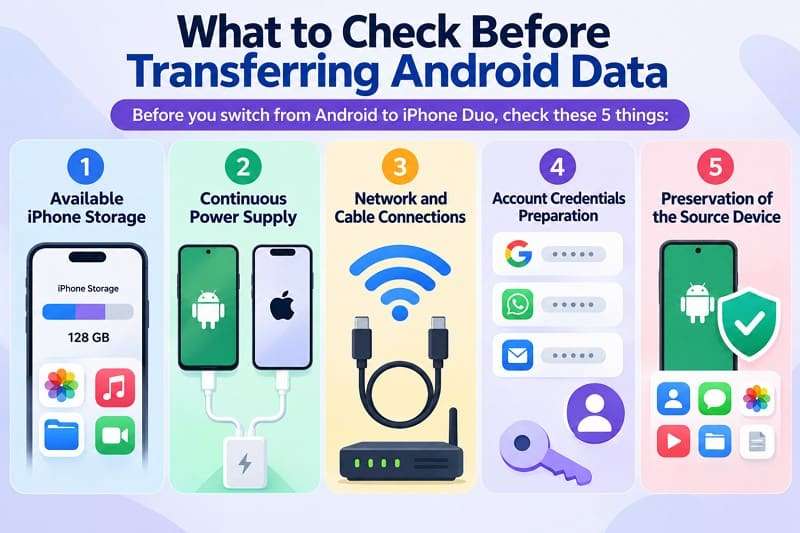
- Available iPhone Storage: Before starting the transfer, check whether your iPhone Duo has enough free storage for the Android data you plan to move.
- Continuous Power Supply: Keep both phones connected to power and positioned close together throughout the transfer to prevent interruptions before the process finishes.
- Network and Cable Connections: Keep Wi-Fi enabled when transferring wirelessly. You can also use a direct USB-C connection between compatible devices for a faster transfer.
- Account Credentials: Keep your Google, WhatsApp, and other important account credentials ready. Some apps and services may require you to sign in again on the iPhone Duo.
- Source Device Preservation: Keep your old Android phone intact until you confirm that important contacts, messages, photos, videos, files, and other required data are accessible on the iPhone Duo.
Part 2. How to Transfer Android Data to iPhone Duo During Setup
For a new iPhone Duo, you can transfer data from Android to iPhone Duo during the initial setup. Apple provides two migration options based on Android compatibility: Transfer directly without installing an app or use the Move to iOS app.
Method 1. Transfer Data Without the Move to iOS App
Apple now supports app-free transfers on compatible devices running Android 17 or later. During iPhone Duo setup, the Android phone scans a QR code displayed on the iPhone to connect both devices. You can then select supported content, including contacts, messages, photos, and calendars. Compatible devices and carriers may also support eSIM transfer during migration. Follow these steps to complete the app-free transfer:
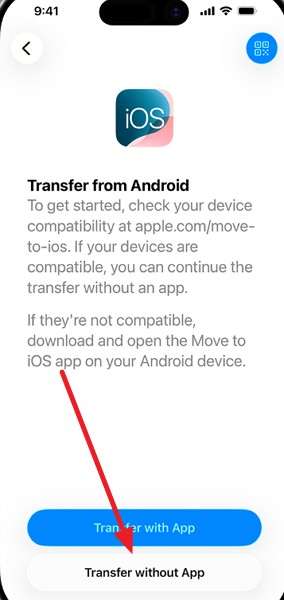
Step 1. Reach the Transfer Your Apps & Data screen on the iPhone Duo. Select From Android, then Transfer without App.
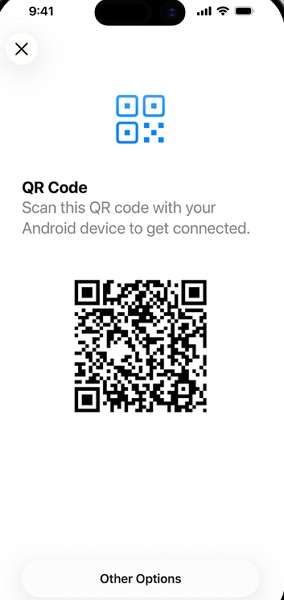
Step 2. Pick up the Android phone and scan the QR code shown on the iPhone Duo to establish the connection.
Step 3. Review the available content on Android, select what you want to bring over, and initiate the migration.
Step 4. For eligible eSIMs, choose the number you want to move, then tap Transfer. Complete the remaining iPhone Duo setup once finished.
Method 2. Transfer Data with Move to iOS
For Android phones that do not support Apple’s app-free migration, Move to iOS provides the standard transfer route during iPhone setup. It can transfer data from Android to iPhone Duo wirelessly or through a compatible USB-C connection for faster migration. Install Move to iOS on your Android device, keep both phones ready, and follow these steps to begin the transfer:
Step 1. Keep both phones connected to power during the transfer. For supported devices, you can connect them directly with a USB-C cable instead.
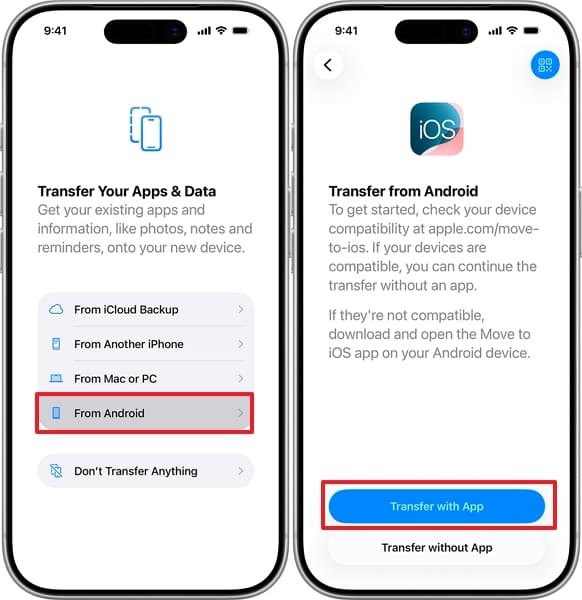
Step 2. Continue setting up the iPhone Duo until you see Transfer Your Apps & Data. Select From Android > Transfer with App.
Step 3. Get the code on iPhone Duo > Press Continue on the Move to iOS app > Enter the code.
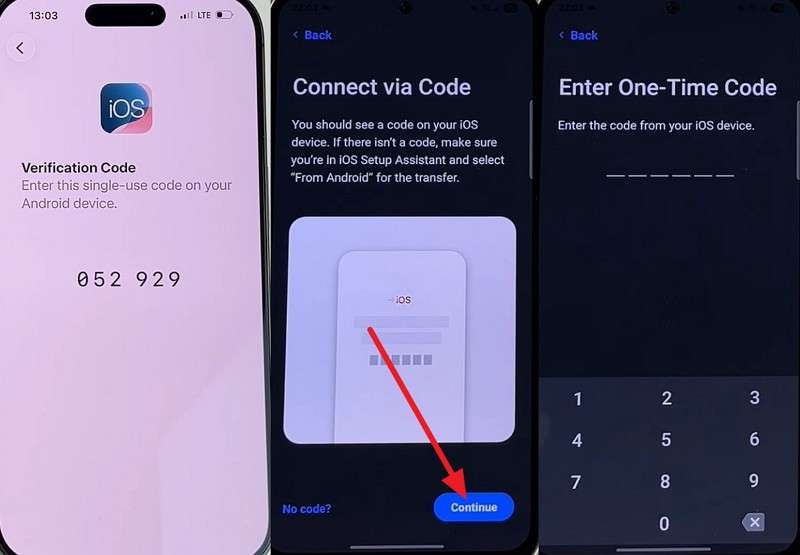
Step 4. Choose the content you want to transfer and tap Continue. Leave both phones nearby until the loading bar on the iPhone Duo finishes.
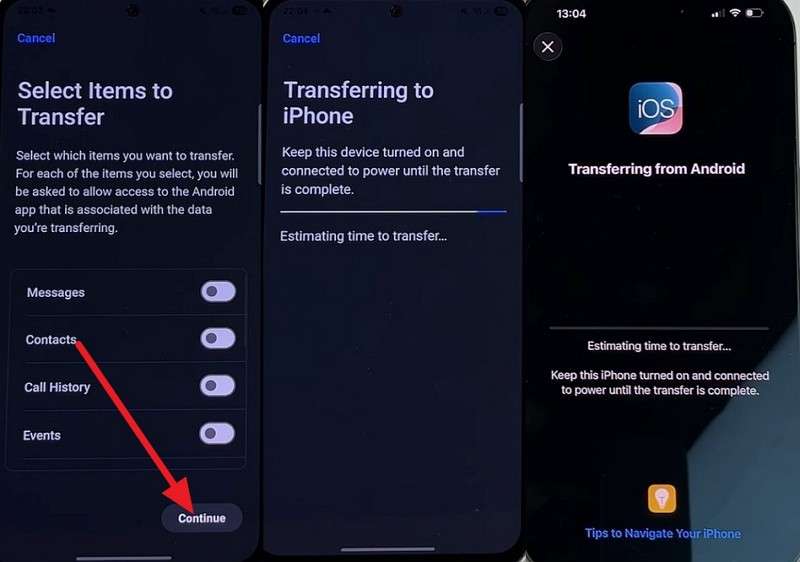
Part 3. How to Transfer Android Data to iPhone Duo After Setup Without Resetting
Once your iPhone Duo is already set up, you can move data from Android to iPhone Duo without erasing it. The best method depends on the content you want to transfer. These 3 options cover broader phone data, Google account information, and selected files stored in the cloud:
Method 1. Transfer Data with MobileTrans
After setup, MobileTrans-Phone Transfer provides a flexible desktop-based solution for Android to iPhone Duo data transfer. Its Phone Transfer feature works without returning the iPhone to its initial setup screen. It supports transferring contacts, messages, photos, videos, music, and other compatible data between Android and iOS devices.
MobileTrans also supports commonly used apps and selected app data through its dedicated transfer features. You can move regular WhatsApp and WhatsApp Business chats between supported devices. Because transfers use a wired connection through a computer, the process doesn't depend on cloud storage capacity or internet bandwidth.
Key Features
- Selective Data Transfer: Choose the supported data types you want to move instead of transferring all available phone content at once.
- Backup and Restore: Create local phone backups on your computer and restore supported data to a compatible device whenever needed.
- WhatsApp Transfer, Backup, and Restore: Use dedicated features to transfer, back up, and restore WhatsApp or WhatsApp Business data across supported devices.
- Music, Books, and PDFs: Transfer supported music, books, and PDF files directly instead of handling these categories separately through manual methods.
- Flexible Repeated Transfers: Run MobileTrans again to move additional supported data after completing the initial phone transfer.






Guide to Transfer Android Data to iPhone Duo After Setup
To learn how to transfer data from Android to iPhone Duo using this tool, follow these steps:
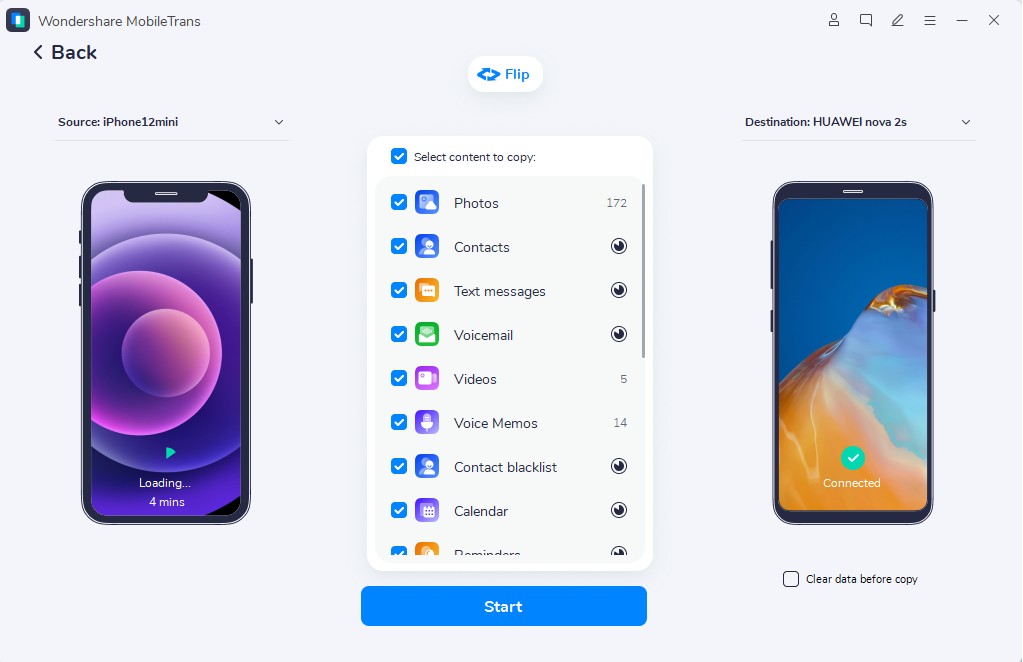
Step 1. Choose Phone Transfer > Phone to Phone > Connect Android and iPhone Duo.

Step 2. Flip the devices if required > Choose data types > Click Start > Wait for the data to move to iPhone Duo.
Method 2. Sync Contacts, Calendars, and Mail with Google
For contacts, calendars, and email, your Google account offers a simple way to transfer data from Android to iPhone Duo after setup. Add the same Google account to your iPhone Duo and enable the data you want to sync.
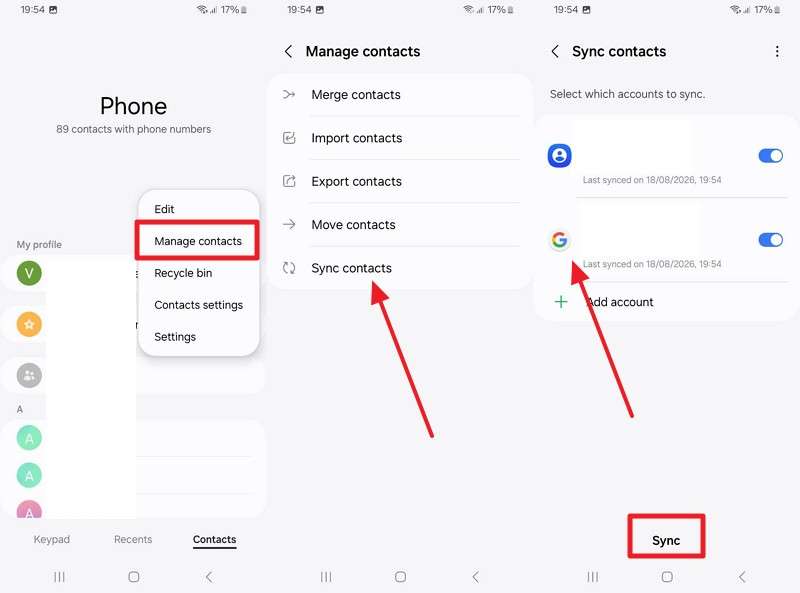
Before you proceed, check that the required data on your Android phone is synced with Google. The exact settings vary by manufacturer. Using a Samsung Galaxy phone as an example, follow these steps to sync your data and access it on iPhone Duo:
Step 1. For example, on a Samsung Galaxy: Go to Contacts > Three Dots > Manage Contacts > Sync Contacts, choose your Google account, and tap Sync.
Step 2. On the iPhone Duo, go to Settings > Apps > Contacts > Contacts Accounts > Add Account.
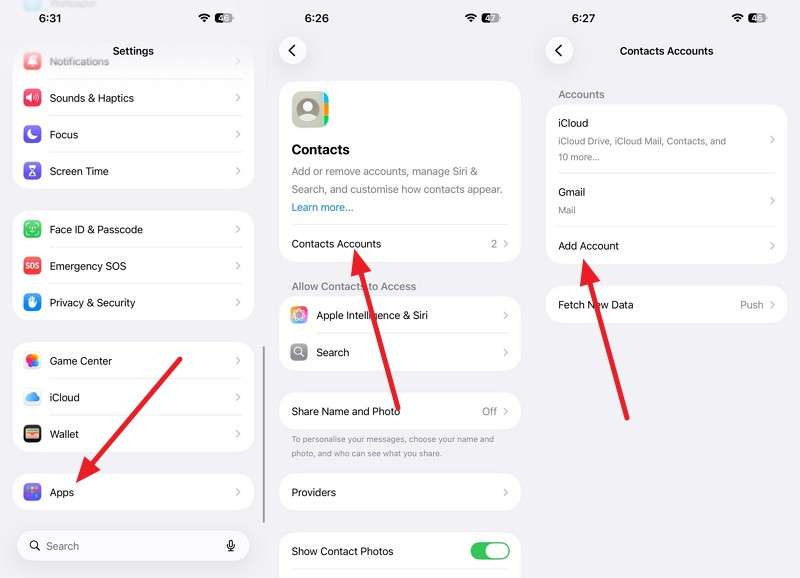
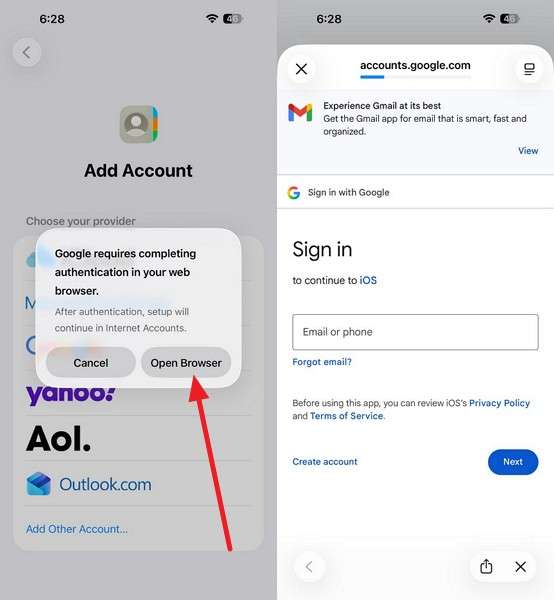
Step 3. Choose Google > Open Browser and sign in with the same account used on Samsung.
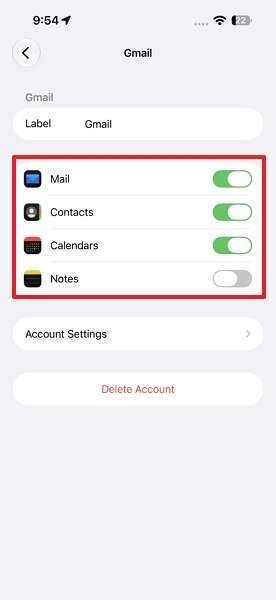
Step 4. Enable Contacts, Mail, Calendar, and Notes to sync the available data linked to your Google account.
Method 3. Transfer Photos, Videos, and Files Through Cloud Storage
Cloud storage offers another convenient way to switch from Android to iPhone Duo without resetting the device. It works well for selectively moving photos, videos, documents, and other files. Upload the required content from Android, then access the same cloud account on your iPhone Duo.
Storage limits vary across services. A Google Account includes 15 GB shared across Google Drive, Gmail, and Google Photos, while Microsoft provides 5 GB and Dropbox Basic offers 2 GB. Larger media libraries may require additional space or selective uploads. Using Dropbox as an example, follow these steps:
Step 1. On the Android phone, open the Dropbox app, tap +, and choose Upload Files.
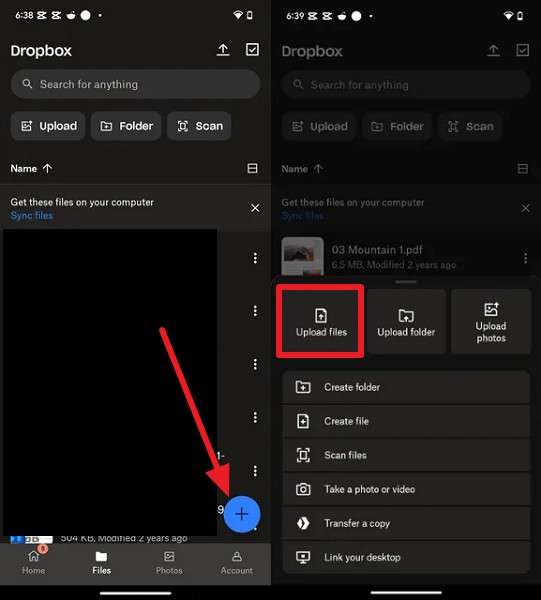
Step 2. Select the photos, videos, or documents you want to transfer and let the upload finish.
Step 3. Install Dropbox on the iPhone Duo and sign in with the same Dropbox account.
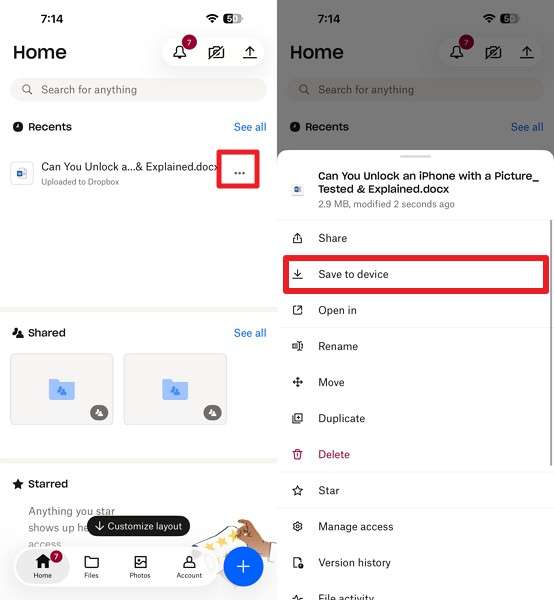
Step 4. Go to Recents and select the item you want to save > Press the three dots > Save to Device.
Part 4. What Android Data May Need Separate Handling on iPhone Duo?
Some content requires extra attention even after you learn how to transfer data from Android to iPhone Duo. WhatsApp Business, music, books, PDFs, apps, purchases, and app-specific data may follow different transfer routes. Review these categories before erasing your Android phone to see what requires separate handling:
| Data Type | Recommended Option | Important Limitation |
| Regular WhatsApp | Move to iOS during setup or MobileTrans afterward | Move to iOS requires the initial setup stage |
| WhatsApp Business | MobileTrans | Apple’s official migration does not support WhatsApp Business |
| Android Apps | Download iOS versions or use MobileTrans for supported apps | Not every Android app has an iOS version or supports transfer |
| App Specific Data | App account, cloud sync, or MobileTrans when supported | Transfer availability depends on the individual app |
| Music | MobileTrans, computer, or streaming service | Available transfer options depend on how the music is stored |
| Books and PDFs | MobileTrans, Files, cloud storage, or computer | Some content may require a separate transfer method |
| eSIM or Phone Number | Supported eSIM transfer or carrier activation | Availability depends on the Android device and carrier |
Part 5. How to Fix Android-to-iPhone Duo Transfer Problems
For a failed Android to iPhone Duo data transfer, the right fix depends on where the process stops and what causes the issue. Use the table below to identify the problem and choose the appropriate next step:
| Problem | Likely Cause | Recommended Fix |
| Transfer Without App Is Missing | Android device or software version is unsupported | Check compatibility, then use Move to iOS instead |
| Move to iOS Does Not Connect | Wireless connection between the devices failed | Restart both phones, turn off mobile data, and retry |
| Transfer Stops Before Completion | Connection was interrupted, or either device lost power | Keep both devices powered, nearby, and untouched during transfer |
| Not All Data Transfers | Insufficient iPhone storage or unsupported data type | Check available storage and review Part 4 for separate transfers |
| WhatsApp Does Not Transfer | Transfer method does not match the iPhone setup stage | Use Move to iOS during setup or MobileTrans afterward |
| WhatsApp Business Does Not Transfer | Apple's migration does not support WhatsApp Business | Use the WhatsApp Business transfer option in MobileTrans |
Conclusion
Choosing the right method makes it easier to transfer data from Android to iPhone Duo at any setup stage. Apple’s migration options work best during initial setup, while MobileTrans, Google sync, and cloud storage provide flexible choices afterward. Before erasing your Android phone, confirm that important contacts, media, files, and chats have transferred successfully and remain accessible on your iPhone Duo.
FAQ
-
Can I transfer everything from Android to iPhone Duo with Move to iOS?
No. Move to iOS transfers common content like contacts, messages, photos, and videos, but not everything. Music, books, PDFs, certain apps, and app-specific data may require separate transfer methods. -
Can I transfer Android data to iPhone Duo after setup without resetting it?
Yes. MobileTrans can move data from Android to iPhone Duo after setup without resetting the iPhone. Google sync works for contacts, calendars, and mail, while cloud storage can transfer photos, videos, documents, and other files. -
Can I transfer WhatsApp and WhatsApp Business to iPhone Duo after setup?
Yes, with a third-party tool like MobileTrans. Move to iOS transfers regular WhatsApp only during initial setup, while WhatsApp Business lacks an official Android-to-iPhone transfer option. -
Can I transfer Android data to iPhone Duo without Move to iOS?
Yes. Compatible Android 17 or later devices can use Apple’s app-free transfer during setup. After setup, MobileTrans can transfer supported phone data, while Google sync and cloud storage provide options for account data and files.










