


 TL;DR:
Apple's built-in Quick Start feature is the most efficient free method to wirelessly transfer your data to a new iPhone 17, requiring both devices to run iOS 12.4 or later and remain nearby for the 30-minute to 2-hour process.
● For users who cannot keep both phones together, iCloud Backup allows remote transfers via Wi-Fi but may require purchasing storage beyond the free 5GB limit, while Finder on Mac or iTunes on PC provides a complete, offline backup using a USB cable.
● To move data from very old iPhone models, the paid MobileTrans computer software transfers all files directly, whereas AirDrop is exclusively suitable for sending specific photos or documents instantly within a 30-foot range.
● Before initiating any transfer, update both devices to the latest iOS version, ensure the phones are charged to at least 50% and kept plugged in, and sign out of Find My iPhone on the old device to prevent interruptions.
Ask AI for a summary
 ChatGPT
 Perplexity
 Gemini
 Claude
 Grok
Grok
"I want to upgrade to the new iPhone 17, but I'm worried about losing all my photos and apps," says Sarah, a long-time iPhone user.
This worry is common among many users. Many people feel the same fear when upgrading. They don't want to lose years of memories and data. The good news is that data transfer is much easier now than before.
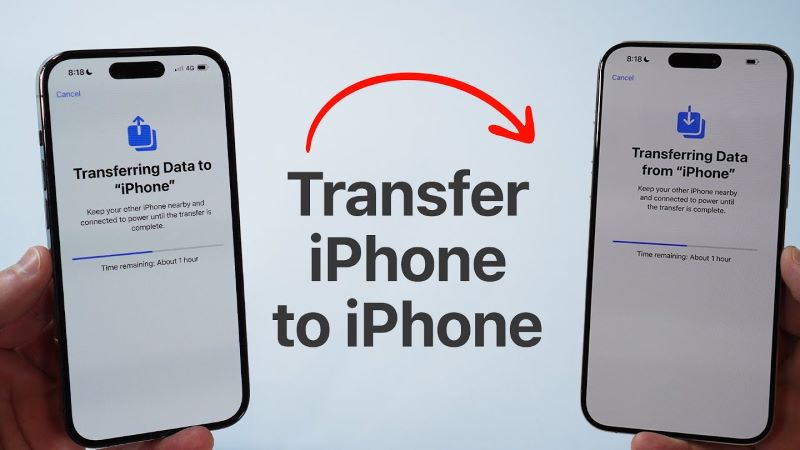
This guide shows you how to transfer data from an iPhone to an iPhone 17. We will cover all the best ways to move your data safely. You can keep all your photos and videos, contacts and messages, and even your app data. Read step-by-step instructions for each method in this guide, and you won't lose any important information during the switch.
In this article
Part 1: 4 Quick Methods to Transfer Data From iPhone to iPhone 17
Moving your data to a new iPhone 17 can seem hard. But there are many easy ways to do it. Each method has its own benefits.
The key is to pick the right method for your needs. Some methods are faster. Others work better with older phones. We will show you five proven ways to transfer data from your old iPhone to your new iPhone 17.
Method 1: Use MobileTrans
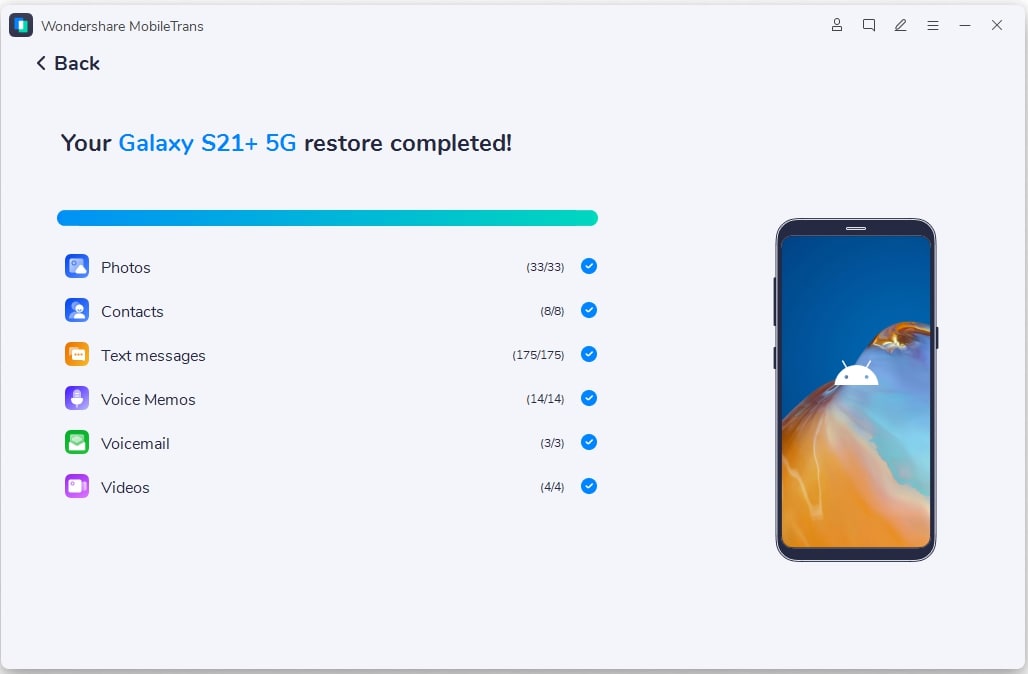
MobileTrans is a third-party tool that helps move data between phones. It works with many phone types. This tool can transfer data from an iPhone to an iPhone 17 directly. This application is compatible with both Windows and macOS platforms and offers support for more than 6,000 mobile devices.
This software moves all types of data in one go. It saves time and effort. You don't need to worry about losing any files. MobileTrans handles the entire process for you. The tool helps you move your photos, videos, music, contacts, messages, and apps safely from one device to another.
The software works even with different iOS versions. You can preview your data before starting the transfer.






Steps:
Step 1. Open MobileTrans and choose "Phone to Phone Transfer." Connect both iPhones to your computer using USB cables. Wait for the software to detect both devices.

Step 2. Select the data types you want to transfer.

Step 3. Click "Start" to begin moving data from your old iPhone to iPhone 17.
Method 2: Use Quick Start (Phone-to-Phone Transfer)
Quick Start is Apple's built-in feature. It helps you transfer data from iPhone to iPhone 17 Pro Max easily. This method works when both phones are near each other. Apple created this feature in 2017. It comes free with every iPhone. The feature works without any extra downloads or apps.
Apple designed Quick Start to be simple. It moves most of your data without extra apps. The process happens wirelessly. Both phones need to run iOS 12.4 or later for this to work. The feature transfers your Apple ID settings automatically. It moves your Wi-Fi passwords too. Your apps will download from the App Store during setup. The transfer uses a secure connection between devices.
Steps:
Step 1. Turn on your new iPhone 17 and place it near your old iPhone. The Quick Start screen will appear on your old phone. Follow the setup steps and choose to transfer data directly. Your old iPhone will show transfer options.
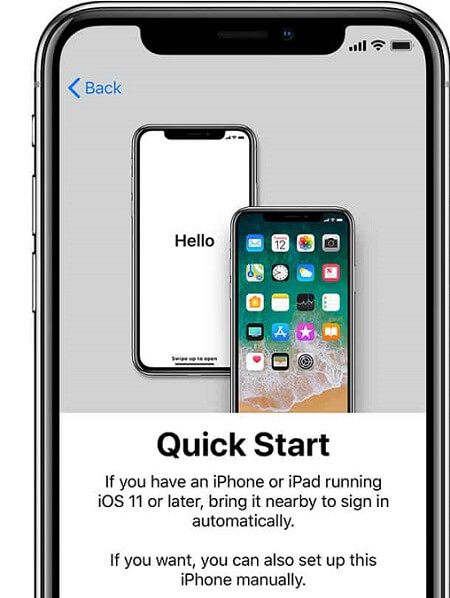
Step 2. Keep both phones close together until the transfer finishes. This may take 30 minutes to 2 hours depending on data size.
Method 3: Use iCloud Backup & Restore
iCloud is Apple's online storage system that helps you move data from one iPhone to another, including the iPhone 17. To do this, you first back up your old phone to iCloud, then restore that backup on your new device. Apple provides 5GB of free storage to every user, and you can purchase extra space if needed. iCloud is available in more than 200 countries around the world.
This method works from anywhere with an internet connection. You don't need both phones at the same time. iCloud stores your backup safely in the cloud. You can access it whenever you set up your new iPhone 17. The service encrypts your data for security. Your backup includes app data and device settings. iCloud keeps multiple backup versions. You can choose which backup to restore from.
Steps:
Step 1. Back up your old iPhone to iCloud. Go to Settings > [Your Name] > iCloud > iCloud Backup > Back Up Now.
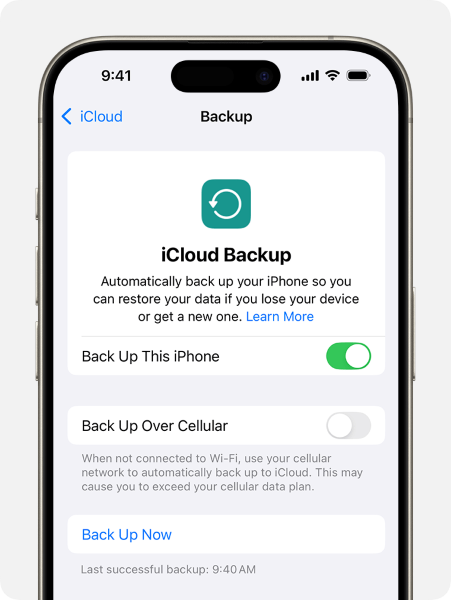
Step 2. Set up your new iPhone 17 and choose "Restore from iCloud Backup." Sign in with your Apple ID. Select your recent backup and wait for the restore to complete. Your new phone will download all your data.
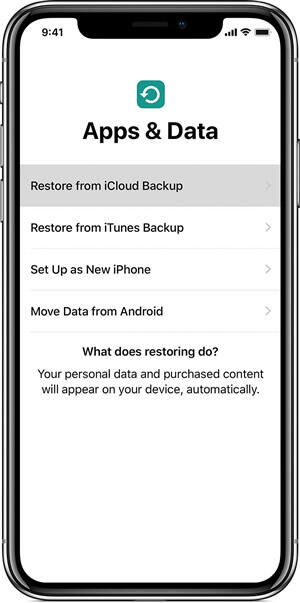
Method 4: Transfer via Mac or PC (Finder or iTunes)
You can use your computer to help transfer data from your old iPhone to your new iPhone 17. On Mac, use Finder. On PC, use iTunes. This method creates a backup on your computer first. The backup file stays on your hard drive. You control where the backup is stored. This method works without the internet after the initial setup.
Computer backups are complete and detailed. They include more data than some other methods. This is good for users who want to keep everything. The backup stays on your computer for future use. Your backup includes all app data and passwords. The file contains your device settings too. You can make multiple backups over time. The process works with USB or USB-C cables.
Steps:
Step 1. Connect your old iPhone to your computer and create a backup. Use Finder on Mac or iTunes on PC. Disconnect the old phone and connect your new iPhone 17. Your computer will detect the new device.
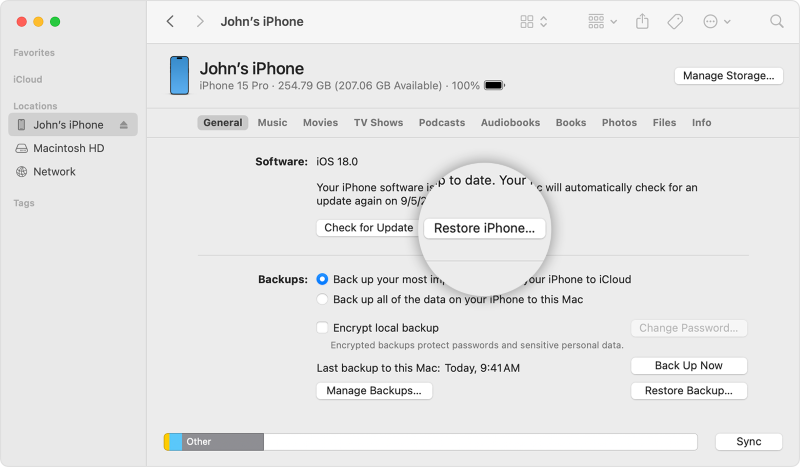
Step 2. Choose to restore from the backup you just made. Wait for all data to transfer to your new phone.
Method 5: Airdrop for Select Files
Airdrop sends files wirelessly between Apple devices. Use it to move specific items to your iPhone 17. This works well for photos, videos, and documents. Apple created Airdrop in 2011. It uses Bluetooth and Wi-Fi to work. The feature works up to 30 feet away. You can send files to multiple devices at once.
Airdrop is perfect for small transfers. It's not meant to move everything at once. Use this method when you only need certain files. It works quickly for individual items or small groups of files. The transfer happens in seconds for most files. Airdrop keeps your file quality intact. It works between iPhone, iPad, and Mac devices. You can see nearby Apple devices automatically.
Steps:
Step 1. Turn on Airdrop on both iPhones. Go to Control Center and tap the Airdrop icon.
Select the files you want to send from your old iPhone. Tap the share button and choose your new phone.
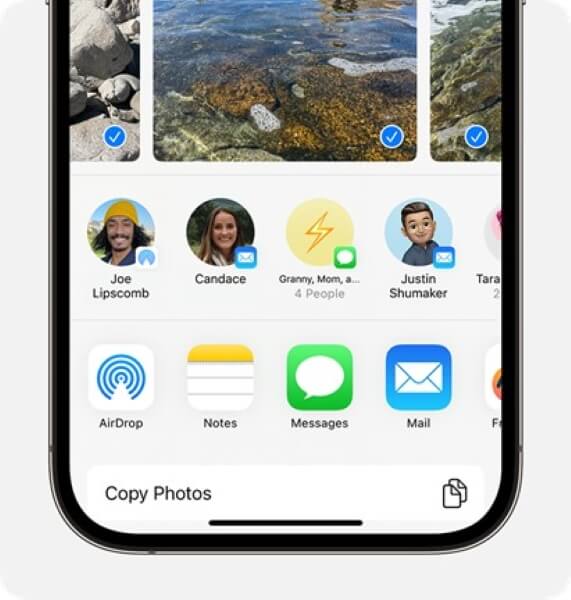
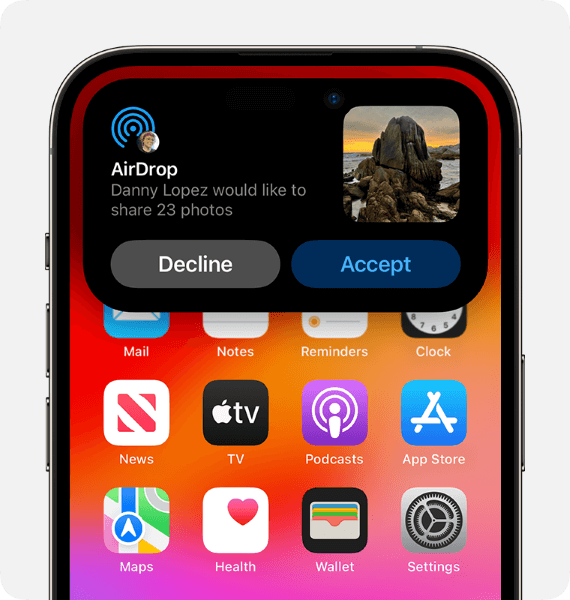
Step 2. Accept the files on your iPhone 17. They will save to the same apps they came from.
Part 2: Which is the Best Method to Transfer Data From an iPhone to an iPhone 17?
Choosing the right way to transfer data from iPhone to iPhone 17 depends on your needs. Each method has different benefits. Some work better for certain situations.
| Method | Speed | Ease of Use | Data Types | Requirements | Best For |
| MobileTrans | Very Fast | Medium | All types | Software or App | Complete transfers |
| Quick Start | Medium | Easy | Most types | Both phones nearby | New iPhone users |
| iCloud | Slow | Easy | Most types | Internet + Storage | Remote transfers |
| Computer Backup | Fast | Medium | All types | Computer + Cable | Tech-savvy users |
| Airdrop | Very Fast | Easy | Select files | Both phones nearby | Specific files only |
Part 3: Additional Tips to Transfer Data from iPhone to iPhone 17
Here are extra tips to make your data transfer smooth. These tips help avoid common problems. They ensure you don't lose any important information when moving to your iPhone 17.
- Update both phones to the latest iOS version before starting the transfer
- Make sure your new iPhone 17 has enough storage space for all your data
- Charge both phones to at least 50% battery before beginning the transfer process
- Use a stable Wi-Fi network for wireless transfer methods to avoid interruptions
- Sign out of Find My iPhone on your old device before starting the transfer
- Check that all your important apps are available on the App Store for iPhone 17
- Keep both phones plugged in during long transfers to prevent battery drain
- Test a few apps after transfer to make sure everything works properly on your new phone
Conclusion
Moving to the iPhone 17 doesn't have to be stressful. There are many ways to transfer data from iPhone to iPhone 17 safely. Each method works well for different situations.
Quick Start is best for most users. It's free and easy to use. iCloud works well if you can't have both phones together. MobileTrans gives you the most control over what transfers.
Pick the method that fits your needs best. Follow the steps carefully. Soon you'll have all your data on your new iPhone 17. Your photos, apps, and settings will all be there waiting for you.
FAQs
FAQ
-
Q: How long does it take to transfer data from iPhone to iPhone 17?
A: The time depends on how much data you have and which method you use. Quick Start usually takes 30 minutes to 2 hours. iCloud restore can take several hours for large backups. Airdrop is fastest for small files but only works for certain types. Computer backups are fast but require setup time first.
-
Q: Will I lose any data when transferring to iPhone 17?
A: You shouldn't lose data if you follow the steps correctly. Always make a backup before starting. Some app data might not transfer with certain methods. Check that all your important files moved over after the transfer completes. Most methods keep all your photos, contacts, and messages safe.
-
Q: Can I transfer data from very old iPhone models to iPhone 17?
A: Yes, but some methods work better than others. Quick Start needs iOS 12.4 or later. iCloud backup works with most iPhone models. Computer backups work with almost all iPhones. MobileTrans supports many old iPhone versions. Check your iOS version before picking a transfer method.










