



 TL;DR:
To transfer data to an iPhone 18 Pro, use Apple's Quick Start or a temporary 21-day iCloud backup for unconfigured devices, but rely on MobileTrans if you need to migrate specific files between different Apple Accounts or to a phone that is already set up without performing a factory reset.
● Apple's direct Quick Start migration requires the old device to run iOS 11 or later for wireless transfers and iOS 12.4 or later for wired transfers.
● Local computer backups via Mac Finder or the Windows Apple Devices app require you to manually enable the encrypted backup option to successfully transfer saved passwords, Wi-Fi settings, Health data, and call history.
● Security credentials like Apple Pay cards, Face ID enrollment, and eSIM configurations do not migrate automatically and mandate manual setup on the new device after the initial transfer completes.
Ask AI for a summary
 ChatGPT
 Perplexity
 Gemini
 Claude
 Grok
Grok
Most people dismiss iCloud right away because the free 5GB cannot hold a modern photo gallery. That assumption is entirely wrong. Apple actually gives eligible users temporary, extra iCloud storage for free when buying a new device, so their backup can make the trip. This hidden option sits completely out of sight.
The right approach depends on whether you have both phones ready, if the new device is still in its box, and if both handsets share the same Apple ID. This guide explains how to transfer data from an old iPhone to iPhone 18 Pro with the top 8 ways to help you choose the right pick.
In this article


Part 1. Before You Transfer Data to iPhone 18 Pro
Before learning how to transfer data from iPhone to iPhone 18 Pro, complete these 4 essential checks first:
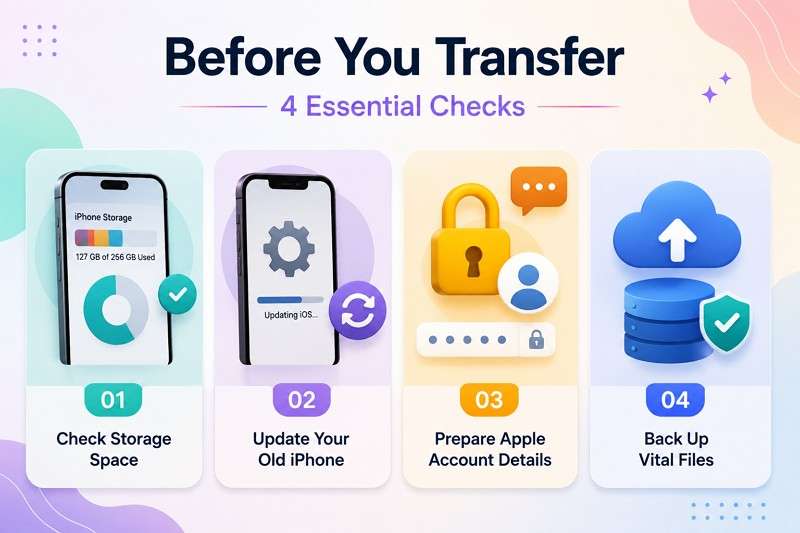
- Check Storage Space: Compare the used storage on your old iPhone with the capacity available on the new device. Make sure the iPhone 18 Pro has enough room for the content you plan to transfer.
- Update Your Old iPhone: Update the old iPhone to the latest available iOS version before starting. Quick Start supports iPhones running iOS 11 or later, while direct device-to-device migration requires iOS 12.4 or later.
- Prepare Apple Account Details: Keep your Apple Account password and old iPhone passcode ready during setup. When verification is required, two-factor authentication codes can appear on trusted devices or arrive through your trusted phone number.
- Back Up Vital Files: Create a backup before starting so you have another copy of important data. On the old iPhone, go to Settings > [Your Name] > iCloud > iCloud Backup > Back Up Now and wait for the backup to finish.
Part 2. 8 Ways to Transfer Data from iPhone to iPhone 18 Pro
Once the checks are complete, explore these 7 methods to transfer everything from old iPhone to iPhone 18 Pro, organized into 3 categories based on different transfer needs.
1. Direct Phone-to-Phone Transfer
Method 1. Transfer iPhone Data with MobileTrans
Apple's full-device transfer routes are mainly designed for a new or erased iPhone, and some Apple methods also require the same Apple Account. This is where MobileTrans-Phone Transfer steps in. It reads the source iPhone and writes supported data to the destination through a computer. A different Apple Account on each handset is no obstacle, and neither is an iPhone 18 Pro you configured last week.
It can also restore supported iCloud data directly to a new Android phone without needing an iPhone. The software features a clear interface designed for non-tech users. Overall, you can move 18+ file types, while MobileTrans is designed to handle large batches efficiently.
Key Features
- Different Apple Accounts: Transfers data between iPhones using different Apple Accounts without relying on iCloud or requiring both devices to use the same account.
- App and In-App Migration: Automatically detects supported apps and supports batch installation, while compatible in-app data can also move to the new device.
- Works Without the Old Phone Later: Back up the old iPhone to a computer first, then restore selected data to the new iPhone 18 Pro when it arrives.
- Works After Setup: Transfers supported data to an already configured iPhone 18 Pro without requiring a factory reset or overwriting existing content.
- Selective Data Transfer: Choose the specific data categories you want to move instead of transferring the entire device contents in one operation.






Guide to Transfer Old iPhone Data to iPhone 18 Pro
Neither device needs to be erased. Follow these steps to transfer supported data directly and learn how to transfer data from iPhone to iPhone 18 Pro:
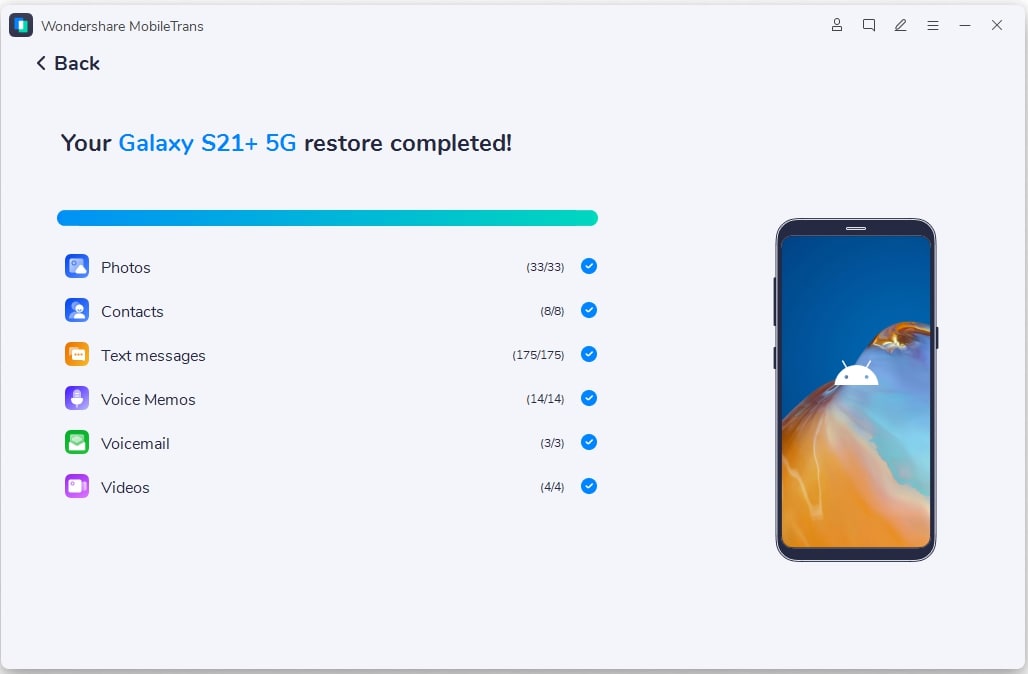
Step 1. Choose Phone Transfer > Phone to Phone mode, then connect the iPhones.

Step 2. Enable Clear Data Before Copy if you want to > Choose the required data types of your old iPhone > Press Start.
Step 3. Review the progress and keep the devices connected.
Method 2. Transfer Data with Quick Start Wirelessly or by Cable
Apple’s direct migration supports both wireless Quick Start and a wired connection. For an iPhone 17 Pro or earlier transferring to iPhone 18 Pro, connect both devices with a USB-C or Lightning cable. Wired transfer reduces reliance on Wi-Fi, although transfer time still varies by data size and network conditions. Keep both iPhones powered on and follow these steps to transfer from an old iPhone to iPhone 18 Pro.
Step 1. Connect both phones with a USB-C-to-Lightning or USB-C-to-USB-C cable and power them on.
Step 2. Choose Continue on the old phone, then wait for the animation to appear on the new one.
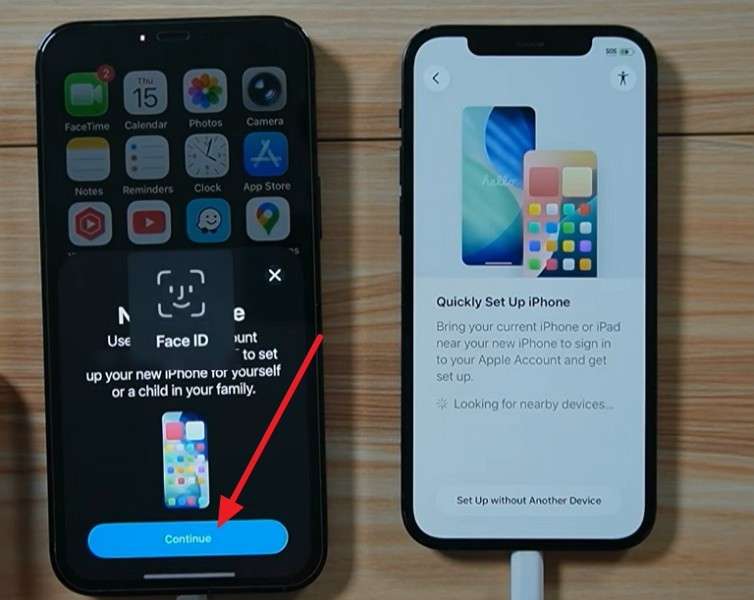
Step 3. Scan it > Select Set Up for Me on old iPhone > Add the passcode on iPhone 18 Pro > Continue.
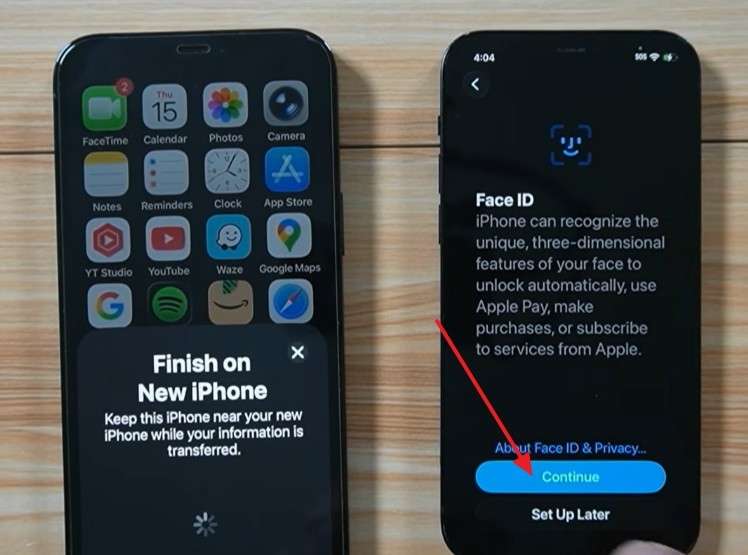
Step 4. Tap Transfer from iPhone or Download from iCloud. If you choose Transfer from iPhone > Press Continue > Agree to terms > Tap Continue.
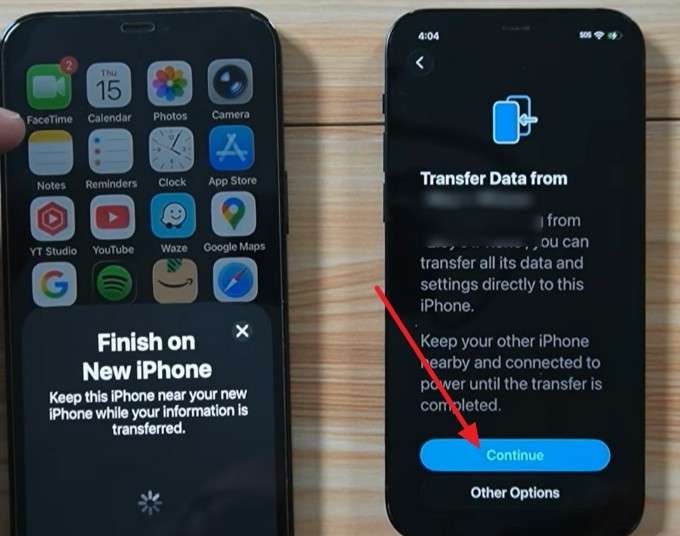
Step 5. Follow the on-screen instructions and complete the setup after data moves.
2. Backup and Restore Methods
Method 3. Restore Data from an iCloud Backup
If your iCloud plan is too small for a full backup, Apple provides temporary iCloud storage for moving to a new iPhone. The backup remains available for 21 days, with another 21 days available through Keep My Backup Longer if needed. Follow these steps to learn how to transfer data from iPhone to iPhone 18 Pro:
Step 1. Open Settings > General > Transfer or Reset iPhone on the old iPhone.
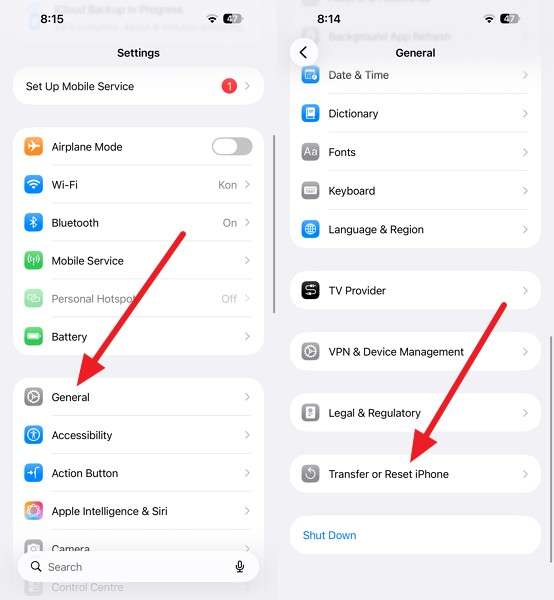
Step 2. Tap Get Started under Prepare for New iPhone > Continue > Done.
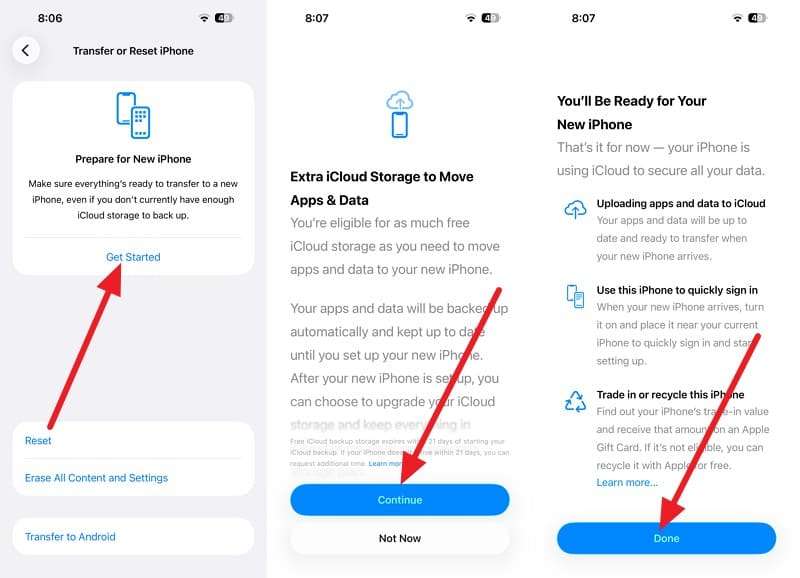
Step 3. If prompted that iCloud Backup is off, tap Turn On Backup to transfer.
Step 4. Wait until the backup is completed. Monitor progress on the main interface.
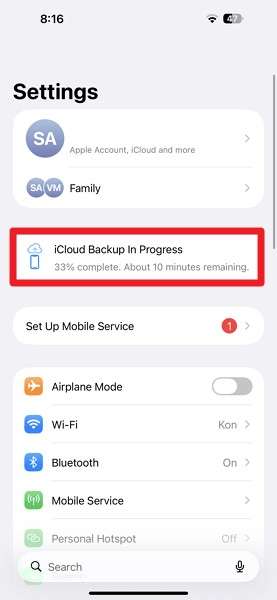
Warning: Do not erase your old iPhone before restoring the temporary backup to the new device.
Step 4. Set up iPhone 18 Pro > Access the Transfer Your Apps & Data screen > Select From iCloud Backup > Sign in > Tap Accept.
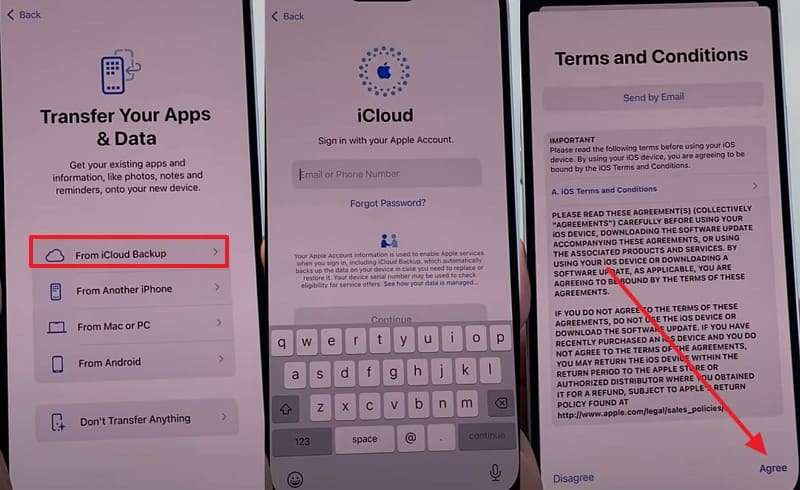
Step 5. Choose the iCloud Backup > Press Continue > Complete the setup.
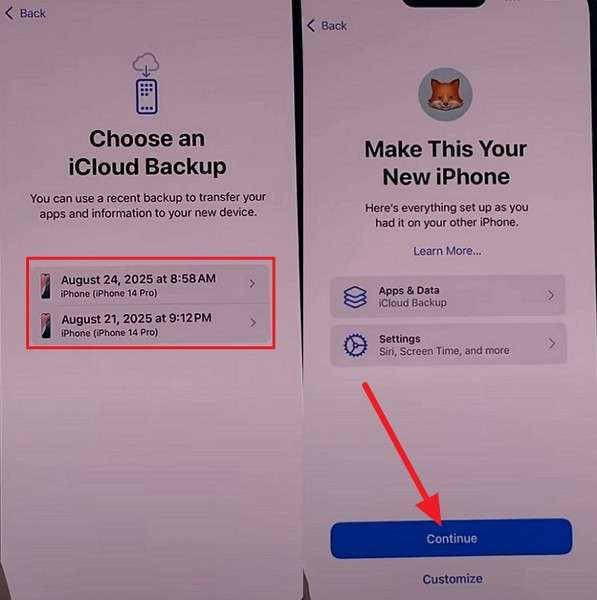
Method 4. Restore Data from a Mac Backup with Finder
Local computer backups avoid relying on iCloud storage or internet speeds during backup and restore. A Finder backup lets you restore your previous iPhone’s data to a new or erased iPhone. On a Mac running macOS Catalina 10.15 or later, Finder handles the backup and restore process. If you prefer this route, follow these steps to transfer data to iPhone 18 Pro:
Step 1. Connect the old iPhone, open Finder, and select it under Locations.
Step 2. Choose Back Up All the Data on Your iPhone to This Mac in General > Backup Now.
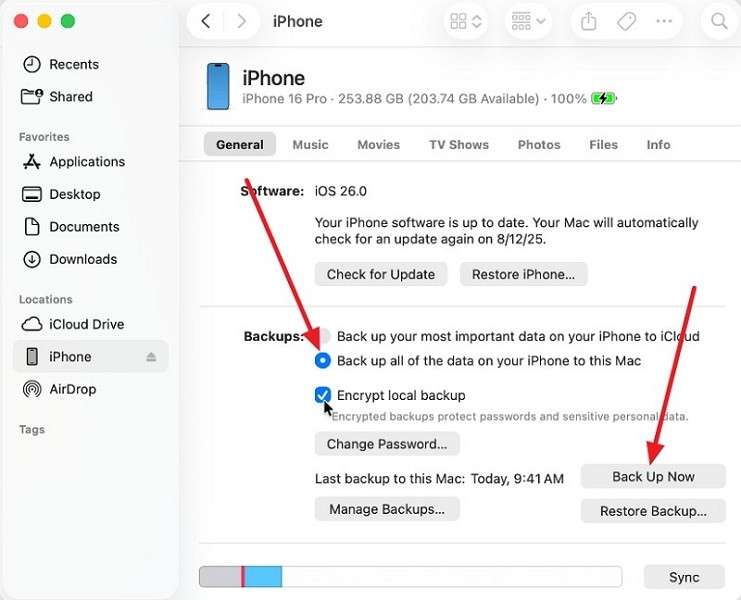
Step 3. You can also enable Encrypt Local Backup if you want the backup to include saved passwords, Wi-Fi settings, Health data, and call history.
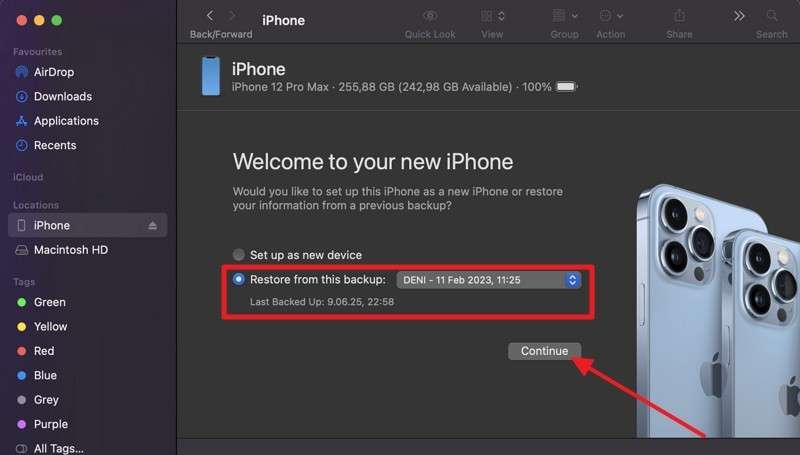
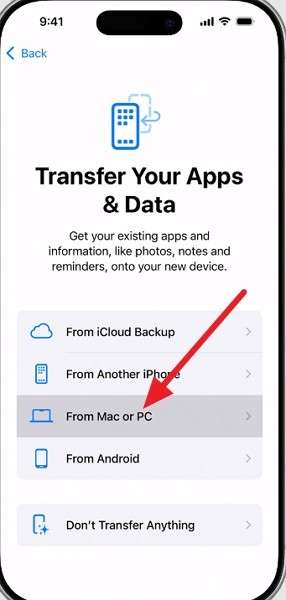
Step 4. Set up iPhone 18 Pro > Access Apps & Data screen > Select Restore from Mac or PC.
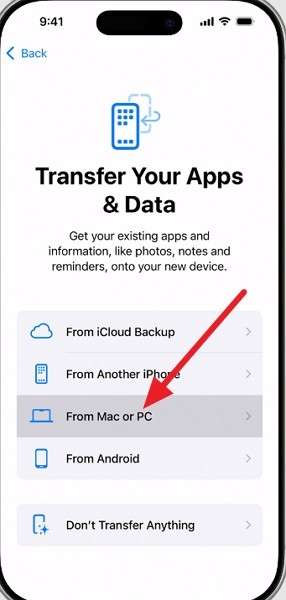
Step 5. Plug the phone into the Mac > Open Finder > Choose your iPhone 18 Pro > Enable Restore from This Backup. Select the last backup, then click Continue.
Method 5. Restore Data from a Windows PC Backup
To transfer everything from old iPhone to iPhone 18 Pro on Windows, use the Apple Devices app to create and restore a local backup. If Apple Devices is unavailable on your PC, iTunes can still handle backup and restore on supported Windows setups. Follow these steps using the Apple Devices app:
Step 1. Attach the old iPhone, open the Apple Devices app, and trust the computer when prompted.
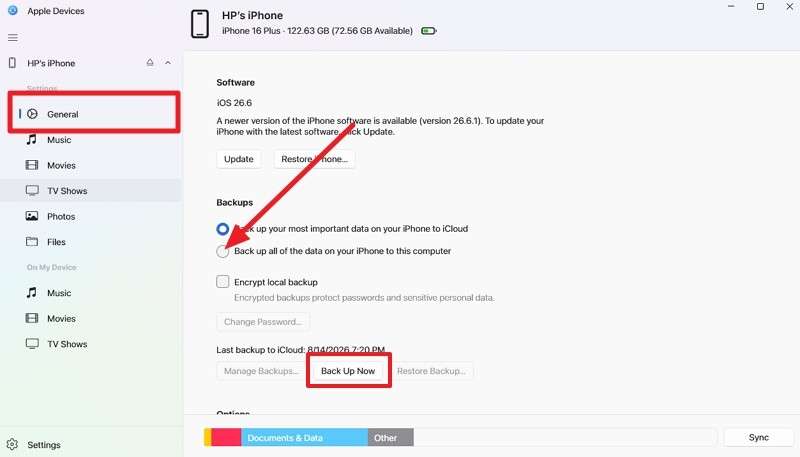
Step 2. Go to General > Choose Back Up All of the Data on Your iPhone to This Computer > Click Back Up Now.
Step 3. Set up iPhone 18 Pro > Choose From Mac or PC.
Step 4. Plug in iPhone 18 Pro > Access the Apple Device app. Select Restore from This Backup > Select the last backup > Click Restore.
3. Selective Transfer After Setup
Method 6. Sync Selected Data Through iCloud
Sign in to the same Apple Account on both iPhones and enable the relevant iCloud features. Supported content, including contacts, calendars, notes, and photos, can then sync across both devices. This is ongoing synchronization rather than a one-time transfer so that changes may appear on both iPhones. Follow these steps to transfer data from iPhone to iPhone 18 Pro using iCloud sync:
Step 1. On the old iPhone, confirm the categories are enabled under Settings > [Your Name] > iCloud > See All.
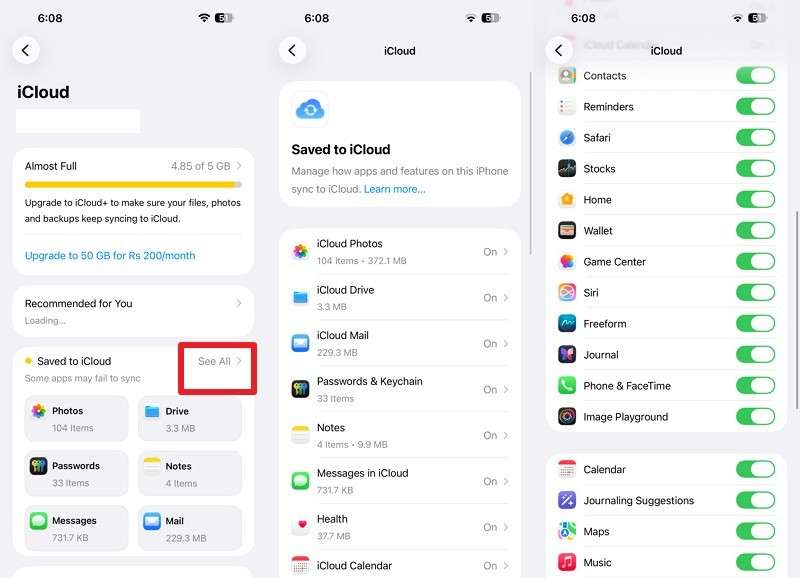
Step 2. Use the same Apple Account during setup or later in Settings.
Step 3. Access Settings > [Your Name] > iCloud > See All and enable the same features.
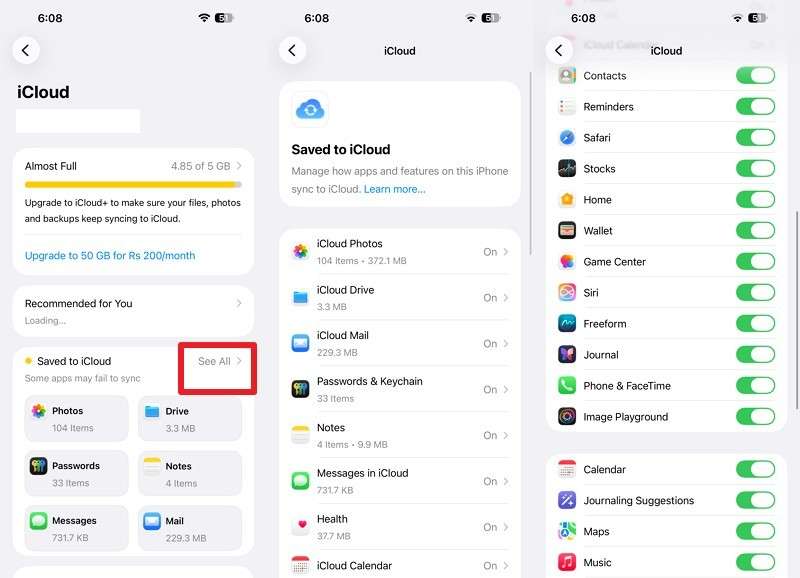
Note: Open Contacts, Notes, Calendar, or Photos on your new iPhone and let the content load. You can sync multiple cloud categories at once without turning them on individually.
Method 7. Transfer Photos, Videos, and Files with AirDrop
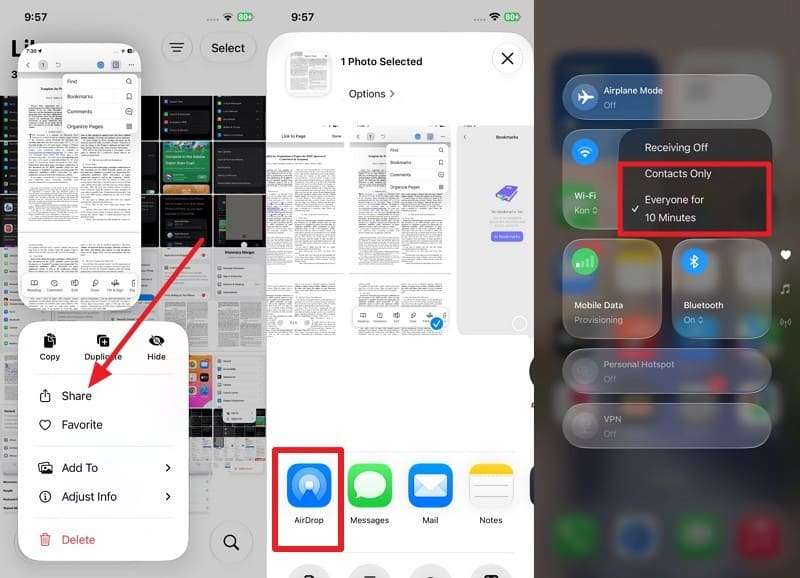
AirDrop is useful when you only need to move selected photos, videos, or documents from the old iPhone to the iPhone 18 Pro. It works directly between nearby Apple devices and does not require an iCloud storage plan. Both devices need Wi-Fi and Bluetooth enabled, and you can transfer data to iPhone 18 Pro via these steps:
Step 1. Go to Photos > Long-Press an image > Share > AirDrop: Set iPhone 18 Pro settings to Contact Only or Everyone for 10 Minutes.
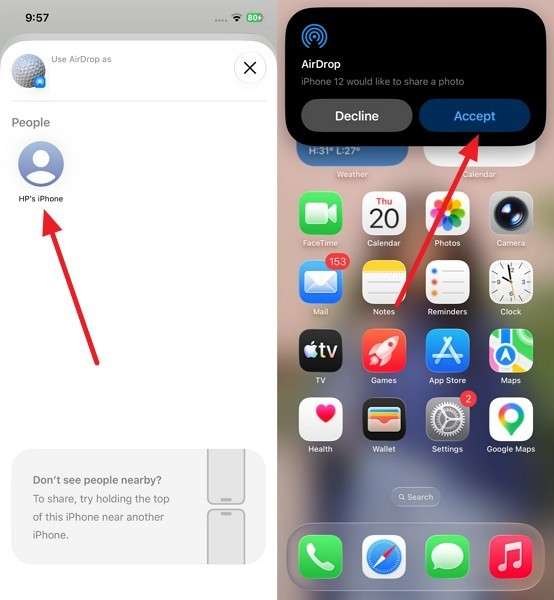
Step 2. Choose iPhone 18 Pro on old phone > Press Accept > View on iPhone 18 Pro.
Part 3. Compare iPhone 18 Pro Data Transfer Methods
Compare the available methods below to choose the right option to transfer everything from old iPhone to iPhone 18 Pro based on your setup and transfer needs.
| Method | Type | Web | PC | Post-Setup | Pick Data | Suits | Watch For |
| MobileTrans | Direct | No | Yes | Yes | Yes | Configured iPhones or selective transfer | Paid, computer required |
| Quick Start | Direct | Yes | No | No | No | Two iPhones available together | Both devices occupied during transfer |
| iCloud Backup | Backup | Yes | No | No | No | Restoring without keeping old iPhone nearby | Temporary backup expires after 21 days |
| Finder Backup | Backup | No | Yes | No | No | Keeping a local Mac backup | New or erased iPhone required |
| Apple Devices | Backup | No | Yes | No | No | Windows backup and restore | New or erased iPhone required |
| iCloud Sync | Selective | Yes | No | Yes | Yes | Photos, contacts, notes, and calendars | Changes and deletions can sync |
| AirDrop | Selective | No | No | Yes | Yes | Selected photos, videos, and files | Not for full-device migration |
Verdict: MobileTrans is the recommended choice for transferring data to iPhone 18 Pro because it works with both configured and not-yet-configured iPhones. It supports selective transfers, different Apple Accounts, and direct data migration without requiring you to erase an already configured device.
Part 4. How to Fix iPhone 18 Pro Data Transfer Problems?
These 6 common issues can interrupt attempts to transfer data to iPhone 18 Pro. Review what causes each problem and the practical fixes that can help complete the migration smoothly.
| Problem | What to Check | Quick Fix |
| Quick Start Doesn't Detect iPhone 18 Pro | Wi-Fi, Bluetooth, setup status | Turn on Wi-Fi and Bluetooth, keep both iPhones nearby, and restart them if the Quick Start prompt disappears. |
| iPhone-to-iPhone Transfer Stuck | Connection, data size, power | Keep both iPhones connected to power and close together. If wireless transfer keeps failing, retry using a supported cable connection. |
| iCloud Backup Missing | Apple Account, backup date, expiry | Confirm you signed in with the correct Apple Account and selected the latest backup. Check the expiry date for temporary iCloud backups. |
| Not Enough Storage | Available storage on iPhone 18 Pro | Free up space on the destination iPhone or reduce the amount of content being transferred before trying again. |
| Mac/Windows PC Doesn't Detect iPhone | Cable, Trust prompt, software | Unlock the iPhone, tap Trust when prompted, update Finder or Apple Devices, and try another compatible data cable or USB port. |
| Photos, Messages, or Apps Missing | Sync and download status | Keep the iPhone connected to Wi-Fi and power. Apps, photos, messages, and other iCloud content may continue downloading after setup. |
Part 5. What to Do After Transferring to iPhone 18 Pro
After you successfully transfer your old iPhone to iPhone 18 Pro, complete these final checks to make sure your data, apps, and settings are ready to use.
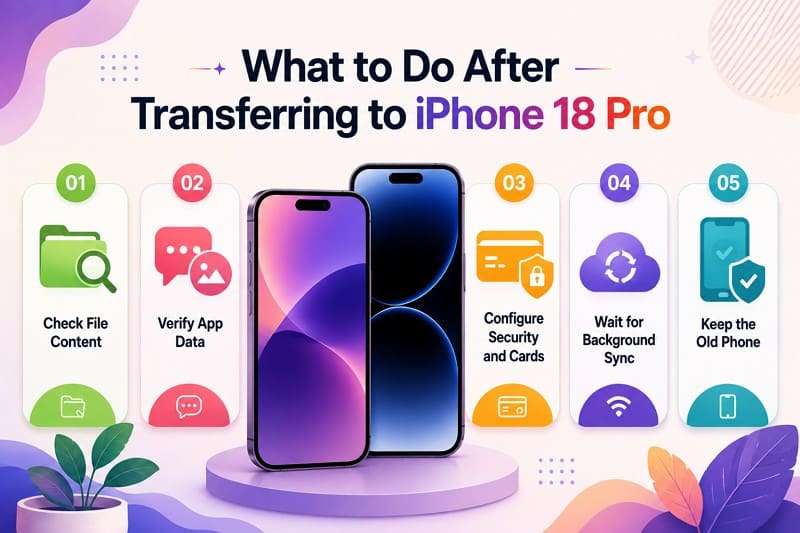
- Check File Content: Review older photos, documents, messages, and other important files, not just recent content. This helps confirm that the transfer completed properly.
- Verify App Data: Open important apps and check older conversations, attachments, and account information. Some app content may still be downloading or require you to sign in again.
- Configure Security and Cards: Re-add Apple Pay cards and re-enroll Face ID. For your eSIM, supported carriers may allow you to transfer it from the old iPhone during or after setup.
- Wait for Background Sync: Keep the iPhone connected to Wi-Fi and power while apps, photos, messages, and other iCloud content continue downloading in the background.
- Keep the Old Phone: Do not erase your previous iPhone until you have verified important files, apps, photos, messages, and account access on the new device.
Conclusion
Choose a transfer method based on your setup, device status, and data needs. For the most flexible option, MobileTrans works with both configured and not-yet-configured iPhones, supports selective transfers, and does not require the same Apple Account on both devices. It also avoids erasing an already configured iPhone. This makes MobileTrans a practical choice for transferring data from iPhone to iPhone 18 Pro.
FAQ
-
Which iPhone-to-iPhone transfer method is the fastest?
MobileTrans is a fast, flexible option for direct iPhone-to-iPhone transfers, while wired Quick Start can reduce wireless interruptions. Actual transfer speed still depends on data size, devices, and connection conditions.
-
How do I transfer data to an iPhone that is already set up?
Use iCloud syncing, AirDrop, or MobileTrans. Quick Start and full backup restore require a new or freshly erased iPhone, while MobileTrans can transfer selected data without resetting an already configured device.
-
What data does not transfer automatically to a new iPhone?
Apple Pay cards and Face ID must be set up again. Supported carriers may allow eSIM transfer. Health data, saved passwords, and call history can be transferred through supported methods, including encrypted computer backups.
-
Do I need an iCloud backup to transfer to a new iPhone?
No. MobileTrans offers a flexible way to transfer data directly between iPhones without iCloud, while Quick Start, Finder, and Apple Devices also provide backup-free or local transfer options.










