



 TL;DR:
Choosing the right data transfer method for your new iPhone Duo depends entirely on its setup status: use Quick Start or full device backups for a complete migration during the initial setup, or rely on MobileTrans and cloud syncing for selective transfers after the device is already configured.
● Quick Start requires both iPhones to remain nearby, plugged into power, and connected to Wi-Fi and Bluetooth, whereas iCloud Backup restorations grant eligible users 21 days of temporary storage but strictly require erasing the iPhone Duo if it has already bypassed the setup screen.
● MobileTrans is best suited for users needing to move specific data to an already-configured iPhone Duo, allowing selective computer-based transfers of 18+ data types while preserving existing destination files unless the "Clear data before copy" setting is manually selected.
● Security credentials and cellular services do not migrate automatically, meaning you must manually re-enroll your fingerprint for the iPhone Duo's side-button Touch ID, re-verify Apple Pay cards, and activate your cellular plan via eSIM Quick Transfer or a carrier-provided QR code.
Ask AI for a summary
 ChatGPT
 Perplexity
 Gemini
 Claude
 Grok
Grok
Moving to a new iPhone Duo does not mean every transfer method works the same way. The right option depends on whether your new iPhone is still on the setup screen and whether you want to move everything or only selected data. Quick Start and backup restore support full migration during setup, while MobileTrans, iCloud sync, and cloud storage provide more selective options afterward.
Some items also need separate attention once your data arrives. Cellular activation, security settings, and certain device-specific features may require additional setup. This guide explains six ways to transfer data from an old iPhone to an iPhone Duo, helping you choose a suitable method based on your device status and transfer needs.
In this article


Part 1. What Is the Best Way to Transfer Data from Old iPhone to iPhone Duo?
Choosing how to transfer data from an old iPhone to an iPhone Duo depends on whether your new device is already set up and how much data you want to move. Compare the methods below to find the right option for a full or selective transfer:
|
Method |
Full or Selective |
After Setup Without Erasing Data |
Computer Required? |
Best For |
|
Quick Start |
Full |
No |
No |
Complete migration with both iPhones available |
|
iCloud Backup |
Full |
No |
No |
Restoring a recent cloud backup |
|
Mac or PC Backup |
Full |
No |
Yes |
Restoring a locally stored device backup |
|
MobileTrans |
Full & Selective |
Yes |
Yes |
Direct transfer without resetting the new iPhone |
|
iCloud Sync |
Selective |
Yes |
No |
Keeping supported data synced across both iPhones |
|
Cloud Storage |
Selective |
Yes |
No |
Moving selected files and media stored online |
What to Check Before Moving Your Data to iPhone Duo
Before you move data from an old iPhone to iPhone Duo, a few checks can help prevent storage, connection, and account problems during the transfer. Keep your old iPhone unchanged until you confirm that all important data is available on the new device. Check the following before getting started:
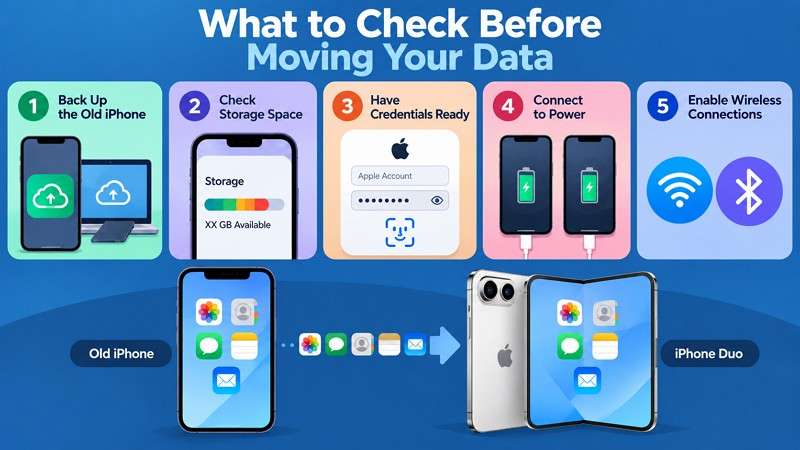
- Back Up the Old iPhone: Create a recent backup before you start the transfer so your important data stays protected. Apple supports iPhone backups through iCloud, Mac, or PC.
- Check Available Storage: Make sure iPhone Duo has enough storage for the content you plan to move. This is especially important when transferring the entire old iPhone.
- Keep Account Details Ready: Have your Apple Account password and old iPhone passcode available for sign-in and verification during setup. Apple recommends having these details ready before transferring to a new iPhone.
- Connect Both iPhones to Power: Plug both devices into power before starting the transfer. For Quick Start, Apple recommends keeping them plugged in until the migration is complete.
- Prepare the Required Connections: For Quick Start, connect the old iPhone to Wi-Fi, enable Bluetooth, and keep both devices nearby, as Apple instructs. For iCloud methods, maintain a reliable internet connection.
Part 2. How to Transfer Everything from Old iPhone to iPhone Duo with Quick Start
Quick Start is Apple’s built-in option to transfer everything from an old iPhone to an iPhone Duo during initial setup. Keep both devices nearby, connect your old iPhone to Wi-Fi, and turn on Bluetooth. Apple lets you transfer data directly from the old iPhone or download your apps and data from iCloud, which can continue in the background after setup.
You can also transfer data wired if you prefer to connect the devices directly. The required cable depends on the connectors on both iPhones. For two USB-C iPhones, Apple supports connecting them with a USB-C Charge Cable. Once both iPhones are ready, follow these steps to complete the Quick Start transfer:
Note: If iPhone Duo is already set up and you want to use a setup-based transfer method, you must erase the device first. Erasing it returns the iPhone to the setup process, where you can transfer or restore your data.
- Step 1. Connect the old iPhone to Wi-Fi and turn on Bluetooth > Turn on iPhone Duo and place it near the old iPhone.
- Step 2. Tap Continue on the old iPhone when the Quick Start prompt appears > Wait for an animation to appear on iPhone Duo.
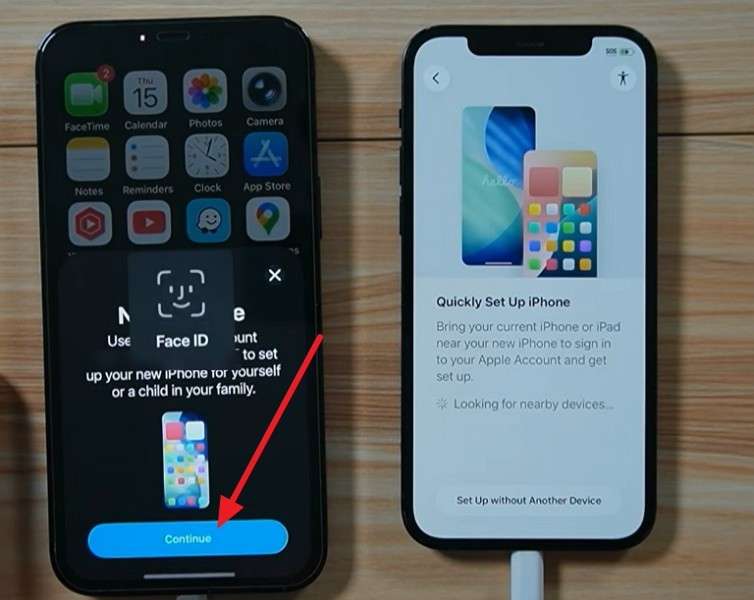
- Step 3. Use the old iPhone to scan the animation displayed on iPhone Duo > Follow the prompts > Enter the old iPhone’s passcode on iPhone Duo when requested.
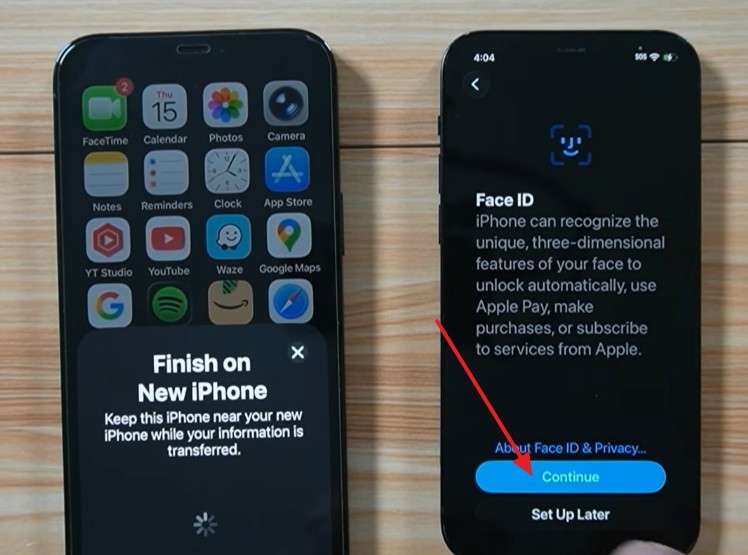
- Step 4. Follow the setup prompts until you reach the data transfer options > Choose Transfer from iPhone for a direct transfer > Continue through the remaining prompts.
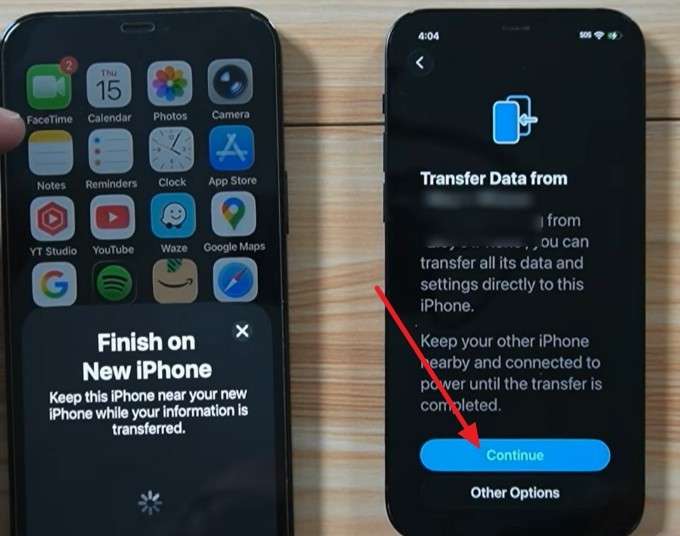
- Step 5. Keep both iPhones nearby and connected to power while the transfer completes, then finish the remaining setup steps on iPhone Duo.
Part 3. How to Restore Old iPhone Data to iPhone Duo from a Backup
A recent backup offers another way to transfer data from an old iPhone to an iPhone Duo when direct device-to-device transfer isn't possible. During setup, you can restore an iCloud backup or use a backup previously created on a Mac or Windows PC.
Restore iPhone Duo from an iCloud Backup
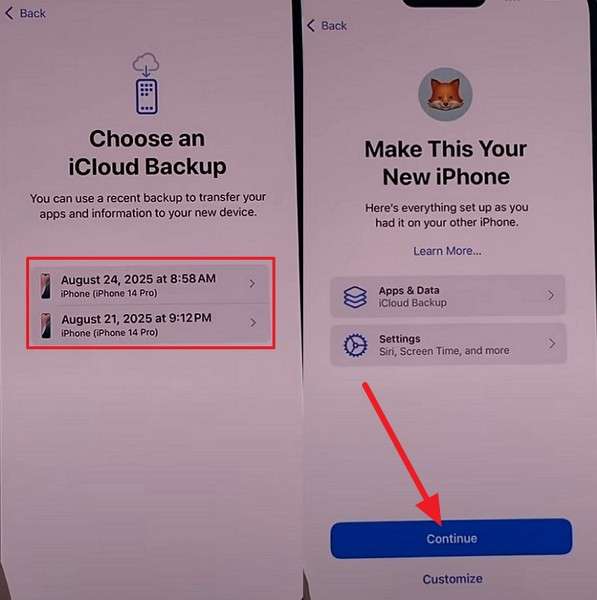
An iCloud backup is useful when both iPhones are not available for a direct transfer. Eligible users can get temporary iCloud storage from Apple when moving to a new iPhone. You have 21 days to restore the temporary backup, with an option to request another 21 days if needed. Once your backup is ready, follow these steps to restore it to iPhone Duo:
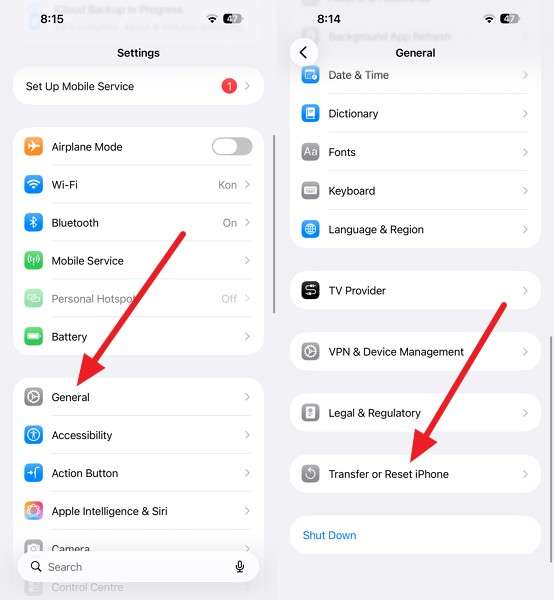
- Step 1. On the old iPhone, open Settings > General > Transfer or Reset iPhone.
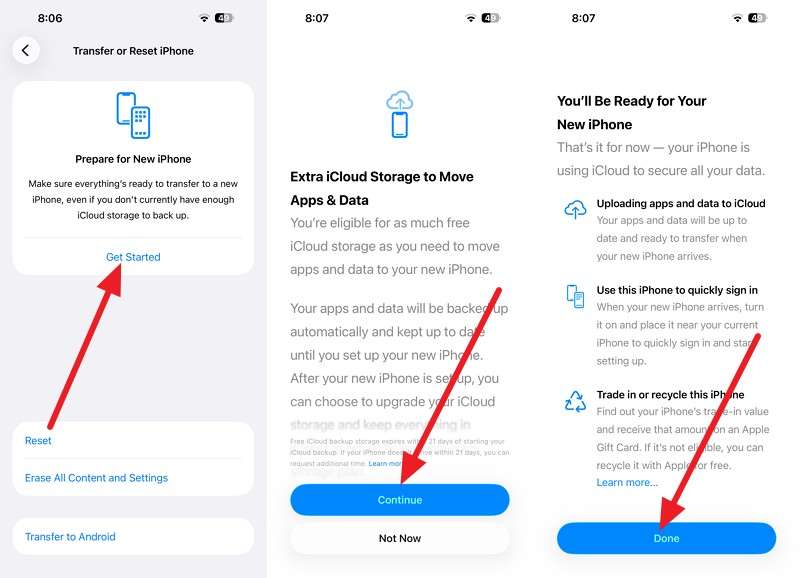
- Step 2. Under Prepare for New iPhone, tap Get Started > Continue > Done.
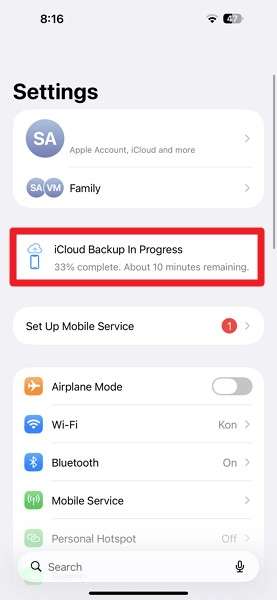
- Step 3. Wait for the iCloud backup to finish before you begin setting up iPhone Duo.
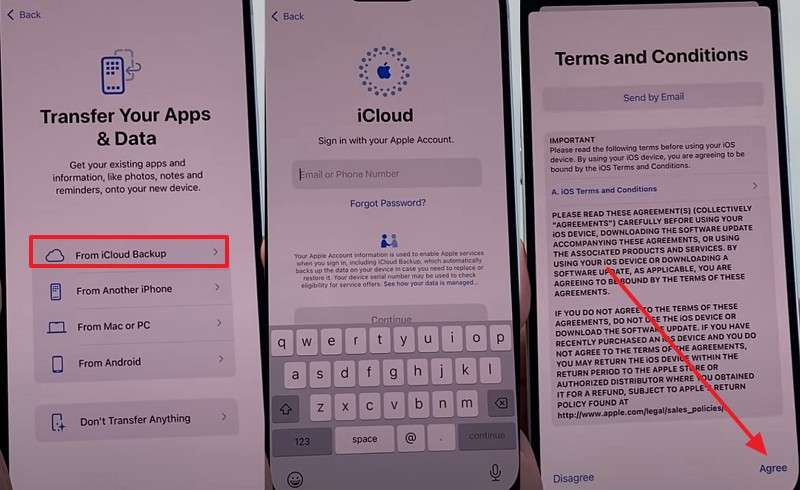
- Step 4. Turn on iPhone Duo > Access Transfer Your Apps & Data. Select From iCloud Backup > Sign in > Agree.
- Step 5. Select iCloud Backup > Continue > Complete setup on iPhone Duo.
Restore iPhone Duo from a Mac or Windows PC Backup
On a Mac, Finder provides another way to move data from an old iPhone to iPhone Duo without using iCloud. Windows users can create and restore backups through the Apple Devices app, while iTunes remains available on supported systems.
For a more complete backup, Apple recommends encryption, which includes additional data such as saved passwords, Wi-Fi settings, and Health data. Keep the encryption password safe because you'll need it to use the backup. Follow these steps to create and restore the computer backup:
- Step 1. Connect the old iPhone to your Mac. Open Finder and select the iPhone under Locations in the sidebar.
- Step 2. Go to the General tab and select Back Up All of the Data on Your iPhone to This Mac > Back Up Now.
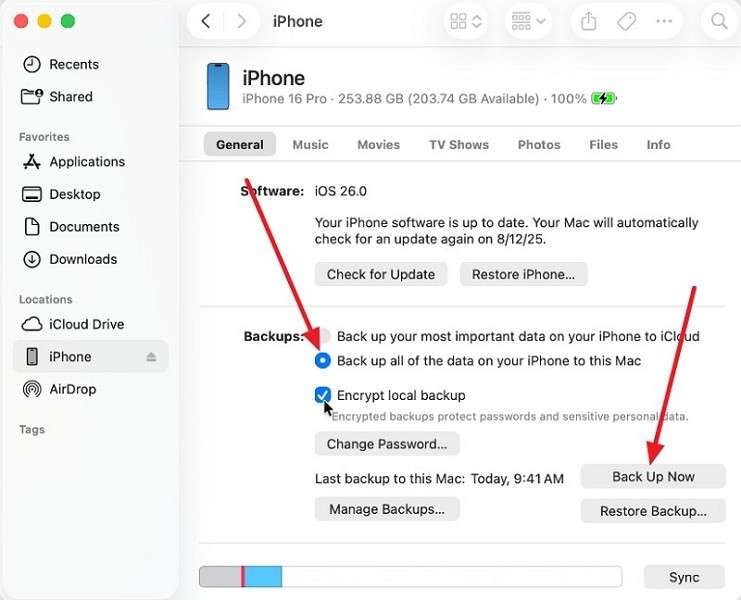
- Step 3. Wait for the backup to finish before disconnecting the old iPhone.
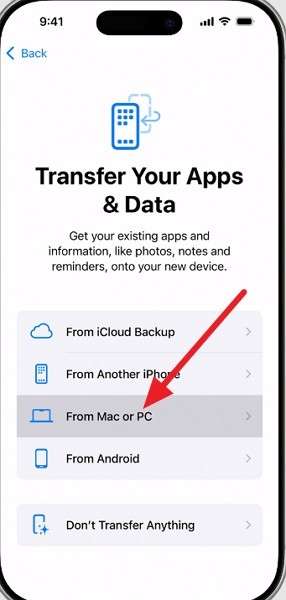
- Step 4. During iPhone Duo setup, choose From a Mac or PC, then connect iPhone Duo to the Mac that contains the backup.
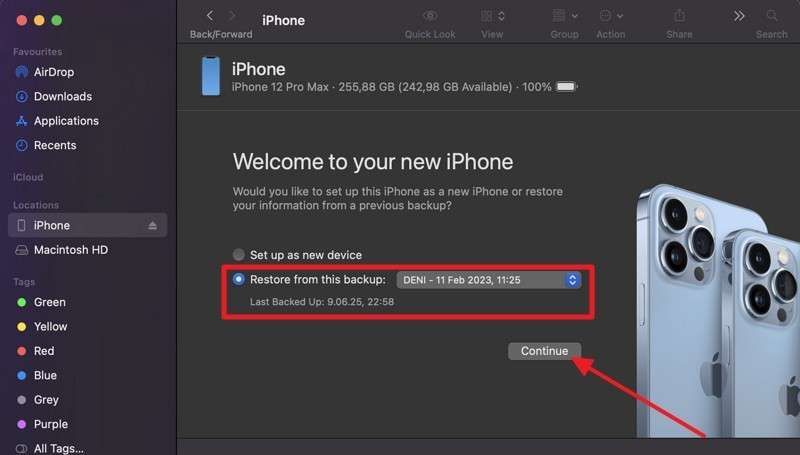
- Step 5. Select iPhone Duo, then choose Restore from This Backup. Select your old iPhone backup, then press Continue.
Part 4. How to Transfer Data to iPhone Duo After Setup Without Resetting
Once iPhone Duo is set up, Quick Start and full backup restoration require you to erase the device and restart the setup process. To transfer data from an old iPhone to an iPhone Duo without resetting it, use an after-setup option such as MobileTrans, iCloud sync, or cloud storage.
Method 1. Transfer Data with MobileTrans
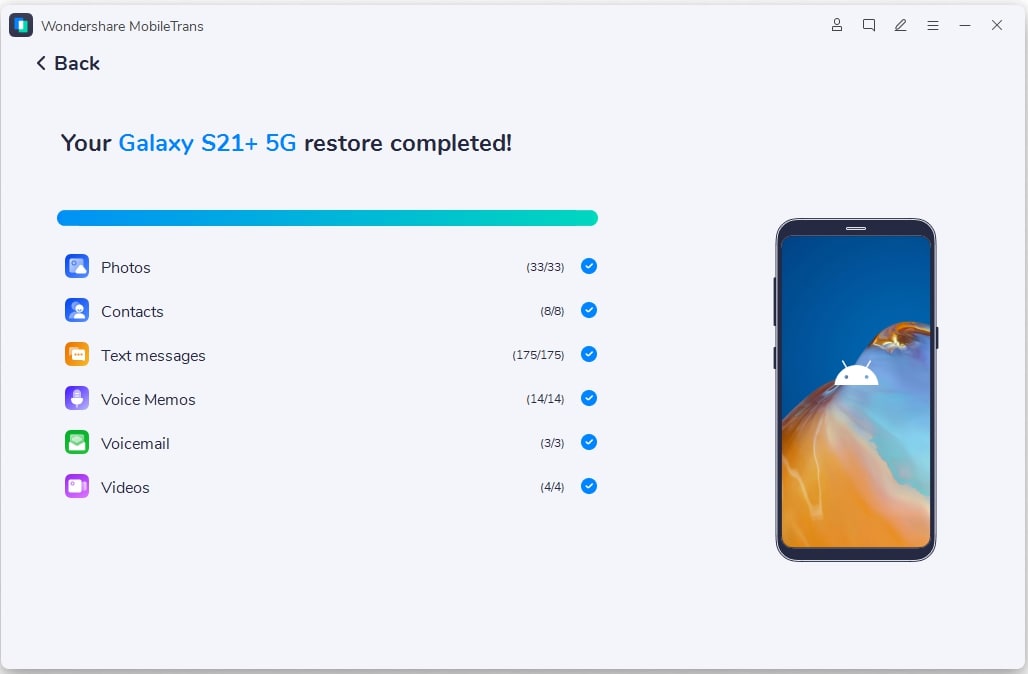
To move data from an old iPhone to iPhone Duo after setup, MobileTrans-Phone Transfer provides a computer-based transfer option without requiring you to erase the new iPhone. With both devices connected to a Windows PC or Mac, the Phone Transfer feature supports 18+ data types and lets you select the categories you want to move. MobileTrans also supports transfers between iOS and Android devices.
Beyond common content such as photos, contacts, videos, and messages, MobileTrans supports certain app data and dedicated transfers for services such as WhatsApp and WhatsApp Business. Instead of copying everything from the old device, you can choose supported data categories before starting the transfer. This is useful when iPhone Duo is already configured, and you only need to move specific content.
- Preserve Existing Destination Data: MobileTrans does not clear the destination by default. Existing data is erased only when you select the optional Clear data before copy setting.
- Local Backup and Restore: Save supported phone data to your computer and restore selected content later without relying on cloud storage.
- Restore Existing iTunes Backups: Access old iTunes backups, preview available content, and restore selected supported data without completing a conventional full iTunes restore.
- Transfer Apps and In-App Data: MobileTrans can detect supported apps for batch installation and may transfer compatible in-app data, including supported game saves.
- Phone and Computer File Transfer: Beyond phone-to-phone migration, MobileTrans can export supported files to a computer and import supported content back to a phone.






Follow these two steps to use MobileTrans and learn how to transfer data from old iPhone to iPhone Duo after setup:
- Step 1. Launch the tool > Choose Phone Transfer > Phone to Phone > Connect the old iPhone and iPhone Duo.

- Step 2. Select the data types, then press Start to move data to iPhone Duo.
Method 2. Sync Data to iPhone Duo with iCloud Sync
When both iPhones use the same Apple Account, iCloud offers a convenient way to transfer data from an old iPhone to an iPhone Duo after setup. It can sync supported content, including photos, contacts, calendars, notes, and reminders, across your devices. Unlike a backup restore, synced information stays updated when changes occur. Check that your required data is already stored in iCloud, then follow these steps to sync it with iPhone Duo:
- Step 1. On the old iPhone, go to Settings > [Your Name] > iCloud > See All.
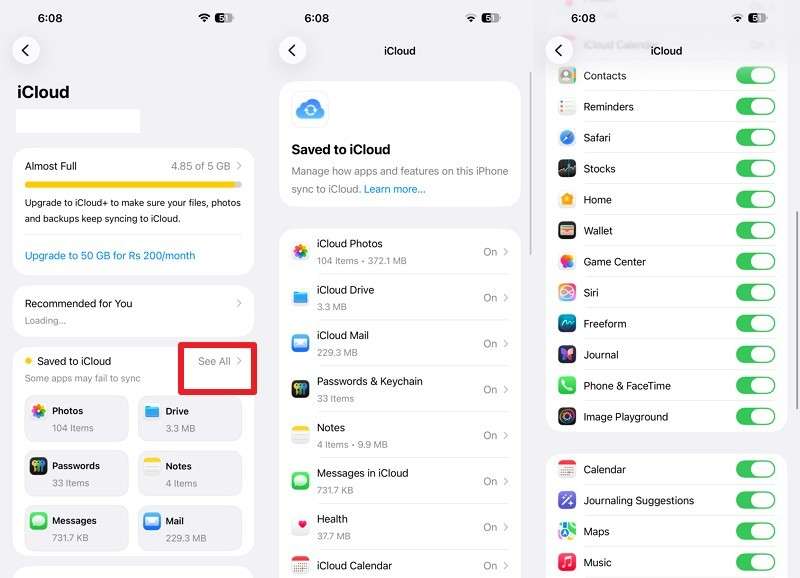
- Step 2. Make sure the apps and features you want to back up are set to use iCloud.
- Step 3. Sign in on iPhone Duo with the same Apple Account used on the old iPhone.
- Step 4. Navigate to Settings > [Your Name] > iCloud > See All. Turn on the apps and features you want to sync.
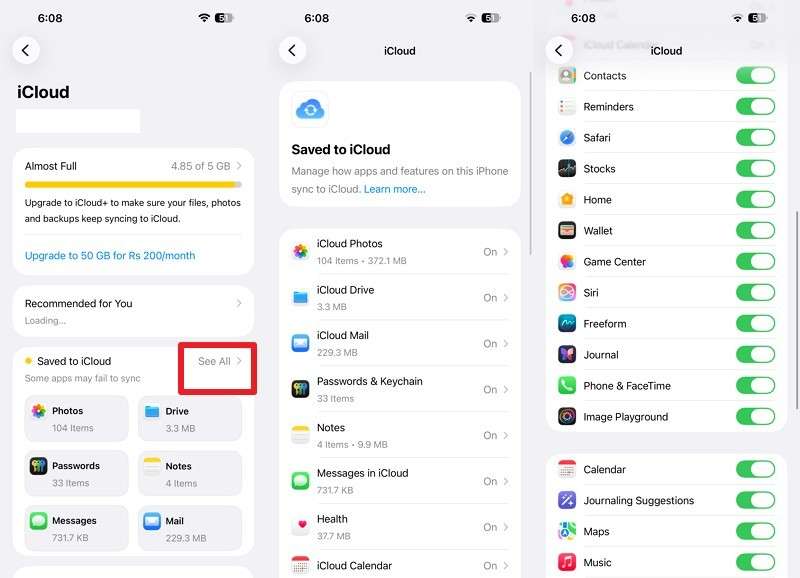
Note: Depending on the feature, you may see an option such as Sync this iPhone or Use on this iPhone.
Method 3. Transfer Files and Media Through Cloud Storage
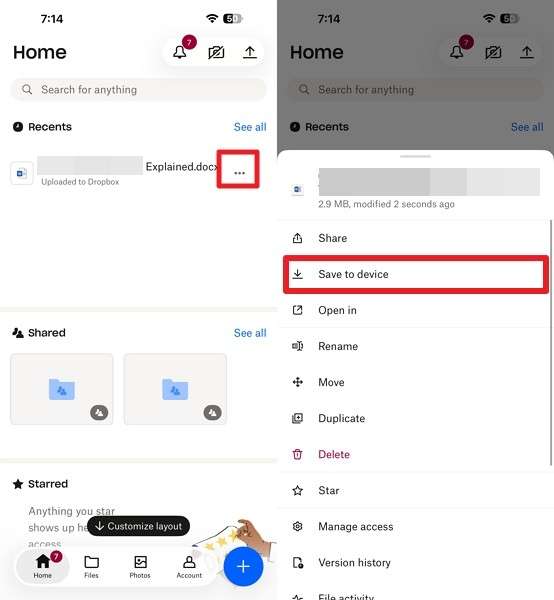
Cloud storage is useful when you only need to move data from an old iPhone to an iPhone Duo after setup. Options such as iCloud Drive, Google Drive, OneDrive, and Dropbox let you access selected files across devices by signing in to the same account. Unlike full-device migration, these services focus on files already uploaded or synced to the cloud. The steps below use Dropbox as an example for transferring selected files to iPhone Duo:
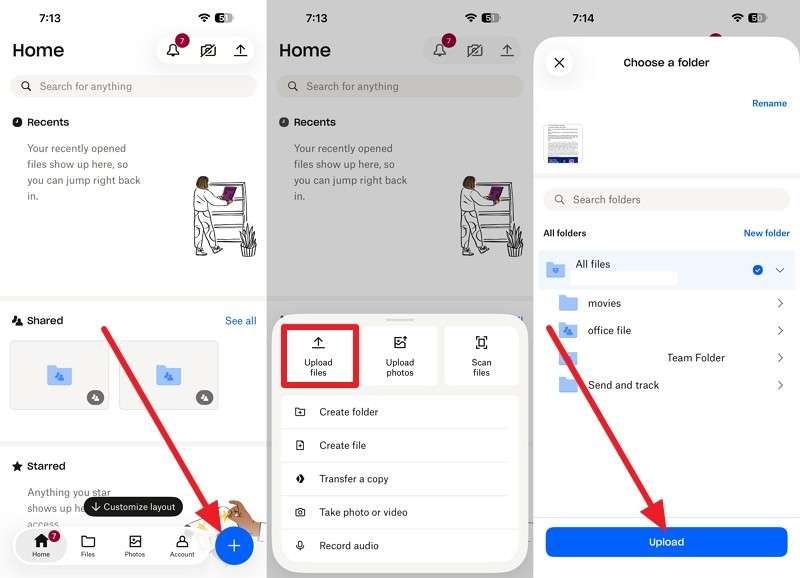
- Step 1. On the old iPhone, open Dropbox > Tap + > Upload File > Select files > Press Upload.
- Step 2. Install Dropbox on iPhone Duo and sign in with the same Dropbox account.
- Step 3. Go to Recents > Locate the file > Tap the three dots > Save to Device on iPhone Duo.
Part 5. What May Need Separate Setup After Transferring to iPhone Duo?
Even after you transfer data from an old iPhone to an iPhone Duo, some services and device-specific features require separate setup. Check the following areas before you stop using or erase your old iPhone:
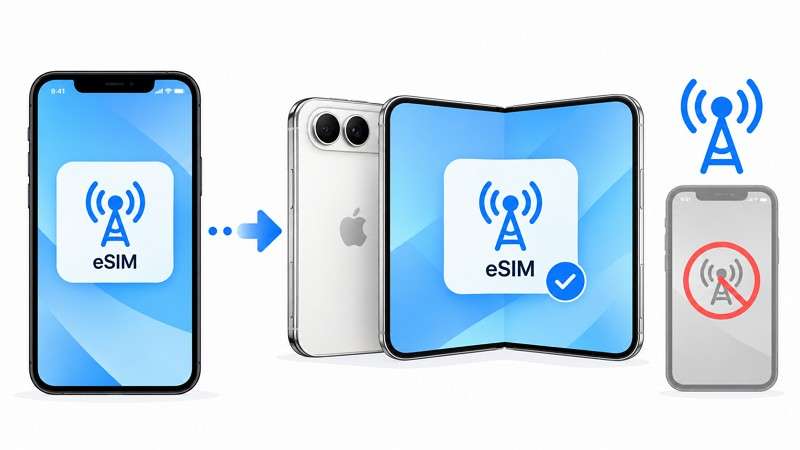
1. eSIM and Cellular Service
Your phone number may transfer during setup, depending on your carrier and SIM type. With Apple’s eSIM Quick Transfer, supported carriers can transfer an eSIM from a nearby iPhone without requiring you to contact them. Other carriers may require activation through a QR code, carrier app, or another supported method. Once the cellular plan activates on iPhone Duo, it is deactivated on the previous iPhone.
2. Touch ID, Apple Pay, and Security Apps
Biometric credentials don't transfer between devices, so you must set up authentication again on iPhone Duo. Apple confirms that iPhone Duo uses Touch ID integrated into the side button, allowing authentication whether the device is open or closed. Users will need to enroll their fingerprint on the new device. Apple Pay cards may also require verification or setup again, while banking and authentication apps can require fresh authorization.
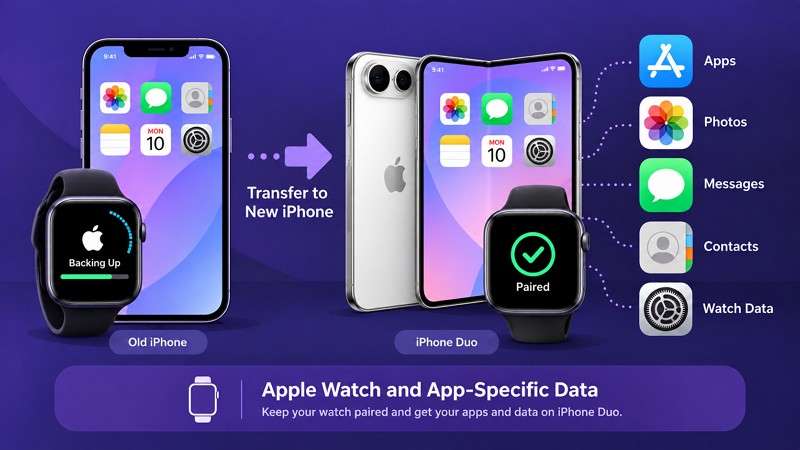
Apple Watch and App-Specific Data
After you move data from an old iPhone to iPhone Duo, check whether your Apple Watch is paired correctly with the new device. Apple includes an Apple Watch backup with the paired iPhone backup. During setup, you may be prompted to use your Apple Watch with your new iPhone. If not, open the Apple Watch app on the new iPhone and follow the on-screen instructions to complete pairing.
Part 6. How to Fix Data Transfer Problems on iPhone Duo?
Transfer problems can occur because of connection, storage, account, or setup issues. If you cannot transfer data from an old iPhone to an iPhone Duo successfully, use the table below to identify the likely cause and find an appropriate fix:
|
Problem |
Likely Cause |
Recommended Fix |
|
Quick Start Does Not Appear |
Wi-Fi or Bluetooth is off, or the iPhones are not close enough. |
Enable Wi-Fi and Bluetooth, keep both iPhones nearby, and restart them if needed. |
|
Transfer Stuck on Preparing |
The connection is unstable, or the devices need more time to prepare. |
Keep both iPhones nearby and connected to power, then allow more time. |
|
Transfer Stops Before Completion |
The connection drops, the battery is low, or the destination has insufficient storage. |
Check the connection, power, and available storage, then restart the transfer. |
|
Not Enough Storage |
The content being transferred exceeds the available storage on iPhone Duo. |
Remove unnecessary content from the source or use selective transfer. |
|
iCloud Backup Does Not Appear |
You may be using the wrong Apple Account, or the required backup may be unavailable. |
Verify the Apple Account and confirm the correct backup and its date. |
|
iCloud Data Is Missing |
Required iCloud features are disabled, or syncing has not finished. |
Enable the relevant iCloud features and stay connected to Wi-Fi until syncing finishes. |
Choosing the right transfer method depends on whether iPhone Duo is still in setup or already configured. Quick Start and backups work well for full migration, while iCloud Sync, cloud storage, and MobileTrans-Phone Transfer support different after-setup needs.
Before clearing your old device, confirm that important data, cellular service, and security features are ready. With the right method, you can transfer data from an old iPhone to an iPhone Duo without leaving essential content behind.
FAQ
-
What is the easiest way to transfer everything from an old iPhone to iPhone Duo?
Quick Start is easiest when iPhone Duo is still in setup, and both devices are available. If iPhone Duo is already configured, MobileTrans can move supported data from the old iPhone without requiring a reset. -
Can I transfer data to iPhone Duo after setup without resetting it?
You can move data to iPhone Duo even after completing setup. MobileTrans handles supported transfers without erasing the device, while iCloud Sync and cloud storage help you bring over specific synced data or files. -
Can I transfer old iPhone data to iPhone Duo using iCloud Sync?
Yes. iCloud Sync can bring supported content, such as photos, contacts, notes, and calendars, to iPhone Duo when both devices use the same Apple Account. It syncs enabled data rather than restoring the entire iPhone. -
Can I transfer data from old iPhone to iPhone Duo without iCloud?
Quick Start supports direct iPhone-to-iPhone transfer during setup, while a computer backup provides another iCloud-free option. After setup, MobileTrans can move data from an old iPhone to iPhone Duo without relying on iCloud.










