



 TL;DR:
You can transfer data to an already set-up iPhone 18 Pro without erasing it by using cloud syncing, AirDrop, or desktop software to bypass Apple's restriction that Quick Start and Move to iOS require a full device reset.
● Moving restricted cross-platform data like WhatsApp chat history and messages requires third-party software like MobileTrans, as iOS cannot natively restore Android Google Drive backups after the initial setup phase.
● Syncing media from an Android device through Google Photos keeps the images isolated within the standalone iOS app instead of automatically merging them into the native Apple Photos library.
● Select either iCloud or a single Google Account as your primary sync source before transferring contacts and calendars to prevent overlapping entries and duplicate records on the new device.
Ask AI for a summary
 ChatGPT
 Perplexity
 Gemini
 Claude
 Grok
Grok
Already set up your new iPhone but still need photos, contacts, or other files from your old device? You can transfer data to iPhone 18 Pro after setup without erasing everything and starting again. Depending on the data type, you can use iCloud, AirDrop, cloud storage, a computer, or dedicated transfer software. This guide covers 8 practical methods for moving important data while keeping your existing iPhone setup intact.
In this article


Part 1. Can You Transfer Data to iPhone 18 Pro After Setup?
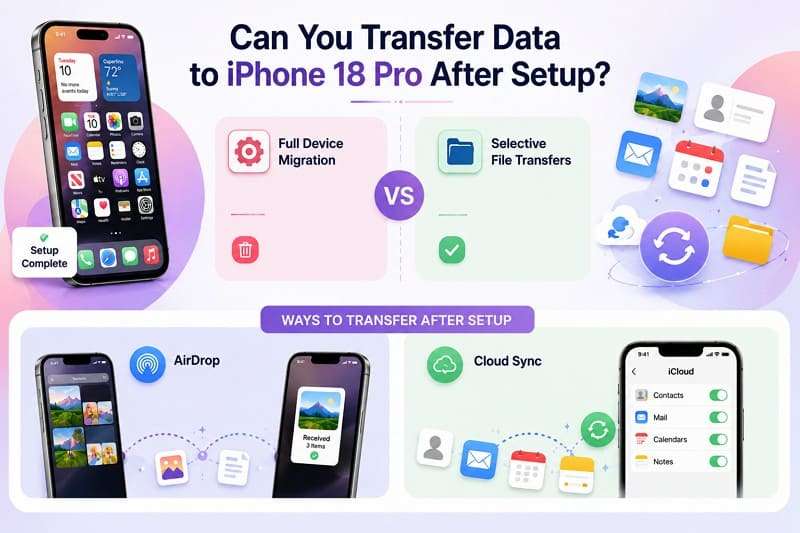
Yes, but the right method depends on what you need to move. Apple requires Quick Start during initial setup, so using it again means erasing the configured iPhone first. However, you can still transfer data to iPhone 18 Pro without resetting through AirDrop, cloud accounts, computer syncing, or third-party transfer tools. AirDrop handles nearby files, while cloud services and desktop software can move broader data types after setup.
Part 2. 8 Ways to Transfer Data to iPhone 18 Pro Without Resetting
One method covers most data types, while the other 7 focus on specific content. You can combine multiple options to transfer data to iPhone after setup without resetting.
1. Transfer Multiple Data Types
Method 1. Transfer Data to iPhone 18 Pro with MobileTrans
MobileTrans-Phone Transfer reads directly from the source smartphone and writes to the iPhone 18 Pro over USB, so it never enters the setup window Apple enforces. The tool can move up to 18 files between devices, including photos, videos, contacts, and messages. This works across platforms so that you can switch between Android and iOS without issues. Users can also share 5 files between their phone and computer.
This allows you to back up specific items to a PC or move files from a PC back to a mobile device. MobileTrans also enables you to move data directly from iCloud backups to an Android or iOS device. This phone transfer software can even detect apps on the old device and helps with batch installation on the new phone, often preserving in-app data.
Key Features
- Merges WhatsApp Data: Combines old and existing WhatsApp data during supported transfers instead of overwriting current chats.
- Transfers Home Screen Layout: Moves supported app arrangements and folders between compatible devices, reducing manual setup afterward.
- Supports Different Phone Numbers: Transfers general phone data across supported devices even when the source and destination use different numbers.
- No Prior Backup Needed: Transfers supported data directly from the source phone, so a cloud or computer backup is not always required.
- Multiple Transfer Modes: Supports phone-to-phone transfer, phone-to-computer export, and backup-and-restore workflows from one desktop application.






Guide to Move Data to iPhone 18 Pro Without Erasing.
If your concern is to transfer android to iphone after setup without reset, go through this MobileTrans guide:
Step 1. Choose Phone Transfer > Phone to Phone on MobileTrans.

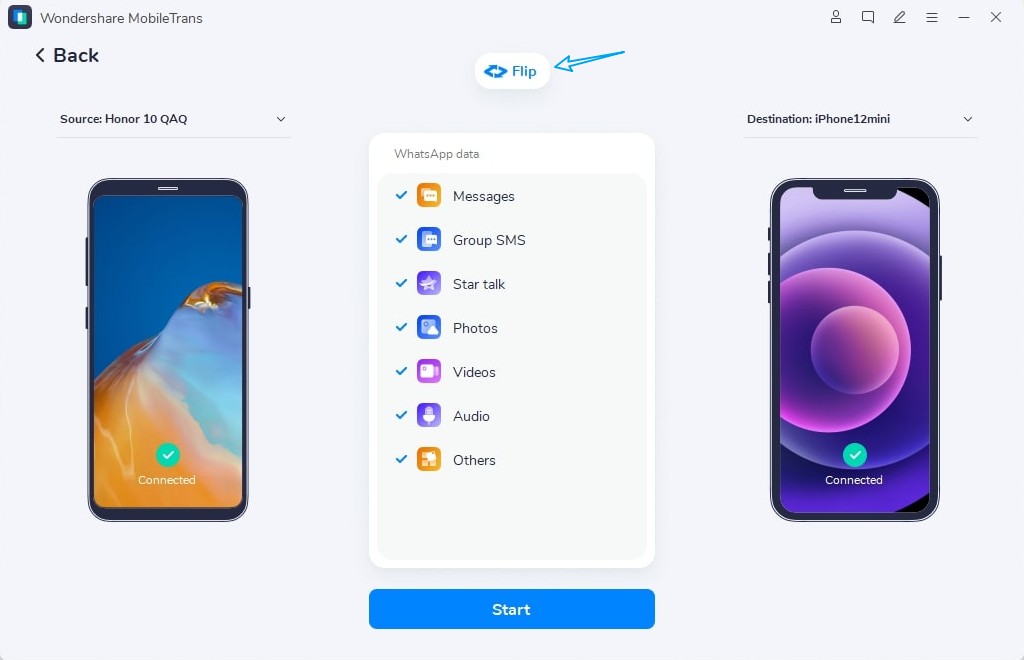
Step 2. Connect both phones, then use Flip if the source and destination are reversed.
Step 3. Select your data types, then press Start to move your data, then review the progress.
2. Transfer from an Old iPhone
Method 2. Sync Data Through iCloud
Signing both phones into the same Apple account automatically syncs contacts, calendars, notes, and photos. This process mirrors data rather than makes a copy, so any later deletion on one device removes the file from the other. Keep the old iPhone signed in until the initial pull finishes. Regarding the guide to transfer data to iPhone after setup without resetting, here are the steps:
Step 1. Go to Settings > [Your Name] > iCloud > See All on the old iPhone and check which categories are enabled.
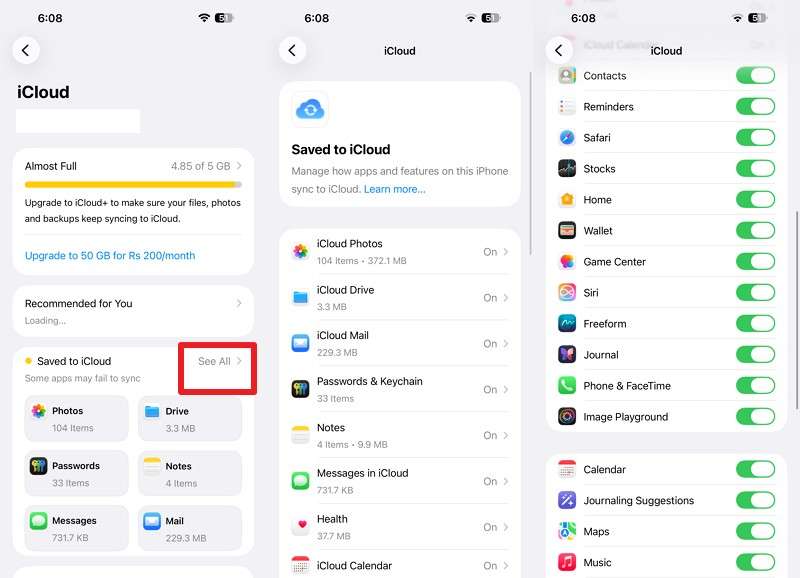
Step 2. Sign in to the same Apple Account on the iPhone 18 Pro.
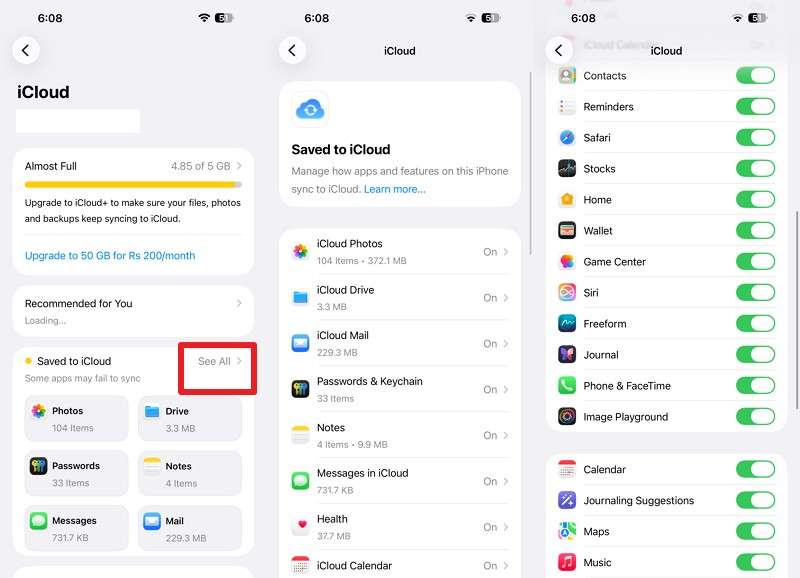
Step 3. Access Settings > [Your Name] > iCloud > See All. Turn on the specific categories you want to sync.
Method 3. Transfer Photos, Videos, Contacts, and Files with AirDrop
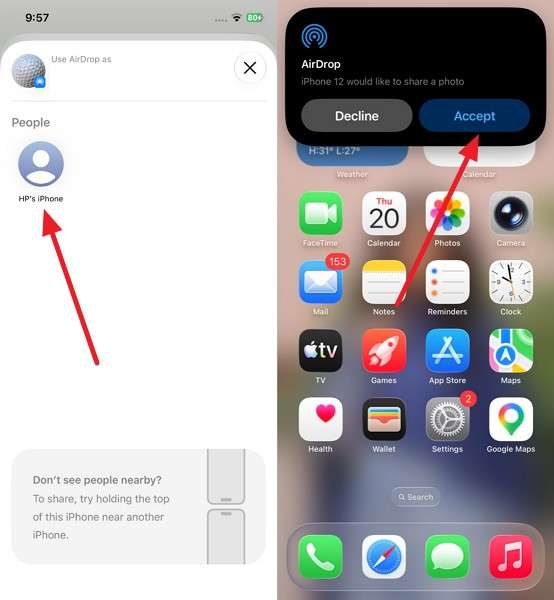
AirDrop is a convenient option for manually selected content. It transfers photos, videos, documents, and contacts directly between nearby Apple devices without cloud storage. Large batches can be less practical, while contacts are typically shared individually. Keep Wi-Fi and Bluetooth enabled on both unlocked devices. Follow these steps to transfer data to iPhone 18 Pro after setup with AirDrop:
Step 1. Choose the required image, video, document, music, or any other important file > Press Share > Select AirDrop. Set the new iPhone to Contact Only or Everyone for 10 Minutes.
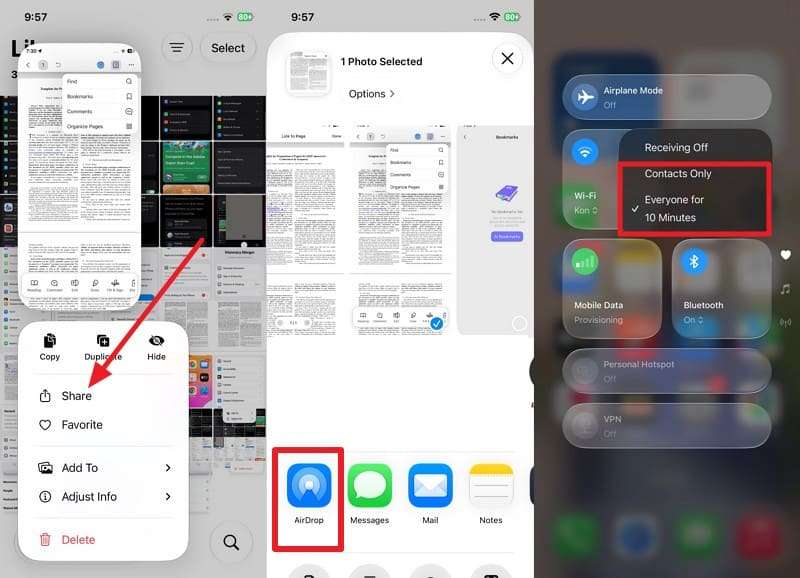
Step 2. Select the new iPhone as it appears on the old one, then press Accept to receive the data on the iPhone 18 Pro.
3. Transfer from an Android Phone
Method 4. Sync Contacts, Mail, and Calendars with a Google Account
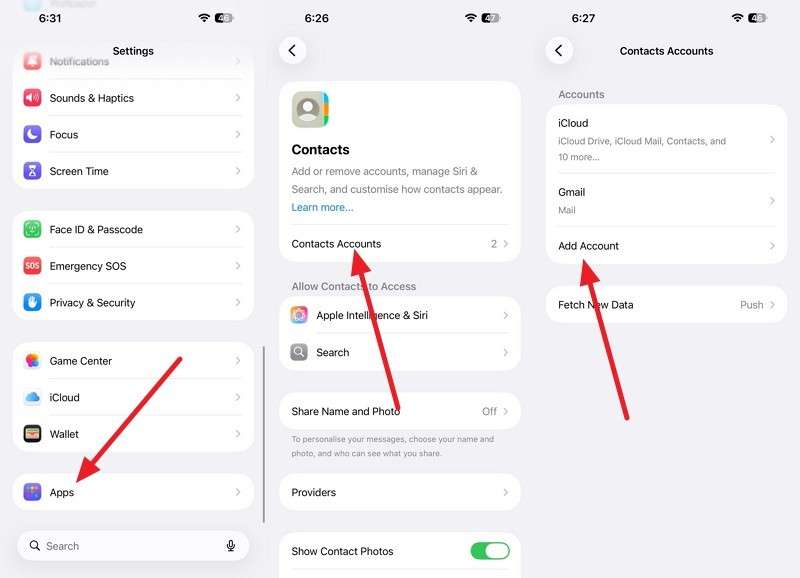
Adding a Google account lets you sync supported Google data, including contacts and calendars, with your iPhone. If iCloud already stores some contacts, enabling Google Contacts can display entries from both accounts. Review your existing contacts first to reduce duplicate or overlapping records, then follow these steps:
Step 1. Go to Settings > Apps > Contacts > Accounts, and choose Add Account.
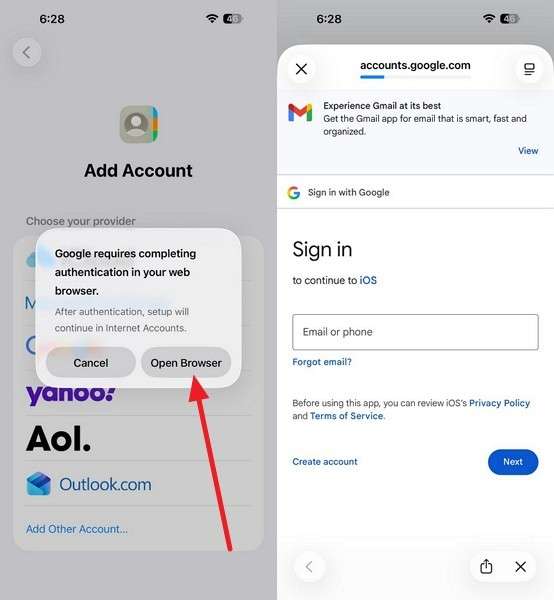
Step 2. Pick Google > Press Open Browser and sign in.
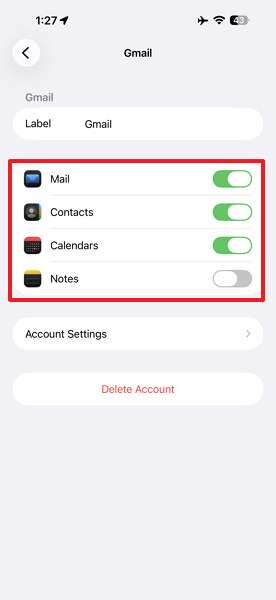
Step 3. Turn on the Google data you want to sync, then wait for syncing to finish.
Method 5. Move Photos and Videos Through Google Photos
If your Android photos are already backed up to Google Photos, install the iOS app and sign in with the same account to access them on your iPhone. The images remain in Google Photos rather than automatically merging into Apple Photos, and saved copies may appear in Recents. Once you understand how this works, follow these steps to transfer data to iPhone 18 Pro without resetting:
Step 1. Open Google Photos on Android > Profile > Photo Settings > Backup. Confirm Backup Is On.
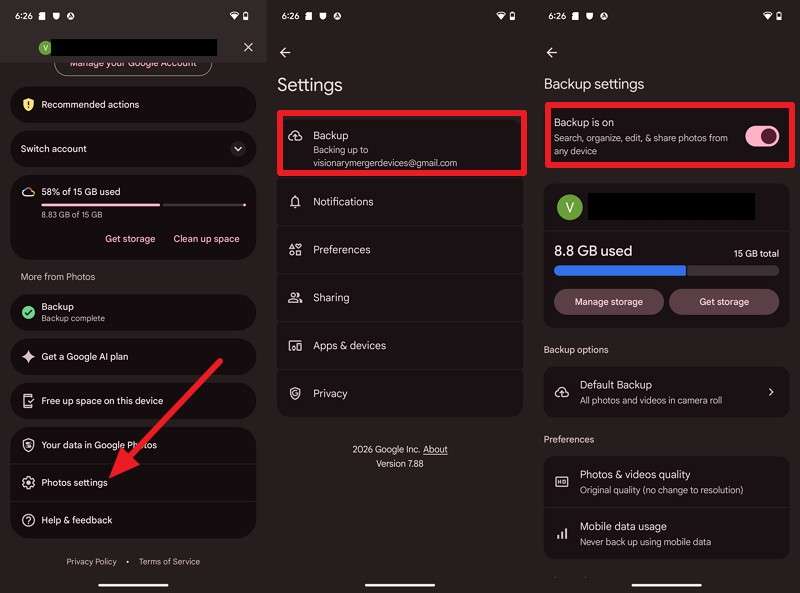
Step 2. On the iPhone 18 Pro, install Google Photos and sign in with the same Google Account.
Method 6. Transfer Files Through Google Drive, OneDrive, or Dropbox
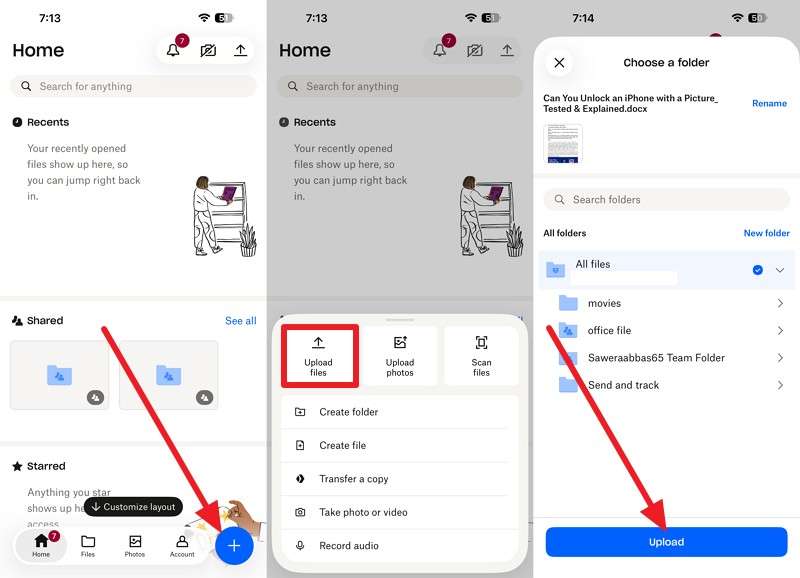
Cloud storage is a practical way to move documents after setup. Upload files from Android, then sign in to the same service on iPhone to access them through its app or the Files app. Free storage varies: Google Drive offers 15GB, OneDrive 5GB, and Dropbox 2GB. Using Dropbox as an example, here is how to transfer iphone to iphone after setup without resetting:
Step 1. Tap + > Press Upload Files > Choose files > Upload.
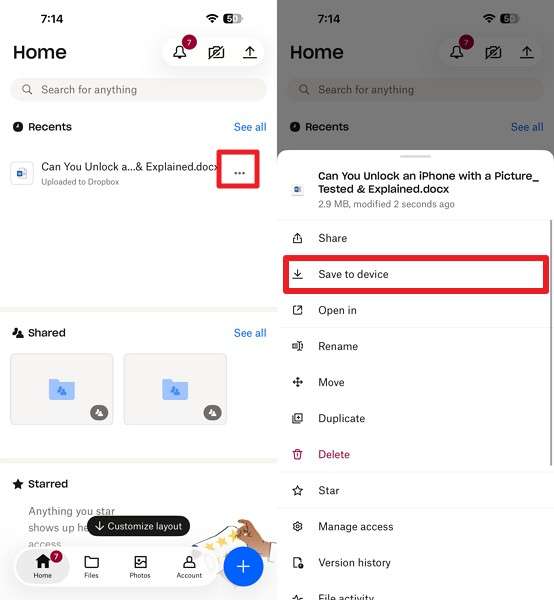
Step 2. Sign in with the same account on iPhone 18 Pro > Go to Recents > Three Dots > Select Save to Device.
4. Manual Data Transfer to iPhone 18 Pro
Method 7. Transfer Documents Using File Sharing on a Computer
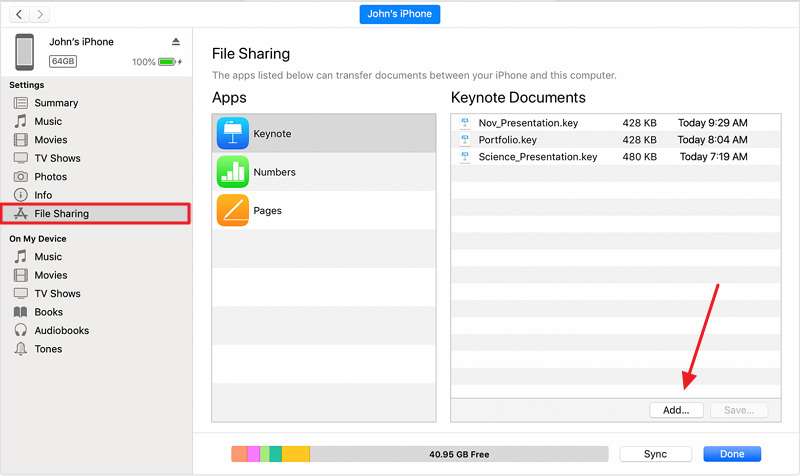
To transfer data to iPhone 18 Pro after setup, File Sharing provides a useful option for supported documents. Copy files from Android to a computer, then use Finder, Apple Devices, or iTunes to move them into apps that support File Sharing. Unlike a full backup restore, this does not require erasing the iPhone. Music follows a separate syncing process rather than File Sharing.
Step 1. Connect the Android phone to your computer > Open its internal storage > Copy the documents you want to transfer.
Step 2. Connect the iPhone > Open File Sharing in Finder, Apple Devices, or iTunes > Choose a supported app > Add the files using the Add button.
5. Transfer WhatsApp or Home Screen Layout
Method 8. Move Other Important Data to iPhone 18 Pro Using MobileTrans
WhatsApp is the obvious one. Google Drive stores Android backups, but iOS cannot read that format, and Apple only transfers chats during setup. The WhatsApp Transfer module moves chat history directly instead. It supports WhatsApp transfers between different operating systems, including Android to iPhone and iPhone to Android, even when the phones use different numbers.
The tool also uses AI to scan your device before transfer. It identifies junk files and duplicates, saving storage space and speeding up the process. Install WhatsApp on the iPhone and verify your number first so the restore has a destination. Once done, follow these steps to transfer data to iPhone 18 Pro after setup, mainly WhatsApp data:

Step 1. Open App Transfer and choose WhatsApp. Pick Transfer or Transfer and Merge.
Step 2. Connect both handsets, enable AI-powered transfer, then tap Start.
Step 3. Review and customize AI Data Optimization results, then tap Start Restore to move data.
Part 3. What Data Can You Transfer After iPhone Setup?
While you transfer data to iPhone 18 Pro without resetting, use the table below to compare each method and choose the best option for every data type:
| Data Type | MobileTrans | iCloud | AirDrop | Cloud Storage | File Sharing | |
| Contacts | Yes | Yes | One at a time | Yes | Via exported file | No |
| Photos and Videos | Yes | Yes | Yes | Google Photos | Yes | App-dependent |
| Messages | Yes | Yes, same Apple Account | No | No | No | No |
| Calendars | Yes | Yes | No | Yes | Limited | No |
| No | Yes | No | Yes | No | No | |
| Music | Yes | Apple Music/iCloud Music Library | Yes | Limited | Yes | App-dependent |
| Documents and Files | Yes | Yes | Yes | Google Drive | Yes | Yes, supported apps |
| WhatsApp Data | Yes | iCloud backup, iPhone only | No | No | No | No |
| Notes | Yes | Yes | Limited sharing | Limited sync | Limited | App-dependent |
| App Data | Partial | Supported apps only | No | No | No | Supported app files |
Messages, WhatsApp, and app data have stricter transfer limits than photos or contacts. MobileTrans is recommended for moving these and other supported data types after setup without resetting or erasing the iPhone.
Part 4. How to Avoid Duplicate or Missing Data on iPhone 18 Pro
When you transfer data to iPhone 18 Pro without resetting, multiple sync sources can create duplicate contacts or overlapping data. Follow these 5 tips to keep the migration organized and avoid missing or repeated content:
- Check Existing Data: Review existing contacts, photos, and calendar entries before transferring anything. This helps prevent importing content that is already stored on the iPhone.
- Move One Category at a Time: Finish transferring contacts before moving photos, videos, or files. Handling one category at a time makes errors easier to identify and fix.
- Choose a Primary Sync Source: Use either iCloud or Google as your main contact source where possible. Multiple active accounts can display overlapping or duplicate contact entries.
- Verify Important Files: Open several transferred photos, documents, and videos instead of relying only on item counts. This confirms the files arrived correctly and remain accessible.
- Keep the Old Phone: Do not erase or trade in the old device until you confirm the migration. It gives you a fallback if anything is missing or needs retransferring.
Conclusion
You do not always need to erase a configured iPhone to move important data. Cloud services and AirDrop work well for selective transfers. At the same time, MobileTrans offers a broader option to transfer data to iPhone 18 Pro after setup without resetting, including supported messages, WhatsApp data, media, contacts, and app content. Choosing the right method for each data type helps keep the migration organized, complete, and easier to verify.
FAQ
-
What data can be transferred to an iPhone after setup?
Contacts, calendars, mail, photos, documents, music, and files can move through cloud services or manual transfer without erasing the iPhone. Messages may sync through iCloud, while WhatsApp history, call logs, and some app data may require dedicated transfer software after setup.
-
Does Quick Start work after an iPhone has already been set up?
No, Quick Start appears only on a device still showing the Hello screen, and it writes over the whole phone, which is why Apple restricts it. Erasing the iPhone is the only way to see it again.
-
How do you transfer WhatsApp to an iPhone without erasing it?
Use desktop software such as MobileTrans to transfer WhatsApp directly from Android to iPhone after setup. Android WhatsApp backups use Google Drive, which iOS cannot restore directly, while Apple’s Move to iOS method works during setup. Exported chats also cannot be imported back into WhatsApp.
-
Will transferring data after setup overwrite existing iPhone data?
Account syncing and manual file transfers usually add content without erasing existing data. MobileTrans can also merge supported data during transfer. A full backup restore is different because it replaces the iPhone’s current contents and requires the appropriate restore workflow.










