



 TL;DR:
To transfer data to an iPhone 18 Pro without iCloud, Apple's wired or wireless Quick Start provides the best complete migration during initial setup, while tools like MobileTrans or AirDrop allow for selective transfers on devices that are already configured.
● Unencrypted local computer backups via Finder or Apple Devices exclude saved passwords and Health data, requiring you to enable the Encrypt Local Backup option before starting the transfer.
● Devices running Android 17 or later can bypass the Move to iOS app and transfer data via a QR code connection, but this method is exclusively available during the initial iPhone setup phase.
● Restoring a Mac or Windows backup onto an already configured iPhone 18 Pro will permanently replace all existing data, whereas AirDrop or third-party software can merge specific files without erasing the device.
Ask AI for a summary
 ChatGPT
 Perplexity
 Gemini
 Claude
 Grok
Grok
Cloud storage can fill up quickly when you have a large photo, video, or app library, while uploading everything online may slow migration. Fortunately, several direct transfer methods let you move data without relying on iCloud. This guide explains how to transfer data to iPhone 18 Pro without iCloud using 8 practical methods, including options that also work after setup.
In this article


Part 1. What You Need Before Transferring Data to iPhone 18 Pro
Perform the following checks before you transfer data to a new iPhone without iCloud through any method given in this guide:
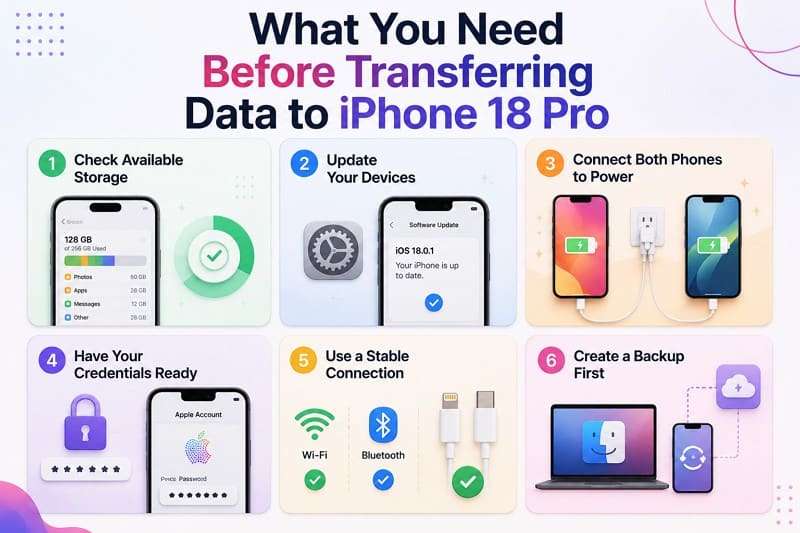
- Check Available Storage: Make sure the new iPhone has enough free space for the content you want to transfer. If the source data exceeds the available capacity, the migration cannot complete successfully.
- Update Your Devices: Install the latest available iOS updates before starting. Apple also recommends using an up-to-date device when preparing temporary iCloud storage for migration.
- Connect Both Phones to Power: Apple recommends keeping both iPhones close together and connected to power until the Quick Start transfer is complete.
- Have Your Credentials Ready: Keep your old iPhone passcode and Apple Account password available. Quick Start may request your previous device's passcode during setup.
- Use a Stable Connection: For wireless Quick Start, keep Wi-Fi connected and Bluetooth enabled. For wired migration, use the cable Apple recommends for your specific iPhone models.
- Create a Backup First: Apple recommends backing up your old iPhone before migration. You can use Finder, Apple Devices, or iTunes, while eligible users can also access temporary iCloud storage.
Part 2. 8 Ways to Transfer Data to iPhone 18 Pro Without iCloud
Review the 8 methods in this section to transfer data to iPhone 18 Pro without iCloud, organized into 4 categories. Three support phone-to-phone transfer, two use computer backups, two cover Android migration, and one handles selected files after setup.
1. Direct Phone-to-Phone Transfer
Method 1. Transfer Data to iPhone 18 Pro with MobileTrans
Direct Apple migration methods generally require a new or erased iPhone because they run during setup. MobileTrans-Phone Transfer provides a flexible alternative, transferring 18+ data types through a USB connection. Use the Flip option to set the source and destination, then choose all or selected data to transfer.
It supports transfers between iOS and Android devices, including photos, contacts, messages, apps, and other supported content. MobileTrans can also move 5 file types between a phone and computer, making it useful for managing or transferring selected files after setup.
Key Features
- iCloud-Free Transfer: Move supported data directly between phones through USB without uploading content to iCloud or using iCloud storage.
- Full & Selective Transfer: Transfer an entire supported dataset or choose specific data types you want to move to the new phone.
- Cross-Platform Support: Transfer supported data between iPhone and Android devices, making it useful when switching operating systems or phone brands.
- Cloud-to-Phone Migration: Transfer supported data from an iCloud account directly to an Android or iPhone device through MobileTrans.
- App & App Data Transfer: Move supported apps and associated app data between compatible devices, including dedicated support for WhatsApp and WhatsApp Business.






Guide to Move Data to a New or Already Configured iPhone 18 Pro.
To transfer data from iPhone to iPhone without iCloud using MobileTrans, connect both devices and follow these steps for a direct transfer.
Step 1. On MobileTrans, choose Phone Transfer > Phone to Phone and connect the devices.

Step 2. Use the Flip icon to select the sender device, choose data types, and click Start.
Method 2. Transfer from Old iPhone to iPhone 18 Pro with Quick Start
Quick Start offers 2 ways, and only one avoids the cloud. Transfer from iPhone option copies everything over a private wireless link, while Download from iCloud does exactly what its name says. Choose the direct option when you want to transfer old iPhone to iPhone 18 Pro without iCloud. Go through the listed note and then follow the steps to move the data:
Note: Keep both iPhones near each other and connected to power until the migration finishes. Apple notes that you cannot use Quick Start to transfer data from your current device when the new iPhone is enrolled in Apple School Manager or Apple Business.
Step 1. Turn on Wi-Fi and Bluetooth on your old iPhone, then place both devices close together and connect them to power.
Step 2. Tap Continue on the old phone and access the animation on the new one.
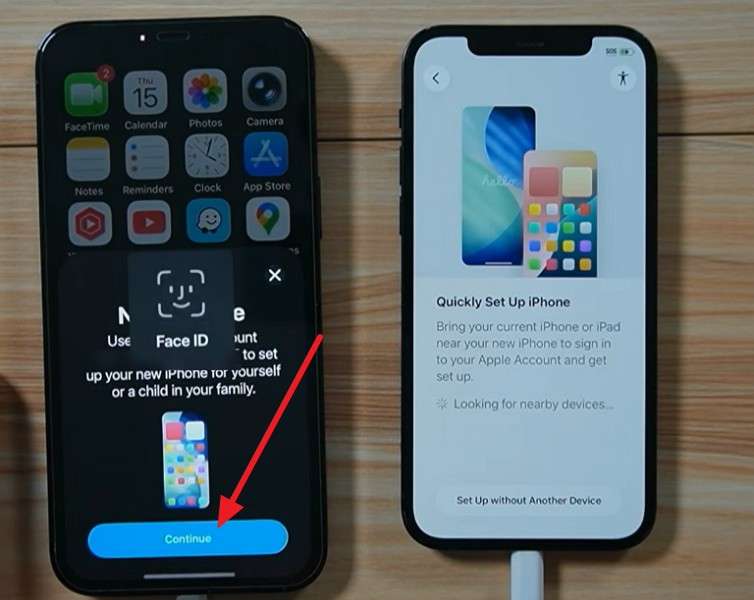
Step 3. Scan the animation > Set Up for Me on old iPhone > Enter passcode on new iPhone 18 Pro > Press Continue.
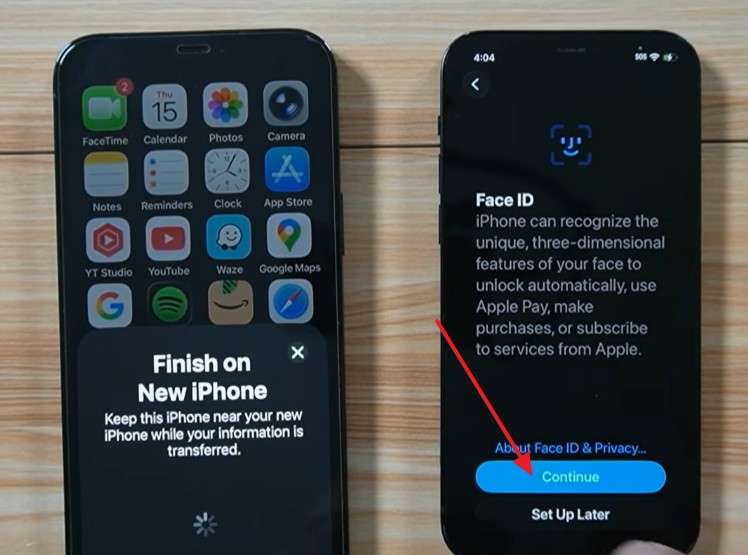
Step 4. Choose Transfer from iPhone > Tap Continue > Press Agree to terms > Tap Continue and complete the on-screen instructions.
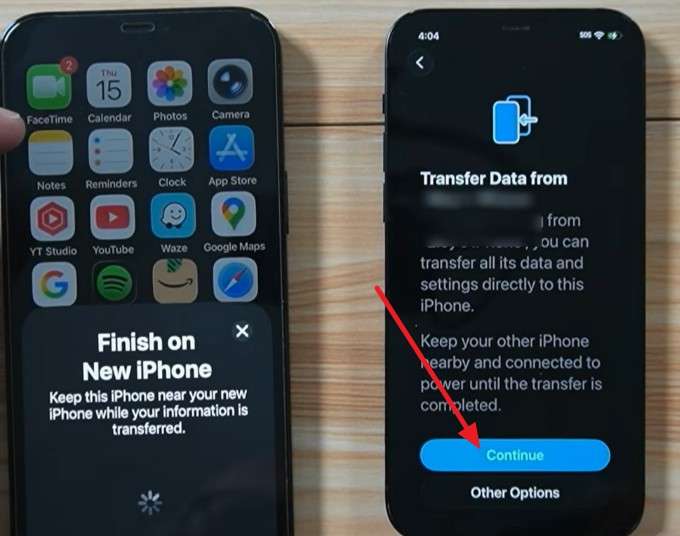
Method 3. Transfer to iPhone 18 Pro with a Wired Connection
To transfer data to iPhone 18 Pro with cable, connect an iPhone 15 or later using a USB-C cable. For iPhone 14 or earlier, use a USB-C-to-Lightning cable. This uses Apple's wired Quick Start transfer, so connect both devices before continuing through setup, then follow these steps:
Step 1. Use a USB-C-to-Lightning or USB-C-to-USB-C cable to connect both iPhones, then turn them on.
Step 2. Follow the same Quick Start steps as the previous method, but keep both iPhones connected with the cable throughout the transfer.
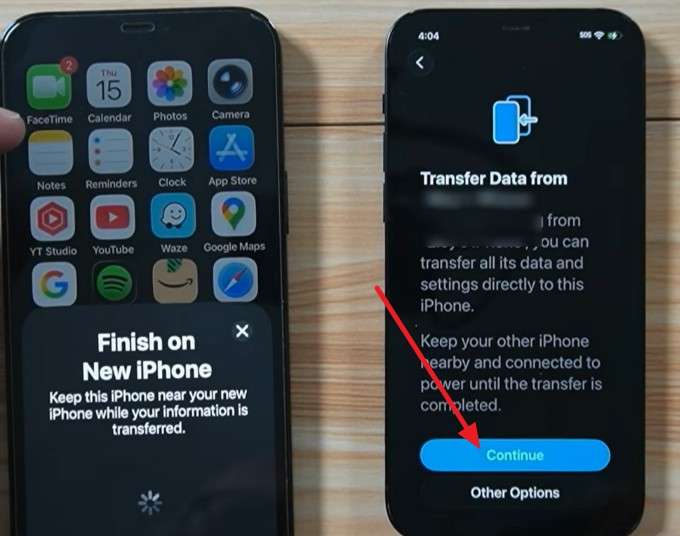
Step 3. Connect the new iPhone 18 Pro to Wi-Fi or cellular when prompted, then keep both devices connected until the transfer finishes.
2. Transfer Using a Computer Backup
Method 4. Restore a Mac Backup to iPhone 18 Pro with Finder
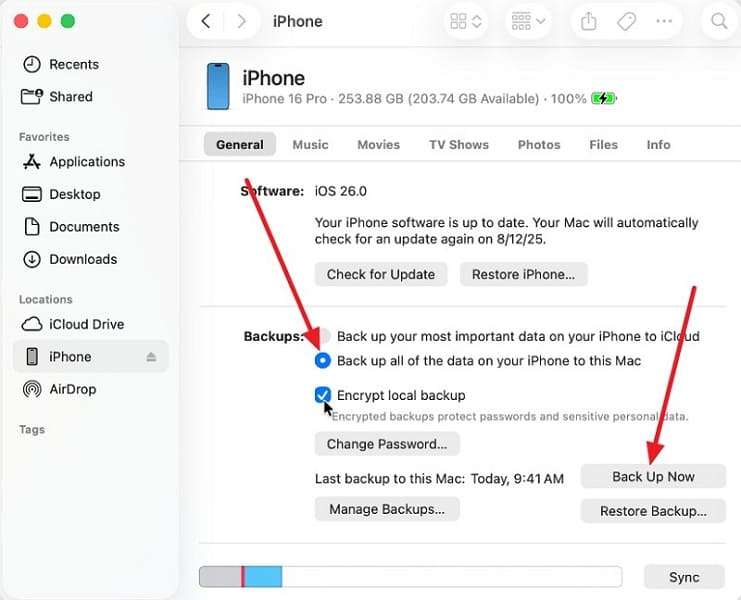
Finder handles local iPhone backups on macOS Catalina or later. An encrypted local backup can also include protected information excluded from unencrypted backups, such as saved passwords, Wi-Fi settings, Health data, and Activity data. Keep the encryption password safe because you cannot restore the encrypted backup without it. Create the backup first, then transfer data to a new iPhone without iCloud using these steps:
Step 1. Connect the old iPhone to the Mac, open Finder, and select the iPhone from the sidebar.
Step 2. Go to General > Select Back Up All the Data on Your iPhone to This Mac > Optionally enable Encrypt Local Backup > Click Back Up Now.
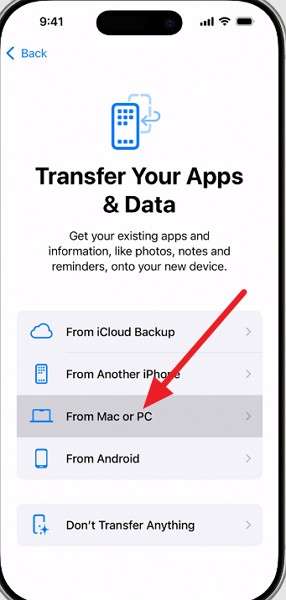
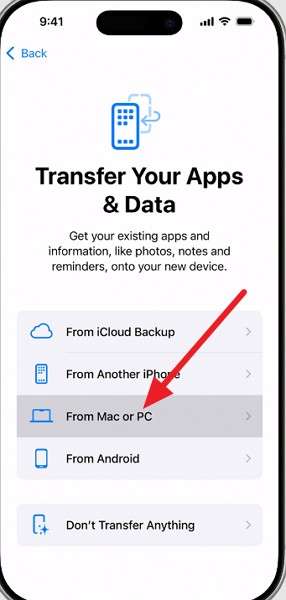
Step 3. During iPhone 18 Pro setup, choose From Mac or PC to pick that backup.
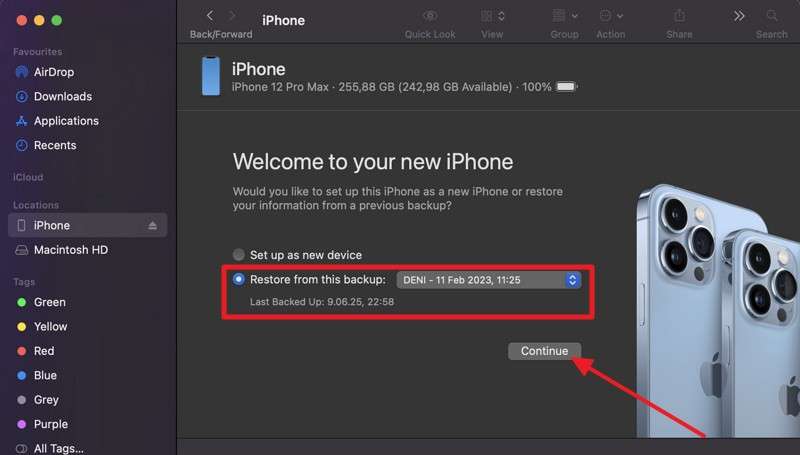
Step 5. Connect your new iPhone 18 Pro > Go to Finder > Choose iPhone > Select Restore from This Backup > Pick backup > Press Continue.
Method 5. Restore a Windows Backup to iPhone 18 Pro
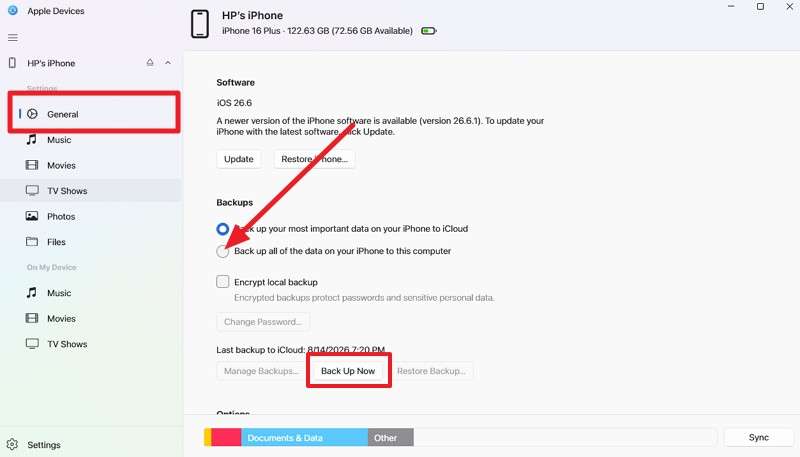
To transfer data from iPhone to iPhone without iCloud on Windows, create a local backup using Apple Devices or iTunes, then restore it to the new iPhone. Both follow a similar backup-and-restore process. For a more complete backup, you can optionally enable Encrypt Local Backup. Follow these steps using Apple Devices:
Step 1. Connect old iPhone > Open the Apple Devices app > Access General > Activate Back Up All of the Data on Your iPhone to This Computer > Click Back Up Now.
Step 2. Set up new iPhone 18 Pro > Choose From Mac or PC > Connect iPhone > Go to Apple Devices.
Step 3. Open Apple Devices > Select the iPhone > Restore Backup > Choose the backup > Restore.
3. Transfer from Android Without iCloud
Method 6. Transfer Android Data to iPhone 18 Pro with Move to iOS
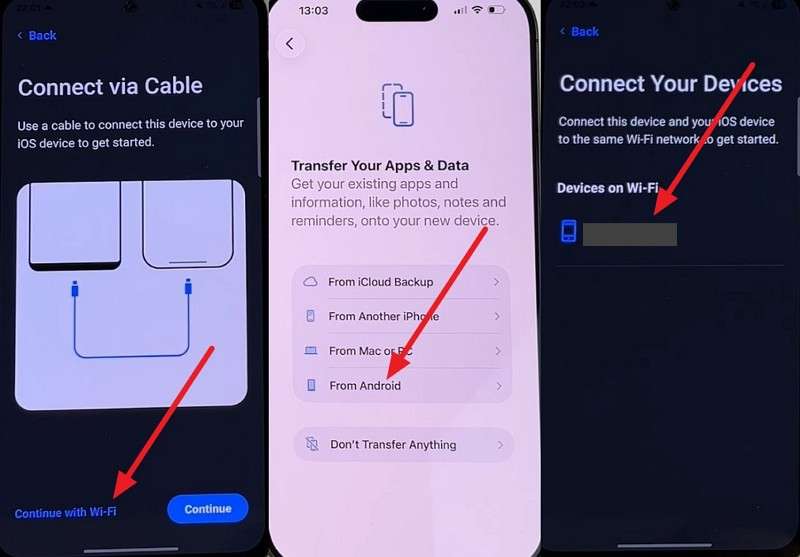
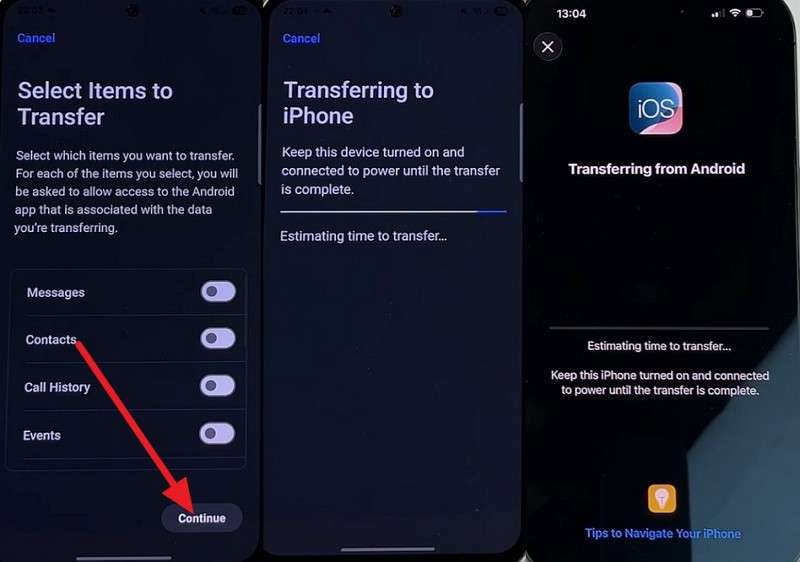
Move to iOS is Apple’s free tool for transferring data from Android during new iPhone setup. It can move contacts, messages, photos, files, bookmarks, mail accounts, WhatsApp content, and call history. Apple also supports a direct USB-C cable connection for faster transfers on compatible devices. Keep both phones nearby and avoid using other apps during transfer. Install Move to iOS, then follow these steps:
Step 1. Select Continue with Wi-Fi on Android > Set up iPhone > Choose From Android > Select iPhone 18 Pro on the Move to iOS app.
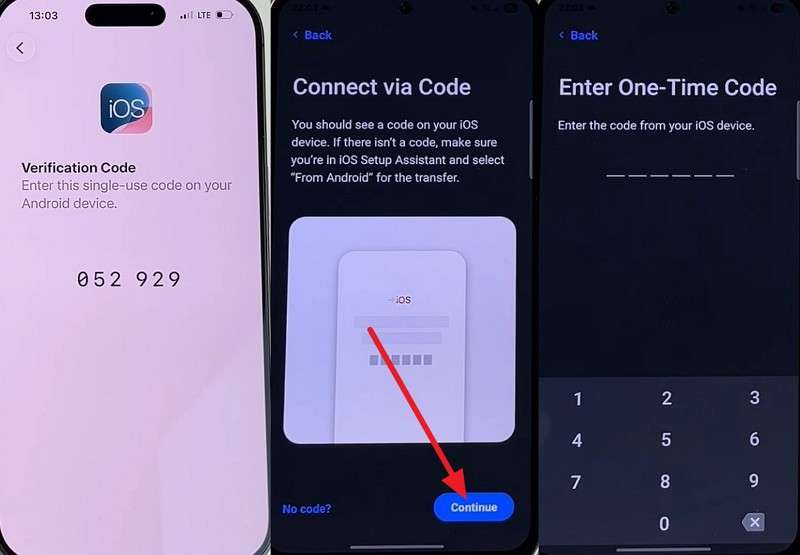
Step 2. Get the code on the new iPhone 18 Pro > Press Continue to enter it on Android.
Step 3. Select your categories > Tap Continue, then leave both handsets until it finishes.
Method 7. Transfer Without Move to iOS on Supported Android Phones
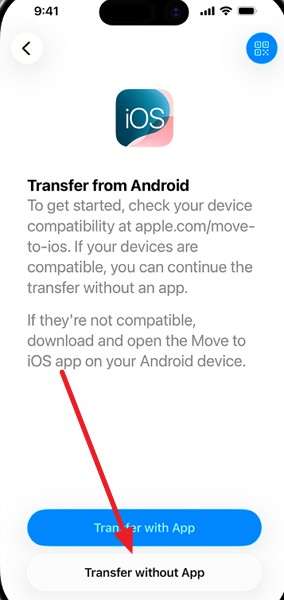
Supported Android phones running Android 17 or later can transfer data without installing the Move to iOS app. During iPhone setup, the Android device pairs with the new iPhone using a QR code. This provides another way to transfer data from Android to iPhone without iCloud. Keep both devices nearby and follow the on-screen instructions to complete the transfer through these steps:
Step 1. Set up the iPhone 18 Pro > On the iPhone, choose Transfer Your Apps & Data > From Android > Transfer Without App.
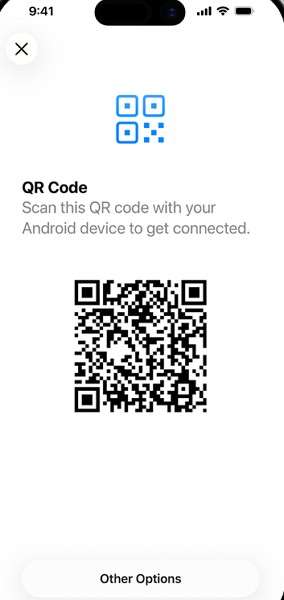
Step 2. Keep both phones close together, then use the Android phone to scan the QR code displayed on the iPhone.
Step 3. Choose the data you want to transfer, then follow the prompts to transfer your phone number or eSIM if supported.
4. Transfer Selected Data After Setup
Method 8. Transfer Photos, Videos, Contacts, and Files Manually
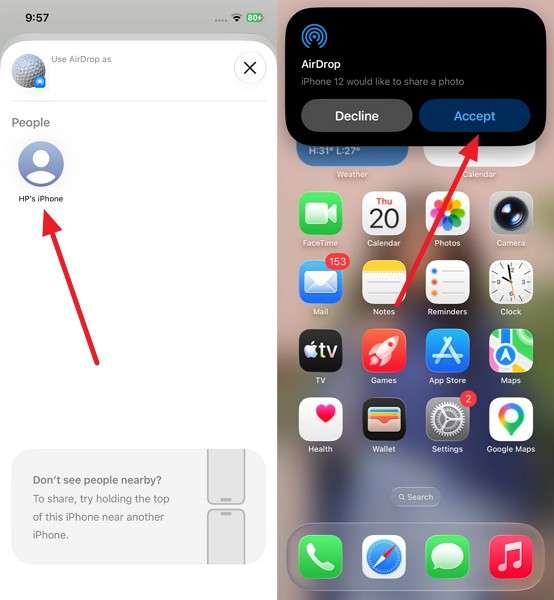
AirDrop lets you transfer photos, videos, contacts, and documents directly between Apple devices without iCloud. It preserves the original file quality and works best for transferring a small number of items rather than an entire phone. Both devices need Wi-Fi and Bluetooth enabled and should remain nearby during transfer. Once they are ready, follow these steps to transfer data to a new iPhone without iCloud using AirDrop:
Step 1. Choose file or image > Press Share > AirDrop on the old iPhone. Set to Contact Only or Everyone for 10 Minutes on the new iPhone 18 Pro.
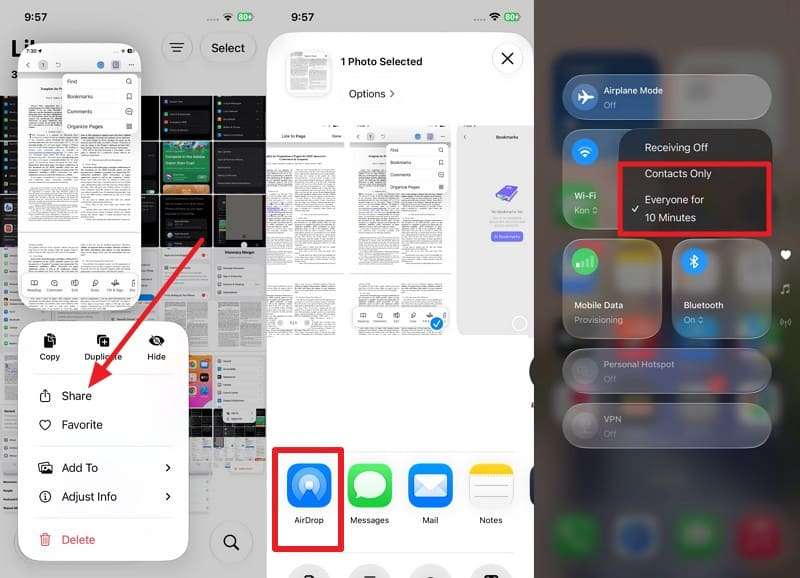
Step 2. Tap the new iPhone when it appears on the old one, then press Accept on the new iPhone 18 Pro.
Part 3. Compare Ways to Transfer Data to iPhone 18 Pro Without iCloud
Now that you know how to transfer data to iPhone 18 Pro without iCloud, compare all 8 methods below. The table highlights requirements, transfer scope, setup limitations, and ideal use cases to help you choose the best option.
|
Method |
Source |
Internet |
PC |
Scope |
After Setup |
Best For |
Main Limit |
|
MobileTrans |
iOS/Android |
No |
Yes |
Full & Selective |
Yes |
Complete, flexible transfer |
Paid |
|
Quick Start |
iPhone |
Wi-Fi |
No |
Full |
No |
Wireless iPhone migration |
Setup only |
|
Wired Transfer |
iPhone |
Setup connection |
No |
Full |
No |
Large libraries |
Requires correct cable |
|
Finder Backup |
iPhone |
No |
Mac |
Full |
Yes |
Local Mac backup |
Replaces existing data |
|
Apple Devices |
iPhone |
No |
Windows |
Full |
Yes |
Local Windows backup |
Replaces existing data |
|
Move to iOS |
Android |
Wi-Fi/Cable |
No |
Selective |
No |
Android-to-iPhone migration |
Setup only |
|
No-App Transfer |
Android 17+ |
Connection required |
No |
Selective |
No |
Supported Android 17+ |
Setup only |
|
AirDrop |
Apple device |
No |
No |
Selective |
Yes |
Individual files |
No apps or messages |
Verdict: For a new iPhone 18 Pro, wired Quick Start is the best free option for a complete transfer. For greater flexibility, MobileTrans supports full and selective transfers, including WhatsApp, WhatsApp Business, Home Screen layouts, apps, messages, and other supported data. It also works across iOS and Android and can transfer supported data to an already configured iPhone without requiring a complete device erase.
Part 4. Which Methods Work After iPhone 18 Pro Is Already Set Up?
After you transfer from your old iPhone to the iPhone 18 Pro, review which methods can still transfer data once the new iPhone is set up.
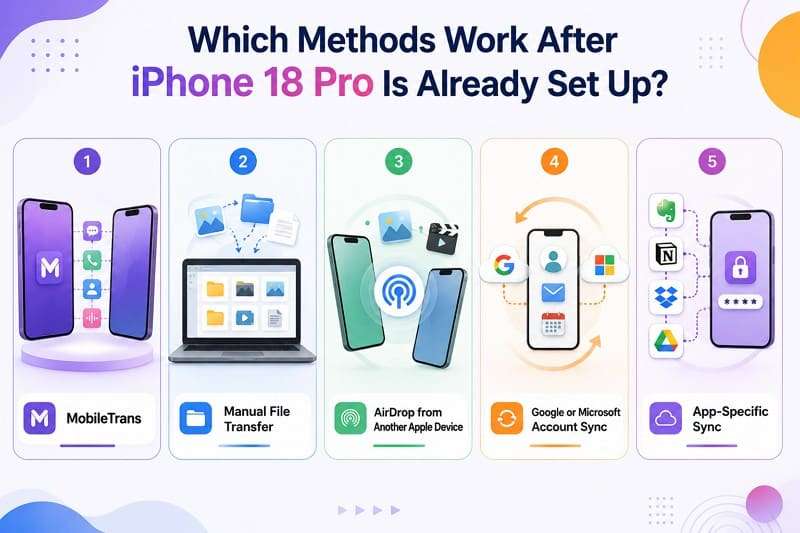
- MobileTrans: Transfers supported messages, call logs, apps, WhatsApp data, photos, and other content to an already configured iPhone without requiring a full device erase.
- Manual File Transfer: Copies photos, videos, documents, and other individual files from a computer to the iPhone without performing a complete device migration.
- AirDrop from Another Apple Device: Transfers individual photos, videos, contacts, and files directly between nearby Apple devices while preserving their original quality.
- Google or Microsoft Account Sync: Syncs supported contacts, email, and calendars after you sign in with your Google or Microsoft account on the new iPhone.
- App-Specific Sync: Restores supported cloud-based content after signing back into individual apps, although the available data depends on each app’s syncing capabilities.
Note: Quick Start and wired migration require a new or erased iPhone. You can restore computer backups after setup, but they replace the iPhone's current data rather than merge with it.
Part 5. How to Fix iPhone 18 Pro Data Transfer Problems
Choosing the right method does not always guarantee a smooth transfer. Whether you transfer data to iPhone 18 Pro with cable or wirelessly, connection, storage, software, or backup issues can interrupt the process. The table below covers common transfer problems, their likely causes, and practical fixes:
|
Problem |
Cause |
Recommended Fix |
|
Old iPhone Does Not Detect iPhone 18 Pro |
Bluetooth is off, devices are too far apart, or setup has already been completed |
Enable Bluetooth and Wi-Fi, keep both devices nearby, and return the new iPhone to setup if necessary |
|
Quick Start Gets Stuck |
Connection issue, outdated iOS, or temporary setup problem |
Keep both phones nearby and powered, restart them, update iOS if needed, and retry Quick Start |
|
Wired Transfer Disconnects |
Loose, damaged, incompatible, or charge-only cable |
Reconnect both devices and use a compatible data-transfer cable for the two iPhone models |
|
Computer Does Not Recognize iPhone 18 Pro |
Trust prompt not accepted, connection issue, or outdated software |
Reconnect the iPhone, tap Trust, try another port or cable, and update Apple Devices or macOS |
|
Backup Does Not Appear in Finder or Apple Devices |
Backup is unavailable, incompatible, or stored under another computer user |
Check available backups and confirm you are using the computer account where the backup was created |
|
Not Enough Storage on iPhone 18 Pro |
Transferred data exceeds the new iPhone’s available capacity |
Reduce the data being transferred or remove unnecessary content from the source before trying again |
|
Some Data Is Missing After Transfer |
Certain data was not included, synced separately, or excluded from an unencrypted backup |
Check app and account sync, or restore an encrypted backup when protected data such as Health information is missing |
Part 6. What to Check Before Erasing Your Old Phone
After you transfer data to a new iPhone without iCloud, perform these 6 checks before erasing your old iPhone:
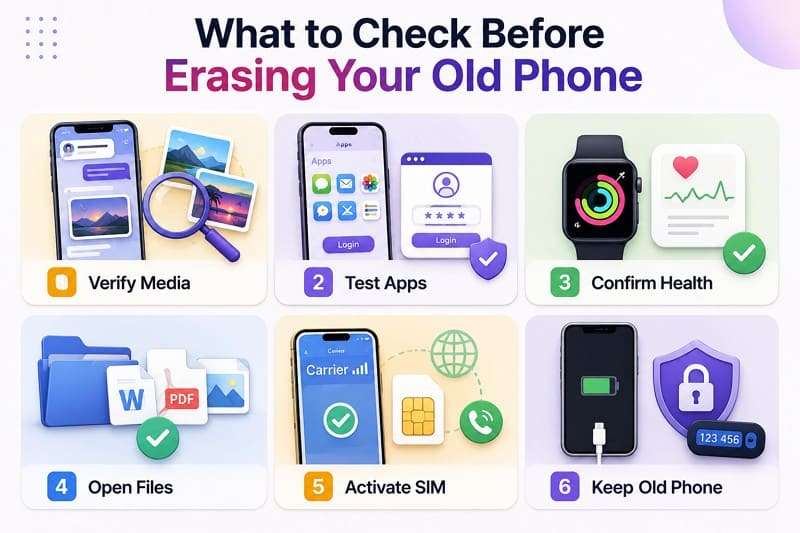
- Verify Media: Check old and recent photos, videos, and message attachments to confirm important media transferred completely and opens correctly.
- Test Apps: Open important apps, sign in where required, and verify that their messages, files, settings, and other essential data are available.
- Confirm Health: Check Health and Fitness data on the new iPhone, especially when restoring from a computer backup that required encryption for protected data.
- Open Files: Open several transferred documents, not just file counts, to confirm they transferred completely and remain readable.
- Activate SIM: Confirm calls, texts, and mobile data work. Contact your carrier if your SIM or eSIM was not activated during migration.
- Keep Old Phone: Keep the old iPhone available until you verify authenticator apps, accounts, passwords, and other data that may require separate migration.
Conclusion
Learning how to transfer data to iPhone 18 Pro without iCloud comes down to choosing the right method for your situation. Quick Start and computer backups work well for initial migration, while MobileTrans adds full and selective transfers across iOS and Android, including post-setup support. Whichever method you choose, verify your important photos, apps, files, and accounts before erasing the old device.
FAQs
-
What is the fastest way to transfer data to iPhone 18 Pro without iCloud?
MobileTrans is a fast option that transfers 18+ data types, including photos, messages, apps, call logs, WhatsApp data, and home screen layouts, without iCloud. -
Does Quick Start require an iCloud backup?
No. Quick Start can transfer data directly from the old iPhone to the new one without an iCloud backup or iCloud storage. -
Which data is missing from an unencrypted computer backup?
An unencrypted backup excludes Health and Activity data, saved passwords, Wi-Fi settings, and some other protected information. Enable the Encrypt Local Backup option to include them. -
Is Wi-Fi required to transfer data to iPhone 18 Pro?
Not always. MobileTrans and wired transfers use a cable, while wireless Quick Start and Move to iOS rely on wireless connections during migration.










