


 TL;DR:
For seamless data transfer to a new iPhone Air without overwriting existing files, MobileTrans is the most comprehensive cross-platform solution supporting over 18 data types, though a paid passport is required for full feature access.
● The official Move to iOS app exclusively transfers data from Android devices running version 4.0 or higher to iPhones running iOS 9.0 or higher, and this migration can only be performed during the initial device setup phase.
● iTunes provides a complete data transfer method strictly between Apple devices, but restoring an older device backup will completely erase and overwrite any existing data currently on the target iPhone Air.
● Manual alternatives like Google Drive and messaging apps are best suited for limited, one-time file sharing due to restrictive 15GB free storage caps, manual download requirements, and media quality compression.
Ask AI for a summary
 ChatGPT
 Perplexity
 Gemini
 Claude
 Grok
Grok
Apple's new iPhone Air isn't an average device in the lineup; it's a bold leap into the future of mobile technology. Super thin, yet incredibly strong, it feels almost weightless in your hand and fits perfectly in your pocket. Even the most advanced phone starts as a blank canvas until it carries your data with it.
Which is why, as soon as you unbox it, you'll need to transfer data to iPhone Air through tested methods. To get sorted, go through the following guide and reveal the top 6 methods to make this move seamless without any difficulty.
In this article
Part 1. Simple Tabular Overview of the Best Methods to Move Data to iPhone Air
Instead, you dive into a detailed discussion over methods to transfer from Android to iPhone Air, first go through a tabular overview of each:
|
Methods |
Compatibility |
Ease |
Data Types |
Speed |
Data Overwriting |
|
All devices (Android and iOS) |
Very easy |
18+ types of data, including apps and app data. |
Very fast & highly reliable |
No, merges new data with existing content. |
|
|
Android to iPhone, only during setup |
Set up phase only |
Contacts, SMS, Photos, Videos, WhatsApp, etc. |
Moderate |
Yes, factory reset needed. |
|
|
Any device (Android and iOS) |
Moderate |
Files (images, documents, videos, etc.) |
Slow |
Manual import avoids auto-overwriting. |
|
|
All devices (Android and iPhone) |
Manual and slow |
Media files and other documents. |
Slowest |
No, but easily lost or missed among inbox clutter. |
|
|
iOS/iPadOS system only |
Moderate |
Media, Contacts, App Data, Call Logs, etc. |
Fast |
Moderate, rely on settings |
|
|
Any device (Android and iOS) |
Easy for small files |
Documents, compressed photos/videos |
Fast for small files |
No, files sent message-by-message, risk of loss in clutter. |






Part 2. Transfer Data to iPhone Air from Old Device: 6 Methods
To keep your digital life intact, you'll need a smooth and safe way to transfer data to the iPhone Air from your old device. For this, explore the listed 6 methods that will help you move everything you need for your new iPhone Air:
1. MobileTrans - One-Click Solution to Move Data to iPhone Air
Supported Directions: Android to Android, iPhone to Android, iPhone to iPhone, or Android to iPhone
MobileTrans acts as your personal assistant for data migration, ensuring your entire digital world moves seamlessly to your brand-new iPhone Air or any other device. With support for over 6,000 Android and iOS models, the platform eliminates tedious transfer steps and guarantees a smooth experience without overwriting existing files.
Unlike Bluetooth or app transfers, it delivers significantly faster speeds and maintains original quality. Besides, you can transfer more than 18 types of data, including contacts, messages, and media, while enjoying real-time progress tracking during the process.
Key Features
- App Transfer Feature: Through this program, users can easily transfer apps or in-app data between their Android and iOS devices.
- Direct iCloud to Android Transfer: Move iCloud data to Android devices instantly by just logging into your account.
- No Data Overwriting: Safely transfer content without erasing or replacing existing files on the target device.
For an upgrade to the sleek iPhone Air, follow the manual and learn how to proceed with the transfer from Android to iPhone Air:
Step 1. Install the program on PC > Choose Phone Transfer > Select Phone to Phone > Connect both devices to PC.

Step 2. Specify the Source and Destination devices > Choose data to transfer > Tick Clear Data Before Copy if required > Press Start to migrate data to iPhone Air.

Besides being an immersive desktop solution, MobileTrans further offers a handy mobile app, ready to move contents. Through a simple QR code-based connection, you can connect and migrate any kind of data among various phone brands.
Limitations
- You need to get a paid passport to use some features.
2. Using the Move to iOS App
Supported Directions: Android to iPhone
It's Apple's official app that creates a direct link between your Android devices and iPhone Air during the setup. Through Move to iOS, you can migrate contacts, message history, and even WhatsApp content to your upgraded devices. Once you're connected via the app, your desired data will automatically appear on the new iPhone Air. To experience seamless transfer of data to iPhone Air, explore the provided tutorial for Move to iOS:
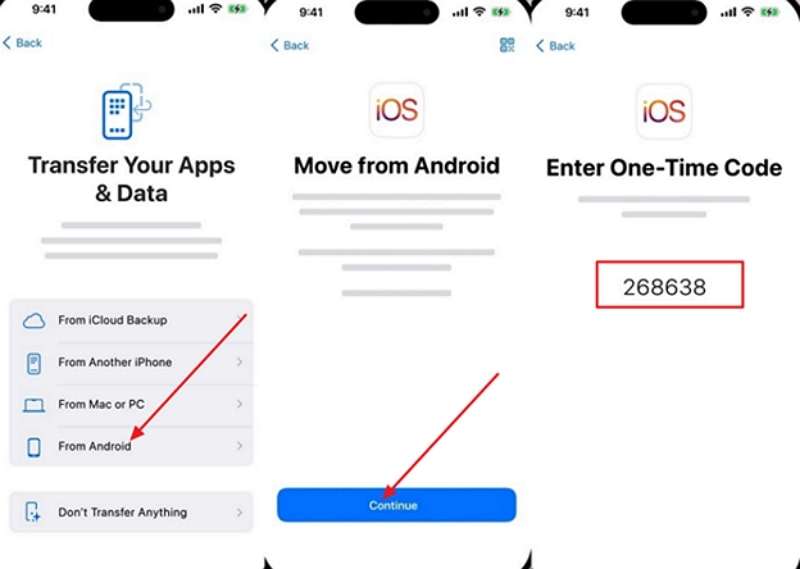
Step 1. While doing setup, select From Android > Press Continue > Load one-time code to connect your Android.
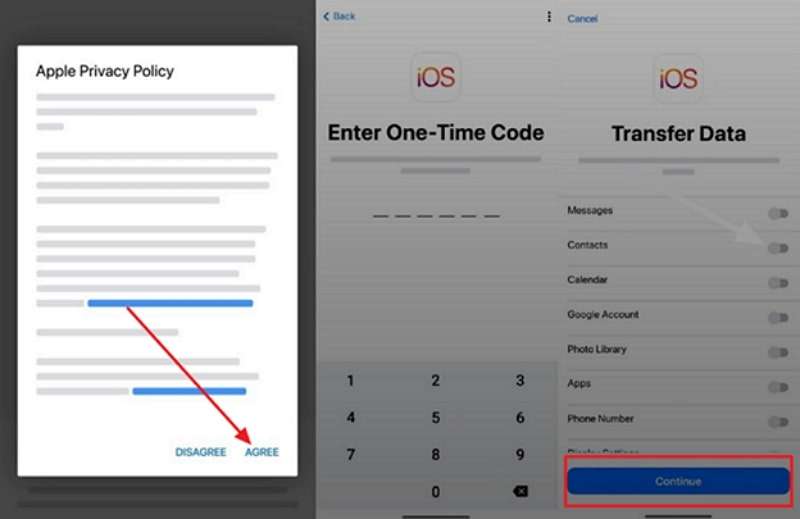
Step 2. On Android, select Agree > Type 6-digit code to verify > Choose data to transfer to iPhone Air > Press Continue button.
Limitations
- Only transfer data from Android to iPhone while setting up a brand-new iPhone.
- The app demands Android 4.0 and iOS 9.0 to proceed with the transfer.
3. Via Google Drive/Dropbox
Supported Directions: Android to Android, iPhone to Android, iPhone to iPhone, or Android to iPhone
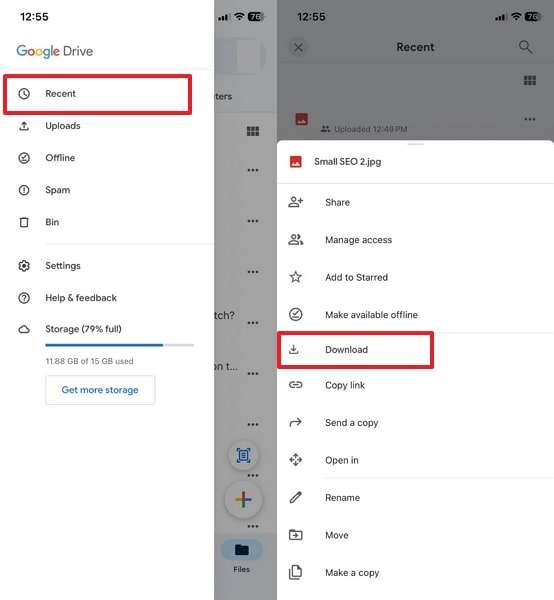
Cloud storage services like Google Drive/Dropbox provide a secure method to proceed with the transfer from Android to iPhone Air. Once you've uploaded photos or other documents, you can subsequently download them onto your iPhone Air. Google Drive even integrates with your existing Google account, enabling cross-platform synchronization and automatic backups on another device. For better guidance, follow the given manual to move contents via Google Drive:
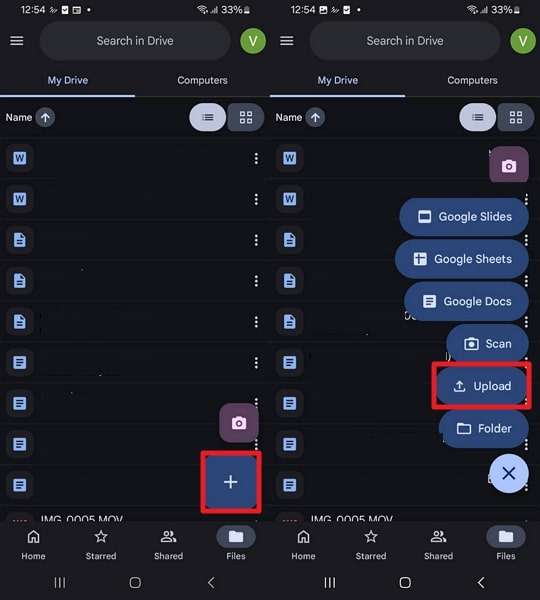
Step 1. From Android, access Google Drive > Press the + button > Tap the Upload button > Upload files.
Step 2. On iPhone, access the same Google account > Choose Recent option > Press the Three Dots icon on the file > Select Download.
Limitations
- Transferring data between devices typically requires downloading files manually.
- It only allows you to transfer 15GB of free data.
4. By Email
Supported Directions: Android to Android, iPhone to Android, iPhone to iPhone, or Android to iPhone
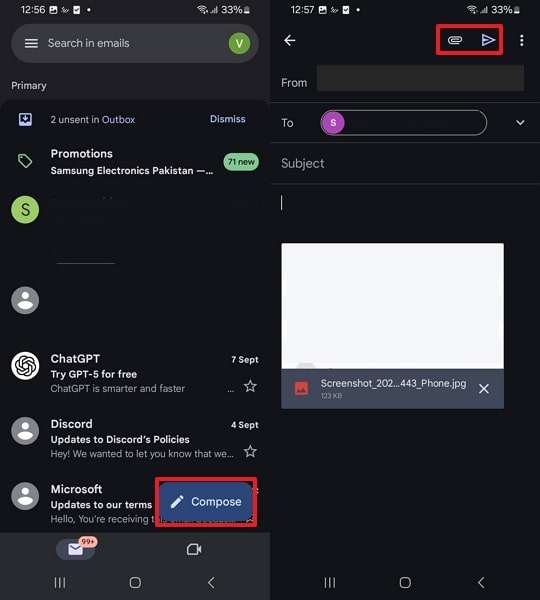
For individuals who need to transfer only a limited number of files, they can opt for the email method. You can attach photos or documents to an email addressed to yourself and access them to download them on your iPhone Air. This approach is suitable for one-time transfers when speed and convenience are paramount, maintaining complete control over what's shared. Adhere to the tutorial and transfer from Android to iPhone Air via email:
Step 1. Access Gmail on Android > Press Compose > Choose Attachment icon > Upload file > Enter To and From details > Tap Send icon.
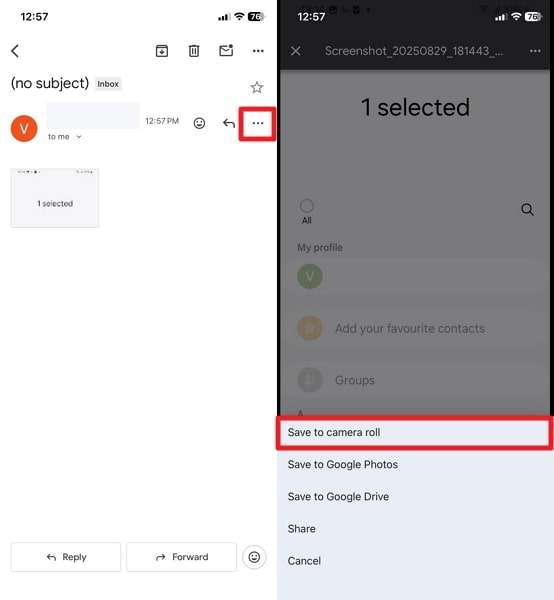
Step 2. Open the same Gmail account on iPhone > Access received mail > Press the Three Dots icon > Choose Save to Camera Roll or other option according to your data type.
Limitations
- Email transfers focus solely on attached files, not on transferring app data.
- Files sent by email must be downloaded manually and sorted into folders.
5. Using iTunes/Finder
Supported Directions: Between Apple iDevices
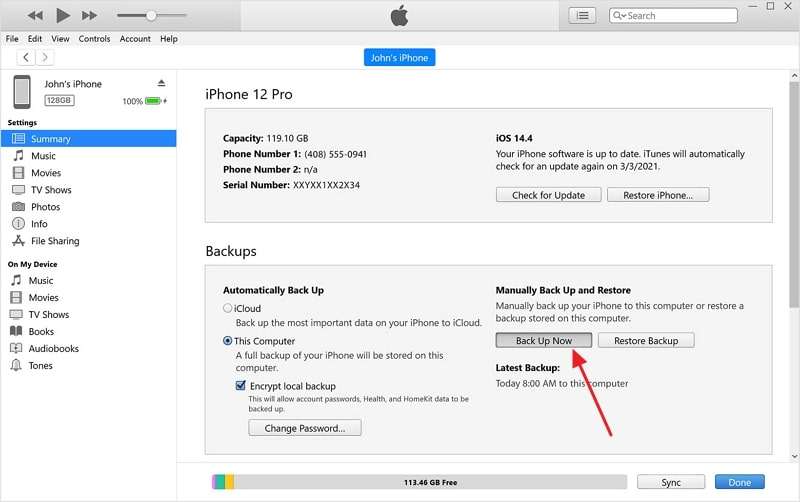
Approaching iTunes to transfer from iPhone to iPhone Air allows you to perform a complete backup of your existing data. This level of control is valuable for individuals handling sensitive information or large media, ensuring data integrity while minimizing the risk of loss. Through iTunes transfer, you also avoid potential limitations of wireless or third-party solutions, ideal for those who prioritize reliability. Explore the tutorial and move data through Apple's own iTunes (on Windows):
Step 1. Link your old iPhone with PC > Open iTunes > Access your Phone tab and press the Back Up Now button.
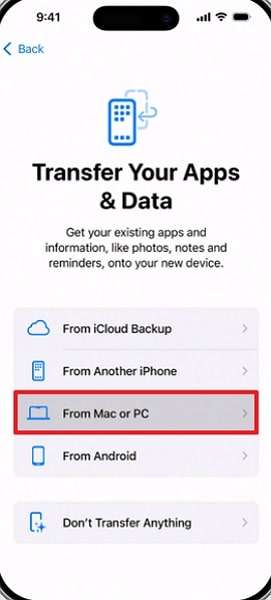
Step 2. Start setting up your new iPhone Air and choose From Mac or PC from the Transfer Your Apps & Data screen.
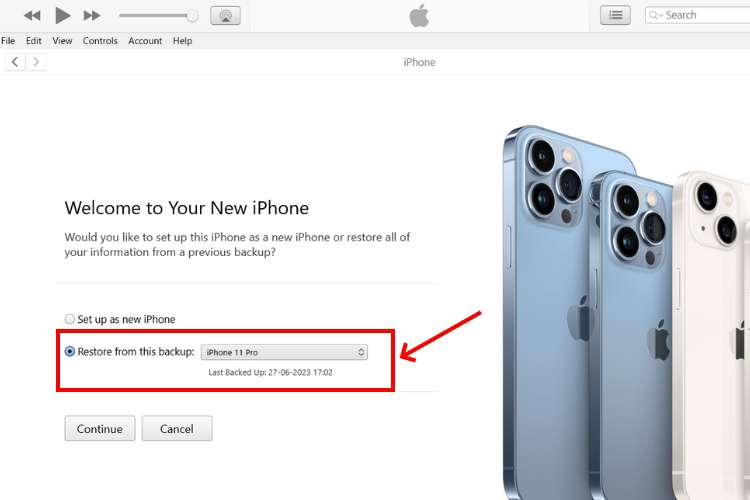
Step 3. Once iTunes detects your iPhone Air, select the old iPhone backup from the Restore from this backup option.
Limitations
- iTunes can only transfer data between iPhones, iPads, iPods, and computers.
- Restoring a backup may erase existing data on the target device.
6. Try Messaging Apps
Supported Directions: Android to Android, iPhone to Android, iPhone to iPhone, or Android to iPhone
There are messaging apps like WhatsApp that allow others to forward individual or multiple files to your iPhone Air. This approach is workable when you need only specific messages or media from someone. Users who need to migrate complete conversations or media libraries can utilize the built-in backup and restore options provided by the apps. Read the instructions and transfer from Android to iPhone Air via messaging app:
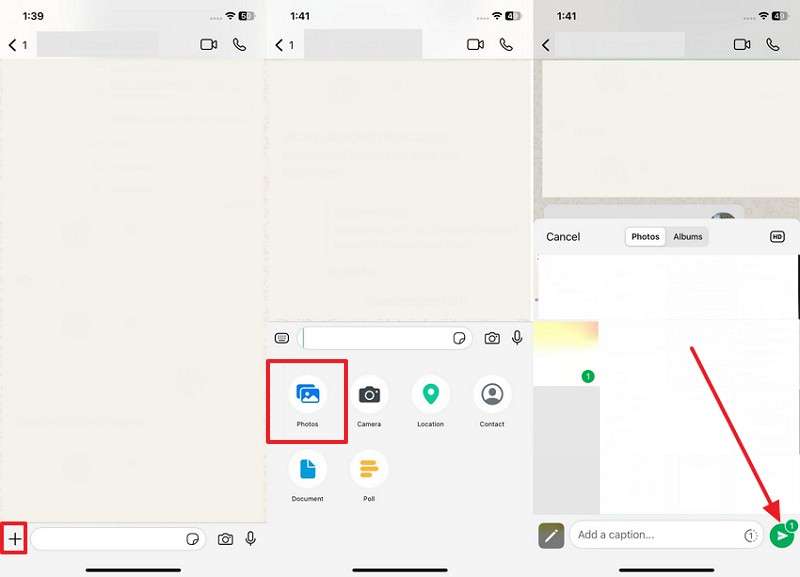
Step 1. Launch WhatsApp on an old phone > Tap the + or Attachment icon > Choose the desired data type like Photos > Confirm the data and press the Send button.
Step 2. Long-press on the image received on your iPhone Air and choose the Save option.

Limitations
- Most messaging apps impose limits on the size and types of files.
- Media sent via messaging apps is often compressed or reduced in quality.
Conclusion
In conclusion, a transition to the new, sophisticated iPhone Air only completes when your essentials are moved along. For this, a variety of methods exist and are discussed in the article above, including migration via Email, Google Drive, or iTunes. Among all these solutions, MobileTrans emerges as the most effective approach for transferring data to the iPhone Air task.










