


 TL;DR:
You can transfer your iPhone home screen layout to a new device using Apple's native Quick Start proximity feature, an iCloud or iTunes backup, or the third-party MobileTrans software.
● Quick Start securely mirrors your interface wirelessly when both iPhones are physically nearby with Bluetooth and Wi-Fi enabled, while iCloud Backup allows you to restore your layout remotely during the new device setup.
● iTunes Backup requires connecting your iPhones to a computer for a local backup and restore process, making it the optimal offline alternative when Wi-Fi is unavailable.
● MobileTrans provides an encrypted, one-click transfer of custom apps, folders, and shortcuts, and uniquely supports cross-platform layout migration from iPhone to Samsung devices.
Ask AI for a summary
 ChatGPT
 Perplexity
 Gemini
 Claude
 Grok
Grok
The excitement of buying a new iPhone is awesome, but it quickly fades away when the home screen looks totally different compared to the old one. The app icons are lost, the folders have disappeared, and your personal layout appears to be lost as well. For individuals' dependent on a stable arrangement for efficiency, this interruption is more than merely bothersome.
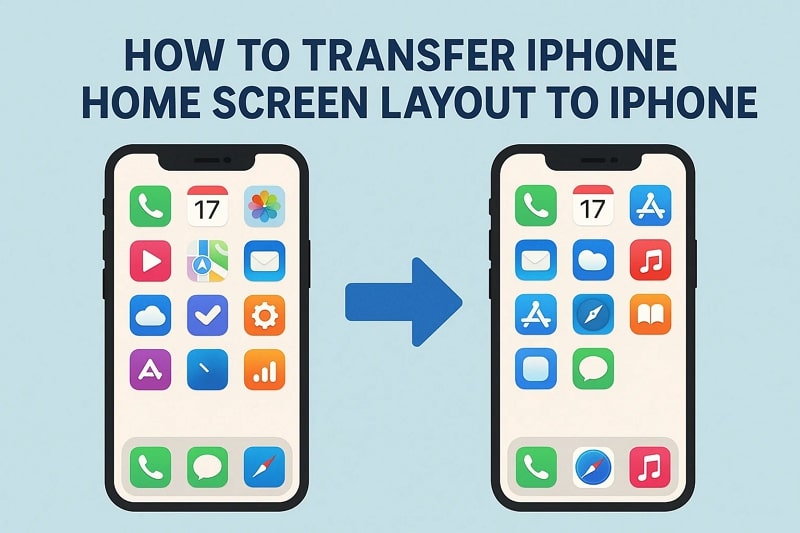
Preserving your home screen layout isn't just about looks, as it's about keeping your digital routine intact. Hence, this guide will highlight 4 easy methods to transfer the iPhone home screen layout to the iPhone for a seamless switch.
| Methods | Descriptions |
| Method 1. Transfer iPhone Home Screen Layout to iPhone via Quick Start | Before setting up your phone, use Quick Start to transfer all your data......Learn More >> |
| Method 2. Backup and Sync iPhone Home Screen Layout Using iCloud | Backup your home screen layout to iCloud and restore it to your new iPhone......Learn More >> |
| Method 3. Transfer iPhone Layout with iTunes Backup | Link your iPhones to a computer and transfer with iTunes......Learn More >> |
| Method 4. [Best] Transfer iPhone Layout with MobileTrans | One-click transfer your iPhone home screen layout to iPhone or Samsung......Learn More >> |
Method 1. How to Transfer iPhone Home Screen Layout to iPhone via Quick Start?
Apple has a Quick Start feature that allows you to transfer the home screen layout from iPhone to iPhone. It is a built-in capability that securely copies your old device's layout and imprint to the new one. Besides, it works wirelessly and activates as soon as you bring both iPhones close. This method is a hassle-free way to mirror your familiar interface, and you can do this by following the given steps:
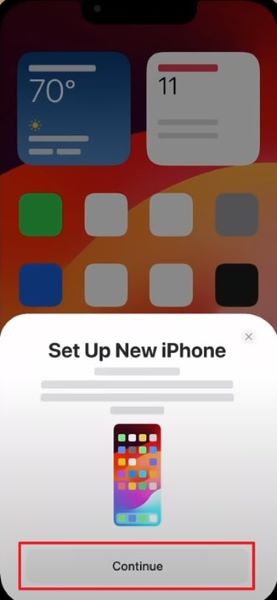
Step 1. Turn on Bluetooth and Wi-Fi on both iPhones and keep them nearby. Tap "Continue" on the old device.
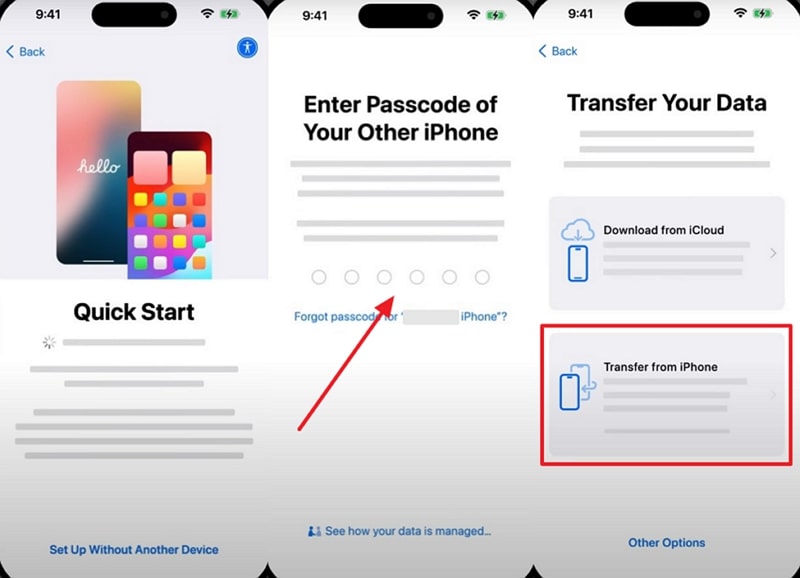
Step 2. Enter your old device password on the new iPhone and select "Transfer from iPhone."
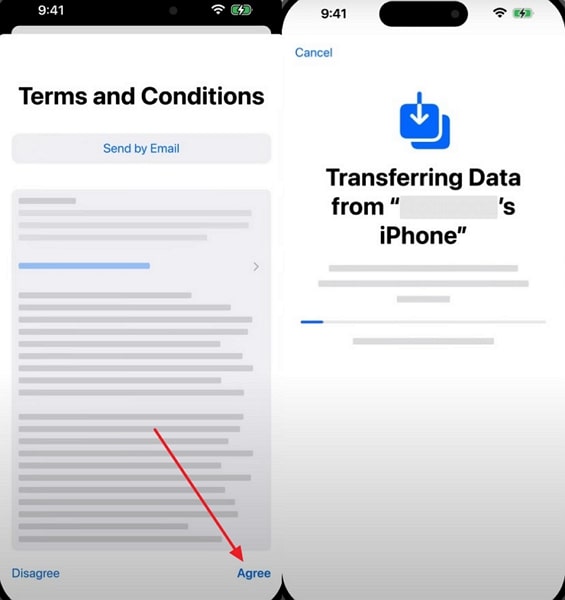
Step 3. Choose the "Agree" > "Terms and Conditions" options, and your data will start transferring.
Method 2. Backup and Sync iPhone Home Screen Layout Using iCloud
If you're finding a way to transfer the iPhone home screen layout to iPhone without needing both devices to be near, this method is the one. iCloud Backup offers a reliable cloud-based solution, allowing you to capture not just data but also your home screen. By taking the following steps, you can restore from a backup and bring back your apps, folders, and layout just as they were on your old device:
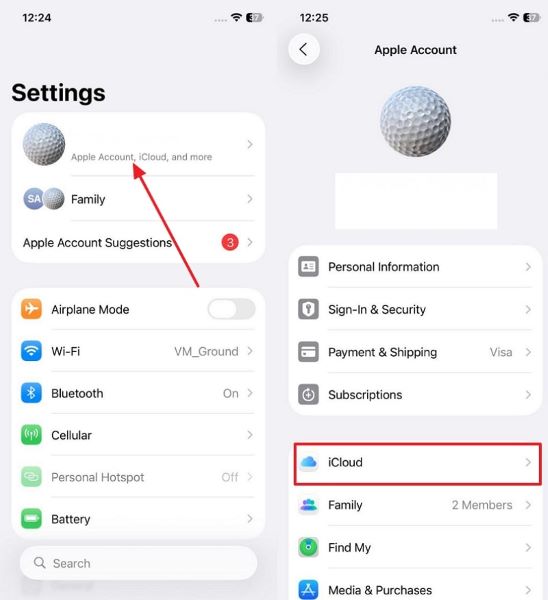
Step 1. Go to iPhone "Settings" > "Apple ID" > iCloud in your old iPhone.
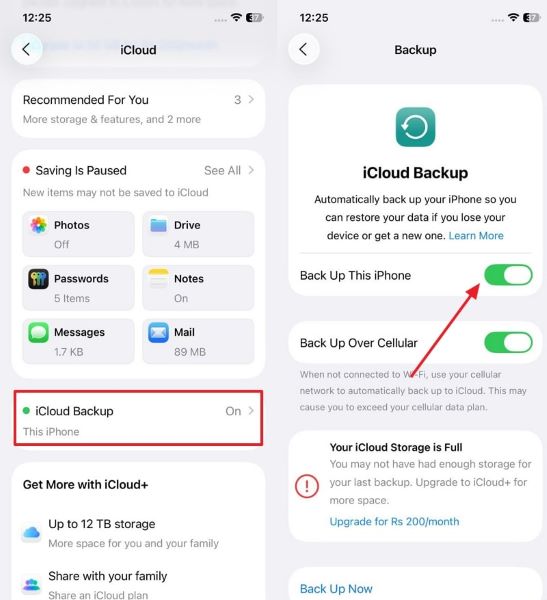
Step 2. Tap "iCloud Backup" > Enable "Back Up this iPhone" to create a backup.
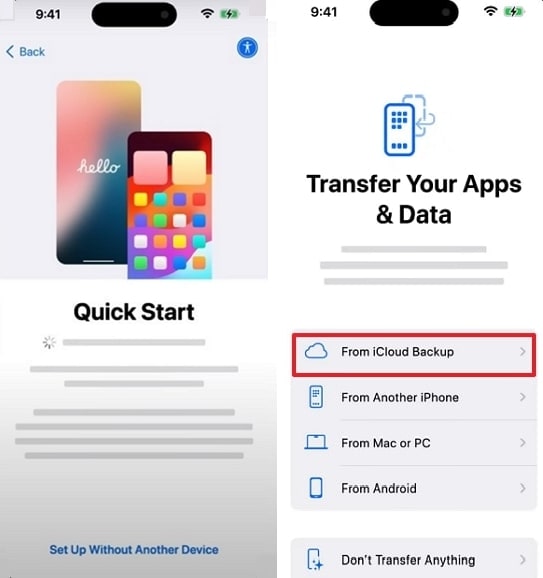
Step 3. On your new iPhone, begin setup > Press "Set Up without Another Device" > Select "From iCloud Backup" and enter Apple ID.
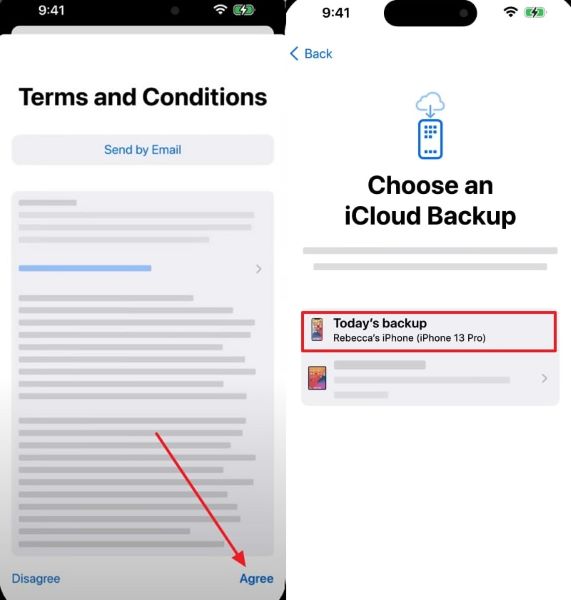
Step 4. Select "Agree" to accept terms and pick the latest backup under "Choose an iCloud Backup."
Method 3. Transfer iPhone Layout with iTunes Backup
For users who prefer a wired method, iTunes Backup provides a dependable way to transfer home screen layout from iPhone to iPhone. Making a complete backup of your old device on a computer allows you to restore it to your new device later using iTunes. This approach is helpful when the Wi-Fi isn't available or if you want a local copy of your backup, and you can do it from the given steps:
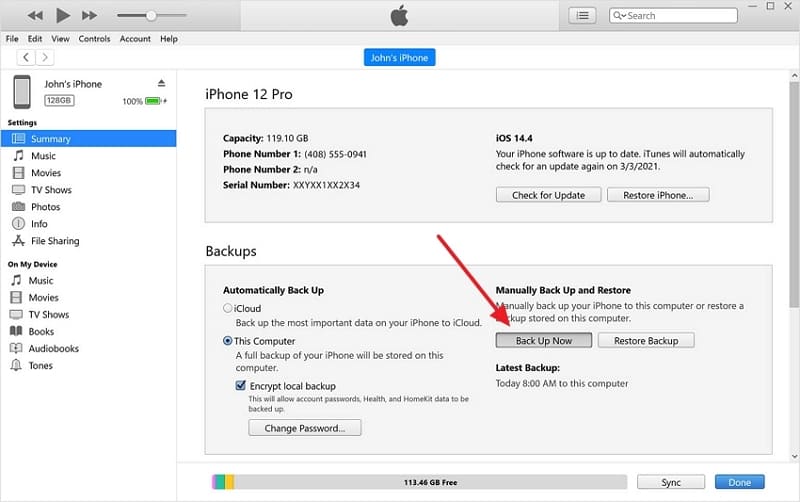
Step 1. Connect your old iPhone > Click the "Mobile" icon. Under "Backups," enable "This Computer" and press "Back Up Now."
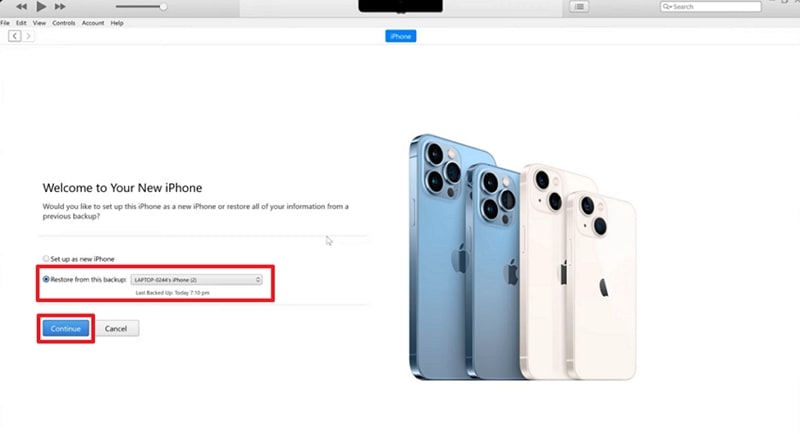
Step 2. Connect your new iPhone to PC > Choose the backup from "Restore From this Backup" and press "Continue."
Method 4. [Best] [Best] Transfer iPhone Layout with MobileTrans
For a better and smoother experience, MobileTrans delivers a user-centered process to transfer the iPhone home screen layout. Users can benefit from its ability to replicate their custom apps, folders, or shortcuts, allowing them to start using their new device with minimal effort. With MobileTrans, you can avoid the hassle typical of manual setup, as it manages the migration efficiently and accurately.
Your data will remain secure and safe as the tool provides end-to-end encryption. MobileTrans is compatible with up to 6000 Android and iOS models, including the latest models, which allows you to transfer data across platforms like iPhone to Samsung.



Guide to Transfer iPhone to iPhone Home Screen Layout with MobileTrans
Having learned about the features offered by this software, you may be interested in understanding how to utilize it. The following section will give a detailed step-by-step guide to transfer the home screen layout from iPhone to iPhone using MobileTrans:
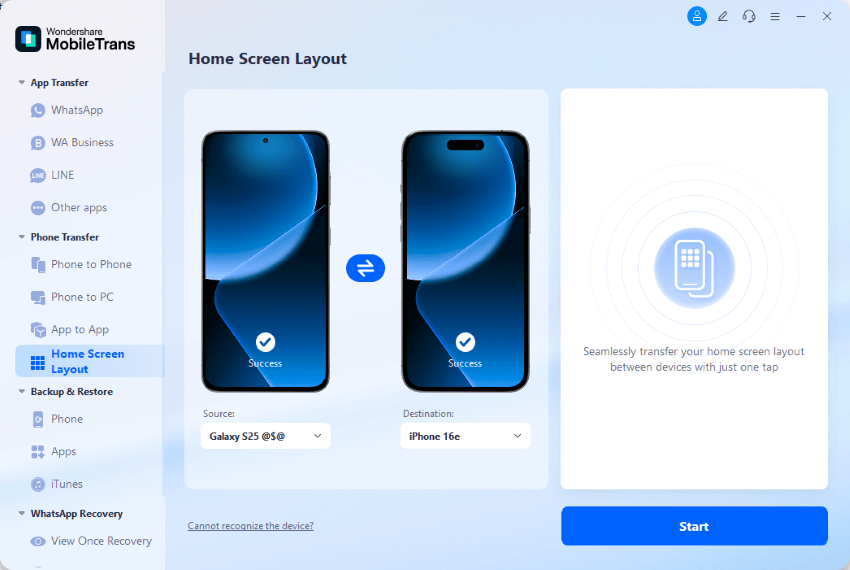
Step 1. Launch MobileTrans. Choose the "Home Screen Layout" tab > Press "Phone Transfer." Connect both phones with "Source and Destination and click "Start."
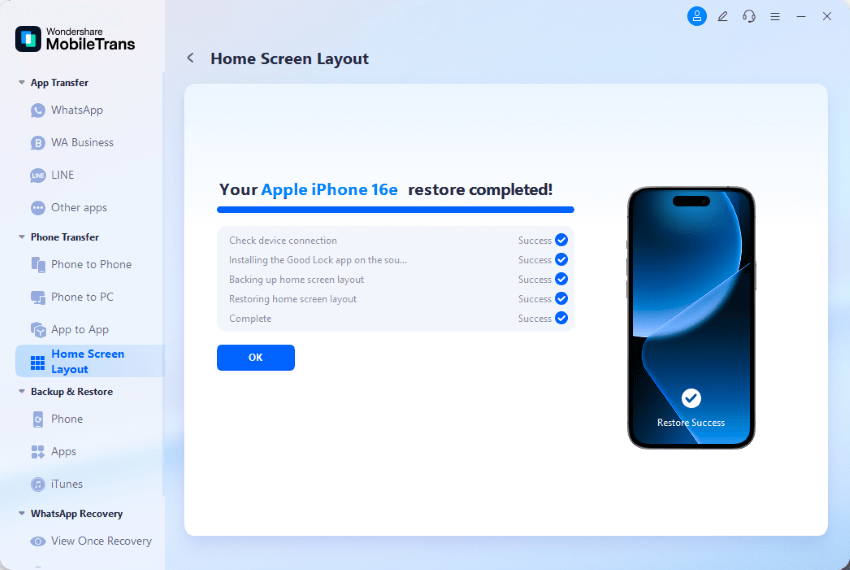
Step 2. Once the transfer starts after completing the on-screen instructions, stay there until the process is finished.
Conclusion
In conclusion, updating your phone also comes with issues like data transferring, especially the home screen layout, where you have organized everything. Therefore, this guide introduced you to the top 4 ways to transfer the iPhone home screen layout to another iPhone.
From Quick Start to iCloud Backup, we have covered everything. Among these methods, MobileTrans is the best solution, as it provides seamless migration of phone data.















