


 TL;DR:
Direct one-tap transfer of an iPhone home screen layout to a Samsung device is impossible due to operating system differences, but you can closely replicate your previous setup using automated software, specific Android launchers, or screenshot-guided manual arrangement.
● MobileTrans software can replicate your folder structures and wallpaper setup automatically, while the free Samsung Smart Switch tool only transfers the actual apps and data in 10 to 30 minutes, leaving you to organize the screen manually.
● If you prefer an exact visual match over native Android aesthetics, installing the free Launcher iOS 16 app replaces the default Samsung interface with copied iPhone icons, animations, and home screen mechanics.
● Recreating the layout manually using reference screenshots takes one to two hours but guarantees perfect placement, and you can instantly reset a cluttered layout by clearing data for One UI Home or Samsung Experience Home in your device storage settings.
Ask AI for a summary
 ChatGPT
 Perplexity
 Gemini
 Claude
 Grok
Grok
Thinking of switching from iPhone to Samsung? It's exciting—but change can feel tough. One big worry is keeping your home screen layout the same. Yes, that's right!
iPhone users love their setup. Apps are exactly where they want them. That layout becomes muscle memory. Losing it can feel confusing and frustrating. Isn't it?
The good news? You can keep that familiar feel. There are simple ways to match your iPhone layout on a Samsung phone. This guide walks you through easy steps to transfer iPhone home screen layout to Samsung.
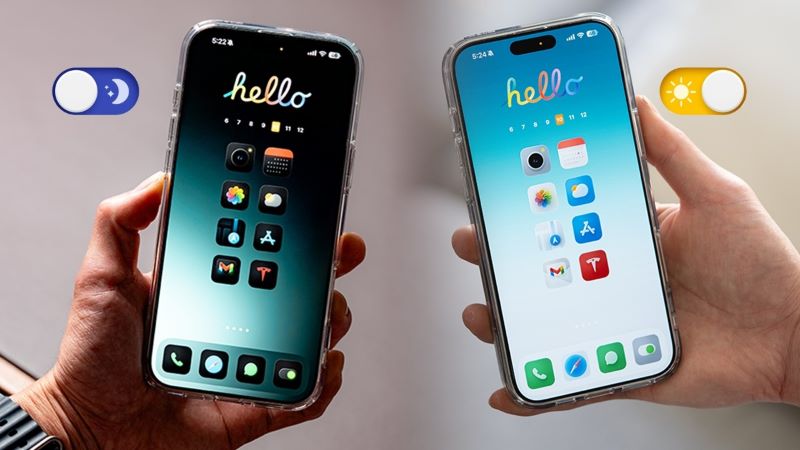
In this article
Part 1: Can You Directly Transfer iPhone Layout to Samsung?
Yes, you can recreate your iPhone layout on a Samsung device—but not transfer it directly. The systems are different, so Samsung can't copy the exact setup with one tap. Still, with a bit of manual arranging, you can get very close.
But don't worry. There are smart ways to get close. You can move apps to similar spots. You can create the same folders. Some tools help make this easier.
The key is planning ahead. Take photos of your iPhone screen first. This helps you remember where everything goes.
Part 2: Simple Ways: Transfer iPhone Home Screen Layout to Samsung?
Moving your layout takes some work. But it's not as hard as you think. The right method depends on what you want.
Some people want an exact copy. Others just want their main apps in the right spots. Pick the method that fits your needs best.
Method 1: Use MobileTrans
MobileTrans is a popular phone transfer tool. This software transfers data across different phone models. It's compatible with both Windows and Mac systems and is widely trusted for switching devices.
This method helps when you want to move everything at once. It saves time compared to manual methods. You get most of your data in the right places. Most users find it reliable and fast.
How it helps:
- Allows you to replicate your iPhone's home screen setup on a Samsung phone.
- Preserves app arrangement, folders, and wallpaper setup.
- Works for iPhone-to-Samsung, Samsung-to-iPhone, and same-brand transfers
- Saves hours of manual work
- Supports over 6,000 devices and 18+ other file types




Steps:
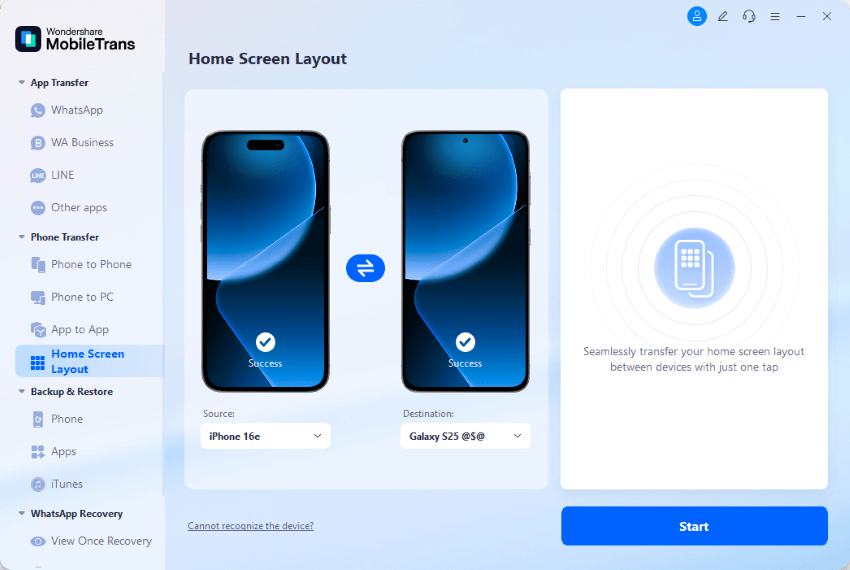
Step 1. Open MobileTrans. Choose "Home Screen Layout." You can find it on the side menu. Plug both phones into your computer with USB cables. Then hit "Start" to begin transferring the layout.
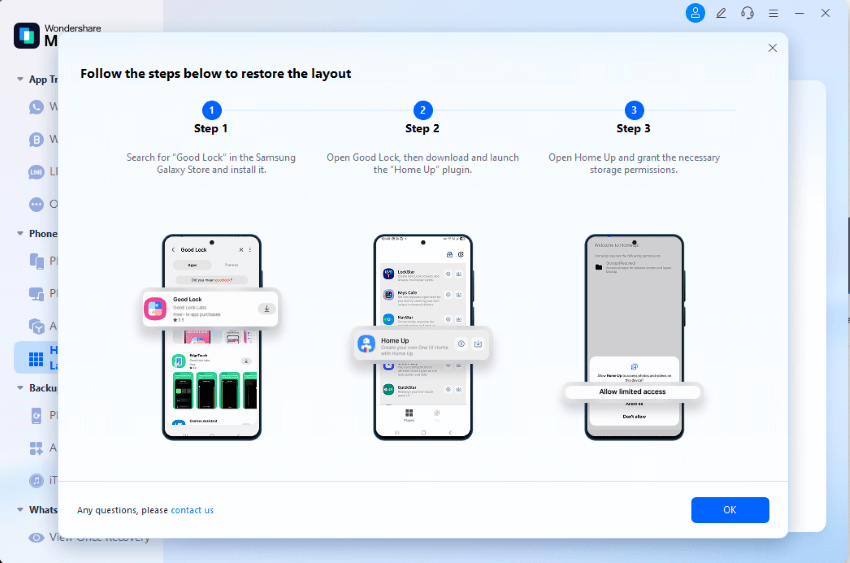
Step 3. The software will guide you through a detailed restoration process. It will display pop-up windows with instructions and options. Here's a sample of what you might see:
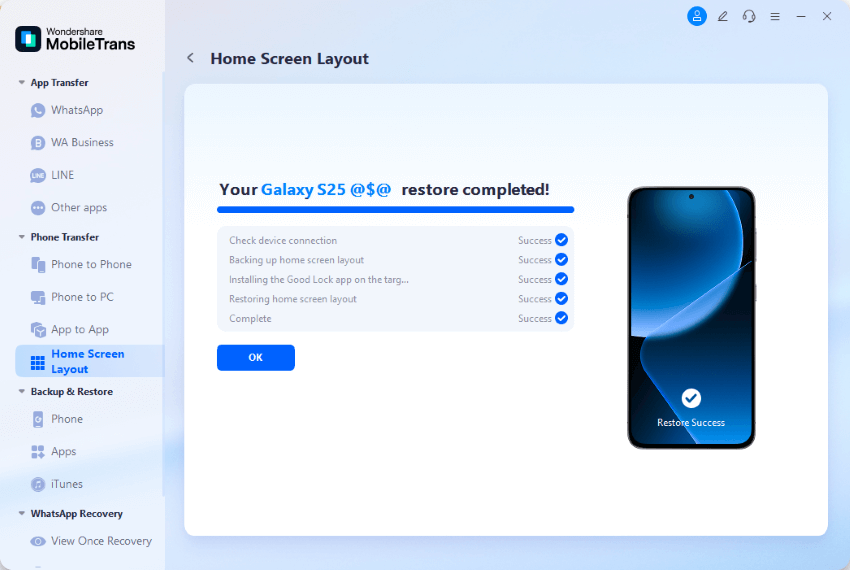
Step 4. Let the transfer run its course until it's complete. Once it's done, you'll see a message confirming the layout has been moved to your Samsung device.
Method 2: Use Samsung Smart Switch
Samsung Smart Switch is Samsung's official transfer tool. It comes free with all Samsung phones. The app is designed to move data from iPhones. Samsung built this specifically for phone switchers. It supports wireless and cable transfers.
Smart Switch focuses on getting your apps installed. It won't recreate your exact layout. But it gets your apps ready to organize. The tool moves contacts and photos, too. It works faster than most third-party apps. Samsung updates it regularly for better performance.
How it helps:
- Official Samsung tool
- Free and easy to use
- Moves contacts and photos too
Steps:
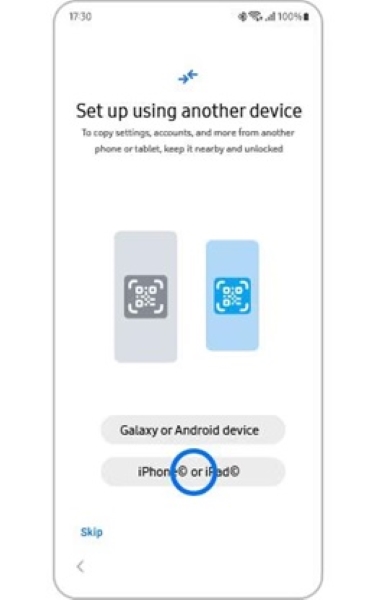
Step 1. Download Smart Switch on both phones. Open the app on your Samsung device. Choose "iPhone" as your source device. Follow the connection steps on the screen.
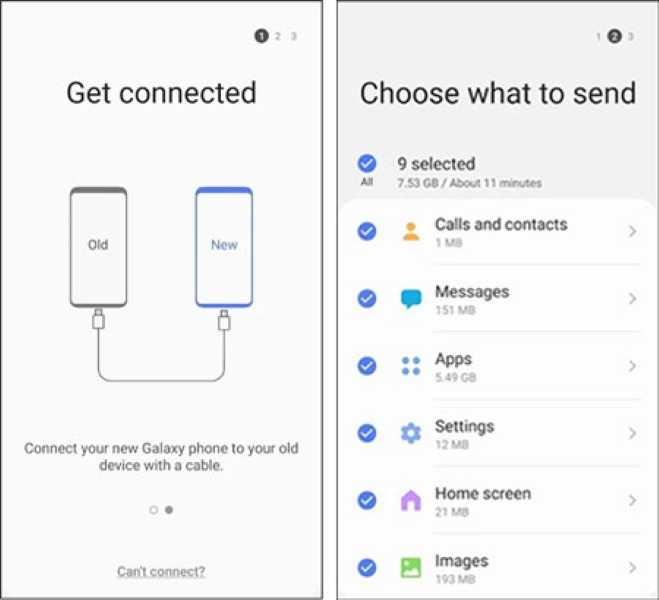
Step 2. Choose which apps and data you'd like to move. The transfer usually takes between 10 to 30 minutes, depending on how much data you have.
Method 3: Manual Recreation of Layout
Setting things up manually means doing it all yourself. It takes the longest, but gives you full control. You choose exactly where each app goes, without being restricted by any software limitations.
Take screenshots of your iPhone layout before switching. This gives you a map to follow. You can recreate folders and app positions exactly. The method costs nothing extra. It works even with older phone models. Many users prefer this for perfect results.
How it helps:
- Complete control over placement
- Perfect recreation is possible
- No need for extra tools
Steps:
Step 1. Take screenshots of every iPhone home screen page. Save these photos to look at later.
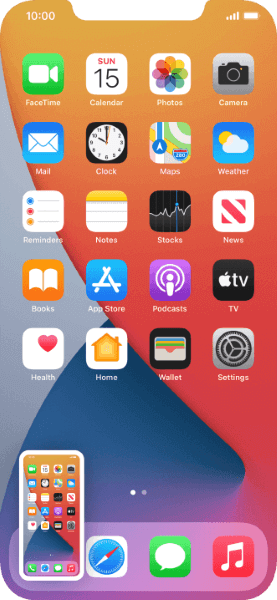
Step 2. Get the same apps from Google Play. Put them on your Samsung phone. Create folders and arrange the apps to reflect your screenshots.
Method 4: Use the Launcher iOS 16 App on Samsung
Launcher iOS 16 app makes your Samsung look like an iPhone. It offers a familiar iPhone experience to your Android. The app changes how your home screen works. It copies iPhone icons and animations. The interface feels just like iOS.
This method is perfect for people who love the iPhone look. You keep the same visual style. But you still get Android features underneath. The launcher is free to download. It updates regularly with new iPhone features. Most users adapt to it quickly.
How it helps:
- Makes Samsung look like an iPhone
- Easy to install and use
- Keeps a familiar iPhone feel
Steps:
Step 1. Download Launcher iOS 16 from the Google Play Store. Install it on your Samsung phone.
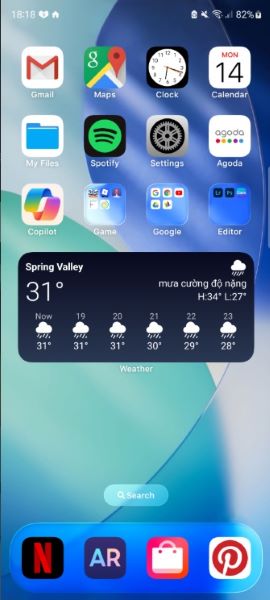
Step 2. Set it as your default launcher when prompted. This changes your home screen style. Organize apps the same way as your iPhone. The interface will look very similar.
Part 3: Cannot Transfer iPhone Home Screen Layout to Samsung: Troubleshooting Common Issues
Sometimes the process of transferring the iPhone home screen layout to the Samsung process hits problems. Here are common issues and fixes:
- Check USB cables for damage or loose connections. Bad cables cause transfer failures.
- Recreate folders manually if they didn't transfer. Folder structures often need manual setup.
- Update both phones to the latest software versions. Old software causes compatibility issues.
- Free up storage space on your Samsung device. Full storage blocks for app installations.
- Restart both phones if transfers get stuck. A fresh start often fixes connection problems.
- Try different transfer methods if one fails. Some methods work better for certain phone models.
- Check app compatibility before transferring. Some iPhone apps don't exist on Android.
Part 4: BONUS: How to Reset or Reorganize Your Samsung Layout
Not satisfied with how your home screen turned out? You don't have to keep it that way. Samsung gives you a simple option to reset everything and start clean. It's a fast way to clear the layout and remove unwanted icons or clutter.
Sometimes starting over is better than tweaking endlessly. You get to build the layout with intention, picking apps and widgets that matter most. It also helps you explore features that you may have missed during the transfer.
Samsung offers unique customization tools. You can use themes, folders, and widgets in ways iPhone doesn't. A fresh layout can be more than just neat—it can be smarter, more useful, and reflect how you really use your phone.
Steps:
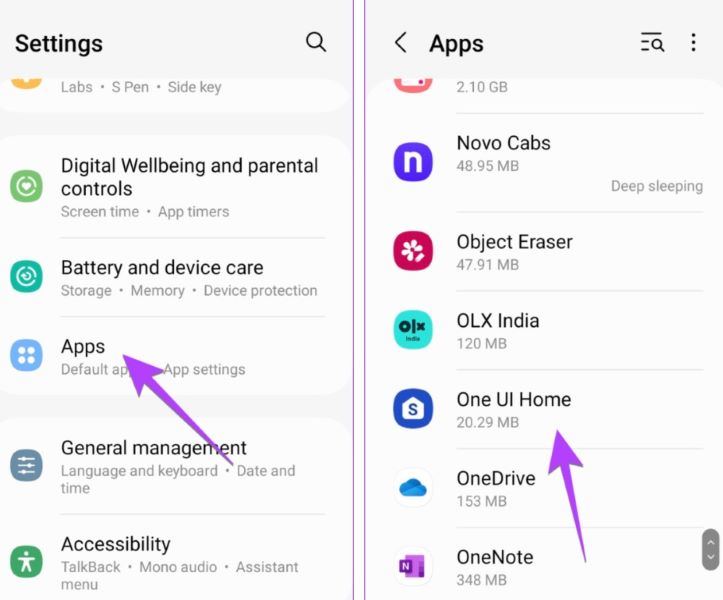
Step 1. Open the Settings app on your Samsung Galaxy phone. Scroll down and tap on Apps. Find and select One UI Home (for newer models) or Samsung Experience Home (for older models).
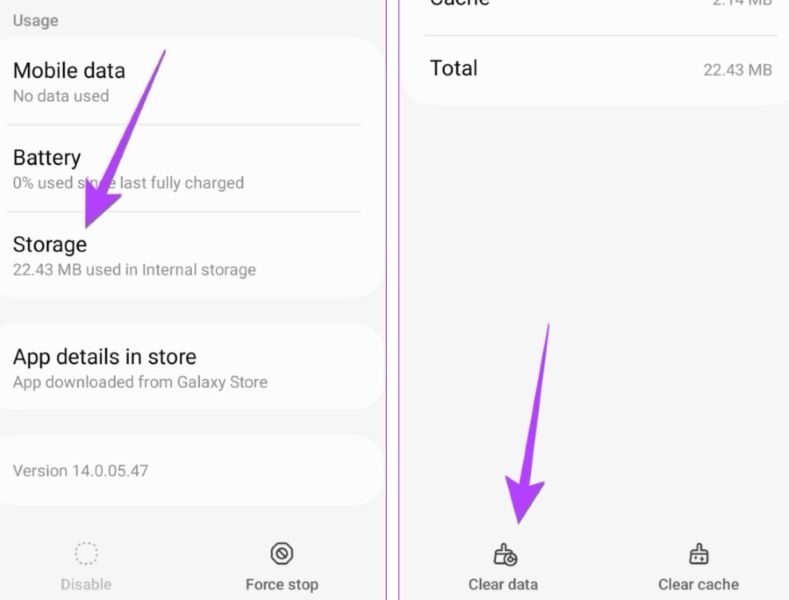
Step 2. Tap on Storage, then select Clear Data on the next screen. This resets your home screen layout to its default configuration.
Conclusion
Moving from iPhone to Samsung doesn't mean losing your favorite layout. You have several good options to transfer the iPhone home screen layout to Samsung. Each method has different benefits.
Manual recreation gives you the most control. Transfer tools save time but may not be perfect. Launcher apps provide the iPhone look you love.
Pick the method that fits your needs. Take screenshots before you start. Be patient with the process. Soon you'll have a Samsung that feels like home.
FAQ
-
Q: Can I get an exact copy of my iPhone layout on Samsung?
A: No, you cannot get a perfect copy due to system differences. Apple and Samsung use different operating systems. iOS and Android have different home screen rules. But you can get very close with the right methods. Manual recreation gives you the most control over placement. Launcher apps make your Samsung look exactly like an iPhone. Both methods create a familiar experience.
-
Q: Which method is fastest to transfer the iPhone home screen layout to Samsung?
A: MobileTrans and Samsung Smart Switch are the fastest automated options. They move apps quickly in 10-30 minutes. These tools handle bulk transfers automatically. But they may not preserve exact layouts perfectly. Manual setup takes 1-2 hours of work. It gives better results for layout accuracy. Choose speed or precision based on your needs.
-
Q: Do I need special software to transfer my layout?
A: Not always, but software makes things much easier. You can do it manually by taking screenshots and rebuilding. This method costs nothing and works on any phone. But tools like MobileTrans save hours of work. Launcher apps give you an instant iPhone look. Special software reduces mistakes and speeds up the process.










