



 TL;DR:
Standard Facebook Messenger chats automatically sync to a new phone upon login, but end-to-end encrypted conversations require you to enable Secure Storage on your old device to prevent data loss.
● For native restoration of encrypted chats, iOS users must toggle Save key in iCloud Drive and Android users must select Save key in Google Drive within Messenger's privacy settings before logging into the new device.
● The MobileTrans desktop software provides a direct device-to-device transfer alternative that supports cross-platform migration between iOS and Android, though it strictly requires a computer to facilitate the process.
● Requesting a data download through the Accounts Center only generates a standalone file for personal records and cannot be used to restore conversations into the Messenger app on the new phone.
Ask AI for a summary
 ChatGPT
 Perplexity
 Gemini
 Claude
 Grok
Grok
The journey to a new mobile usually brings a mix of excitement and worry for most users. While a fresh device promises better performance and more space, many still feel stressed. That has to do with the concern of moving their favorite apps without losing important data.
A most commonly used app is Facebook Messenger, where you probably have years of chats and media files. So, it makes sense to ask how to transfer Messenger to a new phone without losing anything. This deep dive will help you learn the easiest way to move Messenger and keep everything.
In this article

Part 1. Can I Transfer Messenger to a New Phone? Know the Truth!
Moving your Messenger account to a new mobile is quite simple with the proper steps. Many users ask the same question: "How do I transfer Messenger to my new phone?" That is because they worry about losing chats or photos during the migration. The truth is, Messenger is designed to work across multiple devices when the same Facebook account is used.
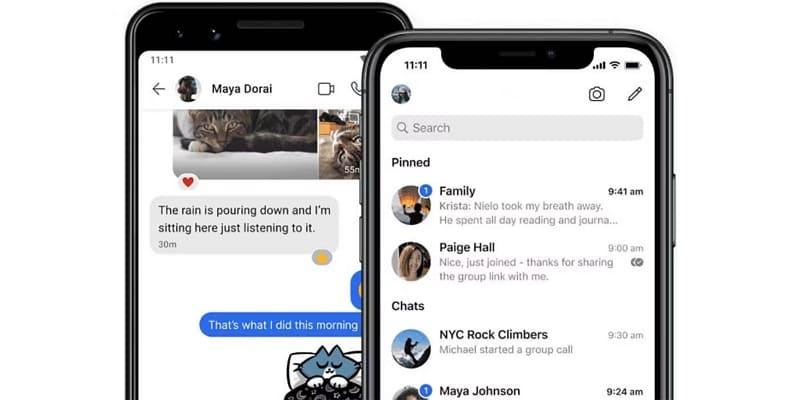
Get logged in with the same Facebook account on the new mobile to make the transfer smooth. Also, enable sync and login settings when setting up Messenger. Doing that lets the app automatically load your messages and media from Facebook's servers. In most cases, you do t need to back up anything manually for the migration. Your Messenger will restore your chat history once you sign in.






Part 2. How to Transfer Messenger to a New Phone? (Native Approach)
When wondering how to transfer your Messenger to your new phone using just the built-in settings, you're not alone. Thankfully, many simple ways to move everything using Messenger's native login approach do exist:
1. From iCloud Drive
For iPhone users who use encrypted chats, Apple's iCloud Drive now plays a helpful role in keeping their Messenger conversations safe. This method supports those wondering how to transfer Messenger to a new phone while keeping private messages protected. However, this only works if you've already turned on secure storage in Messenger and allowed iCloud Drive access. Once these settings are active, restoring encrypted messages becomes smooth using these steps:
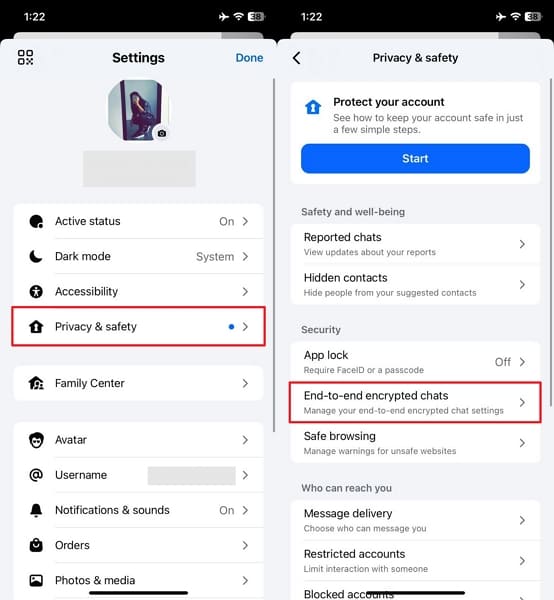
Step 1. Open Messenger on your old iPhone > Tap Menu > Go to Settings > Privacy & Safety > End-to-End Encrypted Chats.
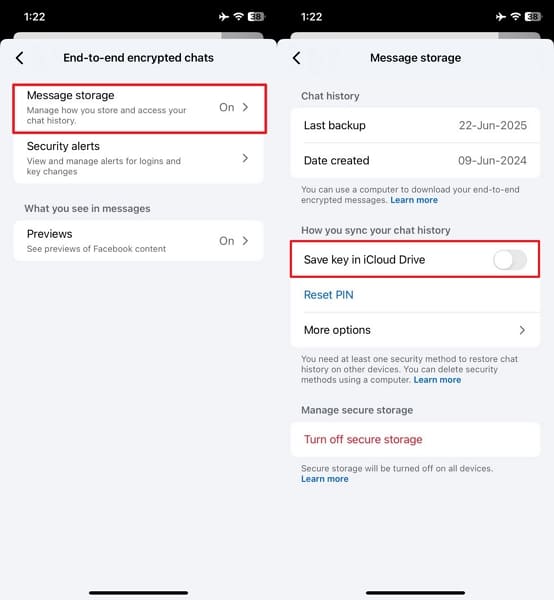
Step 2. Tap Message storage > Turn on the toggle for Save key in iCloud Drive to enable secure chat backup.
Step 3. On your new iPhone, open Messenger > Log in using the same Facebook account and tap Restore Now if prompted.
2. From Google Account
If you're using an Android phone and asking how to transfer Messenger to your new phone, Google Account integration offers a simple way. Facebook now allows users to link their encrypted chat backups to Google Drive through secure storage. Therefore, use this guide to let Messenger easily restore your encrypted conversations on a new device using your linked Google account, without needing any extra apps:
Step 1. Open Messenger on your Android > Tap Menu > Access Settings > Privacy & Safety > End-to-end Encrypted Chats.
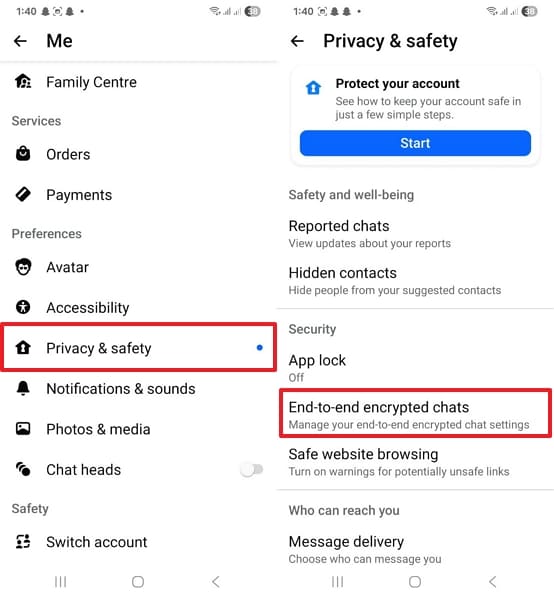
Step 2. Tap Message storage > Toggle Save key in Google Drive > Tap Continue with Google and select your Google Account.
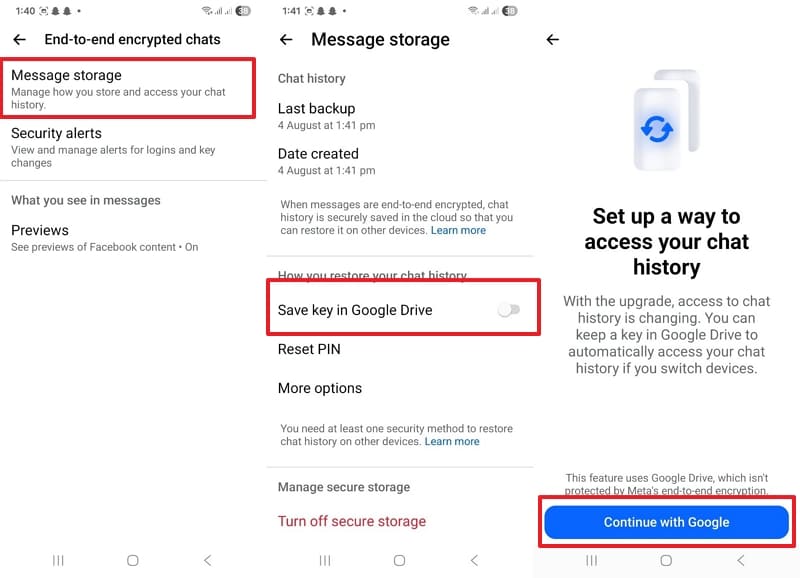
Step 3. On the new device, open Messenger > log in with old account credentials and press Restore Now, if prompted.
3. Download Messenger Messages (For Personal Backup)
Those still asking "how do I transfer my Messenger to my new phone," but want extra safety, downloading a personal backup of your messages is a brilliant idea. This method doesn't restore messages into the app but lets you keep a saved copy for your records. It's helpful if you're switching phones or want to store meaningful conversations separately outside of Messenger itself with these steps:
Step 1. Open Messenger > Tap Three Lines > Go to Settings > Press See more in Accounts Center at the bottom.
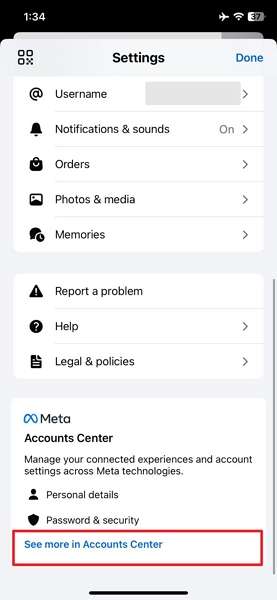
Step 2. Tap Your Information and Permissions > Choose Download your Information > Press Download or Transfer Information.
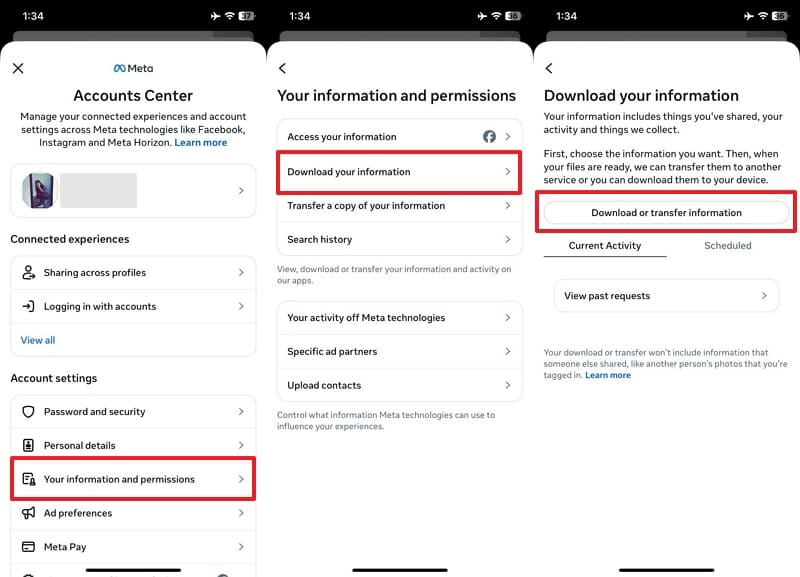
Step 3. Choose Specific Types of Information > Check Messages > Tap Next.
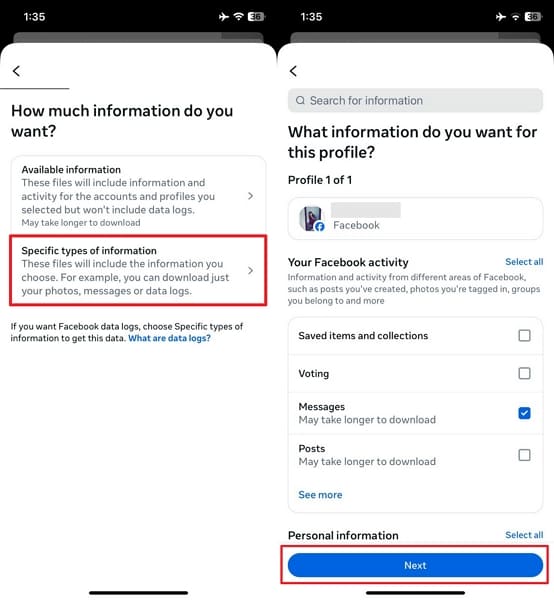
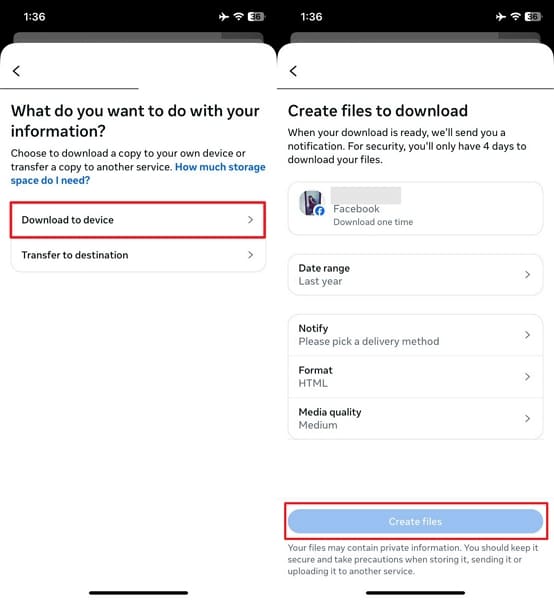
Step 4. Choose Download to Device or Transfer to Destination > Set date range, format, and quality > Tap Create Files.
Pro Tip. Migrate Your Messenger App to a New Device via MobileTrans
Still asking how to transfer Messenger to a new phone without losing anything? If you don't want to rely on backup settings or cloud syncing, MobileTrans offers a smooth and secure alternative. This tool is made for users who wish to move data directly between two phones using a computer. With its App Transfer feature, MobileTrans lets you shift Messenger data from one device to another.

Key Features
- Backup & Restore: Create complete backups of your phone data on your PC/Mac and restore anytime you want to ensure critical data is never lost.
- WhatsApp & Social App Transfer: Dedicated tools to transfer chats, media, and files from WhatsApp, WhatsApp Business, LINE, Viber, Kik, and more.
- Secure Transfer: Moves data quickly without the internet while using encryption to protect your privacy, and doesn't overwrite existing data on your new phone.
How to Migrate Your Messenger App to a New Device via MobileTrans
Adhere to the following detailed instructions to get your Messenger data across to your new mobile in no time:
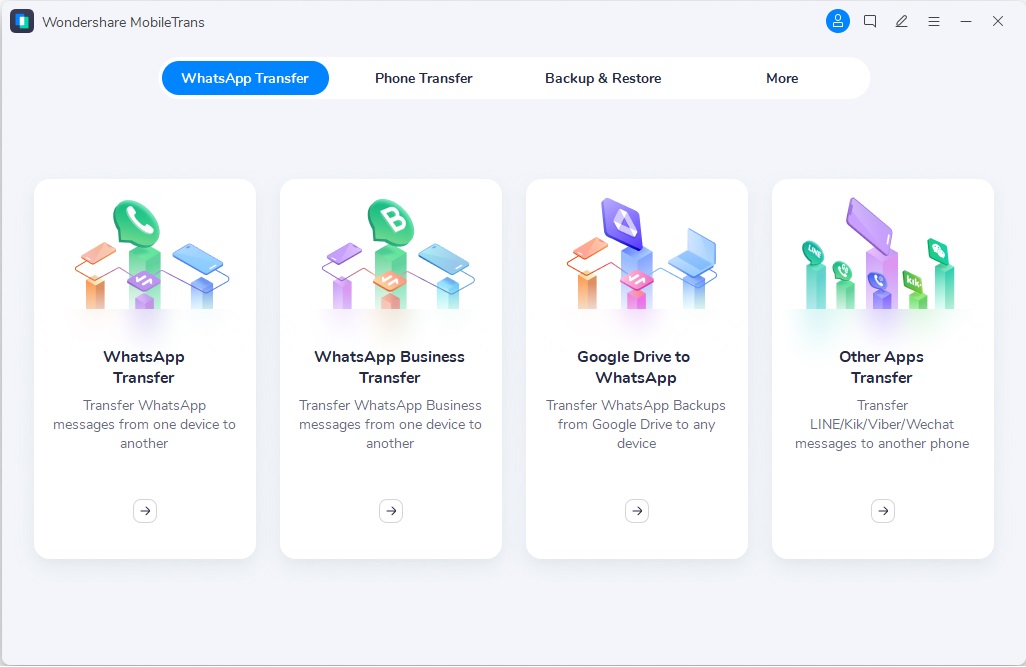
Step 1. Run MobileTrans on your computer > Select Phone Transfer > Click App-to-App to begin the process.
Step 2. Link both phones > Select Messenger > Click Start.
Step 3. Enter your App Store password when asked > Tap Confirm and wait for the transfer to complete.
Conclusion
In summary, transferring Messenger to a new phone isn't always as automatic as it seems, especially with encrypted chats. From using native Facebook tools or a dedicated app like MobileTrans, careful setup ensures no messages get lost.
From activating secure storage to restoring backups, each step helps protect your history. For anyone wondering how to transfer Messenger to a new phone reliably, MobileTrans offers the smoothest and most complete method.
FAQs
-
What happens if I reinstall Messenger before transferring?
Reinstalling Messenger on the new phone without enabling secure storage may lead to the loss of encrypted chat history. Reddit users report losing recent encrypted messages after reinstalling the app, even when older chats remain visible on desktop or other devices. To avoid this, it's best to enable secure storage on your old device and use the restore feature on the new one before logging back in. -
Why are some chats missing after switching devices?
Messages may vanish if those chats were end‑to‑end encrypted and secure storage wasn't activated. Posts show missing content labelled as "message sent before this device was added," a sign that encryption blocked sync. To fix this, enable secure storage on the old phone and restore using the same encrypted backup on your new device. -
Will logging into Messenger automatically sync chats?
Logging in alone may sync standard messages, but encrypted chats need secure storage enabled and proper restore steps. Posts show new installs missing entire conversations even after logging in. Users must back up via secure storage and restore before using the app on the latest mobile to ensure full sync.










