



 TL;DR:
To securely migrate your data to a new phone without losing media quality, you must update both devices to the latest OS, prepare your two-factor authentication apps, and choose a transfer method based on your target ecosystem.
● Cross-platform migrations using MobileTrans support over 18 data types between iOS and Android, while official tools like Move to iOS and Samsung Smart Switch successfully copy applications but clear your account logins and settings.
● Restoring from iCloud or Google Backup requires wiping the target device to access the setup phase, lacks selective file downloading, and prevents restoring a newer iOS backup onto an older iPhone model.
● Wireless sharing methods like AirDrop and Quick Start preserve original file quality, but iPhone Quick Start takes over 30 minutes to complete, and large wireless batch transfers carry a risk of freezing mid-process.
Ask AI for a summary
 ChatGPT
 Perplexity
 Gemini
 Claude
 Grok
Grok
Fortunately, transferring everything to a new phone is easier than ever. In this guide, we'll walk you through the best ways to move your data safely and quickly, so you can focus on capturing and enjoying every World Cup moment without interruption.
In this article

Part 1. Why FIFA World Cup Fans Run Out of Phone Storage?
Review the mentioned reasons and know why you need to transfer data or free up phone space during the World Cup, or after and before the tournaments:
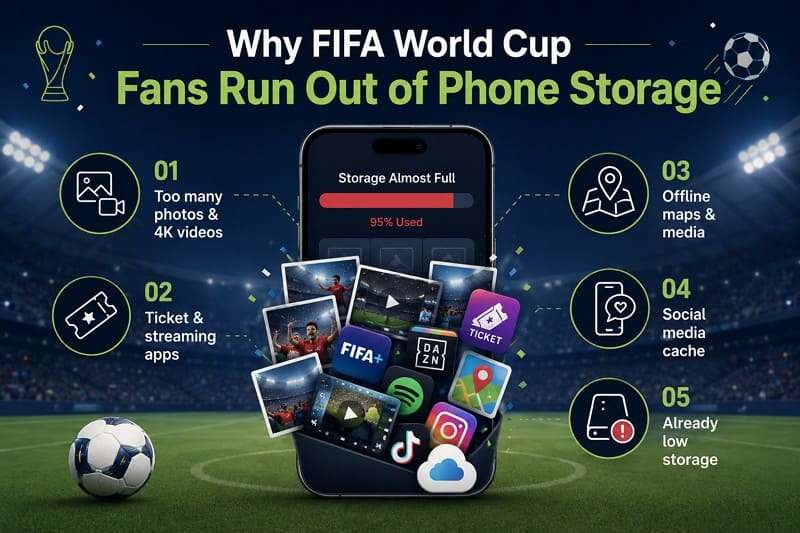
- Too Many Photos and Videos: Fans save photos and videos of the match, celebration, and stadium visits throughout the tournament. Hence, high-resolution and 4K videos use a large amount of storage in a short time.
- Official and Related Apps Downloads: World Cup fans need tickets, transport, streaming, and event apps on their phones. These apps store updates, maps, and cached files that take up extra space.
- Offline Content for Travel: Many people download maps, music, and match content before they start to travel. However, these offline files can use several GB of storage, especially during a long tournament.
- Social Media Cache and Sharing: Note that apps like WhatsApp, Instagram, TikTok, and Snapchat automatically save media files and cache data. Thus, daily data shares, downloads, and group chats can quickly fill the phone storage.
- Phones Were Already Nearly Full: Many users start the tournament with phones that already contain old photos, videos, and apps. Thus, the new FIFA World Cup content can use the remaining storage within just a few days or matches.
Part 2. Before You Switch: Quick Prep Checklist
So, as you decided to move your World Cup data to a new phone, here are some quick actions you need to take:
| What to Do | Why It Matters |
| Check Available Storage on Both Devices | Ensure there’s enough space for all your data. |
| Back Up Your Current Phone | Safety net in case anything goes wrong. |
| Update Both Devices to the Latest OS | Reduces transfer bugs and compatibility issues. |
| Connect to Wi-Fi and Charge Both Phones | Prevents interruptions or shutdowns mid‑transfer. |
| Have Apple ID / Google Passwords Ready | Needed to sign in, restore purchases, and apps. |
| Move or Prepare Your 2FA / Authenticator App | Avoids getting locked out of the bank, email, and tools. |
Part 3. Best Ways to Transfer FIFA World Cup Photos, Videos, & Data
To transfer your World Cup photos and videos to a new phone, try the 6 simple methods given in this section:
Method 1. One-Click Transfer for Any Phone: MobileTrans
MobileTrans is a phone migration tool that lets Android and iPhone users transfer up to 18 types of data, including photos, videos, contacts, messages, apps, and documents. It supports phone-to-phone, phone-to-computer, and computer-to-phone transfers and works with 6,000+ devices. Whether you are switching from Android to Android, Android to iPhone, iPhone to Android, or iPhone to iPhone, it provides a fast and secure way to move your data.
Key Features
- Transfer iCloud Data to Android: To move the data from iOS to Android, you can restore all iCloud Sync data to Android in just a few taps.
- Transfer Apps Between Devices: You can transfer multiple apps; it automatically detects all apps on your old phone and installs them in a batch on your new device.
- Simple and Secure: The tool uses military-grade encryption, has no cloud updates or Wi-Fi-based transfers, and moves data in 2 to 3 steps.
- Fast and Guided: MobileTrans is claimed to be 96.32% faster than others and provides detailed guides for sharing data across platforms.
- Batch and Selective Transfer: You can choose the data you want to share and move it in batches to reduce manual effort.






Guide to Move the Data Across Platforms Before, During, or After the FIFA World Cup
To know how this tool lets you switch phones before the World Cup by moving all important data, review the mentioned steps:
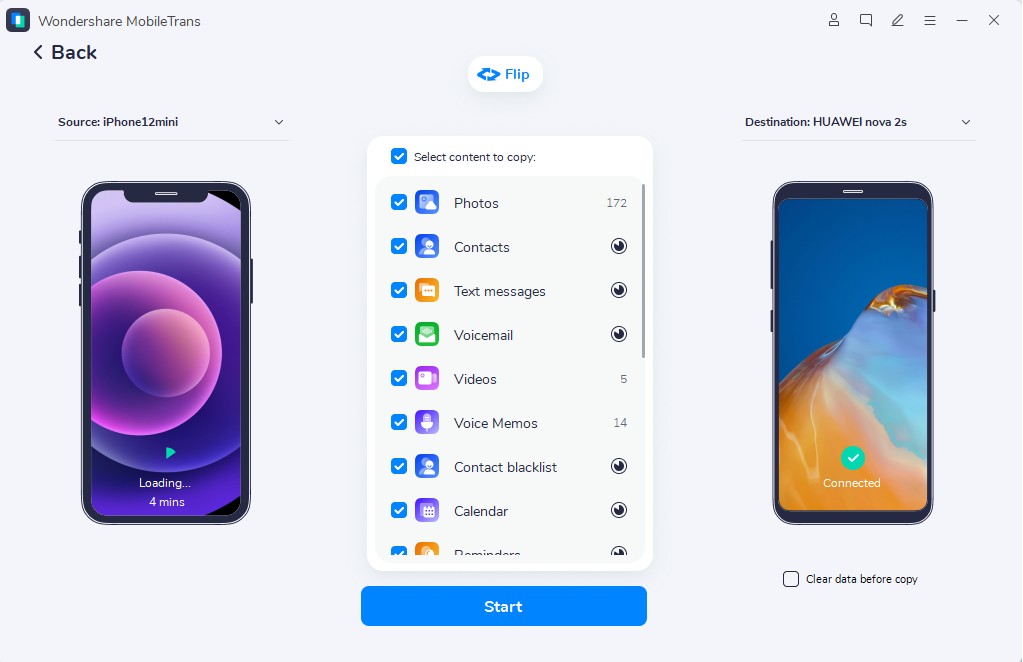
Step 1. Connect both old and new devices. Go to the Phone Transfer tab to choose Phone to Phone.

Step 2. Use the Flip icon to determine devices. Choose data types and tap Start. Wait for the tool to complete the transfer.
- Requires enough storage space on the target device.
- Interrupted transfers may require restarting the process.
Method 2. iPhone to iPhone (Quick Start)
Whether you want to move the data before, during, or after the World Cup, this is a secure option to try during the iPhone setup. You have to place the two phones together and follow the on-screen instructions when you can't free up space on your phone during the World Cup. Hence, this transfer is secure, needs no extra apps, and is guided ahead:
- Connect the phone to Wi-Fi and turn on Bluetooth to start setup.
- Place both old and new phones together.
- Keep both iPhones charged.
- Update the phones to the latest iOS.
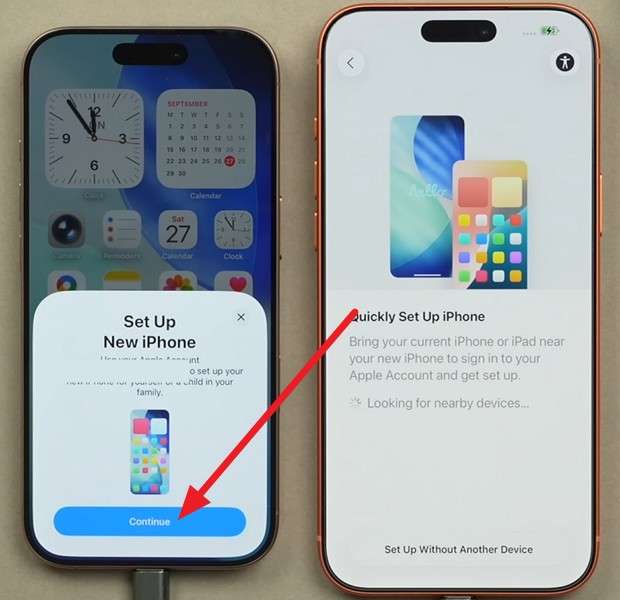
Step 1. On the Quick Start screen, pick the Continue button on the old phone. Authenticate with Face ID.
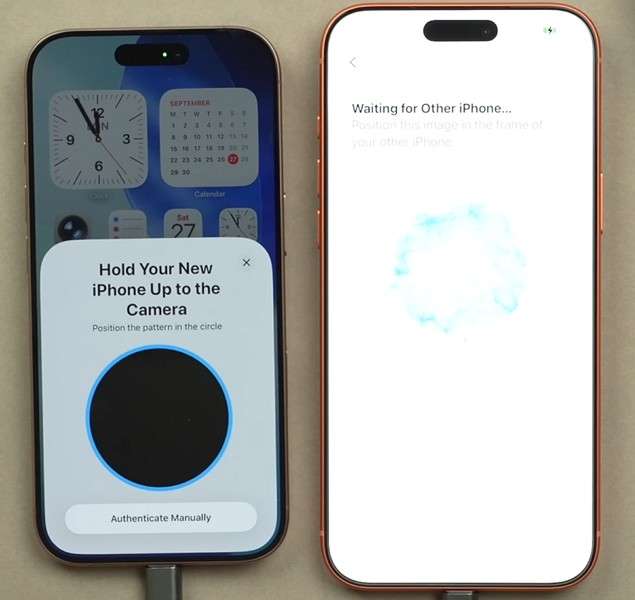
Step 2. Scan the new phone animation with the old phone. Choose the Set it Up for Me option on the old phone.
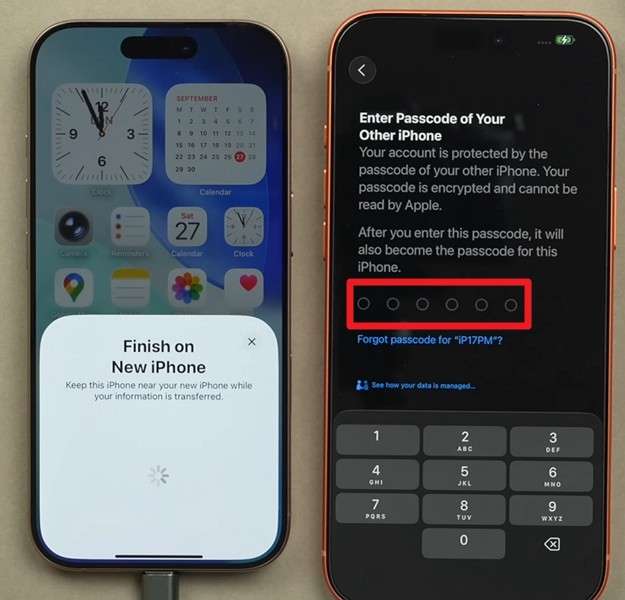
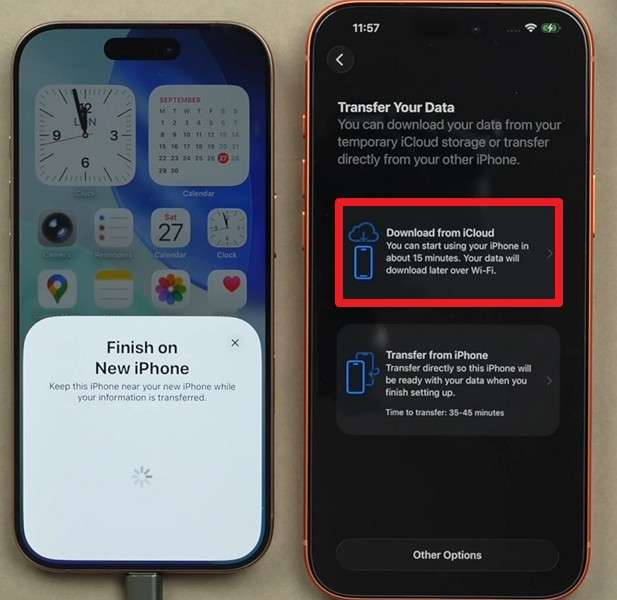
Step 3. Add the old iPhone passcode and set up the given screens. Select from the given transfer options.
Step 4. If you pick Download From iCloud and sign in, the data will be listed.
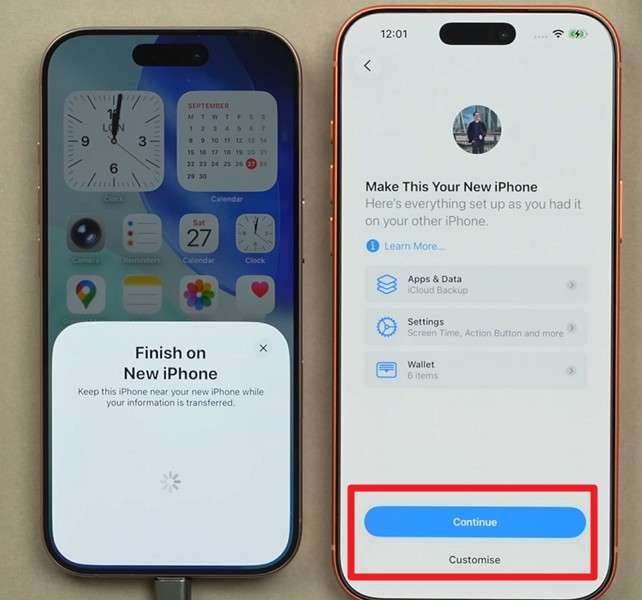
Step 5. Tap Continue or Customize to transfer selectively. Finish the rest of the setup.
- Need both iPhones nearby.
- Slow and takes more than 30 minutes.
Method 3. Move to iOS / Smart Switch
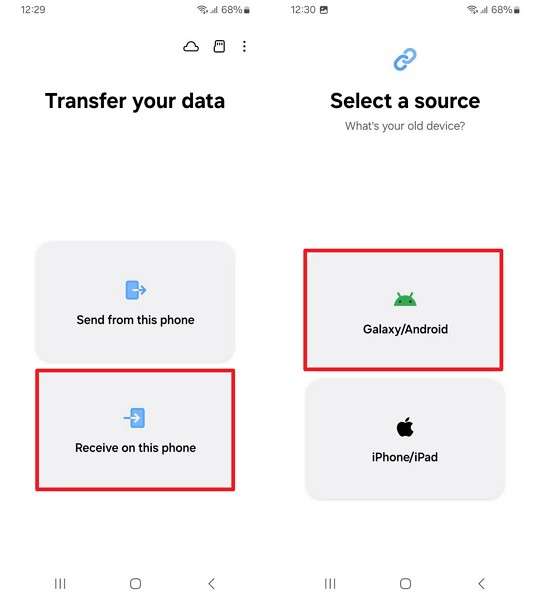
These are the official tools that let you move your World Cup data to a new phone or across devices. Move to iOS is best suited to transfer data from an Android device to a new iPhone or iPad. In comparison, you can use Smart Switch to transfer data from an old phone (Android/ iOS) to a Galaxy device. Since they are secure, here is the guide for Smart Switch to share the World Cup data:
Step 1. To use Smart Switch, install the app on both phones. Pick Wireless on the source device to get the scanner.
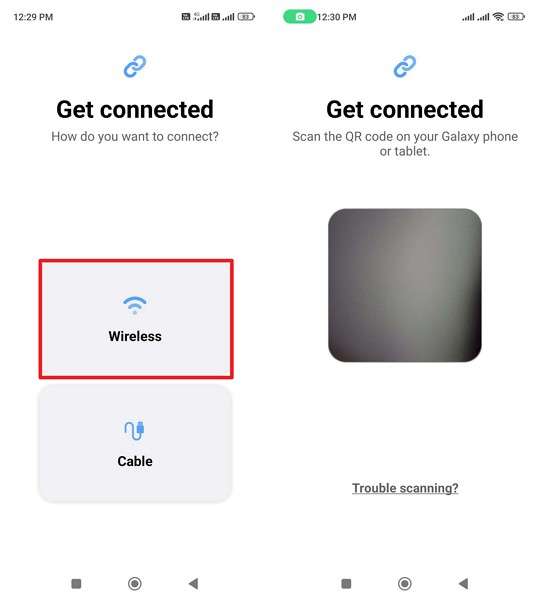
Step 2. Choose "Receive On This Phone" and "Galaxy/Android" on the target device.
Step 3. Select Wireless, then scan the QR code on the sender device. Choose Custom or Everything, then Next to move data.
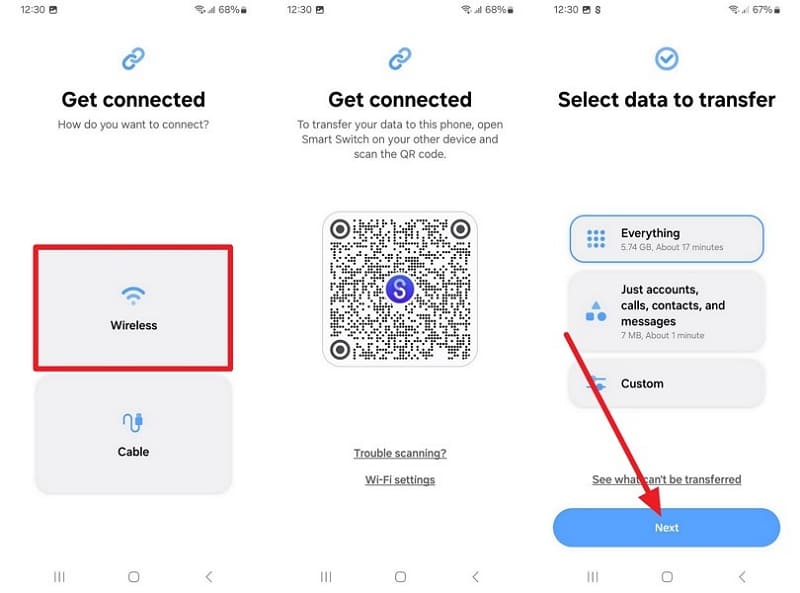
- Large wireless transfers can freeze.
- Copies the applications but clears account logins and settings.
Method 4. Android to Android (Android Switch)
Since it's Google's built-in free method for moving data, you can use it over a cable or Wi-Fi connection. With this, you can move selected data in bulk without any extra setup. For guidance, you can follow the simple steps to transfer your World Cup photos and videos to a new phone:
Step 1. Pick the Pixel or Android Device option on the new phone.
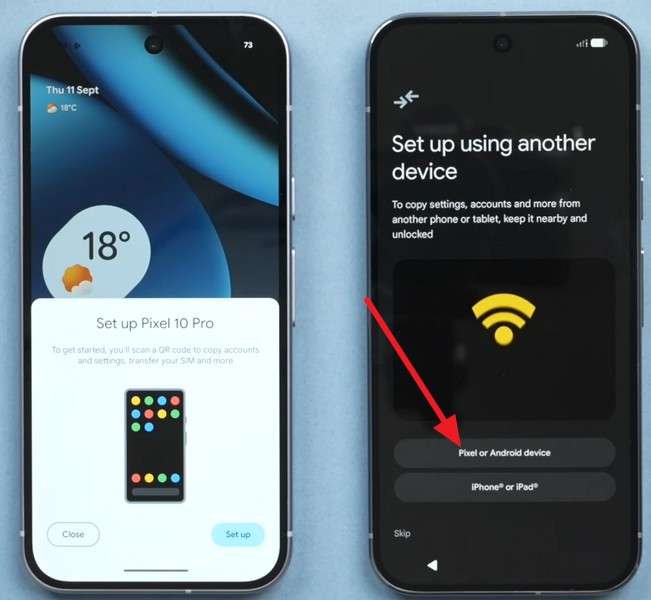
Step 2. After scanning the QR code, select the Set Up option on the old phone.
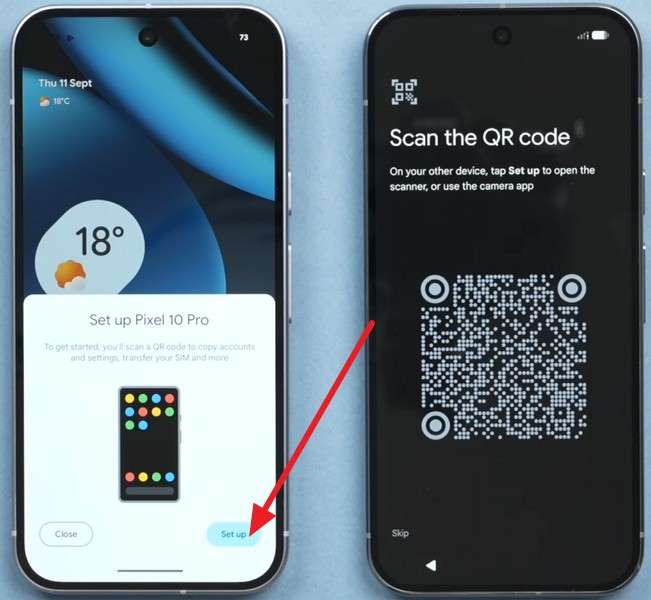
Step 3. Enter the old phone passcode, then insert a SIM card if you want.
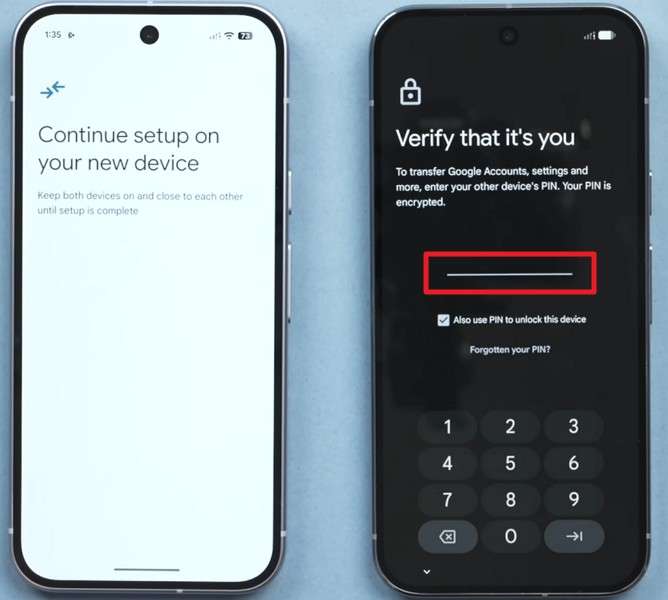
Step 4. Follow the setup instructions and choose Next on the Copy Apps and Data interface.
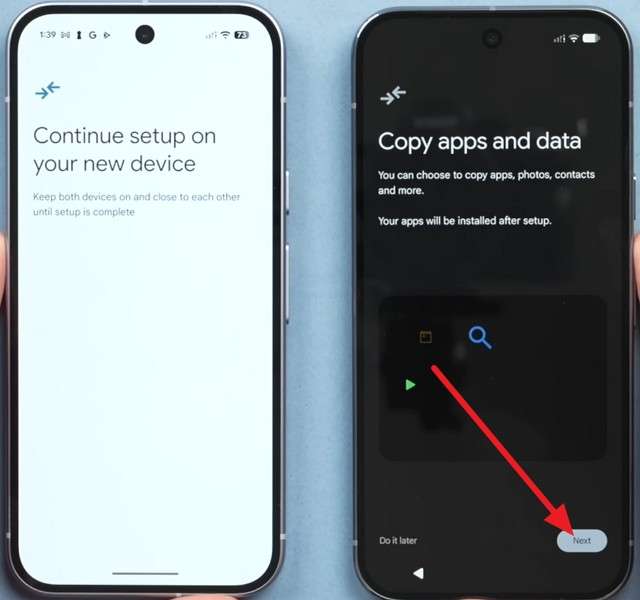
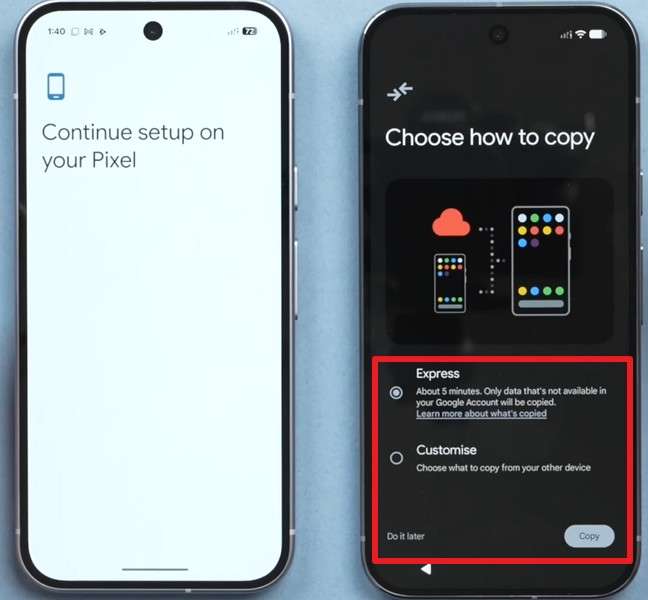
Step 5. Pick one of the how to copy options, then tap the Copy button to move the data. Continue the rest of the setup.
- Restore is usually tied to device setup.
- Depends heavily on prior backups.
Method 5. Use Cloud Backups Options
When you decide to switch phones before the World Cup, after or during the matches, you can also try the mentioned Cloud ways:
Option 1. Restore Data from a Cloud Backup [iCloud/Google]
This option is best when your phone is lost or damaged, and you need a quick new phone setup transfer. Since this option can restore data while preserving media quality, you need to have automatic backups enabled. Once the conditions are met, here is how you can restore the data from iCloud and Google Drive Backup:
Restore iCloud Backup
Step 1. Go to Apple ID > iCloud > iCloud Backup > Enable Back Up This Phone, then tap Back Up Now on the old phone.
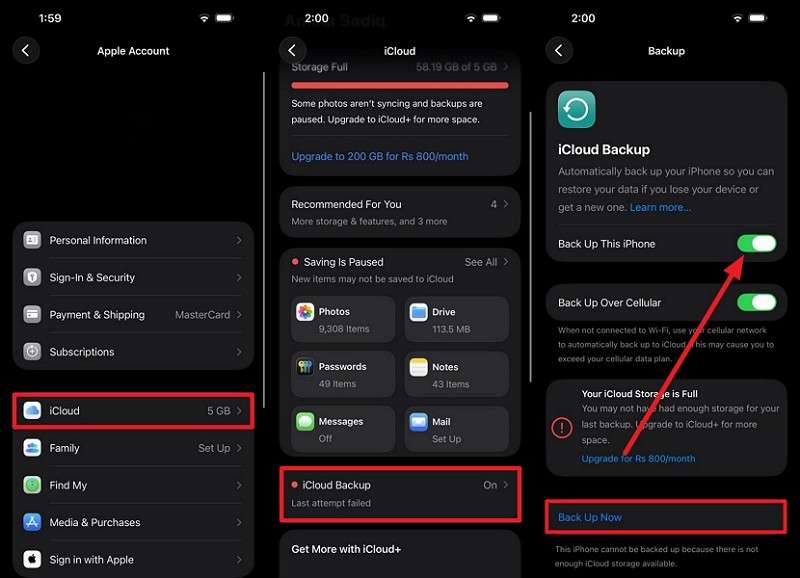
Step 2. Set up a new iPhone and choose the From iCloud Backup option. Add Apple ID and agree to the terms.
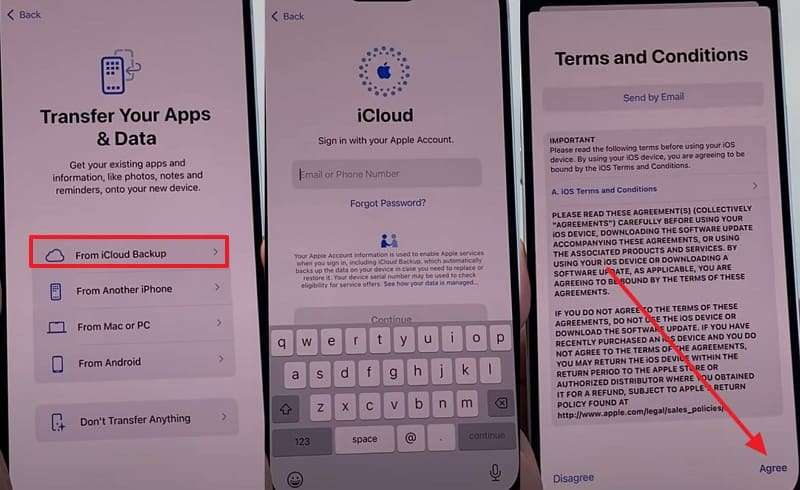
Step 3. Select the required iCloud backup, then tap Continue to restore the data.
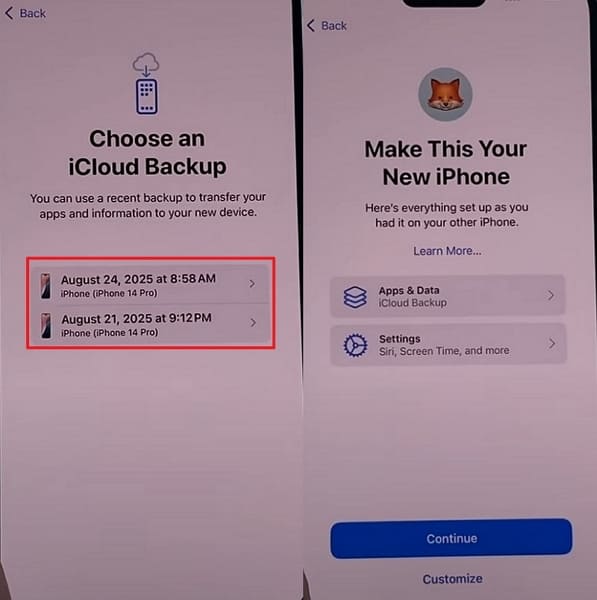
- Cannot restore newer iOS backups onto older iPhone models.
- Slow Wi-Fi connections affect the data transfer time.
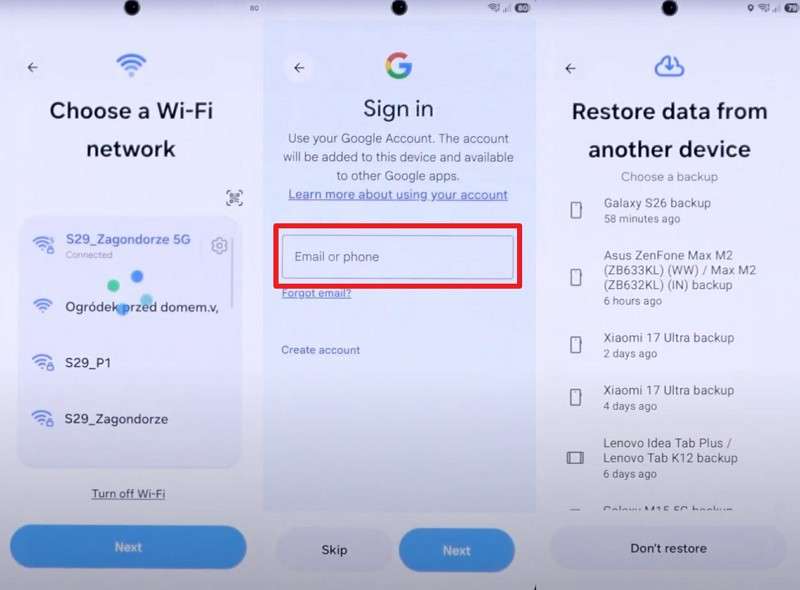
Restore Google Backup
Step 1. Head to Android Settings, go to Google > All Services > Backup > Back Up Now to back up.
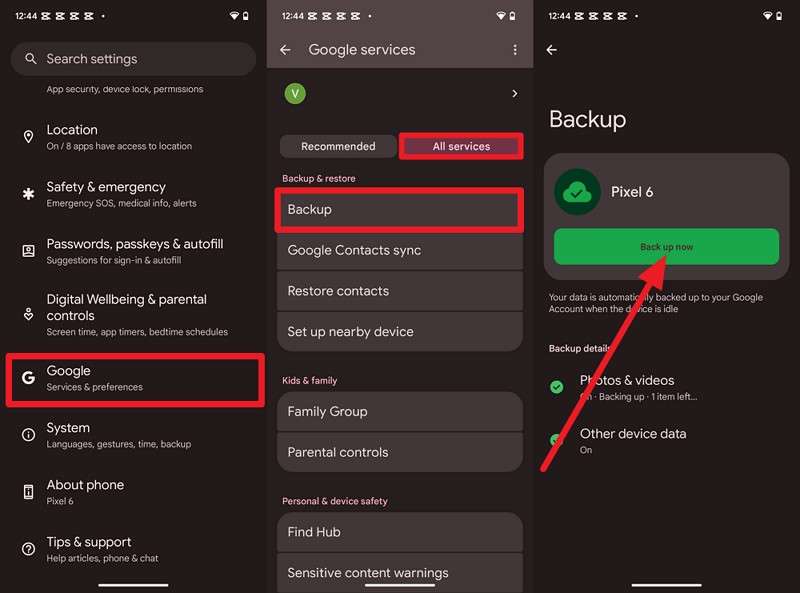
Step 2. Pick the Set Up Manually > Next > Can’t Use Other Device? options as you set up a new device.
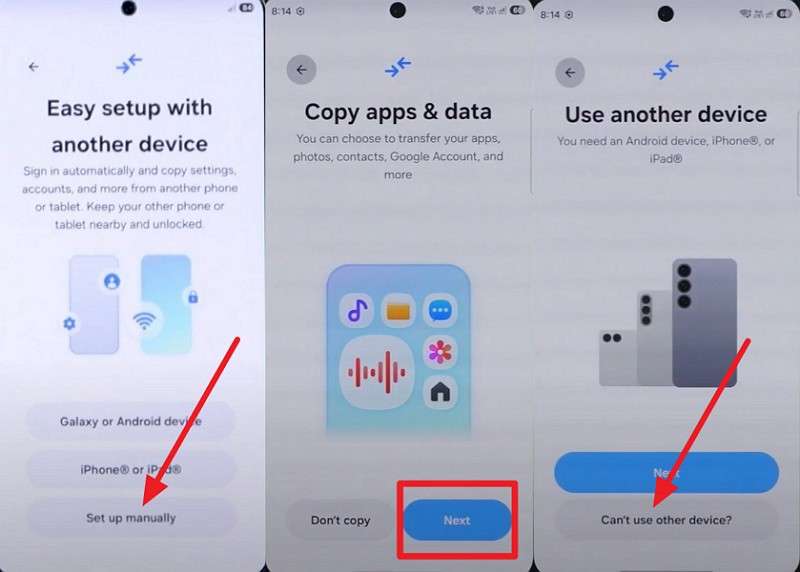
Step 3. While connected to Wi-Fi, sign in to your Google Account and choose the backup you want to restore.
- Cannot selectively download specific files or individual apps.
- Must wipe the device to access the backup restore phase.
Option 2. Google Photos, OneDrive, or Dropbox
You can move your World Cup data to a new phone either by uploading it or by using the backup option in Google Photos. Regardless of the method you opt for, you can access the data across any device without having any quality effect, as guided:
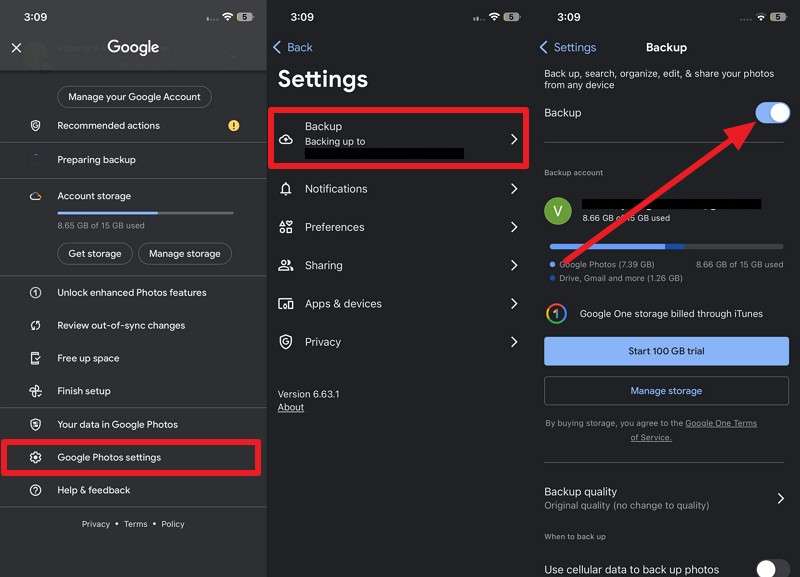
On iPhone
Instructions. On Google Photos, go to Profile icon > Google Photo Settings > Backup > Backup.
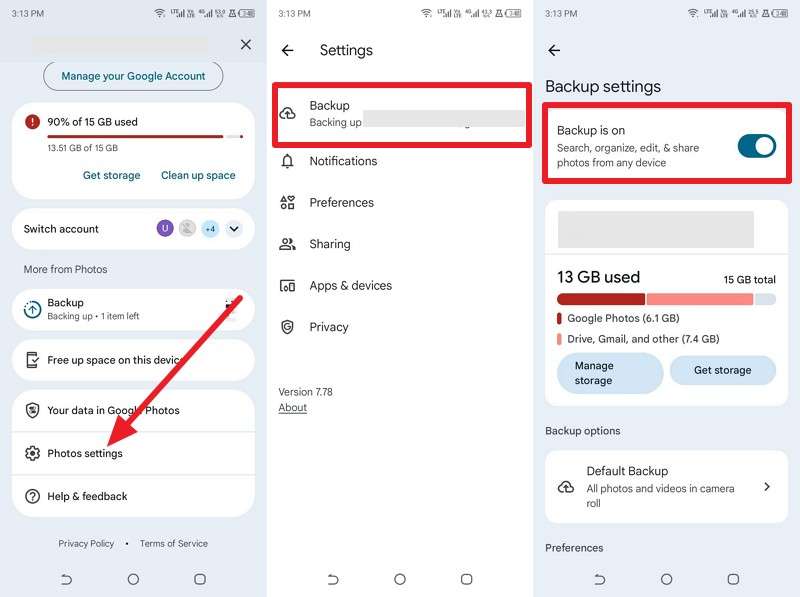
On Android
Instructions. Press the Profile icon in the Google Photos app > Photo Settings > Backup Up > Backup Is On.
- Only offers 15GB of free storage for backup.
- Large libraries can take days to appear offline fully.
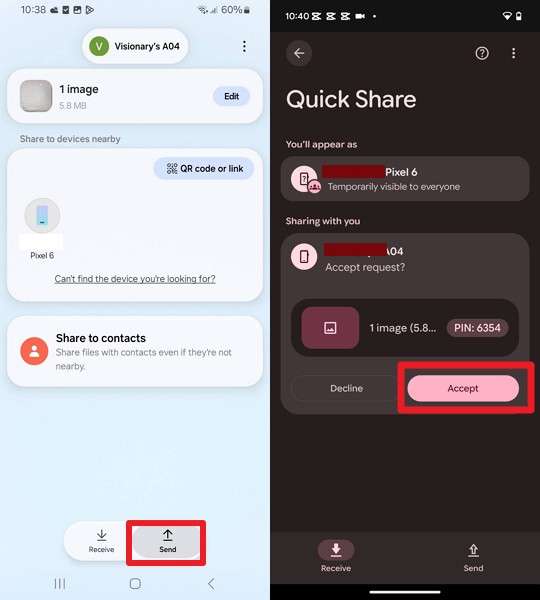
Method 6. Nearby Share / Quick Share / AirDrop (Wireless Transfer)
You can try this method during the tournament if you have a secondary device to transfer your World Cup photos and videos to a new phone. Since they are wireless and work through direct Wi-Fi, no quality will be lost. So, to use the Share or AirDrop option, try the steps mentioned below:
Step 1. Long-press the media you seek to move. Choose the Share and Quick Share options.
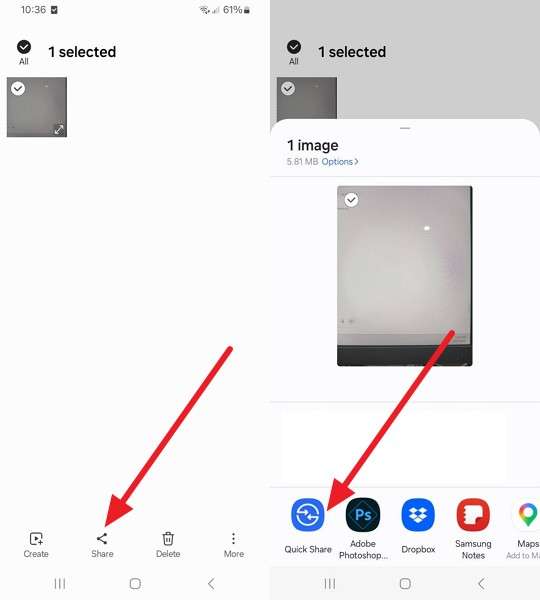
Step 2. Choose the Send option to select the device. Pick Accept on the new device.
- Devices must be physically close.
- Sending multiple files is slow; it needs multiple batches.
Part 4. How to Avoid Storage Problems During the Rest of the FIFA Tournament?
So far, you know how to move your World Cup data to a new phone without any loss. Review these practical tips to avoid storage issues on the next day of the tournament:
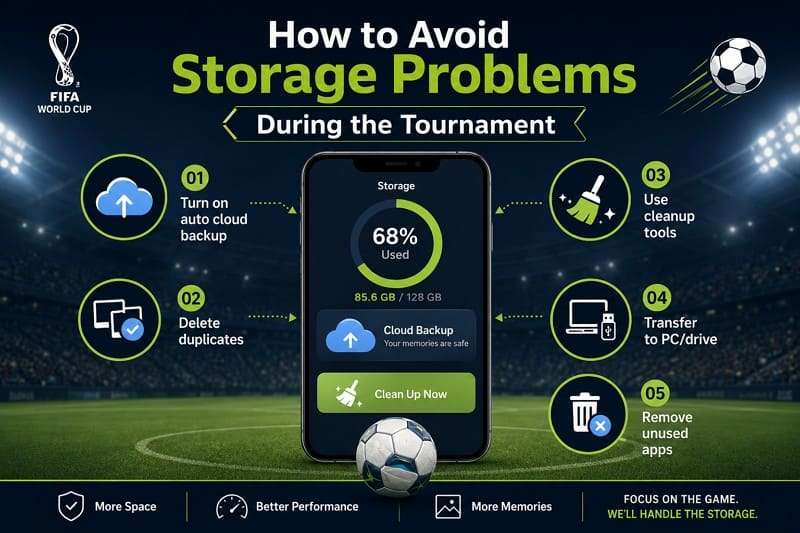
- Auto Cloud Backup: Turn on Google Photos or iCloud Photos so that all World Cup media is automatically saved in the background. After backup, delete local files or use the Free Up Space and Optimize storage options to keep them only in the Cloud.
- Remove Duplicate Clips: Delete repeated goal videos, accidental recordings, and duplicate screenshots of tickets and matches. If you clear regularly during the tournament, you can free a large amount of space.
- Use Storage Cleanup Tools: Use built-in tools on Android and Storage Settings on iPhone to remove junk files and old downloads. In addition, clearing app caches quickly restores storage without deleting important media.
- Transfer to Computer or Drive: Move match photos and videos to a laptop or external drive using a USB cable for safe backups. Once you confirm the transfer, delete the files from the phone to free up a large amount of space.
- Remove Unused Apps: Uninstall or offload apps and games you don’t need during the tournament. This instantly frees up storage and helps prevent “storage full” issues during important FIFA World Cup moments.
Conclusion
If you have decided to switch phones before, during, or after the World Cup, data transfer might concern you. So, review all the transfer methods mentioned in this guide to choose the one that suits your expertise. Nonetheless, if you have a setup device and need to move an app and multiple data items in bulk, MobileTrans is an ideal choice.
FAQs
-
What is the fastest way to move World Cup photos to a new phone?
Since cable transfers are secure, use tools like MobileTrans to transfer 18+ data types between devices. -
Can I transfer data without losing video quality?
Yes, cloud backups, AirDrop, Quick Share, and MobileTrans keep original quality without compression. -
What should I back up before switching phones?
Backup photos, videos, WhatsApp Chats, contacts, apps, and tickets or QR code files.










